 TL;DR:
Restoring missing Final Fantasy Resonance save data requires identifying whether your progress is hidden by strict edition restrictions, blocked by a demo-import rule, or genuinely deleted from your local drive.
● Demo progress can only carry over to the full release if no full-game save data already exists, meaning you cannot import earlier progress once a new campaign is created.
● Nintendo Switch and Switch 2 editions explicitly do not support save transfers in either direction, and because Switch 2 saves are stored in system memory, scanning a microSD card will not recover lost data.
● PC file recovery tools apply exclusively to deleted local files on accessible drives and cannot retrieve overwritten PlayStation Plus server copies, bypass Steam Cloud sync mismatches, or convert incompatible storefront saves.
Ask AI for a summary
 ChatGPT
 Perplexity
 Gemini
 Claude
 Grok
Grok
You finished the demo, installed the full game, or moved to another device, but the progress you expected is not there. Before starting again, work out whether the problem is an unsupported transfer, a demo-import restriction, a cloud-sync mismatch, or an actual missing file. Those situations need different solutions.
Final Fantasy Resonance launched on October 22, 2026, for PC, PlayStation 5, Nintendo Switch, Nintendo Switch 2, and Xbox Series X|S. Availability on several platforms does not mean one save works everywhere. In particular, the two Nintendo editions have an important restriction that matters before you change versions.
This guide separates the official transfer rules from file-recovery options. It does not assume that the launch has caused a widespread save-loss problem.
In This Article
Part 1. Check Which Version Can Use Your Save
The name on the game icon is not enough to establish compatibility. Match the game edition, storefront, and player account before treating absent progress as deleted data.
Switch and Switch 2 Editions Do Not Share Saves
The publisher notifications on Nintendo's Final Fantasy Resonance Switch 2 listing explicitly rule out transferring saves in either direction between the Switch version and the Switch 2 version. The listing also identifies them as separate products.
This is an edition-compatibility limitation, not evidence that your earlier progress disappeared. A save still available in its original edition does not become compatible with the other edition merely because you copy files or change hardware. Keep the original game, account, and device available while deciding how to continue.
There is also a storage distinction: Nintendo Switch 2 stores save data in system memory, not on the microSD Express card or game card. Scanning a card that holds downloaded software, screenshots, or videos is therefore not a route to the console's missing game progress. Recovering a gameplay recording is a separate task from restoring a playable save.
Steam Cloud and Xbox Play Anywhere Are Different Systems
The Steam edition lists Steam Cloud support. That provides a Steam-based synchronization route; it is not a promise of save compatibility with every other storefront.
Separately, Xbox's launch announcement identifies Xbox Play Anywhere support. Microsoft's Play Anywhere documentation explains shared progress across supported Xbox and Windows devices for participating titles. Do not extend that statement to a separately purchased Steam, PlayStation, or Nintendo edition.
The practical question is not simply, "Did I buy the same game?" It is, "Does this particular edition support the route between these two devices?" Resolve that before replacing any local files.
A PS5 Cloud Copy Must Already Contain the Progress You Need
For PlayStation 5, PlayStation Plus cloud storage can upload and download saved data. Sony describes automatic synchronization of the most recent data; it is not an assurance that every older checkpoint remains available.
A cloud restore is useful only when the stored copy is the one you want. Compare the available information before replacing console data, and do not upload an unwanted new save over a potentially useful cloud copy. No PC storage scan can retrieve a historical save from Sony's servers.
Part 2. Why Demo Progress May Not Appear in the Full Game
Square Enix's demo-save transfer rules say that progress can carry over, but only when no full-game save data already exists. Once a full-game save has been created after transfer, later demo progress cannot simply be imported on top of it.
The same guidance says that EXP beyond a demo level or progression cap is not stored. Missing excess EXP is therefore not a deleted-file problem.
On Steam Deck, the publisher specifies Steam Cloud for demo-to-full-game transfer and says Cloud Save Data must be enabled for both the demo and the full game. A setting enabled for just one is not sufficient to meet that requirement.
Starting a new full-game session before dealing with the demo may therefore change your situation. The publisher documents deleting existing full-game data as a prerequisite for importing an updated demo save again, but that is a destructive choice, not a routine troubleshooting step.
Decide which progress you intend to keep. Preserve any independently exportable copies first; on a platform that does not offer a suitable backup, do not assume a cloud copy is a protected archive. Keep the existing saves untouched and ask publisher support about your exact edition and account before deleting anything.
For example, "My demo is still playable, but the full game already has a new campaign" points first to an import condition. It does not, by itself, justify recovery software or a reinstall.
Part 3. Diagnose Missing Progress Before Changing Files
Start with what you can observe: the last device that showed the correct progress, the edition used there, whether the expected files still exist, and any synchronization warning. Preserve that evidence rather than repeatedly launching the game and making new saves.
| What You Observe | First Interpretation to Check | Safest Next Decision |
| The original Nintendo edition still shows your progress, but the other edition does not. | The documented Switch/Switch 2 edition restriction. | Continue with the compatible edition; do not delete the original save to force a transfer. |
| The demo has progress, but the full game already contains another save. | The demo-import precondition. | Choose which progress to preserve before considering any reset. |
| One Steam device shows an older checkpoint or reports a sync error. | An incomplete upload, download, or conflicting copy. | Keep both copies and resolve synchronization before creating more progress. |
| The game crashes, but the expected save files remain. | A loading or installation problem, not proven deletion. | Back up those files before troubleshooting the game installation. |
| Known local save files were deleted, or their volume was formatted. | A genuine local-file recovery problem. | Stop writes to that volume; look for backups before scanning it. |
Valve's Steam Cloud guidance warns that continuing to play despite synchronization problems can create conflicts and risk losing progress. A newer timestamp is not conclusive evidence of a better save: it could belong to the unwanted new session you just started.
Keep the device that last held the desired progress out of further play while you assess the copies. When local backups are possible, make them with the game closed and preserve the complete relevant save folder, not a guessed individual file. Store those copies on another healthy drive. A copy on the same disk may not survive a disk failure or reformat.
Be equally careful about where you look. Steam installation folders identify downloaded game software; they do not establish this game's personal save location. A game installed on an external drive may still keep user data elsewhere.
No universal Final Fantasy Resonance save-folder path is established here. Confirm the location for your exact platform and edition before copying, replacing, or scanning files. Do not substitute another Final Fantasy game's path, assume all saves end in .sav, or treat a Windows path as a verified Steam Deck location.
Game installation checks also have a different purpose. Valve's installed-file verification procedure checks game files; it does not establish a way to reconstruct your personal campaign progress. If local saves were actually deleted, protect that storage before downloading or reinstalling a large game onto it.
Part 4. Restore a Previous Windows Backup Without Replacing Your Only Copy
This method applies only when a Windows backup already covered the relevant save folder before the loss. Having File History enabled for Documents or Pictures does not prove that a game's save location was included.
Microsoft's File History restoration instructions describe checking earlier folder versions and restoring to another location. Use that separate destination to examine an older copy without destroying the current one.
Step 1. Find a Backed-Up Version of the Correct Folder
In File Explorer, go to the folder that contained the missing save. Right-click it and choose "Restore previous versions." Look for a version from before the loss. Confirm that you are inspecting the actual save location, not merely the game's installation folder.
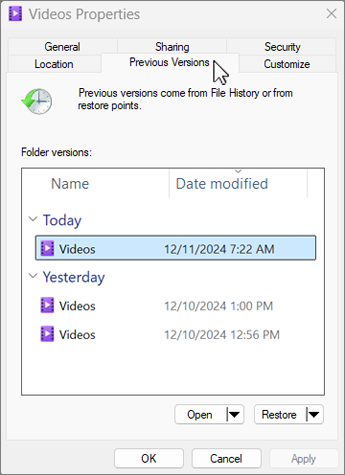
Microsoft Windows interface example. Used with permission from Microsoft.
Step 2. Inspect the Backup Before Restoring It
Select a candidate version and use the available "Open" option to inspect its contents. Keep the folder structure and any related files together. Do not assume that one file with the newest date is a complete save set.
Step 3. Restore to a Separate Destination
Use the arrow beside "Restore" and select "Restore to..." to choose another folder, preferably on a different healthy drive. Retain both the recovered backup and the current files until you have verified which copy contains the progress you need.
An empty version list is not proof that recovery is impossible; it means this route has not provided a usable earlier copy. Check backups you actually created, including an external-drive copy. Enabling File History now cannot recreate a backup from before the deletion.
Part 5. Recover Deleted PC Save Files When No Usable Backup Remains
File recovery becomes relevant when the required local files are genuinely missing and compatible cloud copies or earlier backups do not supply them. This is a different problem from getting an existing save accepted by another edition.
Confirm That File Recovery Fits the Problem
Recoverit can be considered for deleted or lost files on storage the computer can detect. For this article, that means accessible PC storage that actually held the save files, not a Nintendo system-memory save or an unavailable cloud-server version. This is a general local-file recovery workflow, not a claim of a specially tested Final Fantasy Resonance recovery feature.
Stop using the affected volume as soon as you identify deletion. Do not install the recovery application there, save scan output there, or restore files back onto it. Continued writes can overwrite recoverable data. If the disk repeatedly disconnects, makes unusual noises, or has physical damage, stop repeated scans and consult a recovery specialist.
Recovery software does not convert incompatible saves, reproduce progress that was never saved, bypass console encryption, or guarantee that a recovered proprietary save will load. Those limits matter more than the number of files a scan finds.

Lost Your Final Fantasy Resonance Save? Don't Start Over Yet
Hours of progress shouldn't disappear without a fight. If your Final Fantasy Resonance PC save files were deleted or lost after formatting, Recoverit can scan the original, detectable drive for recoverable data. Save found files elsewhere and check them in the matching game edition.
Scan the Original Save Drive and Recover Elsewhere
The Recoverit recovery workflow starts with the original storage location, scans for lost files, and saves selected results elsewhere. The official interface images below illustrate those controls; they are not screenshots of a Final Fantasy Resonance recovery test.
Step 1. Select the Drive That Held the Missing Save
Open "Hard Drives and Locations" and select the original save-data volume. Choose by the location of the missing files, not by where the game launcher or installation happens to be.

Step 2. Examine the Scan Results
Start the scan and review candidate folders and files. Use names, paths, dates, and sizes as clues where those details are available; do not assume they will all survive deletion. Keep related save files together rather than selecting only a filename that looks promising.

Step 3. Recover to Another Healthy Drive
Select the relevant results, choose "Recover," and use a destination separate from the source volume. Keep an untouched recovered copy before attempting any game-level restore.

A proprietary game save may not have a useful document-style preview. Conversely, finding a filename does not establish that its contents are complete or playable. The meaningful success check is whether an intact recovered copy loads the expected progress in the matching game edition.
When no usable candidates appear, do not format the source to make the scan easier. Recheck that you selected the actual save-data volume. If the location was correct, further work may require a specialist; repeated installation, saving, or scanning does not reverse overwritten data.
Part 6. Verify the Recovered Progress Before Moving On
A successful file copy is only the first checkpoint. Before resuming a long session, verify the result in the same edition and player account that originally used it, following that platform's supported restoration process.
- Preserve the evidence: Retain the original current files and an untouched backup of the recovered set. Test with a copy, not your only surviving result.
- Check the actual progress: Compare the loaded point in the story and any available playtime or other recognizable progress with what you expected. A game reaching its title screen is not proof of recovery.
- Reconcile synchronization deliberately: Resolve which local or cloud copy is authoritative before allowing another device to replace it. Do not use a cloud-conflict prompt as an experiment.
- Keep an independent backup: Once the correct progress is confirmed and the game is closed, preserve an exportable copy where your platform supports it. Do not retire the old device or delete its data until the intended transfer has been verified.
For launch-week players, the most useful backup is one taken before the next risky transition: importing the demo, switching devices, replacing a save, or reinstalling. Record the edition and account alongside that copy so you do not later confuse incompatible versions.
Conclusion
Final Fantasy Resonance save problems are not all recovery problems. An edition restriction needs a compatible edition; a blocked demo import needs its preconditions checked; a cloud mismatch needs the correct copy identified. Only genuinely missing local files lead to backup restoration or disk-based recovery.
Keep the last known-good copy, avoid unnecessary deletion, and verify progress before you overwrite anything. That sequence protects your options whether you are continuing the demo or rescuing a missing PC save.
FAQ
-
Can a gameplay recording or achievement list rebuild my save?
No supported reconstruction process is established by the sources used here. A recording can help you identify where you were in the story, but it is not a playable save containing the game's stored state. -
Is a save that exists but will not load the same as a deleted save?
No. Preserve the existing file set first. A load failure may require checking the edition, account, and game-specific support advice; scanning for deleted files does not by itself repair an existing save or make it compatible. -
Should I download another player's save to recover my progress?
That would replace your progress with someone else's, not recover your own. Compatibility and safety are not established simply because a file has the game's name. Prefer your own known-good local, cloud, or backup copy. -
What information should I include in a publisher-support request?
Identify the platform, storefront, game edition, demo or full-game status, last known-good device, and the exact message shown. Explain whether the original copy still works and what changed before the problem. Do not include passwords or account-recovery codes.