 TL;DR:
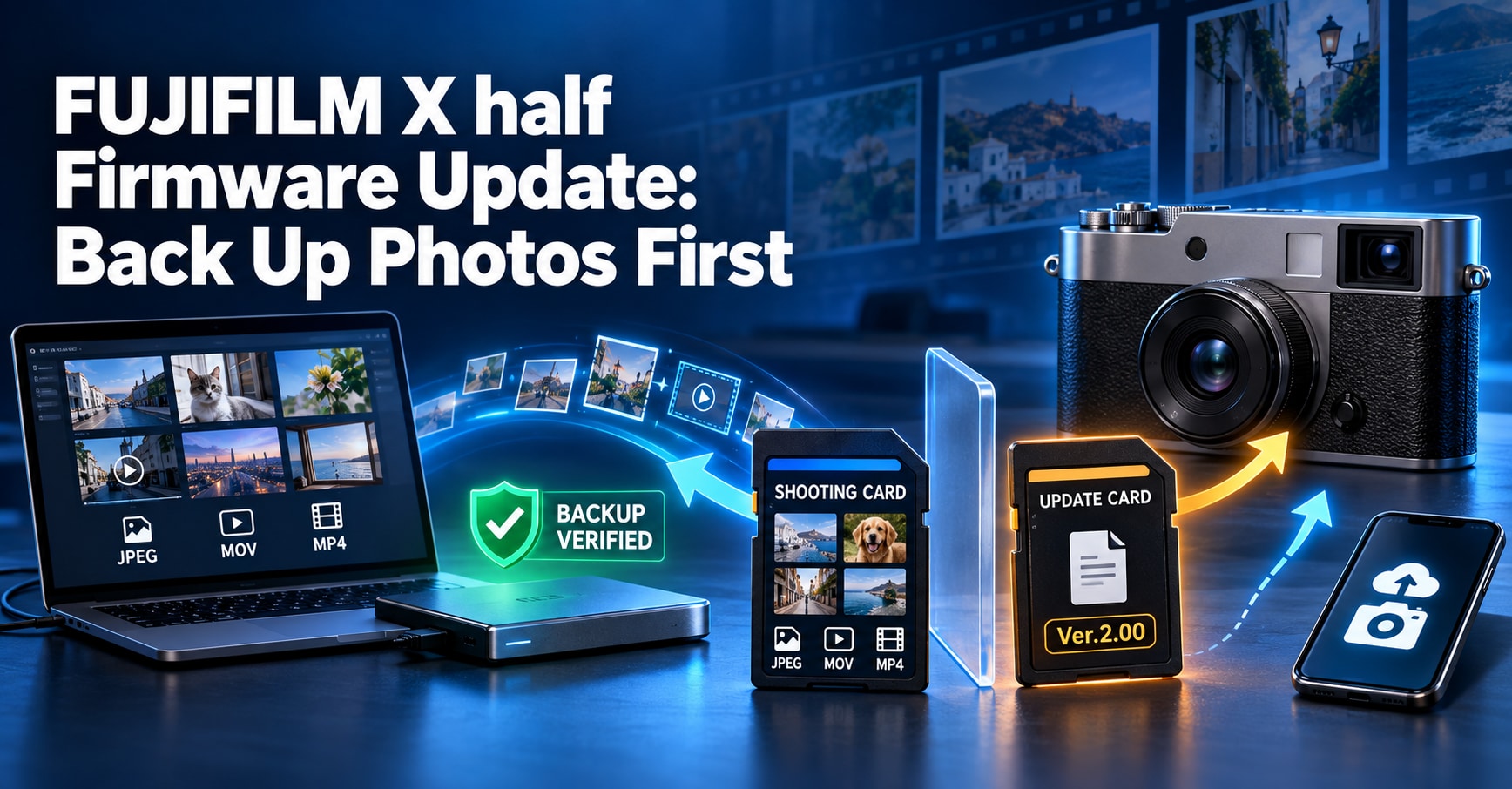
To safely install FUJIFILM X half Firmware Ver.2.00 without losing your photos, verify a complete backup of your files on a separate device before formatting your SD card, or use the X half App to execute the update without formatting.
● The X half records JPEG, MOV, and MP4 formats rather than RAF RAW, requiring you to specifically back up these file types and independently open representative files from your destination drive to confirm a successful transfer.
● Updating via the memory-card method mandates the camera's format command which permanently deletes all data including protected pictures, while choosing the manual update route through the paired X half App bypasses the need for a formatted card entirely.
● Firmware versions cannot be rolled back, and if you accidentally format your active shooting card, you must immediately stop writing any new data—including the FPUPDATE.DAT file—to preserve viable software recovery conditions.
Ask AI for a summary
 ChatGPT
 Perplexity
 Gemini
 Claude
 Grok
Grok
If you are preparing to install FUJIFILM X half Firmware Ver.2.00, protect the pictures on your memory card before you touch the format command. Fujifilm released Ver.2.00 on September 30, 2026, adding the SOFT GLOW filter, 12- and 24-frame choices for Film Camera Mode, faster startup, quicker autofocus in demanding situations, shorter intervals between shots, and minor bug fixes.
The update itself is not a photo-recovery procedure, and updating firmware should not delete photos that have already been safely copied elsewhere. The preventable risk comes from preparation: Fujifilm's card-based firmware instructions require a formatted memory card, while the X half format command deletes all data on that card, including protected pictures. The safest workflow is therefore simple: copy first, verify the copy, and only then prepare a firmware card.
There is also an important X half-specific detail that generic Fujifilm firmware guides often miss: the camera supports both a memory-card update and a manual update through the X half App. You do not need to format a card merely because a firmware update exists. This guide explains how to choose the right backup method, verify that your photos are really safe, and update without turning a shooting card into a firmware card by mistake.
In This Article
Part 1. What Changes in FUJIFILM X half Firmware Ver.2.00?
Fujifilm lists Ver.2.00 as the current X half firmware, dated September 30, 2026. The official X half Ver.2.00 firmware page documents four groups of changes.
| Ver.2.00 Change | What It Does | Why It Matters Before Updating |
| SOFT GLOW | Adds a filter that softens highlight tones for a glowing look. | This is a new creative option, not a reason to rush past normal backup checks. |
| 12- and 24-frame Film Camera Mode options | Adds shorter virtual film-roll lengths alongside the existing choices. | If you use Film Camera Mode, make sure finished images or rolls you care about are transferred before changing your update setup. |
| Responsiveness improvements | Reduces startup time, AF time in certain focus-change and low-light situations, and the interval between shots. | The performance improvement is useful, but it does not justify formatting a card that still contains the only copy of a shoot. |
| Minor bug fixes | Addresses additional unspecified minor issues. | Back up first so firmware maintenance remains separate from media management. |
Fujifilm also warns that a failed firmware update can leave the camera unable to operate normally. Use a sufficiently charged battery and never power off or operate the camera while firmware is being written. The practical lesson is to separate two tasks that are easy to blur together: protect your image files first, then update the camera.
Part 2. What Exactly Should You Back Up From an X half?
The X half differs from many interchangeable-lens Fujifilm cameras in one important way: its current specification lists still images as JPEG, not RAF RAW. Movies use H.264 and can be recorded in MOV or MP4 containers. You can confirm the current recording formats in Fujifilm's X half specifications.
That means a complete pre-update backup should be planned around the actual content this camera creates, rather than a generic Fujifilm checklist that assumes RAF files are present.
- JPEG photos: Copy the original camera JPEG files, not just screenshots or reduced-size social-media exports.
- MOV or MP4 video: If you record video, include the video files in the backup and verify that at least several clips play from the destination drive.
- Film Camera Mode output you want to keep: If you have already transferred or developed rolls through the X half App, confirm those images are present on the phone or another destination you control.
- The card's current folder contents: For the strongest pre-update archive, copy the files from the card rather than selectively moving only the images you remember shooting.
A backup is not complete just because a progress bar reached 100 percent. You need a second copy that opens independently of the camera and card. The card should remain untouched until that verification is finished.
Part 3. Three Safe Ways to Back Up X half Photos Before Updating
You do not need to use every method below. Choose the one that lets you make a complete, verifiable copy with the equipment you already have. For irreplaceable travel, client, or family photos, keeping two independent copies before formatting is a sensible extra precaution.
Method 1. Copy the Memory Card With a Card Reader
A card reader is the most direct choice when your goal is to preserve the card's files before turning any card into update media. Fujifilm's X half transfer guidance also identifies a card reader as a fast way to access all images.
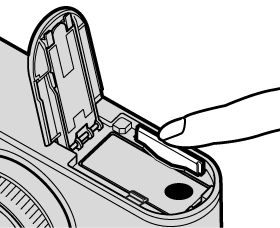
Step 1. Turn the X half off before removing the memory card.
Do not remove the card while the camera is writing, deleting, or formatting data. After the camera is fully off, open the battery chamber, press the card inward, and release it slowly.
Step 2. Insert the SD, SDHC, or SDXC card into a reliable reader.
The X half supports SD, SDHC, and SDXC media and is UHS-I compliant. Wait until the computer mounts the card normally. If the computer unexpectedly asks you to format or initialize it, cancel that prompt and investigate the card condition instead of accepting it.
Step 3. Copy the card contents to a new folder on the computer or an external drive.
Create a folder that is easy to identify, such as Xhalf_PreFirmware_2026-10-07. Copy rather than move the files. Keeping the originals on the card until verification gives you another intact source if the computer-side transfer has a problem.
Step 4. Verify the copy before deleting or formatting anything.
Open images from the destination folder, not from the card. If the card contains videos, play several clips from beginning to end or at least sample different sections. A file that merely appears in a folder is not proof that the transfer is usable.
Fujifilm's current X half picture-transfer guide also covers card-reader, USB, and app workflows if you need to compare them.
Method 2. Copy Photos to a Computer Over USB-C
If you do not have a card reader, the X half can connect directly to a computer over USB-C. Fujifilm specifies that the cable must support data transfer, not just charging.
Step 1. Set the USB communication mode.
Use USB POWER SUPPLY/COMM SETTING and choose either AUTO or POWER SUPPLY OFF/COMM ON.
Step 2. Turn the camera off, connect it directly to the computer, then turn it on.
Fujifilm recommends a direct connection rather than a USB hub or keyboard connection. A well-charged battery also reduces the risk of power loss during transfer.
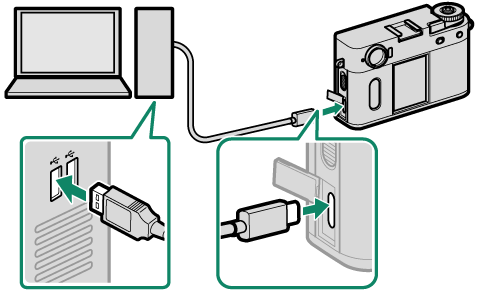
Step 3. Copy the pictures to the computer and wait for the transfer to finish completely.
On Windows, use the operating system's available import or file-copy workflow. On macOS, Fujifilm lists Image Capture or other suitable software; Fujifilm specifically recommends a card reader for files larger than 4 GB. Do not disconnect the cable while copying is still in progress.
See Fujifilm's X half USB connection instructions for the exact camera settings and transfer precautions.
Method 3. Transfer Images With the X half App
The X half App is useful when the images you want are already part of your phone-centered workflow. It can transfer images wirelessly and handle Film Camera Mode rolls. After transfer, Fujifilm says the photos appear in the phone's default camera roll, with X half albums available for organization.
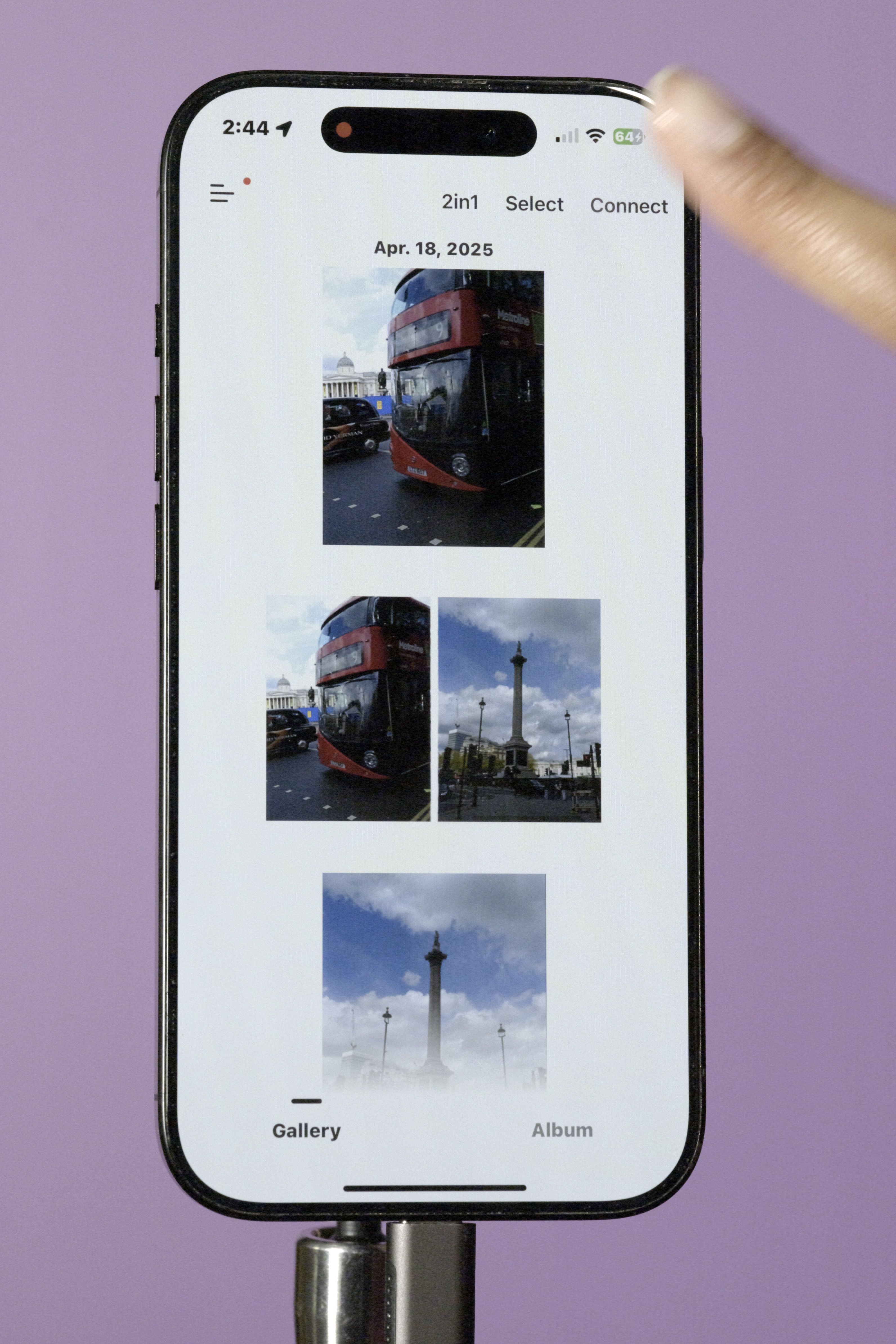
Step 1. Pair the camera and open the X half App.
Keep the camera powered on and establish the Bluetooth/Wi-Fi connection used by the app.
Step 2. Transfer the images you want to preserve.
For ordinary images, use the app's image-transfer workflow. For Film Camera Mode, use the dedicated film-image transfer process for finished rolls.
Step 3. Confirm the files are actually present on the phone.
Open several transferred images from the phone's Photos or gallery app. If these are your only copies of important work, export another copy to a computer or cloud destination before formatting the camera card.
Important: an app transfer is excellent for images you intentionally transferred, but it is not the same thing as verifying the entire physical card. If your goal is a full pre-update archive of everything on the card, a card-reader or USB copy is easier to audit file by file.
Part 4. Verify the Backup Before You Format Anything
This is the step that prevents most avoidable mistakes. Do not move from "I copied the photos" to "I can format the card" until the destination passes a basic verification check.
| Check | What to Verify | Why It Matters |
| Open sample photos | Open JPEGs from different dates or parts of the shoot directly from the backup destination. | This confirms the copy is readable instead of merely listed in a folder. |
| Play video files | Open representative MOV or MP4 clips from the destination. | Large video files can fail or stop copying even when smaller photos succeed. |
| Compare scope | Check that the folders, dates, or approximate file count match what you expected from the card. | A selective import may omit images you forgot were on the card. |
| Keep a second copy for irreplaceable work | Duplicate the verified backup to another independent drive or storage location. | A firmware update is a poor time to discover the first backup destination is also failing. |
Do not use "the thumbnails look right" as your only check. A safe handoff is: source card intact, destination copy present, representative files open, and any irreplaceable work has another copy.
Part 5. Update X half Firmware Safely After the Backup
Once the image backup is verified, choose one of the two X half update routes Fujifilm currently documents. The official X half firmware-update manual supports both a memory-card update and a smartphone-app update. In either case, use a sufficiently charged battery and do not power off or operate the camera while firmware is being written.
Option 1. Update With a Formatted Memory Card
This is the route in Fujifilm's downloadable firmware instructions. A dedicated spare card is the cleanest choice because it avoids mixing an active shooting card with update files.
Step 1. Only after your backup is verified, format the card in the X half.
On the camera, open SET UP > USER SETTING > FORMAT. Fujifilm explicitly warns that formatting deletes all data on the card, including protected pictures. If there is any doubt about your backup, choose CANCEL.
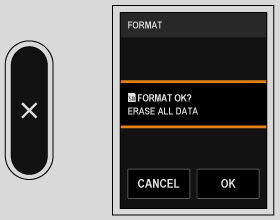
The current X half USER SETTING manual is the authoritative reference for the in-camera format command.
Step 2. Download the correct X half firmware file to your computer.
For Ver.2.00, Fujifilm's firmware page supplies the file as FPUPDATE.DAT. Make sure the browser has not renamed it with a suffix such as (1); Fujifilm warns that an altered file name may not be recognized correctly by the camera.
Step 3. Copy the firmware file to the formatted card, then insert that card in the camera.
Use the card only for the update at this stage. Do not add test photos or unrelated files after preparing it.
Step 4. Start the update from SET UP > USER SETTING > FIRMWARE UPDATE.
Keep the camera powered and leave the controls alone while it is processing. Do not open the battery chamber.
Step 5. Confirm the camera reaches the completed state and verify the installed firmware afterward.
Do not interrupt an apparently slow update just because it takes longer than expected. Fujifilm's owner manual states that update time varies with firmware size. It also states that rolling back to a previous firmware version is not supported.
Option 2. Update Through the X half App
If your X half is already paired with the X half App, Fujifilm also documents a manual app-based update. This route does not instruct you to prepare a formatted firmware card first, so it can be a better fit when you do not have a spare card available. You should still back up important images before any firmware operation.
Step 1. Charge the camera and confirm it is paired with the X half App.
Open the app's top screen. When an update is available, Fujifilm shows a red indicator by Update camera firmware.
Step 2. Start the download in the app and follow the connection prompts.
The phone first downloads the firmware, then transfers it to the paired camera over Wi-Fi. If the camera has powered off automatically, turn it back on when prompted.
Step 3. Leave the camera powered on in shooting mode while the firmware transfers and installs.
Do not close the process early or turn off the camera while it is updating. Fujifilm's X half App firmware-update instructions walk through the exact app screens.
Step 4. Follow the completion prompt, power the camera off when instructed, then verify the new firmware.
After the update, test normal camera startup, autofocus, playback, and a short sample capture before you head into a critical shoot.
Part 6. What If You Already Formatted the X half Card Before Backing Up?

If you formatted the shooting card and then realized the photos were never copied, stop the update preparation immediately. Do not copy FPUPDATE.DAT to that card, take another photo, record video, format it again, or run a repair utility. Any new write can replace storage areas that may still contain older image data.
First check whether a complete copy already exists on your computer, phone, X half App gallery, editing library, or another backup destination. If the missing originals are still needed and the card is stably detected by Windows or macOS, a photo-recovery scan becomes appropriate. Recoverit's formatted SD card photo recovery guide explains the safe order: stop using the card, scan the original media, preview what is still recoverable, and save recovered files to a different drive.
For X half specifically, search for JPEG photos and, if you recorded video, MOV or MP4 files. Do not waste time filtering for RAF because the X half's current specification does not list RAF recording.
Recoverit is appropriate here only because this is now a genuine data-loss scenario. It does not fix firmware, reverse formatting that overwrote data, or repair a physically damaged card. Software recovery also cannot guarantee files whose storage blocks have already been overwritten.
If the card repeatedly disconnects, becomes unusually hot, shows an implausible capacity, is cracked or water-damaged, or is not detected by multiple known-good readers, stop repeated scanning attempts and consider a professional data recovery service.
Part 7. A Better Pre-Update Routine for Future Firmware Releases
Firmware maintenance is safer when you stop treating the shooting card as update media by default. A small routine removes most of the avoidable risk.
- Finish the shoot before maintenance: Do not start a firmware update while images are still being written, imported, or culled.
- Make a verified copy: Use a card reader, USB-C, or the X half App as appropriate, then open files from the destination.
- Keep the shooting card intact until verification is complete: Do not format based on memory alone.
- Prefer a spare card for card-based firmware updates: A small dedicated update card prevents the most dangerous confusion between "shooting card" and "firmware card."
- Use the X half App route when it better fits your setup: The camera supports app-based firmware updating, so a formatted card is not the only path.
- Update with reliable power and no interruptions: Do not operate or switch off the camera during the firmware-write stage.
- Return to shooting only after verification: Confirm the firmware version, test the camera, and only then prepare your normal shooting media.
Conclusion
The safest way to update FUJIFILM X half firmware is not to start with the firmware file. Start with the pictures. Copy the JPEG photos and any MOV/MP4 video to a destination you control, open representative files from that destination, and keep the original card untouched until the backup is proven good.
For Ver.2.00, Fujifilm supports both a formatted-memory-card workflow and an X half App workflow. If you choose the card route, format only after the backup is verified - ideally on a spare card that is not carrying the only copy of a shoot. If you already formatted the wrong card, stop writing to it before you do anything else. That one decision matters more for recoverability than rushing into another format or firmware copy.
FAQ
-
Do I have to format my X half SD card to update firmware?
Not for every update path. Fujifilm's memory-card method requires a formatted card, but the X half also supports a manual firmware update through the X half App. If your current card contains photos, back them up and verify the copy before formatting anything. -
Does FUJIFILM X half Firmware Ver.2.00 delete photos?
The firmware release notes do not describe the update itself as a photo-deletion process. The avoidable data-loss risk is the card-preparation step: Fujifilm's in-camera FORMAT command deletes all data on the selected memory card, including protected pictures. -
What file types should I back up from a Fujifilm X half?
Fujifilm's current X half specification lists JPEG for still photos and H.264 video in MOV or MP4 containers. It does not list RAF RAW recording for this model. -
Can I use the same SD card for photos and the firmware file?
You can prepare a compatible memory card for the firmware update, but do not format a card that still contains the only copy of your photos. A spare card dedicated to the update is easier to manage safely. -
What should I do if I formatted the card before copying my photos?
Stop using the card immediately. Do not copy the firmware file to it, take new photos, format it again, or run repair utilities. Check existing computer and phone copies first. If files are still missing and the card is stably detected, scan it before writing anything else to it. -
Can I roll back X half firmware after updating?
Fujifilm's X half owner manual states that returning to a previous firmware version is not possible after the firmware has been updated.


