

 TL;DR:
Successfully recovering permanently deleted photos depends entirely on your device's storage architecture and backup status, as no software can retrieve securely erased or overwritten internal data.
● iPhone's encrypted internal storage prevents direct app scanning, meaning recovery outside the 30-day Recently Deleted window strictly requires an existing Finder/iTunes backup, iCloud copy, or synced Apple device.
● Android users can run DiskDigger to scan local memory, but extracting full-resolution original images requires a rooted device; non-rooted scans typically only surface lower-quality cached thumbnails.
● Desktop programs like Recoverit are designed exclusively for external media such as SD cards, USB drives, or computer directories, and cannot pull missing files directly from a locked mobile phone or an empty cloud account.
Ask AI for a summary
 ChatGPT
 Perplexity
 Gemini
 Claude
 Grok
Grok
Losing photos after emptying Recently Deleted, Trash, or a gallery folder can feel final. Sometimes it is. No app can guarantee recovery from every iPhone or Android phone. The best option depends on where the photo was stored, whether it was backed up, whether the phone used an SD card, and whether the deleted data has been overwritten.
Quick Answer: The best app to recover permanently deleted photos depends on your device and storage type. On iPhone, check Recently Deleted, iCloud Photos, Finder/iTunes backups, Messages, Mail, and other Apple devices first. On Android, check Google Photos Trash, Gallery Trash, cloud backups, and SD card storage. DiskDigger may help on Android, especially with rooted devices or SD cards. Recoverit is best used as a desktop photo recovery tool for SD cards, USB drives, computers, external hard drives, and exported phone photos. No app can guarantee recovery if the photo was permanently deleted, overwritten, and never backed up.
In this article
Part 1. Can an App Really Recover Permanently Deleted Photos?
Sometimes, but not always. A permanently deleted photo recovery app may help when the photo data still exists somewhere: in a cloud Trash folder, a backup, an SD card, a cached copy, a rooted Android scan, a computer folder, or an external drive.
However, “permanently deleted” often means the photo is no longer available through the normal gallery recovery folder. If the file has been overwritten, securely erased, or removed from all backups and synced devices, no app can reliably bring it back.
What “Permanently Deleted” Means
On iPhone, photos normally go to the Recently Deleted album first. If they are removed from Recently Deleted or the recovery window has passed, direct recovery becomes much harder.
On Android, deleted photos may stay in Google Photos Trash or the phone Gallery Trash for a limited time. If they are removed from those folders, recovery depends on backups, cached files, SD card storage, root access, or external copies.
Apps vs Cloud vs Backup vs Desktop Recovery
| Recovery Type | Best For | Main Limit |
| Phone Recovery Apps | Android scans, cached files, rooted recovery, app-managed media | Limited access on non-root phones and iPhones |
| Cloud Recovery | iCloud Photos, Google Photos, OneDrive, Dropbox, backup copies | Works only if the item is still recoverable or backed up |
| Device Backup Restore | iCloud, Finder/iTunes, Android backups | May replace current data and only works if the backup contains the photo |
| Desktop Recovery Tools | SD cards, USB drives, computer folders, external drives, exported phone photos | Cannot directly scan locked iPhone storage or cloud accounts |
| Vault Or Backup Apps | Photos saved inside the app before deletion | Cannot recover photos the app never stored |
Which Recovery Path Fits Your Case?
| Platform Or Storage | Can an App Help? | Best First Step |
| iPhone Recently Deleted | Yes, through the Photos app | Restore within the recovery window |
| iPhone Permanently Deleted | Usually only with backup or copy | Check iCloud, Finder/iTunes, Messages, and other devices |
| Android Google Photos Trash | Yes, if still in Trash | Restore from Google Photos |
| Android Gallery Trash | Yes, if still in Trash | Restore from Gallery Trash |
| Android Internal Storage | Sometimes, but limited without root | Check Trash and cloud first |
| Rooted Android | More possible | Use a reputable recovery app carefully |
| Android SD Card | More recoverable if detected | Remove the card and scan on a computer |
| Computer Or Exported Photos | Yes | Use a desktop recovery tool |
| SD Card, USB, Or External Drive | Yes, if detected | Use Recoverit or another desktop tool |
| App Vault Photos | Only if saved inside the vault app | Restore from that app’s own storage |
Part 2. Why Permanently Deleted Photos May or May Not Be Recoverable
A permanently deleted photo recovery app can restore lost images, but success depends on the factors discussed:
- Recently Deleted and Trash Help Most: Recently Deleted and Trash folders are safety nets. If the photo is still there, restore it from the official Photos, Gallery, iCloud, or Google Photos app before trying third-party tools.
- Acting Fast Still Matters: New photos, videos, downloads, app cache, or system cleanup may reuse storage space. The sooner you stop using the device or card, the better your recovery chance.
- Cloud Copies May Still Exist: Even if a photo disappears from your local gallery, it may still exist in iCloud Photos, Google Photos, OneDrive, Dropbox, WhatsApp, Messages, Mail, or social apps.
- iPhone Recovery Is Different from SD Card Recovery: A recovery app cannot freely scan iPhone’s encrypted internal storage the same way it can scan an SD card. iPhone recovery usually depends on Recently Deleted, iCloud, Finder/iTunes backups, synced devices, or saved copies.
- Android Recovery Depends on Storage Access: Android recovery apps may find cached thumbnails or deleted files, but deep internal storage scans usually require root access. If photos were stored on an SD card, desktop recovery software can often scan the card more thoroughly.
- Desktop Tools Help External Storage: Desktop photo recovery tools are more useful when photos were saved to a computer, SD card, microSD card, USB flash drive, external hard drive, camera card, or exported phone folder.
Part 3. Where to Check Before Installing Any Photo Recovery App
Many users recover their pictures without installing a permanently deleted photo recovery app. Check these places first.
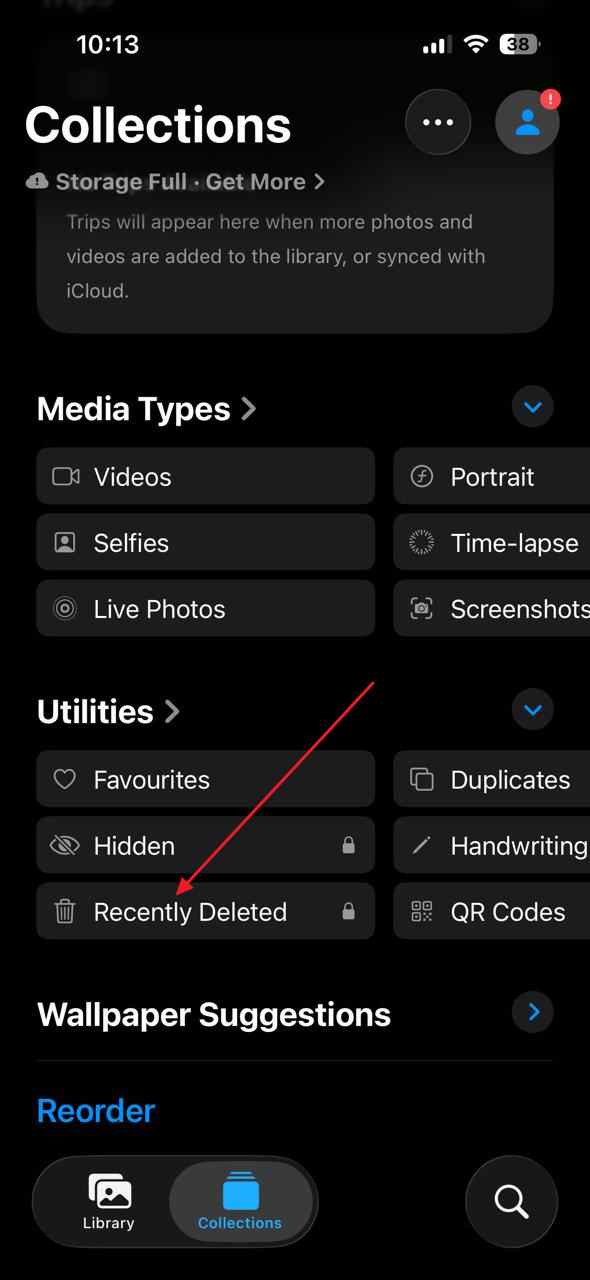
1. Check iPhone Recently Deleted
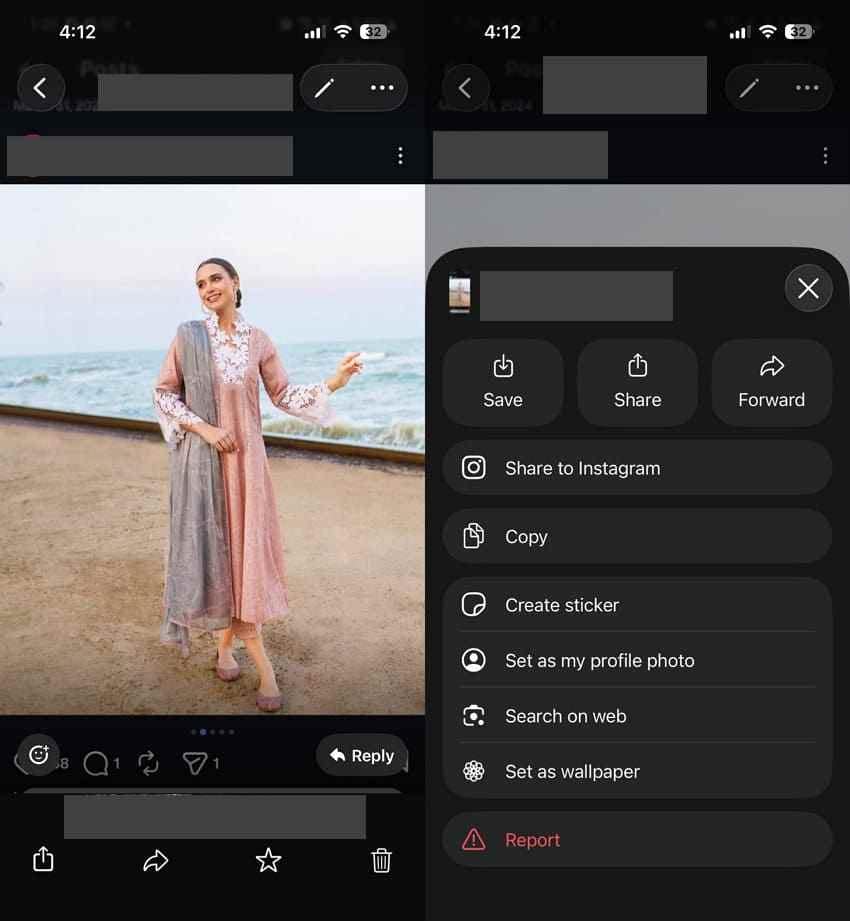
Simply access the Recently Deleted album in the Photos app to check and recover any accidentally deleted pictures from there.
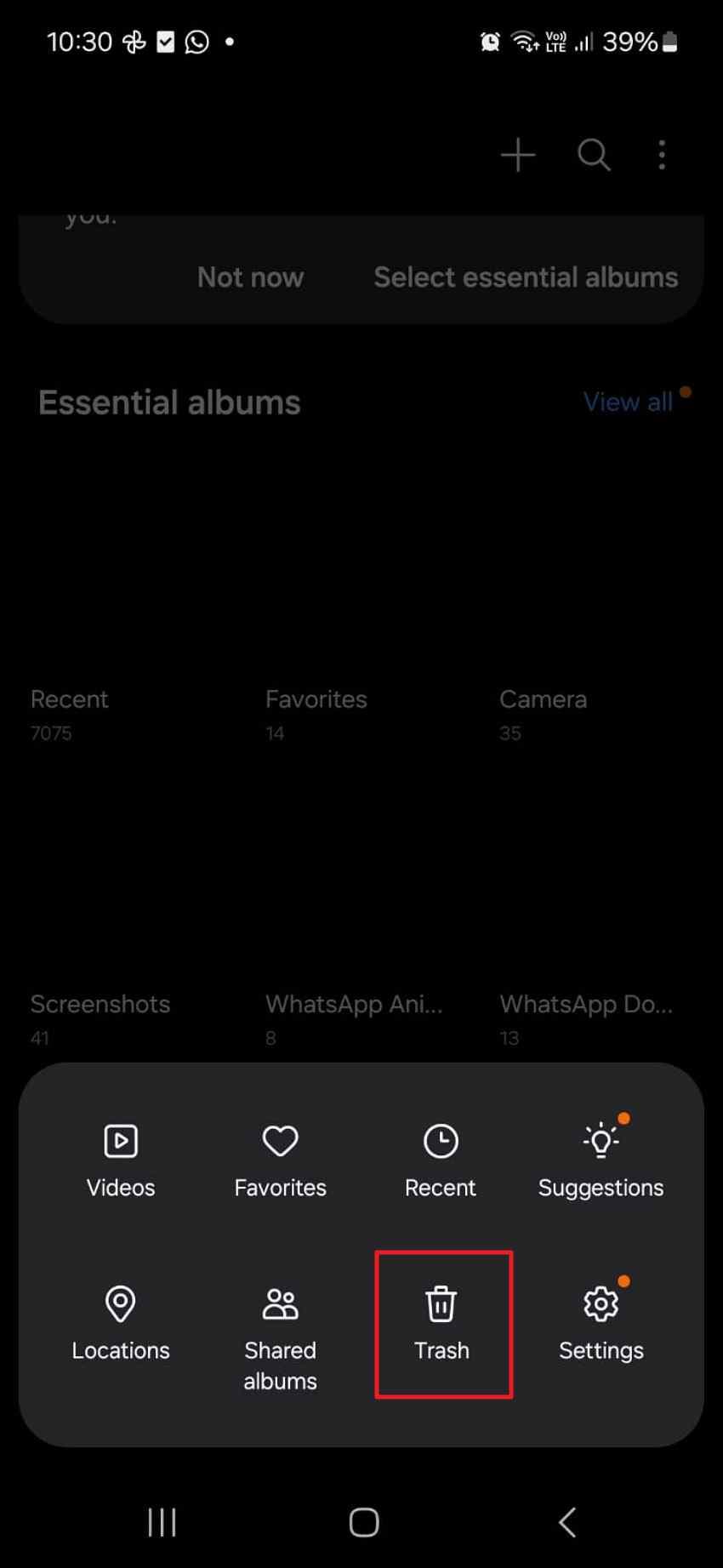
2. Check Android Trash
On your Android, open Trash in your Gallery, then look for pictures listed there to restore.
3. Look in Cloud Photo Apps
Sign in to Google Photos or iCloud Photos and check their Trash/Recently Deleted folders for any recoverable pictures.

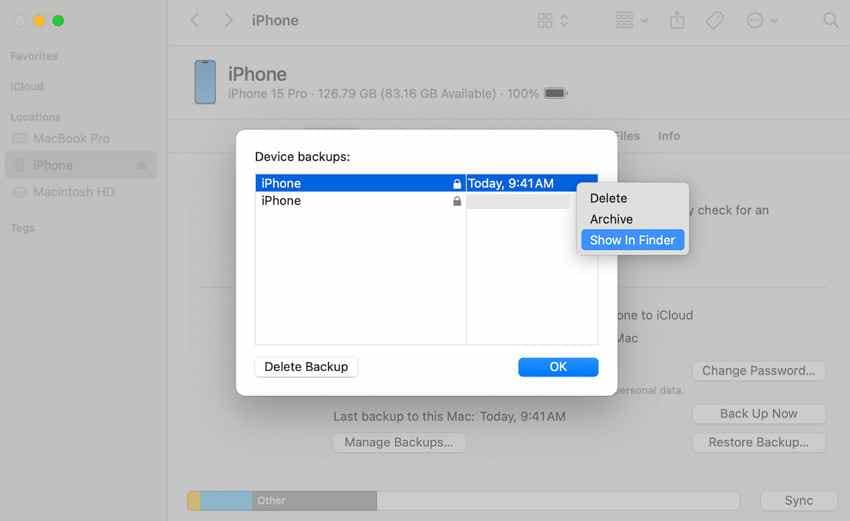
4. Check Full Device Backups
For iPhone, check available backups in Finder or iTunes that were created before the photos were deleted.
5. Search Chats and Social Apps
You might find the photo as an attachment or an upload that can be saved again from a WhatsApp chat.
6. Check SD Cards and Computers
If you use an SD card, plug it into your computer and browse its photo folders.
7. When You Still Need Recovery Software
When none of these folders have your picture, recovery apps for Android or iPhone may be your last option.
Part 4. Best Apps and Tools to Recover Permanently Deleted Photos
The best option depends on where the missing photos were stored. Below are practical apps and tools grouped by realistic use case.
1. DiskDigger Photo/File Recovery
Best For: Android photo recovery, especially on rooted devices or devices using SD cards.
Platform: Android
Tool Type: Mobile recovery app
DiskDigger can scan for deleted photos on Android. On non-rooted devices, it performs a more limited basic scan. On rooted devices, it can run a deeper full scan.
Pros
- Android-focused
- Basic scan available without root
- Full scan available on rooted devices
- Useful for deleted photos and some cached items
Limits
- Full scan requires root access
- Non-root scans may only find thumbnails or cached versions
- Not for iPhone internal recovery
- Results depend on overwrite status and device access

2. Dr.Fone: Photo & Data Recovery
Best For: Users who want a broader mobile data recovery toolkit for photos, videos, WhatsApp media, and other phone data.
Platform: Android and iPhone-related workflows, depending on feature/version
Tool Type: Mobile data recovery toolkit
Dr.Fone is a broader phone data toolkit rather than a simple gallery recovery app. It may help recover photos, videos, WhatsApp media, or other data depending on device type, backup status, storage access, and product version.
Pros
- Covers more than photo-only recovery
- May help with WhatsApp media and phone data
- Useful for users who need a guided toolkit
- Can work with backups and supported device workflows
Limits
- Recovery depends on device model, OS version, backup status, and overwritten data
- iPhone permanent deletion is still limited without backup or copy
- Some features may require desktop software or paid plans
- It should not be treated as a guaranteed iPhone permanent photo recovery app
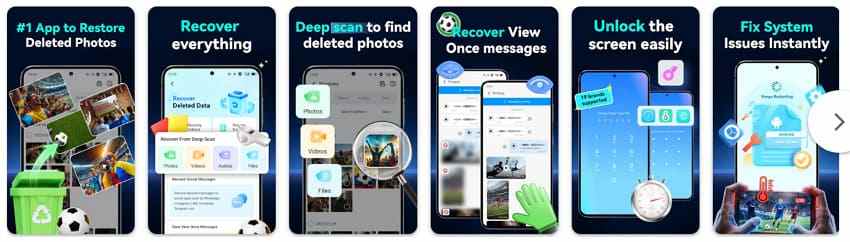
3. Hidex: Recover Deleted Photos
Best For: iPhone users who want to protect or restore photos that were previously saved inside the app.
Platform: iPhone
Tool Type: Photo vault and app-managed photo restore tool
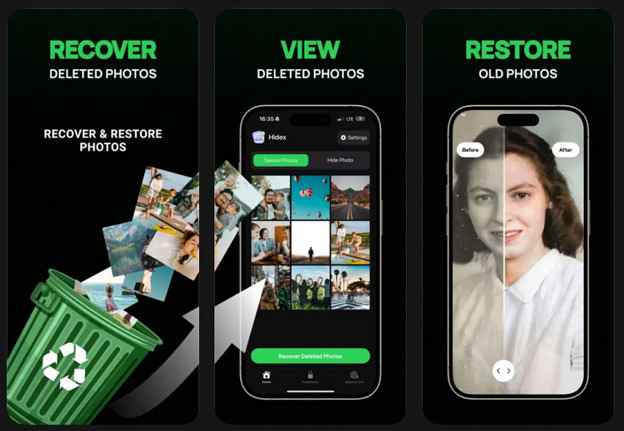
Hidex is better understood as a photo vault or protected storage app. If you saved photos inside the app before deletion, it may help restore those app-managed photos back to your gallery.
Pros
- Useful for photos stored inside the app
- Helps protect important private photos
- Can restore app-managed items
- Simple for users who already used the app before deletion
Limits
- Cannot recover photos it never stored
- Not a universal iPhone photo recovery app
- Cannot scan Apple’s internal Photos database
- Cannot recover iCloud photos that are permanently deleted
4. Photo Recovery: Deleted Photo
Best For: Users who want a simple photo recovery app for recently deleted or cached media.
Platform: Varies by app listing/version
Tool Type: Basic photo recovery app
Photo Recovery: Deleted Photo is designed for users who want a quick way to search for deleted images. It may offer quick or deeper scans depending on device access and app version.
Pros
- Simple photo-focused recovery workflow
- May help find recently deleted media
- Useful for users who want a lightweight app
- Easier than command-line or desktop tools
Limits
- Recovery depth depends on device permissions
- May find thumbnails instead of full-resolution photos
- May not work after overwriting or secure deletion
- iPhone internal recovery remains limited
- Results vary by device and OS version

5. Recover Deleted Photos - DiskQ
Best For: Users who want to restore photos managed, cleaned, or organized by DiskQ.
Platform: Varies by app listing/version
Tool Type: App-managed photo recovery and organization tool
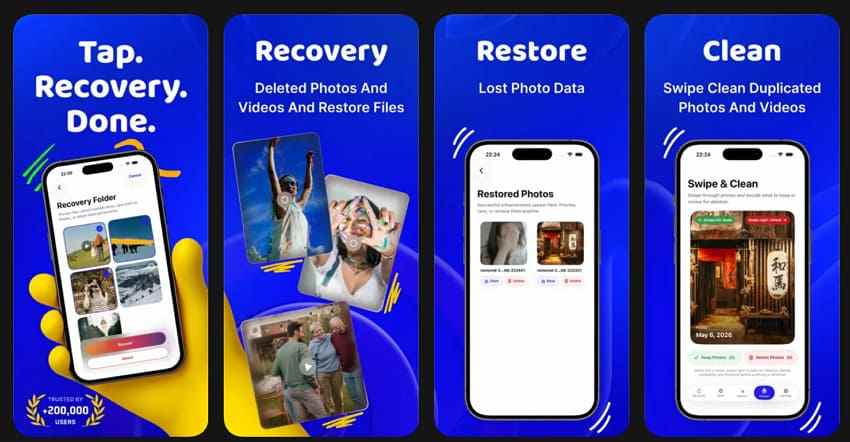
DiskQ works best when the photos were deleted, cleaned, or managed through the app’s own system. It is more useful as an app-managed recovery or photo organization tool than a universal permanent photo recovery app.
Pros
- Useful for photos managed by the app
- Can help restore app-tracked photos
- Offers organization or cleaner-style features
- Helpful for users already using DiskQ before deletion
Limits
- Only restores photos it can track or manage
- Cannot recover photos from every phone folder
- Not a universal iPhone or Android recovery app
- No guarantee after permanent deletion or overwriting
Part 5. Photo Recovery Apps and Tools Table
For a quick review of apps to recover permanently deleted photos, go through the entire table below:
| Aspects | DiskDigger | Dr.Fone | Hidex | Photo Recovery: Deleted Photo | DiskQ – Recover Deleted Photos |
| Best For | Rooted Android recovery | Photo and data recovery | Private photo vault | Basic photo recovery | DiskQ-managed photo recovery |
| Recoverable Data | Photos, videos, files | Photos, videos, WhatsApp media, documents, and more | Imported photos only | Photos only | Photos managed by DiskQ |
| Recovery Modes | Quick and Full Scan | Photo, video, and data recovery | Vault restore | Quick and Deep Scan | App-managed restore |
| Additional Features | Basic recovery | Data recovery, file management, and device tools | Photo vault | Basic recovery | Photo organization |
| Main Limitation | A full scan needs root | Recovery depends on the overwrite status | Can't recover outside Hidex | Limited recovery scope | Only restores DiskQ-managed files |
Part 6. How to Recover Deleted iPhone Photos After They Were Recently Deleted
Besides apps to recover permanently deleted photos on iPhone, look into places where copies of your pictures may exist:
Check Recently Deleted
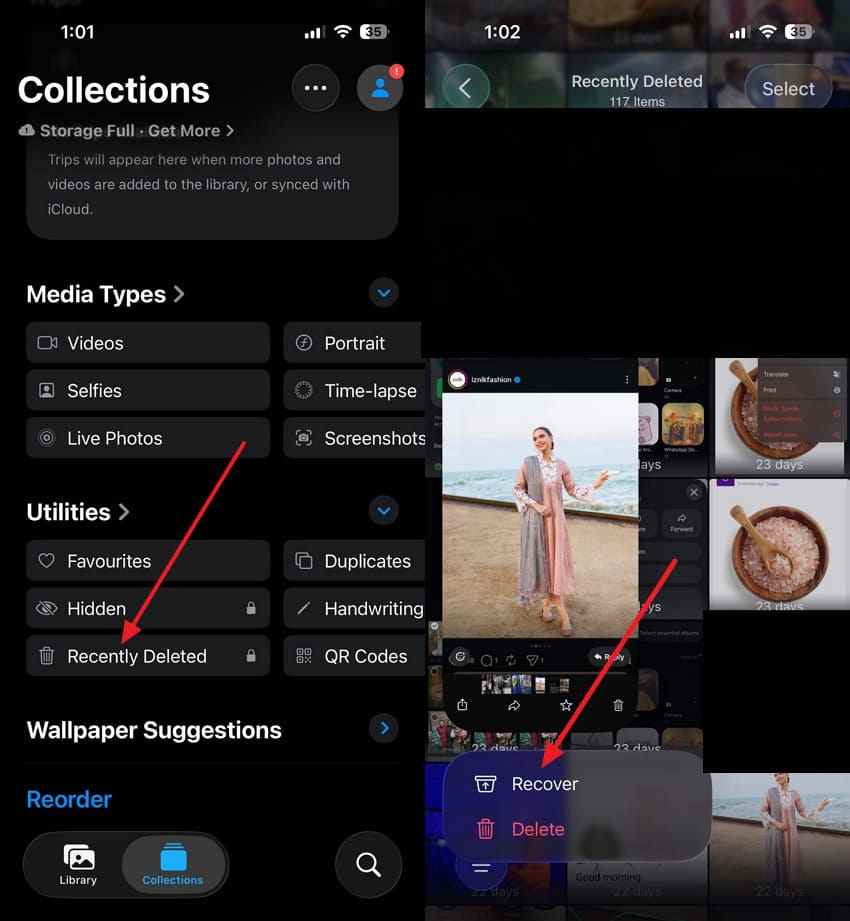
Deleted photos remain in Recently Deleted for up to 30 days, allowing you to restore them within that time. Without affecting other data, follow the guidelines to recover pictures:
Instructions. In the Photos app, access the “Collections” folder > “Recently Deleted” > Locate the picture > Hold > Choose “Recover.”
Check iCloud Photos
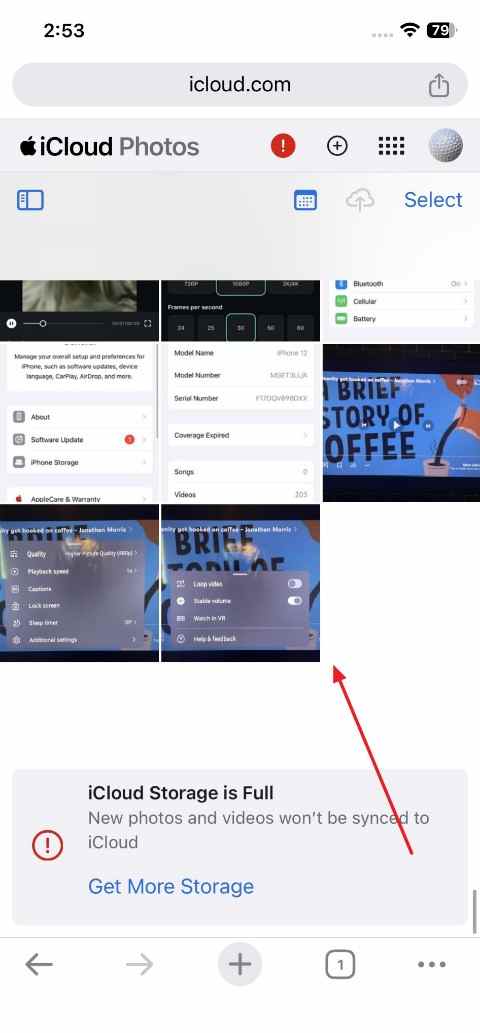
If the deletion has not yet synced across all your Apple devices, the photos may still be available in iCloud Photos on the web. Checking there before trying other recovery methods can help you recover them.
Instructions. Visit iCloud.com > Sign in with your Apple Account > Open “Photos” > Check the Library > Recover the missing photos if they are available.
Restore from iTunes/Finder Backup
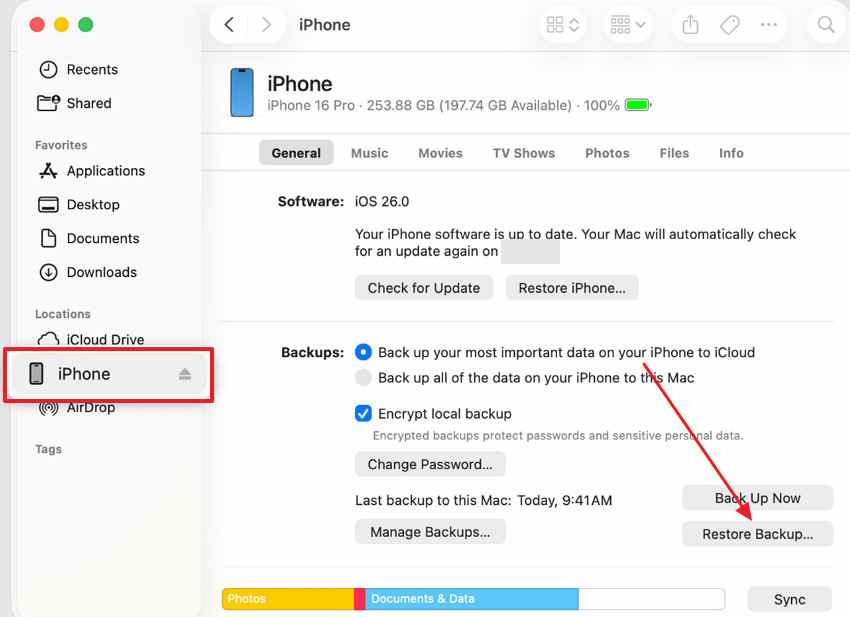
This method is useful when the photos are no longer available in iCloud or the Recently Deleted folder. If you created a backup before the photos were deleted, restore them following these guidelines:
Step 1. Open Finder on Mac > Connect your phone > Select “iPhone” > Choose “Restore Backup.”
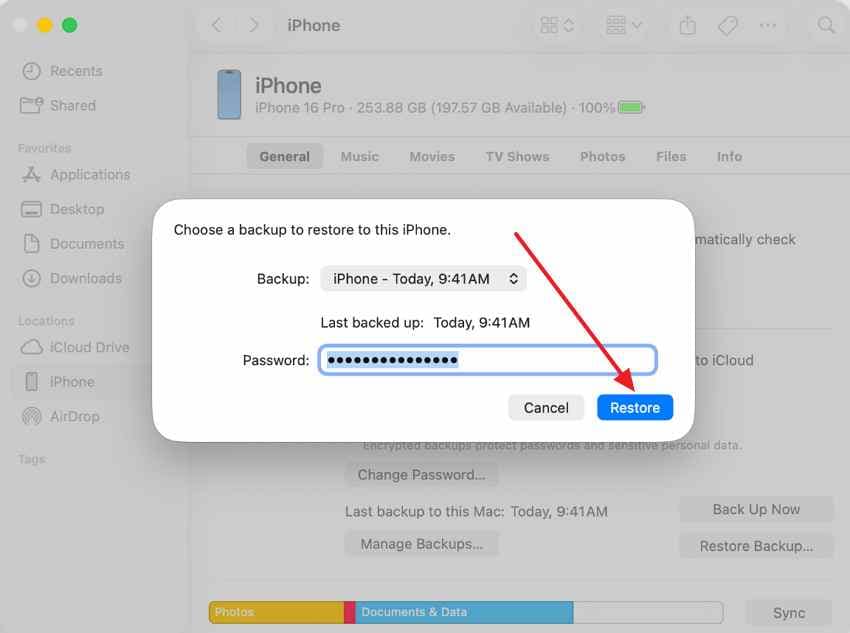
Step 2. Pick backup date > Enter password if encrypted > Click “Restore.”
Search Messages, Mail, and Social Apps
Look for the missing image in your messages, mail, or social apps, even if it was deleted from the Photos app.

Check if Photos Were Imported on Mac/Windows
Search your macOS or Windows PC folders to recover photos if they were previously imported to the devices.
Part 7. How to Recover Deleted Android Photos with or Without an App
Before installing apps to recover permanently deleted photos, it's better to check Android’s built-in recovery features:
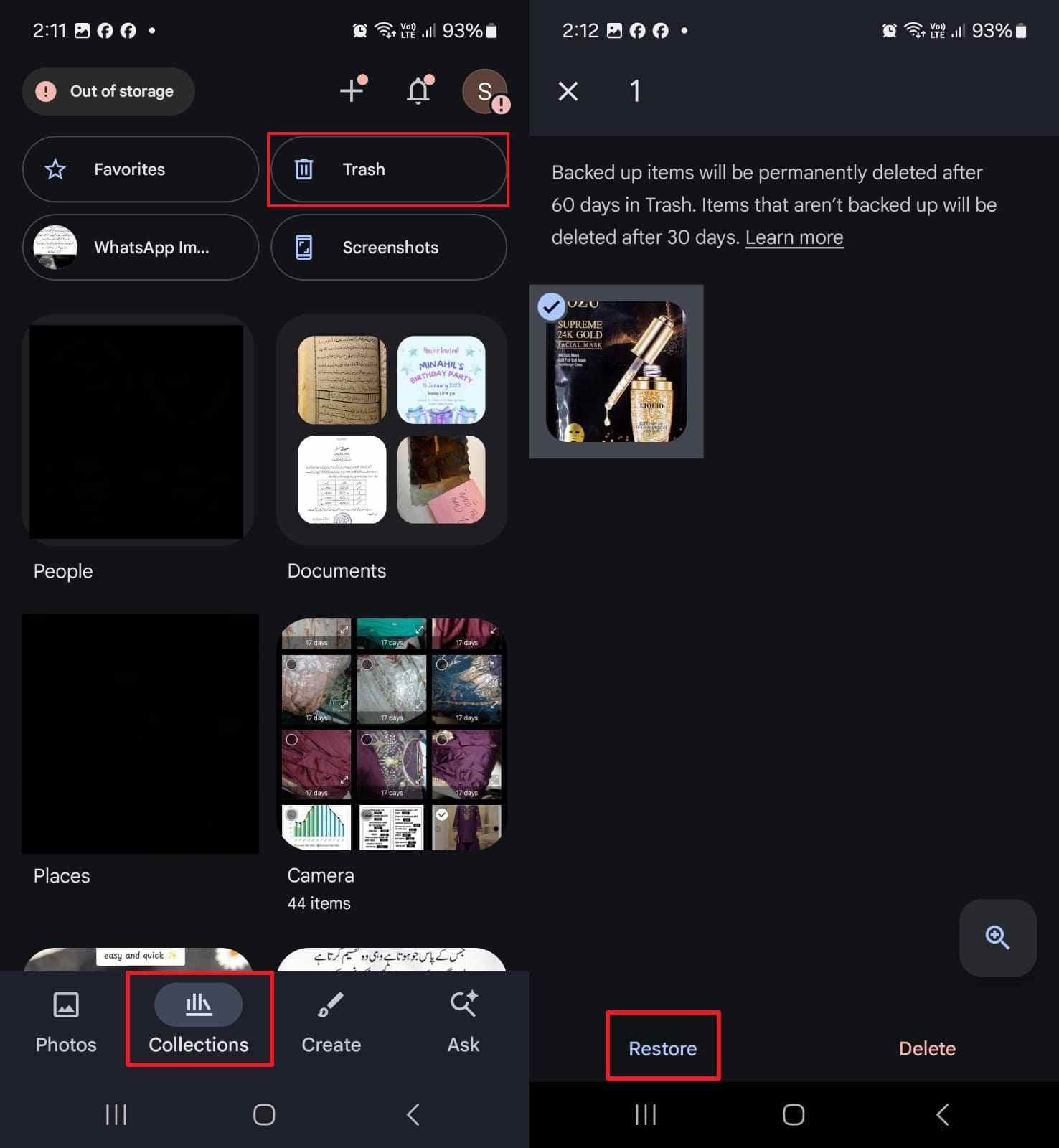
1. Check the Google Photos Trash
On Android, the fastest way to restore deleted photos is through Google Trash, if recovered within the time limit:
Instructions. In Google Photos > Go to “Collections” > Access “Trash” > Select image > Press “Restore.”
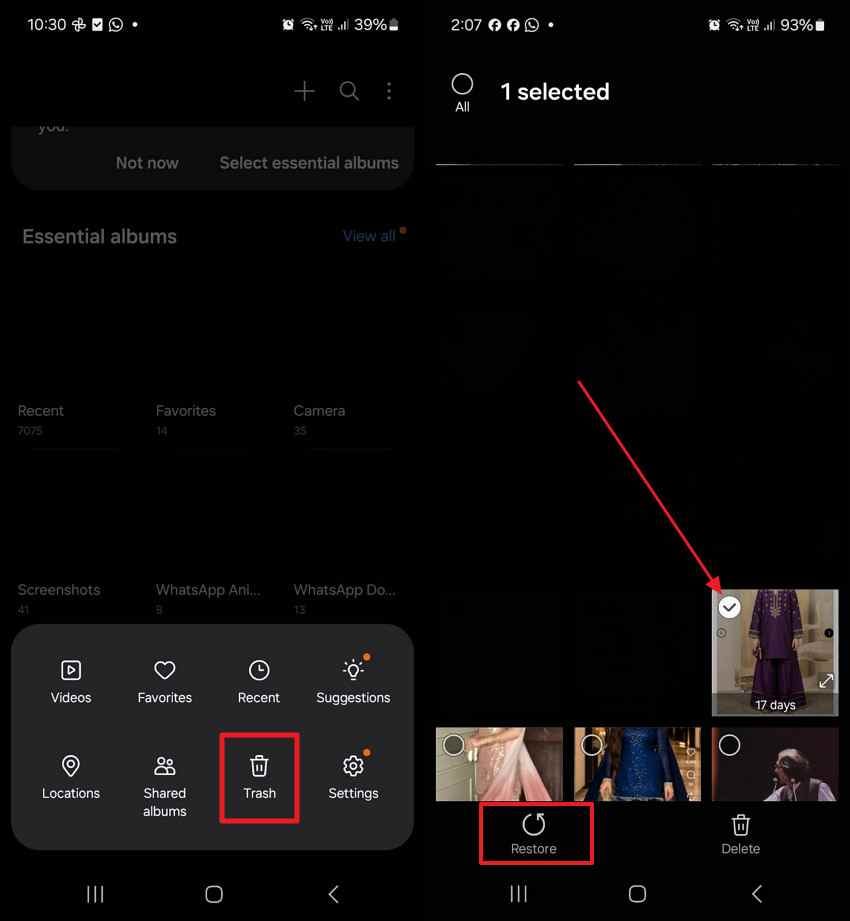
2. Check Gallery Trash
Most Android Gallery apps keep deleted photos in the Trash/Recently Deleted folder that can be restored through guidance:
Instructions. Open Android Gallery > Press “Three Dots” menu > Tap “Trash” > Locate picture > Press “Restore.”
3. Search WhatsApp, Email, and Folders
Like iPhone, open messages and email for photo attachments, then download/save them to the gallery.

4. Remove the SD Card and Scan
If the Android phone stored photos on an SD card, power off the phone, remove the card, and connect it to a computer with a card reader. Then use desktop recovery software to scan the card.
Part 8. Use Recoverit When Photos Were Saved to a Computer, SD Card, USB, or External Drive
Recoverit Photo Recovery is not a mobile app. It is a desktop photo recovery tool for Windows and Mac. Use it when photos were saved outside the phone and then deleted, formatted, or lost.
Recoverit Can Help When
- iPhone or Android photos were imported to a Mac or Windows PC.
- iCloud or Google Photos images were downloaded to a local folder and then deleted.
- Photos were stored on an SD card or microSD card.
- Photos were copied to a USB flash drive or external hard drive.
- Camera, drone, or action camera photos were lost from a memory card.
- The Recycle Bin or Trash was emptied on a computer.
- Photo folders such as DCIM, Downloads, Pictures, or Desktop were deleted.
Recoverit Cannot Help When
- Photos were permanently deleted from iCloud with no local copy.
- Photos were permanently deleted from iPhone internal storage with no backup.
- A locked iPhone cannot be accessed.
- Android internal storage has overwritten the deleted data.
- A mobile app vault never stored the photo.
- No connected storage device or local copy exists.
- The storage device is physically damaged and not detected.
Supported Photo Formats and Device Types
| Category | Supported Items |
| Photo Formats | JPG, JPEG, PNG, BMP, GIF, TIFF, WEBP, HEIC, PSD, SVG, and more |
| RAW Camera Formats | RAW files from Canon, Nikon, Sony, Fujifilm, Panasonic, Olympus, Leica, GoPro, DJI, and other major camera brands |
| Supported Storage Devices | Windows and Mac internal drives, HDDs, SSDs, USB flash drives, SD, microSD, CF cards, external hard drives, and NAS devices |
| Memory Cards | SD, SDHC, SDXC, microSD, microSDHC, microSDXC, CF, Memory Stick, xD Picture Card and other memory cards |
| Supported Devices | Digital cameras, camcorders, drones, action cameras, computers, and storage devices connected via USB or card readers |
Simple Guide to Recover Deleted Photos with Recoverit
Follow the guidelines as directed and recover your pictures from your computer or SD card:
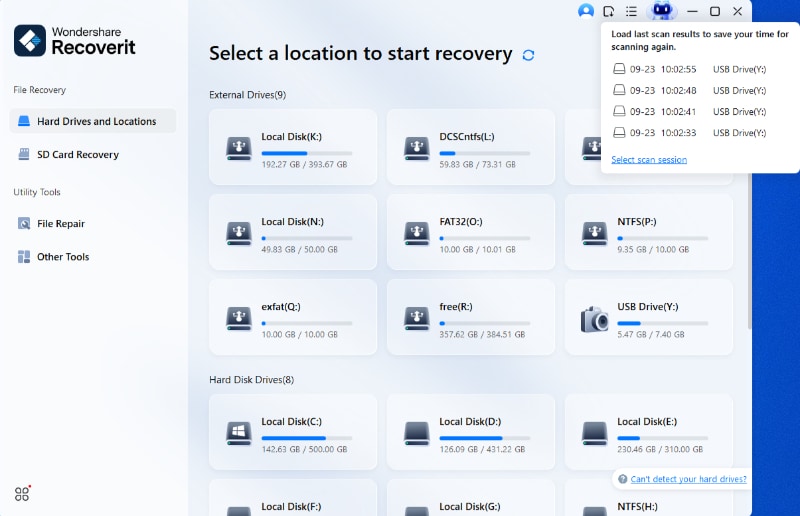
Step 1. Select a Location for Scan
From the "Hard Drives and Locations” or “SD Card Recovery” tab, choose the location and press “Start Scan” to scan.

Step 2. Wait for Scan to Complete
The program starts a quick scan or deep scan, depending upon your situation, to locate files.
Step 3. Review Photos After Scan
After the scan completes, preview photos individually and press “Recover” to save the required ones.

Professional Recovery for Critical Photos
For irreplaceable photos, it’s often safest to contact a professional data recovery lab. They have specialized hardware and clean-room equipment that can somehow recover data from corrupted drives.
Part 9. How to Avoid Losing Photos Permanently Again
With the best app to recover permanently deleted photos, follow the measures mentioned to reduce the risk of deletion:
| Measure | What to Do |
| Enable Cloud Backup | Turn on iCloud Photos or Google Photos Backup to sync your photos automatically. |
| Know the Recovery Window | Learn how long your Recently Deleted or Trash folder keeps deleted photos. |
| Create Regular Device Backups | Back up your iPhone to Finder/iTunes or your Android to a computer regularly. |
| Keep Two Photocopie | Store important photos in at least two separate locations, such as cloud storage and a computer. |
| Verify Backup Status | Periodically confirm that your cloud backup has completed successfully and is actively syncing new photos. |
Conclusion
Finally, the best app to recover permanently deleted photos can improve your chances of getting back pictures, but there’s no guarantee. Users who need a more advanced recovery solution can consider Recoverit, which thoroughly scans drives, PCs, and storage media like SD cards.
FAQs
-
1 What Is the Best App to Recover Permanently Deleted Photos?
There is no single best app for every case. DiskDigger is useful for Android, especially rooted devices or SD card recovery. Dr.Fone is a broader phone recovery toolkit. Hidex and DiskQ help mainly with app-managed photos. Recoverit is not an app; it is a desktop tool for photos lost from computers, SD cards, USB drives, and external storage. -
2 Can an App Recover Permanently Deleted Photos on iPhone?
Usually not directly from internal iPhone storage after permanent deletion. Check Recently Deleted, iCloud Photos, Finder/iTunes backups, Messages, Mail, other Apple devices, and computer imports first. -
3 Can Android Apps Recover Permanently Deleted Photos?
Sometimes. Android recovery apps may find cached photos, thumbnails, or deleted files. Deep scans usually require root access. If photos were on an SD card, desktop recovery software may work better. -
4 Is DiskDigger Better With Root Access?
Yes. DiskDigger can run a deeper full scan on rooted Android devices. Without root, it can still run a basic scan, but results may be limited. -
5 Can Google Photos Recover Permanently Deleted Photos?
Google Photos can restore photos only if they are still in Trash or backed up. If an item is permanently deleted and no backup exists, Google Photos cannot restore it. -
6 Can iCloud Recover Permanently Deleted Photos?
iCloud can help if the photo is still in iCloud Recently Deleted or exists in a backup or another synced device. If it was permanently deleted and no backup exists, iCloud may not help. -
7 Can Recoverit Recover Permanently Deleted Photos from iPhone?
Recoverit cannot directly recover permanently deleted photos from iCloud, a locked iPhone, or encrypted iPhone internal storage. It can help if the photos were saved to a computer, SD card, USB drive, external hard drive, or local folder. -
8 When Should I Use Recoverit Photo Recovery?
Use Recoverit when lost photos were saved on a computer, SD card, microSD card, USB flash drive, external drive, camera card, or exported phone folder, and then deleted, formatted, or lost. -
9 Why Did a Recovery App Only Find Thumbnails?
On non-root Android devices, recovery apps may have limited access and may find cached thumbnails instead of full-resolution originals. Full recovery depends on storage access, overwrite status, and whether the original data still exists. -
10 Are Hidex and DiskQ Universal Photo Recovery Apps?
No. Hidex and DiskQ are useful mainly for photos stored, hidden, organized, or managed inside those apps. They cannot recover photos the app never stored or tracked.


