

 TL;DR:
You can restore deleted photos from Google Drive within a 30-day window by checking the Trash folder or the connected Google Photos Bin before they are permanently erased.
● Google Workspace users have an extended recovery option where administrators can retrieve Drive data via the Admin Console even after the Trash is manually emptied.
● If cloud syncing was interrupted prior to deletion, local copies might still exist untouched in your computer's Google Drive for Desktop folder.
● For photos permanently removed from Google servers, local data recovery software can be used to scan your physical internal or external storage devices for surviving offline copies.
Ask AI for a summary
 ChatGPT
 Perplexity
 Gemini
 Claude
 Grok
Grok
Photos preserve unique moments that can never be recreated. They capture birthdays, vacations, everyday work, and family gatherings. Many people choose Google Drive to store these memories because it’s simple and convenient. Uploading takes only a few seconds, and files can be accessed from both mobile devices and computers. Sharing is also effortless, since you don’t need to send bulky attachments. For most users, Google Drive feels like a secure and dependable option.
However, photos aren’t always safe from loss. A single mistaken click can erase valuable images. Syncing errors may wipe files across all connected devices, and technical glitches can unexpectedly cause data to vanish.
When this happens, the first instinct is to figure out how to recover deleted photos from Google Drive as quickly as possible. The encouraging part is that recovery is often achievable. With the right approach and a calm mindset, it’s possible to restore missing photos and prevent them from being lost forever.
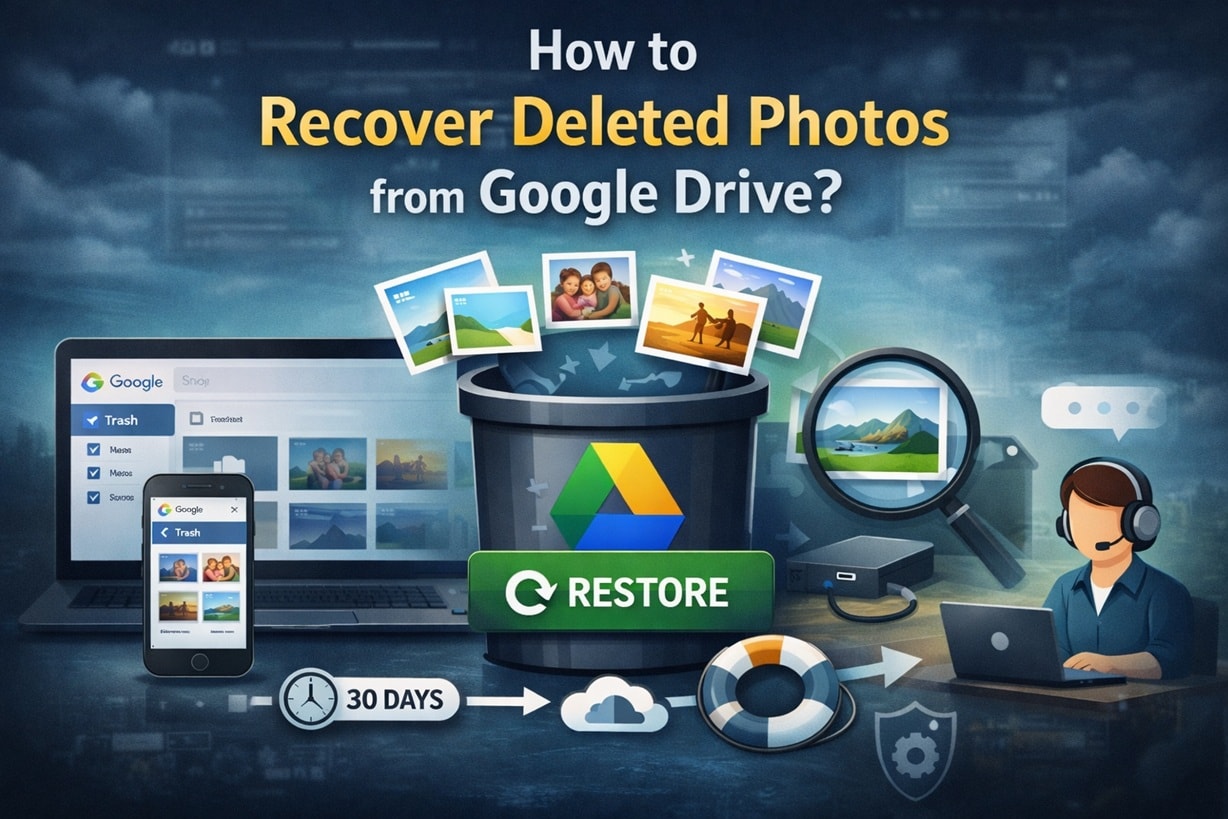
Table of Contents
Why Do Photos Get Deleted from Google Drive?
Before trying any recovery step, it is helpful to understand what caused the problem. Many users assume that once a photo is gone, it is gone forever. That is not always true. In most cases, deletion happens due to common mistakes or normal system behavior. Knowing the cause helps you choose the correct solution and avoid repeating the issue in the future.
Here are the top reasons photos get deleted from Google Drive.
1. Accidental Deletion
You may select multiple files while cleaning storage. One wrong click can remove important photos along with unwanted files. This is the most common cause.
2. Emptying the Trash Folder
Deleted files move to the Trash first. If you manually empty Trash, those files are permanently removed from your account.
3. Sync Errors
Google Drive syncs across devices. If you delete a file from your computer, it may also be deleted from the cloud automatically.
4. Malware or Virus Attack
Malicious software can damage or remove files in synced folders. This often affects users who download files from unsafe websites.
5. Account Hacking
If someone gains access to your account, they may delete photos intentionally. Weak passwords increase this risk.
6. Formatting a Synced Folder
If your system drive is formatted, locally stored synced files can disappear before uploading again.
7. App Bugs or Crashes
Though rare, software glitches during updates can cause missing files or failed uploads.
Understanding these causes makes it easier to plan how to recover deleted photos on Google Drive without panic.
How to Recover Deleted Photos from Google Drive
If your photos are missing, act quickly. Time matters in recovery. Google gives users a limited period to restore deleted files. Start with simple options first. Only move to advanced solutions if needed. These methods are easy to follow.
Below are detailed fixes to help you retrieve deleted pictures on Google Drive step by step.
Fix 1: Check the Google Drive Trash Folder
Google Drive does not erase files immediately. When you delete a photo, it moves to the Trash folder. This folder works like a temporary storage area. Files remain there for 30 days before final removal.
Many users forget to check the Trash. They assume the photo is permanently gone. In reality, it may still be waiting there.
Checking Trash is fast and requires no technical knowledge. If your deletion was recent, recovery takes less than a minute.
- Log in to your Google Drive account. On the left side menu, click “Trash.”
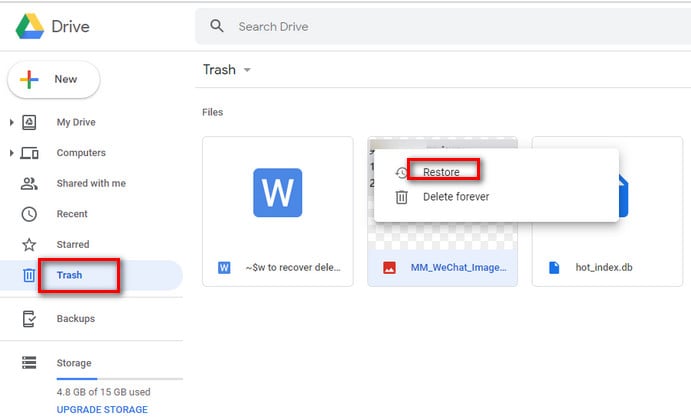
- Locate the deleted photo. Right-click on it. Choose “Restore.”
Fix 2: Recover from Google Photos (If Synced)
Many users connect Google Drive with Google Photos. When syncing is active, images uploaded to one service may appear in the other.
If you cannot find photos in Drive Trash, check Google Photos. It has a separate Bin folder. Deleted items stay there for 30 days.
This method often solves the issue for users searching how to recover deleted photos from Google Drive after clearing the main Trash.
Steps:
- Open Google Photos. Click on “Trash” from the menu.
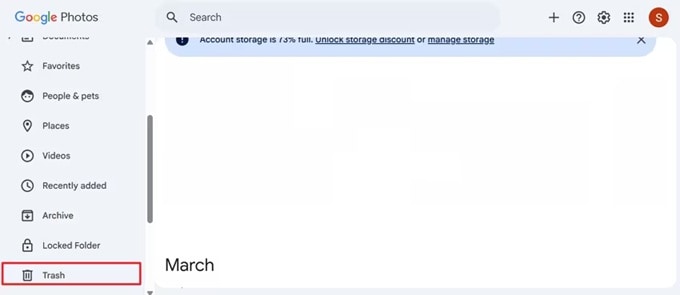
- Step 2: Select the deleted images. Click “Restore” to send them back to your Photos library.
Fix 3: Retrieve from Google Drive Backup & Sync (Local Copies)
If you installed Google Drive for Desktop, your files may be stored locally on your computer. Even if the cloud version is gone, the local copy might remain.
Sometimes syncing stops due to internet issues. During that time, local files may not update. This can save your data without you realizing it.
This option helps users who wonder how to recover deleted photos on Google Drive when online recovery fails.
Steps:
- Open File Explorer on your computer. Go to the Google Drive folder.
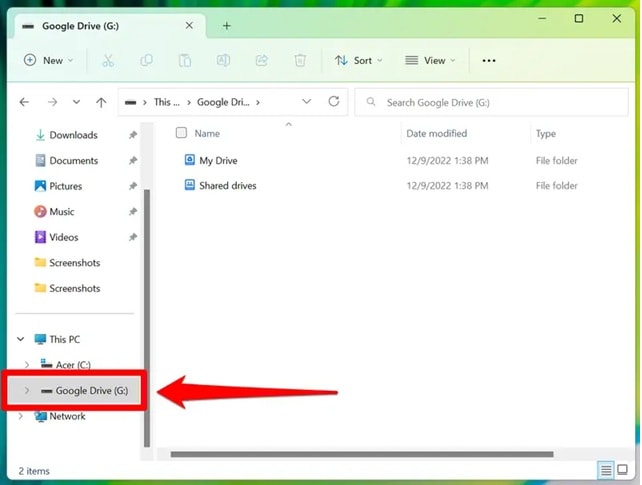
- Step 2: Search for your deleted photos. If found, copy them to another secure folder.
Fix 4: Use Google Admin Console (For Workspace Users)
If you use a Google Workspace account provided by a company or school, your admin has extra recovery powers.
Admins can restore deleted Drive data within a specific time range. This feature works even after the Trash folder is emptied.
This is useful for business users who need to retrieve deleted pictures on Google Drive that are critical for work.
Steps:
- The admin logs in to Admin Console. Navigate to “Users.”
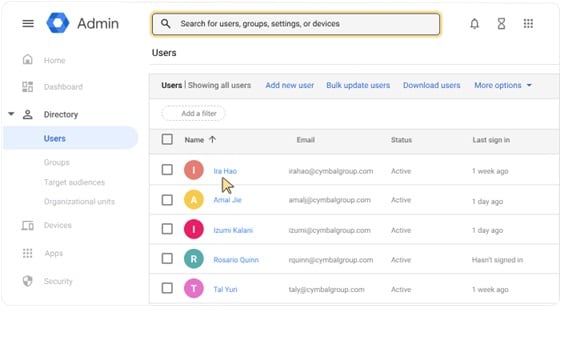
- Choose the affected account. Click “Restore Data.” Select Drive and set the proper date range.
Fix 5: Contact Google Support for Account Recovery
If your photos were deleted due to hacking or a technical error, contacting Google Support is worth trying.
Though success is not guaranteed, Google may help in recent deletion cases. Provide accurate information about file names and dates.
Users learning how to recover deleted images from Google Drive should not ignore this final option.
Steps:
- Visit the Google Drive Help Center. Sign in to your account.
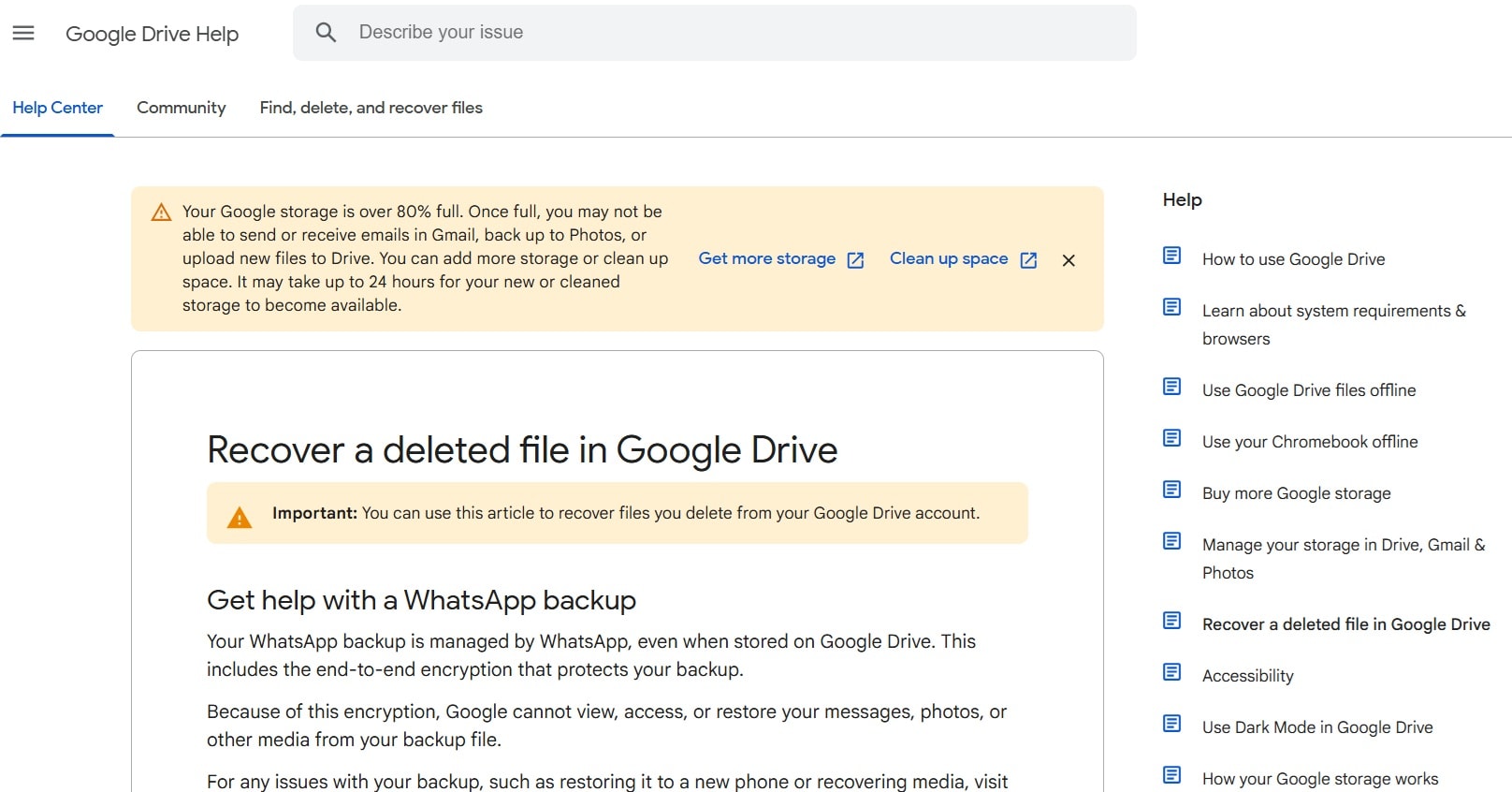
- Step 2: Submit a recovery form. Clearly explain when the photos were deleted.
Lost Data While Recovering Photos? Recover Lost Data Easily Using Recoverit
Recovery attempts can create confusion. You may download files to the wrong folder. You may overwrite older copies without noticing. In panic, users often delete remaining backups while trying different fixes. In some cases, a drive gets formatted during troubleshooting. This creates a second layer of data loss and makes recovery harder.
Recoverit is a professional data recovery tool built to handle these situations. It restores deleted photos, videos, and documents from computers, external hard drives, USB drives, and memory cards. The software performs a deep scan of the storage device. It searches hidden and damaged sectors carefully. It does not overwrite existing data during the scanning process.
The tool becomes useful when cloud recovery does not work. If local synced folders were removed or a drive was formatted, Recoverit can scan the device and locate lost photo files. It helps you preview the recovered images before saving them. This reduces risk and gives you better control over the final recovery.
Try Recoverit to Recover Lost Excel Files
 Security Verified. Over 7,302,189 people have downloaded it.
Why Use Recoverit?
- Recovers deleted photos from internal and external drives
- Supports deep scan mode for hidden files
- Works after accidental formatting
- Allows preview before final recovery
- Simple and beginner-friendly interface
- Safe scanning without modifying original data
How to Recover Photos Using Recoverit
Step 1: Install Recoverit on your computer. Open it and select the drive where the photos were stored.

Step 2: Start scanning. Wait for results. Preview found photos.

Step 3: Select the required files and click “Recover.” Save them on a different drive.

Conclusion
Deleting photos from Google Drive does not always mean permanent loss. In most situations, files remain in Trash for 30 days. Checking Trash and Google Photos often solves the problem quickly. Acting early increases your success rate.
If cloud recovery fails, local backups and recovery software provide extra protection. Now you understand how to recover deleted photos from Google Drive through simple and advanced methods. With careful steps and regular backups, you can protect your memories and reduce future risk.
FAQs
-
1. Can I recover permanently deleted photos from Google Drive?
Recovery depends on timing and account type. For regular Google accounts, photos deleted from Trash after 30 days are usually gone permanently. However, Google Workspace users may request help from their admin, who can restore Drive data within a limited period after permanent deletion. Quick action increases the chance of success. -
2. Does Google Drive automatically delete photos after 30 days?
Yes. When you delete photos, they move to the Trash folder and stay there for up to 30 days. If you do not restore them within that period, Google Drive removes them automatically and they cannot be recovered through normal Trash options. -
3. Is recovery possible without backup?
Yes, in some cases. If the deleted photos are still in Google Drive Trash or the Google Photos Bin, you can restore them easily. If those folders are empty, recovery may still be possible using local data recovery software to scan your computer or external storage for saved copies.


