
 TL;DR:
After the 30-day Recently Deleted period expires, iPhone photos are permanently removed from that album, meaning recovery is only possible if a secondary copy survives on an offline Apple device, an older non-synced backup, or external storage.
● If iCloud Photos was disabled before the loss, you can erase your iPhone and restore from an older iCloud, Finder, or iTunes backup, but if iCloud Photos was enabled, the deletion synced across all devices and standard backups will not contain the images.
● You can potentially retrieve synced photos by checking an older iPhone, iPad, or Mac that has remained completely offline since before the deletion, provided you keep the device disconnected from the internet while exporting the files to avoid triggering a sync.
● Modern iOS encryption prevents recovery software from directly scanning an iPhone's internal storage or iCloud servers, limiting tools like Wondershare Recoverit strictly to recovering previously exported photo copies from readable computer drives, USBs, or SD cards.
Ask AI for a summary
 ChatGPT
 Perplexity
 Gemini
 Claude
 Grok
Grok
If you are searching for how to recover deleted photos from iPhone after 30 days, start with the hard limit: once Apple's Recently Deleted period has expired or the album was emptied, the iPhone cannot simply restore those photos from that album. The real question becomes whether another copy existed before the deletion synced or the backup changed.
That copy may be on an offline iPhone, iPad, or Mac, in an older iCloud or computer backup made when iCloud Photos was off, inside a Mac or Windows photo backup, in Google Photos, OneDrive, Dropbox, Messages, Mail, an external drive, or an imported folder. Recoverit Photo Recovery can help recover deleted local photo copies from readable storage such as a computer, USB drive, SD card, or external drive. It cannot recover photos directly from iPhone internal storage or iCloud.
Try Wondershare Recoverit to Recover Deleted Photos
 Security Verified. Over 7,302,189 people have downloaded it.
In this article
-
- Method 1. Check an Offline iPhone, iPad, or Mac
- Method 2. Restore From an Older iCloud Backup When iCloud Photos Was Disabled
- Method 3. Check Finder, Apple Devices, or iTunes Backups
- Method 4. Restore Photos From a Mac or Windows Backup
- Method 5. Check Google Photos, OneDrive, Dropbox, Messages, and Other Copies
- Method 6. Recover Deleted Local Photo Copies With Wondershare Recoverit
Part 1. Can You Recover Deleted Photos on iPhone After 30 Days?
Sometimes, but not from Recently Deleted after the recovery period is gone. Apple says deleted photos and videos stay in Recently Deleted for 30 days, and then they are permanently deleted from that recovery location. If you also deleted them from Recently Deleted manually, that shortcut window closes even sooner.
After 30 days, recovery depends on backups and copies. If iCloud Photos was enabled and the deletion synced to iCloud, an iCloud device backup usually will not bring those synced photos back. If iCloud Photos was disabled before the loss, an older iCloud Backup or computer backup may still include the camera roll. If photos were imported or exported to a computer, card, USB drive, or cloud app, local or separate-copy recovery may still be possible.
What Happens After the 30-Day Recently Deleted Period
Recently Deleted is a temporary holding album, not a permanent backup. Within the 30-day period, open Photos, go to Recently Deleted, unlock the album if required, select the photos, and recover them. After the period expires, those items are removed from that album and cannot be restored from it.
Apple's iPhone guide also explains that deleting a photo or video removes it from every device where iCloud Photos is turned on with the same Apple Account. That is why a photo can disappear from iPhone, iPad, Mac, and iCloud.com once the deletion has synced.
iCloud Photos vs iCloud Backup
Many failed recovery attempts come from treating iCloud Photos and iCloud Backup as the same thing. They are not. iCloud Photos is a sync library. iCloud Backup is a device backup, and Apple says iCloud Backup does not include information that is already stored in iCloud, including iCloud Photos.
| Setting Before Deletion | Where Photos Were Managed | Included in iCloud Backup? | Recovery Impact After 30 Days |
| iCloud Photos on | Synced through iCloud Photos | Usually no, because the photos already sync to iCloud | Look for offline devices, exports, other cloud apps, or local copies. A normal iCloud Backup usually will not contain a separate copy of the synced library. |
| iCloud Photos off | Stored in the device Photos library or Camera Roll | Possibly yes, if the backup was created before deletion | An older iCloud Backup or computer backup may restore the photo library, but it can replace current device data. |
| Photos imported to a computer | Mac Photos Library, Windows folder, or external drive | Not dependent on iPhone backup | Restore from Time Machine, File History, cloud backup, or scan the local storage if the imported copies were deleted. |
When Deleted Photos May Still Exist Elsewhere
Do not assume the iPhone is the only place the image ever lived. Deleted iPhone photos after 30 days may still be found in these places:
- An iPhone, iPad, or Mac that stayed offline before the deletion synced.
- An older iCloud Backup made while iCloud Photos was disabled.
- A Finder, Apple Devices, or iTunes backup made before the photos were deleted.
- A Mac Photos Library, Windows Pictures folder, Downloads folder, or iCloud Photos download folder.
- Time Machine, Windows File History, NAS backups, external drives, SD cards, or USB drives.
- Google Photos, OneDrive, Dropbox, Messages, Mail, Shared Albums, or sent attachments.
When Photo Recovery Is No Longer Possible
Recovery may no longer be realistic when the only copy was in iCloud Photos, it left Recently Deleted, the deletion synced to all devices, no backup predates the deletion, no app or computer ever stored a second copy, and no offline device remains. No recovery software can rebuild photos that exist only as permanently removed iCloud cloud data.
For local disks, cards, and USB drives, recovery can also fail if new files overwrote the deleted photo data, the storage was securely erased, the drive is physically unreadable, or encryption prevents access to the original data.
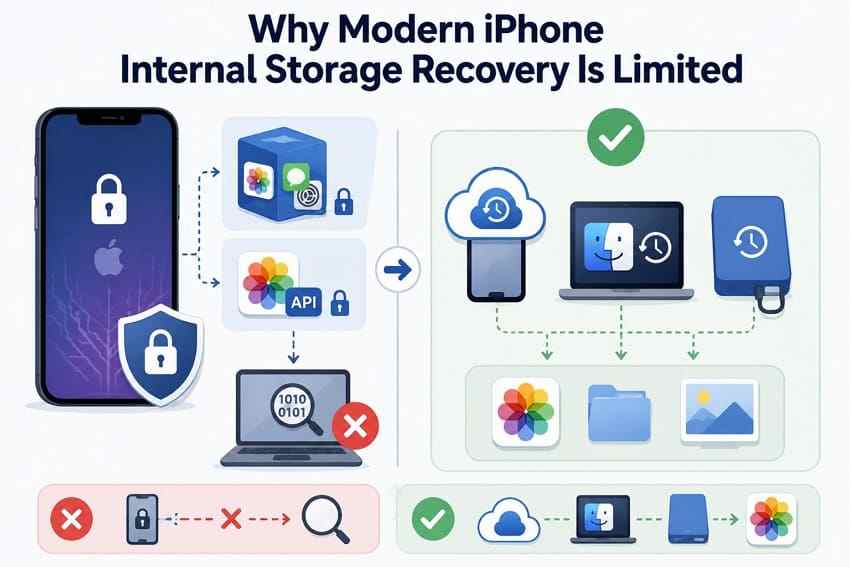
Why Modern iPhone Internal Storage Recovery Is Limited
Direct raw storage recovery from a modern iPhone is limited by iOS security design. Apple's security guide describes Data Protection, encryption, and app sandboxing that protect files and restrict unrestricted access to app data and storage. This is good for privacy, but it also means a Windows or Mac photo recovery program cannot simply scan an iPhone's internal flash storage like an SD card.
For this reason, practical recovery after 30 days usually means restoring from backups, checking synced or exported copies, or recovering local photo files that were previously saved outside the iPhone.
Part 2. What to Check Before Trying iPhone Photo Recovery
Before you restore, erase, repair, or reconnect devices, run these checks. They prevent the most common mistake: overwriting the only surviving copy.
| Check | What to Verify | Why It Matters |
| Correct Apple Account | Check every Apple Account used on the iPhone, iPad, Mac, or family computer. | Photos, iCloud libraries, and backups belong to the account that created or synced them. |
| iCloud Photos status | On the iPhone, check Settings > [your name] > iCloud > Photos. | This decides whether iCloud Photos sync or backup restoration is the likely route. |
| Offline Apple devices | Find any iPhone, iPad, or Mac that has not connected since before deletion. | It may still hold a copy that has not received the deletion event. |
| Imported computer copies | Search Mac Photos, Windows Pictures, Downloads, Desktop, and iCloud Photos folders. | Imported and exported copies are independent from the iPhone's Recently Deleted album. |
| External and cloud backups | Check Time Machine, File History, external drives, NAS, Google Photos, OneDrive, and Dropbox. | Separate backups may keep an older photo version after Apple Photos no longer does. |
| Restore risk | Confirm backup dates and make a current backup when possible before erasing or restoring. | Restoring a backup can replace the current iPhone state with older data. |
Part 3. How to Recover Deleted Photos From iPhone After 30 Days
The following methods are ordered by data safety. Check non-destructive copies first. Use erase-and-restore methods only when the backup date makes sense and you understand what current data may be replaced.
Method 1. Check an Offline iPhone, iPad, or Mac
An offline Apple device can be the best remaining chance when iCloud Photos was enabled. If it has not connected to the internet since the deletion, it may not have synced the removal yet.
- Keep the device offline. Use airplane mode or disconnect Wi-Fi before opening Photos.
- Open the Photos app and search Library, Albums, Recents, Favorites, Hidden, Recently Deleted, Shared Albums, and search results by date or location.
- If the photos are present, export them before reconnecting. Use AirDrop only if it will not force iCloud Photos to sync first, or connect to a computer and import the available files.
- If Optimize iPhone Storage was enabled, remember that the device may hold smaller optimized versions instead of full-resolution originals.
Warning: Do not reconnect a potentially useful offline device to Wi-Fi until you have exported the visible photos. Once it syncs, iCloud Photos may remove the same images from that device.
Method 2. Restore From an Older iCloud Backup When iCloud Photos Was Disabled
This method works only in a narrower case: iCloud Photos was off before the deletion, and an iCloud Backup was created while the missing photos were still on the iPhone. Apple explains that restoring from an iCloud Backup happens during device setup, so you must erase the iPhone first.
Before you start: Back up the current iPhone if it contains newer files you still need. Then confirm the old backup date. Do not erase the iPhone if the only available backup was created after the photos were deleted.
- Open Settings > [your name] > iCloud > iCloud Backup and check the last successful backup date.
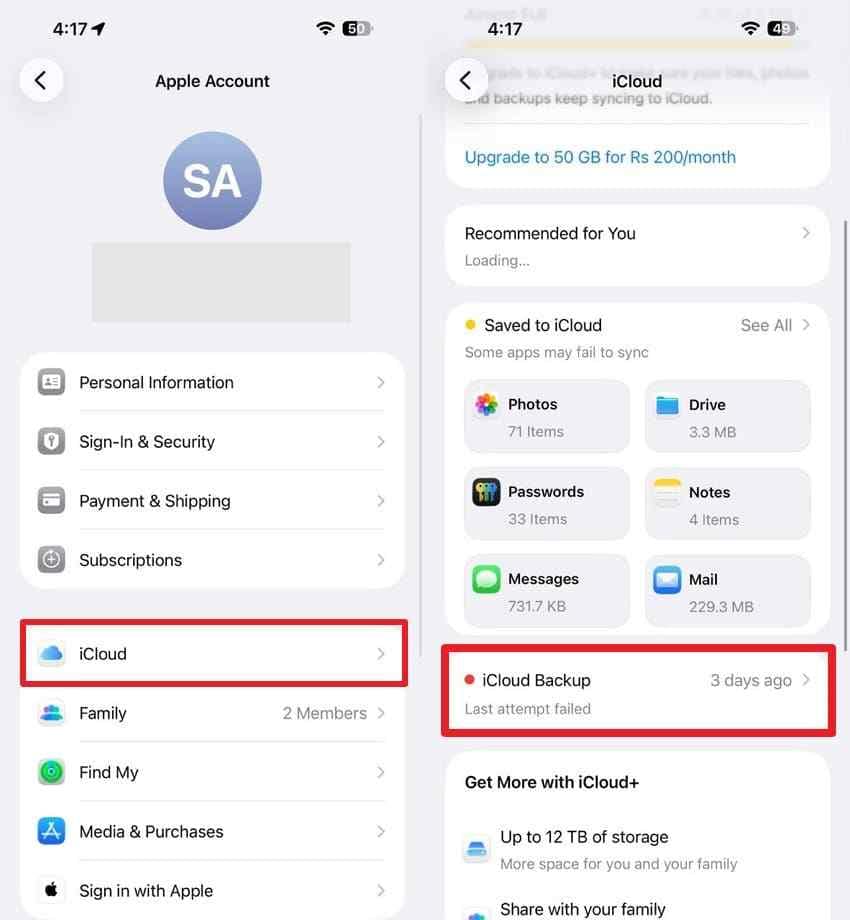
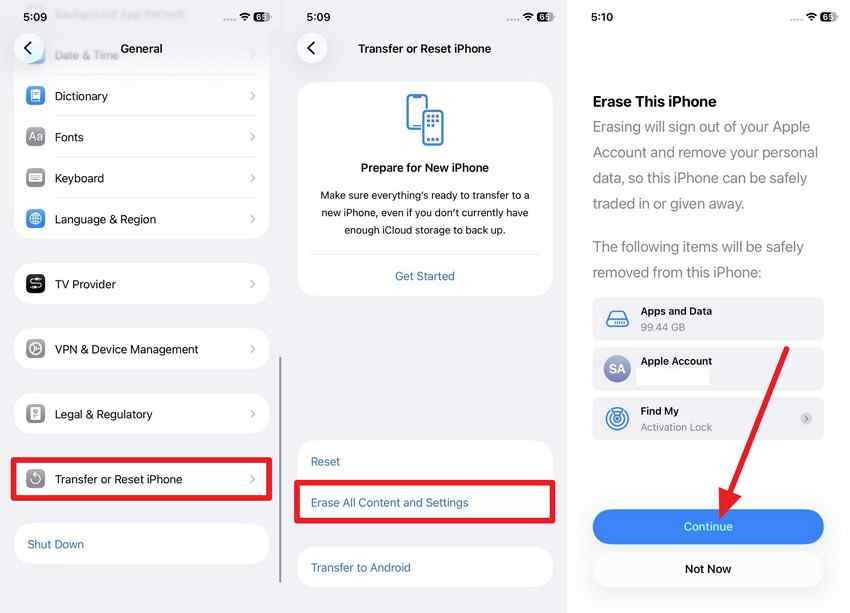
- Go to Settings > General > Transfer or Reset iPhone > Erase All Content and Settings. Follow the prompts only after you are sure the backup is worth restoring.
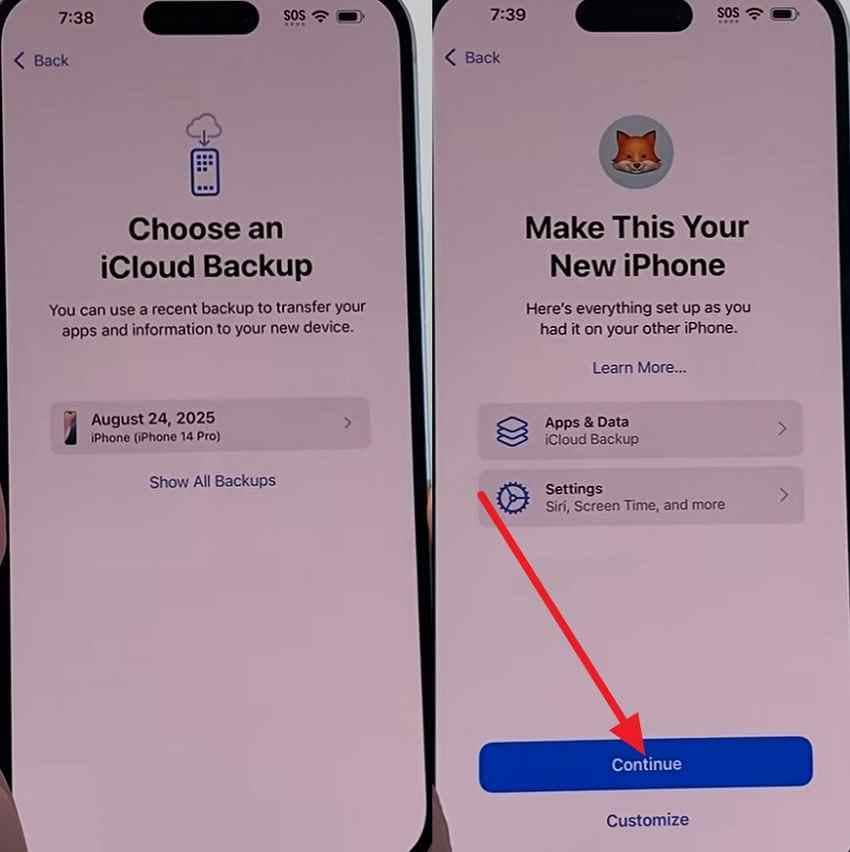
- During setup, choose Restore from iCloud Backup and sign in with the Apple Account that owns the backup.
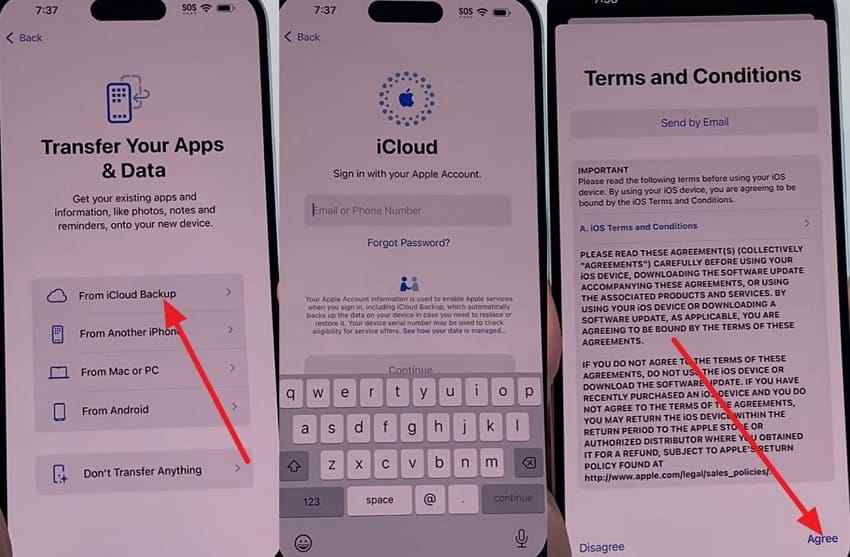
- Select the backup created before the photos were deleted and wait for the restore to finish.
Method 3. Check Finder, Apple Devices, or iTunes Backups
A computer backup can help only if it contains the photo library. Apple's backup guidance says computer backups do not include content already synced to iCloud, including iCloud Photos. If iCloud Photos was off and the backup was made before deletion, check the backup on the trusted Mac or Windows PC.
For Mac with Finder:
- Connect the iPhone to the Mac, open Finder, select the iPhone, and choose Restore Backup.
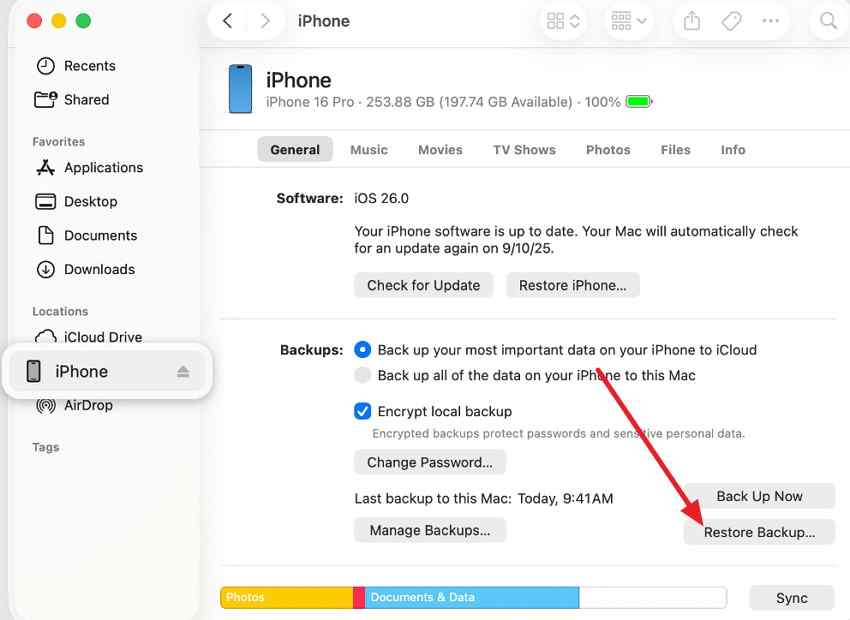
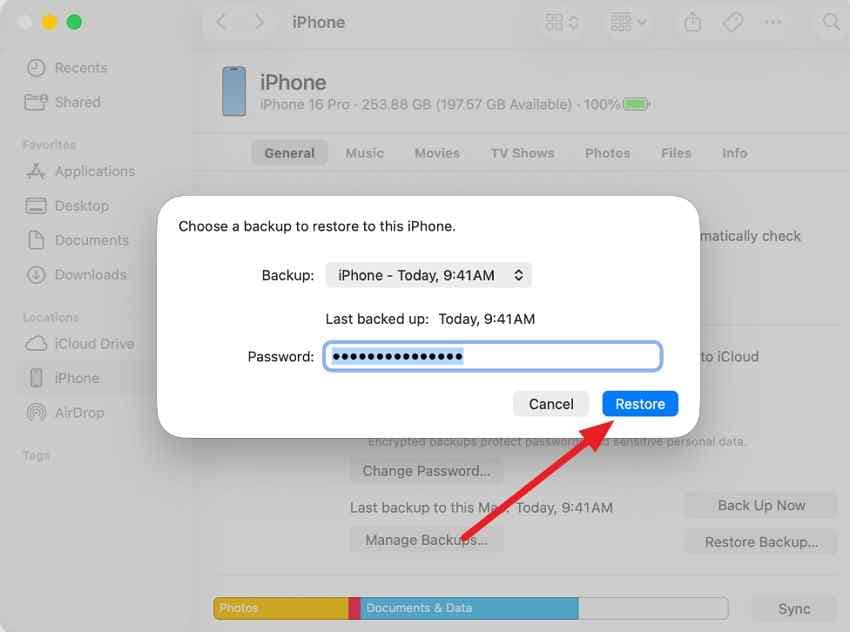
- Choose a backup dated before the photo deletion, enter the encrypted-backup password if required, and restore.
For Windows:
- Use the Apple Devices app on supported Windows systems, or iTunes if that is the backup tool used on the computer. Connect the trusted iPhone and choose Restore Backup.
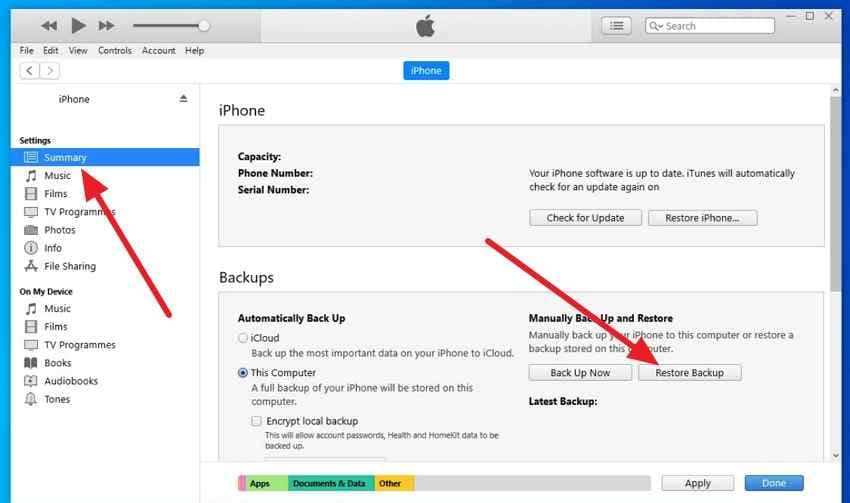
- Select the relevant backup and restore it. If the backup was encrypted, enter the password used when the backup was created.
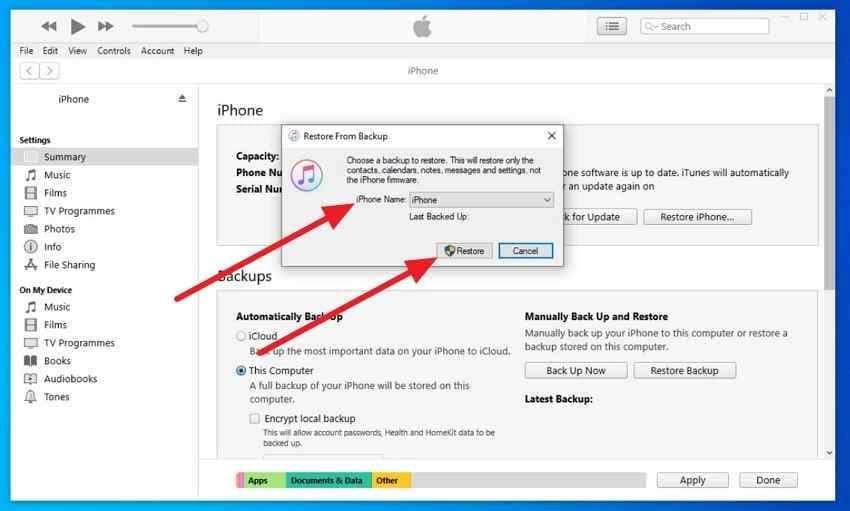
After the restore, immediately export the recovered photos to a computer or external drive before making further changes.
Method 4. Restore Photos From a Mac or Windows Backup
If photos were imported from the iPhone to a computer, the local copy may survive outside the iPhone library. If that local copy was later deleted, restore it from the computer's own backup first.
For Mac Photos and Time Machine:
- Quit Photos. Open the folder or Photos Library location you want to restore, then enter Time Machine.
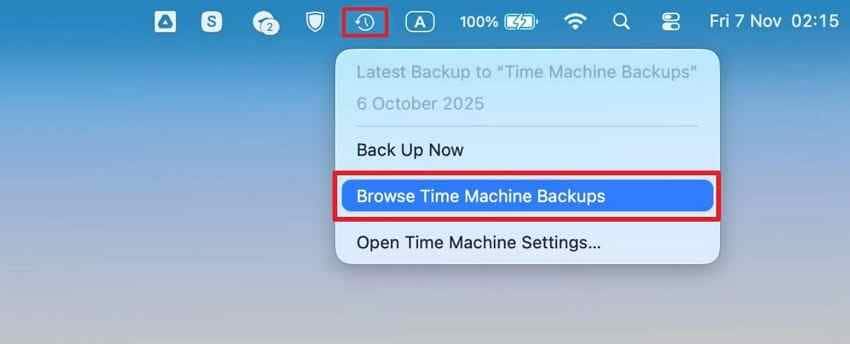
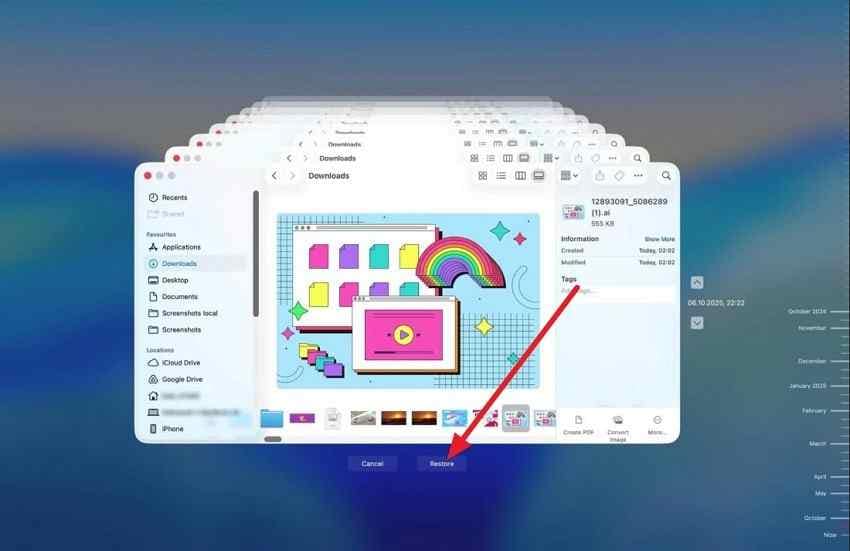
- Move to a backup date before the photos disappeared, select the file, folder, or Photos Library, and restore it. Apple also provides a Photos-specific guide for restoring a Photos Library with Time Machine.
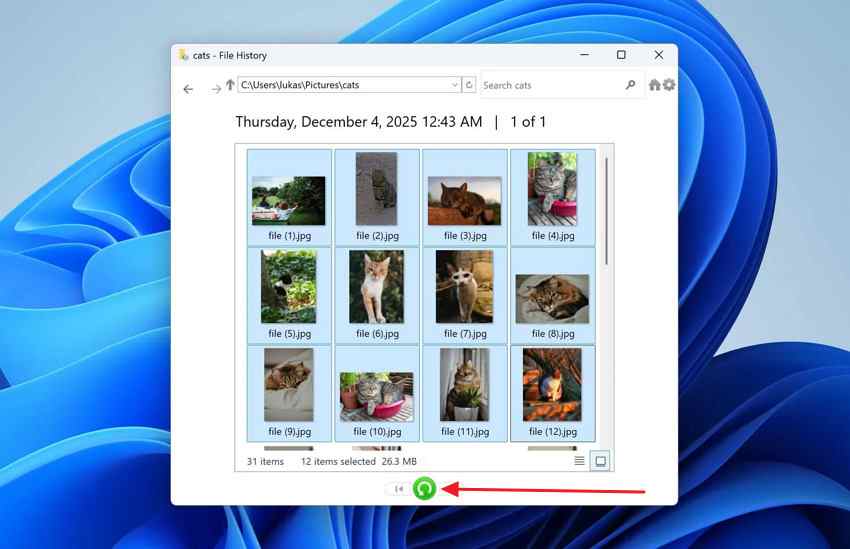
For Windows File History:
- Open Control Panel > System and Security > File History > Restore personal files. Browse Pictures, Downloads, Desktop, or the folder where imported iPhone photos were saved, then restore a version from before deletion.
Method 5. Check Google Photos, OneDrive, Dropbox, Messages, and Other Copies
Third-party apps can store photos independently from Apple Photos. Check them before restoring the iPhone, because this route does not overwrite the device.
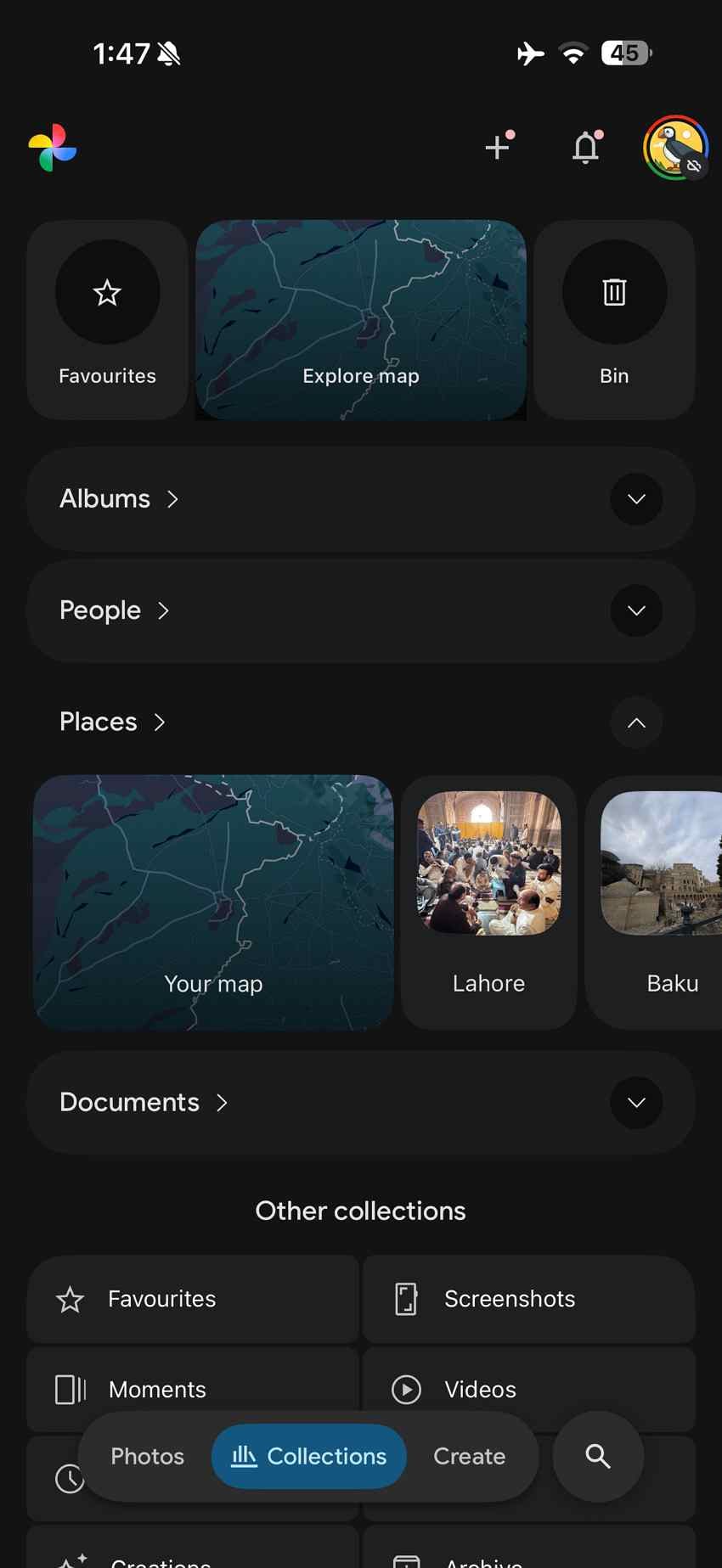
- Google Photos: Open Google Photos, search Library and Trash, then download any found item. Google Photos Help says backed-up items stay in Trash for 60 days, while items not backed up stay there for 30 days.
- OneDrive or Dropbox: Check camera upload folders, deleted files, version history, and web trash areas.
- Messages and Mail: Search conversations and attachments. Sent or received photo copies may be separate from Photos.
- Shared Albums: Check whether a photo was added to a Shared Album. It may remain available even when the personal library copy is gone, depending on who added or deleted it.
- Old exports: Search ZIP files, desktop folders, edited copies, social media uploads, printing orders, and photo books.
Method 6. Recover Deleted Local Photo Copies With Wondershare Recoverit
Use Recoverit when the missing iPhone photos once existed as local files on readable storage outside the iPhone. Examples include imported HEIC or JPG files on a Windows PC, exported photos on a Mac, downloaded iCloud Photos folders, camera SD cards, USB drives, external SSDs, or backup disks.
Important limit: Recoverit Photo Recovery cannot scan Apple's iCloud servers, bypass an Apple Account, decrypt protected iPhone storage, or recover photos directly from modern iPhone internal storage. It is for recoverable local photo files on supported readable storage.
Key features for this case:
- Scans computers, external drives, USB drives, SD cards, and other supported local storage where iPhone photo copies may have been saved.
- Supports common photo formats such as HEIC, JPG, PNG, TIFF, and RAW formats used by cameras and editing workflows.
- Lets you preview recoverable photos before saving them, which helps avoid restoring the wrong files.
- Offers filtering by file type, path, date, and size to narrow large scan results.
- Saves recovered files to another drive so the original storage is not overwritten during recovery.
How to recover deleted local photo copies:
- Install and open Recoverit on a drive other than the one that held the deleted photos. Choose the computer drive, external disk, USB drive, or memory card to scan.

- Let the scan run. Use image filters and file paths to find iPhone photo formats or exported folders.

- Preview the photos, select what you need, click Recover, and save the recovered files to a different drive.

Try Wondershare Recoverit to Recover Deleted Photos
Security Verified. Over 7,302,189 people have downloaded it.
Part 4. Which Recovery Option Applies to Your Situation?
Use this table to avoid the wrong next step. The best option depends on whether the lost photos were synced, backed up, imported, or independently saved.
| Situation | Where Photos May Still Exist | Best Option | Main Limitation |
| iCloud Photos was enabled | Offline Apple devices, Shared Albums, third-party clouds, exported folders, or local copies | Check offline devices first, then other apps and local storage | Synced iCloud Photos are not normally included again in iCloud or computer backups. |
| iCloud Photos was disabled | Older iCloud Backup, Finder backup, Apple Devices backup, or iTunes backup | Restore from a backup dated before deletion | Restoring can replace current device data, and backups after deletion will not help. |
| Photos were previously imported to a computer | Mac Photos Library, Windows folders, Time Machine, File History, or deleted local files | Restore computer backup first; use Recoverit if local copies were deleted from readable storage | Recovery depends on whether the imported files still exist in backup or have not been overwritten. |
| An older iPhone or iPad has been offline | Local Photos app on that device | Keep it offline and export visible photos before reconnecting | Optimized storage may not contain full-resolution originals, and syncing may remove the copy. |
| Photos were synced to another cloud service | Google Photos, OneDrive, Dropbox, Drive, Messages, or Mail attachments | Search the app library, trash, archive, and downloads | Each service has its own retention rules, and deleted items may already be purged. |
| No backup or secondary copy exists | No known surviving location | No reliable recovery route after Recently Deleted expires | Third-party tools cannot recreate photos that no longer exist on any accessible storage. |
Part 5. Why Some iPhone Photo Recovery Methods Do Not Work After 30 Days
After the 30-day window, some popular advice sounds promising but fails because it does not match how iCloud Photos and iPhone storage work.
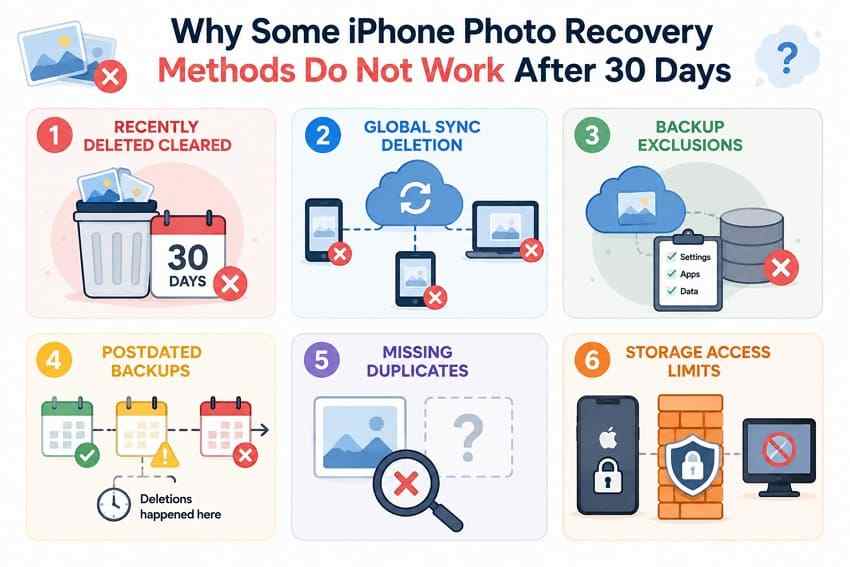
- Recently Deleted has already been cleared: Once the photo leaves Recently Deleted, that album is no longer a recovery source.
- iCloud Photos synced the deletion: Connected devices update to the same library state, so a synced Mac or iPad may no longer have the photo either.
- iCloud Backup does not contain synced iCloud Photos: Restoring a backup made while iCloud Photos was on usually restores device settings and app data, then syncs the current iCloud Photos library.
- The available backup is too new: A backup created after deletion normally reflects the post-deletion state.
- No local or cloud copy exists: Without a second copy, backup, or accessible local file, recovery tools have nothing reliable to recover.
- Third-party software cannot access deleted iCloud Photos directly: A website or desktop app cannot scan Apple's cloud storage for permanently deleted photos or bypass Apple Account protection.
Part 6. How to Prevent Losing iPhone Photos Again
The safest prevention plan is not one cloud library. Use iCloud Photos for convenience, but keep independent copies for photos you cannot lose.
| Prevention Step | What to Do | Why It Helps |
| Keep a separate copy | Export important photos to a computer, external drive, or separate backup service. | A synced deletion in iCloud Photos will not remove every copy. |
| Download originals | On Mac or Windows, keep full-resolution originals where storage allows. | Optimized iPhone storage may keep smaller local versions instead of originals. |
| Back up computer libraries | Use Time Machine, File History, NAS, or another backup tool for imported photo folders. | Dated backups let you restore older copies after accidental deletion. |
| Use more than one storage location | Keep one local copy and one independent backup or cloud copy. | One account issue, sync mistake, or drive failure is less likely to erase everything. |
| Check Recently Deleted before 30 days | Review the album before clearing it or before the countdown expires. | This is the fastest Apple-supported recovery path. |
| Export before major changes | Copy important photos before bulk cleanup, device restore, account change, repair, or migration. | You create a recovery point before changes that may be hard to undo. |
Conclusion
After 30 days, deleted iPhone photo recovery is a copy hunt, not a magic restore button. Check offline Apple devices before they sync, confirm whether iCloud Photos was enabled, review older iCloud or computer backups only when they predate the deletion, and search computers, external drives, cloud apps, Messages, and Mail for independent copies.
If the missing photos once existed as local files on readable storage, Recoverit Photo Recovery may help scan and recover those deleted local copies. If the only copy was permanently removed from iCloud Photos and no backup or secondary copy exists, recovery is usually no longer possible.
FAQ
-
Does Optimize iPhone Storage affect older photo copies?
Yes. With Optimize iPhone Storage enabled, an iPhone may keep smaller local versions while full-resolution originals stay in iCloud. An offline device can still be worth checking, but it may not hold every original-quality file. -
Can Shared Albums still contain a photo deleted from your personal library?
Yes. Shared Albums can hold separate shared copies. Check the shared album before assuming the photo is gone, but remember that album owners and contributors can delete items according to Apple's shared-album rules. -
Can deleted iPhone photos remain in Messages or Mail attachments?
Yes. A photo you sent or received may remain in a conversation or email attachment outside the Photos app. Search Messages, Mail, and other chat apps for the date, contact, or file preview. -
Does changing to a new iPhone affect the 30-day Recently Deleted period?
No. If iCloud Photos is enabled, the Recently Deleted period belongs to the synced iCloud Photos library, not to one physical iPhone. Switching devices does not restart the 30-day countdown.