

 TL;DR:
Lost SD card photos can often be recovered using backup sources or data recovery software, provided you immediately stop using the card to prevent data overwriting and the storage remains physically detectable by a computer.
● Do not format the card or run file system repair commands like CHKDSK before recovery, and always save retrieved images to a separate drive to avoid overwriting the original storage space.
● Free tools like Recuva, QPhotoRec, or Windows File Recovery are sufficient for recent deletions on normally mounting cards, while Recoverit Photo Recovery is suited for formatted, RAW, or corrupted cards requiring deep scans and camera format previews.
● If the SD card freezes or disconnects during scans, create a disk image first to scan a stable copy; however, if the card is completely undetected by any reader or physically damaged, DIY software cannot reliably scan it and a professional lab is required.
Ask AI for a summary
 ChatGPT
 Perplexity
 Gemini
 Claude
 Grok
Grok
"Hello. I accidentally deleted 800 photos from my SD card instead of saving them, and I am in desperate search for help in recovering them."
If you need to know how to recover lost photos on an SD card, stop using the card first. Deleted, missing, or quick-formatted photos may still be recoverable until new images, videos, downloads, or repair actions overwrite the same storage space.
This guide explains how to retrieve lost photos from an SD card safely. You will learn what to do before scanning, how to choose between Recoverit Photo Recovery, free tools, backups, Windows File Recovery, and professional help, and what to do if recovered photos will not open.
In this article
-
- Method 1. Recover Lost SD Card Photos with Recoverit
- Method 2. Check the Recycle Bin or Trash
- Method 3. Restore Photos from Cloud, Camera, or Phone Backups
- Method 4. Restore from Windows File History or Previous Versions
- Method 5. Recover Photos with Recuva for Free
- Method 6. Recover Photos with QPhotoRec or PhotoRec for Free
- Method 7. Use Windows File Recovery for Command-Line Recovery
- Method 8. Recover Photos from an SD Card Disk Image
Part 1. Can You Recover Lost Photos from an SD Card?
Yes, you can often recover lost photos from an SD card if the card is still detected and the missing image data has not been overwritten. Deletion and quick formatting usually remove file references first. The original photo data may remain on the card until new data replaces it.
Recovery depends on the card condition, the loss cause, and how quickly you stop using the card. If the card is physically damaged or not detected by any device, software recovery is less likely to work and professional help may be safer.
When Lost SD Card Photos Are Still Recoverable
- No new photos, videos, or files were saved to the SD card after the loss.
- The photos were deleted, lost during transfer, or removed by a quick format.
- The card appears in File Explorer, Finder, Disk Management, or a recovery tool.
- The card shows RAW, asks to be formatted, or looks empty, but the computer still detects it.
- The recovery tool supports your photo formats, such as JPG, JPEG, PNG, HEIF, CR2, CR3, NEF, ARW, RAF, or ORF.
When Photo Recovery May No Longer Be Possible
- New photos or videos have overwritten the storage space that held the missing images.
- The card was fully overwritten, securely erased, or formatted and reused heavily.
- The memory chip, controller, or connector is physically damaged.
- No computer, camera, phone, or card reader can detect the SD card.
- The recovered files are only fragments because the original image data is incomplete.
Deleted, Formatted, Corrupted, or Undetected Card: What Changes?
| Card condition | What is happening | Recovery outlook |
| Deleted photos | The file entries were removed, but image data may still remain. | High if you stop using the card immediately. |
| Formatted card | The file system was rebuilt. A quick format may leave photo data behind. | Good with a deep scan if the card was not reused. |
| Corrupted or RAW card | The file system is damaged, so the card looks empty or asks to be formatted. | Often recoverable if you scan before repair or formatting. |
| Hidden photos | Malware, device errors, or attribute changes may hide images. | Good if the files are only hidden and not overwritten. |
| Undetected card | A reader, port, adapter, driver, or card hardware issue blocks access. | Depends on whether another reader or a lab can access it. |
Part 2. Stop First: What to Do Before SD Card Photo Recovery
Before you recover lost pictures from an SD card, protect the photos that may still be there. Do these steps before opening any recovery tool.
| Step | What to do | Why it matters |
| Stop using the card | Remove it from the camera, phone, drone, or computer. | New files can overwrite lost photos. |
| Use a reliable card reader | Connect the card through a stable reader and try another computer if needed. | Loose adapters and bad USB ports can interrupt scans. |
| Cancel format prompts | Do not format the card even if Windows or macOS asks. | Formatting before recovery can reduce recovery chances. |
| Do not run repair commands yet | Avoid CHKDSK or file system repair before recovering important photos. | Repair actions can change file system records and make recovery harder. |
| Do not save recovered photos to the same card | Save recovered files to your computer or another drive. | Writing to the same SD card may overwrite photos you still need. |
| Create a disk image if the card is unstable | Clone the card to an image file if it disconnects, freezes, or slows down during scans. | Recovering from a stable image reduces stress on a failing card. |
Part 3. Why Photos Get Lost on an SD Card
Knowing the cause helps you choose the right recovery method and avoid risky fixes.
| Cause | What happened | Best response |
| Accidental deletion | Photos were deleted from the camera, phone, or computer. | Stop using the card and scan it quickly. |
| Accidental formatting | The file system was reset before a backup was made. | Run a deep scan before taking new photos. |
| Interrupted transfer | The card was removed or the device lost power while copying files. | Check backups, then scan the card for lost or damaged images. |
| RAW or file system errors | The card cannot be read normally and may ask to be formatted. | Recover first, repair or format later. |
| Hidden files or malware | Photos may be hidden instead of deleted. | Back up visible files, scan for malware, then show hidden items. |
| Worn-out or damaged card | Bad sectors, connector damage, or memory wear makes files unreadable. | Stop repeated scans if the card is unstable and consider a lab. |
Part 4. How to Recover Lost Photos from an SD Card
With the card protected and the cause narrowed down, use the recovery method that matches your situation. Start with backup checks if a copy may already exist. Use software when the original card is readable. Use a professional lab when the card has physical or detection problems.
Method 1. Recover Lost SD Card Photos with Recoverit
Recoverit Photo Recovery can help recover lost photos from readable SD cards, microSD cards, camera cards, USB drives, cameras, drones, and other storage devices. It is a good fit when photos were deleted, the card was quick formatted, the card shows RAW, or free tools cannot find the missing images.
Key features for SD card photo recovery:
- Deep photo scanning: Scans readable storage for lost images beyond the visible folder structure.
- Photo preview: Lets you preview supported photos before recovery.
- Camera photo formats: Supports common images and camera RAW formats such as JPG, JPEG, PNG, HEIF, CR2, CR3, NEF, ARW, RAF, and ORF.
- Formatted and RAW card recovery: Helps recover photos when the file system is missing, damaged, or rebuilt by quick formatting.
Important: Recoverit cannot guarantee recovery, repair a physically dead SD card, or restore photos that have already been overwritten. If the card is not detected by any reader or computer, use professional recovery.
Step 1. Select the SD card. Connect the SD card through a card reader. Open Recoverit, choose the SD card, and click Start Scan.

Step 2. Scan for lost photos. Let Recoverit scan the card. Use file type filters, file location view, or preview to locate missing pictures.

Step 3. Preview and recover to another location. Preview the photos, select the ones you want, click Recover, and save them to your computer or another drive instead of the same SD card.

Method 2. Check the Recycle Bin or Trash
This method only works if the photos were deleted while the SD card was connected to a computer. Photos deleted directly in a camera or phone usually do not go to the computer's Recycle Bin or Trash.
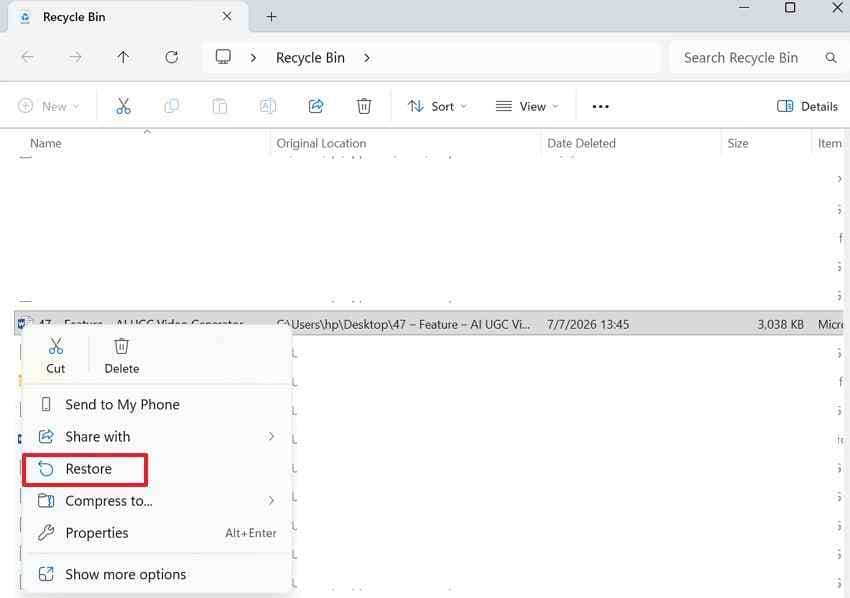
For Windows Recycle Bin: Open Recycle Bin, select the photo, right-click it, and choose Restore.
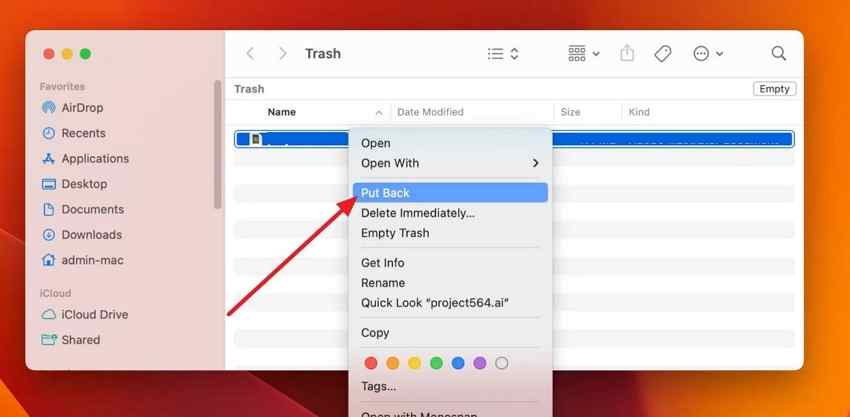
For Mac Trash: Open Trash, select the photo, use Control + Click, and choose Put Back.
Method 3. Restore Photos from Cloud, Camera, or Phone Backups
If a backup exists, restore from it before scanning the card. This is the safest way to recover lost pictures from an SD card because it does not touch the original storage.
- Check Google Photos, iCloud Photos, OneDrive, Dropbox, or other cloud folders.
- Check camera companion apps, phone galleries, computer import folders, editing software catalogs, external drives, and NAS folders.
- Check whether the photos were copied to another computer before the deletion or format.
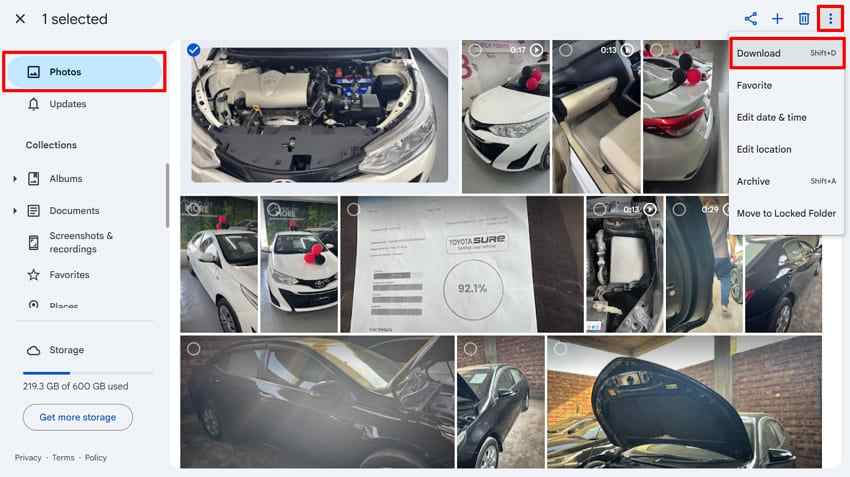
Example: Open Google Photos, select the images, click the three-dot menu, and choose Download.
Method 4. Restore from Windows File History or Previous Versions
Windows File History can help if the SD card photos were copied to a backed-up folder before they were lost. It cannot restore files that were never included in a backup.
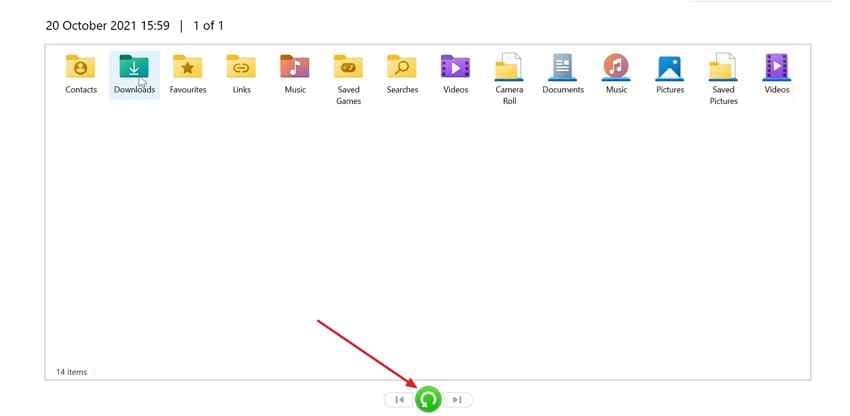
Step 1. Open Restore your files with File History from the Start menu and check whether the photo folder is listed as a backed-up location.
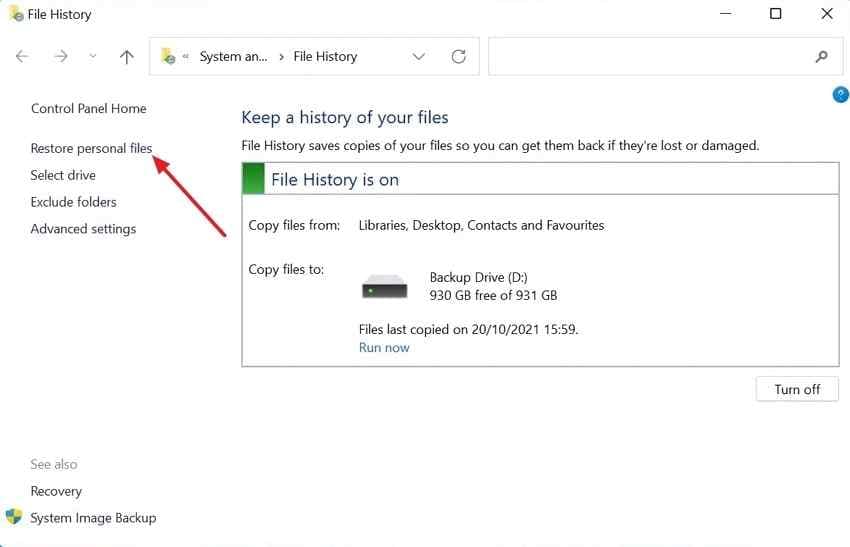
Step 2. Locate the deleted or previous photo version, then click the green restore button to recover it.
Method 5. Recover Photos with Recuva for Free
Recuva is a free Windows tool for simple deletion cases when the SD card mounts normally. It can help recover lost pictures from an SD card free of charge, but it is less reliable for RAW, formatted, unstable, or heavily corrupted cards.
Step 1. Open Recuva, choose the photo file type, select the SD card, and click Next.
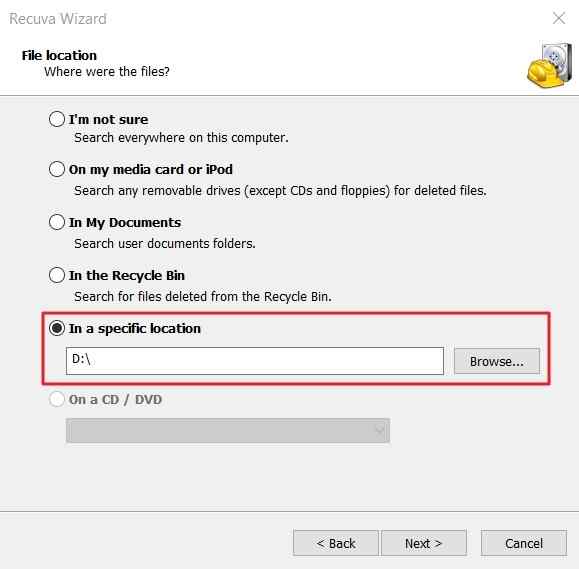
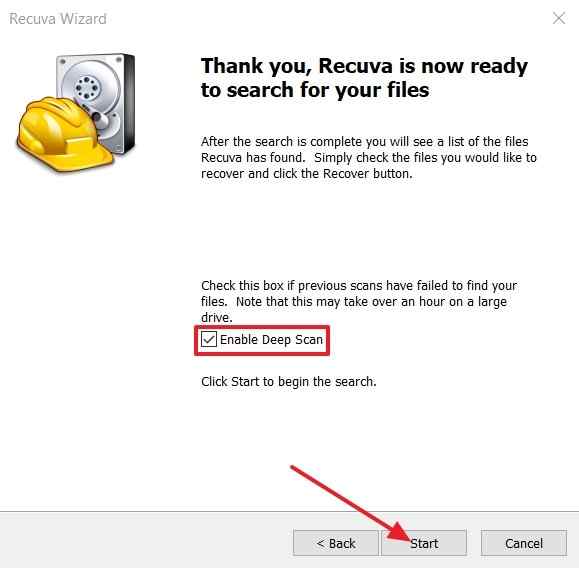
Step 2. Enable Deep Scan for a more thorough pass, then click Start.
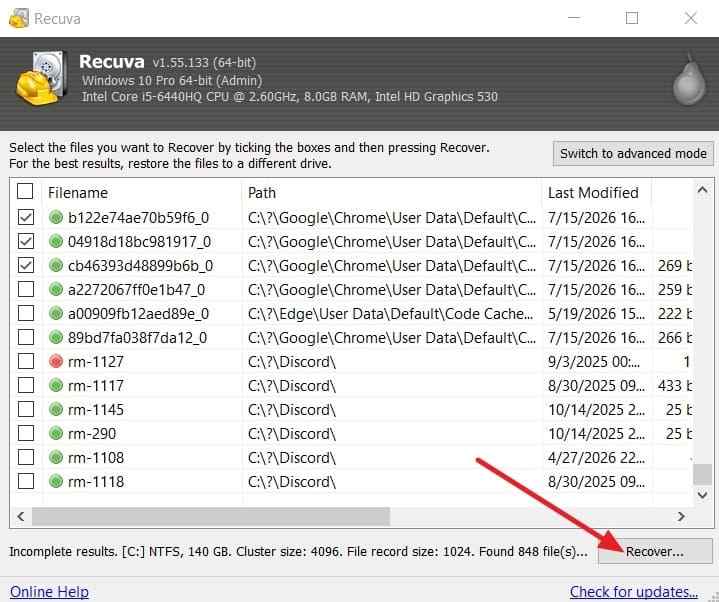
Step 3. Select the images you want, click Recover, and save them to another drive.
Method 6. Recover Photos with QPhotoRec or PhotoRec for Free
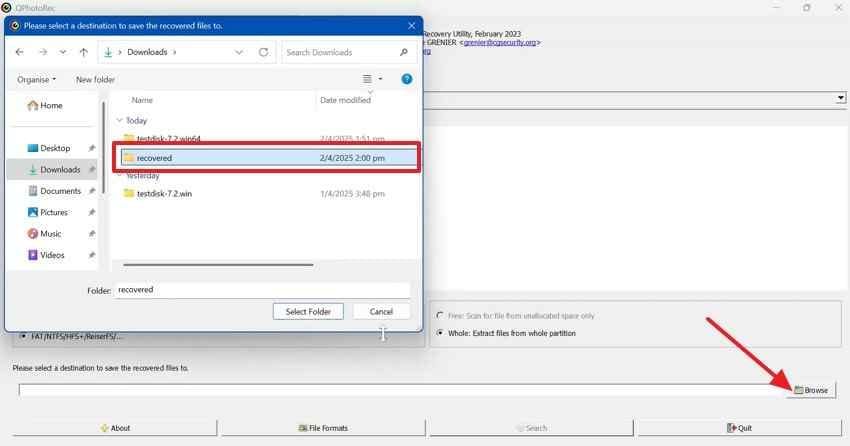
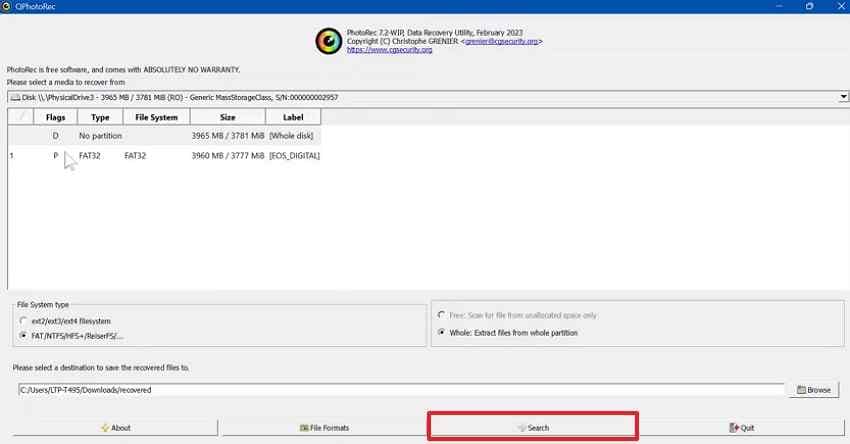
PhotoRec is an open-source tool that scans raw card data by file signatures instead of relying only on the file system. It can help with corrupted, RAW, or formatted cards, but original filenames and folder structure are usually lost.
Step 1. Open QPhotoRec, select the SD card and partition, click Browse, and choose a recovery folder on another drive.
Step 2. Click Search to start signature-based recovery, then review the output folder after the scan.
Method 7. Use Windows File Recovery for Command-Line Recovery
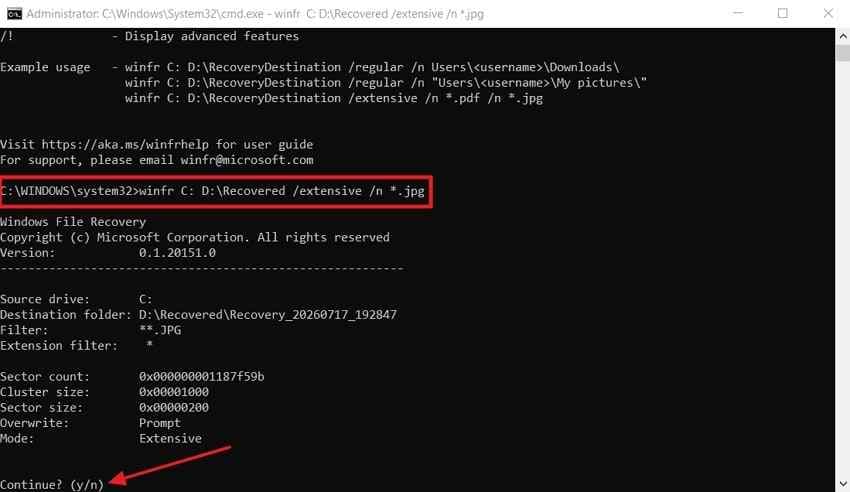
Windows File Recovery is Microsoft's command-line tool for recovering lost files on Windows. SD cards commonly use FAT or exFAT, so Extensive mode is usually the right choice.
Instructions. Install Windows File Recovery, open it as an administrator, and run a command like this. Replace E: with your SD card drive letter and D:\Recovered with a folder on another drive.
winfr E: D:\Recovered /extensive /n *.jpg /n *.jpeg /n *.png /n *.heic /n *.rawPress Y to confirm, then open the created recovery folder.
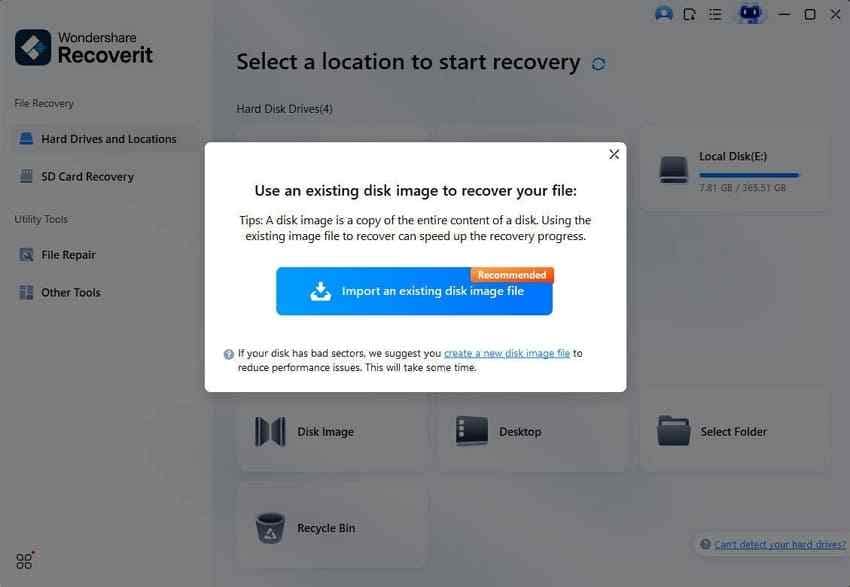
Method 8. Recover Photos from an SD Card Disk Image
If the card freezes, disconnects, or slows down during scans, create a disk image first. This lets you scan a stable copy instead of stressing the original card repeatedly.
Step 1. Create a disk image of the SD card with a disk-imaging tool and save it to your computer.
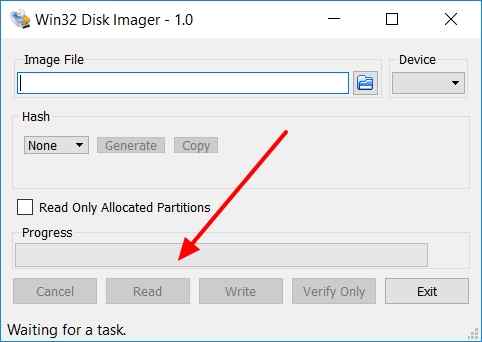
Step 2. Open the disk image in a compatible recovery tool, scan it, select recovered images, and save them to a separate drive.
Part 5. Free vs. Paid vs. Professional SD Card Photo Recovery
The right option depends on the card condition, the value of the photos, and whether you need previews, RAW support, or professional handling.
| Option | Cost | Ease of use | Preview | Best for |
| Free tools | Free | Moderate; some require command-line use | Limited | Recent deletion on a readable SD card |
| Paid software such as Recoverit | Free scan, paid recovery features | Easy guided workflow | Yes | Formatted, RAW, corrupted, or harder SD card photo recovery cases |
| Professional lab | Highest cost | Handled by technicians | Case by case | Physically damaged, unstable, or undetected memory cards |
A Free Tool Is Enough
Use free recovery software first when the photos were deleted recently, the card still mounts normally, and the card has not been reused. Recuva, PhotoRec, and Windows File Recovery can all help in simple cases.
Paid Software Is the Better Choice
Use Recoverit when the card is formatted, RAW, corrupted, or when free tools do not find the missing images. It is also better when previewing photos before recovery matters.
Stop DIY Recovery and Call a Lab
Use a professional recovery lab when the card is cracked, bent, water-damaged, not detected by any reader, or contains irreplaceable wedding, travel, legal, business, or deadline-critical photos. Repeated DIY scans on unstable hardware can make recovery harder.
Part 6. What If Recovered SD Card Photos Will Not Open?
Recovering a file and opening it successfully are not always the same thing. If recovered SD card photos are corrupted, gray, half-visible, or unsupported, try these checks.
- Try another photo viewer: Open the image in another viewer, editor, or device before assuming it is damaged.
- Run a deeper scan again: A quick scan may recover only a partial image. A deeper scan may find a more complete copy.
- Check the format: RAW or HEIF files may require compatible camera software, codecs, or photo editors.
- Keep the original recovered file: Do not edit, convert, or overwrite the recovered copy before repair attempts.
- Repair damaged photos: If the recovered file is structurally damaged, use a dedicated repair tool such as Wondershare Repairit Photo Repair after saving the recovered image to another drive.
Part 7. How to Prevent Photo Loss on Your SD Card
After you recover lost images on an SD card, use a safer workflow to avoid repeating the problem.
- Back up photos after each shoot: Copy photos to a computer, external drive, cloud folder, or NAS before reusing the card.
- Use the 3-2-1 backup rule for important photos: Keep three copies, on two storage types, with one off-site or cloud copy.
- Eject the card before removing it: Use Eject or Safely Remove Hardware before taking out the card. SanDisk also recommends avoiding interruptions during transfer to reduce corruption risk.
- Use one card with fewer devices: Moving one card between many cameras, phones, and computers can increase formatting and file system errors.
- Format only after backup: Format the card in the device that will use it only after confirming the photos are copied and open correctly.
- Replace old or problematic cards: Retire cards that show repeated write errors, slow saves, missing files, or formatting prompts.
Conclusion
Learning how to recover lost photos on SD card storage starts with one critical step: stop using the card as soon as photos disappear. Check backups first, then use recovery software on the original card or a disk image. Free tools may handle recent deletions, while formatted, RAW, corrupted, or harder cases often need deeper scanning and preview support. Recoverit can help recover lost SD card photos from readable storage, but overwritten data and physically failed cards may require professional help.
FAQ
-
Can I recover lost pictures from an SD card for free?
Yes. Recuva, PhotoRec, and Windows File Recovery can recover lost pictures from an SD card for free in simple cases, especially when the card is readable and has not been reused. Formatted, RAW, or corrupted cards may need paid recovery software. -
How long do deleted photos stay recoverable on an SD card?
Deleted photos stay recoverable until new data overwrites the same storage space. Stop using the card immediately, remove it from the device, and scan it from a computer to improve your chances. -
Can Recoverit recover photos from an SD card that is not detected?
Recoverit can scan SD cards that are detected by the computer or recovery software. If the card is not detected by any reader or computer, software cannot reliably scan it, and professional recovery may be required. -
Why do some recovered SD card photos appear corrupted?
Photos may appear corrupted if part of the image data was overwritten, the card has bad sectors, or the first scan recovered only a file fragment. Try a deeper scan, another viewer, or a photo repair tool after recovery. -
Should I format the SD card before recovering lost photos?
No. Do not format the card before recovery, even if the computer asks. Recover the photos first, save them to another drive, and format the card only after your important images are safely backed up. -
Where should I save recovered photos from an SD card?
Save recovered photos to your computer, an external drive, or another storage device. Do not save them back to the same SD card because that can overwrite additional recoverable photos.


