 TL;DR:
To recover photos permanently deleted from an Android device's local trash, immediately check connected cloud storage bins like Google Photos, which retain deleted files for up to 60 days.
● Restore files directly from the Google Photos Bin, Google Drive, or Dropbox, or navigate to Settings > Backup > Internal Storage to retrieve pre-configured local device backups.
● Use third-party recovery applications like Recoverit or Deleted Photo Recovery App for recent deletions, provided the phone's internal storage has not yet been overwritten by new data.
● Contact the phone manufacturer's service center for advanced recovery tools if the data loss stems from physical hardware damage, water damage, or severe system failure.
Ask AI for a summary
 ChatGPT
 Perplexity
 Gemini
 Claude
 Grok
Grok
Many people shoot photos on their phones each day. These photos often hold memories, work records, or personal moments. Losing them feels stressful. The worry grows when the photos vanish not only from the gallery but also from the trash folder. People search for ways on how to recover photos deleted from trash Android but often feel confused by many options.
This guide explains every method in clear steps. It shows many ways to recover photos deleted from trash on Android in simple language. Each part also explains how to avoid losing files again. The goal is to help anyone bring back their photos without complex tools.
You will understand why photos go missing and how to recover deleted photos from trash on Android with safe methods.
Try Recoverit to Recover & Repair Video/Photo/Docs etc.
 Security Verified. Over 7,302,189 people have downloaded it.
Table of Contents
Part 2: How to Recover Photos Deleted from Trash on Android?
There are many ways to recover photos deleted from trash Android even after complete removal. These methods work in different situations. Some methods rely on backups. Some methods use tools. Some require a computer. You can try more than one method until you get results.
The goal is to help you recover photos deleted from trash on Android safely. You will also learn how to recover deleted photos from trash on Android using steps that fit your device. Some methods are fast. Some take time. But all methods are worth trying.
Method 1: Restore from Google Photos Backup
If your photos synced earlier with Google Photos, they may still be safe. The cloud stores photos separately from the local trash. Even if the phone trash is empty, the cloud bin may still have your files for up to sixty days.
This method is simple and works for most users. Many people forget they enabled sync earlier. They search for how to recover photos deleted from trash Android only to find the files waiting in the cloud.
How this method helps:
- Cloud keeps deleted photos for a long time.
- You can check bin inside the app.
- You can restore with one tap.
- It is fast and safe.
- It helps recover phtotos deleted from recycle bin Android when local trash is empty.
Step 1. Open Google Photos and go to the Bin folder.
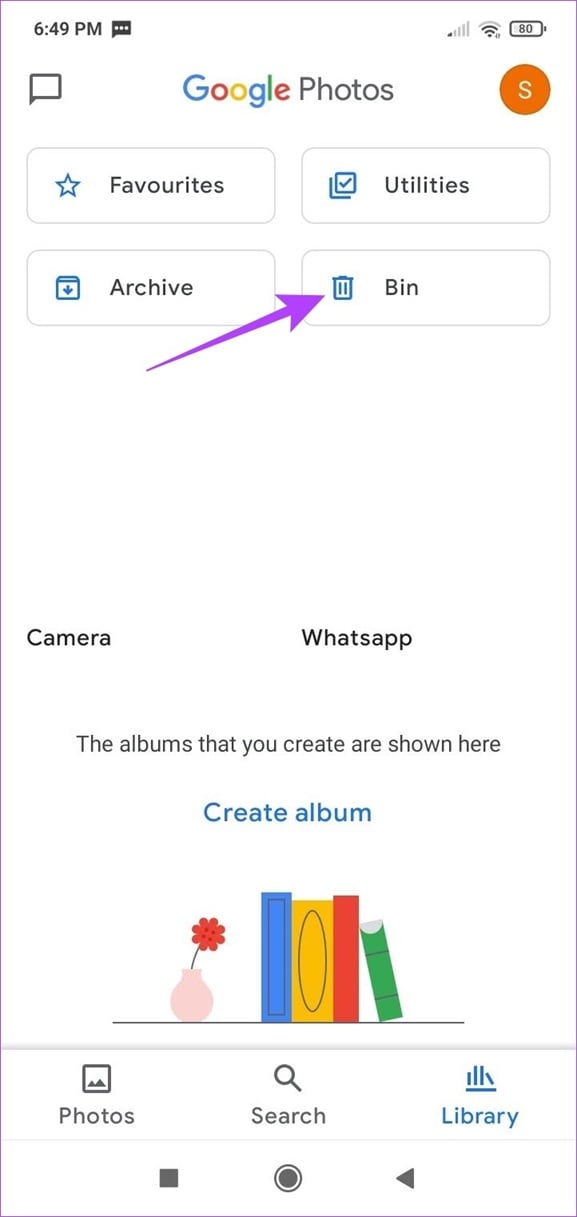
Step 2. Select the photos and press Restore.
Method 2: Check Google Drive or Other Cloud Storage Services
Some users upload photos to cloud apps like Google Drive or other cloud services. These apps often keep removed items in their trash bins for weeks. They act as an extra backup. Many users find their photos here even after full deletion on the phone.
This method is helpful if you saved files to cloud folders or auto upload was active.
How this method helps:
- You can check cloud trash folders.
- Cloud may keep deleted items longer.
- You can download the files again.
- It works even after phone errors.
- It may recover photos deleted from trash on Android through old uploads.
Step 1. Open the cloud app like Dropbox and check the trash or bin folder.
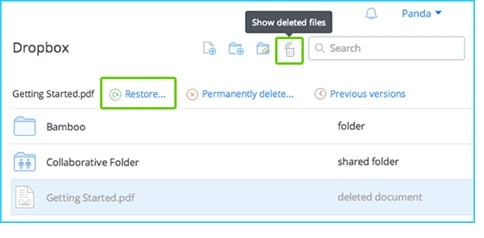
Step 2. Restore files and save them to the device.
Method 3: Use Android Local Backup
Many phones have a local backup feature in Settings. It may save copies of your photos. If you enabled this earlier, you can recover photos deleted from trash Android using these backups.
Local backups help users who do not use cloud apps. Backups may be daily, weekly, or manual.
How this method helps:
- Works without internet.
- Restores older photos.
- Restores selected photos only.
- Helps after gallery app errors.
- Can recover erased photos from trash Android from old backups.
Step 1. Open Settings and search for Backup and then Internal Storage.
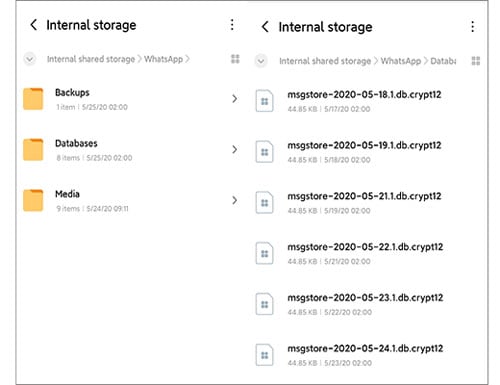
Step 2. Restore the gallery backup.
Method 4: Try Third-Party Android Photo Recovery Apps
Some Play Store apps can scan your storage. They may find recently deleted photos. These apps are easy to use and do not need a computer. They work best when the deletion happened recently.
This method is useful when you are on the move. It can retrieve photos from trash Android in many cases.
How this method helps:
- Quick scan process.
- Simple interface.
- Works on the phone itself.
- Helps recover recent items.
- Can recover phtotos deleted from recycle bin Android sometimes.
Step 1. Install a trusted recovery app like Deleted Photo Recovery App.

Step 2. Scan and restore found photos.
Method 5: Contact Phone Manufacturer or Service Provider
If nothing works, contact the phone maker. They may offer deeper recovery tools. Their service centers use advanced methods. They can recover photos deleted from trash on Android when the storage is damaged.
This is useful after water damage, impact damage, or serious system failure.
How this method helps:
Step 1. Contact support or visit a service center.
Step 2. Submit the phone for recovery.
Conclusion
Losing photos feels worrying. But you can recover photos deleted from trash Android if you follow the right methods. You can use tools on a PC. You can use cloud backups. You can use local backups. You can try recovery apps. You can even contact experts. Many people recover photos deleted from trash on Android by acting fast and choosing the right method.
Develop safe habits with your phone. This will reduce the risk of loss in the future. You will not need to search for how to recover deleted photos from trash on Android again if you use backups and cloud sync. Recovery becomes easier when you act early and keep your storage safe.
FAQs:
-
1. Can I recover photos deleted months ago?
Sometimes you can. Cloud backups may still have older copies. A deep scan tool may find traces if the storage space has not been replaced by new data. Acting early gives better results. -
2. Why does my phone's trash clear so fast?
Many phones clear trash after thirty days by default. Some clear sooner if storage is low or a cleaner app runs in the background. This is why deleted photos may vanish faster than expected. -
3. Are cloud backups safer than local storage?
Yes. Cloud backups stay online even if the phone fails. A factory reset or storage issue does not remove cloud photos. This makes them a safe option for long-term storage.



