
 TL;DR:
To successfully repair a corrupted NEF file without risking permanent data loss, you must first create a duplicate of the damaged file and then attempt extraction using specialized RAW software before executing storage-level repair commands.
● Open the duplicate file in Nikon ViewNX or Capture NX-D, as these official programs can often parse partially damaged Nikon sensor data that standard applications reject, allowing you to safely export the surviving image to a stable format.
● Update the Camera RAW plugin in Adobe Photoshop or Lightroom to the latest version, which frequently resolves unreadable file errors caused by outdated camera model compatibility rather than actual structural corruption.
● Use CHKDSK on Windows or Disk Utility First Aid on Mac if multiple files fail due to storage device errors, but if files are accidentally deleted or the SD card is formatted during this process, immediately stop writing new data and use recovery software like Recoverit to rebuild the lost file structures.
Ask AI for a summary
 ChatGPT
 Perplexity
 Gemini
 Claude
 Grok
Grok
NEF files are important for Nikon camera users. These files store RAW image data with full detail. When a NEF file becomes corrupted, it may fail to open or show errors. This situation can be stressful, especially if the photos are from a special event or professional project. Many users begin searching for how to repair corrutped NEF file as soon as they see error messages on their screen. A damaged file may appear blank, show distorted colors, or remain completely inaccessible.
To fix the issue properly, you must first understand what is NEF file and why it behaves differently from JPEG images. NEF stands for Nikon Electronic Format. It keeps all sensor data without heavy compression. This allows better editing control later.
However, because it stores more data, it is also more sensitive to interruptions and storage errors. If damage happens, careful steps are needed to repair NEF files without causing further harm. In some cases, you may also need NEF file repair solutions or tools to recover NEF data safely. Acting calmly and following the correct order of steps increases the chance of success.
Table of Contents
-
- Fix 1: Try opening NEF files in Nikon ViewNX or Capture NX-D
- Fix 2: Use Adobe Photoshop or Lightroom with Camera RAW updates
- Fix 3: Convert NEF to another format
- Fix 4: Restore from backup or cloud storage
- Fix 5: Use Windows Previous Versions feature
- Fix 6: Repair the storage device
- Fix 7: Contact Nikon support or professionals
What is a NEF File?
Many beginners ask what a NEF file is before trying to fix it. A NEF file is a RAW image format created by Nikon digital cameras. It captures full sensor data from the camera. Unlike JPEG, it does not discard fine details. This gives photographers better control over exposure, color balance, and sharpness during editing.
Understanding what an NEF file is helps you see why corruption can be serious. RAW files are larger than standard image files. They store complex metadata along with image data. Because of this structure, even small damage can stop the file from opening. That is why proper handling is important before starting any NEF file repair process.
Learning what is NEF file also reminds you to keep backups and use safe transfer methods.
Why Do NEF Files Get Corrupted?
Before you attempt how to repair corrutped NEF file, you should understand the reasons behind the corruption. Files rarely become damaged without a cause. Most problems are linked to storage issues or transfer interruptions. Below are common causes explained clearly.
- Power interruption during file transfer: If your computer shuts down suddenly while copying photos, the file may remain incomplete. Incomplete writing often leads to corruption.
- Removing the SD card without safe eject: Pulling the card out while data is being written can break the file structure. Even one second of interruption is enough.
- Virus or malware infection: Malware can modify file headers or hide files completely. This makes NEF file repair more difficult.
- Bad sectors on the storage device: Over time, SD cards develop physical wear. Damaged sectors prevent proper data storage.
- Improper formatting of the SD card: Formatting a card in the wrong system can create compatibility issues. Cameras may then fail to save files correctly.
- Camera firmware problems: Outdated firmware may produce writing errors. Updating firmware reduces this risk.
- Unstable USB connection: Loose or damaged cables may interrupt file transfer. This creates partial files.
- Editing software crashes: If editing software stops during saving, the RAW file may not complete the save process.
Understanding these causes helps prevent future damage. Prevention is always better than complex repair.
7 Fixes to Repair Corrupted NEF File
If you are looking for how to repair corrutped NEF file, start with safe and simple fixes. Always create a copy of the original file first. Never work directly on the only copy. Follow the fixes below in order.
Fix 1: Try Opening NEF Files in Nikon ViewNX or Capture NX-D
Nikon provides official software designed for RAW files. These programs understand the internal structure of NEF better than many third-party tools. Sometimes other applications fail because they do not read Nikon data properly.
Even if a file looks corrupted, it may still contain usable data. Nikon software may open the image partially. Once opened, you can export it into a stable format.
This method does not modify the original data unless you resave it. That makes it safe as a first step.
Steps:
- Download Nikon ViewNX or Capture NX-D from the official Nikon website and install it.
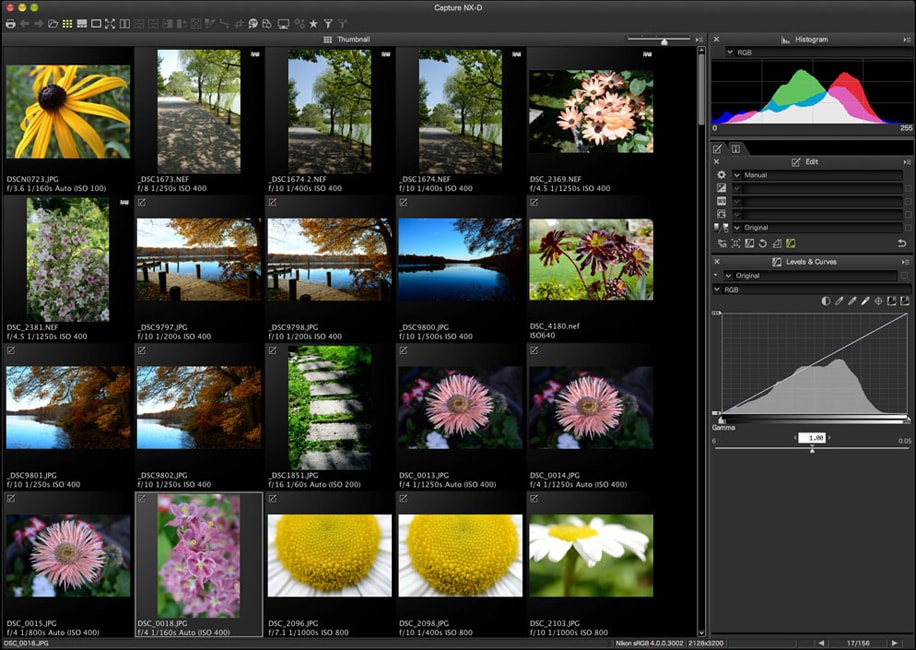
- Open the program, import the file, and try exporting it as a new copy.
Fix 2: Use Adobe Photoshop or Lightroom with Camera RAW Updates
Adobe software supports many Nikon models. If your version is outdated, the file may appear unreadable. Updating the Camera RAW plugin can solve compatibility problems.
Sometimes there is no real damage. The issue is that your software cannot recognize the camera model. After updating, the file may open normally.
Adobe programs also allow exporting files to TIFF or JPEG. This can bypass minor corruption.
Steps:
- Update Photoshop or Lightroom and ensure Camera RAW is the latest version.
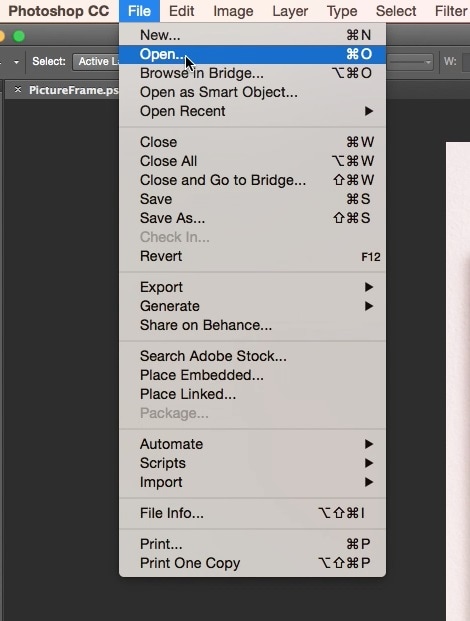
- Import the file and export it to a new image format.
Fix 3: Convert NEF to Another Format Using Converters
Conversion tools sometimes ignore small structural errors. They focus on extracting visible image data.
Offline converters are safer than unknown online sites. Choose trusted tools from reliable sources.
If conversion succeeds, you save the image content even if the RAW data is slightly damaged.
Steps:
- Install a reliable RAW image converter.
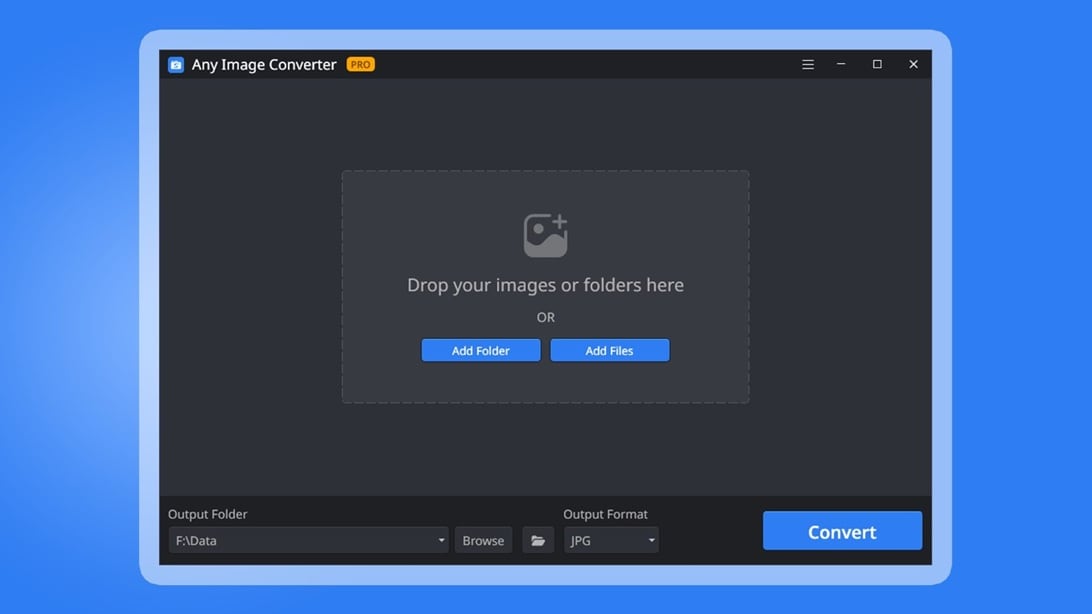
- Select the NEF file and convert it to JPEG or TIFF format.
Fix 4: Restore from Backup or Cloud Storage
If you keep regular backups, recovery becomes simple. External drives and cloud services store older versions of files.
Cloud platforms often maintain version history. You can download an earlier copy from there.
Restoring from backup avoids risky manual repair attempts.
Steps:
- Open your backup location or cloud account.
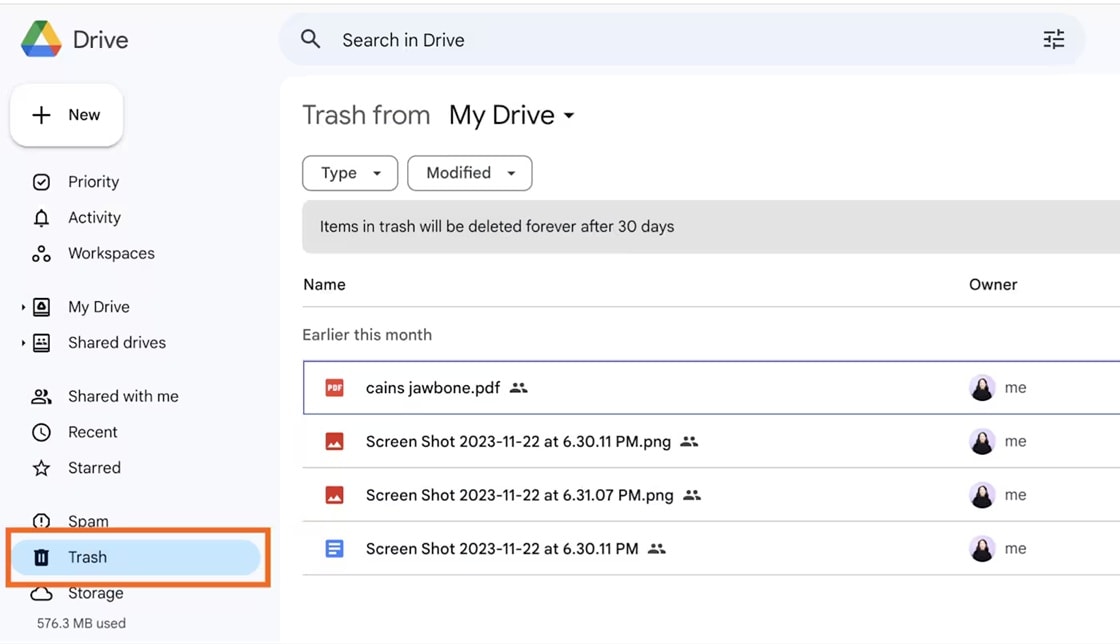
- Locate the correct file version and download it to your computer.
Fix 5: Use Windows Previous Versions Feature
Windows sometimes creates restore points automatically. If this feature was enabled earlier, you can retrieve older copies.
This method works best if the corruption happened recently.
It is quick and does not require additional software.
Steps:
- Right-click the affected file and select Properties.
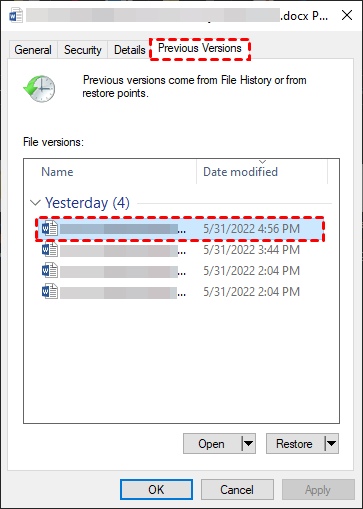
- Click Previous Versions and restore an available copy.
Fix 6: Repair the Storage Device with CHKDSK or Disk Utility
If multiple files show problems, the storage device may be faulty. Running a disk repair scan can correct file system errors.
Windows users can run CHKDSK. Mac users can use Disk Utility First Aid.
This may restore access to files that were hidden due to system errors.
Steps:
- Open Command Prompt and type chkdsk X: /f, replacing X with your drive letter.
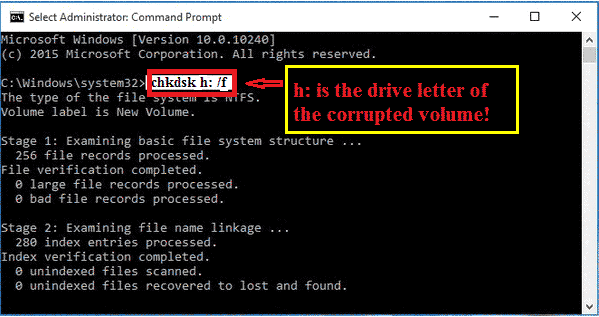
- Allow the scan to complete and then check your files again.
Fix 7: Seek Help from Nikon Support or Professional Services
If none of the methods work, professional help may be required. Nikon technical support can suggest official solutions.
Professional labs use advanced tools to repair severely damaged storage devices.
This option is recommended for valuable or irreplaceable images.
Steps:
- 1: Visit Nikon’s official support page and describe the issue clearly.
- If advised, send the device to an authorized service center.
Lost Data While Repairing NEF Files? Recover Lost Data Easily Using Recoverit
While trying to fix damaged images, some users accidentally delete files or format their SD cards. This usually happens during testing or while running repair commands. In such situations, the problem becomes more serious. The file is no longer just corrupted. It may disappear completely from the storage device. Standard repair steps will not be enough at this stage. You need a proper recovery solution that can scan the storage at a deeper level.
Recoverit is a data recovery software designed to retrieve deleted, formatted, or inaccessible files. It supports RAW formats, including images taken from professional cameras. The software can scan SD cards, external drives, hard disks, and even crashed systems. It is built with a simple layout, so beginners can use it without technical knowledge. At the same time, it offers advanced scan options that professionals may require.
The program performs a deep scan of the selected storage device. It searches for lost file fragments and attempts to rebuild the original file structure where possible. In many cases, it can recover images even after formatting, as long as the data has not been overwritten. If you cannot access your photos after corruption or accidental deletion, this type of recovery tool may help you retrieve them safely.
Why Use Recoverit?
- Supports RAW image formats
- Recovers data from SD cards and hard drives
- Works after accidental formatting
- Provides deep scan mode
- Allows file preview before saving
- Simple interface for beginners
3 Recovery Steps
Step 1: Install the Recoverit program on a different drive and launch it. Select the storage device.

Step 2: Start a deep scan and wait for the process to complete.

Step 3: Preview results and save recovered files to a new location.

Conclusion
Corrupted NEF files can interrupt your workflow and cause frustration. However, in many cases, the damage is minor and can be resolved with software updates or official Nikon tools. Always begin with safe steps. Create copies before attempting any fix.
If files are deleted or missing during repair attempts, use a trusted recovery solution. Proper handling, safe transfer methods, and regular backups will protect your valuable RAW photos in the future.
FAQs
-
Can corrupted NEF files be fully restored?
Many users worry that a damaged RAW file is permanently lost. The good news is that recovery is often possible. The outcome depends on the level of damage and the condition of the storage device.In many cases, yes. Minor corruption can be resolved with compatible software or updates. Severe physical damage to storage may require professional recovery services. Acting quickly improves success rates. -
Does formatting delete NEF files permanently?
Formatting an SD card feels like a complete wipe. However, the actual situation is slightly different. The data may still remain on the card until new files overwrite it. Formatting removes file references, but data may still remain on the card. Recovery software can often retrieve files if the card is not reused. Avoid storing new data on the formatted card before attempting recovery. -
How can I prevent NEF corruption in future?
Prevention is always better than repair. Small mistakes during file transfer or storage handling can cause avoidable corruption. Simple habits can reduce the risk. Use safe ejection, stable power supply, updated firmware, and reliable SD cards. Regular backups provide the best protection. Keeping storage devices in good condition also lowers future risk.


