

 TL;DR:
To successfully recover lost or deleted files from a USB OTG drive, immediately stop using the device to prevent data overwriting and connect it to a computer to execute data retrieval or system repair methods.
● Use Wondershare Recoverit to run a deep scan for permanently deleted or formatted files, ensuring you save the recovered data to a completely different storage location rather than the original OTG drive.
● If the drive appears empty but storage space is occupied, connect it to a Windows PC to enable "Show hidden files" in File Explorer, or run the `chkdsk X: /f` command via Command Prompt as an administrator to repair logical file system corruption.
● Never format the USB OTG drive before attempting file retrieval, as formatting rewrites the file system structure and drastically lowers the success rate of recovery tools.
Ask AI for a summary
 ChatGPT
 Perplexity
 Gemini
 Claude
 Grok
Grok
USB OTG drives are small storage devices that connect directly to a smartphone or tablet. Many people use them to transfer photos, videos, and documents without a computer. When important files suddenly disappear, it creates worry and confusion. Most users immediately search for how to recover lost data from USB OTG drive because the files often contain personal or work information.
Data loss from portable storage is common. Files may be deleted by mistake, hidden by malware, or damaged due to improper removal. This guide explains what is OTG USB and also clarifies how does USB OTG works in simple terms. You will also learn how to restore lost/deleted data from USB OTG using practical and safe methods.
Each step is written clearly so you can understand how to recover lost data from USB OTG without technical difficulty.
Table of Contents
Part 1: What is a USB OTG Drive?
Before understanding how to recover lost data from USB OTG drive, it is necessary to understand the device itself. Many users ask what is OTG USB when they first see the term. OTG stands for On-The-Go. It is a feature that allows a smartphone or tablet to act as a host device, similar to a computer. With this feature, you can connect USB drives, keyboards, or even a mouse to your phone.
Curious about how USB OTG works in everyday life? When you connect a USB OTG drive to your phone using an OTG cable or compatible port, your phone powers the device and instantly detects the storage. It then displays the drive in your file manager, allowing you to easily copy, move, or delete files. This direct connection streamlines data transfer. No laptop required, making it a fast and convenient solution on the go.
Part 2: Why Do Files Get Lost from USB OTG Drives?
Understanding the cause of data loss makes it easier to decide how to restore lost/deleted data from USB OTG safely and effectively.
- Accidental deletion: Users may remove files while organizing storage and later realize those files were important.
- Improper removal: Removing the drive without selecting “eject” can interrupt background processes and damage the file structure.
- Virus or malware infection: Infected phones or computers can hide files or create shortcuts that replace original data.
- File system corruption: Sudden shutdowns, battery drain, or transfer errors may corrupt the storage system.
- Formatting by mistake: A single tap on the format option can erase all stored information quickly.
- Physical damage: Bending, water exposure, or overheating can affect the internal memory chip.
- Unsupported format: Some drives are formatted in systems that certain phones cannot fully read.
- Software or system crash: If the phone freezes during file transfer, the saved data may not be completed properly.
Identifying the reason is the first step in planning how to recover lost data from the USB OTG safely.
Part 3: How to Recover Lost Data from USB OTG Drive
If your files are missing, stay calm and avoid random actions. Many recovery cases succeed when the correct method is chosen early. Below are practical solutions that explain how to recover lost data from USB OTG drive in different situations.
Method 1: Use Recoverit Data Recovery Software
Data recovery software is one of the most effective solutions when files are permanently deleted or the drive has been formatted. Recoverit is designed to perform a deep scan of the storage device and locate recoverable files using advanced file signature technology. It carefully searches each sector of the USB OTG drive to detect traces of lost data that are not visible through normal file browsing. This makes it useful when the missing files do not appear in the file manager.
Recoverit supports a wide range of file types, including photos, videos, documents, audio files, and compressed archives. It works by scanning leftover data blocks that remain on the storage even after deletion. As long as the original data has not been overwritten by new files, Recoverit can reconstruct and restore it. The software also allows users to preview files before recovery, which helps confirm that the correct data is being restored.
Many users rely on Recoverit when searching for how to restore lost/deleted data from USB OTG because it provides a structured and guided recovery process. By connecting the USB OTG drive to a computer and running a full scan, users can identify, select, and recover important files safely to another secure location.

Step 1: Connect the USB OTG drive to a computer. Install and open Recoverit. Select the OTG drive from the list of available storage devices.

Step 2: Run a deep scan. Preview the found files.

Step 3: Select the needed files and save them to a different location, not the same OTG drive.

Method 2: Stop Using the USB OTG Drive Immediately
When files are deleted from a USB OTG drive, they aren't immediately erased. Instead, the system simply marks the space as available, making it vulnerable to being overwritten by new data. Continued use after deletion significantly lowers the chances of successful recovery. That’s why halting all activity on the drive is crucial when trying to recover lost data.
A common mistake users make is copying new files onto the drive after noticing data loss. This can permanently overwrite the deleted content. If you suspect data has been lost, disconnect the drive immediately and store it safely until you're ready to begin the recovery process.
Step 1: Safely eject the USB OTG drive from your phone or computer.
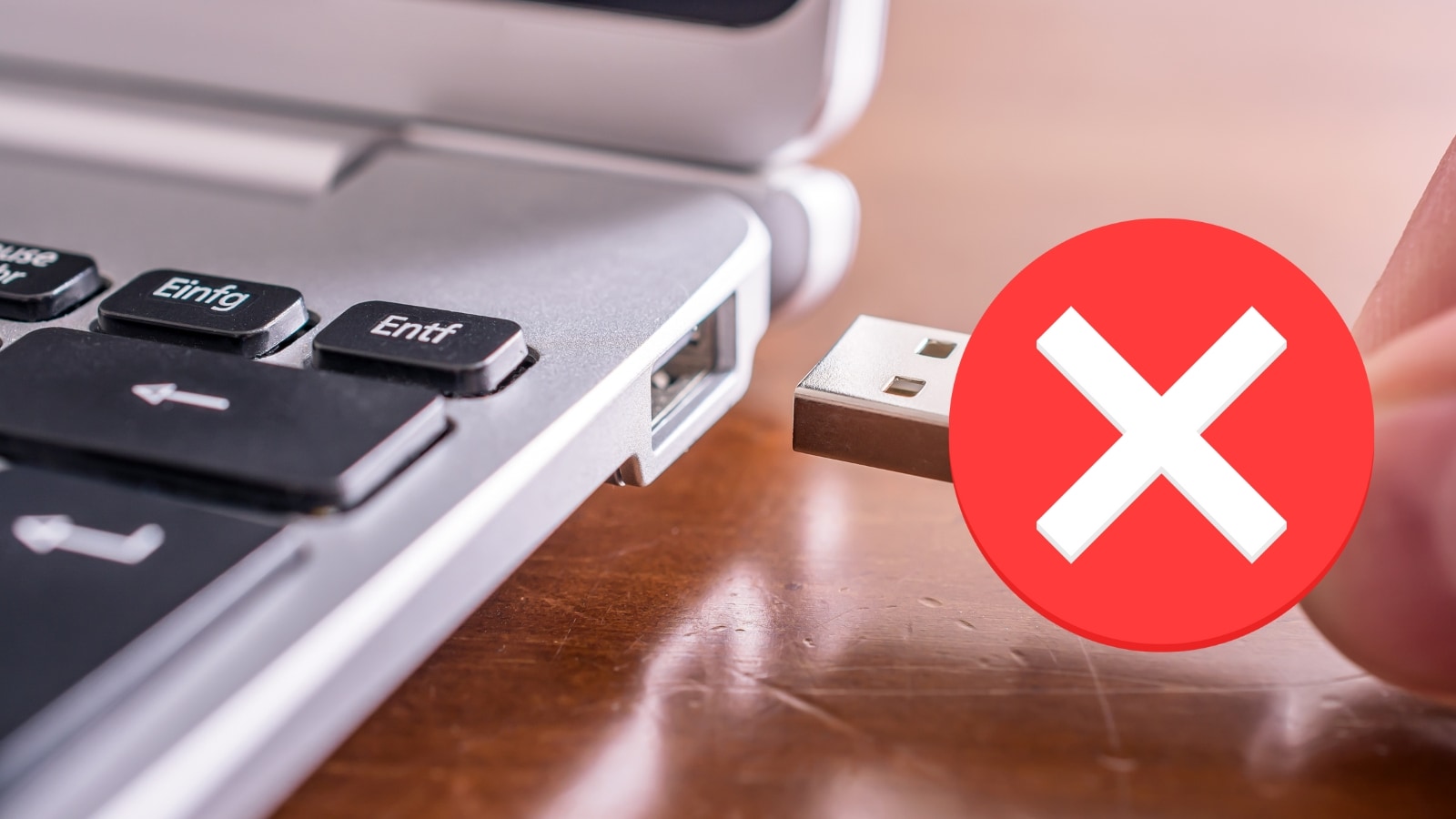
Step 2: Do not copy, move, or edit any files on the drive until recovery is attempted.
Method 3: Check if Files Are Hidden
Sometimes files are not deleted. They are only hidden due to virus infection or system settings. In such cases, recovery software may not be required. Checking hidden files is a simple and quick method.
Malware often changes file attributes to hidden. Enabling the option to show hidden files may make them visible again. This basic check can solve many cases related to how to recover lost data from USB OTG.
Step 1: Connect the drive to a Windows computer. Open File Explorer. Click View and enable “Show hidden files.”
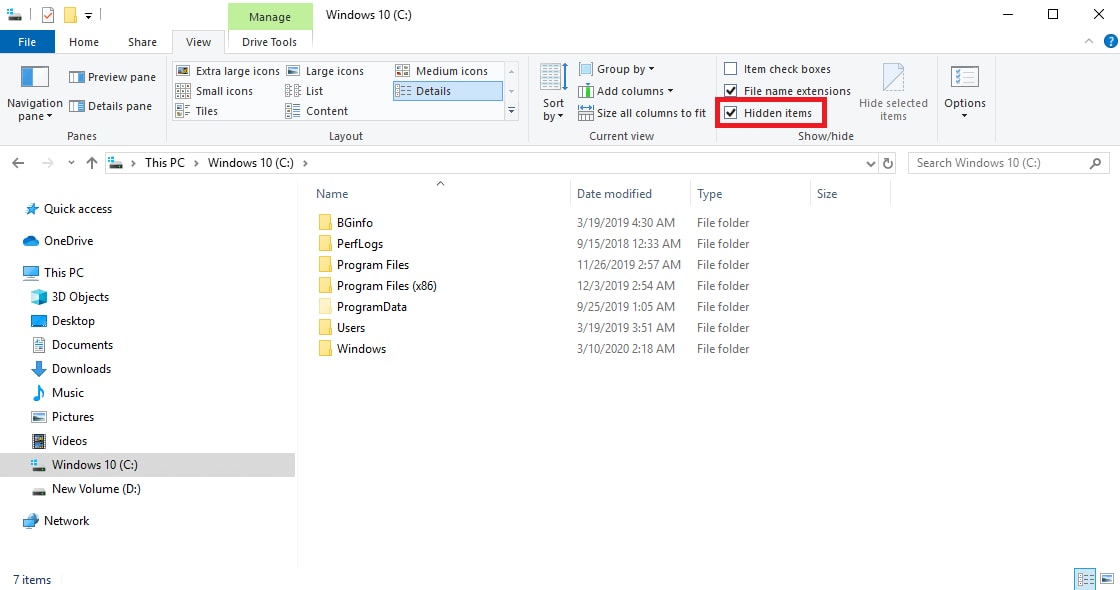
Step 2: Look for faded or transparent file icons. If found, right-click and change file properties to remove the hidden attribute.
Method 4: Connect the USB OTG Drive to a Computer
Some mobile devices have limited file system support. A computer may read the drive more effectively. If files are missing on your phone, testing on a PC or laptop is useful.
Computers provide better tools for scanning, error checking, and browsing system folders. Many users solve problems related to how to recover lost data from USB OTG by switching devices.
Step 1: Insert the OTG drive into a computer using a proper USB port.
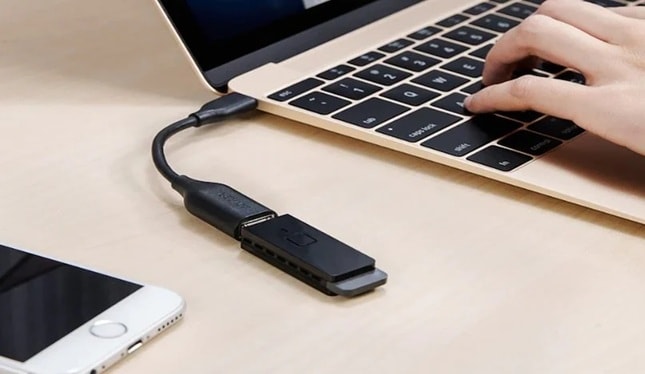
Step 2: Open the drive and check all folders carefully, including system folders.
Method 5: Run Disk Check Tools
File system errors may prevent access to files. Repair tools can fix logical issues without deleting data. Windows uses chkdsk, while Linux uses fsck. These utilities scan and repair minor corruption.
This method works when the drive shows errors like “drive needs to be formatted.” Repairing the file system can restore normal access and help in how to restore lost/deleted data from USB OTG.
Step 1: On Windows, open Command Prompt as administrator. Type chkdsk X: /f and press Enter, replacing X with your drive letter.
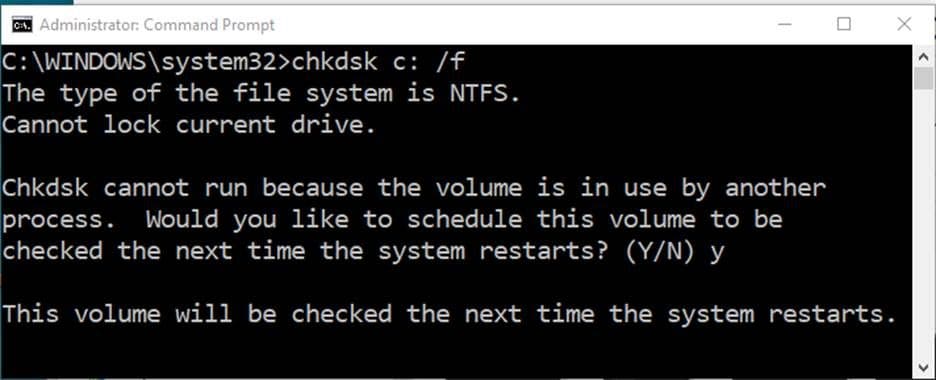
Step 2: Wait for the scan and repair process to complete. Restart the system and recheck the drive.
Method 6: Restore from Cloud Backups
If your files were synced with cloud storage, recovery becomes simple. Services like Google Drive or other backup apps may automatically store copies.
Cloud backup is often overlooked. Before complex recovery attempts, check if a saved version exists online. This is sometimes the fastest way to solve how to recover lost data from USB OTG.
Step 1: Log in to your cloud account using a browser or app.
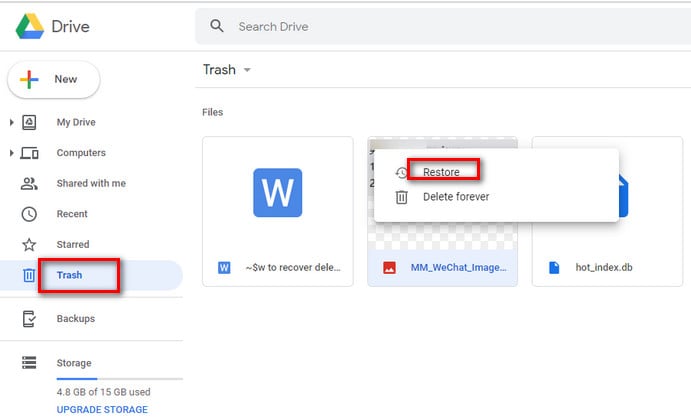
Step 2: Locate the synced folder and download the required files back to your device.
Part 4: Smart Tips for Safe USB OTG Recovery
Prevention reduces recovery stress. USB OTG drives are portable and exposed to frequent movement. Following simple practices can protect your files and reduce the need to search for how to recover lost data from a USB OTG drive again.
- Always eject safely: Always choose the safe removal option before unplugging the drive from your phone or computer. This ensures that all background processes are completed properly. Sudden removal can damage the file structure and lead to data corruption.
- Maintain backups: Keep copies of important files in cloud storage or on an external hard drive. Regular backups protect you from permanent loss if the USB OTG drive fails. Set a fixed schedule so backups are not forgotten.
- Scan for viruses regularly: Use updated antivirus software on both your phone and computer. Malware can hide files or damage folders without warning. Regular scanning keeps your storage devices clean and secure.
- Avoid low battery transfers: Do not transfer files when your phone battery is very low. If the device shuts down during transfer, files may become corrupted. Make sure your device has enough charge before starting large file movements.
- Keep firmware updated: Install operating system and security updates when they are available. Updates fix bugs and improve device compatibility. This reduces the risk of errors while reading or writing to the USB OTG drive.
- Use quality OTG cables: Choose reliable and certified OTG cables for stable connections. Poor-quality cables may disconnect suddenly or cause incomplete transfers. A stable connection protects your data during file copying.
- Store the drive safely: Keep the USB OTG drive in a dry and cool place. Avoid exposing it to water, dust, or strong heat. Physical damage can affect the internal memory chip and reduce its lifespan.
Conclusion
Losing important files from portable storage can be stressful. However, many situations are recoverable when handled properly. Understanding what OTG USB is and how USB OTG works helps you use the device correctly and avoid common mistakes.
If data loss occurs, remain calm and follow structured steps. Whether using recovery software, checking hidden files, or repairing file system errors, each method improves your chances. With careful action, how to recover lost data from USB OTG becomes manageable and often successful.
FAQs
-
Can deleted files from a USB OTG drive be recovered?
Yes, deleted files can often be recovered if they have not been overwritten by new data. When a file is deleted, the system usually removes its reference but keeps the actual data blocks for some time. If you stop using the drive immediately and apply a reliable recovery method, the chances of successful recovery remain high. -
Why does my OTG drive show empty, but space is used?
This situation usually happens when files are hidden or affected by malware. The storage space appears occupied because the data still exists, but it is not visible in normal view. Enabling the option to show hidden files or scanning the drive with antivirus software often restores access to the missing content. -
Is formatting the USB OTG drive safe for recovery?
Formatting is not recommended before attempting recovery because it rewrites the file system structure. Although some recovery tools can retrieve data after formatting, the success rate becomes lower. It is always better to attempt file recovery first and only format the drive after securing your important files.


