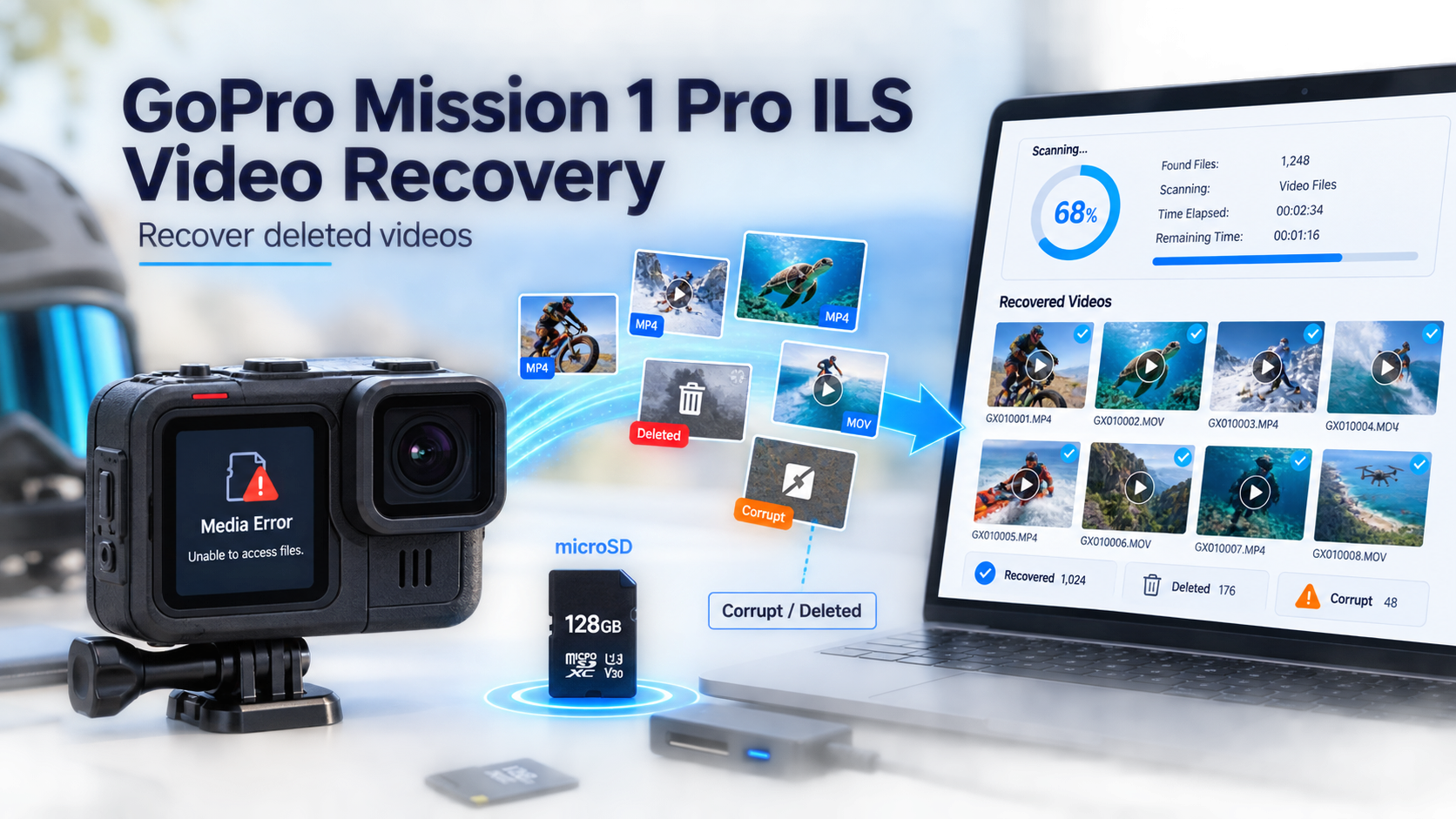
 TL;DR:
To successfully recover deleted 8K footage from the GoPro MISSION 1 PRO ILS, you must immediately power off the camera to prevent data overwrite, remove the microSD card, and run a fragment-aware video recovery scan that saves the output to a completely different drive.
● Because the camera generates large files at up to 240 Mbps, standard file retrieval is insufficient; the software must locate fragmented MP4s and explicitly recover the companion 32-bit float WAV audio tracks and GPR photos to maintain a complete production asset.
● Never record a test clip, accept operating system format prompts, or run CHKDSK before extraction, as new data writing at roughly 30 MB per second will permanently overwrite the deleted frames.
● If a retrieved video file is incomplete or unplayable, ensure you are testing it in an HEVC-capable player, and perform any subsequent video repair operations strictly on a duplicate copy of the recovered file rather than the original source card.
Ask AI for a summary
 ChatGPT
 Perplexity
 Gemini
 Claude
 Grok
Grok
Quick answer: To recover deleted 8K footage from a GoPro MISSION 1 PRO ILS, stop using the camera, remove the microSD card, connect it to a computer through a reliable reader, and scan the card with a video recovery tool. Recover the results to a different drive. Do not format, run CHKDSK or First Aid, record a test clip, or save anything to the card until the footage is safely copied and verified.
The MISSION 1 PRO ILS is not more likely to lose data simply because it records 8K. The practical risk is that its files are larger, may be stored in fragments, and can include separate audio and metadata that must stay associated with the picture. Recovery therefore requires more than finding a file named .mp4; the recovered take must also be complete and playable.
Fact-checked on August 31, 2026: Camera specifications, price, preorder timing, recording formats, card requirements, and MISSION Monitor availability were checked against GoPro's current announcement, product page, investor release, and the live Apple App Store listing.
Recover MISSION 1 PRO ILS Footage With Recoverit
 Security Verified. Over 7,302,189 people have downloaded it.
In This Article
Part 1. MISSION 1 PRO ILS Recovery Review
GoPro announced the MISSION 1 PRO ILS on August 26, 2026, opened preorders at a $699.99 MSRP, and scheduled retail availability for September. It combines a 50MP 1-inch sensor, the GP3 processor, an interchangeable Micro Four Thirds mount, high-frame-rate 8K and 4K recording, and a 197 g camera body. GoPro's official announcement positions it as a compact cinema camera rather than a conventional waterproof action camera.
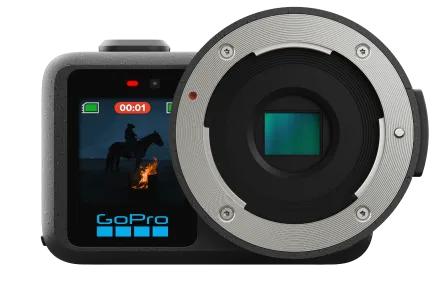
The headline specifications are compelling, but the storage design has one important consequence: there is no internal recording memory to fall back on. The camera writes the shoot to a microSD card, so card selection, offload discipline, and recovery readiness are part of the production workflow.
| MISSION 1 PRO ILS Feature | Current Specification | What It Means For Recovery |
| Maximum standard video mode | 8K 16:9 at up to 60 fps | Large, high-bitrate files may be split across noncontiguous card blocks and require fragment-aware recovery. |
| Open Gate modes | 8K 4:3 up to 30 fps; 4K 4:3 up to 120 fps | The master source contains valuable reframing latitude, so a proxy or thumbnail is not an equivalent replacement. |
| Maximum stock bitrate | 240 Mbps; experimental GoPro Labs settings can reach 300 Mbps | At 240 Mbps, the camera writes about 30 MB per second before normal file-system variation. Continued recording can overwrite deleted blocks quickly. |
| Video format | MP4 container with H.265/HEVC compression | Recover the full MP4 structure, not merely a recognizable HEVC fragment, if the clip must open and seek correctly. |
| Photos | JPG and GPR | Scan for both finished images and GoPro RAW photo files when the shoot includes stills. |
| Audio | Up to three tracks, including separate 32-bit float WAV recording | Recover matching WAV files with the video; a playable picture alone may not preserve the production audio. |
| Memory card | microSD rated V30 or U3, as listed by GoPro | A card that cannot sustain the selected mode can produce recording errors. A card that repeatedly fails should be replaced after data is protected. |
| Internal storage | None for recording | If the microSD card is lost, damaged, or overwritten before offload, the camera has no second on-device master copy. |
Review verdict: MISSION 1 PRO ILS offers unusually strong resolution, frame-rate, monitoring, and lens flexibility for its size. Its tradeoffs are equally specific: compatible MFT lenses operate without electronic contacts, so focus and aperture are manual or fixed; the body is weatherproof rather than a standard submersible GoPro; and the entire recording workflow depends on removable storage. A current TechRadar review also highlights the creative flexibility and the challenge of manual focus. For recovery, the decisive limitation is the single microSD source, not the lens mount.
Part 2. Why 8K60 Footage Is Harder To Recover
A deleted 8K file is not automatically unrecoverable. Deletion usually removes or changes file-system references and marks the occupied space as available. Recovery remains possible only while the original blocks and enough file metadata or recognizable video structure remain intact. New recordings, a destructive overwrite format, repair operations, or other writes can replace that data.
The MISSION 1 PRO ILS raises the stakes because its maximum stock bitrate is 240 megabits per second. Dividing by eight gives a theoretical payload rate of about 30 megabytes per second. That is roughly 1.8 GB per minute, 18 GB per ten minutes, or 108 GB per hour before normal changes caused by scene complexity, audio, metadata, file-system allocation, and the selected recording mode. These numbers are estimates, not fixed clip sizes, but they show why “record one quick test” is unsafe after deletion.
| Recovery Difficulty | Why It Happens | Practical Response |
| Fragmented 8K MP4 | Long or high-bitrate video can occupy multiple separated areas of a flash card. | Use video recovery that can search for and associate recoverable fragments when the file system no longer provides a complete path. |
| MP4 is found but will not play | The header, index, end of file, or one or more media fragments may be missing or incomplete. | Keep the recovered copy, recover again from the untouched source if possible, and repair only the copy after recovery. |
| Picture is present but production audio is missing | The camera can create separate WAV audio rather than keeping every track only inside the MP4. | Scan for WAV as well as MP4 and preserve names, timestamps, and folder relationships. |
| Files lose names or folders | Formatting or directory damage can destroy path and name metadata while file signatures remain. | Group results by type, approximate size, creation time, visual preview, and clip continuity; do not assume a generic recovered name means the data is wrong. |
| Recovered clip ends early | Recording may have been interrupted before the camera finalized the file, or later writes may have overwritten the tail. | Compare recovered duration with shot logs and proxy media. File repair cannot recreate overwritten frames. |
The correct success measure is therefore not “the scanner found an MP4.” A production-ready recovery must restore enough of the video structure to decode the intended duration and must preserve any separate audio or still-image assets needed for the edit.
Part 3. Diagnose The Loss Before Taking Action
Different symptoms require different actions. Treating every problem as “SD card corruption” can turn a recoverable deletion into an overwrite. Identify what the camera, operating system, and recovered file actually do before choosing a remedy.
| What You See | Most Likely Category | Safest Next Step |
| A clip was deleted, but the card still opens normally | Logical deletion | Stop using the card and scan it. Do not record replacement footage. |
| The card was formatted in the camera or computer | Formatted media | Do not format again. Scan the card before any reuse; results depend on what was erased or overwritten. |
| Windows shows RAW, macOS cannot mount the card, or the camera asks to format | File-system damage or unsupported metadata | Cancel the format prompt. Recover or image the card before running file-system repair. |
| The card is visible with the correct capacity but folders are missing | Directory damage, deletion, or hidden entries | Scan before changing attributes or repairing the volume. |
| The card disconnects, becomes unusually hot, reports the wrong capacity, or freezes multiple readers | Unstable controller, flash failure, or physical damage | Stop repeated DIY scans. For irreplaceable footage, use a professional recovery laboratory. |
| A recovered MP4 has the expected size but will not open or ends early | Incomplete or corrupted recovered file | Preserve the source and recovered copy. Attempt a deeper recovery, then repair the copy if enough video data exists. |
Deletion is not the same as overwrite. Recovery software may locate deleted data that still exists, but it cannot reconstruct original frames that new recording has physically replaced. Likewise, “formatted” is not a single technical state: a quick format, full overwrite, secure erase, and subsequent reuse affect recoverability differently. Avoid an unconditional recovery guarantee.
Part 4. Protect The MicroSD Card Before Recovery
The first five minutes after noticing the loss can matter more than the software you choose. Protect the source before troubleshooting.
- Stop The Camera: End recording, power off the MISSION 1 PRO ILS, and remove the microSD card after the camera has shut down. Do not capture a test clip.
- Lock The Adapter If Available: If you use a full-size SD adapter, slide its lock tab to the read-only position. This is a host instruction rather than forensic write blocking, but it reduces accidental writes in ordinary workflows.
- Use A Stable Card Reader: Connect the microSD card directly to a Windows PC or Mac with a reader that supports the card's capacity. Avoid scanning through the camera if a direct reader works.
- Cancel Every Format Or Initialize Prompt: Windows, macOS, or the camera may offer to prepare an unreadable card. Cancel. Formatting is a later reuse step, not the first recovery step.
- Prepare A Different Destination: Ensure the computer or external drive has enough free space for recovered 8K video and a second verification copy. Never restore files onto the source card.
- Preserve An Unstable Source: If the card disconnects or reports read errors, minimize repeated full scans. A sector-by-sector image created by an experienced operator or recovery lab can preserve a readable snapshot before the card degrades further.
If the card is not detected by the computer at all, test one known-good reader, one USB port, and a second computer. If no system can display the card's correct capacity, ordinary recovery software has no readable source to scan. Repeated insertion is not a fix for physical failure.
Part 5. How To Recover Deleted 8K Footage
When the card is detected with the correct capacity, a read-only scan is the safest practical path for deleted, quickly formatted, or logically inaccessible media. The recovery should target the entire shoot bundle rather than only one visible filename.
Method 1. Recover MISSION 1 PRO ILS Footage With Recoverit
Wondershare Recoverit is relevant here because its SD Card Recovery workflow scans readable camera media, while Enhanced Video Recovery is designed for large or fragmented video files. It can only recover data that remains readable and has not been overwritten; it does not make a physically failed card readable or recreate missing frames.

- Connect The Source Card: Remove the microSD card from the camera and attach it to the computer through a reliable reader. Verify the displayed capacity, but do not open a format or repair dialog.
- Select SD Card Recovery: Launch Recoverit, open SD Card Recovery, choose the MISSION 1 PRO ILS card by its capacity and drive identifier, and start the scan. The interface shown below is a real Recoverit SD card screen; the detected camera profile and drive label vary with the inserted media.

- Let The Full Scan Run: Keep the reader connected. Search by Video and Audio, and include MP4, WAV, JPG, and GPR results. If the 8K master is missing, incomplete, or represented by fragments, use the available enhanced video scan instead of repeatedly rescanning after writing to the card.

- Filter Without Excluding Companion Files: Use file type, size, date, and status filters to narrow large result sets. Do not filter only for MP4 if the shoot used separate 32-bit float WAV audio or included GPR stills.
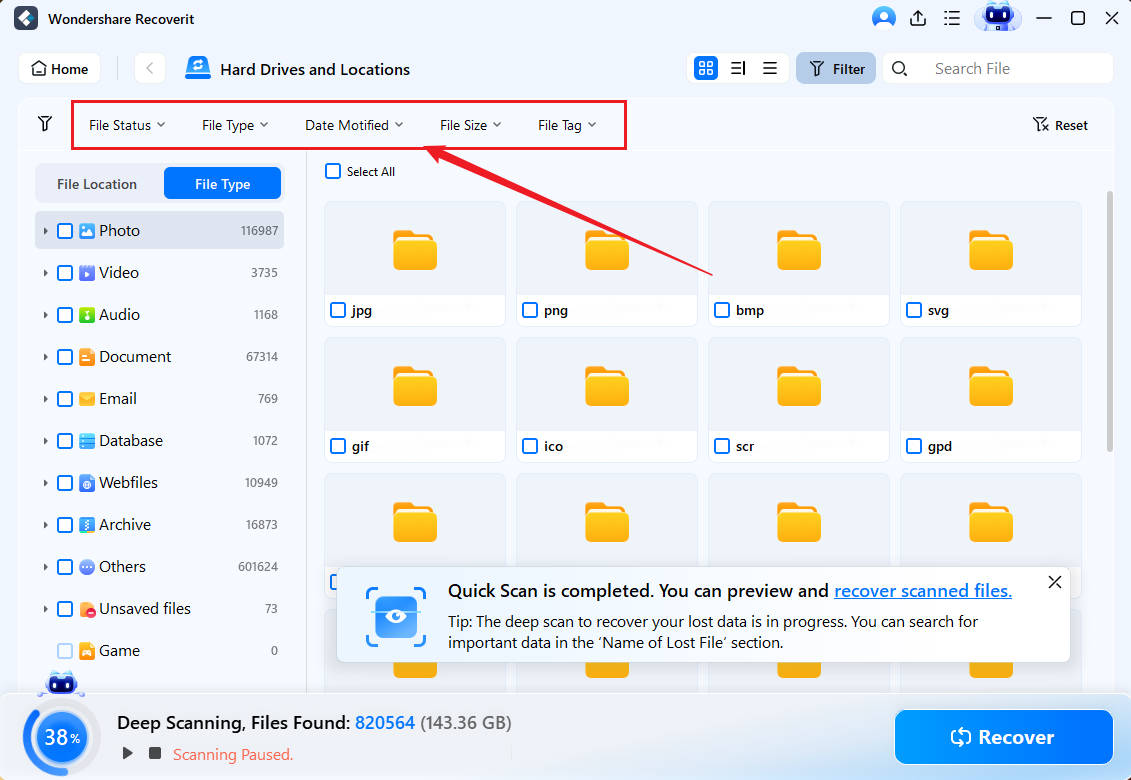
- Preview And Select: Preview supported results when available, then select the master clips and associated audio or photo assets. A preview is useful evidence but not the final validation of a long 8K take.
- Recover To Another Drive: Click Recover and choose the computer or an external drive, never the GoPro card. Keep the source unchanged until the restored shoot passes the checks in Part 7.

Recover MISSION 1 PRO ILS Footage With Recoverit
Security Verified. Over 7,302,189 people have downloaded it.
For a long 8K take, allow enough time and destination space for the full scan and recovered output. Stopping a scan as soon as the first MP4 appears can miss later fragments, separate WAV files, or a second version of the clip with better continuity.
Part 6. Handle Formatted, RAW, Unreadable, Or Unplayable Media
The recovery steps stay similar, but the risk and stopping point change with the symptom.
Formatted MISSION 1 PRO ILS Card
If the card was formatted but has not been used again, keep it out of the camera and scan it immediately. A format can remove the folder tree, names, and file-system records even when portions of the media data remain. Recovered files may therefore appear under generic names or reconstructed folders. Use this dedicated formatted SD card recovery guide for a broader explanation.
If new 8K footage was recorded after the format, expect partial results. At the maximum stock bitrate, even a short new take can consume gigabytes of previously free space. No software can restore the exact old frames from blocks that have been overwritten.
RAW Or Inaccessible Card
When Windows labels the card RAW, macOS refuses to mount it, or the camera requests formatting, the priority is extracting readable data. Do not run CHKDSK, Disk Utility First Aid, partition rebuilds, or a new format before recovery; these operations can modify file-system metadata and complicate later reconstruction. After the files are secured, this RAW SD card guide can help determine whether the card is safe to reformat or should be retired.
Card Not Detected Or Physically Unstable
Software requires the operating system to expose a readable storage device. If the card is wet, cracked, bent, unusually hot, detected with zero or incorrect capacity, or repeatedly disconnects, stop DIY recovery. A professional laboratory may work directly with the card's controller or NAND flash. The value of an unrepeated commercial shoot usually justifies avoiding repeated consumer scans.
Recovered MP4 Is Corrupted Or Unplayable
Recovery and repair solve different problems. Recovery retrieves data from the source card. Repair attempts to rebuild a playable file from a recovered copy. First perform the deepest safe recovery from the original card; then duplicate the recovered MP4 and test repair on that duplicate. The corrupted GoPro video guide covers repair options and reference-file workflows.
- Use a healthy clip recorded by the same MISSION 1 PRO ILS with the same resolution, frame rate, codec, and relevant settings as a reference when a repair tool requests one.
- Preserve the untouched recovered file and the source card. A failed repair attempt should never be the only remaining copy.
- If the clip plays only partly, record the exact playable duration and failure point before trying another recovery or repair pass.
- Do not confuse codec support with corruption. An editor that cannot decode HEVC may reject a healthy file; test the clip in a current HEVC-capable player before repairing it.
Part 7. Verify A Recovered 8K Shoot
A thumbnail, filename, or successful copy dialog does not prove that a cinema take is usable. Verify the recovery before formatting or returning the card to production.
| Check | What To Confirm | Why It Matters |
| Container and codec | The master opens as MP4 and reports H.265/HEVC video. | A file extension alone does not confirm a valid container or decodable stream. |
| Resolution and frame rate | The file matches the intended mode, such as 8K60, Open Gate 8K30, or Open Gate 4K120. | A proxy or partial file may look like the take while lacking the master specification. |
| Duration and end of clip | The take reaches the expected final frame and can seek near the end. | Fragment loss often appears as early termination, frozen sections, or failed seeking. |
| Visual continuity | Scrub the beginning, middle, scene changes, and end for gray frames, blocks, repeated frames, or decoder errors. | A clip can open yet still contain missing or misordered fragments. |
| Audio | Embedded tracks play, and matching separate WAV files have the expected duration and synchronization. | MISSION 1 PRO ILS can create separate 32-bit float audio; picture-only recovery may be incomplete. |
| Timecode and metadata | The editing system reads the metadata needed for the production workflow. | Lost metadata can complicate multicamera synchronization and conforming even when the image plays. |
| Independent copy | At least two verified copies exist on separate storage. | Recovery is not complete if one destination-drive failure can erase the result. |
Use a media-information tool or the target NLE to confirm technical properties, but also watch critical sections. For a commercial job, compare the recovered inventory with the camera report, slate notes, proxy files, cloud uploads, or editor ingest logs. Keep the original card offline until the producer or editor accepts the restored set.
Part 8. MISSION Monitor App Review
The free GoPro MISSION Monitor app is now available for iPhone and iPad running iOS or iPadOS 18 or later. With a USB-C connection, it adds camera control, storage status, focus peaking and assist, zebra patterns, LUT preview, shot overlays, and live monitoring. Focus Peaking and Focus Assist specifically require the MISSION 1 PRO ILS.
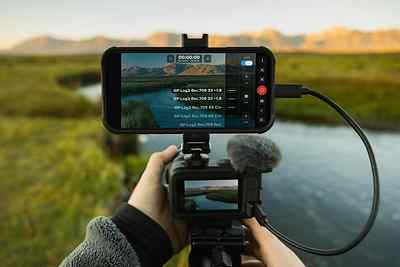
| MISSION Monitor Function | What It Helps Prevent | What It Cannot Do |
| Focus peaking and focus assist | Soft takes caused by manual-focus errors | Recover a deleted or overwritten video |
| Zebra patterns and LUT preview | Exposure and monitoring mistakes | Repair card file-system damage |
| Shot overlays and live monitoring | Framing and composition errors | Create an independent backup of the camera master |
| Camera controls and storage status | Some operational mistakes and unnoticed low space | Restore media that was never uploaded or copied elsewhere |
App verdict: MISSION Monitor is a meaningful production aid for a manual-lens cinema workflow, particularly because peaking, zebras, and LUT preview address errors that are difficult to judge on a small camera display. It is not a backup destination and should not be presented as a recovery method. Monitoring protects the quality of the take; card rotation and verified offload protect its existence.
Part 9. Prevent MISSION 1 PRO ILS Video Loss
A recovery plan should end with a safer on-set workflow. High-bitrate footage needs capacity planning, verified cards, and at least two copies before media is cleared.
- Use Qualified Media: Follow the current GoPro product specifications and use a genuine microSD card rated V30 or U3. Buy from a traceable seller and test the full capacity before a paid shoot.
- Estimate Capacity By The Actual Mode: Treat 240 Mbps as roughly 30 MB per second for planning, then allow headroom for the real recording mode, audio, metadata, file-system overhead, and multiple takes.
- Rotate Cards By Scene Or Production Block: Several labeled cards limit the amount of work exposed to one loss event. Do not delete clips in the camera to make room during a shoot.
- Offload With Verification: Copy the complete card structure, compare file counts and total bytes, and use checksums when the ingest tool supports them. Open sample clips from the destination rather than the card.
- Create Two Copies Before Formatting: Keep the working copy and a second copy on separate storage. For irreplaceable footage, add an off-site or cloud copy when bandwidth permits.
- Preserve Companion Assets: Keep MP4, WAV, JPG, GPR, proxies, and metadata together until post-production confirms what is needed.
- Format Only After Approval: Reformat the card in the MISSION 1 PRO ILS only after both copies are verified and the shoot owner has cleared the media for reuse.
- Retire Unreliable Cards: Replace a card that repeatedly disconnects, reports capacity errors, produces recording warnings, or fails verification. Formatting does not repair worn flash memory or a failing controller.
A simple card log should record card ID, camera, date, first and last clip, offload destinations, checksum or verification status, and whether the card is cleared for reuse. That makes a missing clip easier to trace and prevents an assistant from formatting the only surviving copy.
Part 10. Final Verdict
The GoPro MISSION 1 PRO ILS is a strong compact cinema concept: 8K60, useful Open Gate modes, a 50MP 1-inch sensor, manual MFT lens flexibility, multi-track audio, and a capable wired monitoring app. The same design makes disciplined media handling essential. There is no internal recording copy, and a 240 Mbps workflow can consume and overwrite card space quickly.
For deleted or formatted footage, the best response is immediate source protection followed by a full card scan. Recoverit Camera Recovery provides the broader camera-card workflow, while Recoverit's video-focused scan is the better fit when a long 8K MP4 may be fragmented. Recover the picture, separate audio, stills, and metadata to another drive; verify the shoot; repair only copied files; and format or replace the card last.
No recovery tool can promise footage that has been overwritten or read data from media that the operating system cannot detect. That limitation should shape both the emergency response and the prevention plan: stop writes early, keep verified duplicate offloads, and never let the source card become the only copy of a high-value take.
Recover MISSION 1 PRO ILS Footage With Recoverit
Security Verified. Over 7,302,189 people have downloaded it.
FAQ
-
Can Recoverit Recover Deleted 8K60 Video From A GoPro MISSION 1 PRO ILS?
Recoverit can scan a readable MISSION 1 PRO ILS microSD card for recoverable video data, including large and fragmented MP4 files. Results depend on whether the card is readable and whether the original blocks have been overwritten. Stop recording immediately and save recovered files to another drive. -
What Files Should I Recover From A MISSION 1 PRO ILS Card?
Prioritize the master MP4/HEVC videos, then recover matching WAV audio, JPG or GPR photos, and any production metadata or proxy files needed by the edit. Preserve names, timestamps, and folder relationships whenever they remain available. -
Can I Recover Footage After Formatting The GoPro MicroSD Card?
Recovery may be possible after some formats if the underlying data remains readable and has not been overwritten. Do not record new footage or format the card again. A full overwrite, secure erase, or later recordings can make some or all of the old footage unrecoverable. -
Should I Format A Card When MISSION 1 PRO ILS Says It Is Corrupted?
Not if the card contains needed footage. Power off the camera, remove the card, cancel computer format prompts, and recover or image readable data first. Format only after the files are verified on separate storage. -
Why Is A Recovered GoPro MP4 Still Unplayable?
The file may be missing its header, index, finalization data, or one or more video fragments. It may also be healthy HEVC footage opened in software without codec support. Test it in a current HEVC-capable player, repeat recovery from the unchanged source if necessary, and repair a copied file rather than the card. -
Does MISSION Monitor Back Up Or Recover GoPro Footage?
No. The app provides wired monitoring, camera controls, focus tools, zebras, LUT preview, overlays, and storage status. It does not create an independent backup of the microSD master or recover deleted files. -
How Much Space Does One Hour Of 8K Video Use?
At the camera's 240 Mbps maximum stock bitrate, the theoretical payload is about 30 MB per second or 108 GB per hour. Actual size varies with the selected mode, scene, audio, metadata, and file-system overhead, so use the figure only for capacity planning. -
When Should I Stop DIY GoPro SD Card Recovery?
Stop when the card is wet, cracked, bent, unusually hot, detected with the wrong capacity, not detected by multiple known-good readers, or repeatedly disconnects. For irreplaceable footage, a professional recovery laboratory is safer than repeated scans.


