

 TL;DR:
Converting an MP4 container file to the H264 codec reduces file size and ensures stable playback on older hardware, which is achievable through various specific tools depending on user expertise and clip length.
● Desktop applications like HandBrake and VLC Media Player are optimal for reliable offline batch processing, while FFmpeg suits professionals requiring command-line customization, and free online tools are restricted to fast conversions of short clips on stable networks.
● To prevent data corruption during the workflow, users must ensure adequate free storage space, operate on full battery power, and close heavy background applications to maintain system stability.
● If unexpected power loss or software failure results in deleted clips, users can deploy Recoverit on Windows or macOS to deep scan storage drives and rebuild the lost MP4 or H264 files.
Ask AI for a summary
 ChatGPT
 Perplexity
 Gemini
 Claude
 Grok
Grok
Video is everywhere today. Phones, laptops, action cameras, and drones all create clips in many formats. One of the most common formats is MP4. Another well-known format is H264. People often wish to convert MP4 to H264. The reason is simple. H264 files are smaller and often easier to play across devices.
Many users look for a safe way to convert MP4 to H264. You may want a fast workflow or simple tools for daily use. The steps are not hard. An MP4 to H264 converter can save space while keeping clear video. This guide shows how to convert MP4 to H264. It explains what is MP4, what is H264, why this conversion is needed, and how to keep the video safe.
You will also learn how to recover lost MP4 files during the conversion process and how to recover lost H264 files with the right tool.

Table of Contents
Part 1: Common Reasons: Why Convert MP4 to H264?
Many users look for a way to convert MP4 to H264. They want a smaller video yet a fair picture. They also want wider support. Before diving into steps, it helps to know what MP4 is and what is H264.
MP4 is a container format that can hold video, audio, and text. H264 is a video coding standard that gives high quality at low bit rates. MP4 files often use H264 inside, but not always. Some MP4 files use other codecs. So, many people choose an MP4 to H264 converter to make video work better on many devices. They also try MP4 to H264 converter online free tools to finish quick jobs. This helps many people who want smooth playback on old hardware.
Here are common reasons to convert MP4 to H264:
- Helps reduce file size for easy sharing
- Gives stable playback on older devices
- Keeps good video for lower space
- Helps upload to sites that want H264
Part 2: How to Convert MP4 to H264?
Some people ask how to convert MP4 to H264 for home or office use. There are many tools. Each method has its own style. You can pick one that suits your skill. You will see simple steps. All tools below work as an MP4 to H264 converter. If you want quick work, try an MP4 to H264 converter online free. If you want more control, use a desktop tool like HandBrake or VLC. Power users like FFmpeg.
Each method includes two short steps. We also share benefits so that you can pick the right path. Many people also compare MP4 vs H264 to understand quality and space before doing the conversion. This guide helps you understand how to convert MP4 to H264 without fear.
Method 1: Use HandBrake
HandBrake is free and trusted. Many people use it to convert MP4 to H264. It works on Windows, macOS, and Linux. You can use simple settings. This helps new users. The tool can trim size while keeping quality. It also helps batch work if you have many clips.
Steps:
Step 1: Open HandBrake. Load your MP4 file.
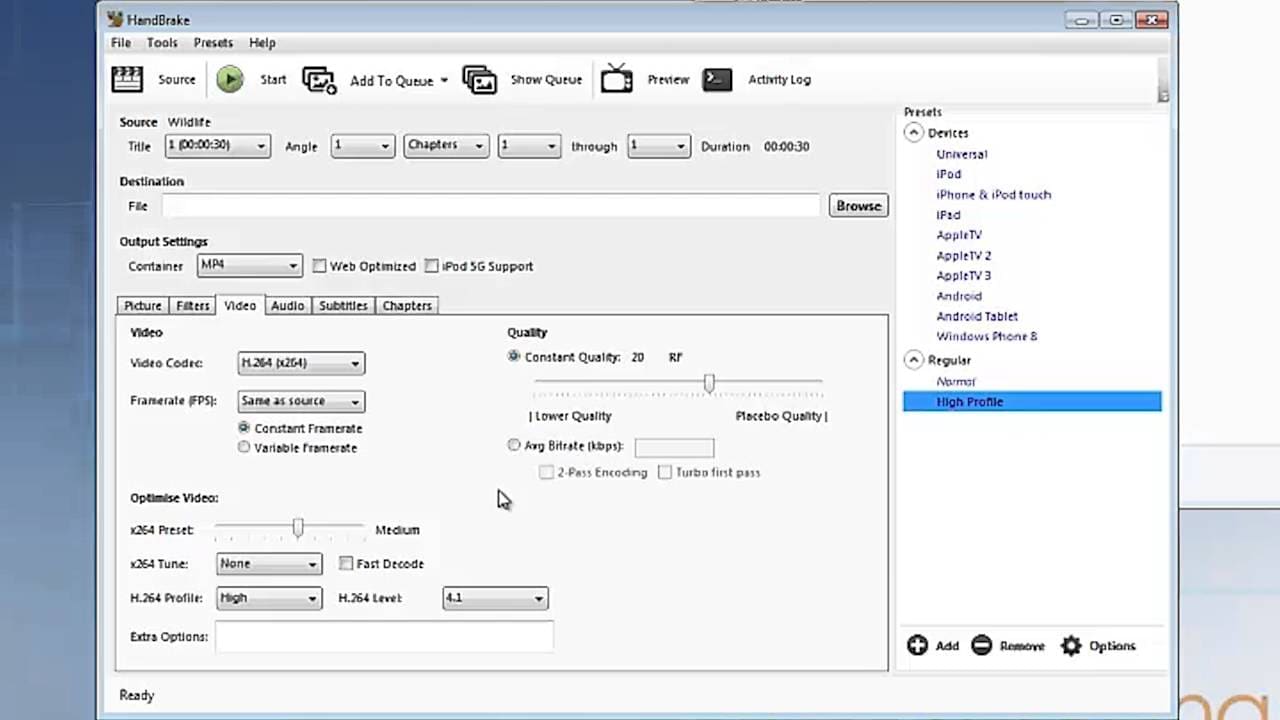
Step 2: Pick H264 as a format. Press Start. Wait for the finish.
This tool is simple and works well. People like how it handles MP4 vs H264 jobs. If files vanish by accident, you can try H264 recovery with a good tool later.
Method 2: Convert with VLC Media Player
VLC Media Player can also convert MP4 to H264. Many people know it as a player. It can convert too. This helps people who do not want extra tools. The steps are short. The output is clear. This tool is also free.
Steps:
Step 1: Open VLC. Add your MP4 file.
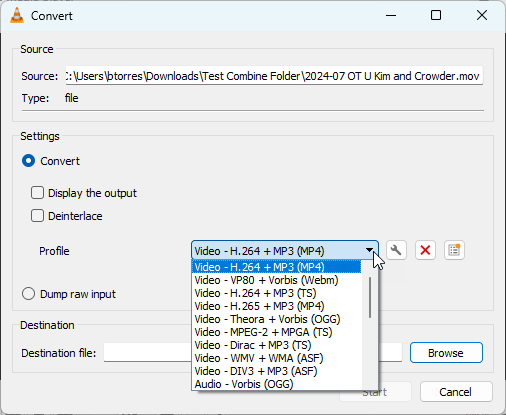
Step 2: Pick H264 profile. Save file. Wait for conversion.
If you wonder what is H264 and how it differs from other formats, simple tests can help. VLC is helpful for small batch work. If files get lost, you can try to recover lost H264 files with a trusted program.
Method 3: Try FFmpeg (Command Line Tool)
FFmpeg is a strong tool to convert MP4 to H264. You use text commands. It feels hard if new, but it is fast. You can control many details. It is useful in studios.
Steps:
Step 1: Open your command tool. Type the command to load MP4 and set H264. Here is the command:
ffmpeg -i input.mp4 -c:v libx264 -preset fast -crf 23 -c:a aac -b:a 128k output.mp4
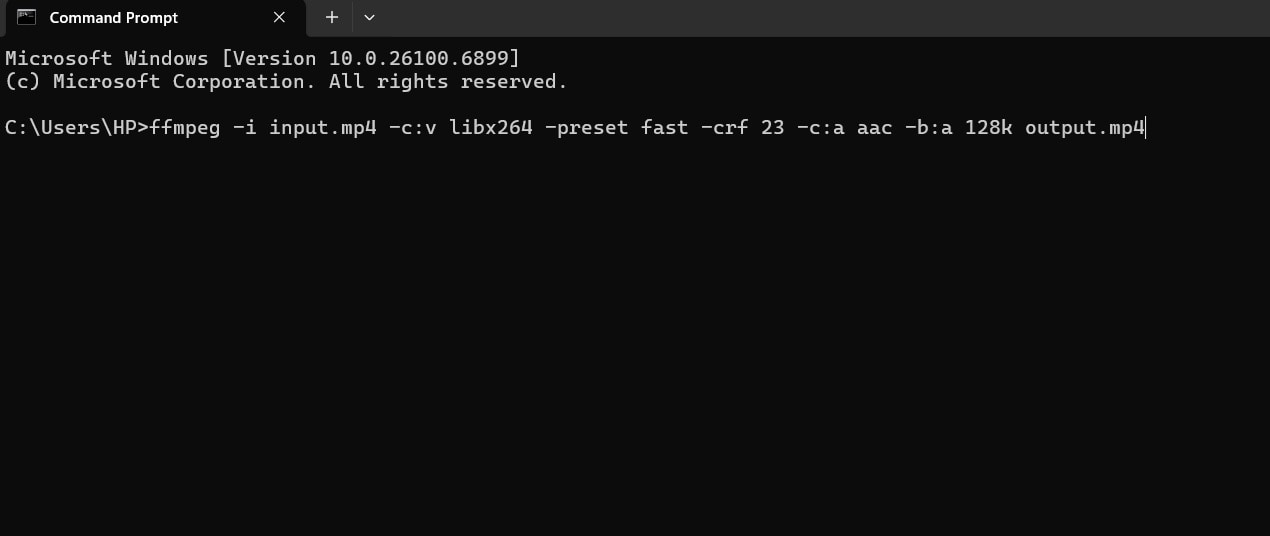
Step 2: Run the command. Wait for the end. Your file will be saved.
This tool helps users who like full custom work. If you test MP4 vs H264, you can adjust quality. If you lose video, try H264 recovery or see how to recover lost MP4 files during the conversion process with the right tool.
Method 4: Use Online Video Converters
An MP4 to H264 converter online free tool is easy. You only upload a file. No install needed. Pick H264 and convert. The downside is that large files may take time. Also, your network must be stable.
Steps:
Step 1: Visit an online video converter site. Upload MP4.
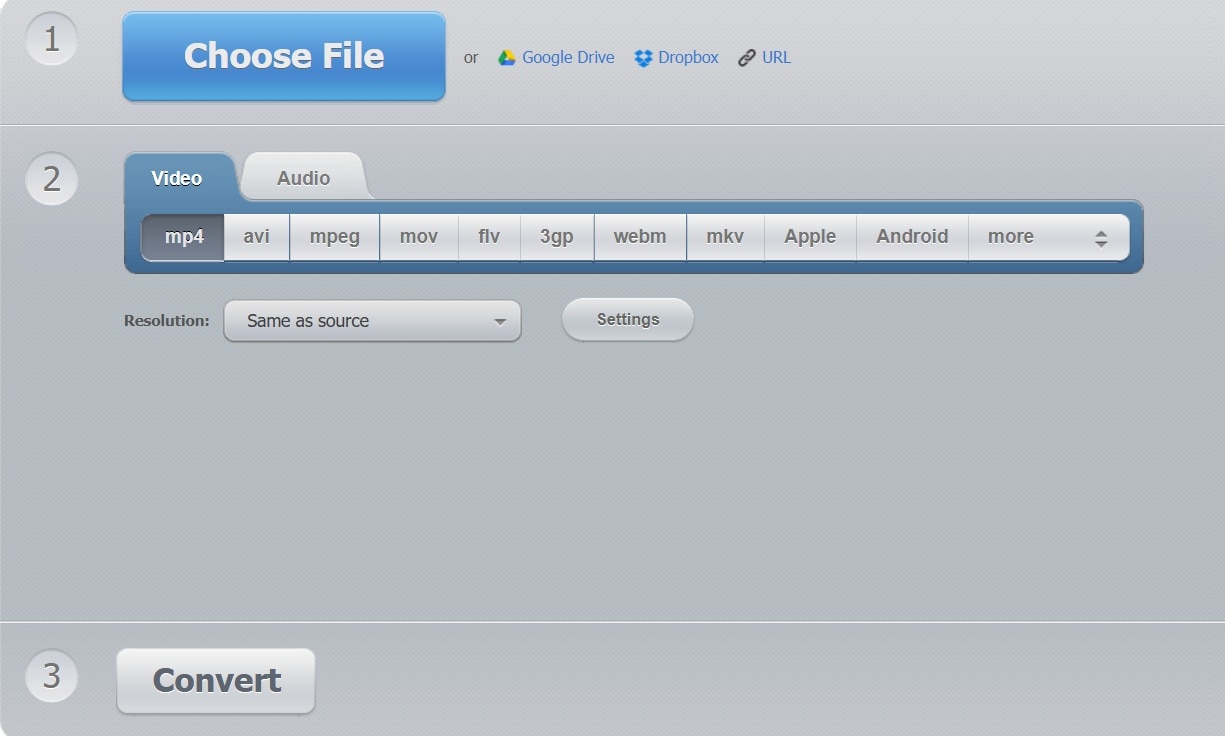
Step 2: Pick H264. Convert. Download the result.
Online tools are fast choices. They are best for short clips. If something goes wrong, see how to recover lost MP4 files during the conversion process. This will help keep work safe.
Method 5: Check Output Settings for Compatibility
Some video tools already have preset options that help convert MP4 to H264. You only need to check the output settings. Many apps can export as H264. This is simple when you have editing software. Always check the format before saving.
Steps:
Step 1: Open your video in the app. Go to export.
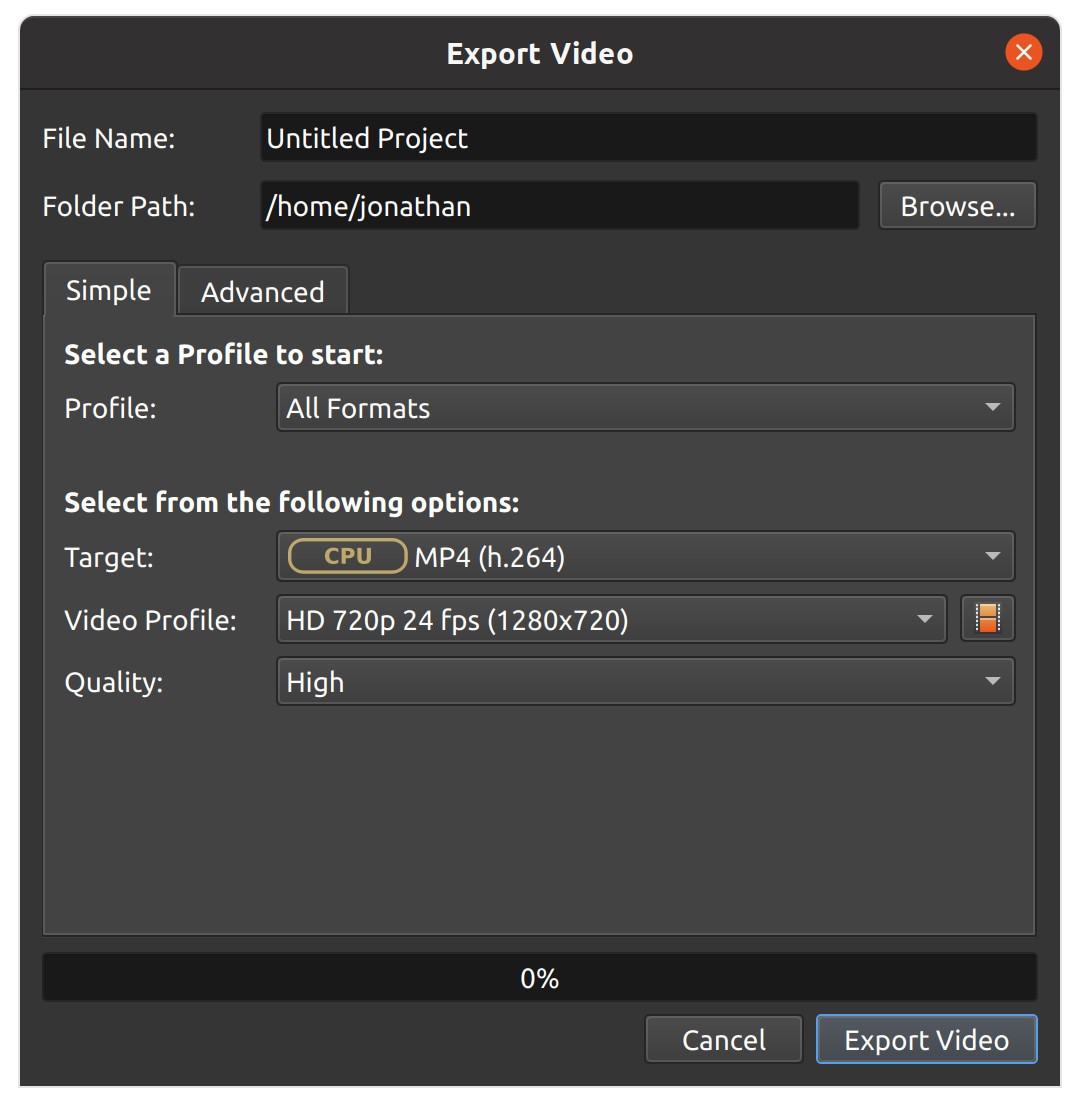
Step 2: Pick H264. Save output.
Many teams use this method. When comparing MP4 vs H264, they check file size. It is common to try MP4 to H264 converter tools inside editing apps. If you lose files, H264 recovery can help.
Part 3: Lost MP4 Files During Conversion? Use Recoverit Today!
An error can happen during video work. It can be a power loss or a tool crash. Some people lose video while they convert MP4 to H264. This is very bad when you have important clips. You may worry about how to recover lost MP4 files during the conversion process. You may also need to recover lost H264 files. A strong recovery tool saves your day.
Recoverit is a trusted tool used worldwide. It helps when your MP4 to H264 converter fails. It finds disappeared video. Many users trust it at home and work. It supports many storage types. It can find files after a crash. It helps in H264 recovery when a project fails.
This tool scans deep. It looks at memory cards, USB, and hard drives. It finds MP4 and H264. It works with Windows and macOS. You can start with a simple workflow. It also helps when an MP4 to H264 converter online free fails to deliver. Many people worry what is MP4 and what is H264 when trying recovery. This tool cares about all. It tries to rebuild clips. It is safe and easy.
Steps:
Step 1: Open Recoverit. The start screen shows all drives. Pick the drive that holds your MP4 or H264 files. This may be your main disk, a memory card, or a USB stick. Confirm the path, then press Start.

Step 2: Recoverit begins a deep scan. It checks the drive for lost video. The results appear while the scan runs. You can pause if needed. Use filters to find MP4 or H264. Preview clips to confirm they are correct. Let the scan finish for best results.

Step 3: Pick a safe folder to save your files. Do not save to the same drive you scanned. This helps prevent damage. Save and test playback. Keep a backup on another drive or cloud.

Use this tool when you lose video. If you ask how to recover lost MP4 files during the conversion process, this is the answer. If you need to recover lost H264 files, this tool can help.
Part 4: Pro Tips for Safe and Efficient Video Conversion
Any conversion needs care. When you convert MP4 to H264, you work with files that may be dear. If you know a few tips, you keep things safe. Many people compare MP4 vs H264 before they start. The process does not need fear. You just need a slow and steady workflow.
Tips with short notes:
- Keep a copy of the source Store the raw MP4 so you can fix it later.
- Use trusted tools Pick a known MP4 to H264 converter to reduce crashes.
- Check space Make sure you have enough free space.
- Avoid a low battery Power loss can break files. Work with full power.
- Avoid busy apps Close heavy apps so your system stays stable.
These tips help when you want to know how to convert MP4 to H264 without trouble. If something breaks, try H264 recovery or recover lost H264 files with a trusted tool.
Conclusion
Video work is simple when you know the basics. Many users often ask what is MP4 and what is H264. MP4 is a container. H264 is a codec. Many people compare MP4 vs H264 and learn that H264 is smaller and easier to play. When people convert MP4 to H264, they want the video to fit their device. The process is easy. You only need the right MP4 to H264 converter.
This guide explained how to convert MP4 to H264 with many tools. It also shared how to recover lost MP4 files during the conversion process and how to recover lost H264 files if things fail. Follow safe steps. Keep a backup. Use recovery tools if needed. Your video will stay safe for a long time.
FAQs
-
What is MP4?
MP4 is a container that holds video, audio, and text. It is common on all devices. Many users store clips from phones and cameras in MP4. When people ask what is MP4, they want to know how easy it play. Most players support it. -
What is H264?
H264 is a codec that makes video smaller. It keeps a good picture while saving space. Many apps use it for streaming. When you wonder what is H264, think of a format that helps share video faster. -
Why convert MP4 to H264?
People convert MP4 to H264 to make the video smaller. This helps with upload and playback. It works well on old gear. The format is stable and trusted across many apps.


