 TL;DR:
You can successfully recover deleted videos from MX Player by immediately stopping the saving of new files to prevent data overwriting, and then utilizing your device's built-in recovery folders, synced cloud backups, or specialized recovery software.
● Check your device's "Recently Deleted" or "Trash" folder and synced cloud accounts (Google Photos, OneDrive, Drive) first, as deleted files are often retained there temporarily for up to 30 days.
● Enable the "Show Hidden Files" option in a file manager app to search directories like `/MXPlayer/`, `/Movies/`, or `/DCIM/`, because MX Player sometimes hides or caches videos in system folders rather than completely erasing them.
● For permanently deleted or formatted files, use deep-scan data recovery tools like the DiskDigger Android app or desktop-based Recoverit, which are highly effective provided the original storage space hasn't been overwritten by new apps or media.
Ask AI for a summary
 ChatGPT
 Perplexity
 Gemini
 Claude
 Grok
Grok
MX Player is a media player and library viewer. In most cases, it does not create a separate backup of your videos. It scans video files stored in Android folders such as DCIM, Movies, Download, WhatsApp media folders, Telegram folders, or an SD card.
That means an "MX Player deleted video" can mean three different things: the file was deleted from storage, the file still exists but is hidden from MX Player, or the video is backed up in a cloud account. The right recovery method depends on which situation you are facing.
Before you try any recovery method, stop recording new videos, downloading files, installing large apps, or cleaning storage. These actions can overwrite deleted video data and reduce the chance of recovery.
First Check What "Deleted From MX Player" Means
| What You See | Most Likely Situation | Best First Action |
| The video disappeared from MX Player but appears in Gallery or File Manager | The file still exists, but MX Player is not indexing it | Refresh the MX Player library, check permissions, and remove folder filters |
| The video is in Gallery Trash or File Manager Trash | The file was deleted but is still in a temporary recovery folder | Restore it from Trash immediately |
| The video is gone from the phone but visible in Google Photos, Drive, or OneDrive | A cloud copy still exists | Download or restore the cloud copy |
| The video was saved on an SD card | The deleted file may still be recoverable from the card | Stop using the SD card and scan it with Wondershare Recoverit |
| The video was deleted from internal storage and no backup exists | Recovery depends on overwrite status and Android storage access | Use Android recovery software quickly and avoid writing new data |
Part 1: Can You Recover Deleted Videos from MX Player?
Yes, you can recover deleted videos from MX Player in many cases, but the result depends on where the original file was stored and what happened after deletion. If the video is still in Gallery Trash, File Manager Trash, Google Photos, Google Drive, or OneDrive, recovery is usually simple.
If the file was deleted from an SD card, recovery is possible as long as new data has not overwritten the card. If the file was deleted from Android internal storage, recovery can be harder because modern phones use encryption and storage cleanup behavior that limits deep recovery access.
| Recovery Factor | Why It Matters | What To Do |
| Storage location | SD cards are easier to scan directly than internal Android storage | Identify whether the video was in internal storage or on a card |
| Time since deletion | The longer you wait, the higher the overwrite risk | Start with Trash and cloud backups immediately |
| Phone usage after deletion | New downloads, recordings, and app updates may overwrite deleted data | Stop using the phone until recovery is complete |
| Backup status | Cloud backup is safer than raw data recovery | Check all synced accounts before using recovery software |
| MX Player visibility | The video may be hidden rather than deleted | Search with File Manager and refresh MX Player folders |
Part 2: How to Recover MX Player Deleted Video
This section explains how to recover MX player deleted videos using several working methods. Each method is explained in simple words so you can try it yourself. Start with the easiest one and move down if it does not work.
Method 1: Use Recoverit for SD Cards, External Storage, or Computer-Accessible Video Locations
Wondershare Recoverit is useful when the deleted MX Player video was stored on a microSD card, USB storage, external drive, computer folder, or another location that your computer can scan directly. It supports common video formats such as mp4, avi, mov, mkv, 3gp, and more.
This method is especially suitable if the video was saved on an SD card used by your Android phone. For the best result, remove the card from the phone and avoid writing new files to it.
- Stop using the Android phone or SD card immediately after deletion.
- Install and open Wondershare Recoverit on your Windows or macOS computer.
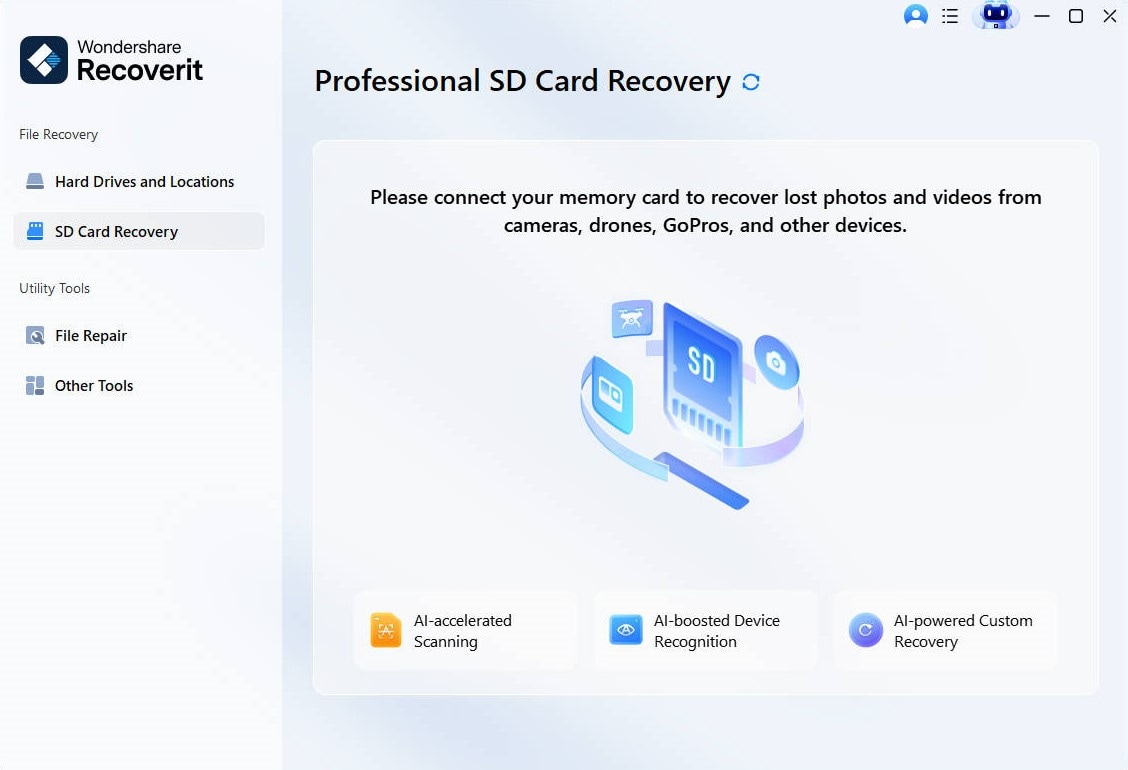
- Connect the microSD card, USB storage, or other device that contained the deleted MX Player video.
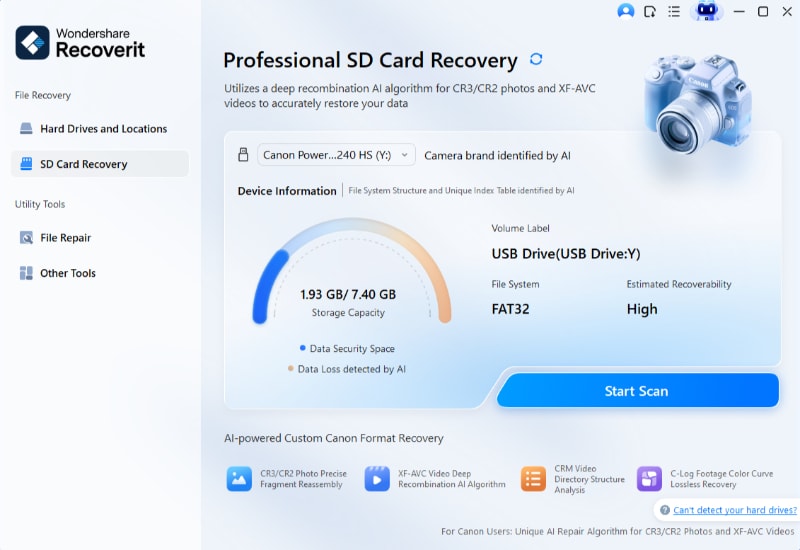
- Select the storage location and click Start Scan.
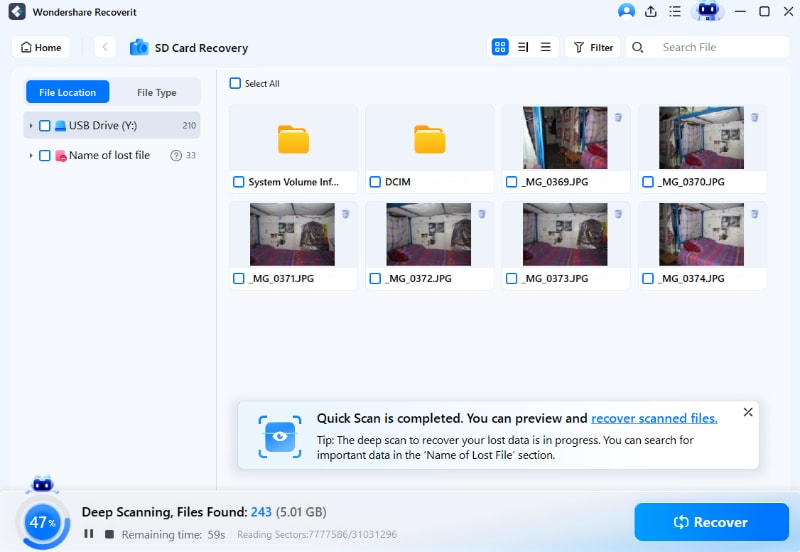
- Filter results by video formats such as
mp4,mov,avi,mkv, or3gp. - Preview recoverable videos when available.
- Click Recover and save the video to your computer or another safe drive, not back to the same SD card.


Method 2: Check Gallery Trash, File Manager Trash, or Recently Deleted
Trash or Recently Deleted should be your first recovery stop. Many Android Gallery and File Manager apps keep deleted videos temporarily before permanent deletion. The folder name and retention period vary by phone brand and app.
- Open the Android Gallery, Photos, or File Manager app.
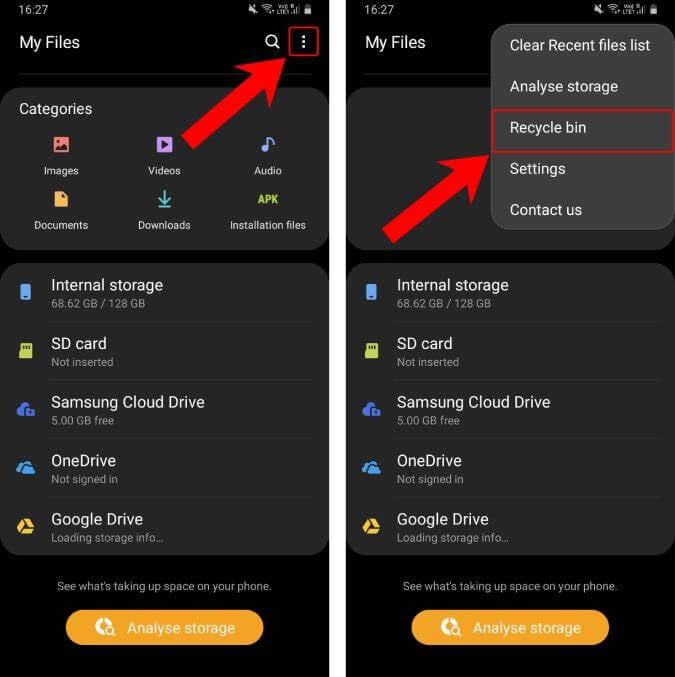
- Look for Trash, Recycle Bin, Recently Deleted, or Deleted Items.
- Search for the deleted MX Player video.
- Select the video and tap Restore or Recover.
- Open MX Player again and refresh or rescan folders if the restored video does not appear immediately.
| Place To Check | Common Name | Best For |
| Android Gallery | Trash, Recycle Bin, Recently Deleted | Videos deleted from albums or camera folders |
| File Manager | Trash or Deleted Items | Videos deleted while browsing folders |
| Phone-brand cloud gallery | Cloud Trash or Deleted Items | Videos synced to Samsung, Xiaomi, OPPO, vivo, or other device cloud services |
| Google Photos | Trash | Backed-up or synced videos connected to your Google account |
Method 3: Search Storage Folders When MX Player Does Not Show the Video
If the video disappeared from MX Player but was not actually deleted, it may still be stored in an Android folder. The file may be hidden, filtered, moved, blocked by permissions, or ignored because of a .nomedia file.
- Open a trusted file manager such as the built-in Android File Manager or Files by Google.
- Enable Show hidden files if the option is available.
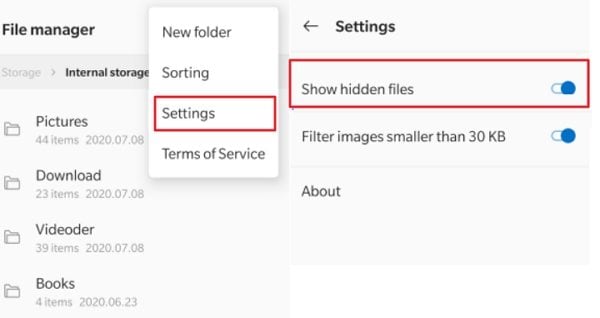
- Search common folders such as
DCIM,Movies,Download,WhatsApp/Media,Telegram, andAndroid/media. - Search by file extension such as
.mp4,.mkv,.avi,.mov, or.3gp. - If you find the video, copy it to a visible folder such as
MoviesorDownload. - Open MX Player, allow storage permissions, and refresh the media library.
.nomedia file, move the video to a normal media folder instead of randomly removing system markers.Method 4: Recover From Cloud Backup
Cloud backup is the safest recovery route if your MX Player video was backed up before deletion. Check Google Photos, Google Drive, OneDrive, and any phone-brand cloud service linked to the Android device.
- Open Google Photos, Google Drive, OneDrive, or your phone-brand cloud app.
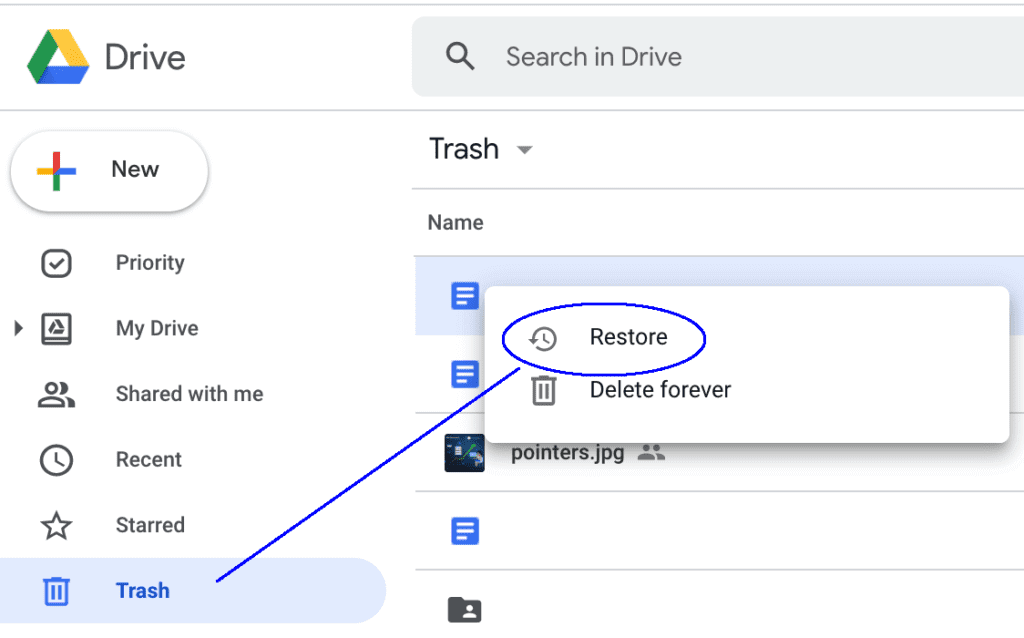
- Sign in with the same account used on the Android phone.
- Search by video name, date, album, or file type such as
mp4ormov. - Check Trash or Recycle Bin inside the cloud app if the video is missing from the main library.
- Tap Restore if the video is in cloud Trash.
- Tap Download if the video exists in the cloud but is not stored locally on the phone.
- Save the video to a normal media folder and refresh MX Player.
| Cloud Service | Where To Look | Recovery Action |
| Google Photos | Photos library, Albums, Trash | Restore from Trash or download a cloud copy |
| Google Drive | My Drive, Shared with me, Trash | Restore or download uploaded videos |
| OneDrive | Files, Photos, Recycle Bin | Restore or download synced videos |
| Phone-brand cloud | Gallery cloud, backup, deleted items | Restore videos synced by the device account |
Method 5: Use Android Data Recovery Apps Only After Checking Trash and Backups
Android recovery apps may help when the deleted video is not in Trash or cloud backup. However, installing a new app on the same phone can write data to internal storage, which may reduce recovery chances. Use this method carefully, especially for valuable videos.
- Stop using the phone as much as possible.
- Check Gallery Trash, File Manager Trash, and cloud backups first.
- Install only a trusted recovery app from an official app store or vendor website.
- Select video recovery or deep scan if available.
- Preview found videos before restoring them.
- Save recovered videos to a safer location such as cloud storage, SD card, or a computer transfer folder.
Method 6: Fix MX Player Library, Permission, or Playback Problems
If the video still exists in File Manager or Gallery but does not appear in MX Player, the problem is not deletion. It is usually a permission, folder filter, cache, hidden file, or media scan issue.
- Open Android Settings and check that MX Player has permission to access photos, videos, music, and files.
- Open MX Player and check folder settings or hidden folders.
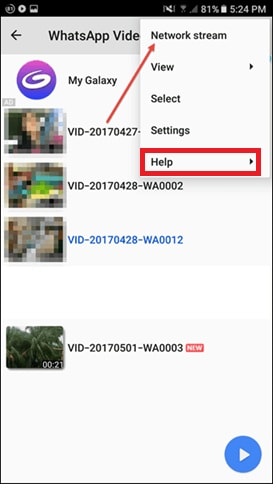
- Disable filters that may hide small files, unsupported folders, or private folders.
- Move the video to a standard folder such as
MoviesorDownload. - Clear MX Player cache if the library still does not refresh.
- Restart the phone and reopen MX Player.
- Contact MX Player support only if the file exists but the app still cannot detect or play it.
Part 3: Pro Tips to Prevent Future Video Loss in MX Player
The best way to avoid MX Player video recovery is to protect the original storage location. Since MX Player mainly reads videos from your Android folders, your prevention plan should focus on backup, folder organization, and safe deletion habits.
| Prevention Tip | Why It Helps | How To Do It |
| Turn on cloud backup | Creates a second copy outside the phone | Use Google Photos, Google Drive, OneDrive, or phone-brand cloud backup |
| Store important videos in clear folders | Makes files easier to find and back up | Use folders such as Movies, DCIM, Download, or named project folders |
| Check Trash before emptying it | Prevents accidental permanent deletion | Review Gallery Trash and File Manager Trash before cleanup |
| Avoid unsafe cleaner apps | Some cleaners remove downloaded videos, cache folders, or media files | Use built-in storage tools and review files manually |
| Back up SD cards regularly | SD cards can fail, format, or corrupt | Copy important videos to a computer or cloud drive every month |
| Keep MX Player updated | Improves playback and library stability | Update from the official app store |
| Avoid deleting from inside media apps too quickly | Some delete actions may bypass the recovery path you expect | Use File Manager or Gallery when you want to confirm where the file goes |
Conclusion
To recover deleted videos from MX Player, do not start with random recovery apps. First decide whether the video is truly deleted, hidden from the MX Player library, still in Trash, backed up in the cloud, or stored on an SD card.
Check Gallery Trash, File Manager Trash, Google Photos, Google Drive, and OneDrive before using recovery software. If the video was on a microSD card or another computer-readable storage device, scan it with Wondershare Recoverit. If the video was deleted from internal Android storage, act quickly, avoid new data, and use a trusted Android recovery workflow.
After recovery, keep important videos in organized folders and turn on cloud or computer backups. This makes future MX Player video loss much easier to fix.
FAQs:
-
Can I recover MX Player deleted videos without using a computer?
Yes. You can use Trash, cloud backup, or mobile recovery apps such as DiskDigger. These methods work directly on your phone without a computer. -
2. Are MX Player deleted videos stored anywhere on the phone?
Sometimes. Deleted videos might remain hidden in cache or system folders. A file manager can help you check these folders. -
3. What should I do after losing a video in MX Player?
Stop using your phone for large downloads or new videos. This prevents new data from replacing your deleted files and improves recovery chances.



