

 TL;DR:
To access your personalized YouTube Recap, log into the mobile app and tap the "You" tab to find the "Your Recap is Here" prompt, or navigate directly to youtube.com/recap on a PC web browser.
● Access requires a personal Google Account for users aged 13 or older with active, non-auto-deleted watch history; Brand, Supervised, and Kids accounts are strictly ineligible due to privacy restrictions.
● Unlike the YouTube Music Recap which focuses exclusively on audio listening trends, the standard YouTube Recap tracks videos, Shorts, and creator categories to generate downloadable story-style data cards.
● If your viewing stats fail to appear, verify that you have met the minimum viewing activity threshold, update your application to resolve display bugs, or wait for the gradual regional rollout across the 185 supported countries.
Ask AI for a summary
 ChatGPT
 Perplexity
 Gemini
 Claude
 Grok
Grok
Understanding how to see your YouTube recap helps you uncover watch time trends, top creators, and content preferences you may not even realize you have. This guide walks you through accessing your recap quickly, explaining where it appears and how to make the most of the insights YouTube provides.
Try Recoverit to Perform Youtube File Recovery
 Security Verified. 3,591,664 people have downloaded it.
In this article

Part 1. Overview: How To See Your YouTube Recap And What It Includes
YouTube Recap is a personalized feature that summarizes your viewing activity over a set period, showcasing top videos, favorite creators, watch time, and content categories. It was introduced to give users clearer insights into their watching habits and preferences. By turning raw activity data into an engaging summary, YouTube enhances user engagement while encouraging content discovery and reflection on viewing trends.
This function also works as an interactive summary that transforms your watch history into visually engaging story-style cards. It highlights favorite creators, top content categories, and viewing patterns, allowing users to explore their habits easily while making personal insights more fun, shareable, and memorable.
Difference between YouTube Recap and YouTube Music Recap
While learning how to see your YouTube recap, it's important to understand how it differs from YouTube Music Recap. Here is a comparison table that shows the difference between the two functions:
| Aspect | YouTube Recap | YouTube Music Recap |
|---|---|---|
| Content Focus | Videos, creators, Shorts, and categories watched | Songs, artists, albums, and playlists listened to |
| Platform | Main YouTube app and web | YouTube Music app and web |
| Data Highlighted | Watch time, top creators, viewing interests | Listening time, top artists, music moods |
| Presentation Style | Story-style cards with video insights | Story-style cards focused on music trends |
| Audience | General YouTube viewers | Music-focused listeners |
Why Recap Appears Only for Eligible Accounts
Recap appears only for eligible accounts because YouTube requires sufficient viewing data to generate meaningful insights. Accounts with limited watch history, paused activity tracking, or restricted settings may not meet this threshold. Eligibility also depends on regional rollout and account age, ensuring the recap reflects consistent user behavior rather than incomplete or inaccurate activity data.
List of Languages Included In The Latest YouTube Recap Rollout
Before learning how to see your YouTube recap, let's explore the variety of languages supported in the latest rollout to see how global users can access their summaries:
Total Languages: 17 languages.
Supported Languages
- Arabic
- Chinese (Simplified)
- English
- French
- German
- Hindi
- Indonesian
- Italian
- Japanese
- Korean
- Polish
- Portuguese
- Russian
- Spanish
- Thai
- Turkish
- Vietnamese
Part 2. Key Requirements Before Trying How To See Your YouTube Recap
Before diving into how to see your YouTube recap, it's essential to understand the basic requirements that determine whether the feature appears on your account:
- Active Watch History Required: Watch history must be enabled so YouTube can record viewing activity accurately. If history is paused or frequently cleared, recap data may be unavailable.
- Signed-In Personal Google Account Needed: Only personal Google accounts are supported for recaps. Brand, supervised, or shared accounts do not qualify due to data limitations.
- Age and Region Eligibility Rules: To access the YouTube Recap, users must be at least 13 years old or meet the minimum age requirement set in their own country. Additionally, Recap is rolling out globally, but only in supported regions across 185 countries and territories where YouTube has enabled the feature.
- Sufficient Viewing Activity: A minimum level of consistent viewing is required during the recap period. Limited or irregular activity may prevent recap generation.
- Updated App or Supported Browser: Running the latest YouTube app or a compatible browser helps ensure recap cards load properly. Outdated versions may hide or limit access to the feature.
Why Supervised or Kids Accounts May Not Qualify
Supervised and Kids accounts are designed with safety and privacy protections that limit the type of data YouTube can collect and display. Because Recap relies on personalized watch history and engagement insights, these account types aren't eligible. YouTube restricts detailed activity summaries for users under supervision or in the Kids experience to protect child privacy and comply with safety policies.
Part 3. Find Your Stats Fast: How To See Your YouTube Recap Using Android/iPhone
With the eligibility basics covered, it's time to move from requirements to action. How to see your YouTube recap becomes much easier once you know where to look on your smartphone. Since most users access YouTube through mobile apps, Android and iOS offer the quickest way to find your recap. The following section walks you through locating your stats fast on your phone without digging through menus:
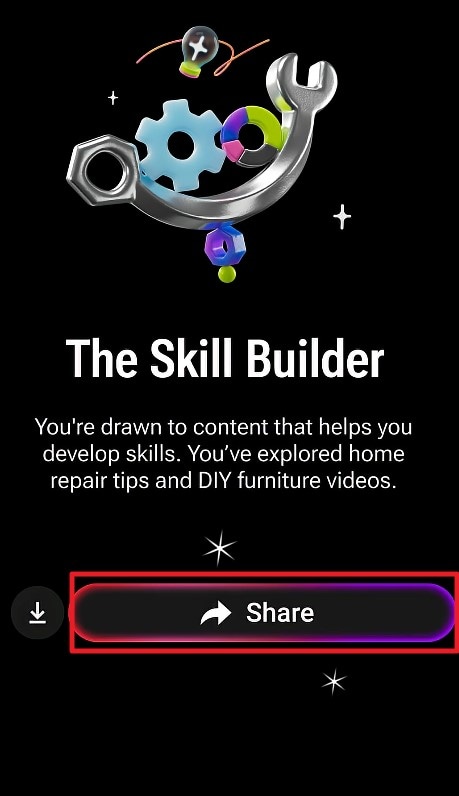
- To begin, launch the YouTube application on your smartphone and log in to your account. Next, locate the "You" option in the bottom right corner and tap on it. You will see the "Your Recap is Here" option and tap on it. All your watching highlights will appear in the form of flashcard stories.
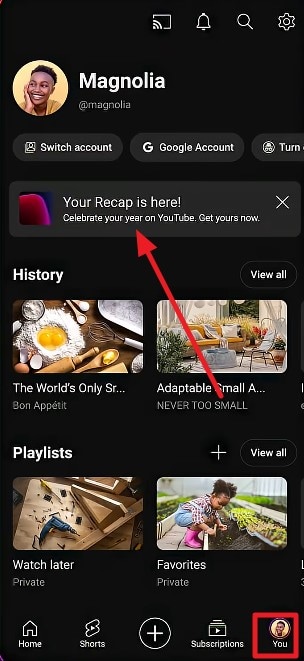
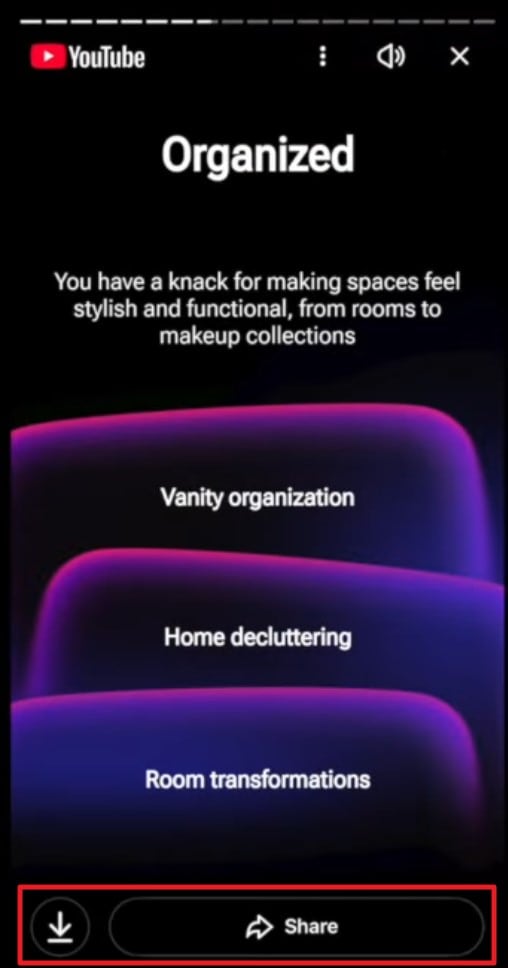
- Once you have viewed the recap, you can share it with other people, too. Press the "Share" option and select the recipients with whom you want to share.
Part 4. Access Viewing Stats Online: How To See Your YouTube Recap On PC
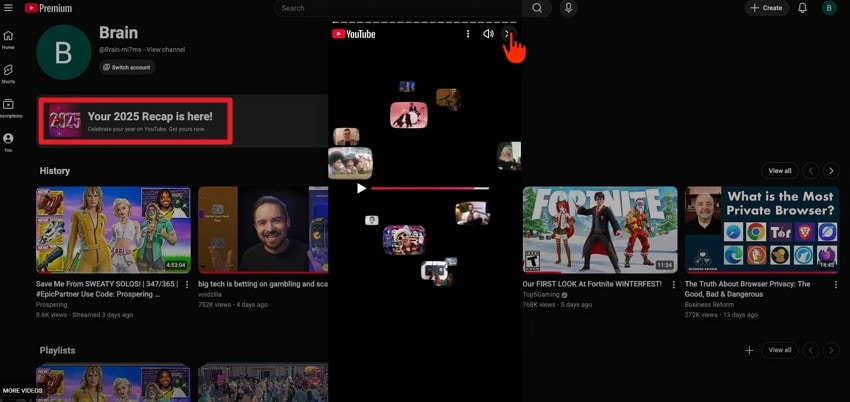
After checking your recap on mobile, desktop users have another convenient option. How to see your YouTube recap on a PC involves accessing your account through a web browser, viewing stats, and recap cards. Follow the instructions provided below to learn how to navigate YouTube's desktop interface to review your personalized viewing insights quickly and clearly:
Instructions. Head to your browser and access YouTube's official website. Now, click on your profile or simply type "https://www.youtube.com/recap" in your address bar. Press the "Your 2025 Recap is Here" option to watch your data cards.
Inside The Slides: Data Cards From How To See Your YouTube Recap
Inside the slides, YouTube Recap presents your data through multiple story-style cards, each focusing on a specific aspect of your activity. Here is what you will see in the story cards when you learn how to see your YouTube Recap:
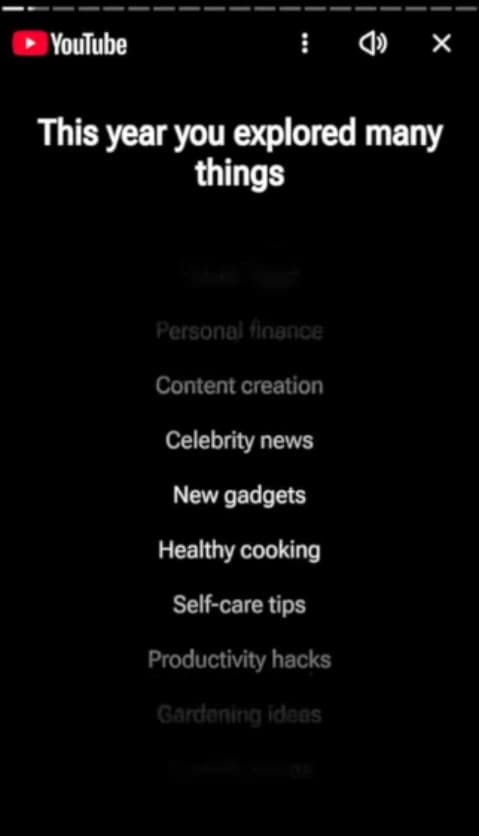
1. Content Exploration Card
This card tracks your digital curiosity by measuring how often you venture away from your subscribed channels to discover new creators. It reveals whether you are a creature of habit who sticks to favorites or a digital explorer constantly seeking fresh perspectives.
2. Your Top Interests
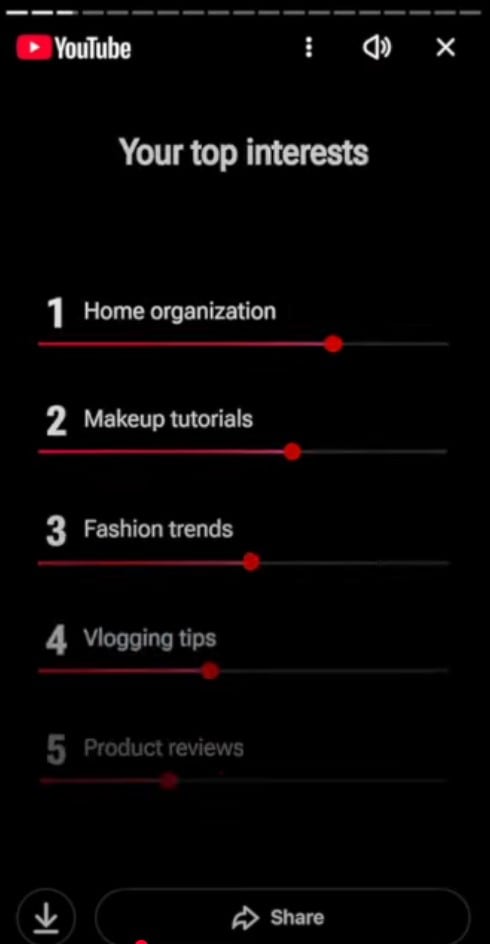
It highlights the top 5 specific niche topics and hobbies that captured your attention most consistently throughout the year. It serves as a reflection of your deep-dives, showing the subjects you are most passionate about or eager to master.
3. Content Categories
These represent the broad genres you consume, such as Gaming, Education, or Comedy, to categorize your general viewing intent. This card helps you see if you primarily use the platform for practical self-improvement or for unwinding with pure entertainment.
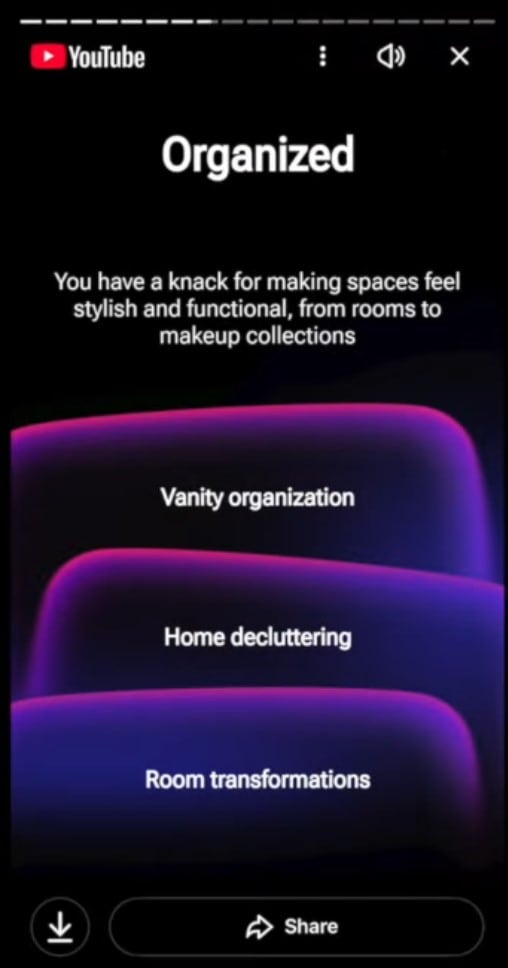
4. Your Personality
YouTube analyzes your viewing patterns, like binging series or hunting for trends, to assign you a fun, stylized persona. It's a creative way to summarize your "vibe" as a viewer and show how your habits compare to the rest of the community.
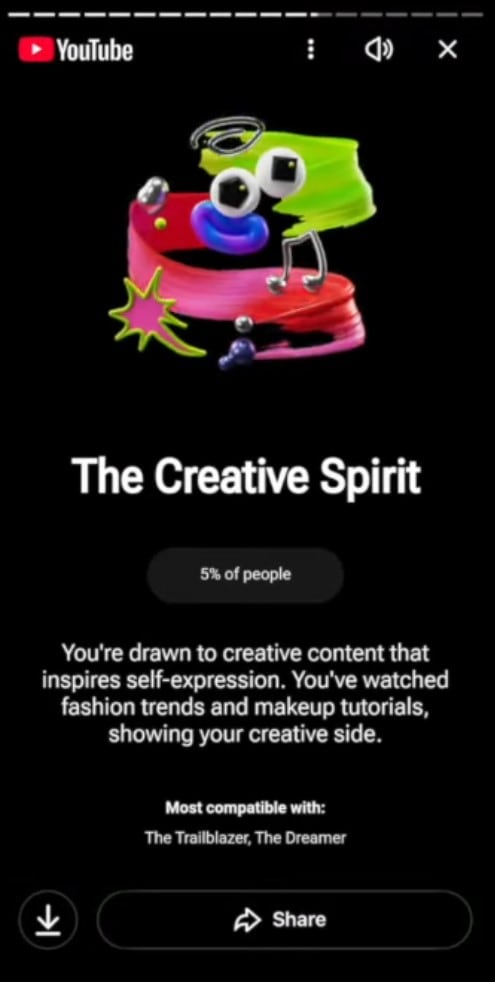
5. Overall Recap
This is your highlight reel, aggregating total watch time, your absolute favorite creators, and your most-played content into one snapshot. It provides a definitive bird's-eye view of your digital footprint and how you spent your time over the past year.
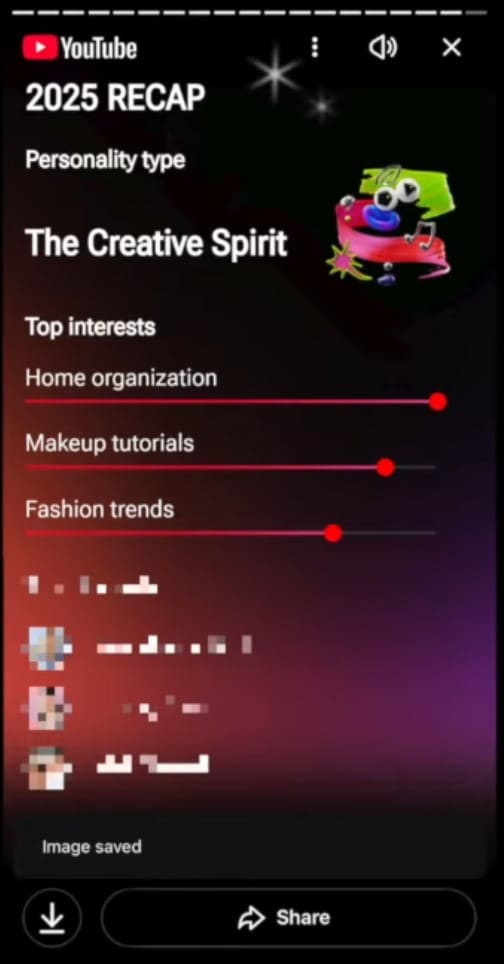
Simple Ways To Export And Share Your Viewing Summary Cards
Exporting and sharing your story card after learning how to see your YouTube Recap on a web browser is straightforward. Learn how you can do it in the steps below:
- Access your YouTube Recap by heading to your profile section or simply typing in the web address.
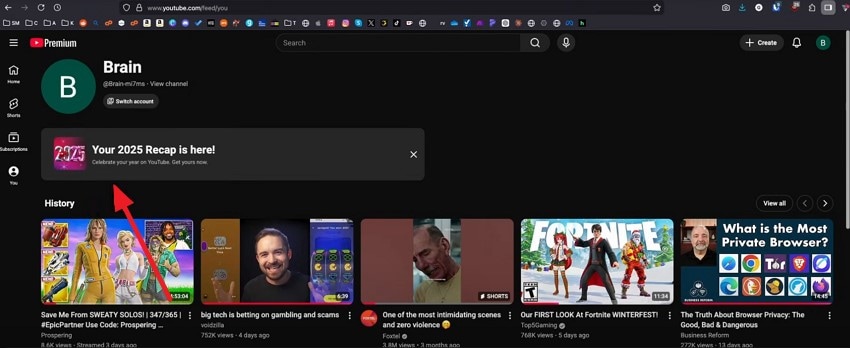
- The highlights will appear in the form of social media stories. Click on the "Download" icon on the bottom right to save the story card as an image. To share it on different platforms, press the "Share" option located at the bottom right.
Part 5. Recoverit Guide: Retrieve Lost Downloaded YouTube Recap Cards And Stories
Accidentally deleting your exported YouTube Recap cards can be incredibly frustrating after a year of waiting. Recoverit serves as a powerful safety net, specializing in the restoration of lost images and video files across multiple storage devices. Whether you cleared your downloads folder or emptied the recycle bin prematurely, this software utilizes deep scanning technology to locate and retrieve your missing digital memories.
Beyond simple file recovery, the tool features advanced algorithms designed to repair corrupted media or fragmented videos. It is the ideal solution for users wondering how to see your YouTube Recap stories again if the local copies were lost to a system crash. By selecting the original save location, you can quickly preview and restore your personalized yearly highlights. Moreover, the software lets users retrieve 500 MB of data for free.
Coherent Features Offered By Recoverit
- Batch Data Recovery: This feature allows you to restore entire folders of YouTube cards at once, sparing you from the thumb-twiddling boredom of a manual, one-by-one retrieval process.
- Multiple File Format Support: With support for over 1,000 formats, Recoverit handles everything from PNG screenshots to high-res MP4s, ensuring your recap is recovered regardless of how you originally saved it.
- Search Specific File: The precise search filter is a total lifesaver, allowing you to bypass digital clutter and jump straight to your "YouTube_Recap" file without having to sift through thousands of unrelated results.
Steps for Retrieving Lost YouTube Cards Using Recoverit
As discussed, Recoverit provides the ability to get back your lost data in no time. Let us have a look at how to use this tool for data retrieval:
1. Select the Source of Your Missing Files
Launch the application and pinpoint the exact drive or folder where those YouTube Recap graphics were first saved. The software will then perform a comprehensive scan of that directory to automatically track down any deleted or misplaced media files.

2. Identify the Cards to Restore
Once the scanning process wraps up, sift through the generated list of found items to find your specific yearly summary stories. Tick the boxes for the individual cards or highlight reels you want to bring back, then click "Recover" to begin the file reconstruction.

3. Verify and Secure Your Summary Data
Open the preview window to make sure your YouTube Recap cards are clear and the video transitions are playing smoothly. If everything looks good, export the files to a fresh, secure location on your computer using the "Recover" button.

Part 6. Fix Guide For Recap Not Showing In The YouTube App Or Browser
If you've followed all the steps so far but still can't view your annual stats, don't worry, there are ways to troubleshoot the issue. Understanding how to see your YouTube recap when it's not appearing in the app or browser is essential. The following section walks you through practical fixes to ensure your personalized recap loads correctly:
1. Update YouTube App To Latest Version
Updating the YouTube App ensures you have the latest features and bug fixes, which can resolve display issues. Many recap problems occur when using outdated versions. Keeping the app current increases compatibility with YouTube's personalized stats features, making it easier to learn how to see your YouTube recap without glitches or missing content. If you do not know how to update the YouTube app, here is how you can do it:
On iOS Device
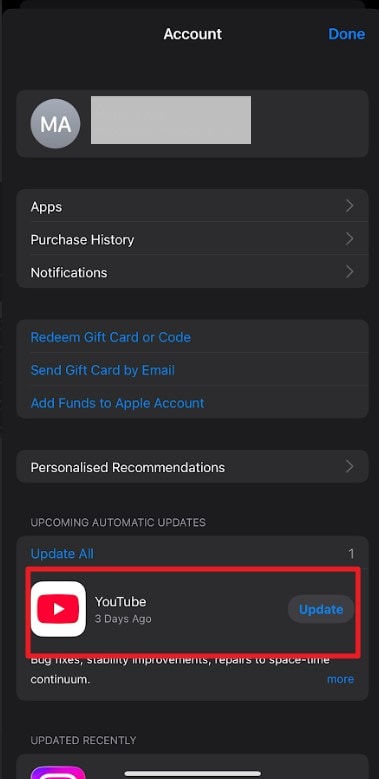
Instructions. Open the App Store and tap your profile icon at the top of the screen. Then, scroll down to Available Updates and locate "YouTube." Finally, tap "Update" to install the latest version of the app.
On Android
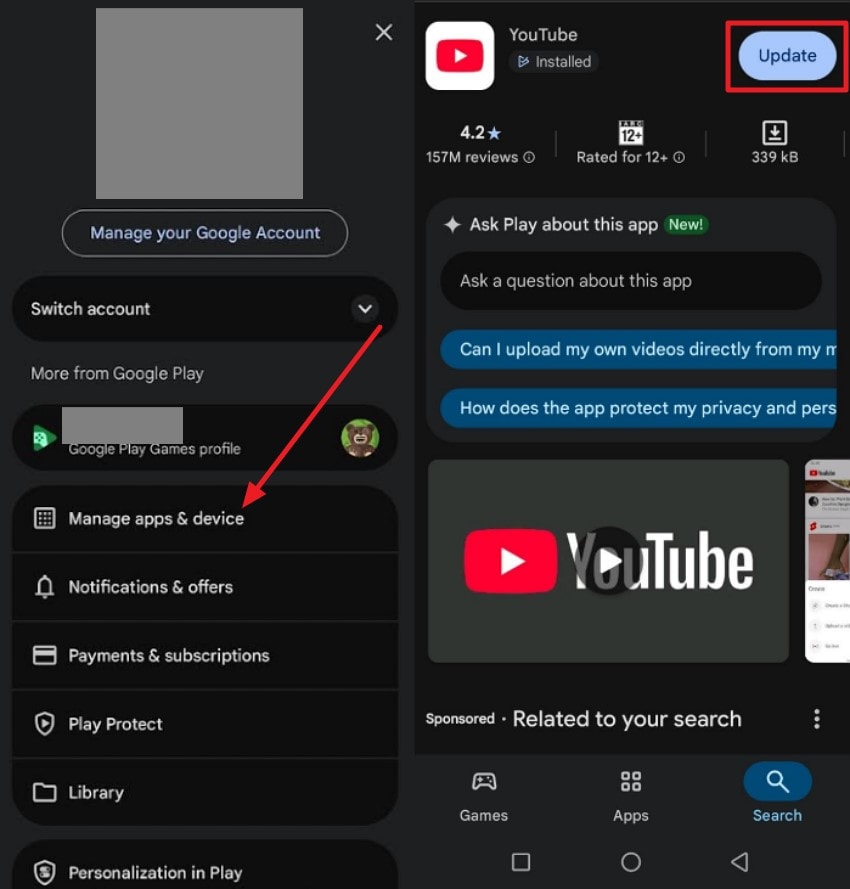
Instructions. Launch the Google Play Store, then tap your profile picture in the top-right corner. From the menu, choose "Manage Apps & Device," navigate to the available updates section, and locate "YouTube." Finally, press "Update" button next to it to install the latest version.
2. Turn On Watch History And Disable Auto-Delete
Activating watch history and disabling auto-delete lets YouTube track your viewing patterns accurately. Without these settings, your activity may not be recorded fully, preventing your recap from showing. Properly managed history ensures that how to see your YouTube recap reflects all watched videos, giving a complete year-in-review experience. To learn how to perform this fix, read the steps provided next:
Turn On Watch History
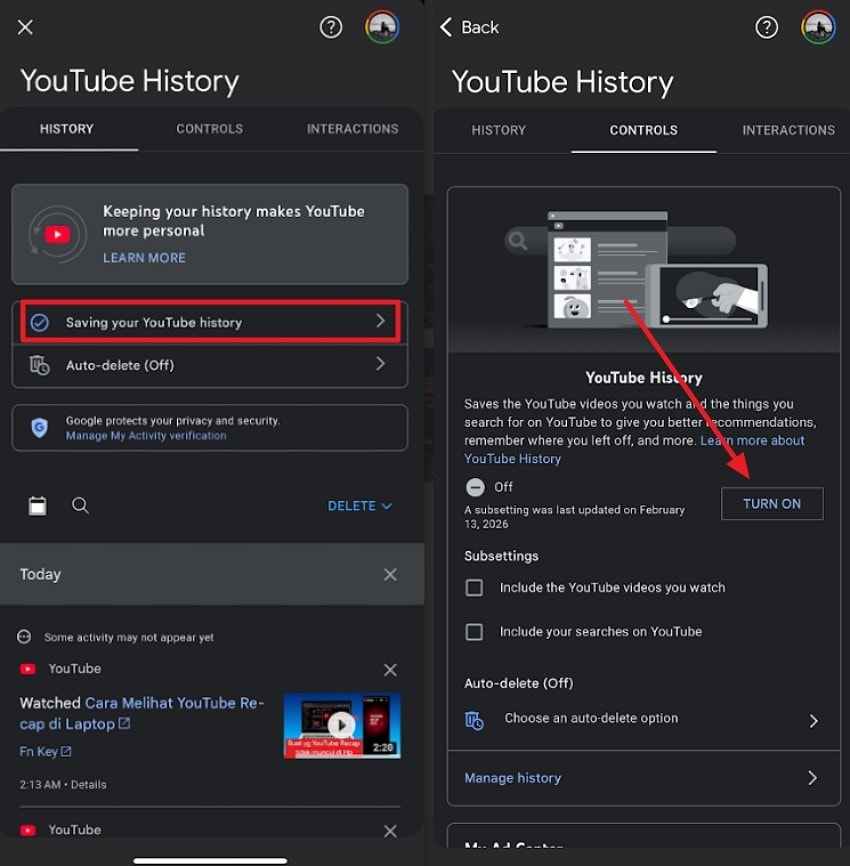
- Go to your Profile in your YouTube app and press the "Settings" cogwheel. Next, locate the "Manage All History" option.
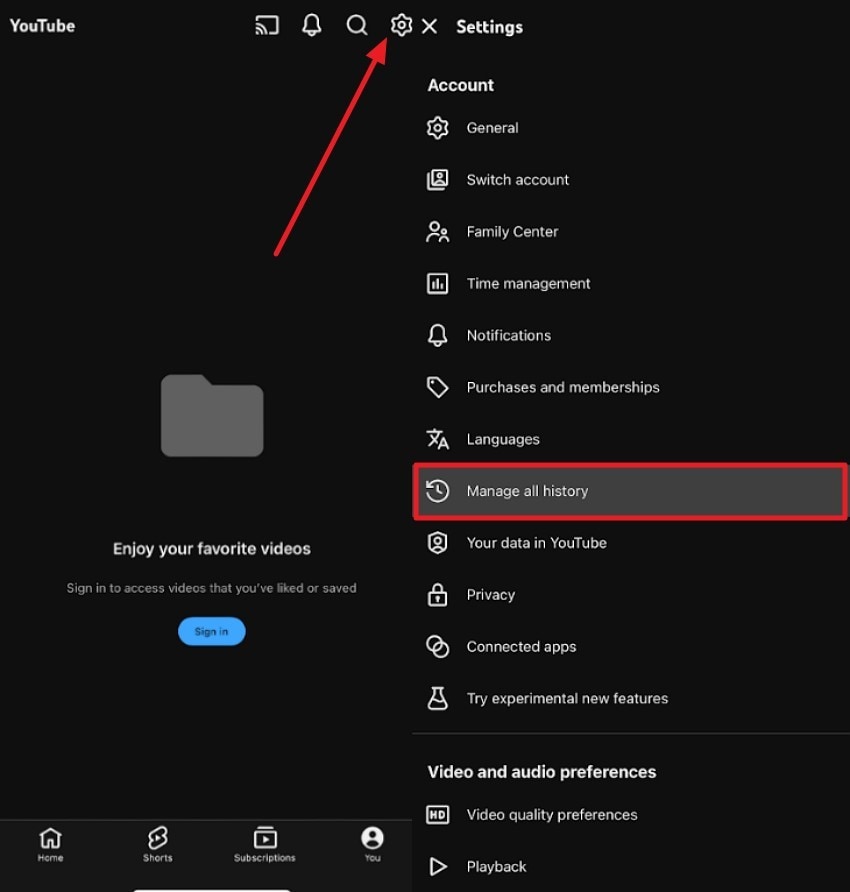
- Now, press the "Saving Your YouTube History" option and tap on the "Turn On" button located in the following interface.
Disable Auto Delete
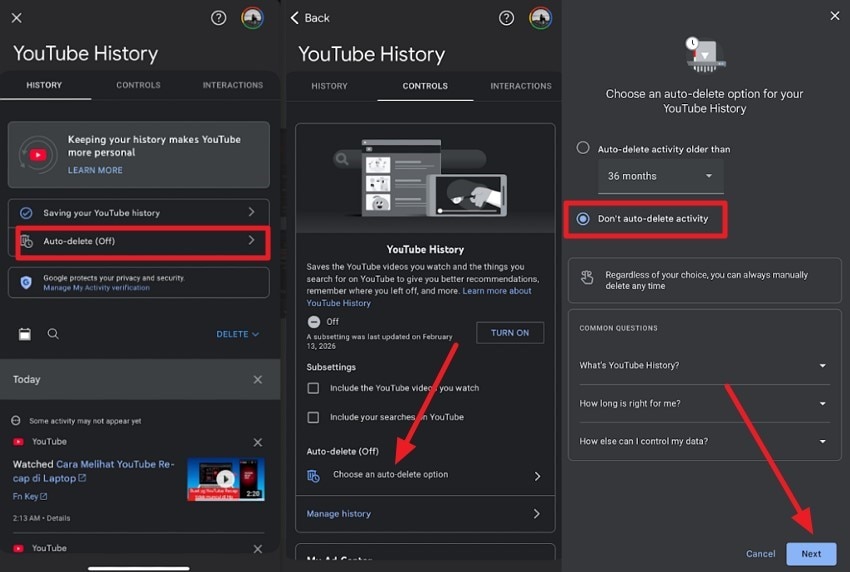
Instructions. After accessing the Settings of your YouTube app, access "Manage All History" section and tap on the "Auto Delete" option. In the following interface press "Choose an Auto Delete Option." Next, pick "Don't Auto Delete Activity" option and press "Next" to successfully disable the auto delete option.
3. Wait For Gradual Rollout In Your Region
Waiting for the gradual rollout is sometimes necessary, as YouTube releases recaps region by region. If your account is eligible but the recap hasn't appeared yet, patience is key. Understanding how to see your YouTube recap includes recognizing that timing can depend on YouTube's phased availability in your area.
4. Log Out And Sign Back Into Account
Logging out and signing back into your account can refresh connections and fix display errors. This simple step often resolves issues with cached data or session conflicts. Performing this action helps ensure smooth access and clarity in how to see your YouTube recap on both the app and browser. Follow the steps mentioned below to learn how to log out and then sign back in again to your YouTube app:
Log Out YouTube
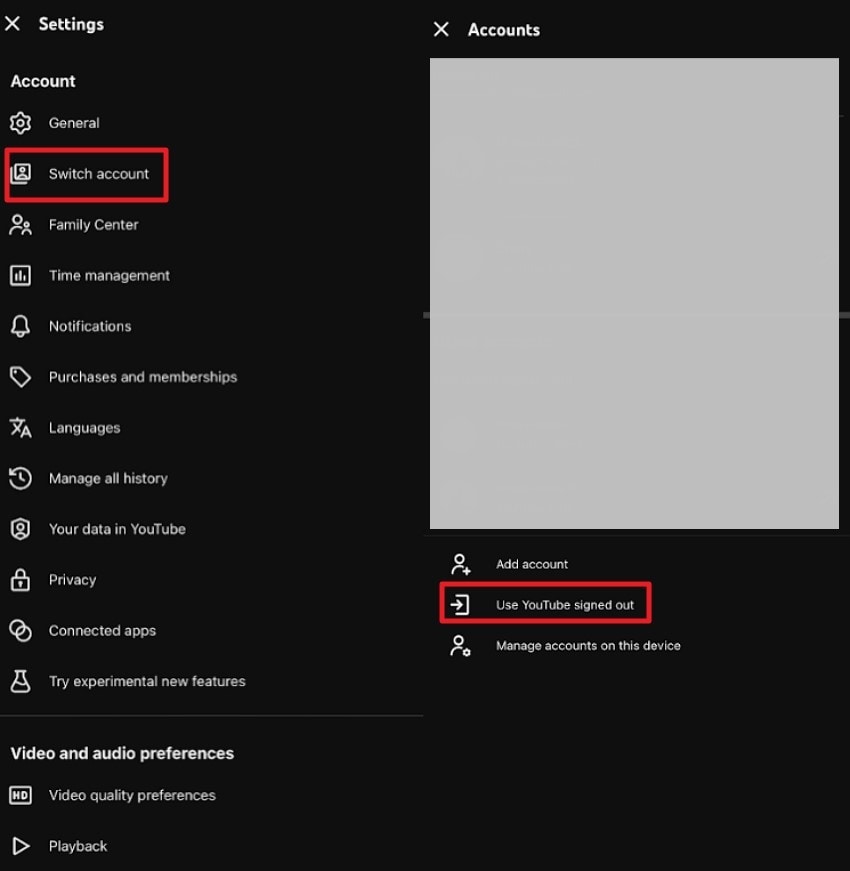
- Open YouTube and tap on your profile icon located on the bottom right. Next, tap on the "Settings" icon located at the top-right corner.
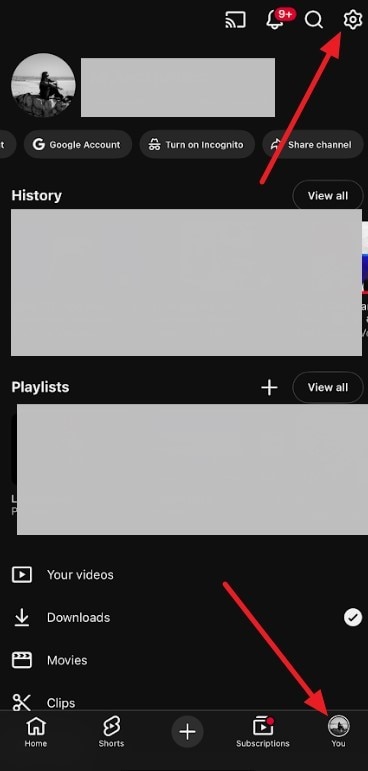
- Press the "Switch Accounts" option located within the settings option. Now, press the "Use YouTube Signed Out" option to log out of your current account.
Sign Back In
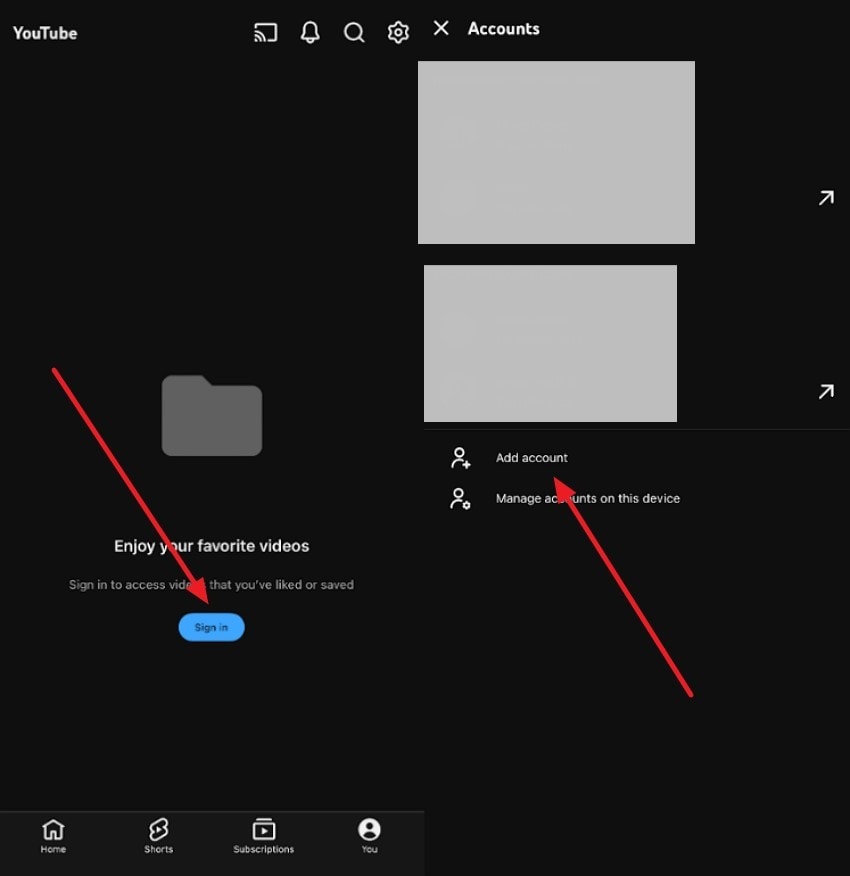
Instructions. To sign back in, tap on the "You" icon on the bottom right and press the "Sign In" option. Next, select the already added accounts or add a new account to successfully sign in to your YouTube app.
5. Check Eligibility Limits, Like Minimum Activity
Checking eligibility limits, such as minimum activity, helps determine why a recap might be missing. Users who haven't met viewing thresholds or have inactive accounts may not receive a recap. Knowing these limits clarifies how to see your YouTube recap and why some accounts might not display a year-in-review summary.
Conclusion
To wrap it up, this article provided a detailed guide on how to see your YouTube recap, covering app updates, account settings, and troubleshooting steps. Following these tips ensures you won't miss your personalized year-in-review stats. Additionally, if any downloaded recap cards or stories are lost, using Recoverit can help safely retrieve them. This gives you full access to your memories and viewing highlights from the past year.
FAQ
-
1. Why isn't my YouTube recap showing this year?
Your recap may not appear due to outdated app versions, disabled watch history, regional rollout delays, or insufficient account activity. Ensuring proper settings and updates increases your chances of seeing your personalized stats. -
2. How can I access my YouTube recap if it doesn't load in the app?
Try logging out and back in, updating the app, or checking eligibility limits. You can also view your recap on a desktop browser if the mobile app fails, making it easier to explore how to see your YouTube recap. -
3. Can I recover lost downloaded YouTube recap cards or stories?
Yes! If your saved recap cards or stories go missing, using Recoverit can safely retrieve them, ensuring you don't lose your yearly highlights and memorable viewing moments. -
4. How do I restore deleted recap downloads on my device?
If your downloaded stories or recap cards are accidentally deleted, Recoverit provides an easy way to recover them, letting you relive your YouTube highlights without hassle.


