

 TL;DR:
Recovering deleted videos from Google Drive relies primarily on a 30-day Trash window for standard accounts, while Workspace users and those experiencing local sync failures require distinct admin-level or third-party software interventions.
● Standard Google Drive users must restore deleted videos directly from the Trash folder within a strict 30-day timeframe before the files are permanently purged from the account.
● Google Workspace administrators can bypass the standard 30-day limitation by searching and exporting permanently deleted files using Google Vault or by contacting Google Support to request a server-level backup restoration.
● If a video was deleted from a local PC, SD card, or USB drive before it successfully synced to Google Drive, cloud recovery will fail and you must scan the original physical hardware using desktop data recovery software like Recoverit.
Ask AI for a summary
 ChatGPT
 Perplexity
 Gemini
 Claude
 Grok
Grok
Deleted videos from Google Drive can feel like a big loss, but they’re not always lost forever.
Google Drive offers many ways to restore deleted files. It also keeps copies for a short time. You can recover deleted videos from Google Drive if you act fast. Even if the videos are gone for a while, you still have options.
This guide explains all methods in detail. It shows how to recover deleted videos from Google Drive step by step. It also covers what to do if your files are gone from your computer.
Table of Contents:
-
- Method 1: Restore from Google Drive Trash (within 30 days
- Method 2: Use Google Drive’s Search and Filter Tools
- Method 3: Recover from Shared Drive or Team Drive
- Method 4: Check Google Photos or Gmail Attachments (if synced)
- Method 5: Use Google Vault (for Workspace users)
- Method 6: Contact Google Support for Admin-Level Recovery
Part 1: Can You Recover Deleted Videos from Google Drive?
Yes, you can. Google Drive keeps deleted files for a short period. When you delete a video, it goes to the Trash folder. It stays there for 30 days before permanent removal. This gives you enough time for Google Drive deleted video recovery.
But after 30 days, things change. Files are removed from Trash and may not appear again. Still, you can try several ways to get them back. Shared Drives, Google Vault, and Google Support may help. With the right method, you can perform full Google Drive video recovery.
Even if you think the file is gone, don’t panic. Google’s backup system keeps hidden traces for some time. Acting quickly increases your chances. Always check every possible folder before giving up.
You may be also interested in: How to Recover Permanently Deleted Files from Google Drive?
Part 2: How to Recover Deleted Videos from Google Drive?
Now that you know it’s possible, let’s learn the methods. Each method works for different situations. Follow them one by one. These steps will show you how to get deleted videos back on Google Drive safely.
These techniques are easy and don’t need special tools. You can try them from your phone or computer. Whether you deleted the videos by mistake or due to syncing errors, one of these methods should work.
Method 1: Restore from Google Drive Trash (within 30 days)
When you delete a video, it moves to the Trash folder. This is the easiest way to recover deleted videos from Google Drive. Files stay there for 30 days unless you empty the Trash manually.
This method works best for recent deletions. It’s simple, safe, and free. You don’t need any app or tool. Google Drive keeps this feature for all users, including free accounts.
How to Recover Deleted Videos from Google Drive:
- Open Google Drive and click “Trash” on the left panel.
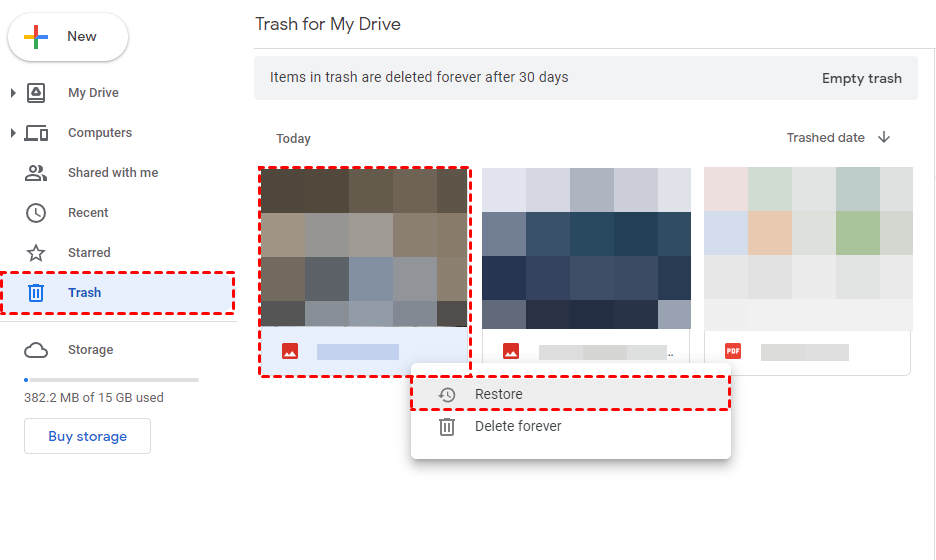
- Find your deleted video, right-click it, and click “Restore.”
Once restored, the video goes back to its original folder. You can then open or move it anywhere you like.
Method 2: Use Google Drive’s Search and Filter Tools
Sometimes, your video may not be deleted. It may just be hidden. Google Drive’s search and filter tools help you locate missing videos.
Files can move during uploads or when folders are reorganized. You can search by file type, name, owner, or date. This is an effective way for Google Drive video recovery without external help.
How to Use Google Drive’s Search and Filter Tools:
- In Google Drive, type the video name in the search bar.
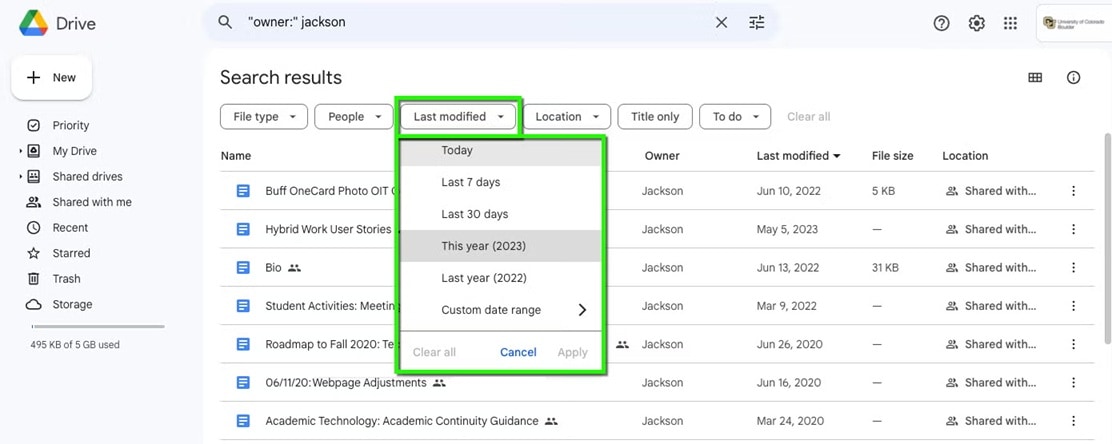
- Use filters like “Videos,” “Owned by me,” or date options.
If your file appears, move it to a safe folder. This method works well when videos are lost but not deleted.
Method 3: Recover from Shared Drive or Team Drive
If you work in a team, your files might be in a Shared Drive. Shared Drives have their own Trash and recovery systems. Even after you delete a file, admins can restore it.
This is useful when you want to know how to retrieve deleted videos from Google Drive in a business account. Shared Drives keep deleted files longer than personal accounts. Admins often have the power to restore them easily.
How to Recover from Shared Drive or Team Drive:
- Open your Shared Drive or Team Drive.
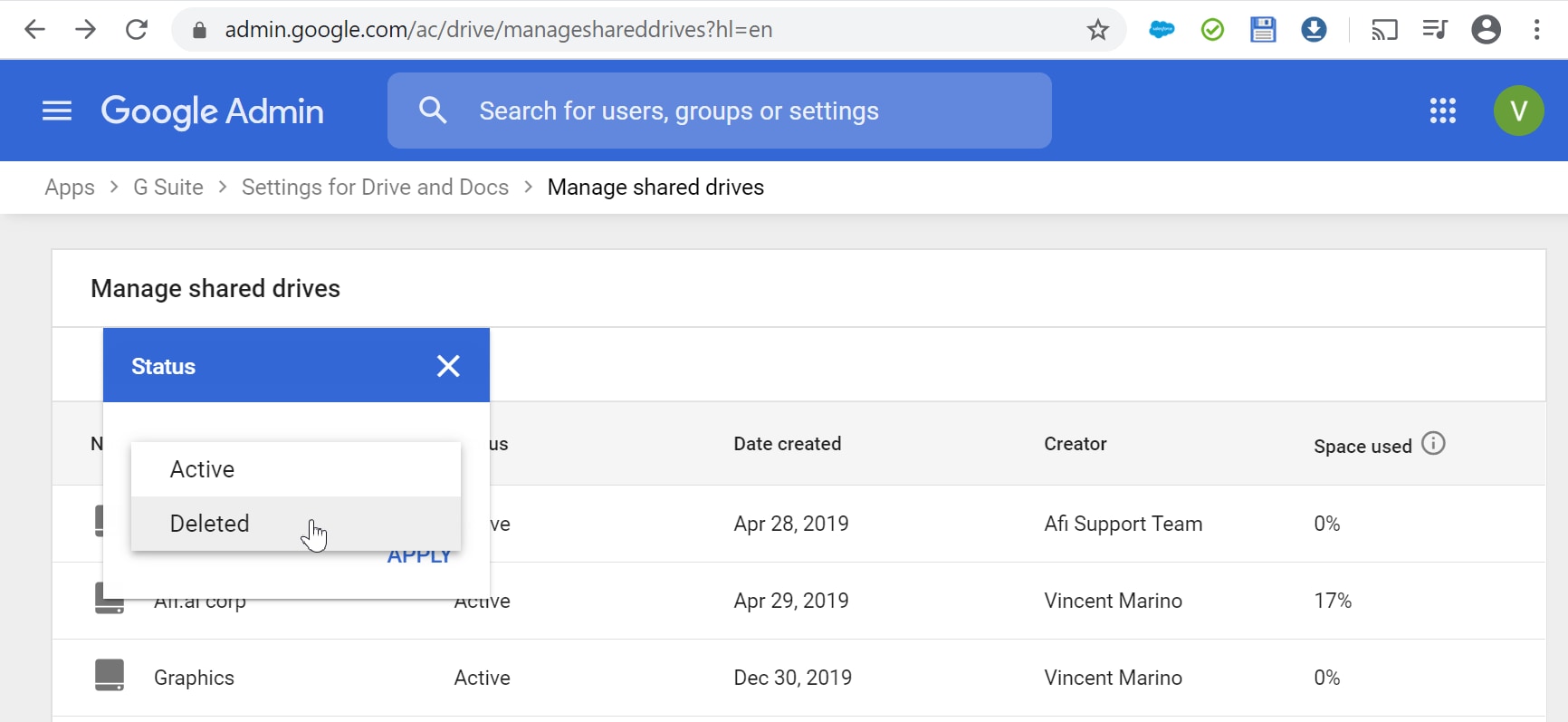
- Ask your admin to restore the video from Trash or activity history.
If you are the admin, you can do it yourself by opening the Trash inside that Drive.
Method 4: Check Google Photos or Gmail Attachments (if synced)
Some users link their Google Drive to Photos or Gmail. If your videos were synced, they might still exist there. This method can help you recover deleted videos from Google Drive even when Drive shows nothing.
Videos shared through Gmail or uploaded to Google Photos often remain stored. You can download them again and upload them to Drive. It’s another way for how to get deleted videos back on Google Drive.
How to Check Google Photos or Gmail Attachments (if synced):
- Open Google Photos or Gmail. Check for video attachments or backups.
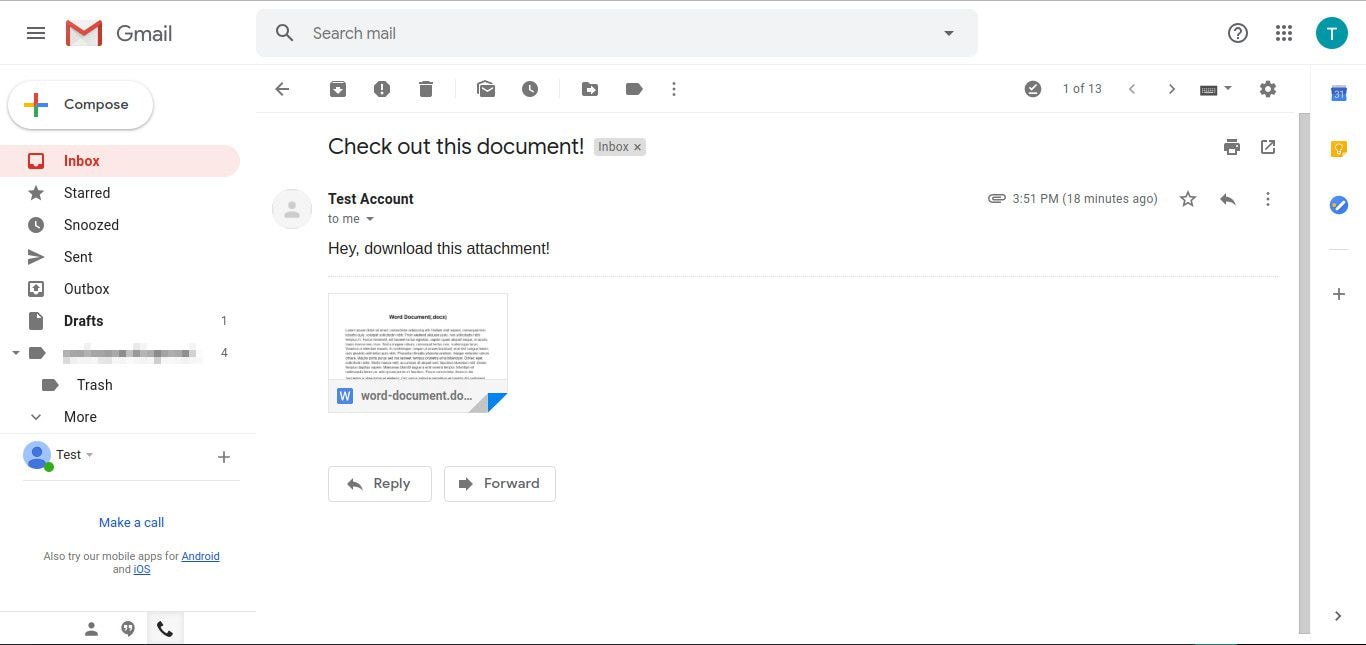
- Download the files and upload them again to Google Drive.
Always keep your Google services synced. It doubles your backup protection and helps restore lost content faster.
Method 5: Use Google Vault (for Workspace users)
Google Vault is available for Workspace users. It stores copies of deleted files for legal and backup reasons. You can use it for how to recover permanently deleted videos from Google Drive.
Admins can search Vault for lost files and export them. This is a strong method for companies or organizations that need secure recovery. Even after Trash clears, Vault keeps the data.
How to Use Google Vault:
- Log in to Google Vault with admin access.

- Search for the deleted video and export it.
Vault works best when recovery is urgent and no local backup exists. It helps keep company data safe and organized.
Method 6: Contact Google Support for Admin-Level Recovery
If nothing works, contact Google Support. The team can sometimes help you restore deleted content from their system backup. This works best for Workspace or enterprise users.
Google Support checks hidden logs or storage records. If the file still exists on their server, they can bring it back. It’s the final option when you want to know how to retrieve deleted videos from Google Drive after all other attempts fail.
How to Contact Google Support for Admin-Level Recovery:
- Visit Google Drive Help and submit a recovery request.

- Describe your issue, file name, and deletion date. Wait for their reply.
This may take time, but it’s worth trying when your video is important.
Part 3: Lost Video Files on PC? Use Recoverit Today!
Sometimes, your videos were never on Drive in the first place. Maybe you deleted them from your computer before they synced. Many users face this issue. They search for how to recover deleted videos from Google Drive, but the real problem is local.
One user said, “I uploaded my videos to Drive, but they didn’t appear later.” Another said, “My hard drive crashed before I could back up my files.” In such cases, you need a desktop recovery tool like Recoverit.
Recoverit helps recover lost, deleted, or damaged video files from your computer, SD card, or USB drive. It’s one of the most trusted tools in the world. After recovery, you can upload the files again to Google Drive for safe storage.
Recoverit also works when your Drive sync fails or crashes during upload. It supports thousands of file types and formats. You can preview files before final recovery to ensure accuracy.
Steps:
Step 1. Install and open Recoverit. Choose the drive where videos were stored.

Step 2. Start scanning. Wait for the results to appear.

Step 3. Preview the recovered videos and click “Recover” to save them.

Recoverit makes recovery simple. Even if Google Drive fails, this tool can bring your files back. It’s fast, safe, and trusted by millions.
Once your files are recovered, upload them again to Google Drive. This ensures extra safety and prevents future loss.
How to Recover Deleted or Lost Video on Different Devices

Part 4: Pro Tips to Prevent Future Video Loss in Google Drive
Prevention is always better than recovery. Keeping your data safe avoids stress later. Use these easy tips to protect your videos in the future.
Pro Tips:
- Turn on version history: It helps restore previous file versions if you overwrite or change something by mistake.
- Sync with Google Photos: Save your videos in both Google Drive and Photos for extra security.
- Keep local backups: Store copies of your videos on an external hard drive or computer.
- Avoid clearing Trash often: Review files before emptying Trash. You may delete something important by accident.
- Share wisely: Give editing rights only to people you trust. It reduces accidental deletion.
- Label folders properly: Use clear names so files are easy to find.
- Check Shared Drives: Regularly review shared folders to ensure nothing is lost.
- Download important files monthly: Keep offline copies as a second layer of protection.
Following these steps reduces the chance of loss. If anything happens again, you’ll know how to get deleted videos back on Google Drive quickly.
Conclusion
It’s never pleasant to lose videos, but now you know how to recover deleted videos from Google Drive. From simple Trash recovery to using Google Vault or contacting support, there’s a solution for every case.
Google Drive is a strong tool for storage, but accidents happen. Always create backups, and use apps like Recoverit when local files are lost. With a few minutes of care, you can keep your videos safe and always accessible.
Try Recoverit to Recover Lost Data
 Security Verified. Over 7,302,189 people have downloaded it.
FAQs
-
Can I recover permanently deleted videos from Google Drive?
Yes. You can try Google Vault or contact Google Support. These methods can restore files deleted after 30 days if backups exist. It’s the best way for how to recover permanently deleted videos from Google Drive when Trash is empty. -
Why can’t I see my deleted videos in Trash?
After 30 days, Trash is cleared automatically. Also, if someone deleted the file from a shared account, it might not appear in your Trash. Try Shared Drives or recovery tools for help. -
How long does Google keep deleted files?
Google Drive keeps deleted items for 30 days. After that, they are permanently removed from Trash. Workspace users may have longer storage through Vault.


