 TL;DR:
Fix a Mac HDMI audio issue by checking System Settings > Sound > Output to determine the troubleshooting path: if the TV is listed, resolve audio format mismatches, but if it is missing, bypass intermediate hubs to isolate a hardware or adapter failure.
● If the TV appears in output settings but remains silent, open Audio MIDI Setup and test a basic two-channel Stereo or PCM configuration to bypass potential multichannel format incompatibilities.
● If the TV never appears as a sound destination, test a direct connection without intermediate docks, as third-party USB-C or Thunderbolt to HDMI adapters do not universally support Mac audio output capabilities.
● When routing through a receiver or soundbar, HDMI passthrough is limited to specific Apple media apps on Apple silicon Macs, and ARC/eARC settings will not resolve a direct Mac-to-TV audio failure.
Ask AI for a summary
 ChatGPT
 Perplexity
 Gemini
 Claude
 Grok
Grok
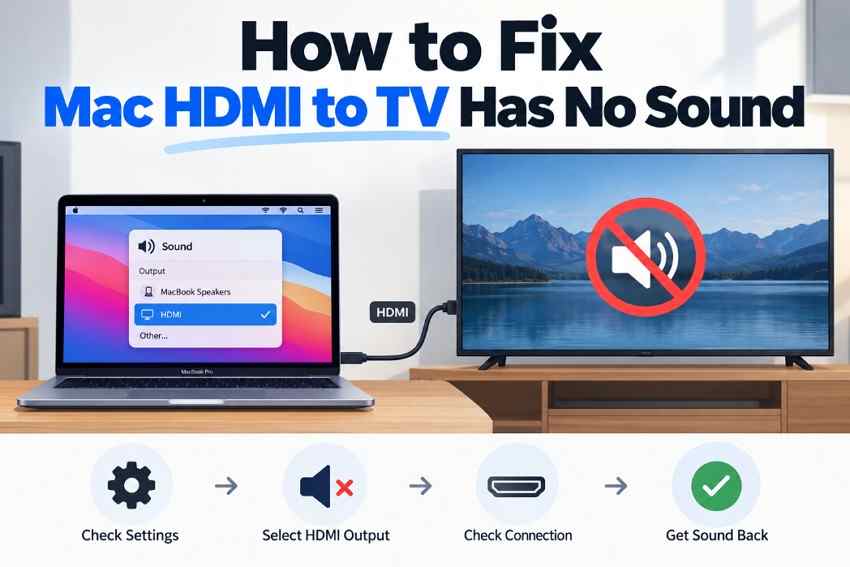
A Mac HDMI to TV no sound problem usually falls into one of two paths: macOS sees the TV as an audio output but the TV stays silent, or the TV never appears under Sound output at all. The first path points toward output routing, TV audio settings, or format compatibility. The second makes the HDMI cable, USB-C or Thunderbolt adapter, dock, and device-detection path more important.
Apple's current HDMI guidance says to open System Settings > Sound and select the HDMI device in Output when a TV or display is not receiving audio. HDMI-capable Macs can send both video and audio, but adapter capability and the connected display still matter. This guide starts with the symptom you can see, then moves from reversible macOS checks to Audio MIDI Setup, receiver or soundbar routing, and hardware isolation. Apple's current HDMI guidance is used as the baseline for the troubleshooting order.
In This Article
Part 1. Match the Mac HDMI Audio Symptom
A MacBook HDMI to TV no sound issue becomes much easier to diagnose once you separate audio routing from HDMI detection. A working picture proves that some video data is reaching the TV, but it does not prove that macOS has exposed the same connection as an audio output. Apple also treats display detection and sound-output selection as separate checks when you use a TV as a display with Mac.
| What You Observe | Best Starting Point | What It Suggests |
| TV appears under Sound output but stays silent | Part 4 | TV routing, mute, or HDMI audio-format mismatch |
| TV does not appear under Sound output | Part 3 | Adapter, dock, cable, port, or HDMI audio detection path |
| Sound stays on MacBook speakers | Part 2 | The Mac is still using another output device |
| Only one app has no TV audio | Part 2 | App mute, app volume, audio track, or app-specific output |
| Audio fails only through a receiver or soundbar | Part 6 | Receiver input, supported format, passthrough, or return-audio configuration |
If the TV appears in System Settings > Displays but not in System Settings > Sound > Output, focus on the HDMI audio path rather than repeatedly changing TV volume. If the TV is already listed in Sound but the mac HDMI sound is not working, output selection is no longer the main question and you can move to TV routing and Audio MIDI Setup.
Part 2. Select the HDMI TV as the Mac Sound Output
Start here when video reaches the TV but sound stays on the Mac. Apple says the connected HDMI device must be selected as the Mac's output device. The same Sound output settings can also show whether software volume and mute controls are available for that device.
Set the TV as the Sound Output Device
Step 1. Open the Apple menu, choose System Settings > Sound, then select the television or HDMI device under Output.
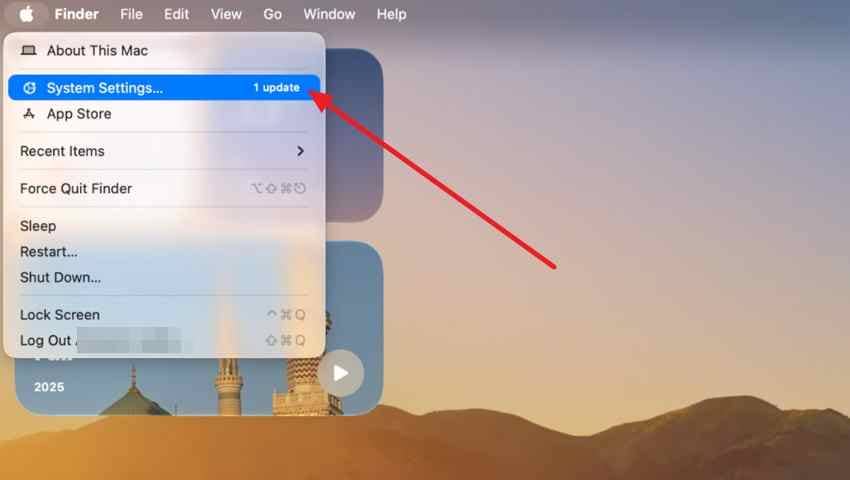
Step 2. Play a known-good audio or video file. If macOS offers output volume or mute controls for the HDMI device, check them. If those controls are unavailable, use the TV or receiver remote instead.
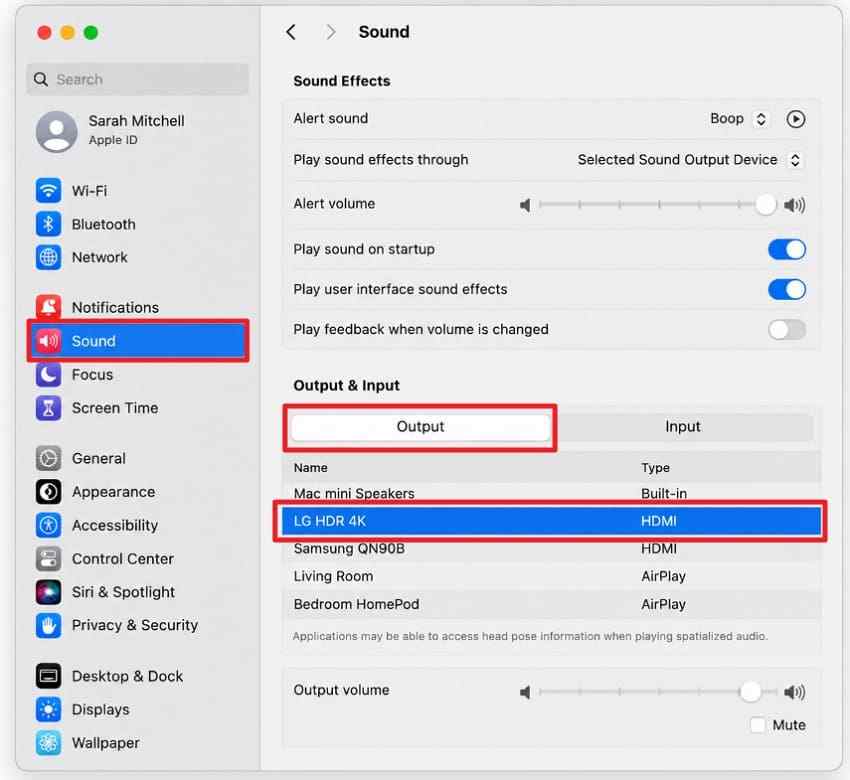
Note: A TV model name may appear instead of the word HDMI. Apple also notes that not every Mac with HDMI supports the same multichannel formats, so a device being selectable does not guarantee every audio format will play. The broader Mac User Guide can help when menu names differ slightly by macOS version.
Clear Competing Outputs and App-Level Mutes
Another active output can make it seem as though HDMI is silent when audio is actually being routed somewhere else. Disconnect headphones and temporarily stop AirPlay or Bluetooth audio while testing. Then reopen the affected app and check its own mute, volume, audio-track, and output controls if it has them.
Step 1. Open Control Center > Sound and confirm the TV or HDMI device is the selected destination.
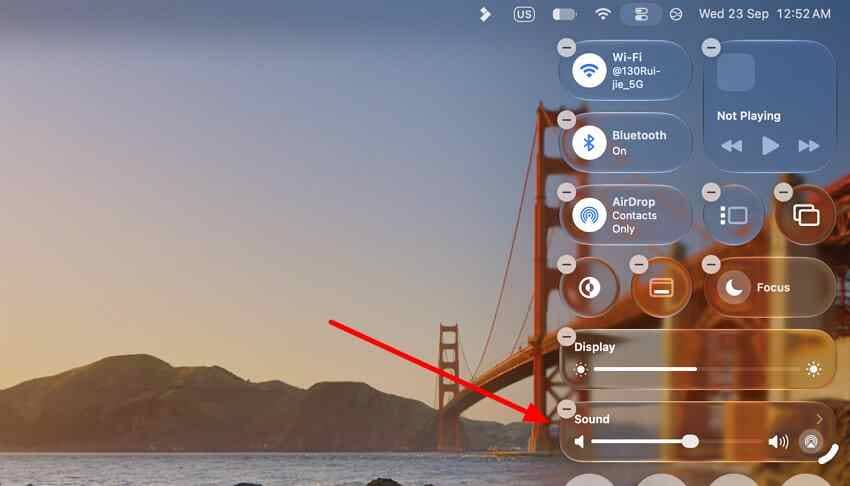
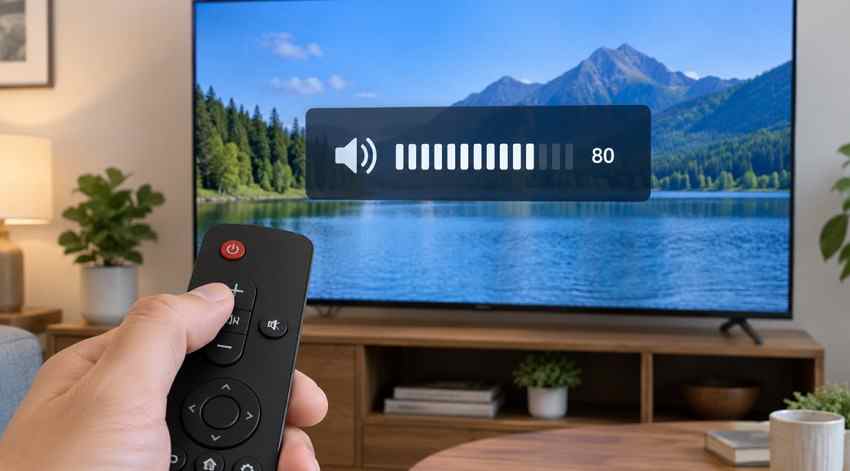
Step 2. Confirm the TV is not muted and raise its volume to a moderate level. If only one app is silent, quit and reopen that app before making system-wide changes.
Part 3. Check the HDMI Cable, Adapter, and Dock
If the TV never appears in Sound output, changing output settings cannot solve the problem because macOS is not presenting the HDMI path as an audio destination. This is where direct HDMI, USB-C or Thunderbolt adapters, docks, and cable compatibility matter most.
Compare Built-In HDMI With USB-C or Thunderbolt Adapters
Apple's current HDMI documentation says Macs with a built-in HDMI port can connect directly, while Macs with Thunderbolt or USB-C can use a compatible adapter. Apple also tells users to check the adapter specifications because capabilities vary. Its USB-C Digital AV Multiport Adapter is one documented route for compatible Macs, but a third-party adapter still needs to support the Mac and the HDMI features you need.
| Connection | What to Verify |
| Built-in HDMI port | TV input, HDMI cable, and whether the TV appears in Sound output |
| USB-C or Thunderbolt to HDMI adapter | Mac compatibility, supported HDMI features, and whether the adapter exposes an HDMI audio output |
| Dock or multiport hub | Dock HDMI specifications, firmware, power, and whether direct connection behaves differently |
| Third-party cable or adapter | Manufacturer specifications for the exact model rather than assuming all USB-C HDMI products behave alike |
Apple's HDMI support page confirms current Macs can output digital audio over HDMI, while exact multichannel capability depends on the Mac. If you are troubleshooting a recent Mac, compare the adapter path with the Mac's own port when one is available instead of assuming the adapter is transparent.
Test a Direct Connection Without a Dock or Hub
A dock, KVM, HDMI switch, receiver, or multiport hub adds another handshake point. Bypass it temporarily so you can test the simplest supported Mac-to-TV connection.
Step 1. Connect the Mac directly to the TV with a known-good HDMI cable or a single compatible USB-C or Thunderbolt-to-HDMI adapter. Avoid intermediate docks and switches for this test.
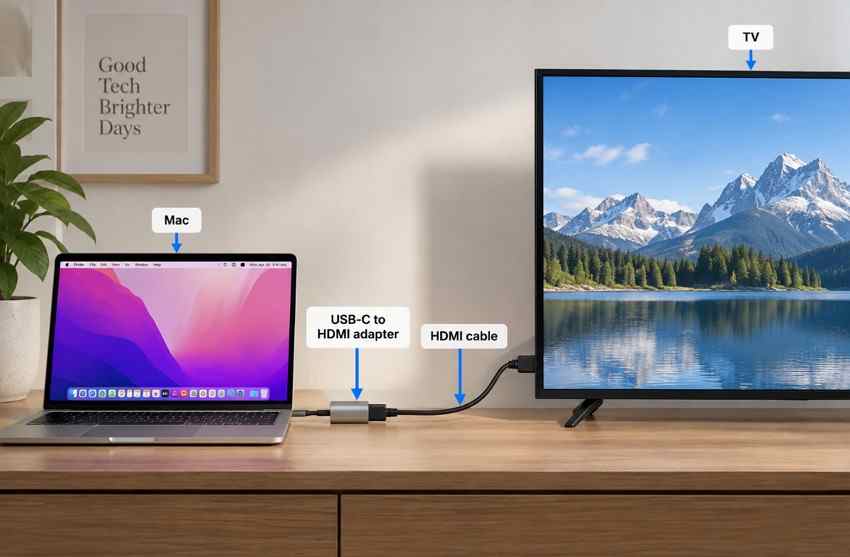
Step 2. Reconnect HDMI, select the correct TV input, and check Sound output again. If the TV is still missing, try another TV HDMI input and another known-good cable. When a third-party adapter remains necessary, verify its documented Mac and HDMI support before replacing unrelated hardware.
Part 4. Fix a TV That Is Selected but Still Silent
If macOS lists and selects the TV but audio is still absent, the HDMI endpoint has been detected. The next checks should focus on where the TV sends audio and whether the Mac and TV agree on a usable format.
Select TV Speakers or the Intended External Audio System
A TV can receive HDMI audio while sending it to a soundbar, receiver, Bluetooth device, or another output. Temporarily choosing the built-in TV speakers is a useful isolation test.
Step 1. Open the TV's Sound or Audio menu and select TV Speakers, Internal Speakers, or the equivalent option for that model.
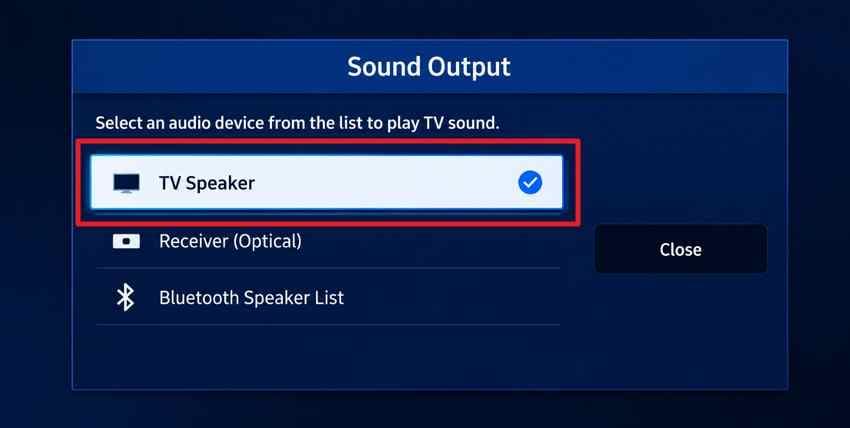
Step 2. Raise the TV volume, clear mute, and play the same known-good content from the Mac. If the built-in TV speakers work, troubleshoot the soundbar or receiver as a separate path rather than continuing to change Mac output settings.
Test Stereo or PCM for Compatibility
When the TV is selected but remains silent, a simple two-channel configuration can help determine whether the current format is the problem. In Audio MIDI Setup, use a format the connected TV actually supports. A common TV/video sample rate such as 48 kHz can be a reasonable test only if the device offers it; do not raise the sample rate arbitrarily.
Step 1. Open Applications > Utilities > Audio MIDI Setup. If necessary, choose Window > Show Audio Devices, then select the TV or HDMI device.
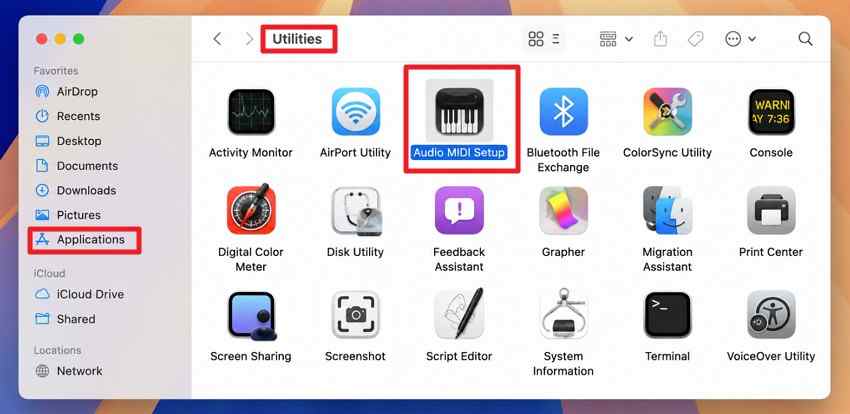
Step 2. Choose a supported two-channel or stereo configuration and a supported format. If the TV or receiver also has a digital-audio setting, temporarily testing PCM or stereo can help isolate a format mismatch.
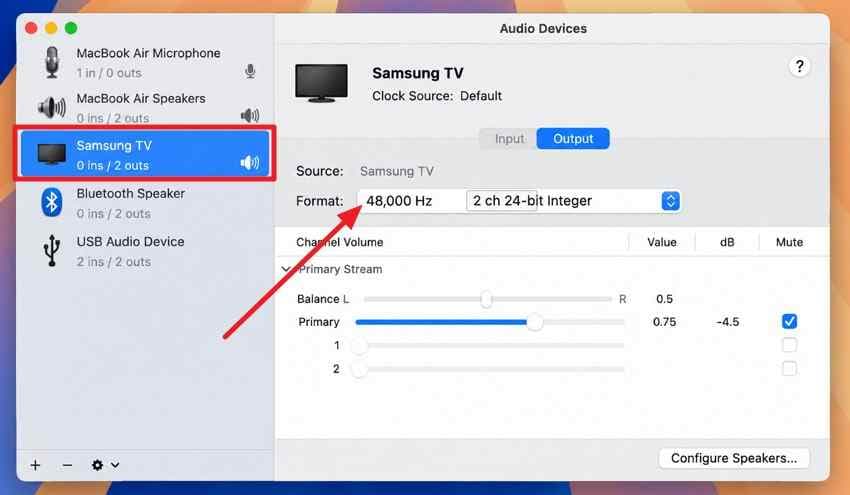
Apple's Audio Devices window exposes the settings available for the selected device. If a format is not offered, do not force it through third-party tools.
Check the HDMI Device in Audio MIDI Setup
Audio MIDI Setup is useful when standard Sound settings show the TV but do not explain why it is silent. Apple documents selecting a device, matching the sample rate and bit depth to that device, and configuring speakers when those options are available.
Instructions. Select the HDMI device in Audio MIDI Setup, open the Format menu, and choose values supported by the TV or receiver. Then choose Configure Speakers if available and confirm that the speaker layout matches your actual setup. Apple's Audio MIDI Setup guide specifically says the sample rate and bit depth should match the connected audio device.
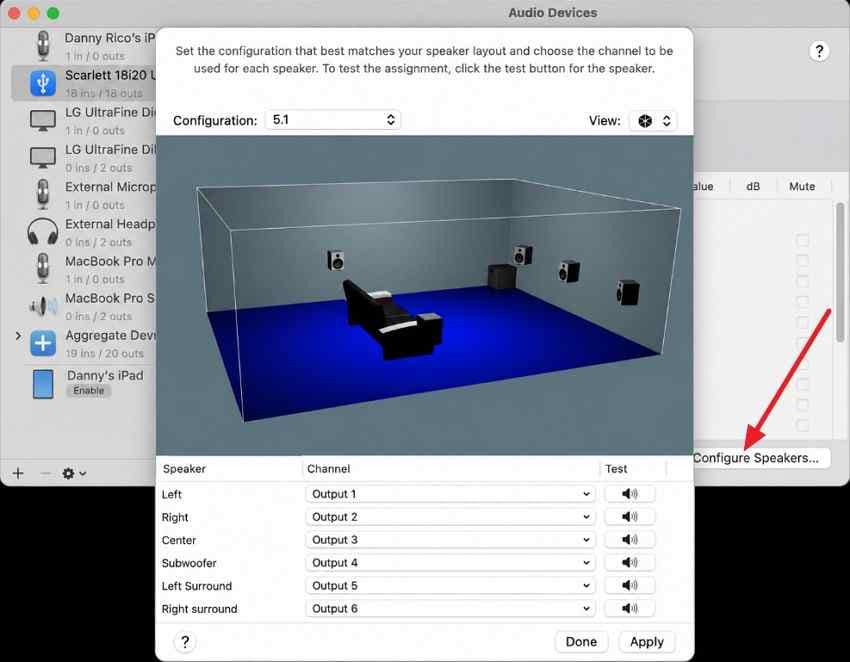
Note: Higher is not automatically better. Apple's high sample rate audio guidance is for compatible hardware and workflows; it is not a universal fix for a Mac HDMI audio not working problem.
Part 5. Restore HDMI Audio After Sleep or a macOS Change
A setup that previously worked can lose audio after sleep, wake, cable reconnection, or a software change. Refresh the connection first, then confirm that the TV is still the selected output before changing more settings.
Reconnect HDMI and Recheck the Output
Instructions. Disconnect HDMI, wait a few seconds, and reconnect it. Quit the affected media app completely, reopen it after the display returns, and check System Settings > Sound > Output again. If sound is still missing, power-cycle the TV and restart the Mac with the HDMI path connected.
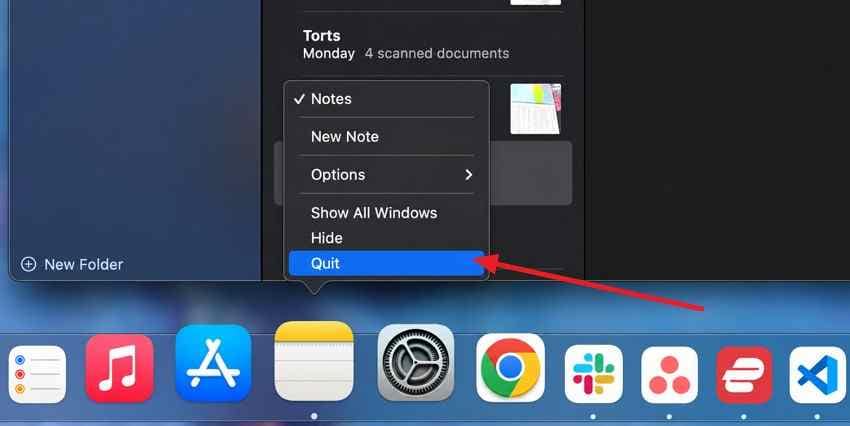
Apple notes that if a Mac sleeps while video is playing or paused, an HDCP-related playback issue can occur; quitting and reopening the app is one of the documented responses in its current HDMI support.
Install the Latest Compatible macOS Update
Use macOS updates as a compatibility and stability step, not as the first fix. Apple recommends the latest macOS that is compatible with the Mac and says Software Update only offers software supported by that model.
Step 1. Open System Settings > General > Software Update and let the Mac check for an available update.
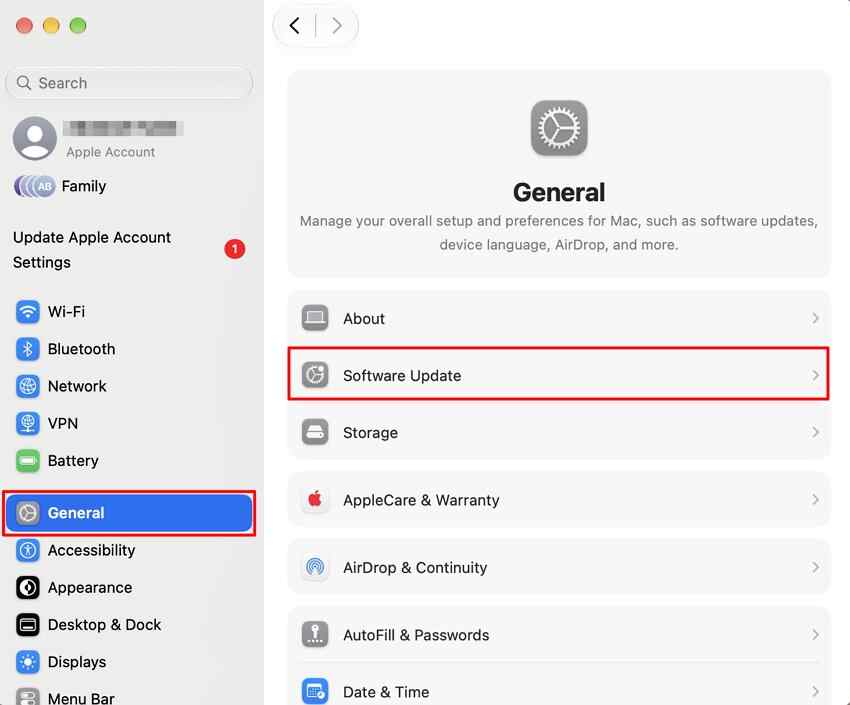
Step 2. If a compatible update is offered, install it and allow the Mac to restart. Do not close the lid or interrupt installation. Then check the adapter or dock manufacturer's support page for any firmware update that applies to the exact model.
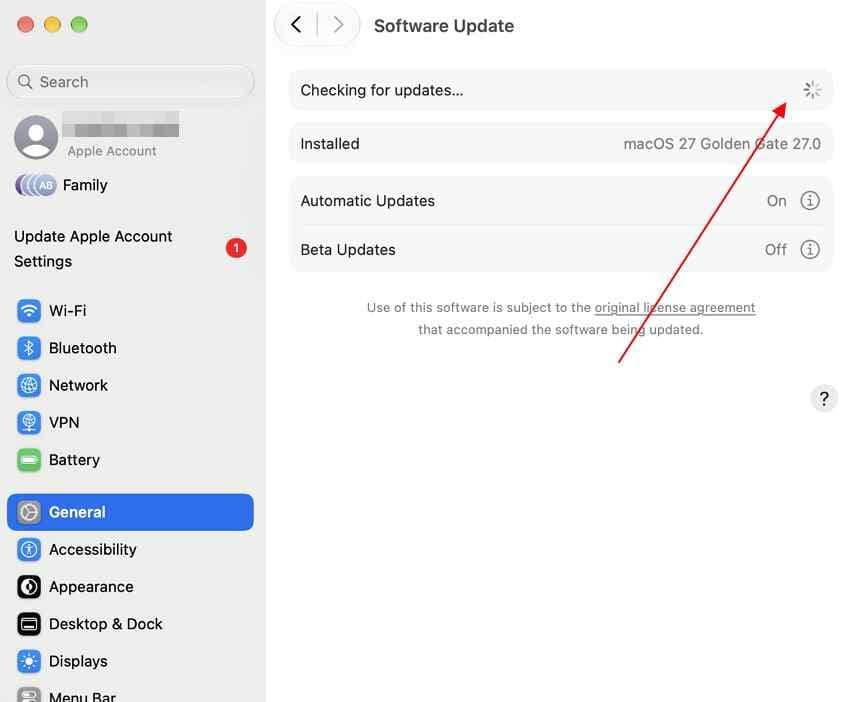
See Apple's current Software Update guidance for the supported update path.
Part 6. Fix Mac HDMI Audio Through a Receiver or Soundbar
A receiver or HDMI-capable soundbar changes the signal path. The Mac must output a format the intermediate device accepts, the receiver must use the right input, and the receiver's HDMI output must reach the TV. This is different from a direct Mac-to-TV connection.
Confirm the Complete Mac-to-Receiver-to-TV Signal Path
Step 1. Connect the Mac to an HDMI IN port on the receiver or soundbar, then connect its HDMI OUT to the appropriate TV input.
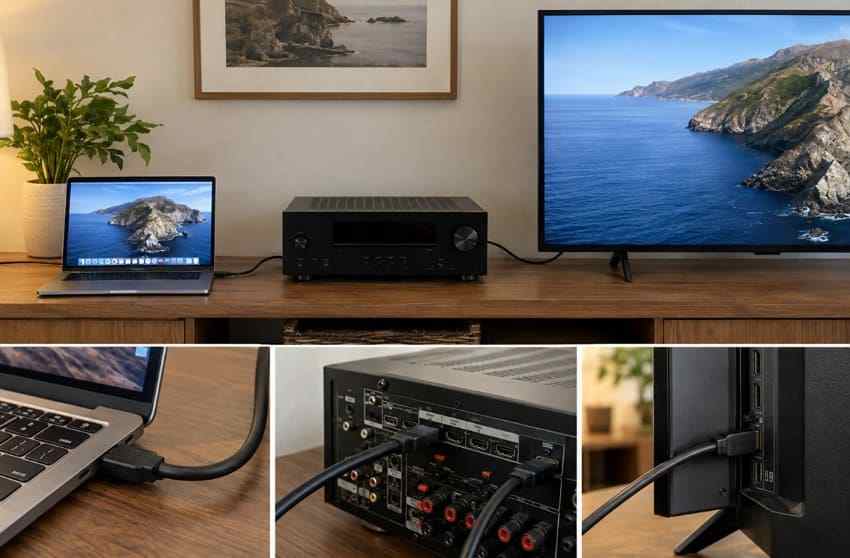
Step 2. Select the matching input on the receiver or soundbar and confirm that the Mac's picture reaches the TV. Then return to Sound output on the Mac and make sure the receiver or HDMI device is selected if macOS lists it separately.
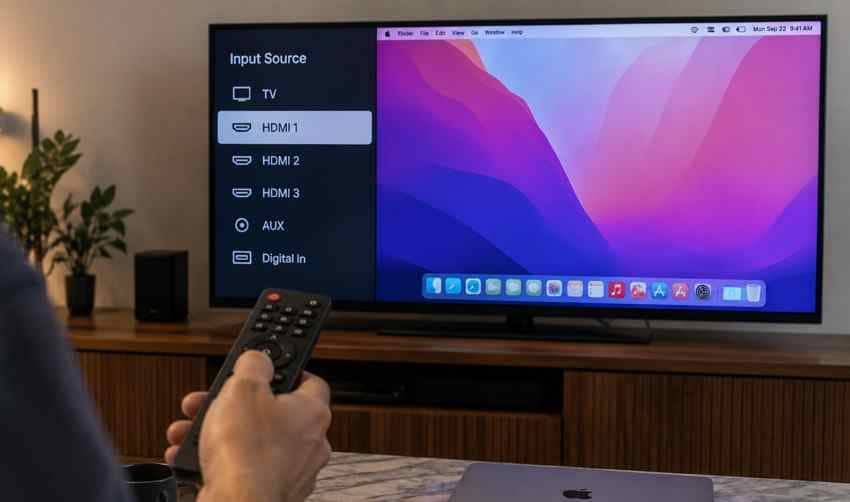
Match the Audio Format to Every Device in the Chain
Start with a supported stereo or PCM configuration. If stereo works but multichannel audio does not, compare the documented formats for the Mac, adapter, receiver or soundbar, and TV. One device that does not accept the selected format can leave the whole path silent.
Apple's current HDMI specifications note that built-in HDMI Mac models can support multichannel audio, but exact capability still varies by Mac. Use the model-specific limits instead of assuming every MacBook and adapter supports the same channels and bit depth.
Use HDMI Passthrough, ARC, and eARC Only When Relevant
HDMI passthrough is a specialized option, not a general Mac HDMI no sound fix. Apple's current HDMI passthrough documentation says passthrough is available in Apple Music, QuickTime Player, and the Apple TV app on Apple silicon Macs with built-in HDMI or a supported USB-C-to-HDMI adapter. It supports specific encoded Dolby bitstreams, so app, Mac, adapter, receiver, and content support all matter.
ARC and eARC are a different route: they carry audio from the TV back to a compatible receiver or soundbar. A direct Mac-to-TV HDMI cable sends audio toward the TV. Changing ARC or eARC settings will not normally fix a direct Mac-to-TV output problem unless an external audio system is part of the path.
For current connection limits and supported HDMI behavior, use Apple's Mac HDMI connection options rather than applying generic PC advice to a Mac.
Part 7. Isolate the Mac, TV, Adapter, or HDMI Hardware
If software, routing, and format checks do not explain the problem, change one component at a time. This avoids replacing an adapter when the TV input is the actual problem, or blaming macOS when the same Mac works with another HDMI display.
Cross-Test One Component at a Time
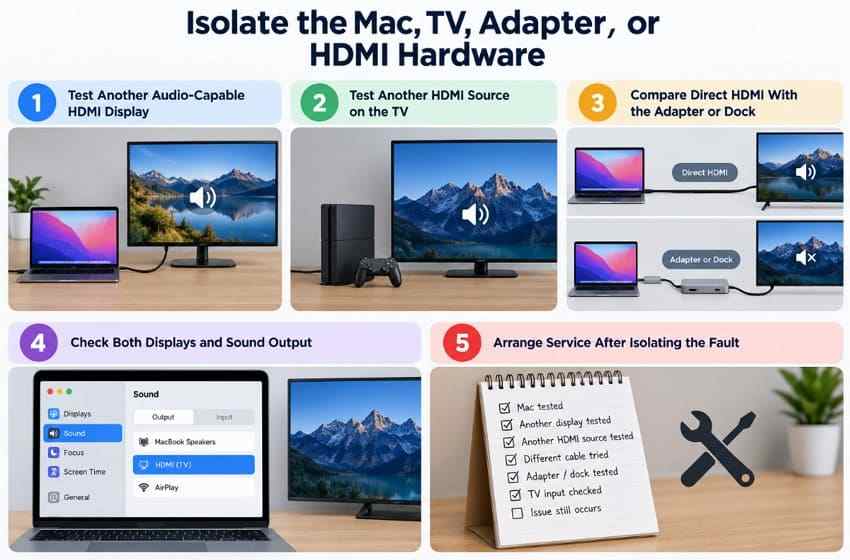
- Test another audio-capable HDMI display: Connect the Mac to another TV or monitor with confirmed speakers or audio output. If HDMI audio works there, the original TV or its settings become more likely.
- Test another HDMI source on the original TV: Use a console or streaming device with the same TV input. Working audio confirms the TV can accept HDMI sound on that path, although it does not rule out a Mac-to-TV compatibility issue.
- Compare direct HDMI with the adapter or dock: If the Mac has built-in HDMI, compare it with the current USB-C or Thunderbolt adapter. If direct HDMI works but the adapter path does not, focus on the adapter, dock, firmware, or compatibility.
- Check both Displays and Sound output: If the TV appears as a display but never appears in Sound output, the video connection exists but macOS is not presenting that HDMI path as an audio destination.
- Arrange service only after isolation: Record which cables, ports, displays, adapters, and sources were tested before contacting Apple, the TV maker, or the adapter manufacturer.
Recover an Audio File Only if the File Itself Is Missing
An HDMI routing problem does not require data recovery if the same MP3, WAV, recording, or video still plays through the Mac's own speakers. Recovery becomes relevant only when the stored audio file itself has been deleted, lost, or become inaccessible. Check Trash, Time Machine, and other backups first.
If a saved audio file is genuinely missing and the original storage is still readable, Recoverit's deleted audio recovery guide covers recovery options. Recoverit can scan readable storage for recoverable audio files, but it does not repair HDMI, macOS audio routing, adapters, TV settings, or receiver hardware. Save recovered files to a different drive when practical so the original storage is not overwritten.
Conclusion
When a Mac HDMI to TV has no sound, first ask whether the TV appears under System Settings > Sound > Output. If it does not, troubleshoot the cable, adapter, dock, and HDMI detection path. If it does, move to TV speaker routing, stereo or PCM compatibility tests, and Audio MIDI Setup.
For receivers and soundbars, verify the full Mac-to-audio-device-to-TV path before changing passthrough, ARC, or eARC settings. Testing one layer at a time is faster and safer than resetting macOS or replacing hardware at random.

FAQ
-
Why does my MacBook show HDMI video but no sound on the TV?
Video can reach the TV even when the HDMI device is not selected or exposed as a macOS audio output. Open System Settings > Sound > Output and select the TV or HDMI device if it appears. If it is missing, test the cable, adapter, dock, and TV input instead of repeatedly changing volume. -
How do I make HDMI play sound from my Mac to my TV?
Connect the TV, then open System Settings > Sound > Output and select the TV or HDMI device. Clear mute on the TV and the app. If the TV is selected but silent, test its internal speakers and a supported stereo or PCM configuration. -
Why is my TV missing from the Sound Output list on Mac?
The HDMI path is not being presented to macOS as an audio output. Bypass docks and switches, reconnect HDMI, try another TV input and known-good cable, and confirm that the exact USB-C or Thunderbolt adapter supports the Mac and HDMI features you need. -
Does a USB-C to HDMI adapter carry audio from a MacBook?
A compatible USB-C or Thunderbolt-to-HDMI adapter can support an HDMI display connection from a Mac, but capabilities vary by Mac and adapter. Check the adapter specifications and confirm that the connected TV appears under Sound output. Do not assume every video-capable adapter exposes the same audio features.


