

 TL;DR:
Asus Cloud Recovery directly restores your laptop to its original factory state by downloading the official Windows image and necessary drivers from the cloud, eliminating the need for a local recovery partition or external installation media.
● To initiate the process, ensure your laptop is connected to a charger and a stable internet network, turn on the device, and repeatedly press the F12 key at the Asus logo to access the boot menu.
● Choosing the full factory restore option will permanently delete all personal data, installed programs, and user accounts on the system drive, with the entire download and installation process typically taking one to two hours.
● If files are erased during the reset and you lack manual or cloud sync backups, you must stop using the laptop immediately to prevent data overwriting before running recovery software like Recoverit.
Ask AI for a summary
 ChatGPT
 Perplexity
 Gemini
 Claude
 Grok
Grok
Modern laptops are powerful, yet they can still develop serious problems. Windows may stop loading. Asus Cloud Recovery is a built‑in tool that helps you quickly reset your laptop to its original state without needing extra software or complicated steps. It’s designed to restore your system when things go wrong. Whether you’re facing performance issues, software errors, or just want a fresh start.
By using Asus Cloud Recovery, you can bring your laptop back to factory settings in a safe and reliable way.
Resetting your laptop with this feature is straightforward and doesn’t require advanced technical knowledge. The process uses files stored in the cloud, so you don’t have to worry about creating recovery disks or downloading large programs. In this guide, we’ll walk you through how Asus Cloud Recovery works and the steps you need to follow to reset your laptop smoothly.

Part 1: What is Asus Cloud Recovery?

Many laptop owners begin by asking what Asus Cloud Recovery is and how it differs from a standard reset. It is a built-in recovery feature available on many recent Asus laptops. Instead of using a recovery partition stored on the device, it downloads the official system image from the cloud. This image includes Windows, drivers, and essential system components that were originally installed on the laptop.
Asus cloud recovery is designed to restore the device to its factory condition. This means the system returns to the same state as when it was first purchased. It is helpful when the internal recovery partition is damaged or missing. It is also useful if the operating system files are corrupted. Understanding what Asus cloud recovery is helps users feel more confident before starting the reset process.
How it helps
- Restores the original factory version of Windows: It reinstalls the same Windows version that came with the laptop when it was new. This ensures proper compatibility with the hardware and built-in features.
- Repairs serious boot errors: If the system fails to start or gets stuck on a loading screen, recovery replaces damaged startup files. This helps the laptop boot normally again.
- Fixes corrupted system files: Important Windows files can become damaged due to updates, malware, or sudden shutdowns. The recovery process installs fresh system files to remove these issues.
- Installs official drivers automatically: All necessary drivers are included in the recovery image. This means graphics, audio, network, and chipset drivers are installed correctly without manual effort.
- Removes harmful programs and viruses: A full recovery clears unwanted software, hidden malware, and suspicious background programs. This improves both security and performance.
- Provides a clean and stable environment: After recovery, the system runs in a fresh state. There are no leftover errors or conflicting applications, which helps the laptop perform smoothly and reliably.
In addition to these benefits, it reduces the need for technical knowledge. The menus are guided. Clear instructions appear on the screen. Even users with basic computer skills can complete the process with care and patience.
Part 2: A Reliable Way to Solve Major System Problems: Asus Cloud Recovery
When troubleshooting steps fail, a full system reset often becomes the best option. Minor repairs such as uninstalling software or running scan tools, may not solve deep system corruption. In such situations, Asus cloud recovery provides a reliable way to rebuild the operating system from scratch. It ensures that official system files replace damaged ones.
Below are important reasons to use this feature:
- Fixes repeated startup failures: If the laptop fails to boot several times, a clean installation often resolves the issue.
- Removes stubborn malware: Some threats survive regular antivirus scans. A full reset clears them.
- Restores system performance: A fresh installation can remove background errors that slow down the device.
- Reinstalls missing drivers: Drivers are automatically included in the recovery image.
- Does not require technical tools: There is no need for advanced software knowledge.
- Useful before selling the laptop: It helps remove personal accounts and settings.
- Repairs update related damage: Failed updates sometimes corrupt Windows files.
- Fixes software conflicts: Conflicting applications are removed during the reset.
Users frequently wonder how long does Asus cloud recovery process takes? In most cases, it takes between one and two hours. The exact duration depends on the internet speed and the model of the laptop.
Part 3: How to Reset Your Laptop with Asus Cloud Recovery
Before starting, make sure the laptop battery is charged. It is best to keep the charger connected. A stable internet connection is also necessary. If you are learning how to reset laptop with Asus cloud recovery for the first time, read the instructions carefully and do not rush the process.
Step 1: Enter Recovery Mode

Turn off the laptop completely. Turn it back on. Press the F12 key repeatedly as soon as the Asus logo appears. A boot menu will open. Select the Cloud Recovery option from the list. This step explains how to start Asus Cloud Recovery correctly.
If your model uses a different key, check the official support page to confirm how to access Asus Cloud recovery on your specific device.
Step 2: Connect to the Internet and Confirm Reset
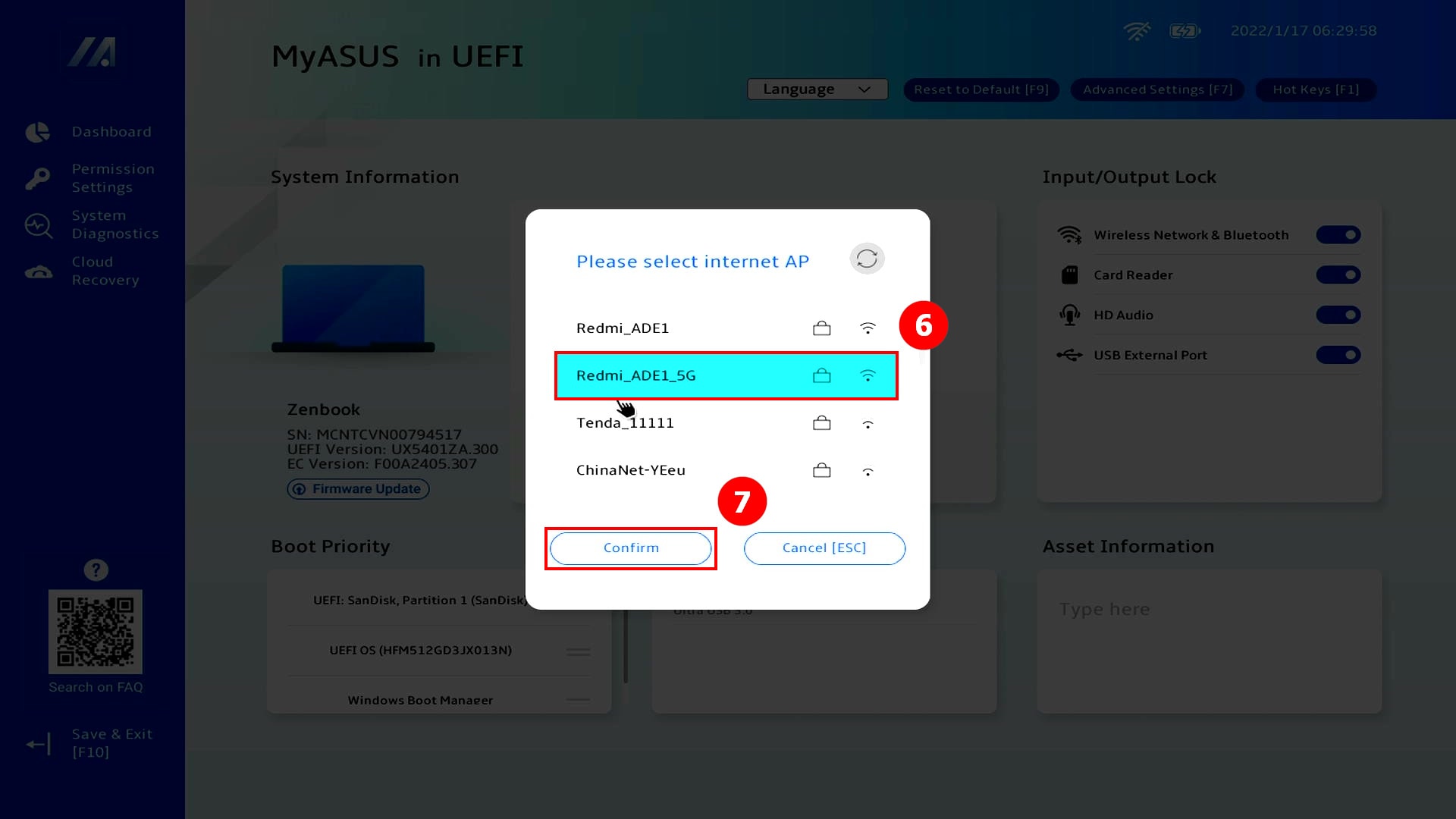
After entering recovery mode, choose your WiFi network. Enter the password carefully. The system will check the connection and prepare for download. At this stage, you will see reset options. Many users ask does Asus cloud recovery delete data on the target drive. If you choose full factory restore, data on the system drive will be erased.
Select the reset type that fits your needs. Read the on-screen warning before confirming.
Step 3: Download and Install the System
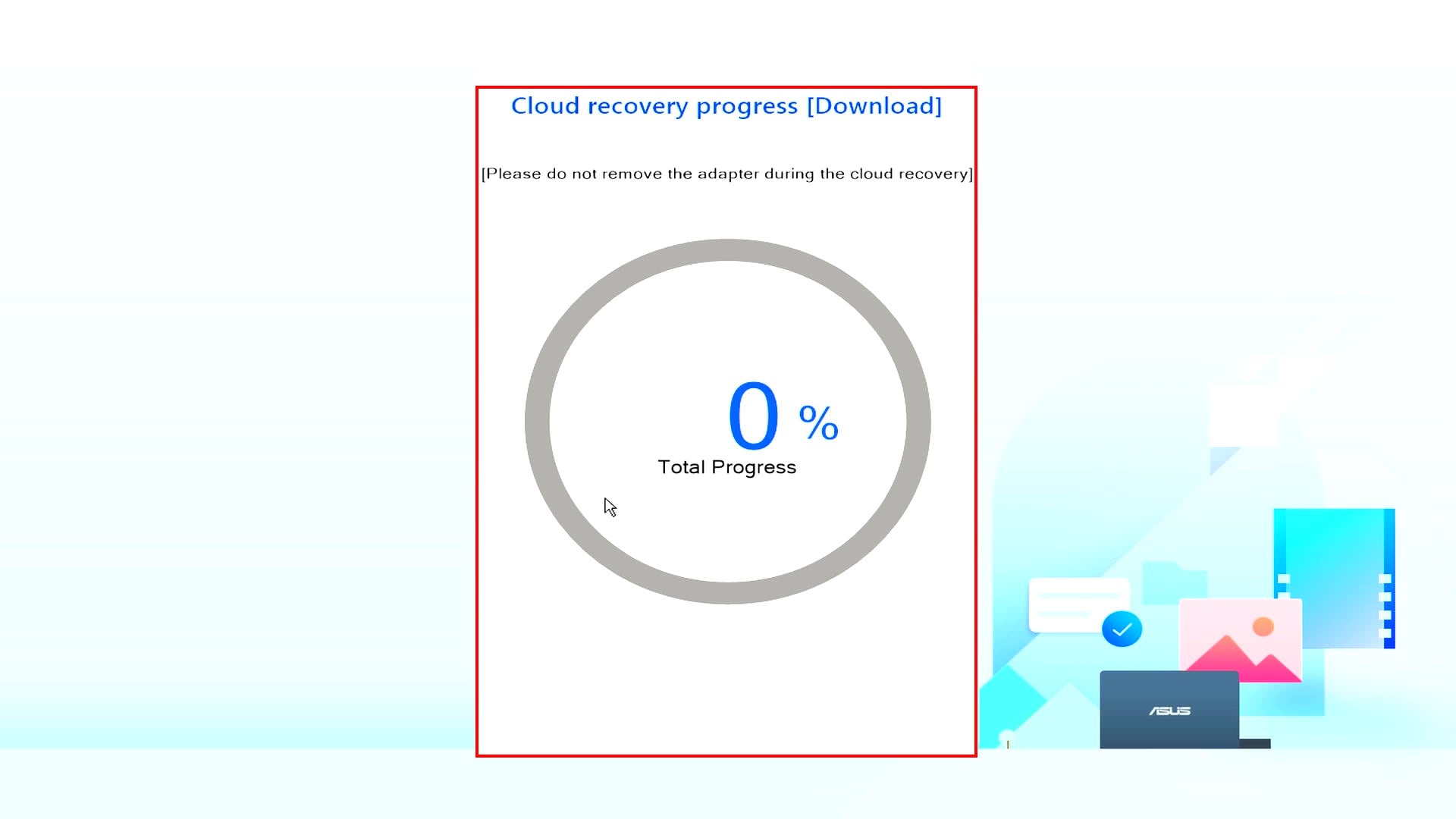
Once confirmed, the laptop will begin downloading the recovery image. Do not close the lid or power off the device. The installation will start automatically after the download finishes. If you are thinking about how long does Asus cloud recovery process takes, remember that large downloads require time.
After installation is complete, the laptop will restart. You will then set up Windows as if the device were new.
Part 4: How to Recover Lost Data After Asus Cloud Recovery
Sometimes users forget to back up important files before starting the reset. After completing Asus cloud recovery, personal documents may appear missing. There are still possible ways to recover data. The method depends on whether backups were created earlier.
Method 1: Restoring from Backups
If you regularly back up files, recovery becomes simple. Many users save data on external hard drives. Others use online cloud storage services. Backups remain the safest protection against data loss.
When learning how to reset a laptop with Asus cloud recovery, it is wise to prepare backups in advance. If you already have one, follow these steps:
Step 1: Connect the external backup drive to your laptop. Open Control Panel. Go to System and Security. Click Backup and Restore. Choose Restore my files.
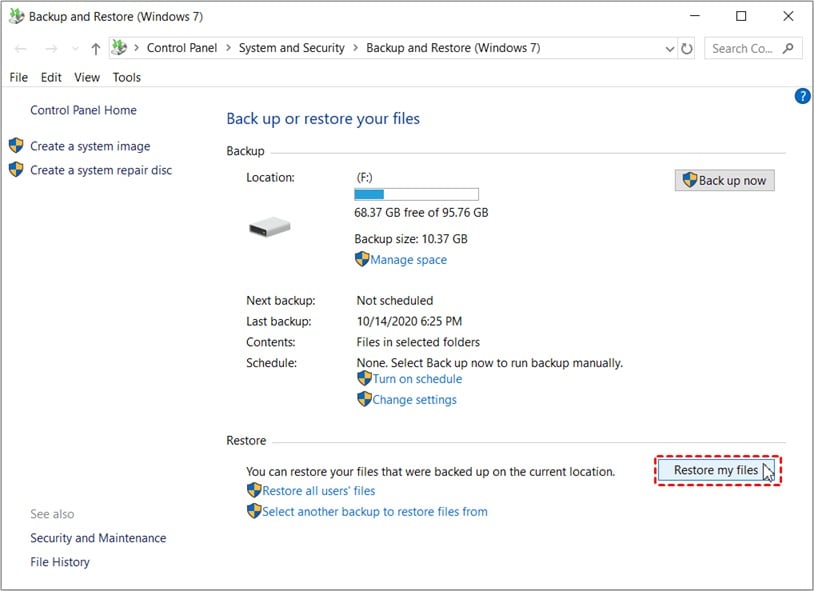
Step 2: Browse the backup folders and select the files or folders you want to recover. Choose the original location or a new folder, then click Restore to complete the process.
Method 2: Checking OneDrive or Google Drive Sync
Some users forget that their files are synchronized automatically. Documents, pictures, and desktop items may already exist online if sync was enabled. Checking your cloud account may restore most of your important data.
This method is helpful if you were unsure does Asus cloud recovery delete data on the target drive and did not create a manual backup.
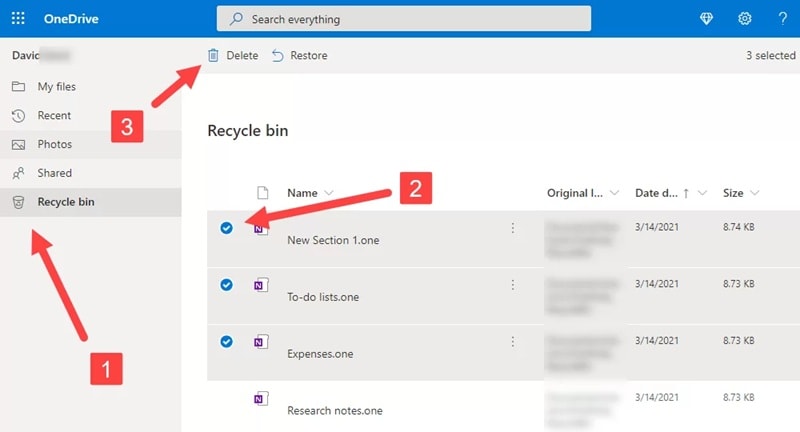
Step 2: Download the missing files and save them to your laptop.
Method 3: Use Recoverit

If no backups are available, data recovery software may still offer a solution. Recoverit is built to scan storage drives and search for deleted or hidden files. It checks deep areas of the disk where normal browsing cannot reach. This method is useful when important documents were not saved elsewhere before the reset.
Recoverit works best if the drive has not been heavily used after the reset. When new files are written to the disk, they may overwrite old data blocks. Once overwritten, recovery becomes much harder. For this reason, it is important to stop using the laptop as soon as you notice data loss.
Although a system reset removes visible files, some data traces can remain for a limited time. Recoverit scans these remaining traces and attempts to rebuild the files. Acting quickly improves the chances of successful recovery and reduces the risk of permanent loss.
Step 1: Install Recoverit on the laptop or connect the internal drive to another computer.

Step 2: Run a deep scan, preview recoverable files.

Step 3: Click Recover. Save them to a different storage device.

Conclusion
Laptop system failures can be stressful. Important work may stop suddenly. Instead of searching for complex repair solutions, Asus Cloud Recovery provides a direct and reliable way to restore the system. It downloads official files and reinstalls Windows in a clean and stable form.
By understanding what Asus cloud recovery is and following clear steps on how to reset a laptop with Asus cloud recovery, users can recover from serious errors with confidence. Always remember to back up important files, because whether Asus cloud recovery deletes data on the target drive depends on the chosen reset option.
Also, plan your time carefully, since many users ask how long the Asus cloud recovery process takes. With proper preparation, the process is smooth and safe.
FAQs
-
1. Does Asus cloud recovery delete personal data?
Yes, it can delete personal data if you choose the full factory restore option. This option removes files, installed programs, and user accounts from the system drive. If you select a complete reset, your personal folders, such as Documents and Pictures, will be erased. It is always recommended to create a backup before starting the recovery process. -
2. How long doesthe Asus cloud recovery process take?
The process usually takes between one and two hours. The exact time depends on your internet speed, the size of the recovery image, and the performance of your laptop. A slower connection will increase download time, while a faster connection will complete the process more quickly. -
3. How to start Asus cloud recovery if Windows will not load?
If Windows does not load, turn off the laptop completely and restart it. Press the required boot key, often F12, as soon as the device powers on. This will open the recovery menu. From there, select the cloud recovery option and follow the on-screen instructions to begin the reset process.


