 TL;DR:
You can safely free up iCloud space by deleting unused device backups directly from your iPhone, Mac, or Windows PC without erasing any current data on your physical devices.
● On iOS devices, remove old files by navigating to Settings > [Your Name] > iCloud > Manage Account Storage > Backups, selecting the specific device, and tapping Delete Backup.
● Deletion is permanent and cannot be undone by Apple, requiring you to verify you no longer need the files or create a fresh backup before removal.
● If you accidentally lose required files, Wondershare Recoverit Data Recovery Software can scan your local Windows or Mac drives to attempt to retrieve the deleted local data.
Ask AI for a summary
 ChatGPT
 Perplexity
 Gemini
 Claude
 Grok
Grok
iCloud is Apple’s cloud storage service. It stores copies of your important data online. These copies are called backups. They include photos, messages, app data, device settings, and more. Backups help you restore your device if it is lost, damaged, or reset.
Over time, old backups begin to pile up. Each device connected to your Apple ID creates its own backup file. If you upgrade your iPhone or stop using an older device, the previous backup may still remain in your account. This can quickly fill your storage space. That is why many users search for how to delete old backups on iCloud. Cleaning old files helps you stay organized and prevents storage problems.
Try Recoverit to Recover Lost Data
 Security Verified. Over 7,302,189 people have downloaded it.
Table of Contents:
Part 1: What is iCloud Backup?
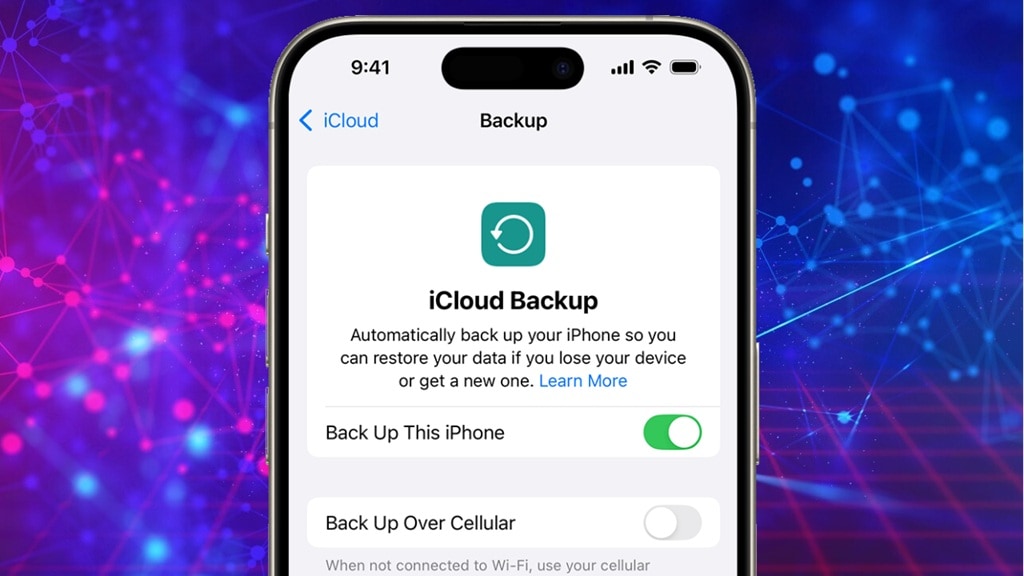
iCloud Backup is a feature built into Apple devices. It creates a secure copy of your data and stores it online. This includes photos, contacts, messages, call history, app information, device settings, and more. The backup runs automatically when your device is connected to WiFi, plugged into power, and locked.
Each time a backup runs, it updates the existing file with recent changes. If you buy a new device, you can restore everything from that backup. It saves time and prevents data loss. However, if you change devices often, older backups may remain stored in your account. These unused files continue to occupy space. This leads many users to search for how to delete old backups on iCloud so they can free up storage and keep only the necessary data.
Part 2: Why Delete Old Backups on iCloud?
Deleting outdated backups is a simple way to manage your storage. When you understand how to delete backups on iCloud, you gain better control over your cloud space and device performance.
Below are common reasons to remove old backups:
- Storage space is limited:Apple offers just 5 GB of free iCloud storage. Older backups can quickly take up a large portion of that limited space.
- You no longer use the old device: When you upgrade your phone, the previous device backup may still remain stored.
- Backup failure errors: Full storage can stop new backups from completing successfully.
- Duplicate data: Some data may already be synced through iCloud services such as Photos or Contacts.
- Faster backup process: Less stored data means quicker backup updates.
- Better organization: Removing unused files keeps your account clean and easy to manage.
- Avoid confusion: Too many backup files can make it difficult to select the correct one during restoration.
- Security concerns: Old backups may contain outdated personal data you no longer wish to store.
Managing storage wisely prevents unnecessary subscription upgrades and keeps your account efficient.
Part 3: How to Delete Old Backups on iCloud (Step-by-Step Guide)
Before starting, make sure you no longer need the backup file. Once deleted, you cannot restore data from that specific backup. If you are unsure, create a new backup first. That way, your latest data remains safe.
The process is simple. Apple allows you to remove backup files from your iPhone, iPad, Mac, or Windows PC. Below are the three main methods, explained clearly.
Method 1: Delete from iPhone or iPad
Using your iPhone or iPad is the easiest way to manage backups. You do not need any extra software or a computer. All settings are available directly inside your device.
If you are trying to understand how to delete old iCloud backups in iphone, this option is the most direct. It allows you to see all device backups linked to your Apple ID. You can check their size and last backup date before removing them.
If you want to know how to delete old iCloud backups in iphone, follow these steps:
- Open Settings. Tap your name at the top. Select iCloud. Tap Manage Account Storage.
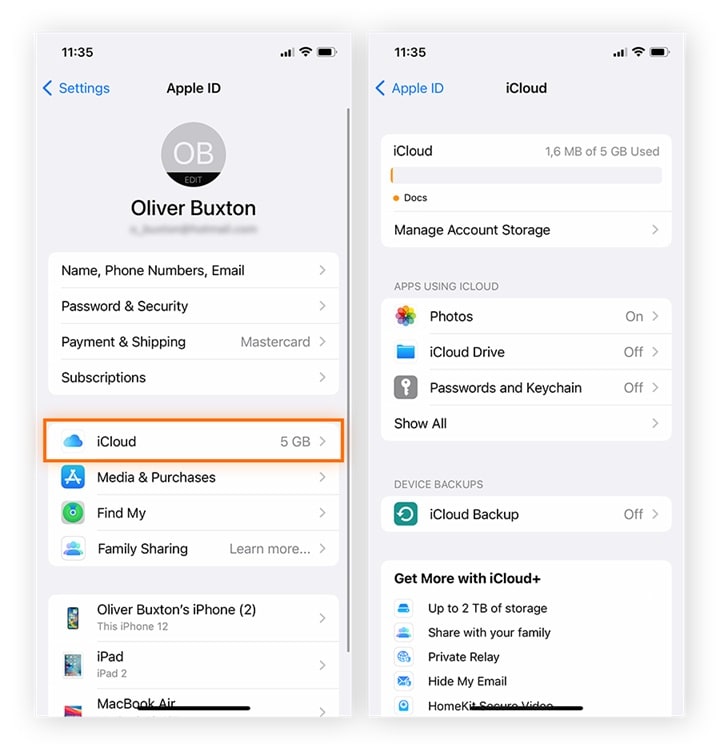
- Choose Backups. Select the device backup you want to remove. Tap Delete Backup. Confirm your choice.
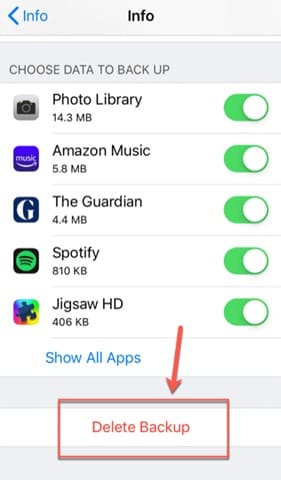
This method is quick and works directly on your device. It is the easiest solution for most users searching for how to delete iCloud backup without using a computer.
Method 2: Delete from a Windows PC
Some users prefer managing storage from a computer. This is helpful if your iPhone is not nearby or not working properly. Windows users can use the iCloud for Windows application to access backup settings.
If you want to learn how to delete old backups from iCloud on PC, this method works well. It provides clear storage details and allows you to remove unused backups with a few clicks. It is also useful for people who manage multiple Apple devices.
- Download and install iCloud for Windows. Sign in with your Apple ID. Click Storage.
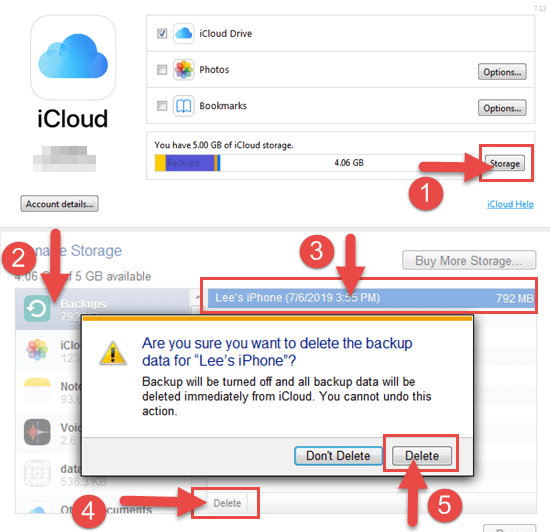
- Select Backups. Choose the backup you wish to remove. Click Delete and confirm.
This option is helpful if your phone is not accessible. It also works well for users who manage their Apple account from a computer.
Method 3: Delete from Mac
Mac users can manage iCloud settings directly from System Preferences. The process is smooth because macOS is fully connected with your Apple ID. You can view backup details and storage usage easily.
This method is helpful for users who work mainly on a Mac computer. It allows you to control backups without using your phone. You can quickly identify and delete outdated files to free up space.
If you use a Mac:
- Click the Apple menu. Open System Settings or System Preferences. Select Apple ID. Click iCloud.
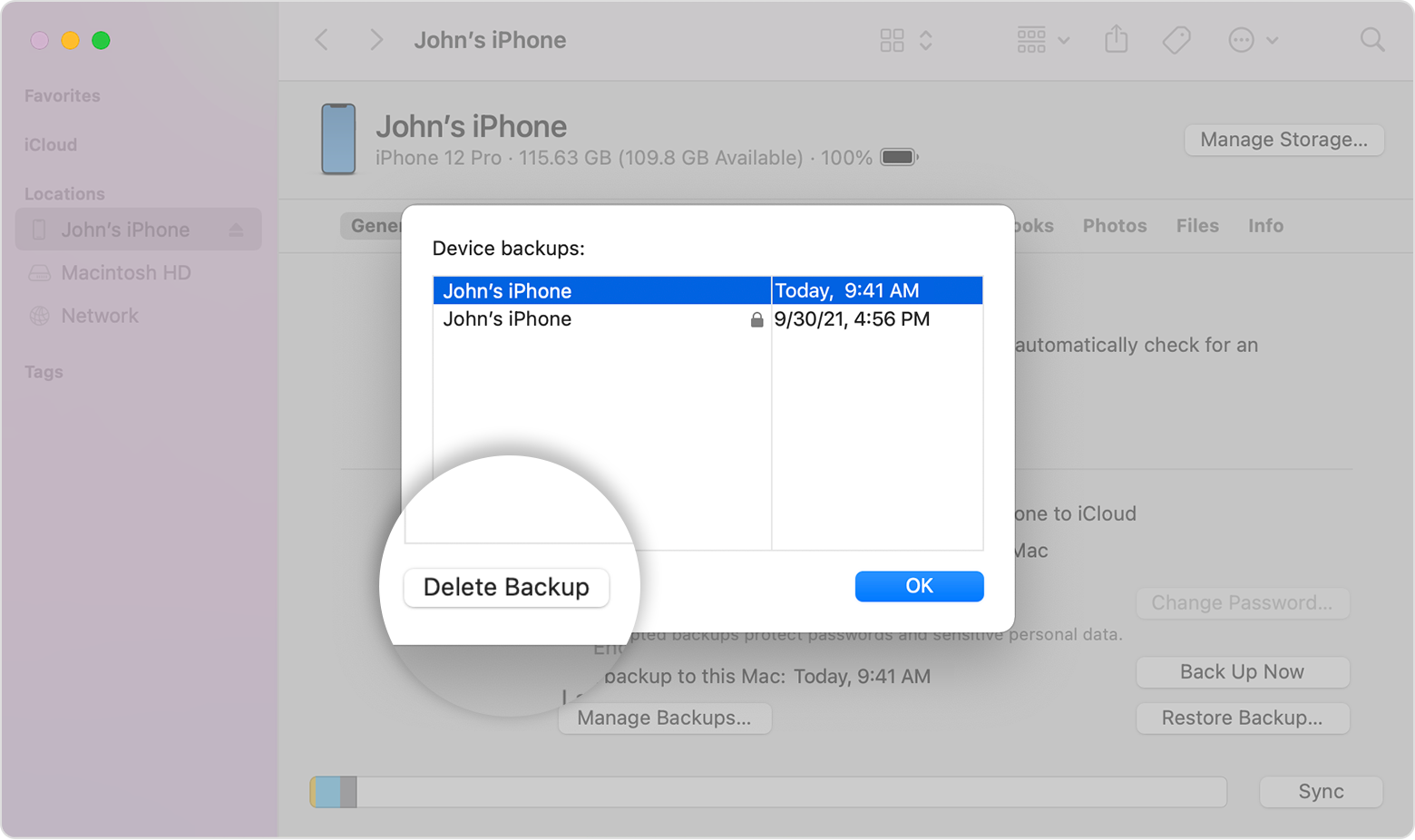
- Choose Manage. Select Backups. Pick the old backup. Click Delete Backup.
These steps show how to delete old backups on iCloud using a Mac system.
Part 4: Problems You May Face While Removing iCloud Backups
Deleting backups is simple, but small issues may appear. It is helpful to understand these problems before starting.
Here are common issues users face:
- The delete option is missing: This may happen if you are not signed in with the correct Apple ID.
- Storage does not update: It can take a few minutes for changes to reflect.
- Backup reappears: Automatic backup may create a new file if enabled.
- Account sign-in error: Incorrect password or internet problems may block access.
- Device freeze: Rare system errors may slow down the settings menu.
- Network interruption: A weak connection may stop the deletion process.
- Confusion about device names: Some users forget which backup belongs to which device.
- Fear of data loss: Many users hesitate because they worry about losing important files.
Understanding these issues reduces mistakes and builds confidence.
Part 5: How to Recover Data After Deleting Old iCloud Backups: Use Recoverit Data Recovery Software
Accidental deletion can happen. You may remove a backup and later realize important data was included. In such cases, users start searching for how to recover accidentally deleted data from iCloud. Quick action increases the chance of recovery.
Recoverit Data Recovery Software is designed to scan storage devices and locate lost files. It works on Windows and Mac computers. It supports many file types, including photos, videos, documents, and emails. Even if your iCloud backup is gone, local device data may still be recoverable.
This tool becomes useful when manual restoration is not possible. It offers a clear interface and

Steps to Recover Data Using Recoverit
Step 1: Install Recoverit on your computer and open the program.
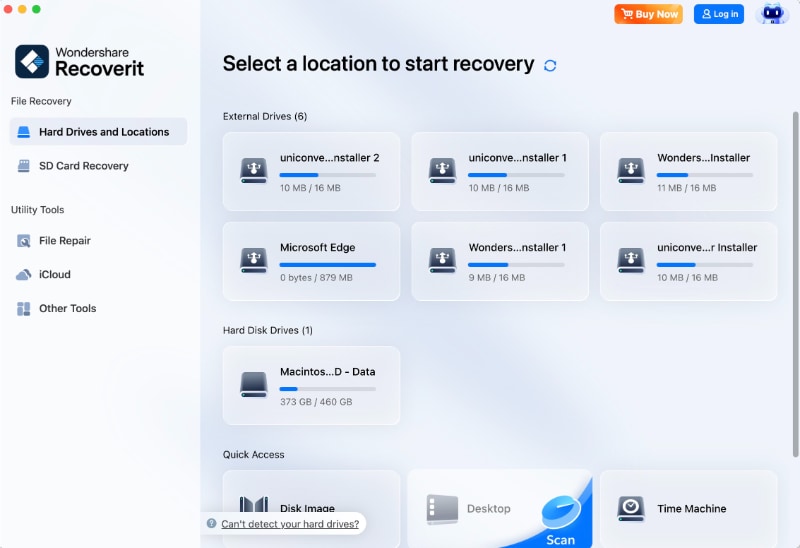
Step 2: Select the location where your device data was stored. Start the scan process.

Step 3: Preview the found files. Select the needed items and click Recover. Save them to a secure location.

This method can help users who need guidance on how to recover accidentally deleted data from iCloud after removing important backups.
Part 6: Smart Ways to Manage iCloud Storage
Managing storage prevents stress and data loss. If you understand how to delete old backups on iCloud and maintain your space, your account remains organized.
Here are useful tips:
- Review storage monthly: Check usage in settings to avoid sudden full storage issues.
- Turn off backup for unused apps: Some apps consume unnecessary space.
- Delete unused device backups: Remove files from devices you no longer use.
- Enable photo optimization: Store smaller versions on your device.
- Upgrade storage plan if necessary: Choose a plan that suits your usage.
- Remove large attachments: Old media files can fill storage quickly.
- Empty recently deleted folder: Photos remain stored for 30 days after deletion.
- Keep only one active backup per device: This avoids duplication and confusion.
Regular maintenance saves time and protects important files.
Conclusion
Old iCloud backups can fill storage space faster than many users expect. Each device creates its own backup, and these files grow over time. If you upgrade your phone or stop using a device, its old backup may still remain in your account. Removing unused backups helps free valuable space and keeps your storage clean. The process is simple and can be done from an iPhone, Mac, or Windows PC without technical skills.
If you delete a backup by mistake, recovery software may still help you retrieve important files stored locally on your computer or device. It is always wise to confirm that you have a recent backup before removing older ones. By following storage management tips and learning how to delete old backups on iCloud, you can manage your cloud space more efficiently, protect your important data, and avoid paying for extra storage unless it is truly needed.
FAQs
-
Will deleting an old iCloud backup remove data from my iPhone?
Deleting an old iCloud backup will not remove data from your current iPhone. It only deletes the saved copy stored in your iCloud account. Your photos, apps, messages, and settings will remain on your device. However, you will not be able to restore from that deleted backup in the future. -
Can I undo deleting a backup?
No, you cannot undo the deletion of an iCloud backup. Once it is removed, Apple does not provide an option to restore it. That is why you should check the backup details carefully before deleting it. If needed, create a new backup first to keep your recent data safe. -
Is deleting backups safe?
Deleting backups is safe if you no longer need those files. It helps free up storage space in your iCloud account. Before removing any backup, make sure you have a recent and updated backup available. This ensures you can restore your data if necessary.


