 TL;DR:
Backing up an iPhone with a broken screen is only possible if automatic iCloud Backup was already enabled before the damage or if the device can still be unlocked to approve a Trust prompt on a Mac or Windows PC.
● Automatic iCloud Backup will execute without screen interaction only when the device is connected to power, left locked, and placed within range of a previously recognized Wi-Fi network.
● Local backups via Finder, Apple Devices, or iTunes cannot bypass device authentication, and the numerical passcode will be strictly required if the damaged iPhone restarted, rendering Face ID or Touch ID useless.
● Third-party utilities like Recoverit Windows Data Recovery can only scan a computer drive for previously deleted local backup folders; they cannot extract data directly from a locked iPhone, meaning a completely unresponsive screen requires a data-preserving physical repair.
Ask AI for a summary
 ChatGPT
 Perplexity
 Gemini
 Claude
 Grok
Grok
If you need to know how to backup iPhone with broken screen, the answer depends less on the crack itself and more on access. A computer backup may still work if the iPhone can be unlocked and can trust the Mac or Windows PC. Automatic iCloud Backup may still run without touching the screen, but only if it was already enabled before the damage.
If the iPhone is locked, untrusted, not detected, or physically unable to accept the passcode, no normal backup tool can bypass Apple's security model. In that case, repair or an existing backup is the realistic path. If a previous iPhone backup was deleted from a Windows computer, Recoverit Windows Data Recovery can help scan the PC drive for lost local backup files, but it cannot directly recover data from a locked broken-screen iPhone.
In this article
Part 1. Can You Back Up an iPhone With a Broken Screen?
Yes, but only in specific conditions. A broken screen does not automatically stop an iPhone backup. The real blockers are passcode entry, the Trust This Computer prompt, device detection, Wi-Fi access, iCloud storage, and whether backup was already turned on before the screen failed.
What Determines Whether Backup Is Possible
There are two main backup paths. Apple's iCloud Backup guide says automatic iCloud Backup works when backup is already enabled, the iPhone is connected to power, connected to Wi-Fi, and the screen is locked. A computer backup requires the iPhone to be detected by the computer and may require the device passcode or a Trust approval on the iPhone.
Broken Touchscreen vs Completely Black Display
A cracked display with working touch gives you the most options because you can unlock the phone and tap Trust if prompted. A visible screen with a dead digitizer is harder because you can see prompts but cannot respond. A black display may still allow backup if the phone is powered on, already has iCloud Backup enabled, or has already trusted your computer.
Why the iPhone Passcode May Still Be Required
Do not assume Face ID or Touch ID will solve the problem. Apple's passcode guidance says the device requires the passcode after it has been turned on or restarted, when updating or erasing, and in other security-sensitive situations. If the damaged screen prevents passcode entry, local computer backup may be blocked.
Previously Trusted vs Untrusted Computer
Apple's Trust This Computer guidance explains that trusted computers can sync with the device and access photos, videos, contacts, and other content. If the computer is untrusted, the iPhone must be unlocked and the Trust prompt must be approved on the iPhone. From iOS 16 onward, Apple says the Trust alert can appear when backing up and can appear every time you connect if automatic backups are enabled.
When Screen Repair Is Needed Before Backup
If the iPhone is locked, the computer is untrusted, the screen cannot accept input, and iCloud Backup was not already enabled, repair is often the practical step before backup. Ask the repair provider whether the display can be replaced without erasing the device. Do not agree to a restore or erase if the goal is to save data.
Part 2. Quick Decision Guide for Broken-Screen iPhone Backup
Use this table before trying random tools. It shows which path is realistic for each broken-screen scenario.
| Your Situation | Best First Move | What to Expect |
| iCloud Backup was already enabled | Connect the iPhone to power and known Wi-Fi, then leave it locked. | Automatic backup may complete without screen interaction if iCloud storage is available. |
| The iPhone previously trusted this Mac or PC | Connect it and open Finder, Apple Devices, or iTunes. | The backup may start, but iOS can still ask for the passcode or Trust approval. |
| You can still unlock the iPhone | Unlock it, approve Trust if prompted, then create a computer backup. | This is the best path for a complete local backup. |
| The screen is black but the phone powers on | Charge it, keep it on known Wi-Fi, and check existing iCloud backup status from another device. | Automatic iCloud Backup may work only if it was already on. |
| The iPhone is locked, untrusted, or not detected | Check existing backups and consider screen repair that preserves data. | No standard software can create a new backup without required authentication. |
Part 3. What to Check Before Backing Up the iPhone
Before backing up an iPhone with a broken screen, check the access conditions. This prevents risky reset, restore, or repair decisions before the data is safe.
- Confirm that the iPhone powers on: Listen for charging sounds, alarms, vibration, Find My sounds, or incoming calls. If the phone will not turn on, Apple's black-screen guidance recommends charging and force restart checks before service.
- Check whether iCloud Backup was already enabled: Use another Apple device signed in to the same Apple Account, or check backup status from iCloud settings on a working device when available.
- Use a previously trusted Mac or Windows PC: Previous trust may help, but do not be surprised if iOS asks for the passcode again.
- Connect to power and stable Wi-Fi: Automatic iCloud Backup needs power, Wi-Fi, and a locked screen unless a supported cellular backup option is available.
- Use a reliable Lightning or USB-C data cable: Charging-only cables can power the phone without allowing data transfer.
- Do not reset, restore, or update before backing up: These actions can erase data or force a passcode path that you cannot complete on a broken screen.
Part 4. How to Back Up an iPhone With a Broken Screen
Choose the method that matches what the damaged iPhone can still do. Start with iCloud if it was already enabled; use a computer backup when the passcode and Trust requirements can be satisfied.
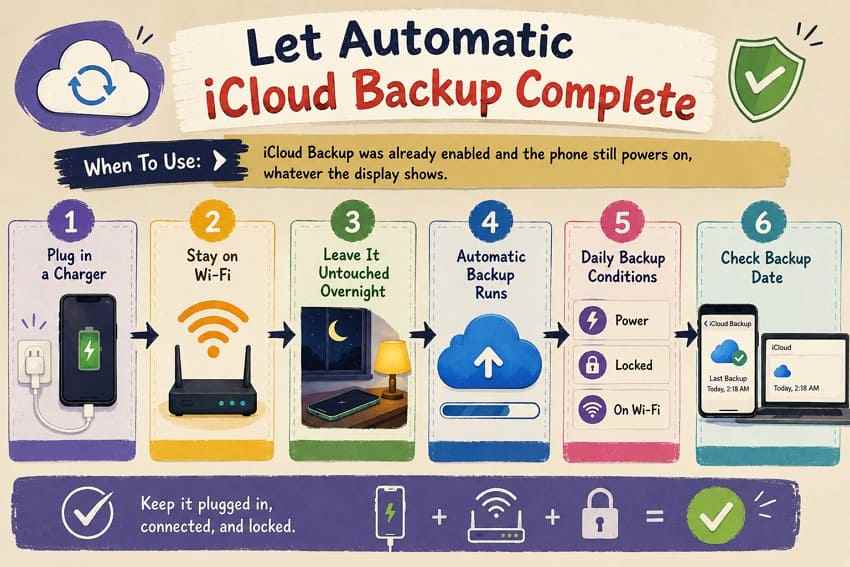
Let Automatic iCloud Backup Complete
When to use: iCloud Backup was already enabled, the iPhone powers on, and it can connect to a Wi-Fi network it already knows.
Apple's iPhone guide says iCloud automatically backs up daily when the iPhone is connected to power, locked, and connected to Wi-Fi. On 5G models, Apple notes that some carriers may allow iCloud Backup over cellular if Back Up Over Cellular is enabled, but Wi-Fi remains the safer assumption for a broken-screen situation.
Instructions: Plug in the iPhone, keep it near a known Wi-Fi network, let the screen lock, and leave it overnight. Later, check the latest iCloud Backup time from another Apple device using Settings > [your name] > iCloud > iCloud Backup.
Back Up Using Finder on a Previously Trusted Mac
When to use: The Mac has connected to this iPhone before, or you can still unlock the iPhone and approve Trust.
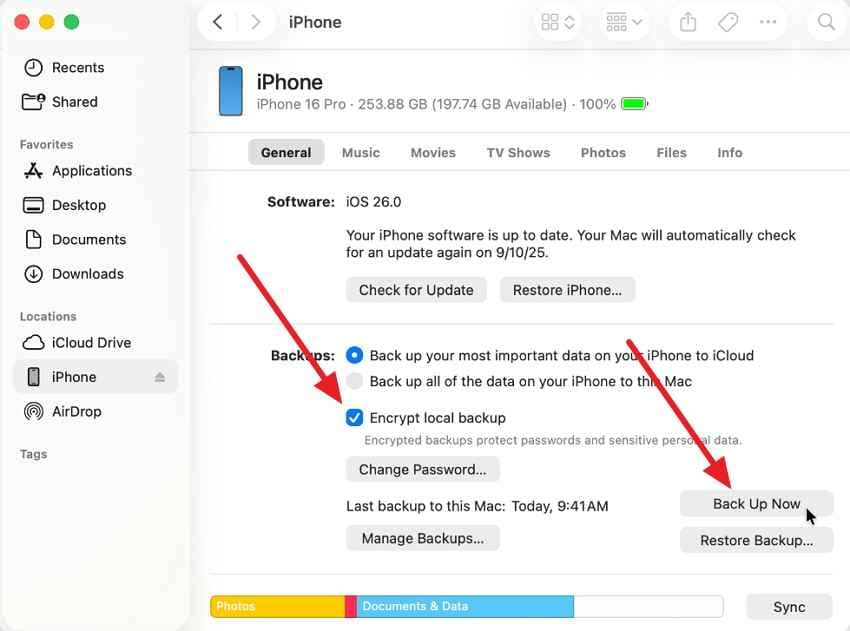
On macOS Catalina or later, Finder handles iPhone backup and sync. Apple's Finder sync guidance confirms that Finder is the device-management path on newer Macs.
Step 1. Connect the iPhone to the Mac with a data cable. Open Finder and select the iPhone under Locations. If the Mac or iPhone asks for Trust approval, complete it on the iPhone.
Step 2. On the General tab, choose Back up all of the data on your iPhone to this Mac. Select Encrypt local backup if you need saved passwords, Wi-Fi settings, Health data, and similar protected data, then click Back Up Now.
Back Up Using the Apple Devices App on Windows
When to use: Your Windows PC uses the Apple Devices app and the iPhone can be trusted or was already trusted.
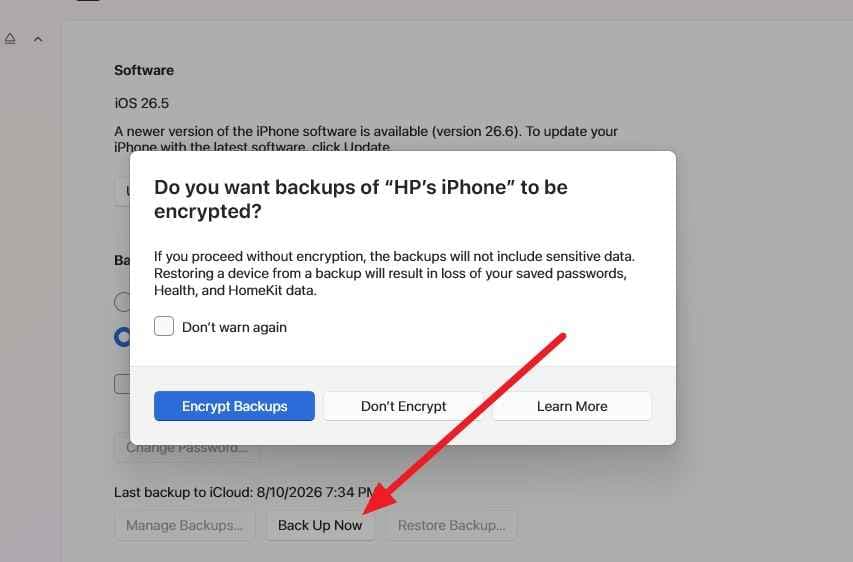
Apple's Windows device guide explains that the Apple Devices app on Windows can back up an iPhone to the Windows device, encrypt the local backup, and start an immediate backup with Backup Now.
Step 1. Install or open Apple Devices, connect the iPhone, select the device in the sidebar, and open General. If asked, unlock the iPhone and approve Trust.
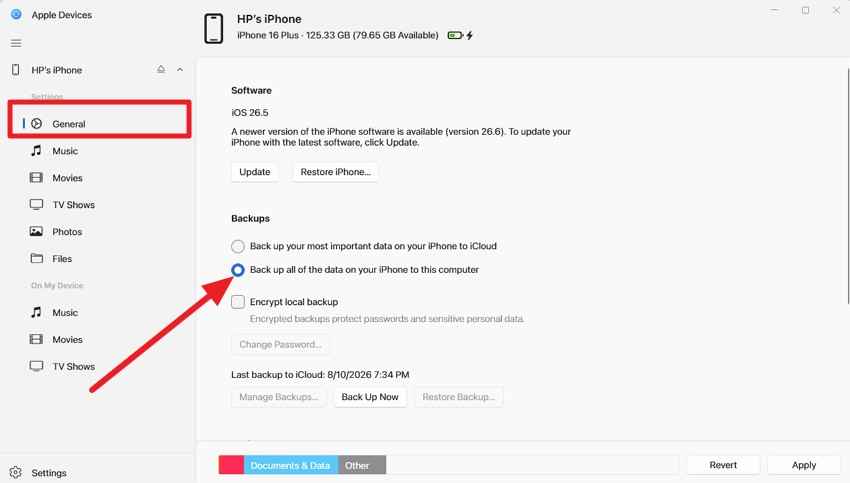
Step 2. Choose Back up all of the data on your iPhone to this computer, enable encrypted backup if needed, and click Back Up Now. Keep the cable connected until the backup completes.
Back Up Using iTunes on an Older Mac or Windows PC
When to use: The Mac runs macOS Mojave or earlier, or the Windows PC still uses iTunes for device management.
Apple says to use Finder on Mac, Apple Devices on PC, or iTunes when the PC does not have Apple Devices or when the Mac is using macOS Mojave or earlier. Apple's older Windows backup article now redirects to the current Windows backup instructions.
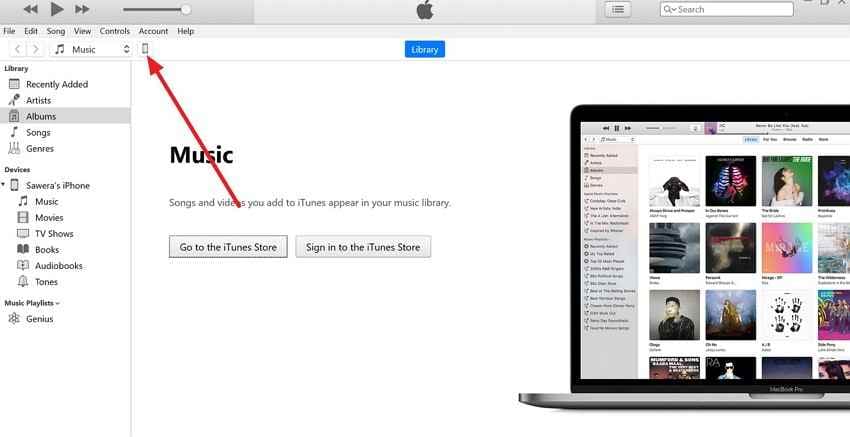
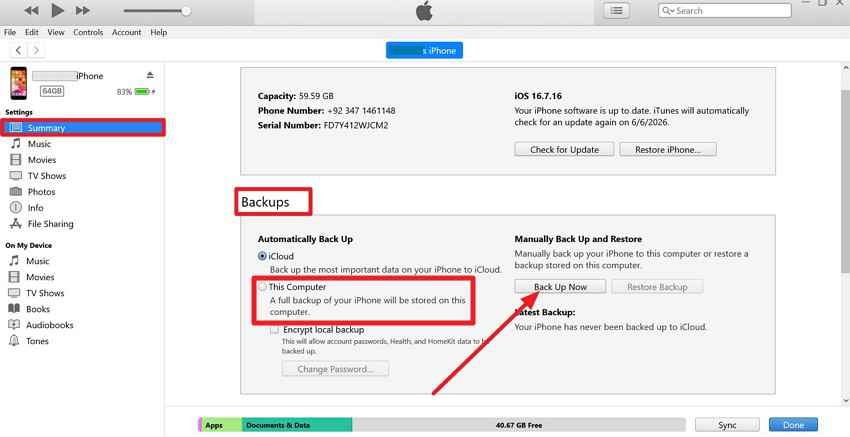
Step 1. Open iTunes, connect the iPhone, approve Trust on the iPhone if prompted, click the device icon, and open Summary.
Step 2. Select This Computer, enable Encrypt local backup if needed, then click Back Up Now. Leave the iPhone connected until iTunes shows the latest backup date and time.
Make an Encrypted Local Backup if Extra Data Matters
Apple's encrypted backup guide says encrypted computer backups can include saved passwords, Wi-Fi settings, website history, Health data, and call history that unencrypted backups do not include. They do not include Face ID, Touch ID, or the device passcode.
Use encryption when you still can, then store the backup password safely. Apple warns that without the password, you cannot use previous encrypted backups.
Part 5. What if You Cannot Unlock or Trust the iPhone?
This is the point where many "backup broken screen iPhone" tutorials become unrealistic. If the phone cannot accept the passcode or Trust approval, the computer cannot simply take a full backup anyway.
Why Face ID or Touch ID May Not Be Enough
Face ID and Touch ID are convenience unlock methods, not replacements for the passcode in every situation. Apple's passcode documentation says a passcode is required after the device is turned on or restarted. If the iPhone restarted after the damage, biometrics may not unlock it until the passcode is entered.
Why an Untrusted Computer Cannot Start a Backup
Trust creates the pairing relationship that lets the computer access protected device data. If the alert appears and you cannot tap Trust on the iPhone, the computer is blocked. A desktop app, USB cable, or recovery utility cannot approve that request on the iPhone's behalf without your device-side authentication.
Can Siri, VoiceOver, or Voice Control Help?
Sometimes. Apple's VoiceOver guide says you can ask Siri to turn on VoiceOver, and VoiceOver changes how you navigate with gestures. This may help if the display is unreadable but the touchscreen still responds.
Instructions: Hold the Side button and ask Siri to turn on VoiceOver. Connect the iPhone to the computer. If the Trust prompt appears, swipe right until VoiceOver announces Trust, then double-tap. For passcode entry, move your finger across the keypad until the correct digit is announced, then double-tap to enter it.
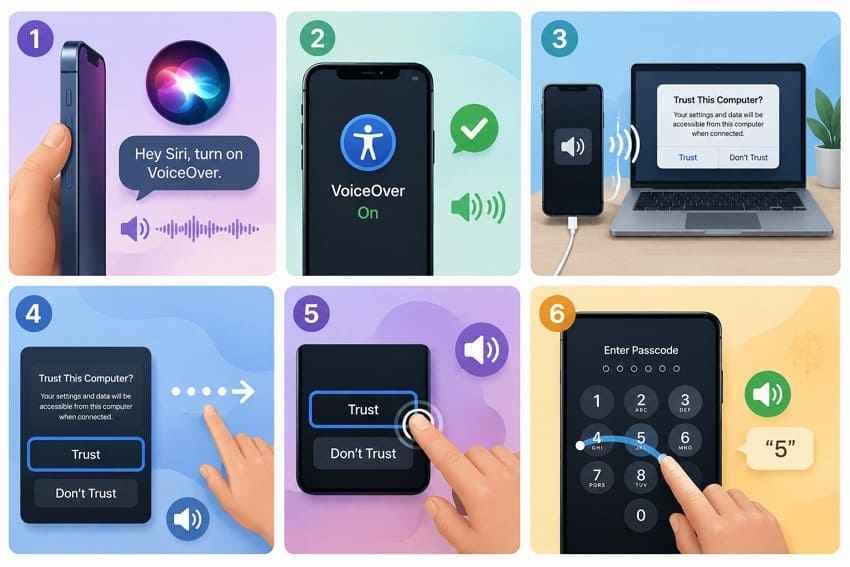
Limit: VoiceOver is not a bypass. It helps only when Siri works, audio works, the phone is not blocked from accepting commands, and touch input still functions.
Can a USB Keyboard Help With Passcode Entry?
A USB keyboard may help in some cases if the iPhone accepts keyboard input through a compatible adapter, but it is not guaranteed and it does not solve the Trust prompt by itself. You still need legitimate access to the device, and accessories may not work while the phone is locked or after security restrictions apply.
When Professional Screen Repair Is the Practical Option
If no backup exists and the only problem is the screen, a data-preserving display repair may be the most realistic option. Apple's service preparation page tells users to back up before service and notes that if you cannot complete every step, you should do as many as possible. Apple's repair terms also warn that data loss during service is possible and that users are responsible for backing up data before service.
Ask the repair provider whether the repair can replace the display without erasing the device. Avoid any option described as restore, reset, erase, or replacement until you understand the data consequences.
Part 6. Recover Lost iPhone Backup Files From a Computer
This section is not about extracting data directly from a locked iPhone. It is for a different situation: you once had a local iPhone backup on a Windows PC, and that backup folder was deleted, lost during cleanup, or removed during a migration.
When Recoverit Can Help
Recoverit Windows Data Recovery can scan a readable Windows drive for deleted local backup files. It may help when Apple Devices or iTunes backups were stored on the PC and later deleted. Recovery depends on drive condition, whether the data was overwritten, and whether the storage device is still detectable.
For broader local file recovery scenarios, the source article also referenced Recoverit's data recovery workflow for scanning drives and removable storage.
Recover Deleted Apple Devices or iTunes Backup Files
Apple's backup-location documentation explains that iPhone backups are stored in specific computer folders, such as MobileSync/Backup, and can be managed through Finder or the Apple Devices app. On Windows, Apple says the location depends on whether you are using Apple Devices, Microsoft Store iTunes, or the older iTunes version.
If a backup folder was deleted, do not create a new backup to the same drive before scanning. A new backup can overwrite older recoverable data.
Scan the Drive Where the Local iPhone Backup Was Saved
Step 1. Select the iPhone backup drive.
Open Recoverit on Windows and choose the drive where the Apple Devices or iTunes backup folder used to be stored. In most cases this is the system drive, unless you had moved the backup location before.

Step 2. Scan and locate the backup folder.
Run the scan and search for folders or files related to MobileSync, Backup, manifest files, and numbered backup-folder contents. A local iPhone backup is usually a folder set, not a single normal document.

Save Recovered Backup Files to a Different Drive
Step 3. Recover the complete folder elsewhere.
Recover the full backup folder to a different drive. Do not save it back to the same disk you scanned. After recovery, compare the folder structure with Apple's backup-location guidance before trying to place it where Apple Devices or iTunes can recognize it.

Try Wondershare Recoverit to Perform Data Recovery
 Security Verified. Over 7,302,189 people have downloaded it.
Why Recoverit Cannot Directly Recover Data From a Broken Locked iPhone
Recoverit is a storage recovery tool, not an iPhone passcode bypass or iOS pairing tool. It cannot unlock a broken iPhone, approve Trust, decrypt device storage, extract data from an untrusted locked iPhone, or create a new iPhone backup without Apple-required authentication. Use it only for recoverable local backup files or other readable computer storage.
Part 7. How to Prevent Data Loss From Future Screen Damage
The best time to solve broken-screen backup problems is before the screen breaks. Set up at least one backup path that does not depend on emergency touchscreen access.
- Enable automatic iCloud Backup: Keep it turned on so the iPhone can back up while charging, locked, and connected to Wi-Fi.
- Create regular encrypted computer backups: Encrypted backups preserve more sensitive data than unencrypted local backups.
- Trust your primary computer before an emergency: Pair the iPhone with the Mac or PC you actually use, while the screen is working.
- Maintain enough iCloud and computer storage: Backups fail when iCloud storage or local disk space is full.
- Back up before iOS updates, repairs, and travel: Screen damage and repair decisions become less risky when the backup is current.
- Protect the iPhone physically: A case and screen protector are not a backup, but they reduce the chance that screen damage blocks data access.
Conclusion
Backing up an iPhone with a broken screen depends on access. If iCloud Backup was already enabled, connect the phone to power and known Wi-Fi and let automatic backup run. If the iPhone can still be unlocked or has already trusted your computer, use Finder, Apple Devices, or iTunes to create a local backup.
If the iPhone is locked, untrusted, and cannot accept input, no normal tool can bypass the required passcode and Trust steps. A data-preserving screen repair or an existing backup is the practical route. Recoverit fits only when a previous local iPhone backup was deleted from a Windows PC and may still be recoverable from the computer drive.
FAQ
-
Does replacing a broken iPhone screen erase its data?
A display replacement alone does not normally require erasing the storage, but service can still involve data-loss risk. Apple tells users to back up before service, and Apple's repair terms say data may be unrecoverable, erased, or reformatted during service. Ask the repair provider about a data-preserving screen repair before handing over the device. -
Are iCloud Photos included in an iCloud device backup?
Not when iCloud Photos is enabled. Apple's iCloud Backup documentation says iCloud Backup stores data that is not already synced to iCloud. Photos and videos may be included only if iCloud Photos has not been turned on. -
Can an iPhone back up over cellular without Wi-Fi?
Usually iCloud Backup requires Wi-Fi. Apple's iPhone guide notes that on supported 5G models, your carrier may allow backup over cellular if the setting is available and enabled. For a broken-screen iPhone, known Wi-Fi is still the more reliable path. -
Can Apple back up an iPhone before repairing its screen?
Do not rely on that. Apple's service-preparation guidance tells users to back up the iPhone before service and says to do as many preparation steps as possible if the device is unresponsive. Apple does not guarantee that a technician will create a backup for you.



