

 TL;DR:
You can immediately reclaim iCloud storage capacity by permanently deleting outdated device backups, manually emptying your recently deleted folders, and disabling cloud sync for non-essential apps.
● Deleting outdated iPhone backups from your settings instantly frees up significant space (often 2-5GB per backup) without erasing any local data on your current device.
● Storage capacity will not update immediately when you delete photos, iCloud Drive documents, or Mail attachments unless you manually empty the "Recently Deleted" and "Trash" folders, as Apple retains them for 30 days.
● If manual file management is insufficient, you can upgrade your plan starting at $0.99/month for 50GB; if you accidentally permanently delete files past the 30-day window, recovery requires specialized software like Wondershare Recoverit.
Ask AI for a summary
 ChatGPT
 Perplexity
 Gemini
 Claude
 Grok
Grok
Running out of iCloud storage is frustrating. You try to back up your phone, but a message pops up saying your storage is full. Your photos won't sync. Your files won't save. This happens to millions of iPhone and Mac users every day. The good news is that learning how to clear up iCloud storage is simple and quick.
In this guide, you'll discover exactly how to free up space on iCloud without losing important data. Whether you need to know how can I delete iCloud storage or how do I clear storage in iCloud, this article covers everything.
Let's dive in and reclaim your precious cloud space.
Table of Contents
Part 1: Why Is Your iCloud Storage Full?
Here are the main reasons your iCloud storage gets full:
- iPhone and iPad Backups: Device backups are the biggest space hogs. Every time your phone backs up, it saves app data, settings, photos, and messages. Multiple device backups can consume gigabytes.
- Photos and Videos: High-resolution photos and 4K videos take massive amounts of space. If you enable iCloud Photos, every picture and video syncs automatically.
- iCloud Drive Files: Documents, PDFs, presentations, and other files stored in iCloud Drive add up quickly. Large work files are common culprits.
- Email Attachments: Your iCloud Mail stores every email with attachments. Years of emails with PDFs, images, and documents accumulate silently.
- App Data: Many apps store data in iCloud. Games save progress, note apps sync content, and messaging apps backup chats.
- Voice Memos and Messages: Audio recordings and message attachments (especially videos and images in group chats) consume surprising amounts of storage.
- Old Device Backups: You might have backups from devices you no longer use. These outdated backups waste valuable space.
- Duplicate Files: Sometimes files get duplicated across devices or folders, unnecessarily doubling your storage usage.
Part 2: How to Clear Up iCloud Storage?
Now that you understand why your storage is full, let's explore how do I delete storage from iCloud effectively.
We'll walk through each approach with clear, simple steps.
Method 1: Delete Old iCloud Backups
Device backups often take up the most space in iCloud. If you have old backups from devices you've replaced or sold, they're just wasting storage. Even current device backups can be larger than necessary. This method shows you how do I delete storage on my iCloud by removing unnecessary backups.
Deleting old backups is one of the fastest ways to free up space. Many users discover they have backups from three or four old iPhones still sitting in iCloud. Each backup can be 2-5GB or more. Removing these instantly recovers significant storage without affecting your current devices.
When to use this method:
- You've upgraded to a new device recently
- You see backups from devices you no longer own
- Your backup is larger than expected
- You prefer local computer backups instead
Steps:
Step 1. Open Settings on your iPhone or iPad. Tap your name. Tap "iCloud." Select "Manage Storage" and then "Backups."
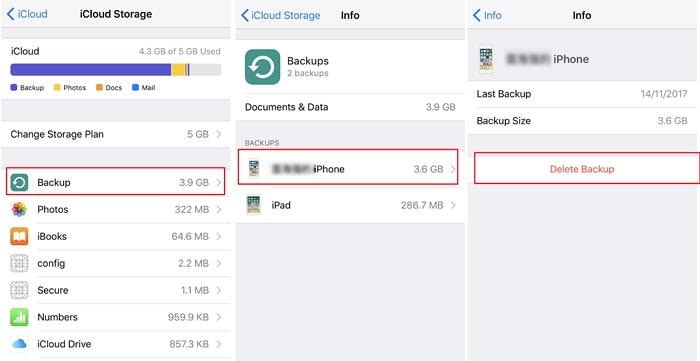
Step 2. Review the list of device backups. Tap any old or unnecessary backup. Scroll down. Tap "Delete Backup." Confirm by tapping "Turn Off & Delete."
Method 2: Remove Large Files from iCloud Drive
iCloud Drive stores your documents, PDFs, videos, and other files. Over time, large files accumulate. You might have old presentations, video projects, or installer files you no longer need. This method teaches you how to free up space on iCloud by cleaning out iCloud Drive.
When to use this method:
- You work with large video or design files
- You've downloaded many documents from email
- You notice files you no longer need
- Your work projects are completed and archived elsewhere
Steps:
Step 1. On your iPhone, open the Files app and tap "Browse." Select "iCloud Drive." On Mac, open Finder and click "iCloud Drive" in the sidebar. Look for large files and folders you don't need.
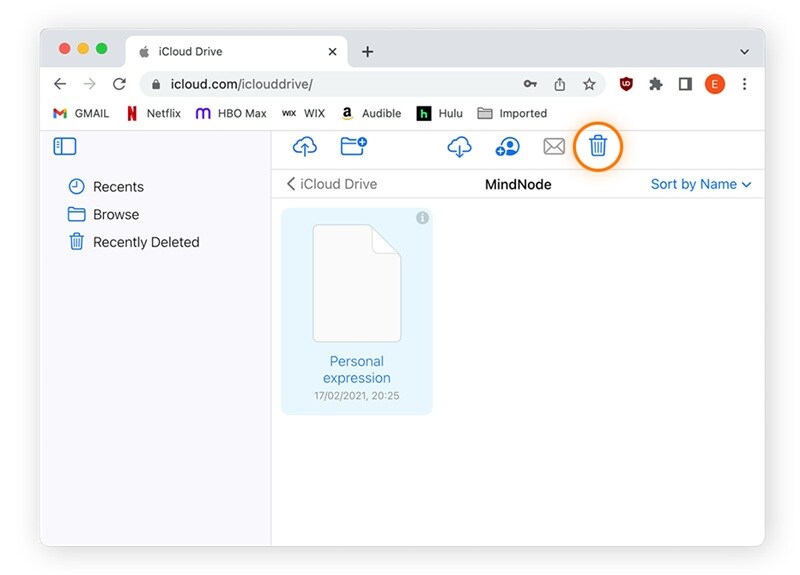
Step 2. Select files you want to delete by tapping or clicking them. Press the trash icon or press Command+Delete on Mac. Go to "Recently Deleted". Tap "Delete All" to permanently remove them.
Method 3: Manage iCloud Photos and Videos
Photos and videos are beautiful memories, but they consume enormous storage. If you have iCloud Photos enabled, every photo and video from your device syncs to iCloud. Years of photos can easily fill your entire storage. This method explains how can I delete iCloud storage by managing your photo library.
When to use this method:
- Your photo library is several gigabytes
- You have many duplicate or blurry photos
- You've taken thousands of burst mode shots
- Old photos and videos aren't important anymore
Steps:
Step 1. Open the Photos app on your iPhone or Mac. Review your library and select photos and videos you don't need. Use "Albums" to find duplicates, screenshots, or bursts easily.
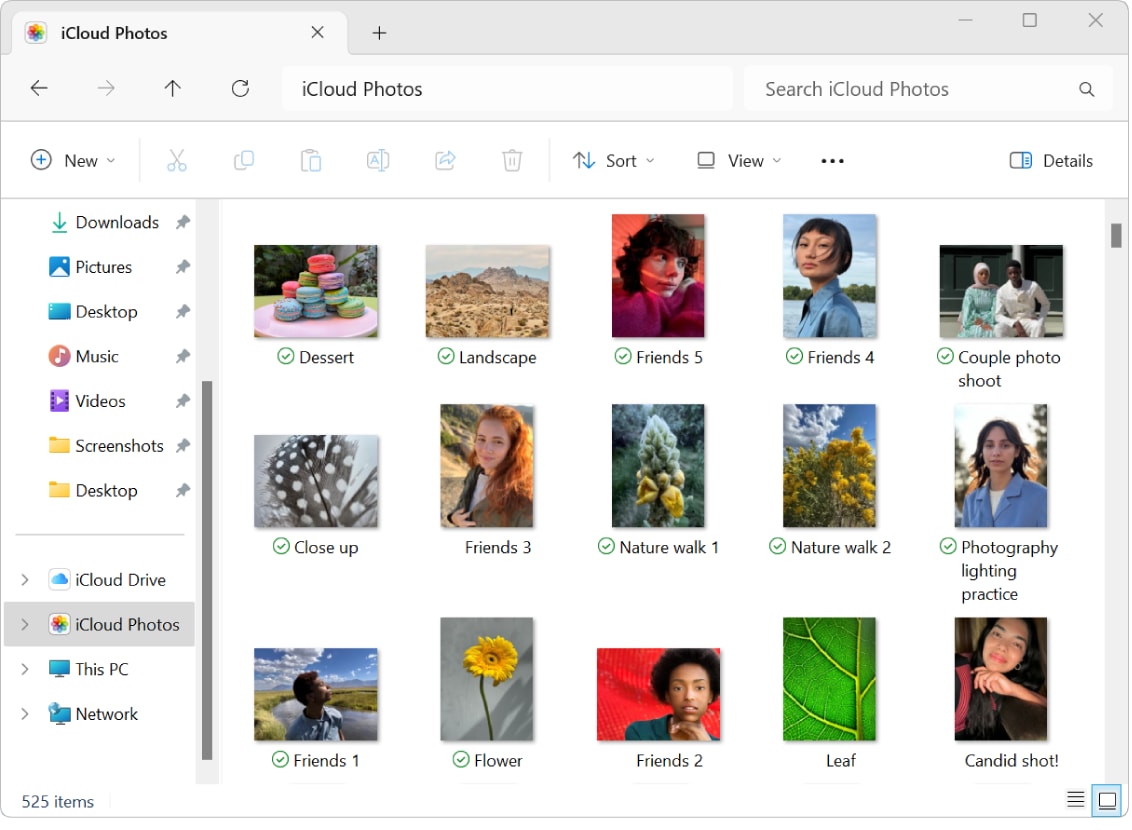
Step 2. Delete selected items by tapping the trash icon. Open "Recently Deleted" album. Tap "Select" then "Delete All" to permanently remove them and free up space immediately.
Method 4: Delete Emails and Attachments from iCloud Mail
If you use iCloud Mail, your inbox might contain years of emails with attachments. These attachments include PDFs, images, documents, and videos. They count toward your iCloud storage. This method shows how do I clear storage in iCloud by cleaning your mailbox.
Email attachments are sneaky storage consumers. You might not realize that every PDF someone sent you three years ago is still in your cloud storage. Newsletters with large images, work documents, and photo attachments from friends all add up. Regular email maintenance is important.
When to use this method:
- You receive many emails with attachments
- Your inbox has thousands of old emails
- You subscribe to newsletters with images
- You rarely delete emails
Steps:
Step 1. Open Mail on your iPhone, iPad, or Mac. Use the search function to find emails with large attachments. Search for file types like "PDF," "video," or "attachment."
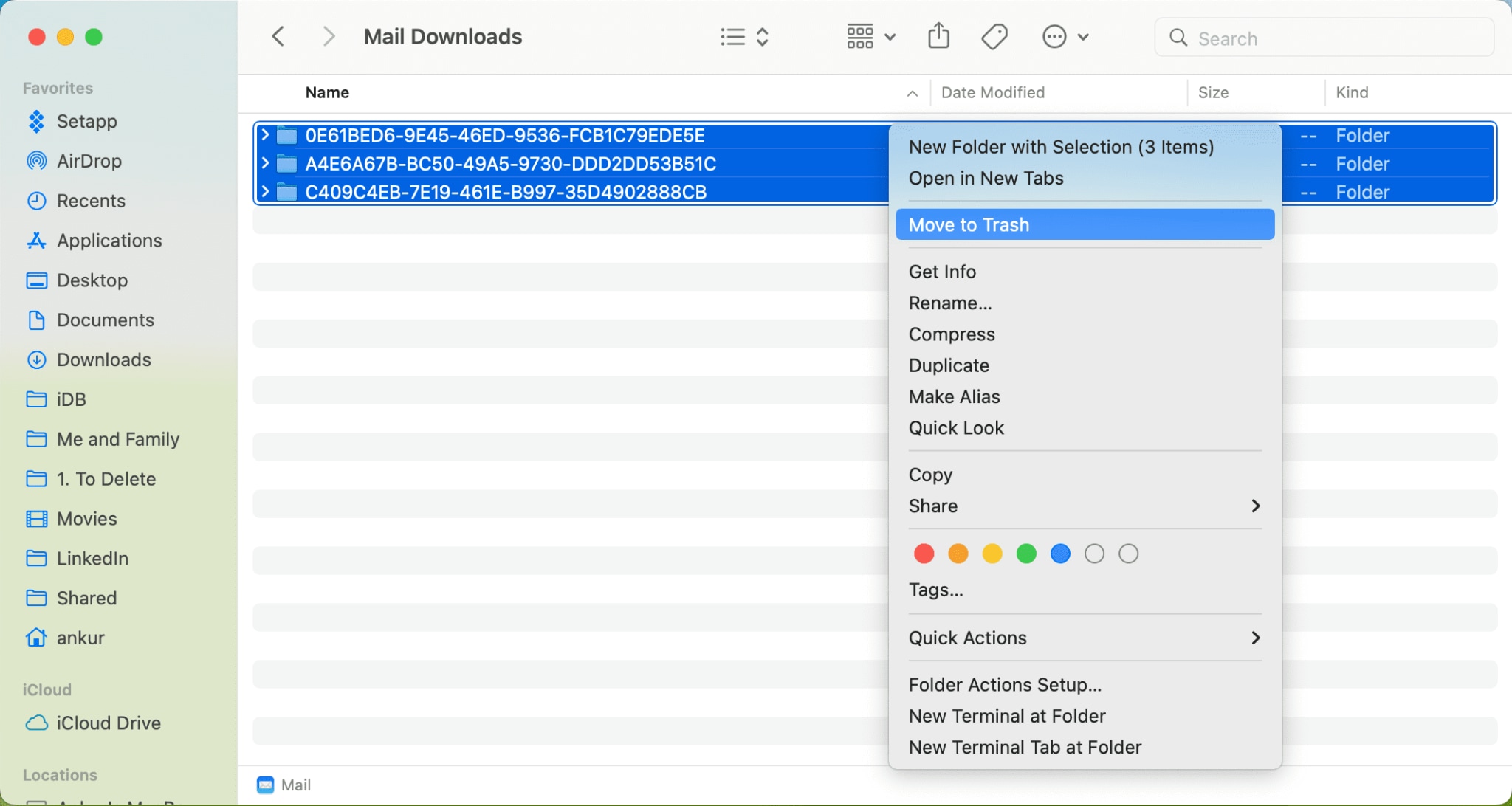
Step 2. Select emails with attachments you no longer need. Delete them by moving them to trash. Empty the trash folder by going to "Mailboxes," selecting "Trash," and tapping "Edit" then "Delete All."
Method 5: Disable Apps Using Excessive iCloud Storage
Many apps store data in iCloud without you realizing it. Games save progress, messaging apps backup chats, and productivity apps sync documents. Some apps use more storage than necessary. This method teaches you how to clear storage on iCloud by managing app data.
App data can be surprisingly large. Games might store hundreds of megabytes of saved games. Messaging apps keep every photo and video shared in chats. You can disable iCloud backup for apps you don't need to sync across devices.
When to use this method:
- Certain apps show large storage usage
- You don't need app data synced across devices
- You play games that save large files
- Messaging apps have accumulated chat data
Steps:
Step 1. Go to Settings, tap your name, then "iCloud." Scroll down to see apps using iCloud storage. Review the list and identify apps consuming significant space.
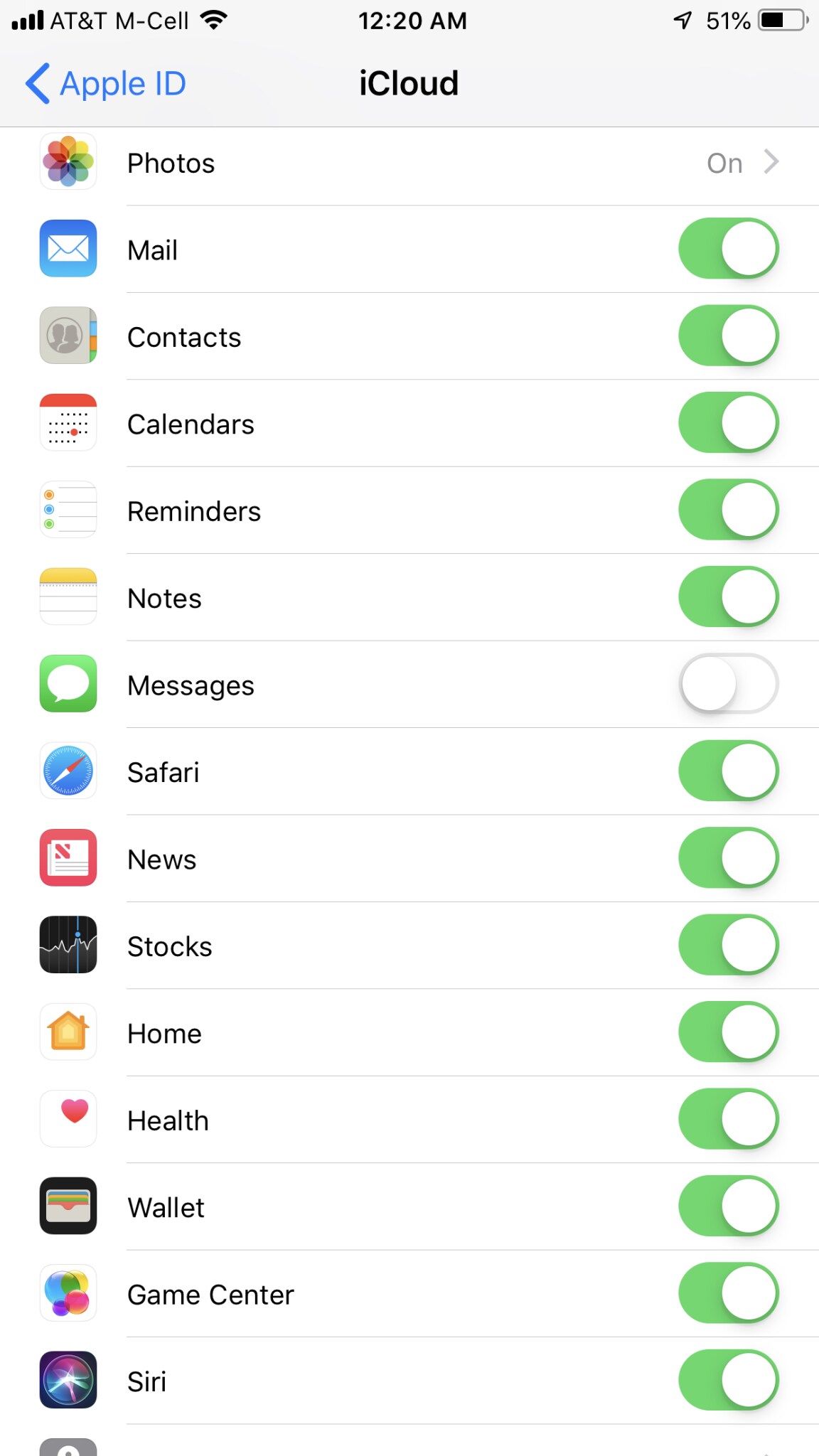
Step 2. Toggle off iCloud for apps you don't need to sync. For apps like games or certain productivity tools, disabling iCloud won't affect functionality. This prevents them from using your storage.
You may be also interested in: How to Delete Old Backups on iCloud?
Method 6: Upgrade Your iCloud Storage Plan (Optional)
Sometimes the best solution isn't deleting files but getting more space. If you've tried everything and still need more storage, upgrading your plan makes sense. This isn't about how do I delete storage from iCloud, but rather solving the problem differently.
Apple offers affordable storage plans. For $0.99/month, you get 50GB. For $2.99/month, you get 200GB. For $9.99/month, you get 2TB. These prices are reasonable for most users. If you value convenience over manual management, upgrading is worth considering.
When to use this method:
- You need all your current data in iCloud
- Manual management is too time-consuming
- You share storage with family members
- Your work requires cloud storage
Steps:
Step 1. Open Settings and tap your name. Select "iCloud" then "Manage Storage" or "Change Storage Plan."
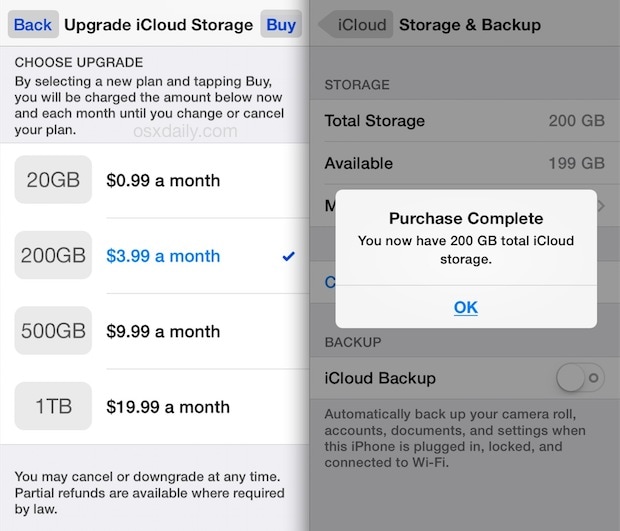
Step 2. Choose a plan that fits your needs. Tap "Buy" and follow the prompts. Your storage upgrades are immediate. This solves storage problems without deleting anything.
Part 3: Accidentally Deleted Files While Clearing Storage? Use Recoverit Today!
Have you ever deleted files while cleaning your iCloud and immediately regretted it? Maybe you removed photos that held precious memories. Perhaps you deleted an important document by mistake. You're not alone. Thousands of users accidentally delete valuable files while trying to free up space. The panic that follows is real.
The good news is that deleted doesn't always mean gone forever. Professional data recovery tools can help retrieve your files. Recoverit is one of the most trusted data recovery solutions available today. It's designed specifically to help users recover deleted photos, videos, documents, and other files from various storage locations including iCloud backups.
- Multiple File Type Support: Recover photos, videos, documents, emails, audio files, and more
- High Success Rate: Advanced algorithms ensure maximum file recovery
- Preview Before Recovery: See your files before recovering them to ensure they're correct
- Safe and Secure: No data overwriting or privacy risks during the recovery process
- Compatible with All Devices: Works with iPhone, iPad, Mac, and PC systems
Steps to Use Recoverit:
Step 1. Download and install Recoverit on your Mac or PC. Launch the program and select the location where your files were stored (choose iCloud or your device).
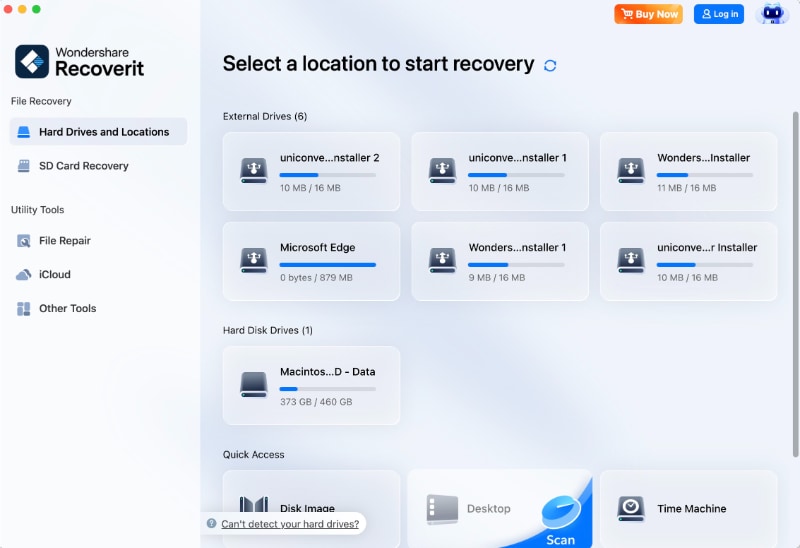
Step 2. Click "Start”. This may take a few minutes, depending on how much data needs scanning.

Step 3. Preview the recovered files in the results window. Select the files you want to recover and click "Recover." Choose a safe location to save them.

Part 4: Pro Tips to Keep iCloud Storage Optimized
These pro tips help you maintain optimal storage without constant manual cleaning.
- Review Storage Monthly: Set a monthly reminder to check your iCloud storage. Regular reviews prevent sudden storage crises. Spend five minutes each month deleting unnecessary files before they accumulate.
- Enable Optimize Storage: On iPhone, enable "Optimize iPhone Storage" for photos. This keeps full-resolution photos in iCloud while storing smaller versions on your device. You save both iCloud and device storage.
- Use Alternative Cloud Services: Don't put everything in iCloud. Use Google Drive, Dropbox, or OneDrive for large work files. This spreads your storage across multiple services and reduces iCloud dependency.
- Download Before Deleting: For important files you want to remove from iCloud, download them to an external hard drive first. This gives you backup copies without using cloud storage.
- Limit Video Backups: Videos are huge. Consider storing videos on your computer or external drive instead of iCloud. Use iCloud primarily for photos and essential documents.
- Manage Email Aggressively: Unsubscribe from newsletters you don't read. They often contain large images that count toward storage. Delete promotional emails regularly.
Conclusion
Managing your iCloud storage doesn't have to be complicated. Now you know exactly how to clear up iCloud storage using multiple effective methods. From deleting old backups to managing photos and disabling app data, you have the tools to reclaim your space.
Each method addresses different storage issues, so you can choose what works for your situation.
Try Recoverit to Recover Lost Data
 Security Verified. Over 7,302,189 people have downloaded it.
FAQs:
-
1. How often should I clear my iCloud storage?
You should review your iCloud storage at least once a month. This prevents storage from filling up unexpectedly. Monthly checks let you delete unnecessary files before they accumulate. If you take many photos or download large files frequently, consider weekly reviews. Set a calendar reminder to make it a habit. Regular maintenance is much easier than dealing with a completely full storage situation. -
2. Will deleting iCloud backups delete my phone data?
No, deleting iCloud backups will not delete data currently on your phone. Backups are separate copies stored in the cloud. Your phone's photos, apps, contacts, and settings remain unchanged. However, if you delete a backup and then need to restore your phone later, you won't have that backup available. -
3. Can I recover files after deleting them from iCloud?
Yes, you can recover deleted files within 30 days. iCloud keeps deleted files in the "Recently Deleted" folder for 30 days before permanent removal. During this period, you can restore them easily. On iCloud.com, go to Settings and find the "Recently Deleted" section. After 30 days, files are permanently deleted from Apple's servers. At that point, you'll need data recovery software like Recoverit to attempt recovery.


