

 TL;DR:
The most immediate fix for the could not find the recovery environment in Windows 11 error is to execute the reagentc /enable command in an administrator Command Prompt to instantly reactivate the disabled Windows Recovery Environment.
● Verify the existence of a healthy 500MB to 1GB recovery partition in Disk Management; if it is completely missing, command-line reactivations will fail and you must boot from a Windows 11 installation USB to recreate the partition manually.
● If the partition is present but the error persists due to system file corruption, run sfc /scannow, requiring 15 to 30 minutes, followed by DISM /Online /Cleanup-Image /RestoreHealth, requiring 20 to 40 minutes, to repair the Windows image.
● As a final resort for deep system corruption, use a data recovery tool like Recoverit to secure personal files before booting from a Windows Media Creation Tool USB and selecting the Keep my files troubleshooting option to completely rebuild the recovery environment.
Ask AI for a summary
 ChatGPT
 Perplexity
 Gemini
 Claude
 Grok
Grok
Windows 11 has a built-in recovery system. This system helps you fix problems. Sometimes, you might see an error message. It says "could not find the recovery environment in Windows 11". This error stops you from accessing repair tools. Many users face this issue. It can be frustrating.
Don't worry. This problem has solutions. You can fix it yourself. This guide will show you how. We'll explain what causes this error. Then we'll share simple methods to fix it. You'll learn how to enable Windows recovery environment again.
Table of Contents:
Part 1: What Does "Could Not Find the Recovery Environment" Mean?
The Windows Recovery Environment (WinRE) is a built-in repair tool. It helps fix your computer. WinRE includes tools to fix boot issues. It can restore system files. It also lets you reset Windows.
If Windows can't find WinRE, recovery tools won’t work. This error often appears during a reset. It can show up when refreshing Windows. You might see it while troubleshooting.
The message means WinRE files are missing or broken. They may be corrupted. The recovery partition could be damaged. This stops Windows from starting repair processes.
Part 2: What Causes the “Windows Could Not Find the Recovery Environment” Error
These are the primary causes behind the missing recovery environment in Windows 11 or 10:
- Disabled WinRE: The recovery environment is turned off. This happens after certain updates. System changes can disable it.
- Corrupted Recovery Partition: The partition holding recovery files is damaged. File system errors cause this.
- Missing Recovery Files: Essential WinRE files are deleted. Malware or improper cleaning tools remove them.
- Disk Management Issues: The recovery partition is not assigned correctly. Drive letter conflicts occur.
- Failed Windows Updates: Some updates damage recovery files. Installation errors create problems.
- Third-Party Software Interference: Cleanup tools delete recovery files. Disk partition managers cause issues.
- Hardware Problems: Damaged sectors on your hard drive can compromise recovery data, while drive malfunctions may lead to corrupted system partitions.
Part 3: How to Fix "Could Not Find the Recovery Environment" in Windows 11?
Now let's fix this error. We have five proven methods. Try them in order. Each method targets different causes. You'll learn how to fix "could not find the recovery environment" error in Windows 11 step by step.
Method 1: Use Recoverit to Recover Lost Data
Before fixing system issues, protect your data. Recovery processes might erase files. You could lose important documents. Photos and videos might disappear. It's better to be safe than sorry.
Recoverit helps you backup important information. This software retrieves lost files safely. It works even when Windows won't start. The program scans your entire drive. You can save files to another location. This keeps your data protected during repairs.
Why Use This Method:
- Protects your personal files before system repairs
- Recovers data even when Windows won't boot
- Works with all file types and storage devices
Step 1. Download and install Recoverit on your computer. Launch the program. Select the drive where your files are stored.

Step 2. Click "Start" to begin scanning. Wait for the scan to complete.

Step 3. Preview recovered files. Select files you want to save. Click "Recover" and choose a safe location.

Video Tutorial: How to Recover Lost Video Files from SD Card?

Method 2: Enable Windows Recovery Environment (WinRE) via Command Prompt
This is the most common fix. WinRE might just be disabled. Windows updates sometimes turn it off. System changes can disable it automatically. Many users face this simple issue.
Enabling it solves the problem quickly. This method works for most users. You don't need technical expertise. The process takes only a few minutes. It won't delete any of your files.
Why Use This Method:
- Fixes the issue in minutes without data loss
- Re-enables built-in recovery tools instantly
- Requires only basic command line knowledge
Step 1. Press Windows + X keys together. Choose either "Terminal (Admin)" or "Command Prompt (Admin)" from the menu, then confirm by clicking "Yes" when prompted for permission.
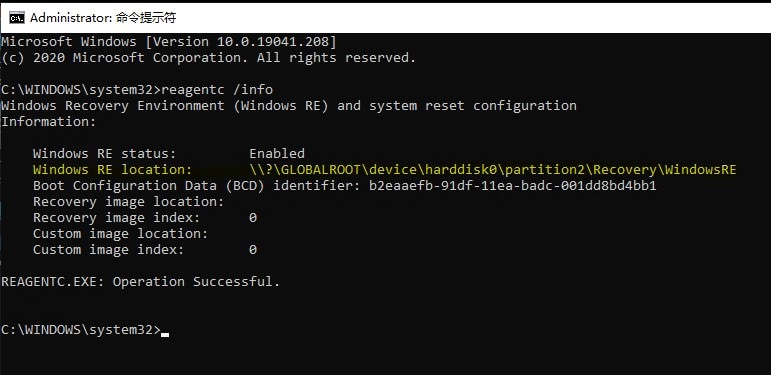
Step 2. Type this command: reagentc /info and press Enter. Check if WinRE status shows "Disabled." Type reagentc /enable and press Enter. Restart your computer to apply changes.
Method 3: Check Recovery Partition Status
Your recovery partition must be healthy. Sometimes it gets hidden or damaged. The partition might be accidentally deleted. Drive errors can corrupt it. You need to verify it exists.
Checking its status helps identify problems. This tells you where the recovery environment lives. You can see if it's working properly. The partition should show as healthy. If it's missing, you'll know immediately. This shows you how to find Windows recovery environment location on your drive.
Why Use This Method:
- Identifies if recovery partition exists on your drive
- Reveals partition health and configuration issues
- Helps determine if partition needs repair
Step 1. Right-click the Start button. Select "Disk Management" from the menu. Look for a partition labeled "Recovery Partition." It's usually 500MB to 1GB in size.
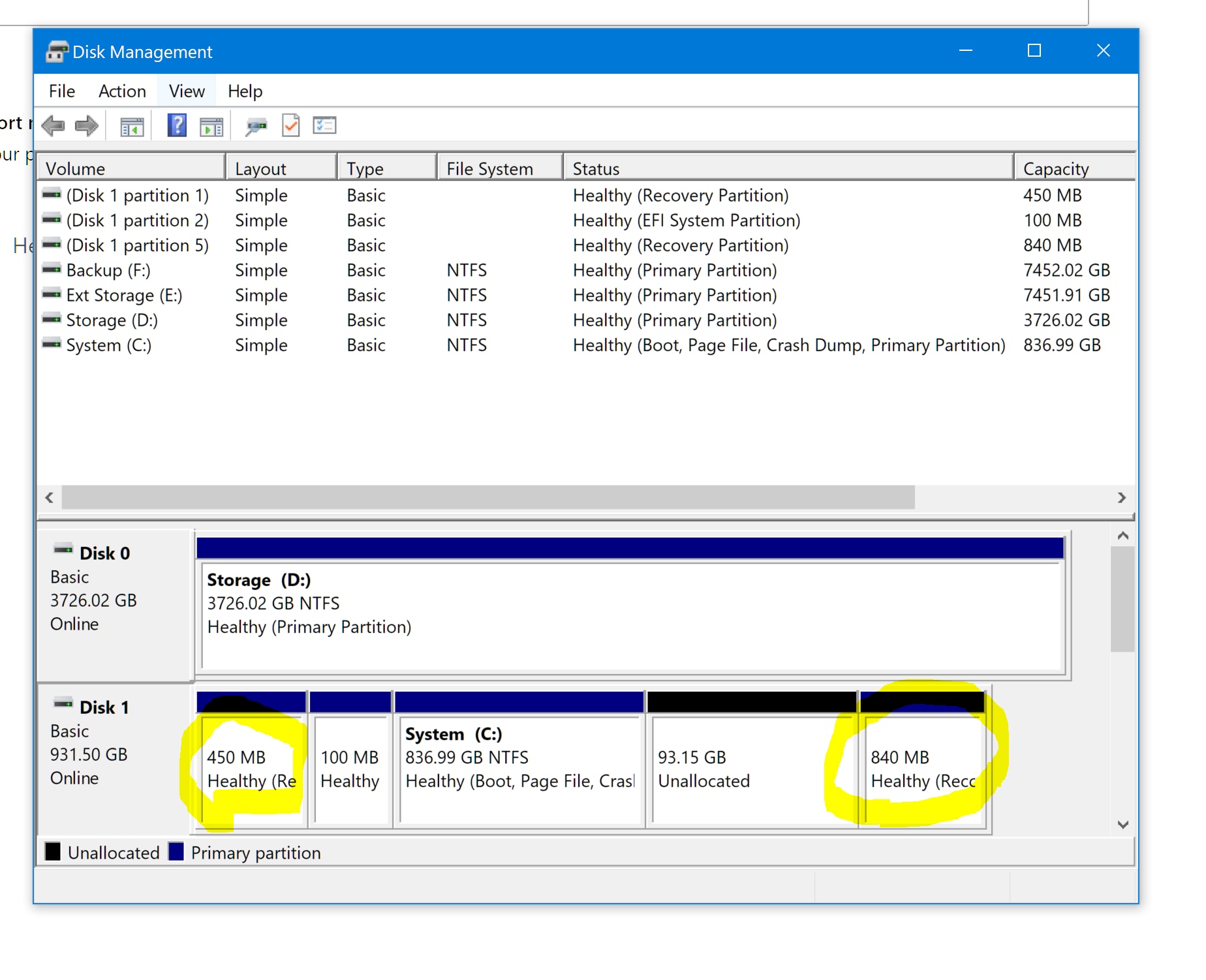
Step 2. Check if the partition says "Healthy." If it's missing or has errors, write down the drive letter. You might need to set up recovery again using a Windows installer.
Method 4: Run System File Checker (SFC) and DISM
Corrupted system files cause this error. Windows files get damaged over time. Bad shutdowns create problems. Malware can corrupt essential files. These damaged files break the recovery environment.
SFC scans for damaged files. DISM repairs Windows image. Together, they fix many system problems. These are built-in Windows tools. They work automatically to repair issues. This addresses Windows cannot find recovery environment due to file corruption.
Why Use This Method:
- Repairs corrupted Windows system files automatically
- Fixes recovery environment without reinstalling Windows
- Resolves hidden issues causing the error
Step 1. Open Command Prompt as administrator. Type sfc /scannow and press Enter. Wait for the scan to finish. This takes 15-30 minutes.
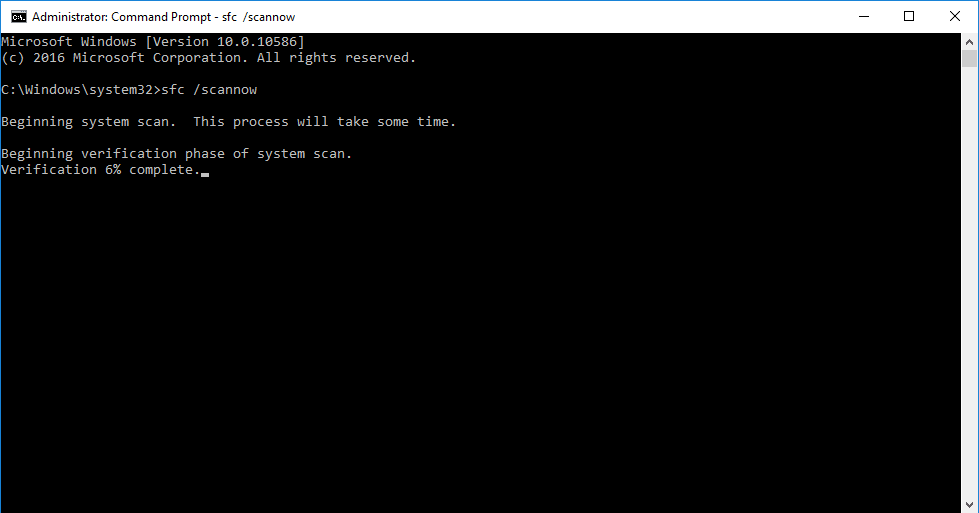
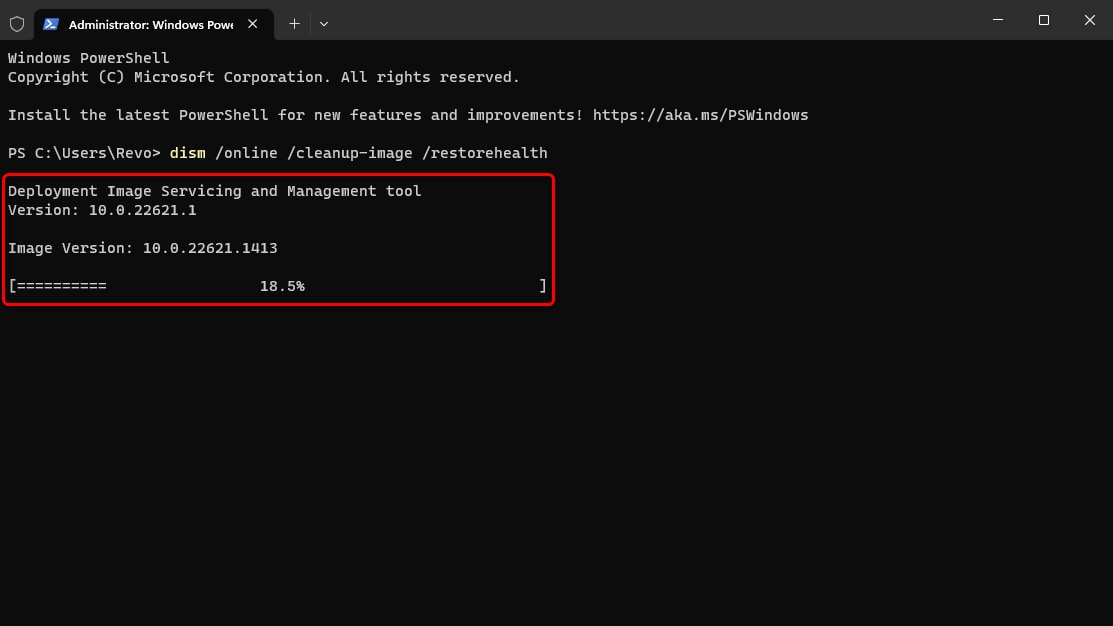
Step 2. After SFC completes, type this command: DISM /Online /Cleanup-Image /RestoreHealth and press Enter. Wait for DISM to finish. Restart your computer when done.
Method 5: Reinstall or Repair Windows (Last Resort)
If nothing works, reinstall Windows. This is the final option. It rebuilds the recovery environment. Use this only after trying other methods for cannot find the recovery environment in Windows 11/10.
Why Use This Method:
- Creates fresh recovery environment from scratch
- Fixes deep system corruption issues permanently
- Gives you option to keep personal files
Step 1. Create a Windows 11 installation USB drive. Download the Media Creation Tool from Microsoft's website. Run it and follow prompts to create bootable media.
Step 2. Insert the USB drive and restart your computer. Boot from the USB drive. Select "Repair your computer" instead of "Install now." Choose "Troubleshoot" then "Reset this PC." Select "Keep my files" to preserve your data.

Part 4: Pro Tips to Avoid Recovery Environment Errors
Prevention is better than cure. Follow these tips. They keep your recovery environment healthy. You'll avoid future problems with how to fix "could not find the recovery environment" error in Windows 11.
- Regular System Updates: Install Windows updates promptly. Updates fix bugs that damage recovery files. Check for updates weekly.
- Avoid Disk Cleanup on System Partitions: Don't use aggressive cleanup tools on system drives. They might delete recovery files accidentally.
- Create System Restore Points: Make restore points before major changes. They help recover from system modifications.
- Backup Your System Regularly: Use Windows Backup or third-party tools. Regular backups protect against data loss.
- Check Disk Health Monthly: Run disk error checking tools. Scan for bad sectors regularly. Fix hard drive issues quickly.
- Be Careful with Partition Tools: Don't resize or delete recovery partitions. This damages WinRE permanently.
- Keep Antivirus Updated: Malware can corrupt recovery files. Good antivirus protection prevents this damage.
Try Recoverit to Recover Lost Data
 Security Verified. Over 7,302,189 people have downloaded it.
Conclusion
The could not find the recovery environment in Windows 11 error is fixable. Most users solve it quickly. The methods in this guide work for different causes. Start with enabling WinRE through Command Prompt. Check your recovery partition status next. Run system file repairs if needed.
Remember to backup your data first. Use Recoverit to protect important files. Only reinstall Windows as a last resort. Follow our prevention tips. They keep your recovery environment working. You now know how to enable Windows recovery environment and maintain it. Your system will be ready for any future problems.
FAQs:
-
Q1: Can I fix this error without losing my files?
Yes, most methods preserve your files. Enabling WinRE through Command Prompt is completely safe. Checking recovery partition status doesn't delete data. Running SFC and DISM keeps all personal files. Only the complete Windows reinstall might affect files. Even then, you can choose "Keep my files" option. Always backup important data before attempting major repairs. This ensures you have copies if something goes wrong. -
Q2: How long does it take to fix the recovery environment error?
The time varies by method. Enabling WinRE takes just 2-3 minutes. Checking partition status takes about 5 minutes. SFC scan runs for 15-30 minutes. DISM repair takes 20-40 minutes depending on your system. Complete Windows reinstall takes 1-2 hours. Most users fix the problem within 30 minutes. The Command Prompt method works fastest for most cases. -
Q3: What if the recovery partition is missing completely?
You'll need to recreate it manually. This requires a Windows 11 installation USB. Boot from the installation media. Use Command Prompt in recovery mode. Run reagentc /setreimage /path [drive]:\Recovery\WindowsRE command. Replace [drive] with your Windows drive letter. You might need professional help for this. Alternatively, perform a repair install to recreate everything automatically.


