


 TL;DR:
To fix the Windows 11 system requirements error, you must either enable mandatory security features like TPM 2.0 and Secure Boot in your UEFI/BIOS settings or use software workarounds to bypass hardware verification on unsupported devices.
● Use the Windows PC Health Check Tool to verify if your system meets the strict minimum specifications, which include a 64-bit CPU, 4GB of RAM, and at least 64GB of free storage.
● For officially unsupported hardware, you can bypass CPU, TPM, and Secure Boot restrictions by creating a customized bootable USB with Rufus or by manually deleting the appraiserres.dll file from the $WINDOWS.~BT\Sources folder.
● Bypassing official Microsoft hardware requirements or modifying system firmware carries a risk of installation crashes, future stability issues, and data loss, making pre-upgrade file backups or recovery tools like Recoverit a necessary precaution.
Ask AI for a summary
 ChatGPT
 Perplexity
 Gemini
 Claude
 Grok
Grok
Right when you are preparing to upgrade your PC to Windows 11, an unexpected error can pop up and interrupt the entire process. The message reads, “this pc doesn't currently meet windows 11 system requirements,” confusing. You may feel frustrated, wondering why your hardware isn’t compatible with the latest system update.
Many users face this issue when their processors or TPM modules fail the minimum requirements checks. Fortunately, there are practical solutions to bypass or resolve compatibility issues efficiently and safely. This guide will walk you step by step through methods to fix your PC for Windows 11 upgrades.
Try Recoverit to Perform Data Recovery
 Security Verified. 3,591,664 people have downloaded it.
In this article

Part 1. Understanding the Windows 11 System Requirements Error
Before diving into the solutions, let us understand what this error is all about in the following section:
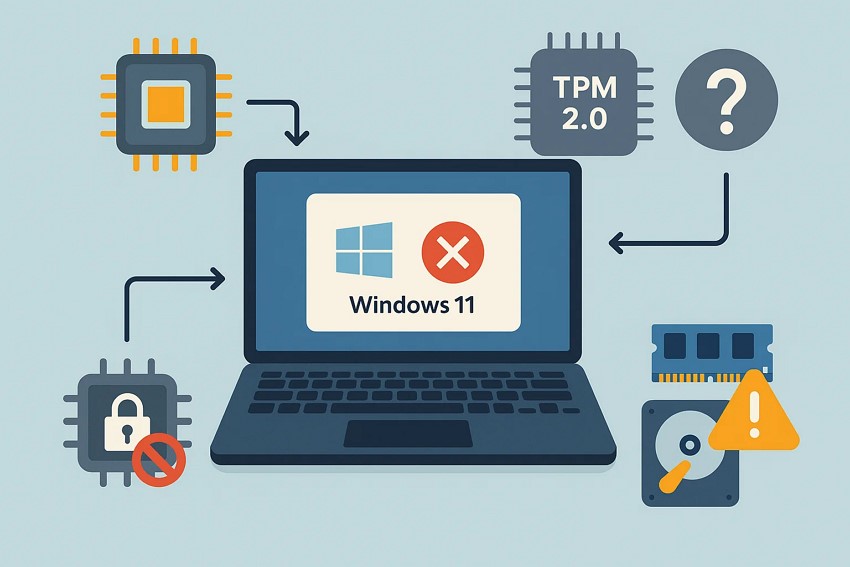
Why Windows 11 System Requirements Error Occurs
It is essential to identify the root causes behind the “this pc doesn't currently meet windows 11” error. Mentioned below are some of the common reasons due to which this error occurs in the first place:
- Unsupported Processor: Your PC’s CPU might not meet Windows 11’s minimum specifications, causing installation blockage every upgrade attempt. Most older processors lack features like Secure Boot or TPM 2.0 support, creating incompatibility.
- TPM 2.0 Missing or Disabled: Trusted Platform Module version 2.0 is mandatory for Windows 11, and its absence triggers this error. Users should check BIOS settings to ensure TPM 2.0 is enabled and functional.
- Secure Boot Disabled: Windows 11 requires Secure Boot for security compliance, and disabled firmware can prevent system recognition. Activating Secure Boot in BIOS resolves compatibility conflicts effectively and safely.
- Insufficient RAM or Storage: The system must meet minimum memory and storage requirements, and inadequate specifications halt upgrades. Ensuring at least 4GB RAM and 64GB storage prevents installation errors during setup.
More related: Should I Upgrade to Windows 11?
Common Scenarios During Windows 11 Upgrade or Installation
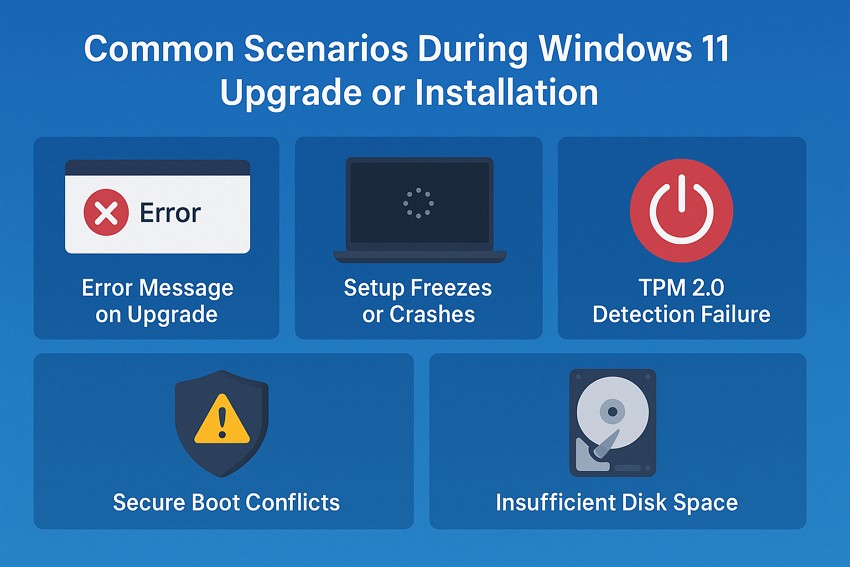
Before attempting any fixes for “this pc doesn't currently meet the requirements windows 11,” it helps to recognize typical situations users encounter during Windows 11 installation. Identifying these scenarios makes troubleshooting easier and guides you toward the most appropriate solution.
- Error Message on Upgrade: Users often see “This PC doesn’t currently meet Windows 11 system requirements” when starting the upgrade. This occurs mainly due to incompatible hardware or disabled security features in the BIOS.
- Setup Freezes or Crashes: During installation, the setup process may freeze or crash unexpectedly, preventing completion. This usually happens because of outdated drivers or insufficient system resources.
- TPM 2.0 Detection Failure: PCs sometimes fail to detect the TPM 2.0 module during setup, blocking the upgrade process. Enabling or updating TPM in BIOS typically resolves this issue effectively.
- Secure Boot Conflicts: Secure Boot being disabled or misconfigured can interrupt the installation, triggering repeated errors. Correct BIOS configuration restores compliance and allows Windows 11 installation.
- Insufficient Disk Space: Installation may fail if the device lacks the required storage space for system files. Freeing up at least 64GB usually resolves this scenario without complications.
Part 2. Check Minimum Windows 11 System Requirements
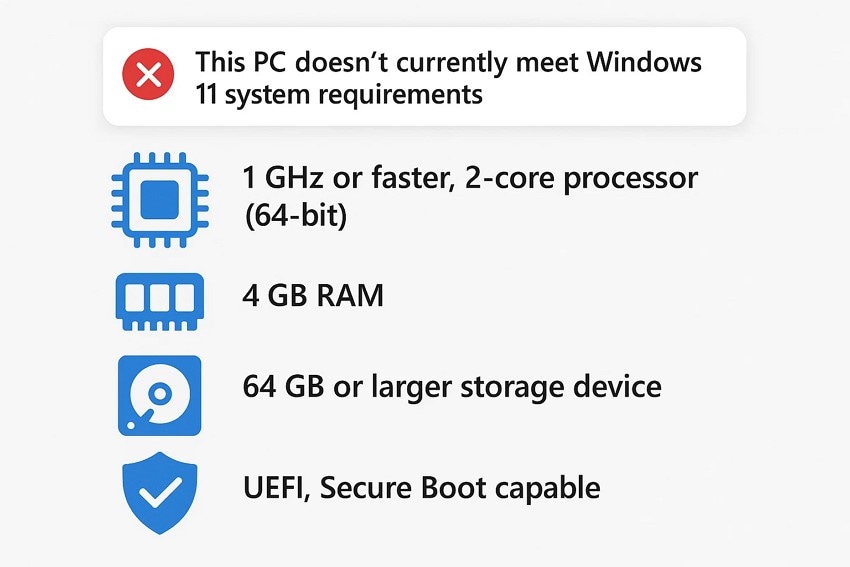
Confirming these specifications ensures a smooth installation process and prevents compatibility errors, such as this pc doesn't currently meet windows 11 system requirements during setup.
- Processor (CPU): Windows 11 requires a 64-bit processor with at least 1 GHz speed and two or more cores. Older or unsupported CPUs may prevent installation completely.
- RAM: Your system must have a minimum of 4 GB of RAM to run Windows 11 efficiently. Insufficient memory can cause installation failures and performance issues.
- Storage: At least 64 GB of free storage is necessary for Windows 11 installation and updates. Lack of adequate space blocks the upgrade process entirely.
- System Firmware: UEFI firmware with Secure Boot capability is mandatory to ensure system security compliance. PCs using legacy BIOS may face installation restrictions or errors.
Part 3. 3 Ways to Fix this Error: ‘This PC Doesn’t Currently Meet Windows 11 System Requirements’
Having learned about the reasons and scenarios for the error: ‘this pc doesn't currently meet windows 11 system requirements’, let us now learn the ways to fix this:
1. Ensure Required Features Are Enabled
To begin, make sure all necessary hardware and firmware features are enabled before attempting the Windows 11 upgrade. Verifying these requirements prevents compatibility errors and ensures a smooth installation process without unexpected interruptions.
Enable TPM 2.0 and Secure Boot
Enabling TPM 2.0 and Secure Boot is crucial for meeting Windows 11 security and compatibility standards. Without these features, the system may block installation, triggering the “this pc doesn't currently meet windows 11 system requirements” error. Activating them ensures the PC complies with Microsoft’s upgrade requirements smoothly and securely. Follow the steps mentioned next to learn how to enable these two features:
Enable TPM 2.0
- Restart your computer and boot the system to open the “Advanced Options” utility. Next, select the “UEFI Firmware Settings” option located within the screen.
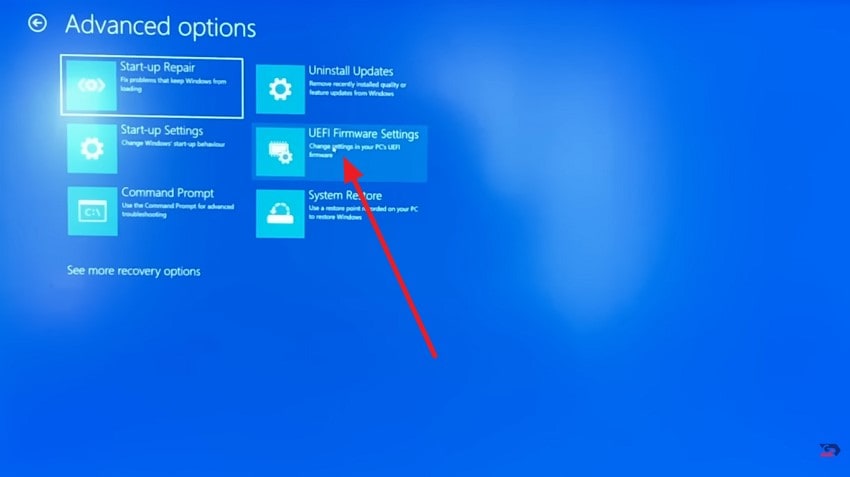
- In the following interface, locate the “Security” option and click on it.
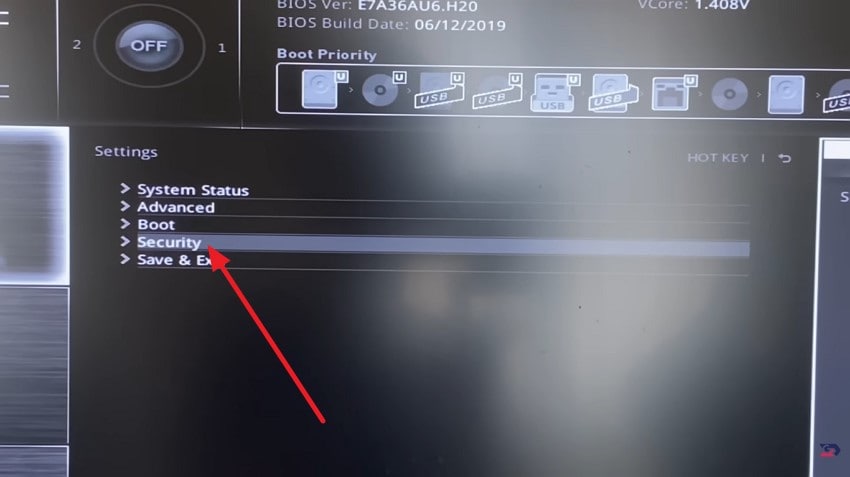
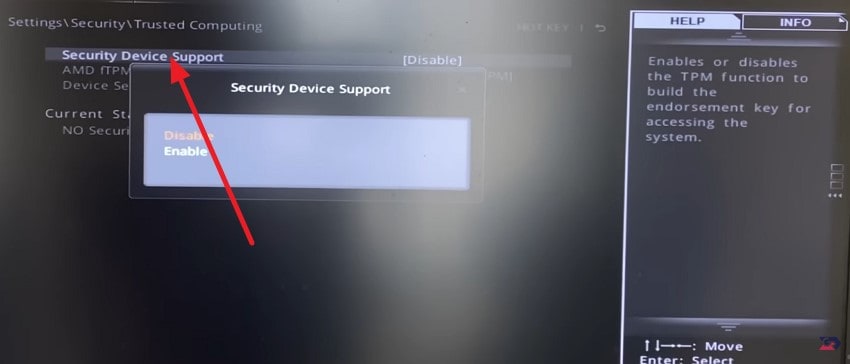
- Next, locate the “Security Device Support” option and enable it to turn on the TPM utility on your system.
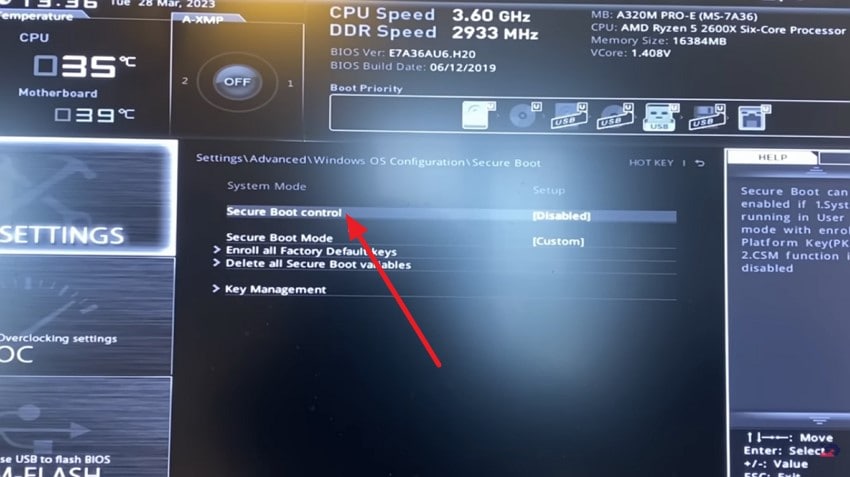
Enable Secure Boot
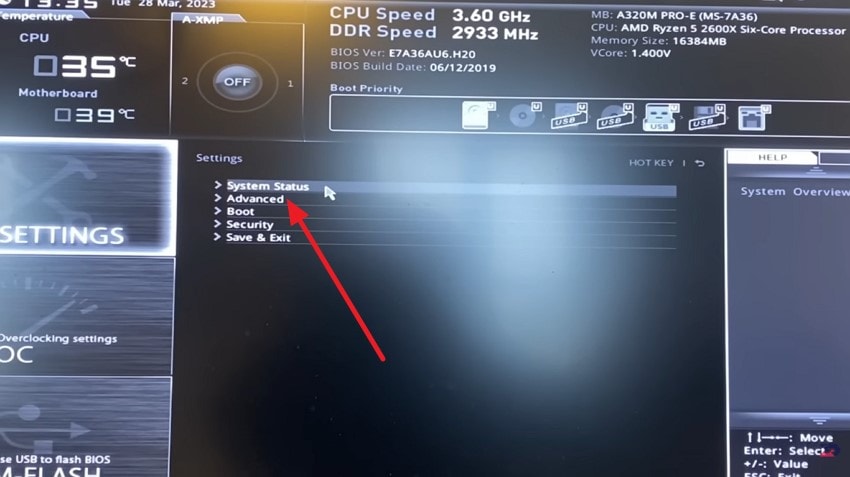
- After selecting the “UEFI Firmware Settings” from the Advanced Settings screen, click on the “Advanced” option.
- In the following interface, press the “Windows WHQL Support” option to proceed.
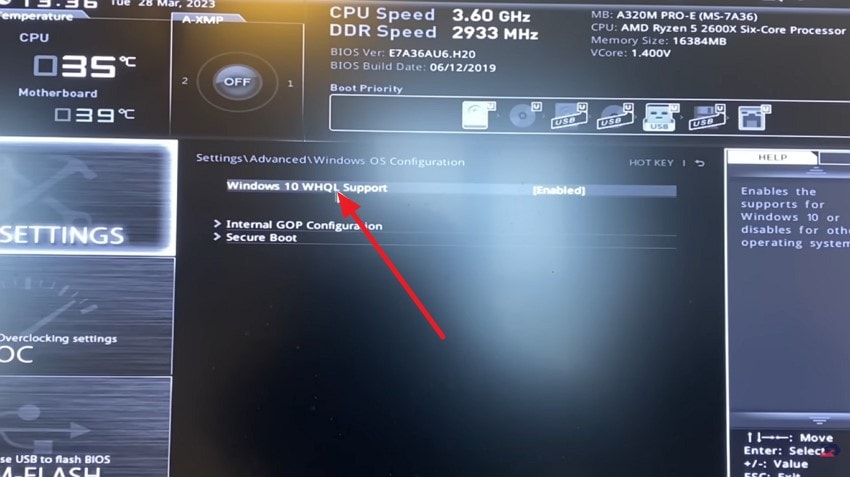
- Next, locate the “Security Boot Control” option and click on it to enable it successfully.
Check PC Health Check Tool
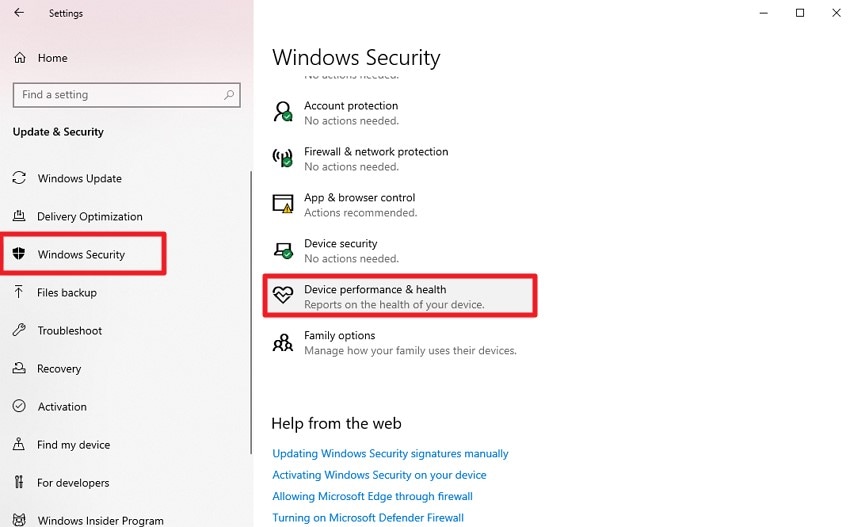
Using the PC health check tool is a quick way to verify whether your device meets Windows 11’s requirements. It provides a clear result explaining what passes and what fails, helping you identify exactly which components need to be improved. Here is how you can fix the this pc doesn't currently meet the requirements windows 11 error:
- Access the system’s settings and acquire the Windows Security utility. Next, locate the “Device Performance & Health” option and click on it.
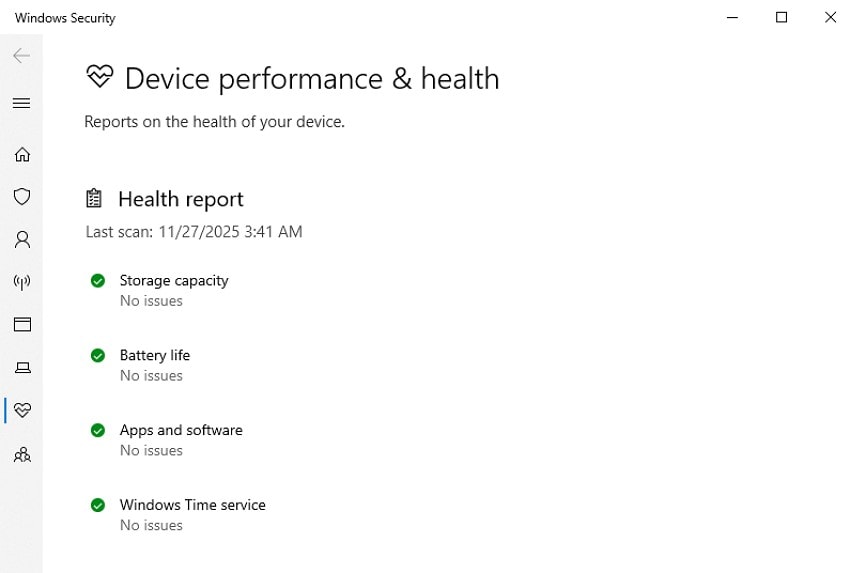
- In the following interface, review the Health Report and check your system health in detail.
2. Bypass System Requirements (For Unsupported Devices)
Bypassing system requirements is a practical method for installing Windows 11 on unsupported devices. This approach lets older PCs run Windows 11 smoothly, even when they fail Microsoft’s official compatibility standards. Mentioned below are some of the methods through which you can conveniently bypass the system requirements and resolve the “this pc doesn't currently meet windows 11 requirements” issue:
Using Rufus (USB Installer)
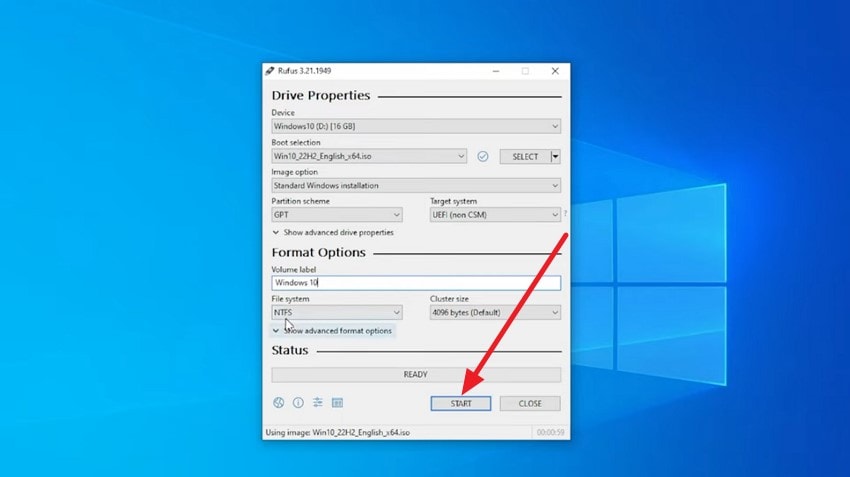
Using Rufus is one of the simplest ways to bypass Windows 11’s system requirements on unsupported devices. After selecting your Windows ISO, Rufus provides options to disable TPM, Secure Boot, and CPU checks. This method creates a customized bootable USB that removes compatibility blocks and ensures a smooth setup process. To learn how to use this fix, follow the instructions mentioned below:
Instructions. Download the Rufus tool from its official website and launch it on your system after successful installation. Next, connect a USB drive and configure the settings within Rufus’s interface. Once done, press the “Start” button located at the bottom to successfully create a bootable USB through which you can install Windows 11.
Modify Registry During Setup
Modifying the registry during setup is an advanced method used to resolve the "this pc doesn't currently meet windows 11 requirements issue. By deleting specific registry entries, you can disable TPM, Secure Boot, and CPU verification. This approach is effective but requires careful editing, as incorrect changes can disrupt the installation process. Follow the steps mentioned below to delete or modify the registry:
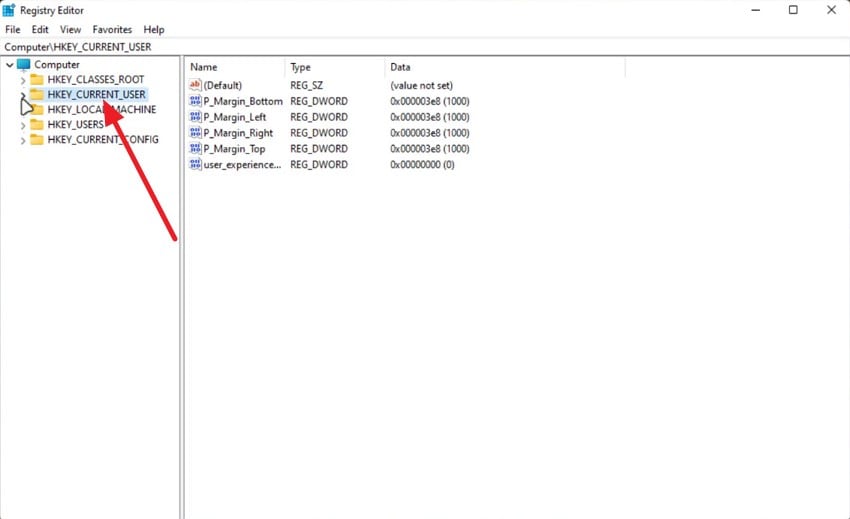
- Open the Registry Editor utility from your system and locate the “Current_User” option to expand it further.
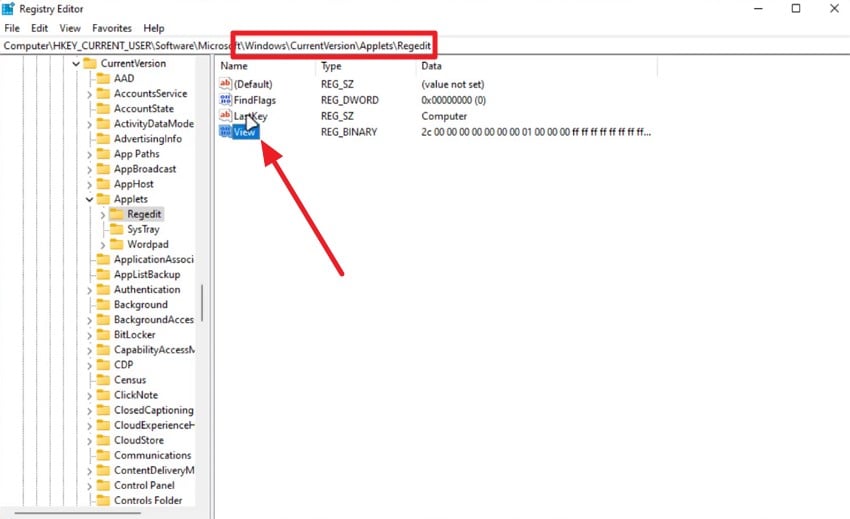
- Now, further expand the following path: “Windows\Currentversion\Applets\Regedit” and delete the Lastkey and View files by selecting and hitting the “Delete” key on the keyboard.
Remove appraiserres.dll
It is a commonly used workaround for bypassing Windows 11’s hardware checks during installation. This file is responsible for validating TPM, Secure Boot, CPU, and RAM requirements, so deleting or replacing it prevents the installer from blocking unsupported devices. Learn how to delete this file to bypass the hardware checks and resolve this pc doesn't currently meet the requirements windows 11:
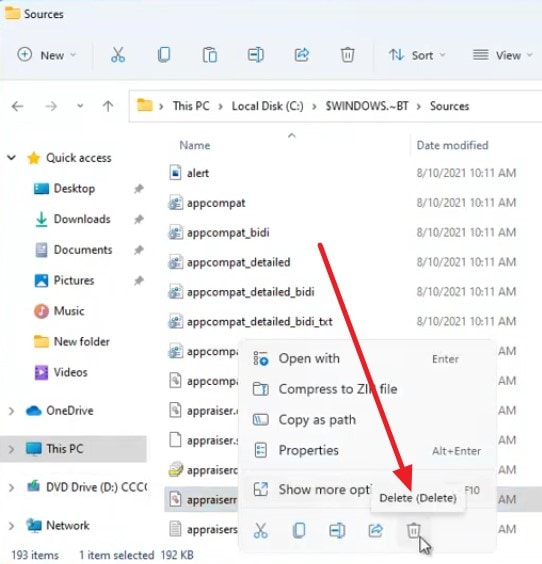
Instructions. Access the File Explorer and locate the “$WINDOWS.~BT” folder. Open it and select the “Sources” folder. From here, locate the “appraiserres.dll” file and right-click on it to open the list. Choose the “Delete” option to successfully remove the file from the repository.
3. Consider Hardware Upgrade
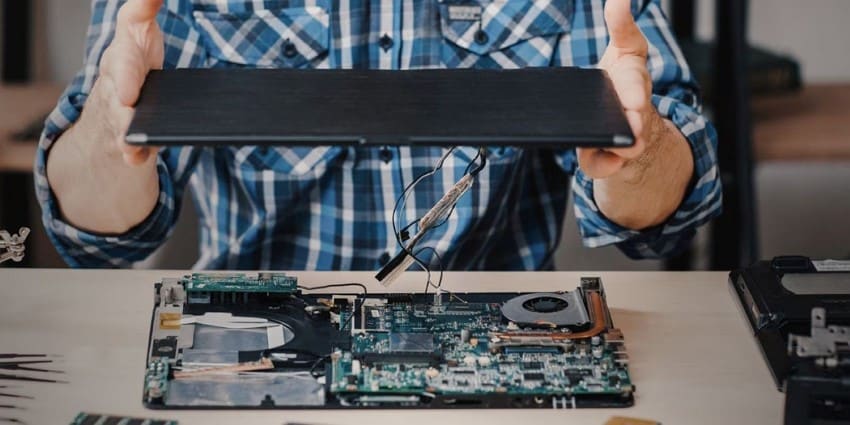
Considering a hardware upgrade is a reliable long-term solution when your PC consistently fails Windows 11’s system requirements. Upgrading components like the CPU, adding TPM 2.0 support, installing a compatible motherboard, or enabling Secure Boot through newer firmware can immediately resolve compatibility issues. This approach not only ensures smooth installation but also boosts overall performance, system stability, and future-proofing for upcoming Windows updates.
Pro Tip: Use Recoverit to Recover Lost Data Before Windows 11 Upgrade
Many users face issues after major system updates because critical files may be accidentally deleted, or this pc doesn't currently meet windows 11 requirements, leading to crashes. Recoverit is an advanced data recovery tool that can scan your storage devices deeply to locate all recoverable files, including documents, images, videos, and even game files. Its flexible scanning process allows you to pause and resume scans according to your convenience.
The intuitive interface includes a search bar to quickly locate specific files, saving time and effort. Additionally, Recoverit lets you preview files before restoring them, ensuring that only the necessary files are recovered. By taking this precaution before a Windows 11 upgrade, you safeguard your data, prevent potential loss, and ensure a smoother upgrade experience without interruptions.
Incredible Features Offered By Recoverit
- Wide Storage Compatibility: Recoverit supports file recovery from over 1 million storage devices, including external hard drives, USB drives, and SD cards.
- Simultaneous File Recovery: With its batch recovery feature, users can restore multiple files at the same time, saving both effort and time.
- Deep Scan with Advanced Recovery: The advanced recovery mode conducts a thorough, in-depth scan to quickly retrieve heavily damaged or lost files, ensuring even the most challenging data loss scenarios are addressed efficiently.
Steps for Recovering Lost Data Using Recoverit
After learning about this data recovery tool in detail, let us have a look at the step-by-step guide on how to use it:
1. Select the File Location
After launching Recoverit, navigate to the homepage and choose the location where your files are stored. Once the location is selected, the software will automatically start scanning to detect all recoverable files.

2. Pick Files to Recover
When the scan completes, browse through the recovered files and select the ones that were missing or corrupted. Click the “Recover” button at the bottom to initiate the restoration process.

3. Preview and Save Files
Before finalizing, preview the recovered files within Recoverit to ensure they are correct. Once confirmed, click “Recover” again to save the files safely to your device.

Conclusion
In conclusion, this article discussed various fixes for resolving the “this pc doesn't currently meet windows 11 system requirements” error. Additionally, we highlighted the importance of backing up or recovering important files before making significant changes. By following these solutions, users can successfully install Windows 11 on compatible or unsupported hardware. However, before attempting these fixes, it’s highly recommended to secure your important files using Recoverit.
FAQ
-
1. Why does my PC show “This PC Doesn’t Currently Meet Windows 11 System Requirements”?
This message appears when your hardware doesn’t fulfill Microsoft’s required specifications, such as TPM 2.0, Secure Boot, or CPU compatibility. Adjusting BIOS settings or updating components often resolves the error. -
2. Can I install Windows 11 on an unsupported device?
Yes, you can install Windows 11 on unsupported hardware by using tools like Rufus to bypass TPM, Secure Boot, and CPU checks. However, this method may affect long-term updates and stability. -
3. Will I lose data when modifying BIOS or bypassing requirements?
There is a small risk of data loss when modifying system settings or reinstalling Windows. Using Recoverit beforehand ensures your important files can be safely retrieved if something goes wrong. -
4. How can I recover files if the installation process corrupts my drive?
If your drive becomes unreadable or partitions disappear during installation, Recoverit can scan and restore lost data effectively. It works even on drives affected by setup errors or formatting attempts.


