
 TL;DR:
To resolve the Call of Duty "BIOS firmware update required" error, you must satisfy the game's strict anti-cheat security requirements by enabling TPM 2.0 and Secure Boot, or by updating your motherboard to the latest firmware.
● Restart the game as an Administrator and approve the UAC prompt to ensure the required anti-cheat security components (*CODBrokerInstaller.exe* and *enrollaik.exe*) are allowed to install.
● Enable **TPM 2.0** (labeled as PTT on Intel systems or fTPM on AMD) and **Secure Boot** in your BIOS, which strictly requires your hardware boot mode to be set to UEFI with a GPT disk partition rather than outdated Legacy/CSM modes.
● If your security settings are already active and Windows is fully updated but the error persists, manually download and flash the latest BIOS firmware from your motherboard manufacturer using a USB drive to fix TPM version misreporting (such as Intel INTC 302.12).
Ask AI for a summary
 ChatGPT
 Perplexity
 Gemini
 Claude
 Grok
Grok
Starting a major gaming session only to face system errors ruins your night. This sudden block prevents players from jumping into their favorite multiplayer matches. Many modern computer setups struggle with the security settings required by recent game updates.
Players often feel lost when looking at technical motherboard menus and configurations. Nonetheless, individuals can restore access by adjusting their desktop startup parameters. Hence, this guide explains how to fix the Call of Duty BIOS firmware update required error on PC.
Try Recoverit to Perform Data Recovery
 Security Verified. 3,591,664 people have downloaded it.
In this article
Part 1. Why Does Call of Duty Show the BIOS Firmware Update Required Error?
COD's hardware security is very tight prior to granting access. Anyways, the given 5 reasons explain why this specific error commonly appears:
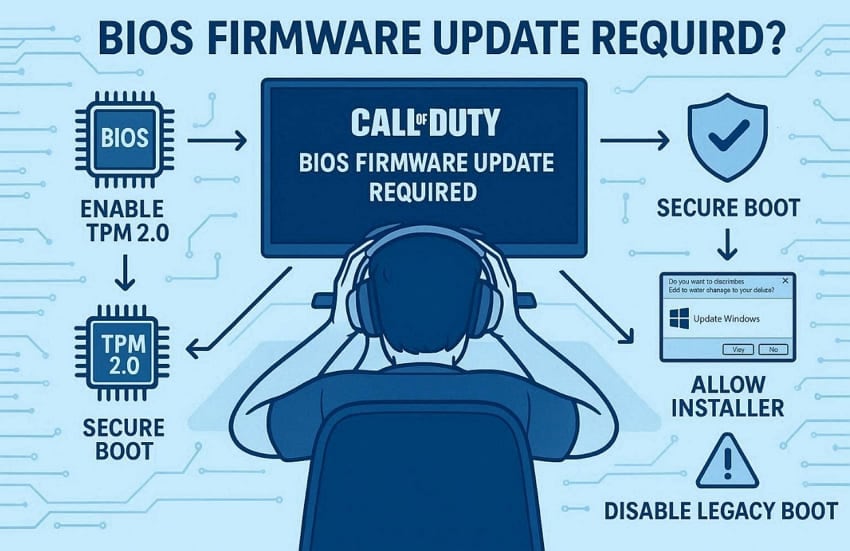
Disabled TPM: Many motherboards ship with TPM 2.0 disabled inside the default BIOS settings. Thus, your game cannot verify your system's security without it.
Secure Boot: It often stays disabled on many older or custom-built systems. This inactive setting may block the game's required anti-cheat verification process.
Outdated Windows: Many times, older builds often fail to read TPM data each time. Such a failure triggers the confusing “TCG Event Log Failed” message.
Blocked Installer: Some players decline this required UAC security prompt each time. This refusal blocks CODBrokerInstaller.exe and enrollaik.exe from installing on launch.
Legacy Boot: Many systems still boot using outdated Legacy or CSM boot modes. Legacy boot mode prevents Secure Boot from activating inside your systems.
In addition to that, Activision introduced TPM 2.0 and Secure Boot requirements for certain Call of Duty titles and modes in 2025.
Part 2. Fix Call of Duty BIOS Firmware Update Required Error
Various fixes are available to fix the "BIOS firmware update required" error in Call of Duty. Users can apply the given 6 methods to restore regular gaming performance:
Fix 1. Restart and Relaunch, and Approve the UAC Prompt
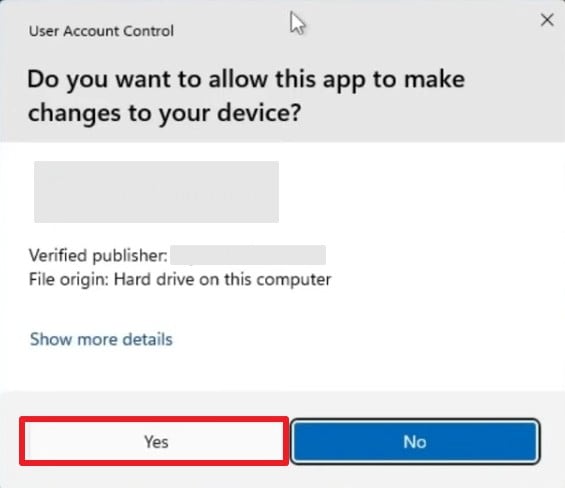
The first and effortless solution to address this issue is restarting your game. This will show the necessary UAC security prompt again immediately. It basically requests permission for CODBrokerInstaller.exe and enrollaik.exe to install. Therefore, selecting “Yes” on this prompt lets the anti-cheat system verify your entire PC. Hence, review the following quick guide to handle this verification step:
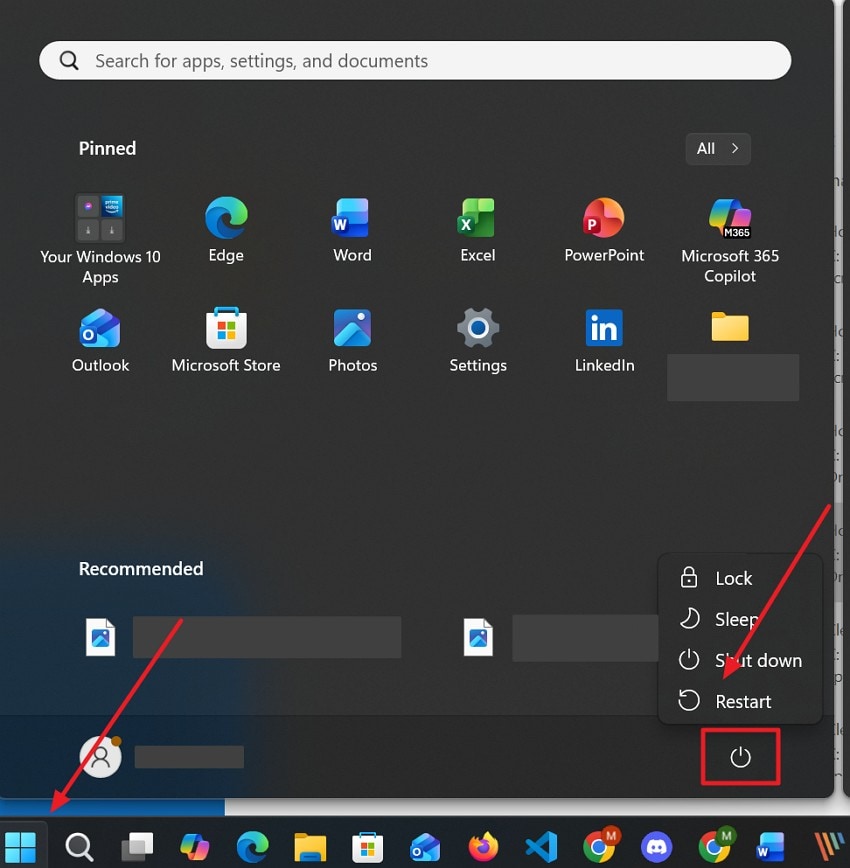
Step 1. To initiate, close your COD game and press the “Start” menu. When more options pop up, you need to choose the “Restart” option from the “Power” icon.
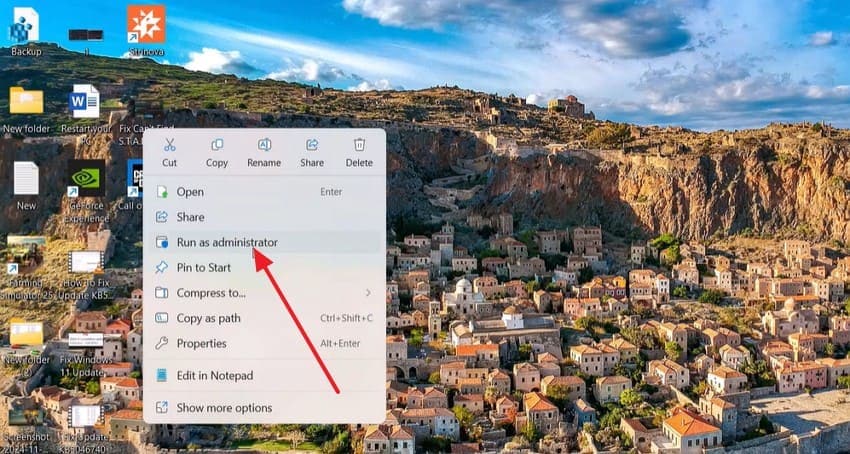
Step 2. Upon rebooting your device, right-click on your game’s icon and opt for “Run as Administrator.”
Step 3. As you see the “UAC Prompt” box, click the “Yes” button.
Fix 2. Update Your Windows Version
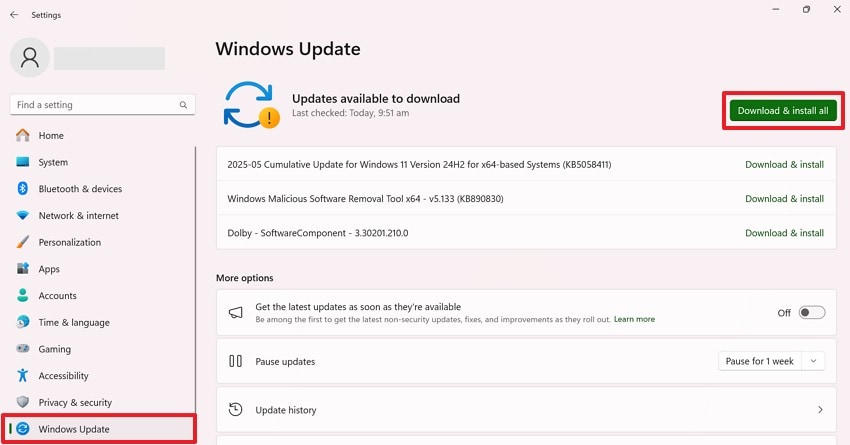
It might be possible that older builds misreport your system's TPM and Secure Boot status. This reporting failure triggers the confusing “TCG Event Log Failed” message. That’s why users should install the latest supported Windows updates to improve TPM and Secure Boot detection issues.
Alongside that, Activision Support even said that Windows 11 PCs likely already have TPM 2.0 and Secure Boot enabled. Adhere to these exact instructions below to update your platform software:
Instructions. Gamers need to press the “Windows + I” keys together and access the “Windows Update” tab. After heading to it, press “Download & Install All” to upgrade your system.
Fix 3. Enable TPM 2.0
The Trusted Platform Module is a critical security layer required by modern games. Your system will fail verification checks if this setting remains disabled inside the BIOS. Intel configurations label this specific security parameter as platform trust technology (PTT).
Meanwhile, Advanced Micro Devices platforms call this feature a firmware trusted platform module. Take guidance from these clear sequential steps below to fix the Call of Duty BIOS firmware update error on PC:
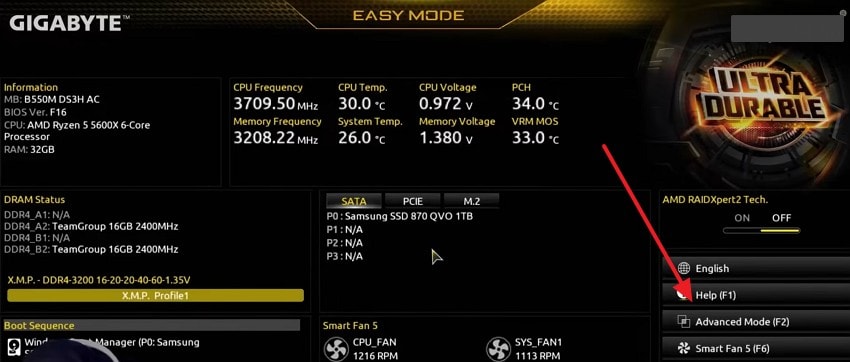
Step 1. Players need to reboot their computer and repeatedly press the “Delete” or “F2” key. Once inside the motherboard firmware settings, switch to “Advanced Mode” to reveal options.
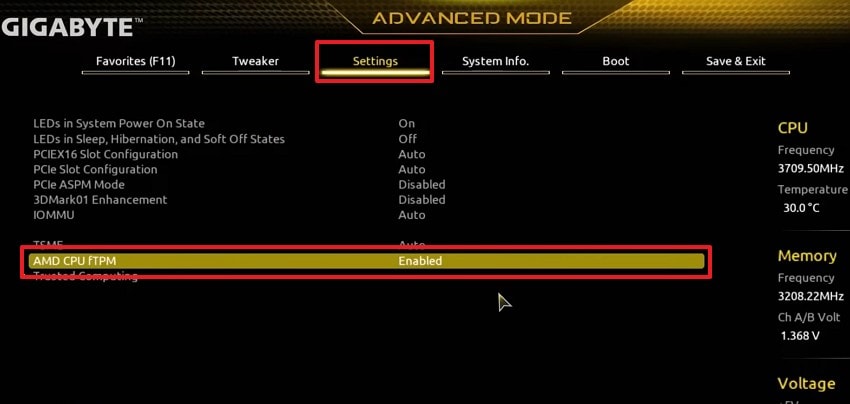
Step 2. In the upcoming display, access the “Settings” tab and locate the “TPM” option. Enable the feature, then save your changes prior to exiting the BIOS space.
Fix 4. Enable Secure Boot
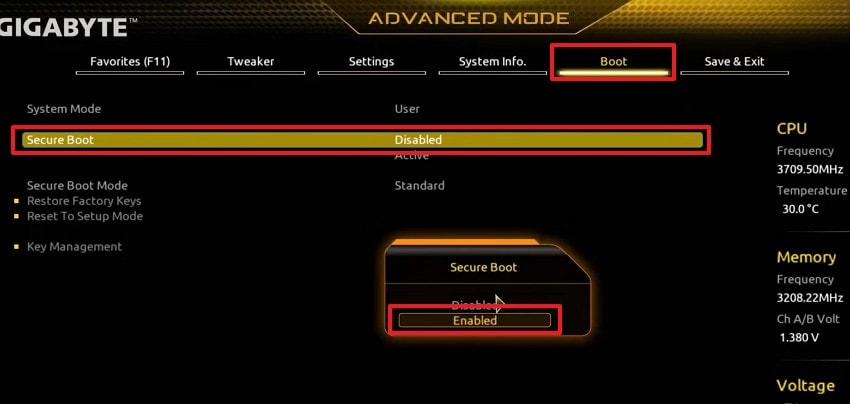
This feature actively protects your computer from someone’s background software modifications. The underlying security system requires your hardware boot mode to be set directly to UEFI. Older configurations using traditional legacy or compatibility support modules must be disabled.
You also need to convert your primary disk partition style to the GUID partition table. Users have to explore the given steps to fix the Warzone BIOS firmware update required error on PC:
Instructions. Upon accessing the “Advanced Mode” section in BIOS, go to the “Boot” tab. After that, choose the “Secure Boot” feature and set it to “Enabled.”
Fix 5. Update Your Motherboard BIOS Firmware
In some situations, TPM and Secure Boot stay enabled, yet the error persists. Usually, it may indicate an outdated motherboard BIOS firmware version instead. Individuals should check their TPM manufacturer version number to confirm this exact problem. As an example, Intel versions like INTC 302.12 or 303.12 show outdated firmware. Review the given quick steps below to utilize this solution:
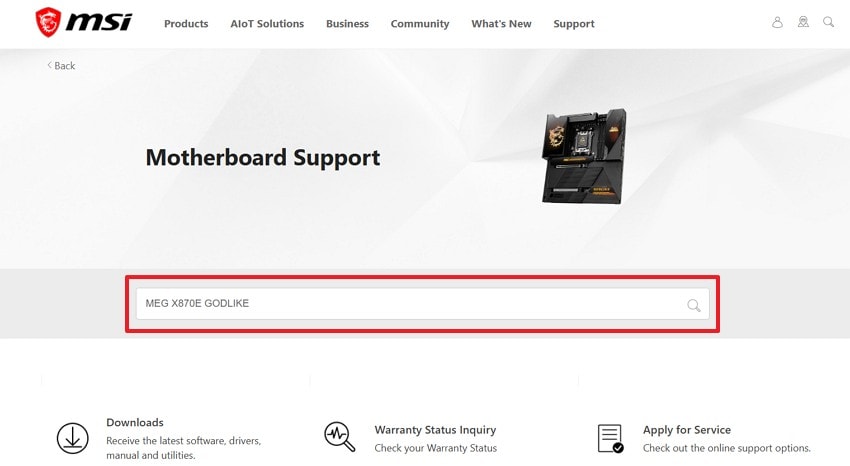
Step 1. Users first need to access the latest BIOS from their official motherboard website. When you access sites like “MSI,” enter your “Motherboard Model” and search for it.
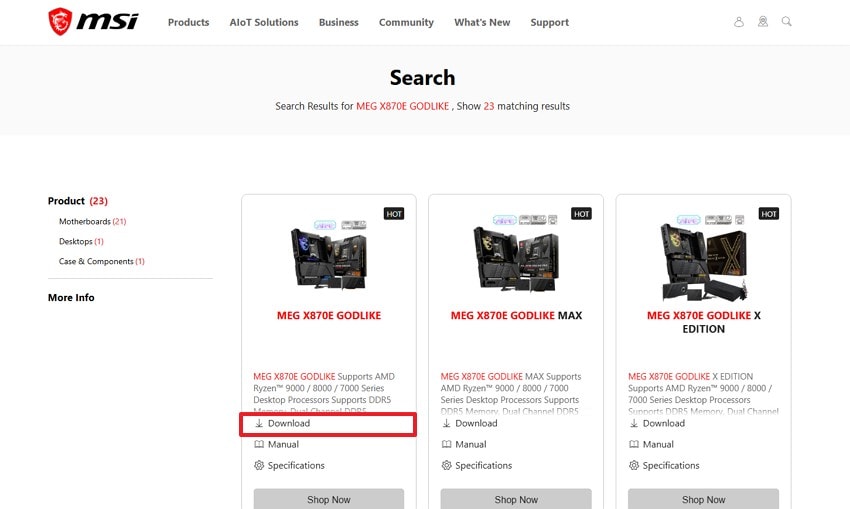
Step 2. Moving forward, click the “Download" option that appears in your motherboard model.
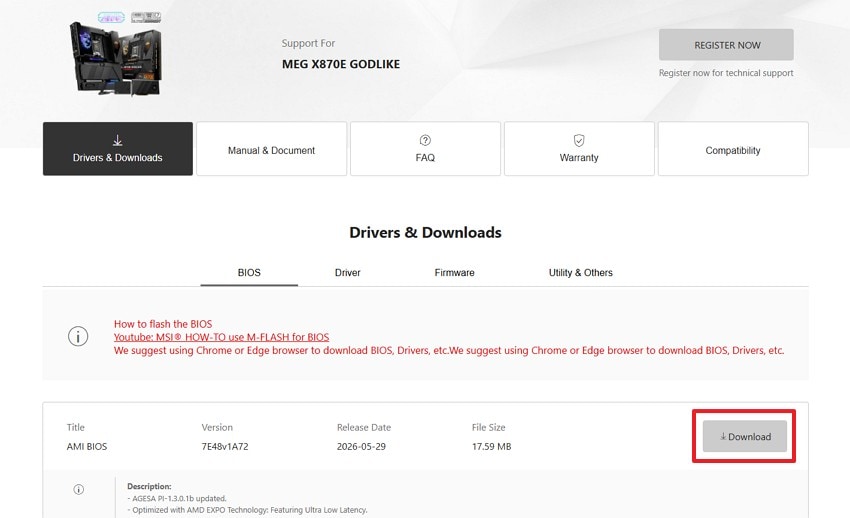
Step 3. Upon accessing the “BIOS” tab, press “Download” next to the latest BIOS version. You now have to copy the installed “BIOS” file into a formatted “USB” drive.
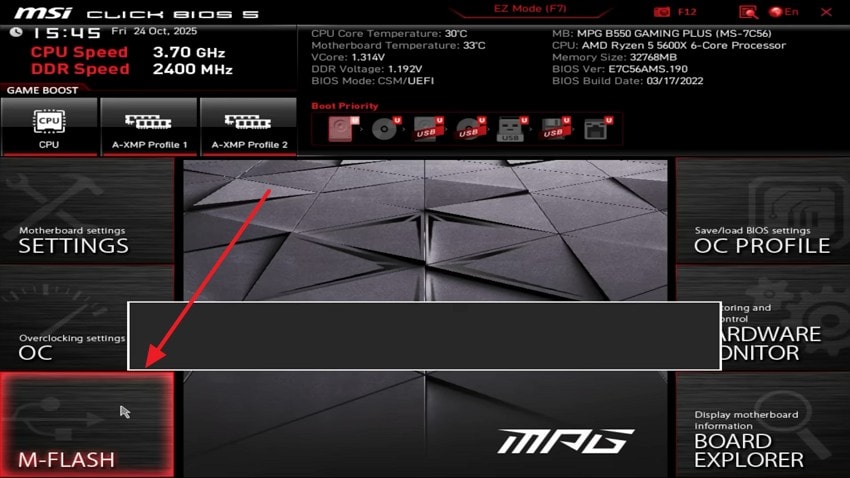
Step 4. Afterward, access the “BIOS” upon rebooting your device and pressing the “Delete” or “F2” key. When reached, you need to choose the “M-Flash” option.
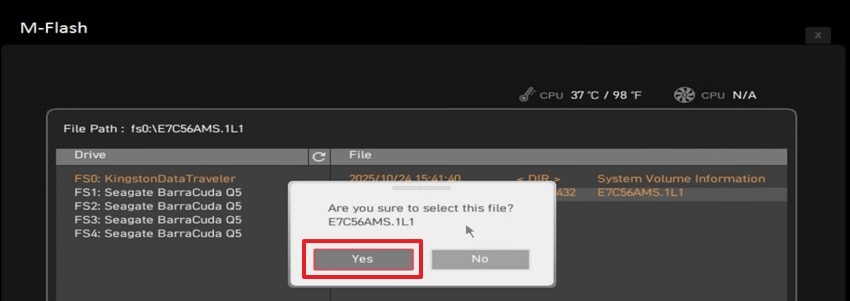
Step 5. Going ahead, go to your connected “USB” drive to select the “BIOS” file and press “Yes.”
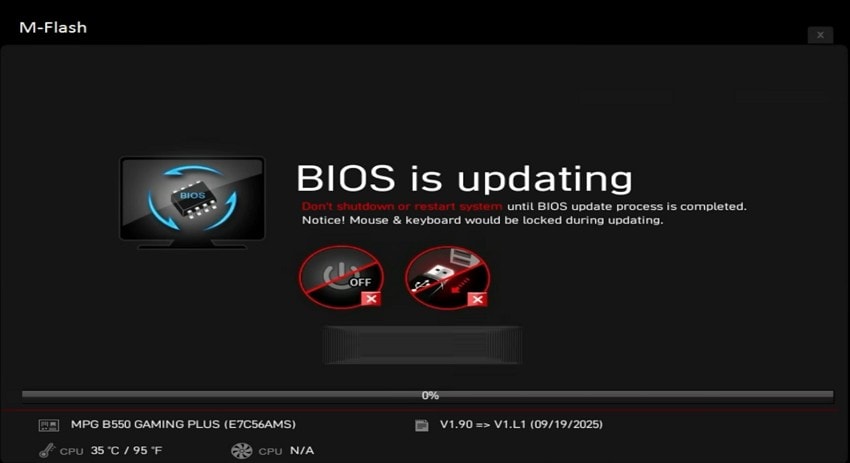
Step 6. Following that, adhere to the visual prompt, and the update will get started.
Fix 6. Reset / Load BIOS Defaults
Loading factory defaults restores your entire motherboard to original settings. This direct process removes accidental setting adjustments that block regular gaming performance. Nonetheless, it may also turn off your secure boot parameters again. You must re-verify your critical security options immediately after completing this factory reset. So, follow the steps and fix the Call of Duty BIOS firmware update required on Windows 11:
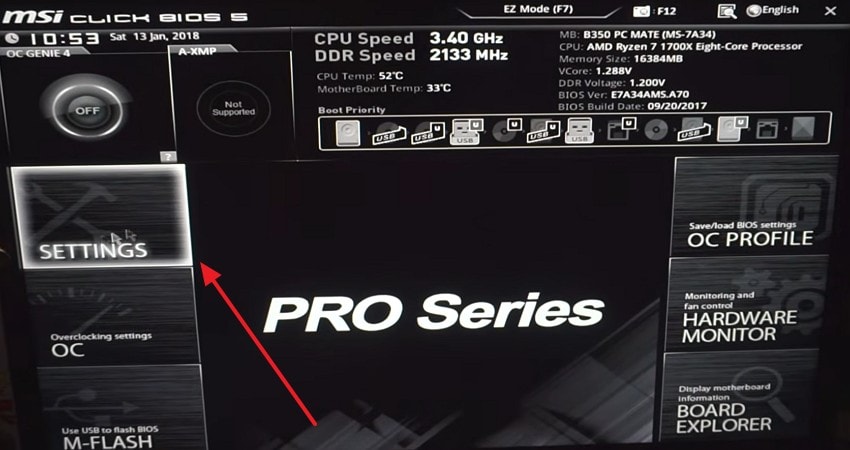
Step 1. From the “BIOS” settings, players need to choose the “Settings” option.
Step 2. Upon seeing a new list of options, opt for “Save & Exit.”
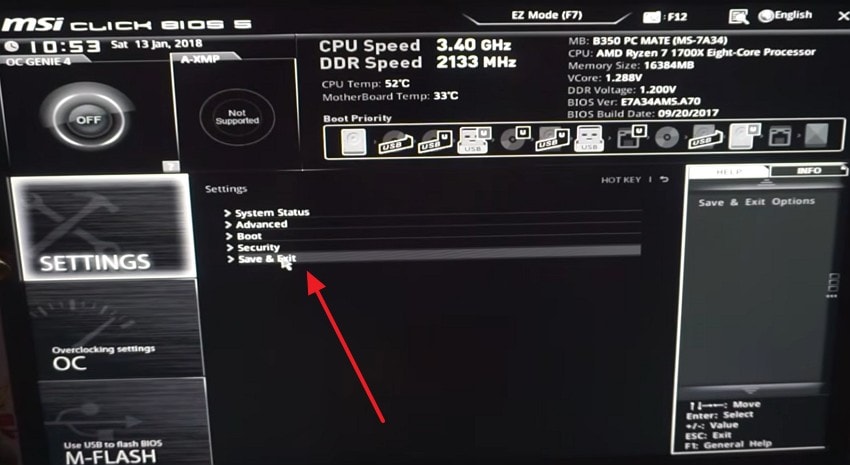
Step 3. Go ahead and scroll down to select the “Restore Defaults” option.
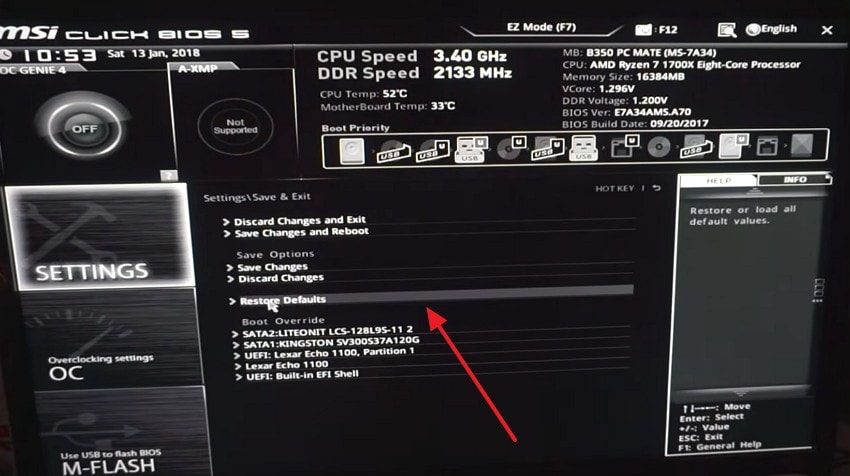
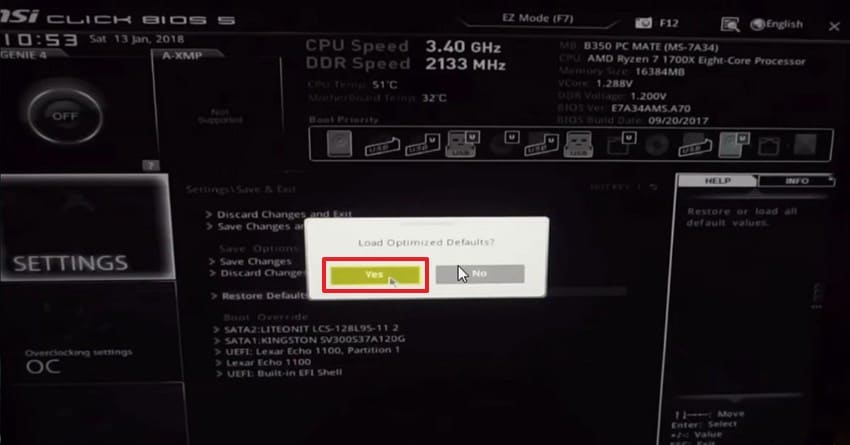
Step 4. As gamers see a new “Load Optimized Default” prompt, press “Yes.”
Pro Tip. Recover Your Lost Data After BIOS Update with Recoverit
While trying to fix the Call of Duty BIOS firmware update error on PC, files may vanish unexpectedly. In some cases, BIOS adjustments and resets can disrupt your saved game data. CrashPlan also reports that around 140,000 hard drives fail across the United States every week. Thus, here's why data loss can happen during these specific fixes:
- Factory Reset: The BIOS default reset may clear game launcher configuration information.
- Sudden Restarts: Forced reboots during updates may interrupt active game file writing processes.
- Driver Conflicts: Updating chipset or TPM drivers can also disrupt linked game save locations.
- Partition Changes: Upon converting your disk from MBR to GPT, you may also risk existing stored data.
To address such data loss, tools like Recoverit can become useful for gamers. It's a professional game data recovery software built for various loss scenarios. This AI-powered data recovery software can help gamers retrieve save files and game recordings lost during system disruptions. Along with that, it recovers data following sudden crashes that happen during game startup.
As an advanced program, it has the capability to recover deleted data with a high recovery rate of 99.5%. Moreover, the smart system thoroughly checks your local computer storage. Most automated device scans are completed quickly within an average of 5 minutes. In addition to this, this software supports recovery across PCs, consoles, and external storage devices alike.
Key Features
- AI Scanning: Uses intelligent scanning to locate deleted or inaccessible files after BIOS changes or system disruptions.
- Video Restoration: Repairs corrupted gameplay recordings damaged by crashes, interruptions, or unexpected system failures.
- Safe Recovery Engine: Scans storage devices in read-only mode to minimize the risk of further data corruption.
Guide to Recover Your Lost Data After BIOS Update with Recoverit
Restoring your lost data requires using a reliable recovery strategy. This data recovery tool effortlessly retrieves deep partition documents within a few minutes. Hence, adhere to these exact structural steps below to scan your device:
Step 1. Choose Storage Containing Lost Data
From the “Hard Drives and Locations” tab, opt for the drive or folder that stored your lost files.

Step 2. Scan the Drive for Missing Files
Next, allow the tool to perform a scan once the target location is selected. During this process, it searches for deleted or inaccessible game files and displays all recoverable data.

Step 3. Retrieved the Recovered Data
Gamers can then scroll through detected files and preview the available results. After that, select the required data to press “Recover” and save everything to a secure location.

Part 3. What to Do If the COD Error Persists
Players should implement advanced methods if standard motherboard adjustments fail. Therefore, the following resources help you fix the Warzone BIOS firmware update required error on PC:
1. Contact Activision Support
Activision Support can help when standard or above-explored methods fail. Their support team investigates account issues, launcher conflicts, and verification problems. They can also confirm whether recent updates caused widespread errors. Support representatives may suggest advanced fixes based on your configuration details. Thus, adhere to the guide given below to fix the Call of Duty BIOS firmware update required on Windows 11:
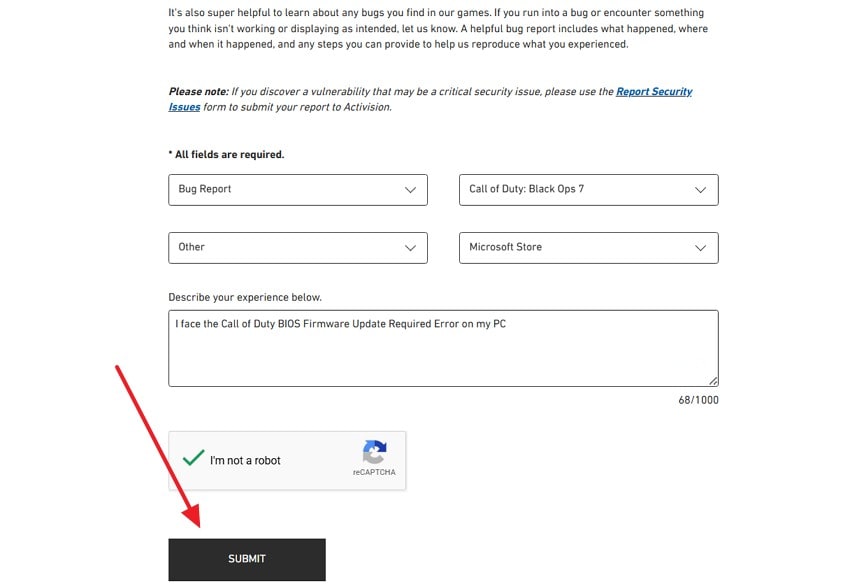
Step 1. Upon navigating to the “Feedback and Bug Report” page of “Activision Support, ” press “Bug a Report.”

Step 2. Moving ahead, enter the details, including your “BIOS Firmware Update” error, and click “Submit.”
2. Contact Your Motherboard Manufacturer
Your motherboard manufacturer can also provide firmware guidance for BIOS issues. Players should consult their specific motherboard creator for direct technical support parameters. Look up your exact model number on their official corporate communication portal.
Their technical team understands specific hardware requirements and update procedures. They may identify compatibility problems affecting TPM, Secure Boot, or firmware. Additionally, support agents can recommend settings matching your motherboard model.
3. Check for Known Game Issues
Many times, a game update contains a bad script that ruins your match. Severe anti-cheat bugs can cause false hardware errors on many modern desktops. Thus, gamers are required to read the official development pages to get recent patch history notes.
Look for open reports regarding trusted platform modules or secure startup configurations. Online community forums like Reddit also track widespread platform issues for active gamers.
Conclusion
To summarize, resolving motherboard configuration conflicts helps restore smooth gaming. Players have now learned how to fix the Call of Duty BIOS firmware update required error on PC. These precise methods protect your system from severe background communication faults. However, complex firmware modifications can accidentally corrupt or wipe out your local documents. To overcome this need, you can use tools like Recoverit to retrieve your game files and other local data.
FAQ
-
Q1. Can antivirus software trigger the BIOS firmware update required error?
Some antivirus programs may interfere with required game verification components. This interference may prevent anti-cheat services from validating hardware. Therefore, players can temporarily disable them to determine whether conflicts cause issues. -
Q2. Can external hardware affect Call of Duty verification checks?
Maybe a few external devices can create conflicts with security verification services. It’s advisable to disconnect unnecessary hardware to identify devices causing compatibility problems. Reconnect devices individually afterward to locate the exact problematic hardware. -
Q3. How do I know if my BIOS update succeeded?
Successful updates usually display the new firmware version after rebooting. You can also verify version information directly inside your motherboard BIOS. Furthermore, matching version numbers confirms the update completed without installation errors. -
Q4. What should I do if game saves disappear on a Windows PC?
Missing saves sometimes occur after crashes, resets, or storage corruption. Players must stop using affected drives immediately to avoid overwriting recoverable information. Utilize software like Recoverit to scan storage devices and restore lost save files.


