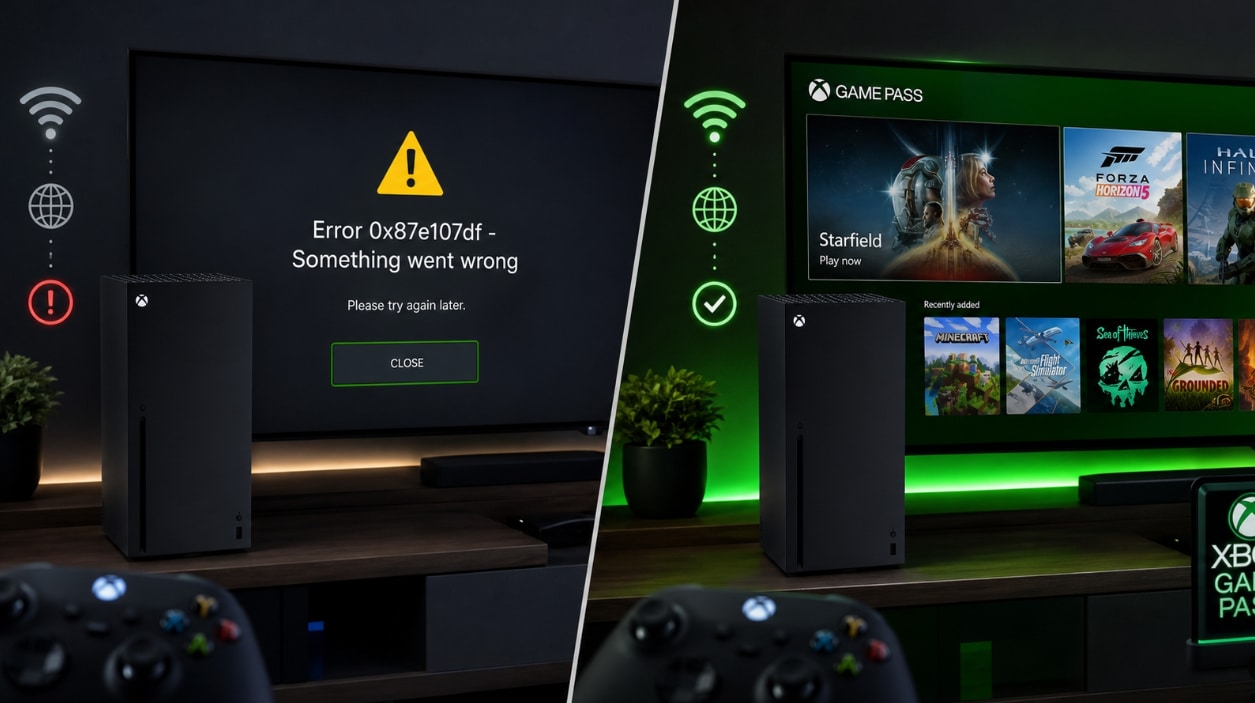

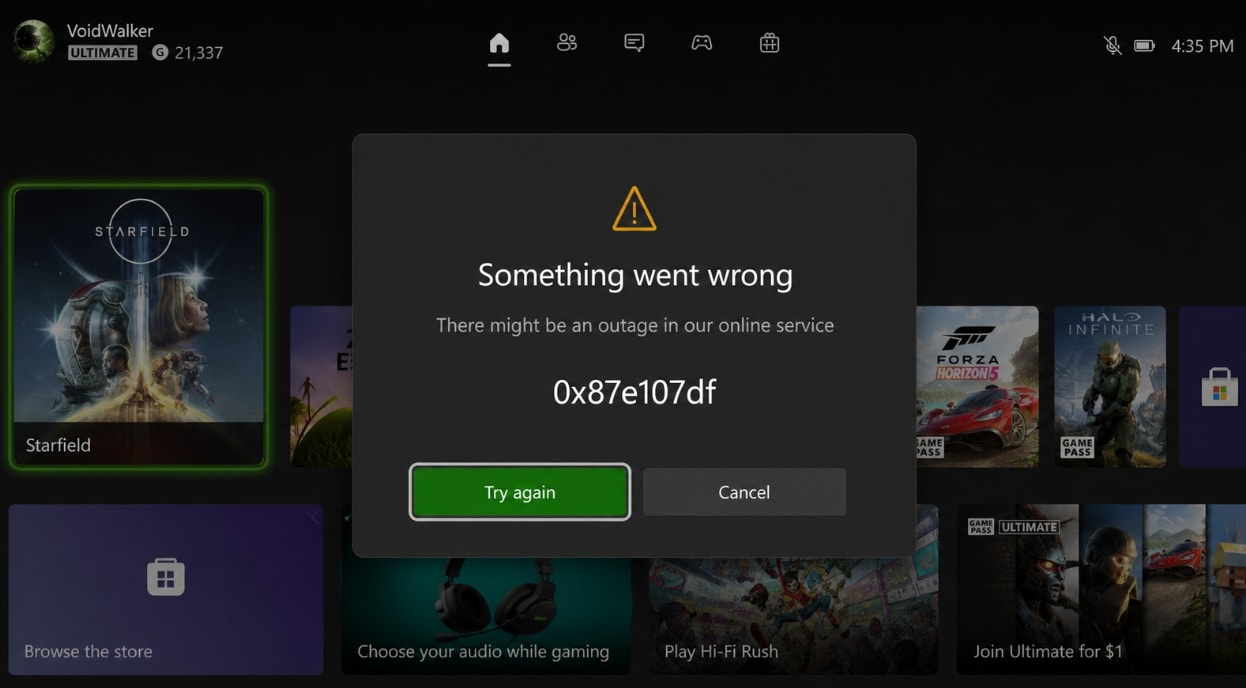
"There might be an outage in our online service" with error code 0x87e107df usually means Xbox cannot verify a digital game, Game Pass title, account session, or related online service at that moment.
If you see 0x87e107df when launching a digital game on Xbox Series X/S, Xbox One, or the Xbox app on Windows, do not start with a reset. This error often points to Xbox service status, digital license validation, account sign-in, subscription access, or network connectivity. If many players see it at the same time, local troubleshooting will not fix the server-side problem immediately.
This guide explains how to fix Xbox Error Code 0x87e107df There Might Be An Outage In Our Online Service, when you should wait for Xbox services to recover, and what to do if local game files, captures, screenshots, or PC data go missing during troubleshooting.
Data safety note: Xbox account licenses and cloud saves are tied to Microsoft/Xbox services, not local recovery software. Wondershare Recoverit can help recover lost local files from readable Windows drives, external game drives, USB drives, or SD cards, but it cannot fix Xbox outages, repair Xbox accounts, validate digital licenses, recover cloud-only saves, bypass passwords, or decrypt BitLocker-protected data without the legitimate key.
Try Recoverit to Perform Data Recovery
 Security Verified. 3,591,664 people have downloaded it.
In this article
Part 1. What Does Xbox Error Code 0x87e107df Mean?
Xbox error code 0x87e107df usually appears when Xbox cannot confirm access to a digital game, subscription title, Xbox profile, or online service. The message may say "Something went wrong," "There might be an outage in our online service," or that Xbox cannot verify the license for the content.
You may see 0x87e107df when:
- Launching a digital game on Xbox Series X/S or Xbox One.
- Opening a Game Pass title.
- Starting an online-only game.
- Accessing your digital game library.
- Signing in to your Xbox profile.
- Using the Xbox app on Windows while Xbox services are unstable.
Because the error often involves online license checks, the first fix is not reinstalling the game. The first fix is checking whether Xbox services are currently working.
Part 2. Is 0x87e107df an Xbox Outage or a Local Problem?
Use this quick table to decide whether to wait or troubleshoot locally.
| Symptom | Likely Cause | Best First Step |
|---|---|---|
| Many digital games fail at once | Xbox service outage, account service issue, or purchase and content usage problem | Check official Xbox Status and wait if a service alert is active. |
| Only one purchased game fails | Game license, install corruption, or ownership mismatch | Confirm purchase account, update the game, then reinstall only if needed. |
| Only Game Pass games fail | Expired subscription, Game Pass sync issue, or title leaving the catalog | Check subscription status and confirm the game is still included. |
| Xbox app on Windows shows 0x87e107df | Microsoft Store, Xbox app, Gaming Services, account, or local network issue | Update Store apps, repair the Xbox app, and sign in again. |
| Console connects poorly or multiplayer test fails | Wi-Fi, router, DNS, NAT, or ISP issue | Test network connection, restart router, or use Ethernet. |
Part 3. Quick Checks Before Resetting Anything
These checks are low-risk. They help avoid unnecessary resets, game removals, or manual file deletion.
Check Xbox Status First
Go to the official Xbox Status page and look for alerts related to account sign-in, store and subscriptions, purchase and content usage, games and gaming, or cloud gaming. If an outage is active, wait for Microsoft to resolve it before reinstalling games or changing console settings.
If there is a service outage, local steps such as restarting, clearing cache, or reinstalling may not restore digital license checks until the service recovers.
Confirm the Game License or Game Pass Access
If Xbox services are normal, confirm that the account you are using can access the game.
- Make sure you are signed in with the account that bought the game.
- Check whether your Game Pass subscription is active.
- Confirm the game has not left the Game Pass catalog.
- Check whether another user's license depends on home Xbox settings.
- If the game was refunded, removed, or bought on another account, Xbox may block access.
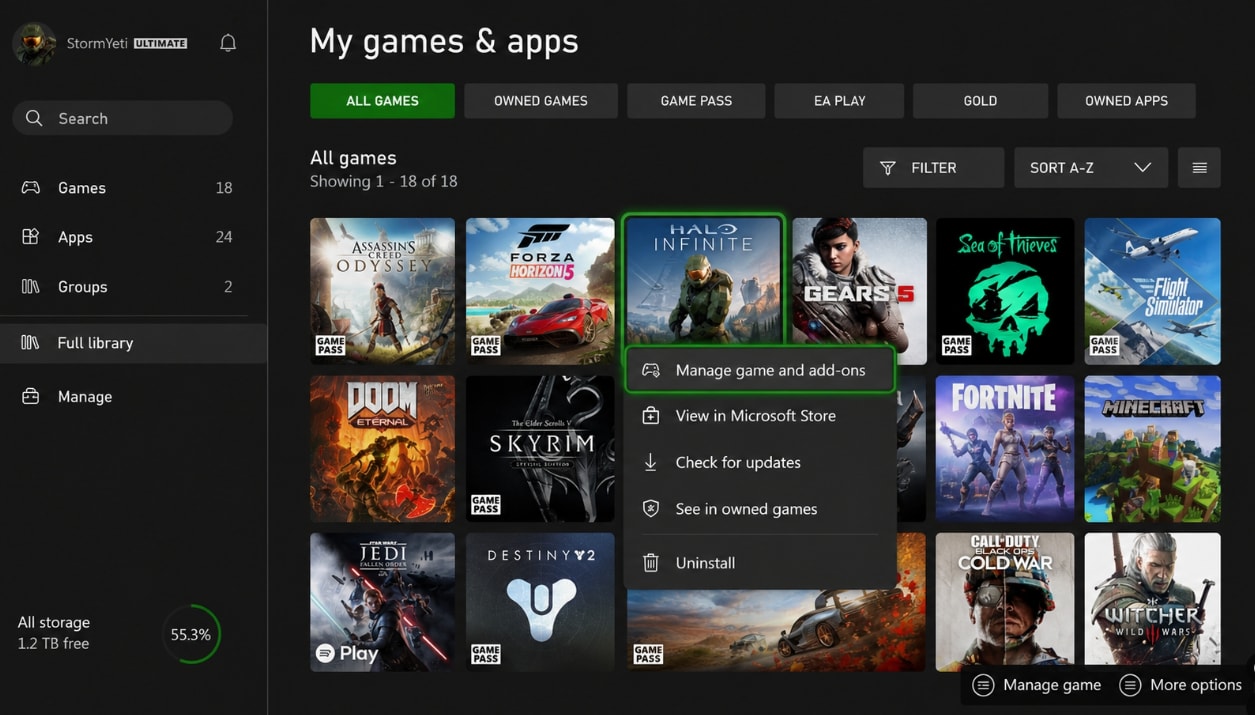
Check Whether the Error Affects One Game or All Digital Games
If every digital game fails, focus on Xbox service status, account sign-in, and network connection. If only one game fails, update that game, check ownership, then reinstall the game only after you confirm cloud saves or local PC files are safe.
Part 4. Fix 0x87e107df on Xbox Console
Use this section for Xbox Series X/S and Xbox One consoles. If Xbox Status shows a confirmed outage, wait first; these fixes are most useful when Xbox services are normal.
Fix 1. Restart the Console
A normal restart refreshes the Xbox session and can clear temporary sign-in or cache errors.
- Press the Xbox button on the controller.
- Go to Profile & system.
- Select Power.
- Choose Restart console.
- After the restart, launch the game again.
Fix 2. Power Cycle the Console
A full power cycle clears deeper temporary state than a normal restart.
- Hold the console power button for about 10 seconds until it turns off.
- Unplug the power cable.
- Wait at least 30 seconds.
- Plug the cable back in.
- Turn on the console and try the game again.
Fix 3. Sign Out and Sign Back In
If the console has an old account token, signing in again can refresh access to digital purchases and subscriptions.
- Press the Xbox button.
- Go to Profile & system.
- Sign out of your Xbox profile.
- Restart the console.
- Sign in again with the account that owns the game or subscription.
- Launch the game again.
Fix 4. Test the Network Connection
Xbox must reach Microsoft services to validate many digital games. Test the connection if Xbox Status is normal but 0x87e107df continues.
- Open Settings.
- Go to General > Network settings.
- Select Test network connection.
- Use Test multiplayer connection if online play also fails.
- If the test fails, restart the router, move closer to Wi-Fi, or use Ethernet.
Fix 5. Go Offline for Supported Offline Games
Offline mode may help with some games that already support offline play, especially if your console was set as the home Xbox before the outage. It will not work for online-only games, cloud games, or games that require a fresh server check.
- Open Settings.
- Go to General > Network settings.
- Select Go offline.
- Restart the console.
- Try launching the offline-supported game.
- Go back online after testing.
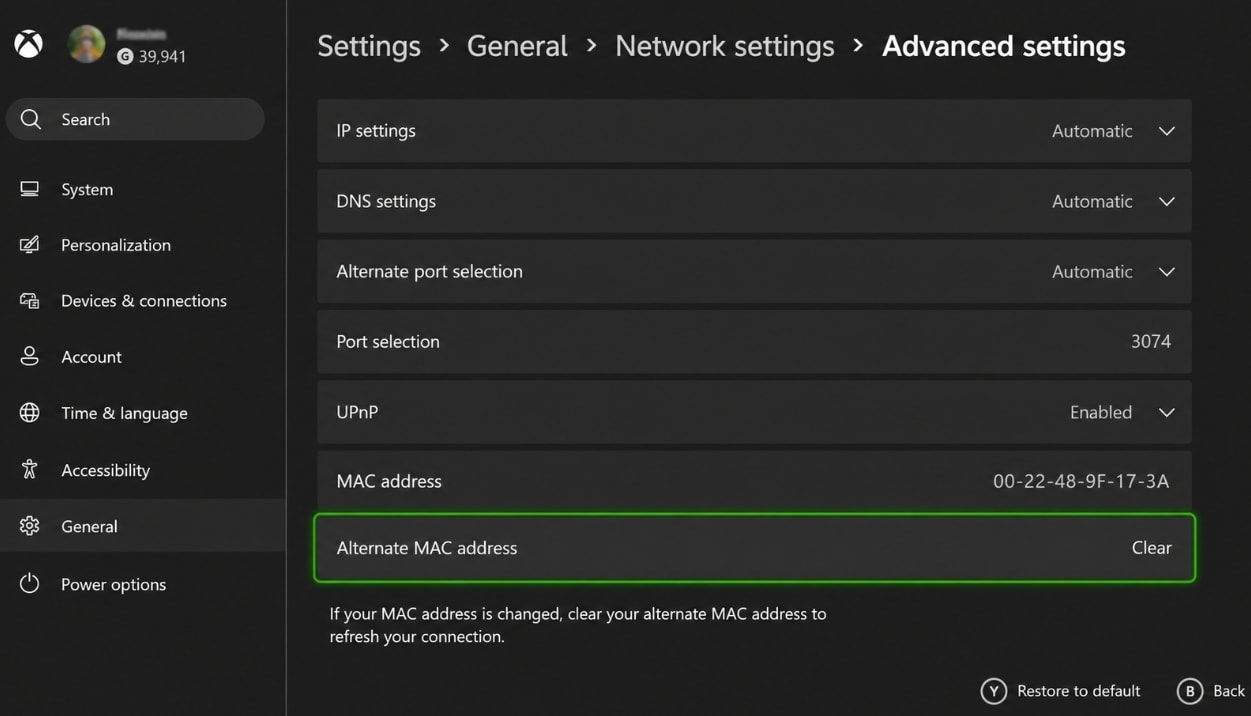
Fix 6. Clear the Alternate MAC Address
If the console has a network configuration conflict, clearing the alternate MAC address may help.
- Open Settings.
- Go to General > Network settings.
- Select Advanced settings.
- Choose Alternate MAC address.
- Select Clear.
- Restart the console.
Fix 7. Update the Console and Reinstall the Game
If only one game keeps showing 0x87e107df and Xbox services are normal, update the console and game first. Reinstall the game only after checking saves and captures.
- Open Settings > System > Updates.
- Install any available console update.
- Go to My games & apps and update the affected game.
- If the same game still fails, uninstall and reinstall it from your library.
Most Xbox console saves sync to the cloud for signed-in users, but local captures, external drive files, or PC game files may need separate protection.
Part 5. Fix 0x87e107df in the Xbox App on Windows
If the error appears in the Xbox app on Windows, focus on Microsoft Store services, the Xbox app, Gaming Services, account sign-in, and Windows connectivity.
Fix 8. Update Xbox App, Microsoft Store, and Gaming Services
Outdated Xbox components can cause license or launch errors in PC games.
- Open Microsoft Store.
- Go to Library.
- Select Get updates.
- Install updates for Xbox, Gaming Services, and related Microsoft Store components.
- Restart Windows.
- Open the Xbox app and launch the game again.
Fix 9. Repair or Reset the Xbox App
Windows can repair or reset the Xbox app without immediately reinstalling every game.
- Open Settings.
- Go to Apps > Installed apps.
- Find Xbox.
- Open Advanced options.
- Choose Repair first.
- If Repair does not help, use Reset, then sign in again.
Resetting the app can remove local app settings. It should not delete your Microsoft account purchases, but check local game file locations before deleting folders manually.
Fix 10. Check Date, Time, Region, and Sign-In
Wrong time, region, or account state can interfere with online license validation.
- Open Settings > Time & language and enable automatic time and time zone when possible.
- Open the Xbox app and Microsoft Store with the same Microsoft account.
- Confirm the account owns the game or has an active Game Pass subscription.
- Turn off VPN or proxy temporarily while testing.
- Restart Windows after changing account or network settings.
Part 6. Recover Local Game Files or Captures After Troubleshooting
Troubleshooting 0x87e107df usually should not remove files. Data loss can happen, however, if you uninstall games, delete folders manually, reset Windows, format an external drive, move game libraries, or experience drive errors while fixing the problem.
Check Xbox and Windows Locations First
Before using recovery software, check the places where Xbox and Windows may already store your files.
- Xbox cloud saves for supported console games.
- Xbox captures and uploaded captures in the Xbox network.
- External game drive folders.
- Videos > Captures on Windows.
- Documents, Downloads, and game-specific folders.
- Recycle Bin.
- OneDrive or another backup location if folders were synced.
If files are still missing from a Windows PC drive or external drive, stop saving new files to that drive. New data can overwrite deleted files.
Use Recoverit for Lost Local Files
1. Choose a Location to Recover Data
Install and open Recoverit, then connect your computer.

2. Deep Scan the Location
Recoverit will automatically perform a thorough scan of the selected disk, looking for deleted, formatted, or inaccessible data.

3. Preview and Recover Your Desired Data
Once the scan is complete, browse the list of found files and use the preview feature for photos, videos, and documents to confirm they are intact.

Conclusion
The 0x87e107df Xbox error usually points to service availability, digital license validation, account sign-in, Game Pass access, or network connectivity. Start by checking official Xbox Status. If there is an outage, wait. If services are normal, restart or power cycle the console, sign in again, test the network, check the license, clear alternate MAC address, update the console, or repair the Xbox app on Windows.
If files go missing after reinstalling a PC game, resetting Windows, formatting an external drive, or cleaning up local folders, Recoverit can help recover local files from readable storage. Keep its role clear: it is for data recovery after local file loss, not for fixing Xbox services, accounts, digital licenses, or online outages.
FAQ
-
What does 0x87e107df mean on Xbox?
0x87e107df usually means Xbox cannot verify access to a digital game, subscription title, account service, or online feature. It often appears with a message such as "There might be an outage in our online service." -
How do I fix Xbox Error Code 0x87e107df There Might Be An Outage In Our Online Service?
Check official Xbox Status first. If there is an outage, wait for Microsoft to restore the service. If services are normal, restart the console, power cycle it, sign out and back in, test the network, confirm the game license or Game Pass subscription, and update or reinstall the affected game only if needed. -
Can I play games offline when 0x87e107df appears?
Some offline-supported games may work offline, especially if the console was already set as the home Xbox. Online-only games, cloud games, multiplayer services, and some subscription checks still require Xbox services and will not work offline. -
Can Recoverit fix Xbox error 0x87e107df?
No. Recoverit cannot fix Xbox outages, Microsoft account sign-in, digital license validation, Game Pass access, or console system errors. It can help recover lost local files from readable Windows or external storage after deletion, reinstall, reset, formatting, or drive errors. -
Will reinstalling a game delete my saves?
Many Xbox console saves sync to the cloud for signed-in accounts, but local PC game saves, captures, mods, and files on external drives may not always be protected. Check cloud sync and local folders before uninstalling or deleting game data manually.



