

 TL;DR:
To fix the Forza Horizon 6 "Invalid Gaming Services Detected" error (0x12c) on Windows 10/11, you must repair Microsoft Gaming Services and the Xbox App rather than reinstalling the full game package.
● Reinstall the damaged background component by executing `Get-AppxPackage Microsoft.GamingServices | Remove-AppxPackage -AllUsers` in an Admin PowerShell, then reinstalling it via the Microsoft Store.
● Clear outdated launch validation records by signing out of your Xbox account and resetting the Xbox App cache through Windows Settings > Apps > Installed Apps.
● Wondershare Recoverit can only be used to restore missing FH6 screen recordings caused by forced restarts; it cannot repair the underlying Windows validation error.
Ask AI for a summary
 ChatGPT
 Perplexity
 Gemini
 Claude
 Grok
Grok
Therefore, the fix should begin with careful Windows gaming-service troubleshooting, not random reinstalls. Thus, this guide will help players check launch blockers without risky changes. Once the related services respond correctly, FH6 can start more reliably again.
Try Recoverit to Perform Data Recovery
 Security Verified. 3,591,664 people have downloaded it.
In this article
Part 1. What is the "Invalid Gaming Services Detected" Error?
The "Invalid Gaming Services Detected" error is a Windows PC launch validation problem, not a normal gameplay crash. It appears that Forza Horizon 6 cannot confirm the required Microsoft Gaming Services component. This background app supports Xbox-related titles, Store licensing checks, Game Pass access, and subscription-based launch permissions on Windows.
Moreover, the warning usually means Gaming Services is damaged, outdated, blocked, or conflicting with another launcher. Major Microsoft Store games need a specific working service version before opening. When that version fails validation, FH6 stops at launch instead of loading, helping Windows prevent broken ownership or service communication during startup.
Part 2. What Causes the "Invalid Gaming Services Detected" Error?
To properly fix the Forza Horizon 6 Gaming Services error on PC, start by understanding which Windows service issues trigger this launch warning.
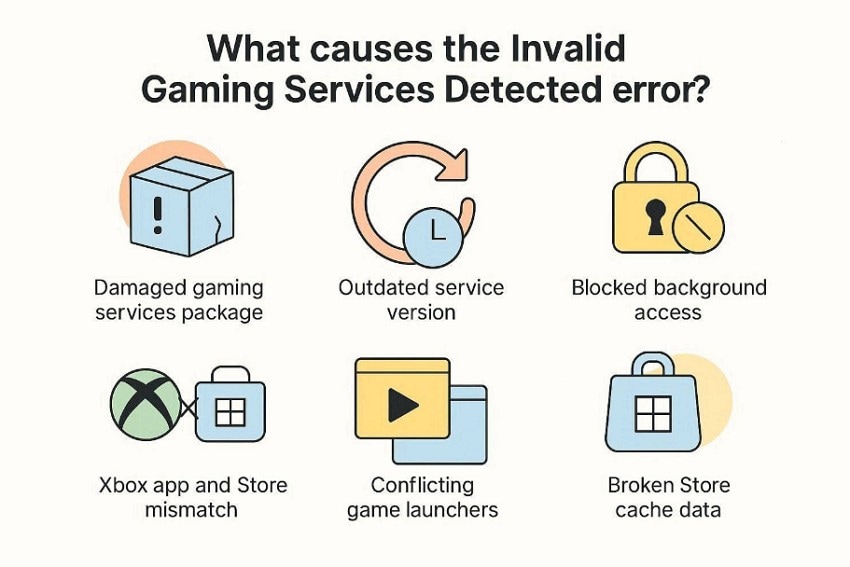
- Damaged Gaming Services Package: Corrupted Gaming Services files can break FH6 launch checks during startup validation. Windows then treats the service as unsafe, incomplete, or improperly registered locally.
- Outdated Service Version: Older Gaming Services builds may not match the version FH6 requires today. That mismatch can stop the game before its loading screen appears properly.
- Blocked Background Access: Security tools or restricted permissions may prevent Gaming Services from running in the background. Without background access, FH6 cannot complete its Windows launch verification process.
- Xbox App and Store Mismatch: Different accounts in Xbox and Microsoft Store can confuse ownership checks. The game may pause because Windows cannot confirm the linked purchase.
- Conflicting Game Launchers: Other launchers may interfere with one another when managing overlays, services, or startup hooks. This conflict can disrupt Microsoft’s validation path before FH6 fully opens.
- Broken Store Cache Data: Old Microsoft Store cache records can confuse Gaming Services during launch validation. FH6 may then read outdated licensing or service data instead of current details.
Part 3. Best Fixes for Invalid Gaming Services in Forza Horizon 6
After identifying the launch blockers, the next step is applying fixes carefully. The following methods help restore Gaming Services validation and make FH6 launch normally again:
Way 1. Sign Out and Sign Back into the Xbox Account
Start with account revalidation when the Forza Horizon 6 won't launch Gaming Services error appears after clicking Play. Sometimes, the Xbox App keeps an expired login session that prevents proper ownership checking. Therefore, signing out and back in refreshes the connection between FH6, Microsoft Store, and Gaming Services. Now, adhere to the steps below to try this method with ease:
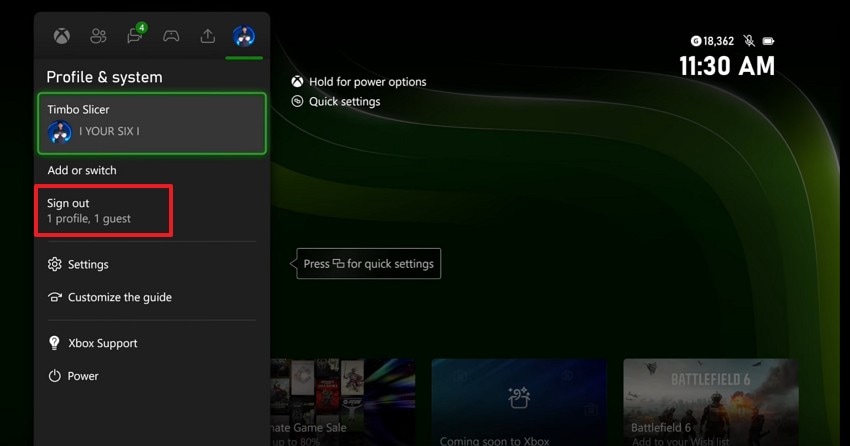
Step 1. Launch the Xbox App on your PC and click the profile icon. Choose "Sign out" to remove the current account session from the app.
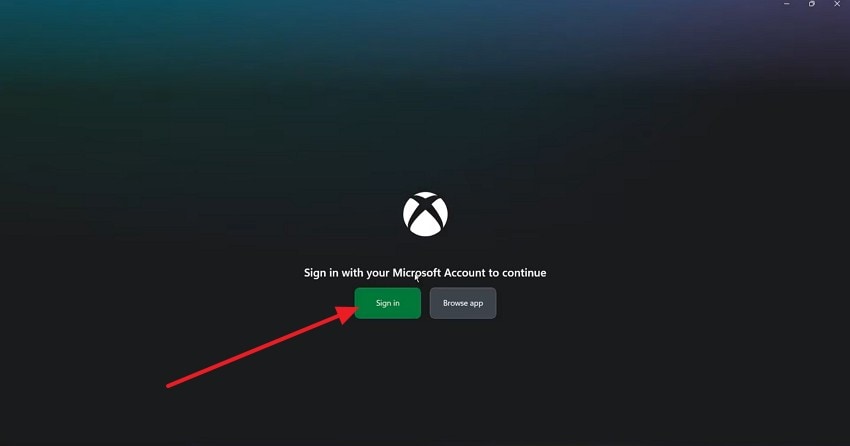
Step 2. Next, close and reopen the Xbox App, then select "Sign In." Use the same Microsoft account linked with Forza Horizon 6 or Game Pass, and launch the game again.
Way 2. Reset Xbox App Cache
Cached Xbox App data can become outdated after failed launches, interrupted updates, or account changes. As a result, the app may send older service details while FH6 expects current validation. Resetting the cache clears stuck records and allows the Xbox App to rebuild cleaner launch communication. Follow the steps mentioned below to reset the Xbox App cache:
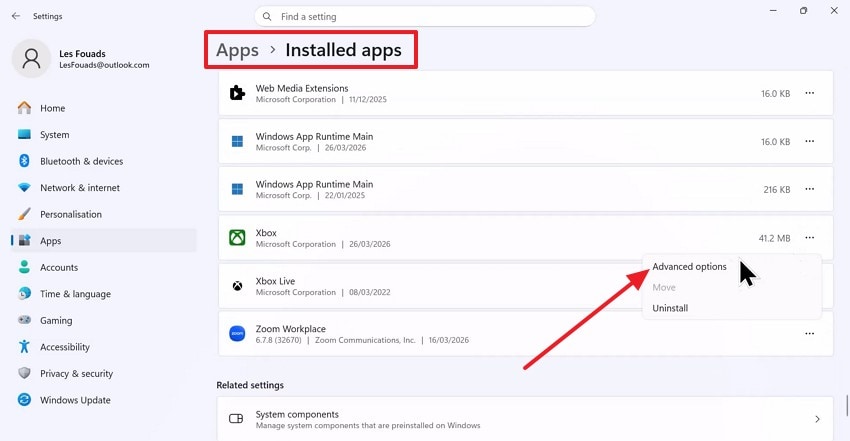
Step 1. Press "Windows + I" and go to "Apps > Installed Apps." Afterward, find "Xbox," click the "Three Dots" menu, and choose "Advanced options."
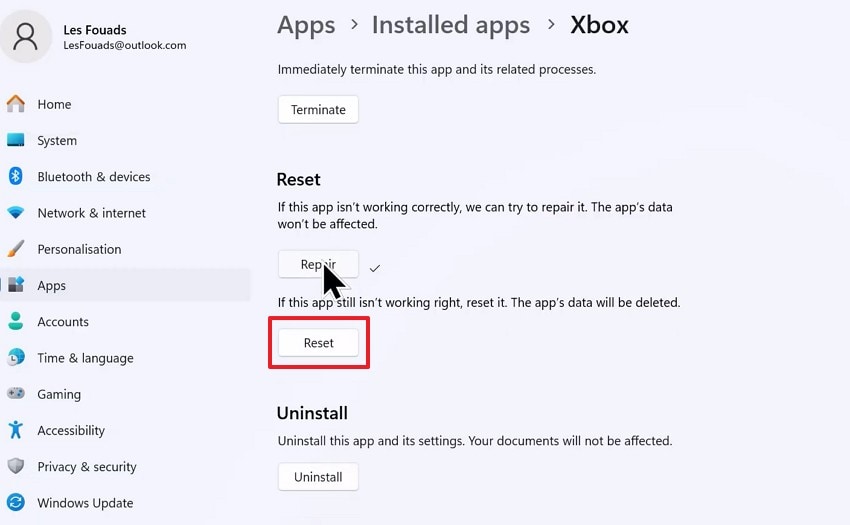
Step 2. Now, select "Terminate" first, then press "Repair." If the error continues, press "Reset," reopen the Xbox App, and sign in again.
Way 3. Reinstall Gaming Services
A damaged Gaming Services package can fail even when it still appears installed. For this reason, reinstalling it removes broken registration files and restores the required Xbox background service. This step helps when Windows shows that Forza Horizon 6 must run a later version of Gaming Services during launch validation. Below are the guided steps to reinstall the gaming services:
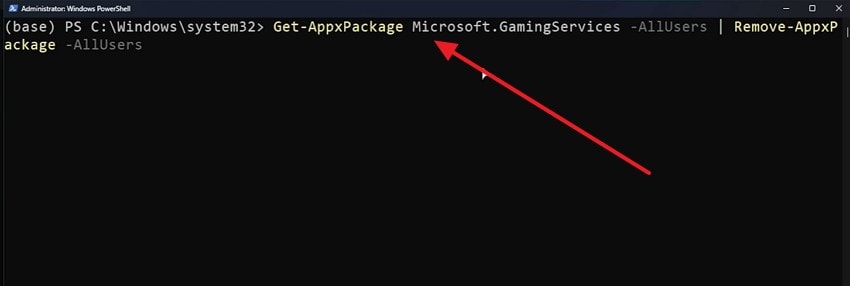
Step 1. Right-click the "Start" button and open Terminal (Admin) or Windows PowerShell (Admin). Paste "Get-AppxPackage Microsoft.GamingServices | Remove-AppxPackage -AllUsers" and press "Enter."
Step 2. After that, paste "start ms-windows-store://pdp/?productid=9MWPM2CQNLHN" and hit the "Enter" key. When the Microsoft Store opens, install "Gaming Services," restart the PC, and test FH6 again.
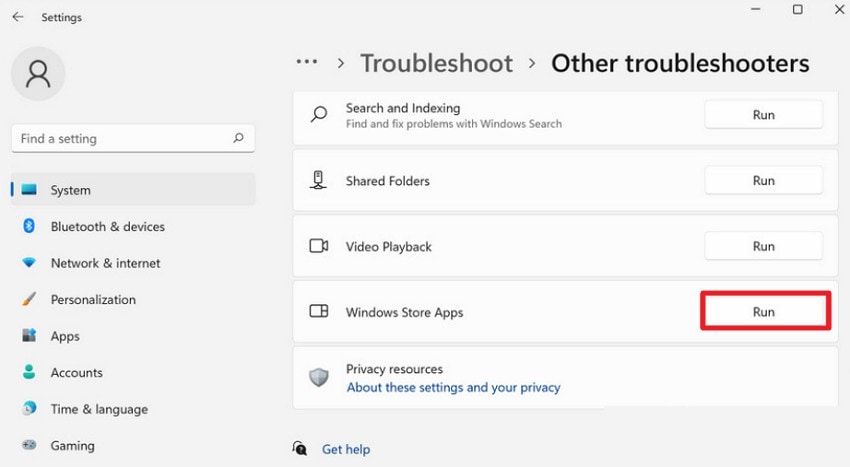
Way 4. Run Windows Store Troubleshooter
The Forza Horizon 6 won't launch Gaming Services PC issue can also come from Store-side faults. Windows Store Troubleshooter automatically checks app registration, licensing behavior, and related Microsoft Store issues. Instead of guessing at each hidden fault, this tool helps detect background issues that affect Xbox-linked game launches. The following steps guided you to run the Windows Store troubleshooter:
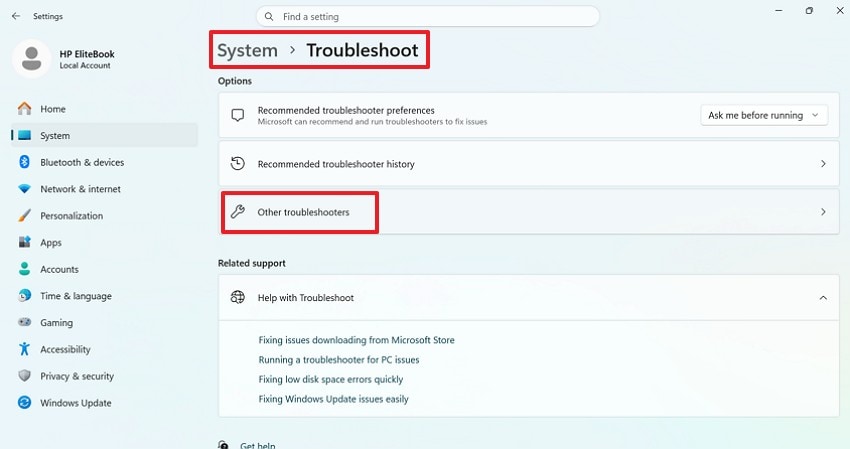
Step 1. Start by pressing "Windows + I" and opening "System > Troubleshoot > Other troubleshooters."
Step 2. Then look for "Windows Store Apps" and select "Run" if the option appears. Afterward, follow the on-screen instructions and apply the recommended fix.
Way 5. Reinstall the Xbox App
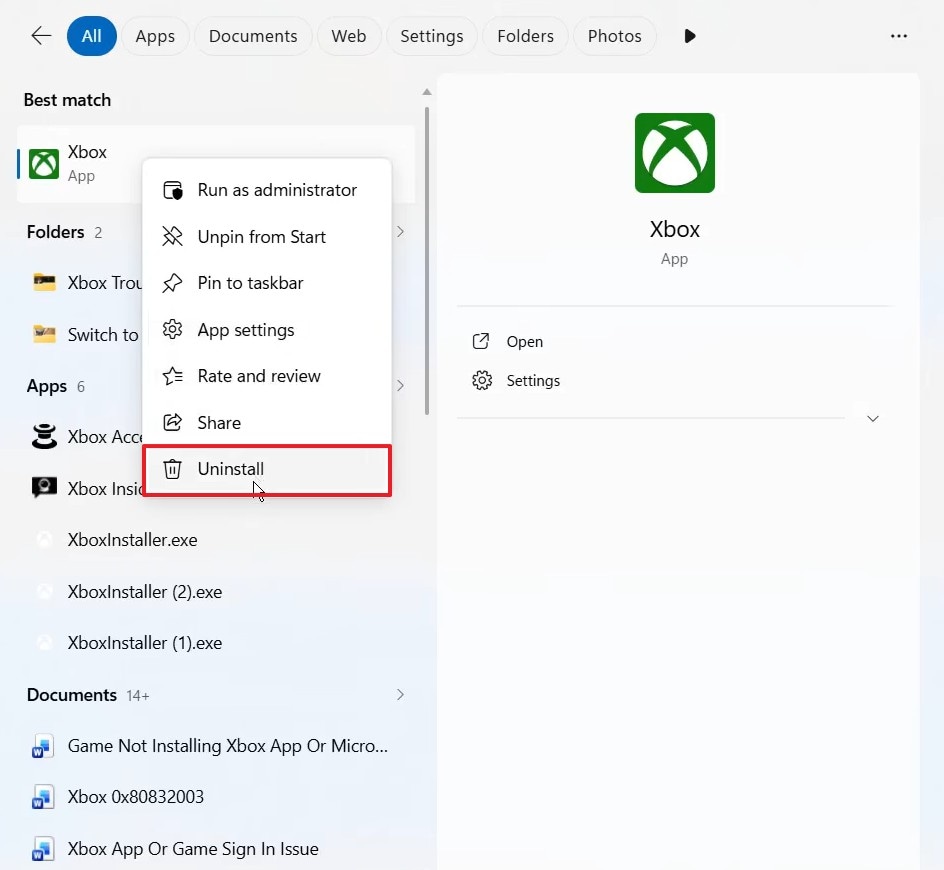
Try this Forza Horizon 6 Gaming Services error PC fix when the Xbox App still fails after lighter checks. A damaged Xbox App installation can mishandle library access, sign-in status, and launch requests. Reinstalling it gives Windows a fresh app copy, helping FH6 reconnect with Microsoft Store and Gaming Services properly. Let’s walk through the steps below to reinstall the Xbox App:
Step 1. In the Start menu, choose the Xbox app and right-click on it to select the "Uninstall" option.
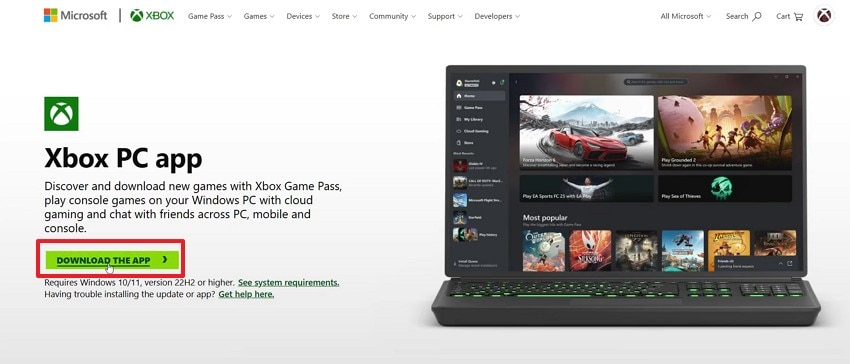
Step 2. Next, access the official "Xbox PC app" site and choose the "Download the App" option and install it again.
Pro Tip. Restore Your Forza Horizon 6 Screen Recordings Using Recoverit
Many players record FH6 gameplay to save drifting moments, race wins, tuning tests, or online highlights. However, the Invalid Gaming Services Detected in Forza Horizon 6 error may force restarts or interrupt capture sessions before videos save properly. When clips disappear from the Captures folder, losing those moments can feel as frustrating as the launch failure itself for players.
In that situation, Recoverit gives users a separate way to look for lost Forza Horizon 6 screen recordings without changing game files. It scans the original save location, including internal drives, external drives, or selected folders. Moreover, it supports recovery of deleted, missing, or lost video files after crashes, incomplete saves, or unexpected system interruptions during intense gameplay recording sessions.
Key Features
- Deep AI Scan: Searches deeper disk sectors when quick checks miss deleted FH6 capture files after cleanup actions.
- Advanced Video Recovery: Reassembles fragmented video pieces, helping restore large gameplay recordings that standard scans may miss later.
- File Type Filtering: Lets users filter video formats to help locate gameplay recordings faster among scattered results.
Guide to Restore Your Forza Horizon 6 Screen Recordings Using Recoverit
After FH6 recordings disappear during crashes or forced restarts, Recoverit can help locate them again. Below are the steps to restore your missing gameplay clips:
Step 1. Pick the Original Storage Drive
Move to the "Hard Drives and Locations" section to select the drive or folder where the Forza Horizon 6 screen recording was stored before it disappeared.

Step 2. Scan and Locate the Missing Clip
Recoverit will scan the selected location and display recoverable files after the process ends. Use "File Location," "File Type," "Filter," or the search bar to find the lost FH6 gameplay video faster.

Step 3. Preview and Restore the FH6 Video
Open the preview window to check whether the detected file is the correct Forza Horizon 6 recording. After confirming it, click "Recover" and save the video to another safe drive.

Conclusion
To conclude, the Invalid Gaming Services Detected in Forza Horizon 6 error needs calm Windows troubleshooting, not rushed game reinstallation. Players should focus on restoring proper launch validation so FH6 can open smoothly again. If sudden crashes or interrupted captures also remove saved gameplay clips, Recoverit can help recover lost recordings from their original storage location.
FAQ
-
1. What does "Invalid Gaming Services Detected" mean in Forza Horizon 6?
It means Windows cannot validate the required Microsoft Gaming Services component during launch. The issue usually involves damaged, outdated, blocked, or conflicting background service files locally. -
2. Should I reinstall Forza Horizon 6 first to fix this error?
No, reinstalling FH6 first may waste valuable time if validation services are failing. Check account access and Gaming Services before removing the full game package entirely. -
3. Why does Forza Horizon 6 need Microsoft Gaming Services on PC?
FH6 uses Gaming Services to confirm Xbox access, ownership, subscriptions, and launch permissions. When that background service fails, the game may stop before loading properly. -
4. Can Recoverit fix the Gaming Services error in Forza Horizon 6?
Recoverit cannot repair Gaming Services because that problem belongs to Windows launch validation. It can help recover missing gameplay recordings after crashes or interrupted capture sessions.


