

 TL;DR:
To fix Forza Horizon 6 download failures on PC, resolve Xbox App and Microsoft Store sync errors by running the launcher as an administrator, resetting the app cache, and updating Store components before attempting a full reinstallation.
● Change the default installation location to a different internal drive if the setup is blocked, as Windows may quietly reject the download due to file-system limits or folder permission restrictions.
● Cancel the incomplete installation from your library and start a fresh download if the progress fails near 100 percent, which indicates broken package files failing the final verification phase.
● Use Recoverit to restore lost gameplay videos or corrupted save files, provided you immediately stop writing new data to the affected storage drive to prevent permanent overwriting.
Ask AI for a summary
 ChatGPT
 Perplexity
 Gemini
 Claude
 Grok
Grok
Large PC downloads can stall unexpectedly, even on stable home internet connections. When Forza Horizon 6 won't download on PC, frustration grows very quickly. Moreover, the Xbox App often shows limited details during repeated failed attempts. That silence makes the issue feel confusing before most troubleshooting even begins.
Players usually need clarity before changing settings or reinstalling large files. However, the problem is often linked to app response, not failure. A well-structured guide helps users understand what may interrupt downloads unexpectedly. Therefore, this article focuses on clearer diagnosis before unnecessary reinstall attempts.
Try Recoverit to Perform Data Recovery
 Security Verified. 3,591,664 people have downloaded it.
In this article
Part 1. Why Forza Horizon 6 Won't Install or Download?
When Forza Horizon 6 won't install or download, the issue often starts before setup begins. The following reasons explain what may block the process:
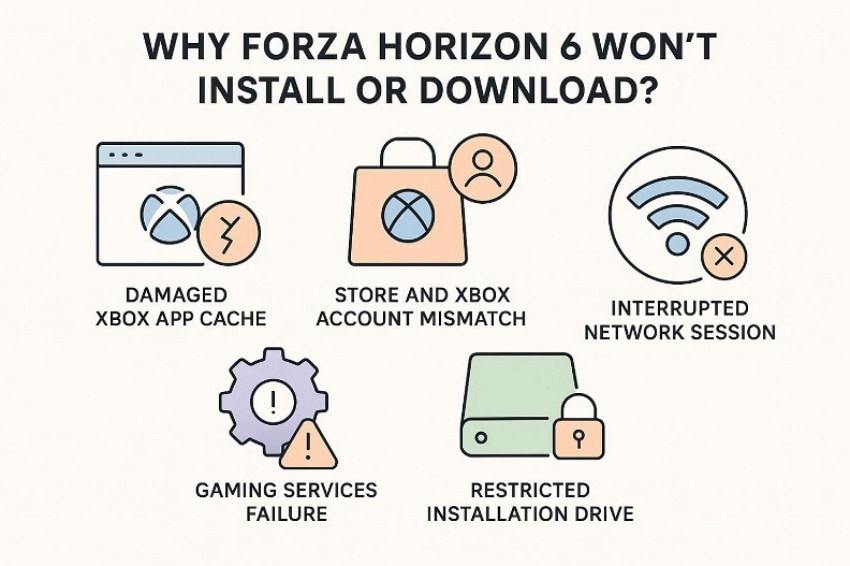
- Damaged Xbox App Cache: Cached app data may conflict with fresh download requests after repeated attempts. Clearing it can help the app rebuild a cleaner installation behavior.
- Store and Xbox Account Mismatch: Sometimes, the Store recognizes one account while Xbox shows another profile. That mismatch can confuse ownership checks before the download properly begins.
- Gaming Services Failure: Gaming Services works behind the scenes during Microsoft game installations on Windows. If it stops responding, downloads may freeze before reaching the setup stages.
- Restricted Installation Drive: Some drives block app installs because permissions or format settings differ. Windows may reject the location even when there is enough free space.
- Interrupted Network Session: A weak connection can break large downloads without showing clear warnings. Afterward, the Xbox App may keep retrying instead of progressing normally.
Part 2. Fix Forza Horizon 6 Installation Problems on PC Easily [Easy Ways]
After checking the possible causes, users can now move toward safer repair methods. The ways below help fix the Forza Horizon 6 install error 0x80070490 without confusing system changes:
Way 1. Run the Xbox App as Administrator
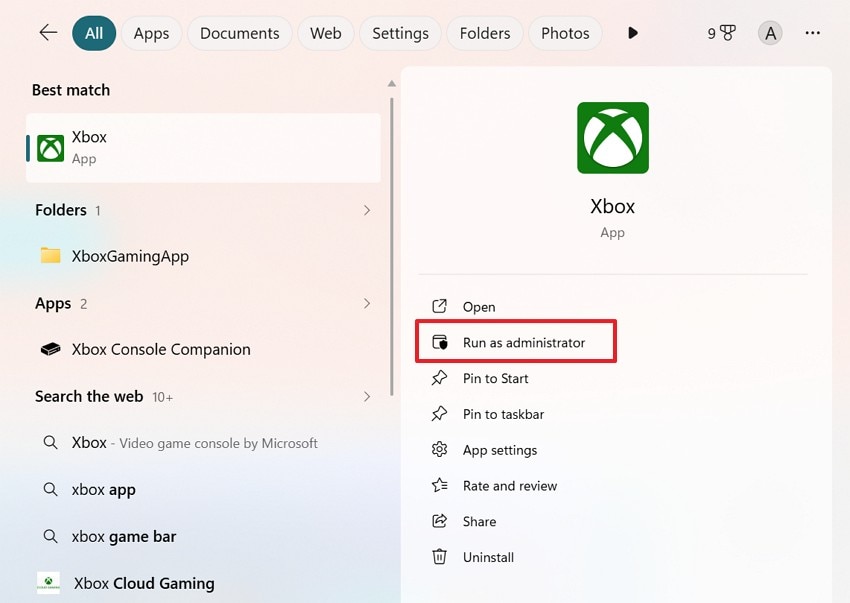
Permission blocks can stop setup before the Xbox App shows a clear warning. For Forza Horizon 6 stuck downloading Microsoft Store, administrator access may let Windows approve protected folders, launcher actions, and setup changes. However, this should be tried before deeper resets because it changes access, not game data. Below are the instructions to run the installer as an administrator:
Instructions. Search "Xbox" in the Windows Start menu and choose "Run as administrator" from the right-side panel. Allow the permission prompt if Windows displays one, then open the Forza Horizon 6 page inside the Xbox App and start the download again.
Way 2. Reset Xbox App Cache
Resetting the Xbox App cache clears temporary files that may keep old download states active. Moreover, it can refresh sign-in data, queue response, and launcher behavior without deleting the game permanently. This method suits stalled downloads that restart strangely, show pending status, or refuse to continue after network reconnection. Adhere to the steps given below to use this method:
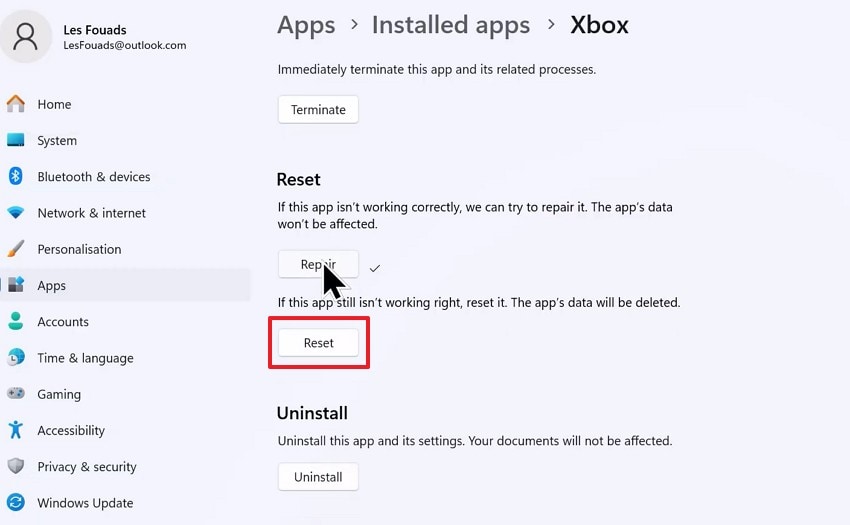
Step 1. Press "Windows + I" and open "Apps > Installed apps." Next, find "Xbox," click the "Three Dots" icon, and choose "Advanced Options."
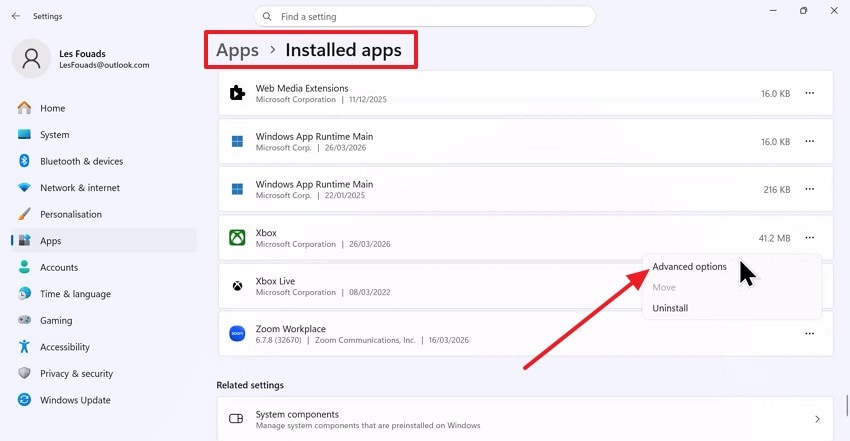
Step 2. Afterward, scroll to the "Reset" section and press the "Reset" button. Confirm the action, then reopen the Xbox App and sign in again if Windows asks.
Way 3. Update Microsoft Store
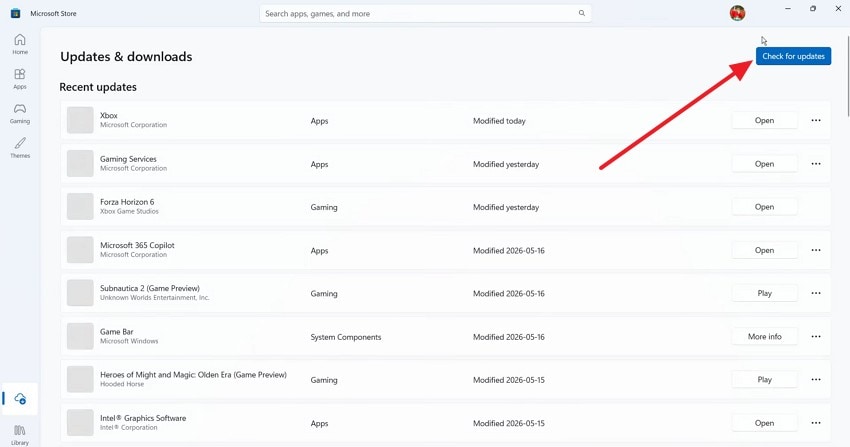
The Xbox App depends on Microsoft Store components for delivery and license checks. When Forza Horizon 6 is not downloading using the Xbox app, outdated Store services may delay package updates or stop download handshakes. In that case, updating the Store can restore smoother communication before any reinstall becomes necessary. Adhere to the instructions mentioned below to update the Microsoft Store:
Instructions. First, open "Microsoft Store" and go to the "Updates & Downloads" section from the left-side menu. Then, click on the "Check for updates" option in the top-right corner.
Way 4. Change Download Drive Location
A selected drive may look available, but still reject game installation files. File-system limits, permission settings, or old game folders can interrupt setup quietly. Instead, choosing another internal drive helps test whether the issue comes from the storage path rather than the Xbox App itself. Let's walk through the steps below to change the download drive location:
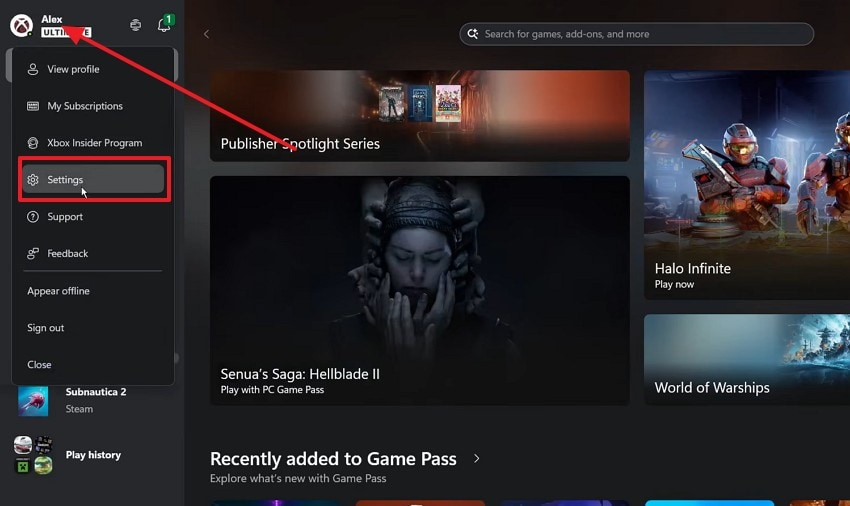
Step 1. In the Xbox App, click on the "Profile" and select the "Settings" option from the list.
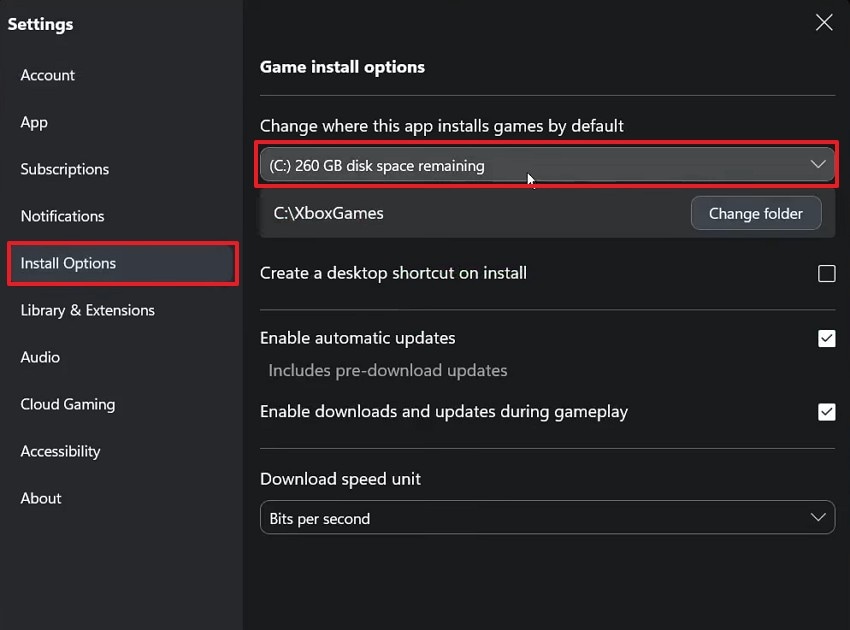
Step 2. Next, choose "Install Options" from the left sidebar. Under "Game Install options," find "Change where this app installs games by default" and select another drive.
Way 5. Reinstall the Xbox App
Sometimes the launcher itself becomes the weak point after repeated failed attempts. If the Forza Horizon 6 download fails at 100 percent, the Xbox App may not complete final verification properly. Thus, reinstalling it can rebuild broken app files and refresh links with Microsoft Store and Gaming Services. Next, follow the steps below to reinstall the Xbox App:
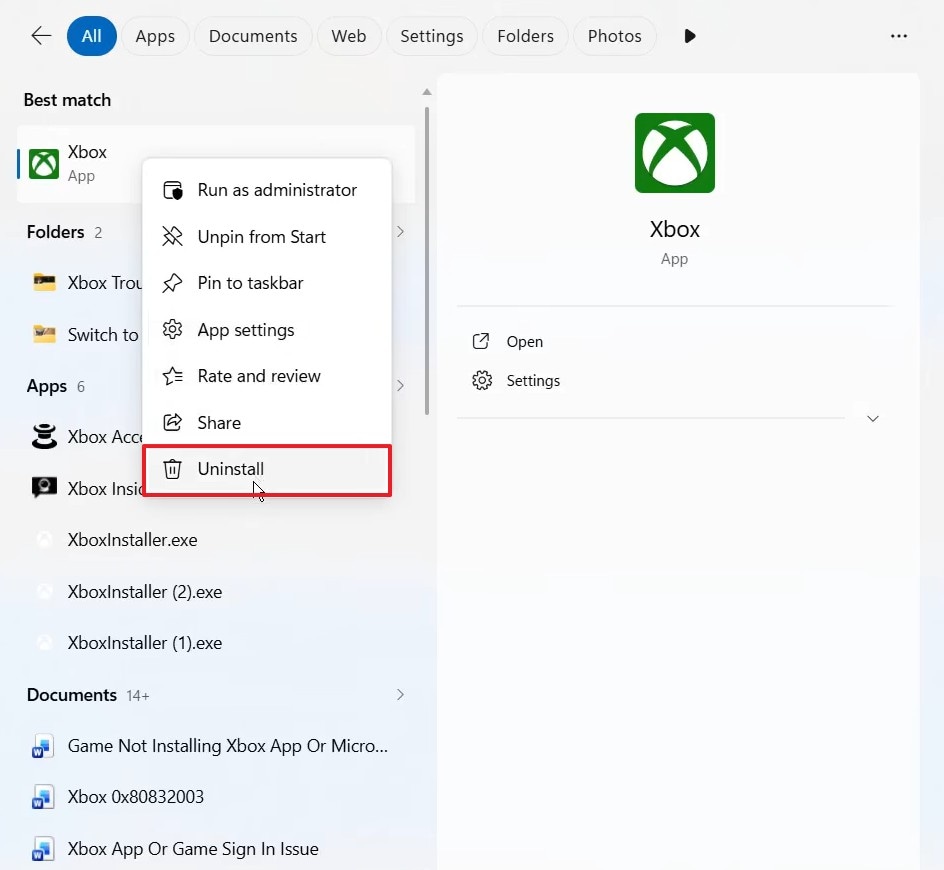
Step 1. Search "Xbox" in the Windows Start menu, right-click the "Xbox App," and select "Uninstall" from the menu.
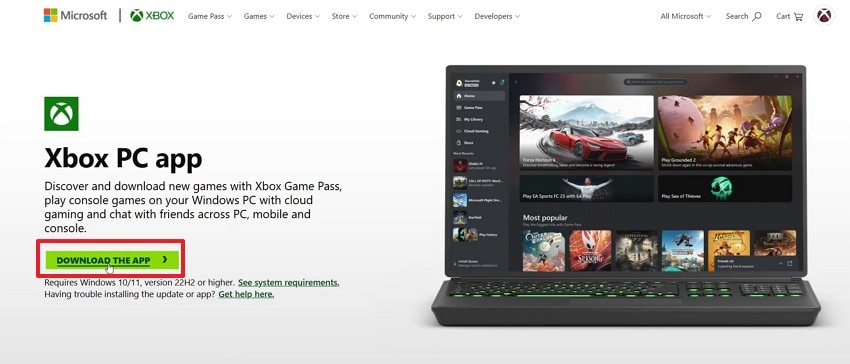
Step 2. After that, access the official "Xbox PC app" page in your browser and click "Download the App." Install it again, sign in, and restart the Forza Horizon 6 download.
Way 6. Reinstall Game Setup Files
Reinstalling game setup files should come after lighter checks because large downloads consume time and bandwidth. Corrupted partial packages can keep the launcher stuck even after app settings improve. Finally, removing incomplete installation data yields a clean package request, especially when previous downloads stopped during unpacking or verification. Below are the steps to reinstall the game setup files with ease:
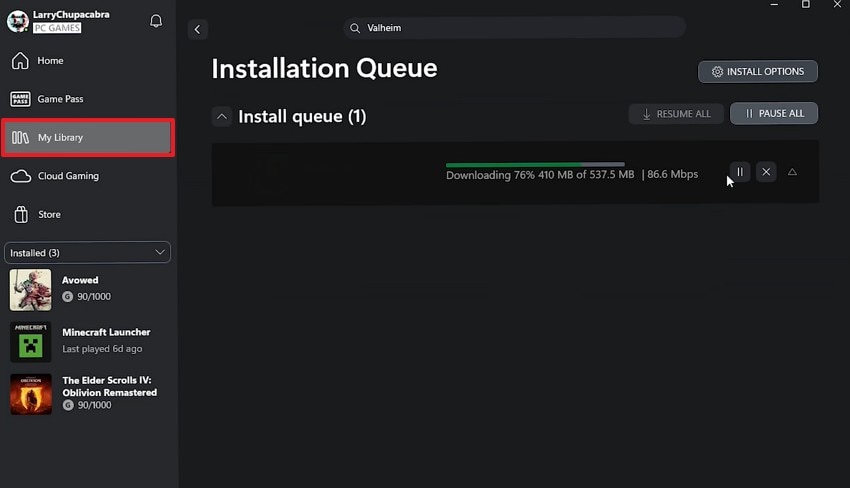
Step 1. Navigate to the Xbox App and select "My Library" from the left-side menu. In the "Installation Queue," click the "X button" beside the stuck download to cancel the incomplete setup.
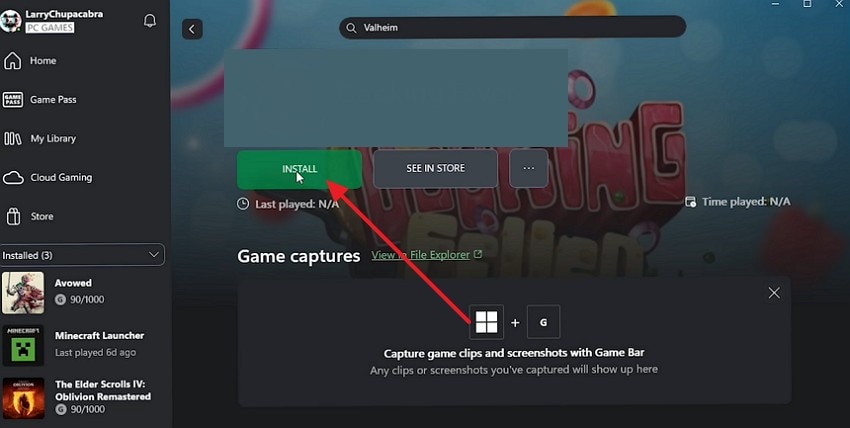
Step 2. Next, return to the game page in the Xbox App and select "Install" again. Choose the correct drive if Windows asks, then start a fresh download.
Pro Tip. Recover Your Forza Horizon 6 Videos or Saved Files Using Recoverit
After fixing the issue of Forza Horizon 6 not installing on PC, players can record their first race, drift session, or online highlight. Yet those clips can disappear after a crash, failed file transfer, accidental deletion, or quick disk cleanup. Losing a rare gameplay moment feels frustrating, especially when the recording was meant for editing, sharing, or keeping as proof later.
Therefore, Recoverit can help scan the original folder, internal drive, external disk, or memory card for deleted gameplay videos and missing save-related files. Moreover, it works best when users stop saving new data to that location first. This gives the recovery scan a better chance to find lost files before fresh downloads overwrite them permanently during normal PC use.
Key Features
Game Data Recovery: Restores lost saves, setup files, and gameplay recordings from PC drives or connected storage devices.
Advanced Video Recovery: Uses fragment matching to rebuild corrupted or incomplete Forza gameplay videos after crashes or interruptions.
Multi-Device Game Data Recovery: It supports recovery from PCs, game consoles, external drives, USBs, SSDs, and other storage devices.
Guide to Recover Your Forza Horizon 6 Videos with Recoverit
With gameplay videos missing from a PC drive or external device, quick action matters. The step-by-step guide below shows how Recoverit can safely restore Forza Horizon 6 recordings:
Step 1. Select the Original Storage Location
Launch Recoverit and choose the drive where the Forza Horizon 6 video was saved before deletion in the "Hard Drive and Locations" tab.

Step 2. Scan and Find the Lost Video
Once the scanning is complete, the selected location displays recoverable files. Use "File Location," "File Type," "Filter," or the search bar to narrow results and find the missing gameplay recording.

Step 3. Preview and Recover the Video
Open the video preview to confirm it is the correct Forza Horizon 6 clip. Then, select the file and click "Recover" to save it to a safe location, preferably on another drive.

Conclusion
To conclude, Forza Horizon 6 not installing on PC can happen when the Xbox App, Microsoft Store, Gaming Services, or storage settings fail to respond properly. Careful checks reduce reinstall risks and help players complete setup with less confusion. For lost gameplay clips or saved files after crashes, Recoverit offers a useful recovery option for careful restoration.
FAQ
-
1. Why does Forza Horizon 6 stop downloading in the Xbox App?
A stuck queue can appear when Xbox services lose sync with the Microsoft Store. Clear the cache, confirm your account, then restart the download request carefully again. -
2. Can Microsoft Store issues block the installation?
Yes, outdated Store services may interrupt license checks before installation begins correctly. Update the Microsoft Store first, since Xbox downloads rely on its background components. -
3. Why does Forza Horizon 6 fail near full download?
At full download, broken package files may fail during verification or unpacking. A fresh setup request can remove damaged data from the previous attempt. -
4. Can Recoverit restore deleted Forza Horizon 6 gameplay clips?
Recoverit scans the original storage location for deleted gameplay recordings and files. Use it before saving new data, as overwriting reduces recovery chances.


