

 TL;DR:
Instagram allows users to post a single photo as a direct comment reply by tapping the gallery icon within the comment text box, though this feature is currently in a gradual rollout starting in 2026 and remains unavailable for some accounts and regions.
● Accessing this feature requires updating to the latest official Instagram app on a supported iOS or Android device and granting the application direct access to your phone's camera and photo gallery.
● If the gallery icon does not appear in your comment box, you must use alternative methods to share the image with the creator, such as sending it privately via Direct Message, publishing a tagged 24-hour Story, or creating a new tagged post.
Ask AI for a summary
 ChatGPT
 Perplexity
 Gemini
 Claude
 Grok
Grok
Words alone sometimes fail to capture your exact reaction to a great post. Many Instagram users now want to reply with a photo instead. According to Marketing LTB, people favor visual content over written content 91% of the time.
Instagram now lets some lucky users attach a photo within their comments. It currently works only under certain conditions and specific device requirements. Thus, this guide explains exactly how to add photo in Instagram comments.
Try Recoverit to Perform Data Recovery
 Security Verified. 3,591,664 people have downloaded it.
In this article
Part 1. Can You Add a Photo in Instagram Comments?
Yes, you can post a picture in Instagram comments under certain conditions. Instagram officially started rolling out this new photo comment feature in 2026. Nonetheless, this feature is not accessible for every account or area. The platform also lets some users reply to comments using short video reels.
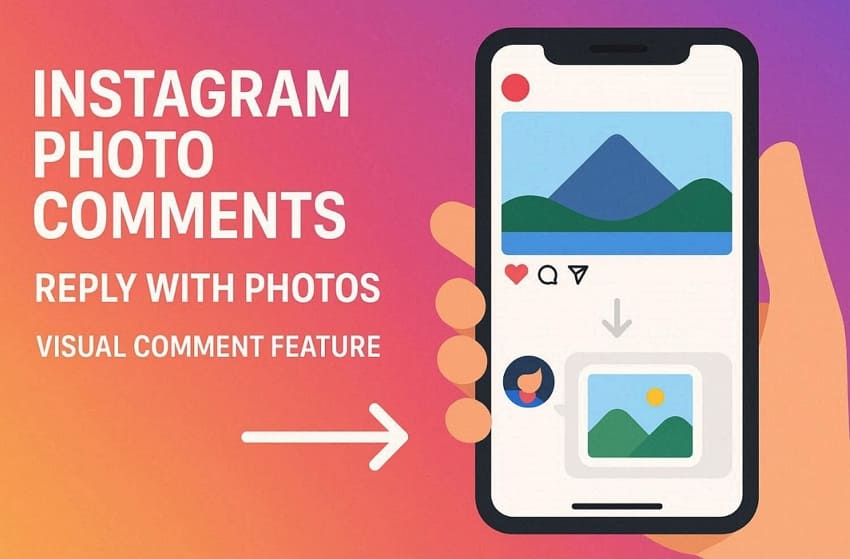
Instagram's Photo Comment Feature Explained
Basically, this new feature lets you post a photo as a direct comment reply. Your photo reply attaches directly to the original post or video reel. It appears as a small visual thumbnail instead of regular plain text. This visual style works much like TikTok's already existing video reply feature. Other users can view your photo comment right within the comment thread.
Who Can Use Photo Comments?
Anyone can technically comment with a photo on Instagram under the current testing rules. However, only certain accounts with this new feature can actually use it. Instagram will introduce this photo comment option slowly across different user account groups. Besides, Instagram allows only one picture per comment.
Supported Devices and Regions
Instagram hasn't shared any official list of fully supported devices or regions. This feature is rolling out broadly across recent iOS and Android phones. Photo comments work mainly through the official Instagram mobile application. Older operating systems or modified apps may not support this feature fully.
Part 2. Requirements Before Posting a Photo Comment
You must fulfill certain conditions before learning how to add photos in Instagram comments. So, review these essential checklist items to prepare your mobile device for posting:
1. Update the Instagram App
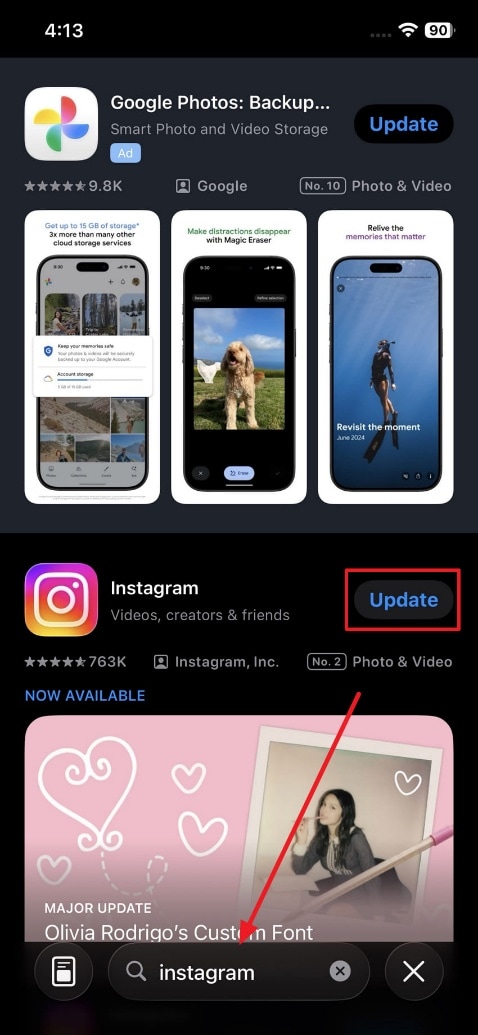
The platform regularly releases app updates that add brand new features and fixes. The photo comment feature only works on the latest app version available. Older app versions often lack this newly rolled out camera icon option. That’s why users should update the app to ensure they receive every available new feature update. Take guidance from the steps given below to update your app:
Instructions. You need to run either the “Play Store” on Android or the “App Store” on iPhone. After that, look for the “Instagram” app and tap “Update” when available.
2. Check Account Permissions
People are able to even restrict who can comment on their mutual posts. Some posts allow comments only from followers or from accounts they actually follow. This restriction blocks you from leaving any comment, including photo replies, too. You must also confirm that you are logged into your own correct account. A block from that creator can also prevent you from commenting entirely there.
3. Allow Photo Access on Your Device
Photo comments require direct access to your phone's camera and photo gallery. The platform needs this specific permission prior to letting you attach any single image. Without this access, the camera option simply will not appear at all. This simple change is necessary for both Android and Apple smartphones. So, review the following guide to allow photo access to your app:
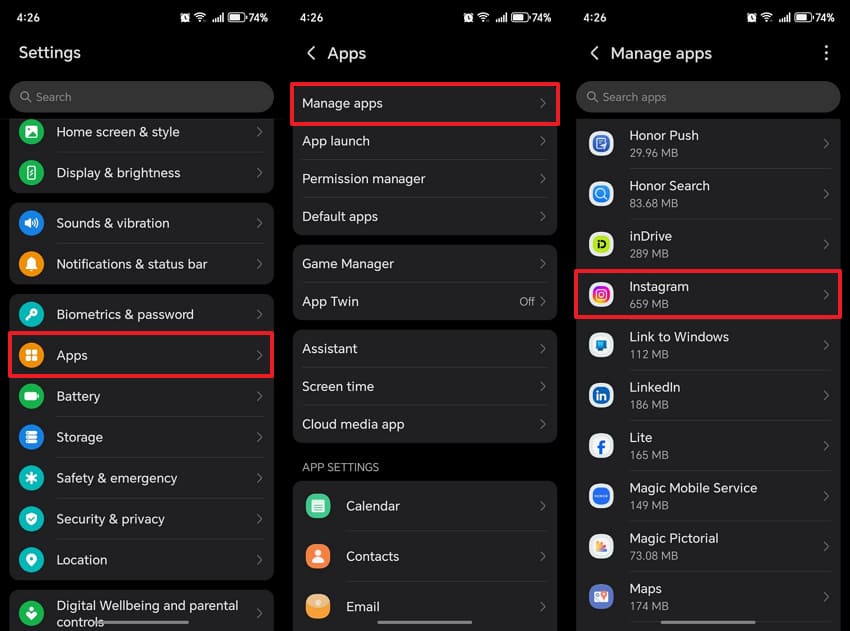
For Android
Step 1. As you head to the “Apps” settings, tap “Manage Apps” and choose the “Instagram” app.
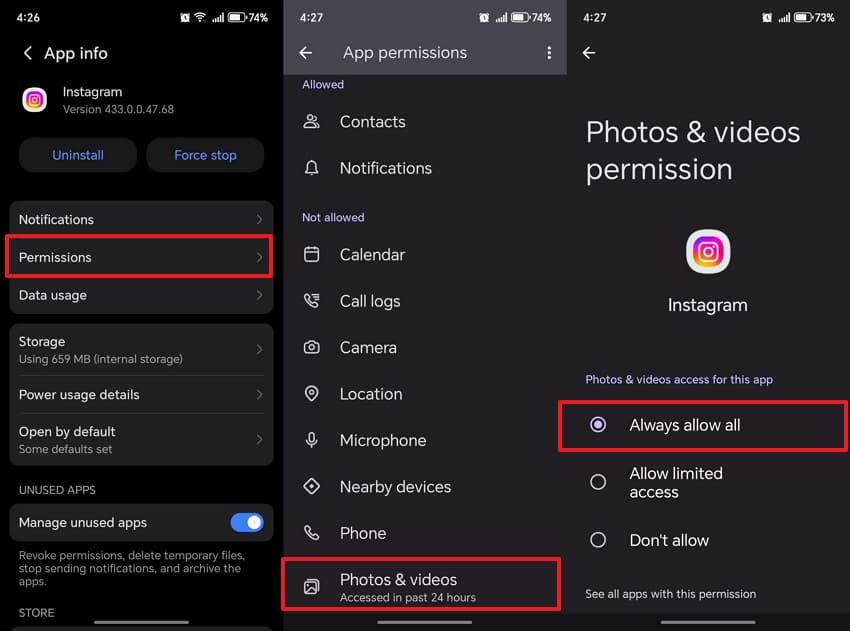
Step 2. Following that, access the “Permission” section and tap “Photos & Videos.” On the upcoming display, you need to opt for “Always Allow All.”
For iPhone
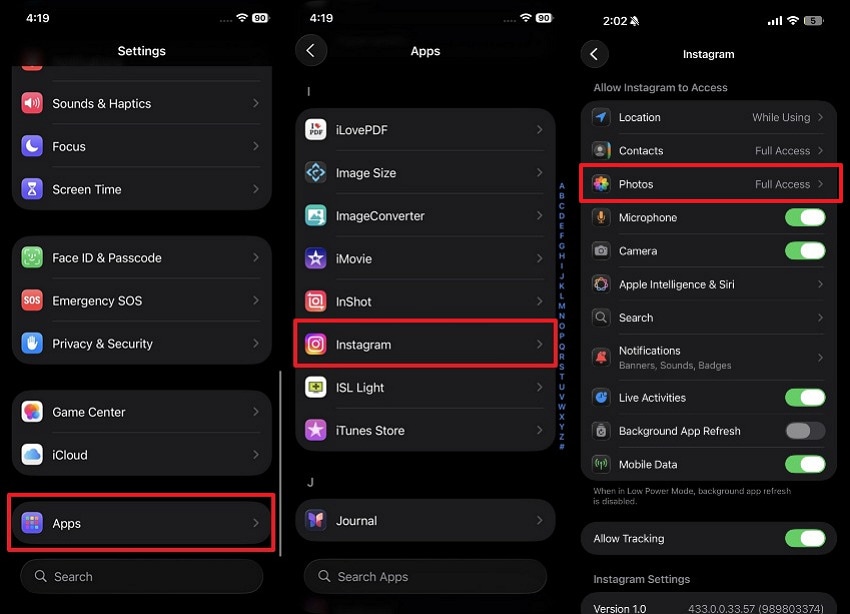
Instructions. Upon launching the “Settings” app, swipe up and access the “Apps” section. Then, tap the “Instagram” app and allow photo permission on the next screen.
Part 3. How to Add a Photo in Instagram Comments
Instagram makes the entire photo comment process fairly quick and very simple. The app displays a small camera icon inside a certain eligible comment text box. This icon lets eligible users attach images directly within their own replies. You can either capture a fresh photo or pick an existing one. The following instructions explain how to reply with a photo on Instagram:
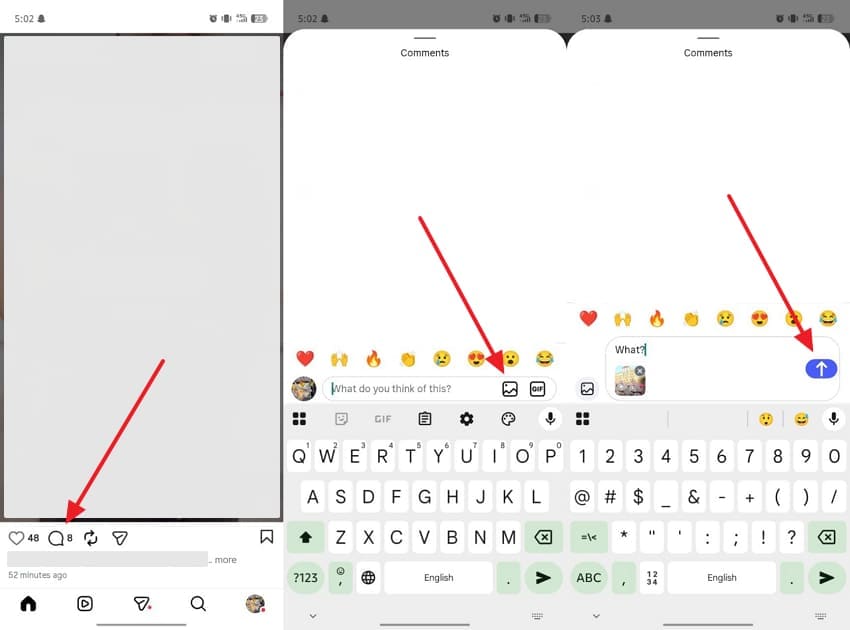
Instructions. From the app’s main screen, tap the “Comment” icon on your preferred post. After that, press the “Gallery” icon to choose your desired photo and tap the “Send” button.
Pro Tip. Recover Your Lost Instagram Photos Before Posting Them
Many users always keep cherished photos ready to share as quick comment replies. Losing these favorite photos before posting feels frustrating and quite disappointing. A 2025 survey from Handy Recovery Advisor shows that 70% of users have experienced data loss. To address this need, you need a reliable way to recover these important lost photos fast. Tools like Recoverit offer an innovative photo recovery solution for this exact tricky situation.
This AI-powered program also restores mistakenly deleted or permanently purged photo and video files, too. Furthermore, it even recovers photos from lost, resized, or formatted hard partitions. It is also capable of recovering photos that have been lost due to formatting of your phone or storage drive. Moreover, Recoverit holds over 35 official patents for its advanced photo recovery technology.
Key Features
Loss Scenarios: Handles over 10,000 different data loss situations that may affect your Instagram photo library.
Deep Scan: Thoroughly scans your entire device storage to locate every hidden deleted image file.
Real-Time Results: Displays recoverable Instagram photos instantly during the scan without making you wait long.
Guide to Recover Your Lost Instagram Photos Before Posting Them
You can restore your missing Instagram media present on your computer or SD card using Recoverit. So, review these simple execution steps below to retrieve your lost pictures:
Step 1. Select the Location Containing Lost Instagram Photos
You need to access the “Hard Drive and Locations” tab of Recoverit. Then, choose the drive or SD card where your missing Instagram photos were previously saved.

Step 2. Scan for Deleted Instagram Images
As you select the target location, Recoverit will begin a comprehensive scan. During the process, it searches for lost or deleted photos and displays recoverable Instagram images.

Step 3. Check and Restore Instagram Photos
After the scan is completed,s locate the recovered files and preview the photos you want to retrieve. Next, click “Recover” and save the restored Instagram images to a secure location.

Part 4. 3 Alternatives if Photo Comments Are Unavailable
Not everyone searching for how to add photo in Instagram comments will have this feature yet. For those, here are 3 practical alternatives that still let you share photos:
1. Send the Photo Through Direct Messages
Direct messages offer a reliable private way to reply with a photo on Instagram. You can send a photo directly to the person who made the original comment. This method works on every account regardless of the photo comment feature availability. Your recipient receives the image privately inside their own direct message inbox. Hence, you need to go through these simple steps to send a photo through direct messages:
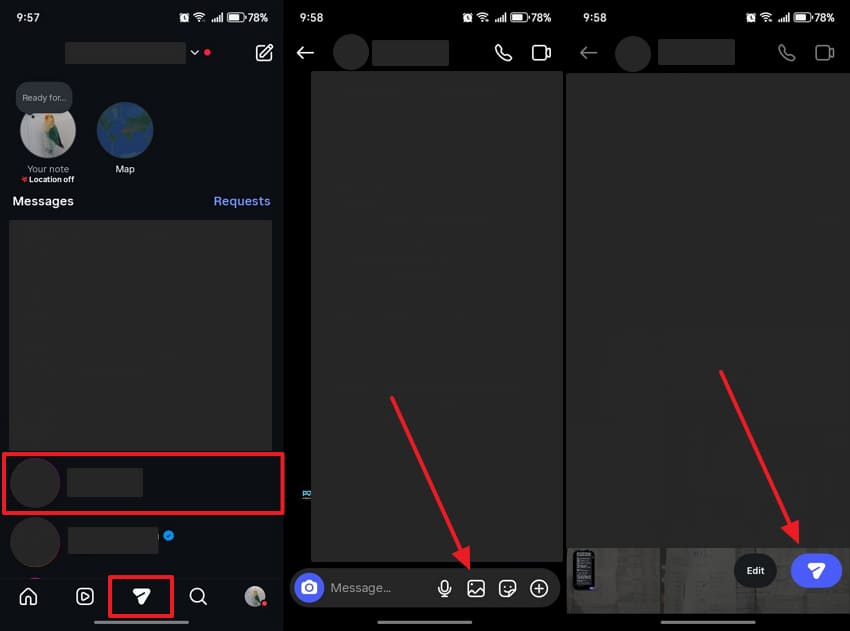
Instructions. Users need to go to the “DM” icon and tap on any friend’s chat. After that, press the “Gallery” icon to choose the photo and tap the “Send” button.
2. Share the Photo in Stories
Stories also give you a creative and public way to share your photo response. You can post your photo as a story and tag the relevant account directly. This method notifies the tagged person and makes your photo visible to followers. Alongside that, your story stays live for a full 24 hours after you post it. Adhere to the given steps below to share your photo through stories:
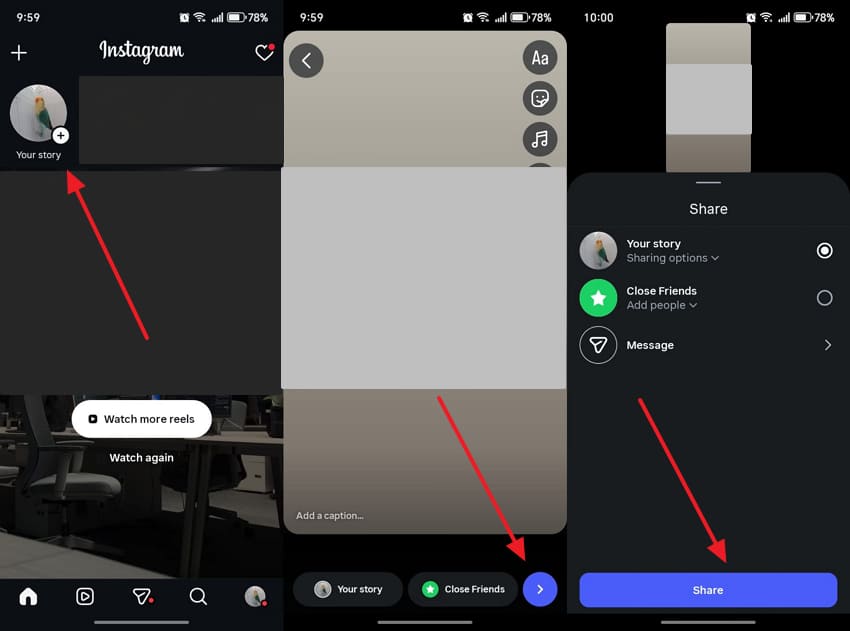
Instructions. From the home display, tap the “Your Story” section and select any photo. Subsequently, add a caption or apply any effects according to your needs. Then, press the “Next” button to add your friend and tap “Share.”
3. Create a New Post and Tag Friends
Apart from the above, a new post also lets you share your photo response with your entire audience publicly. You can upload the photo and tag the specific friend or creator in it. The tagged person receives a notification and can view your photo post immediately. Your followers can also like, comment, and share your newly created photo post. Take guidance from these steps to create a new post:
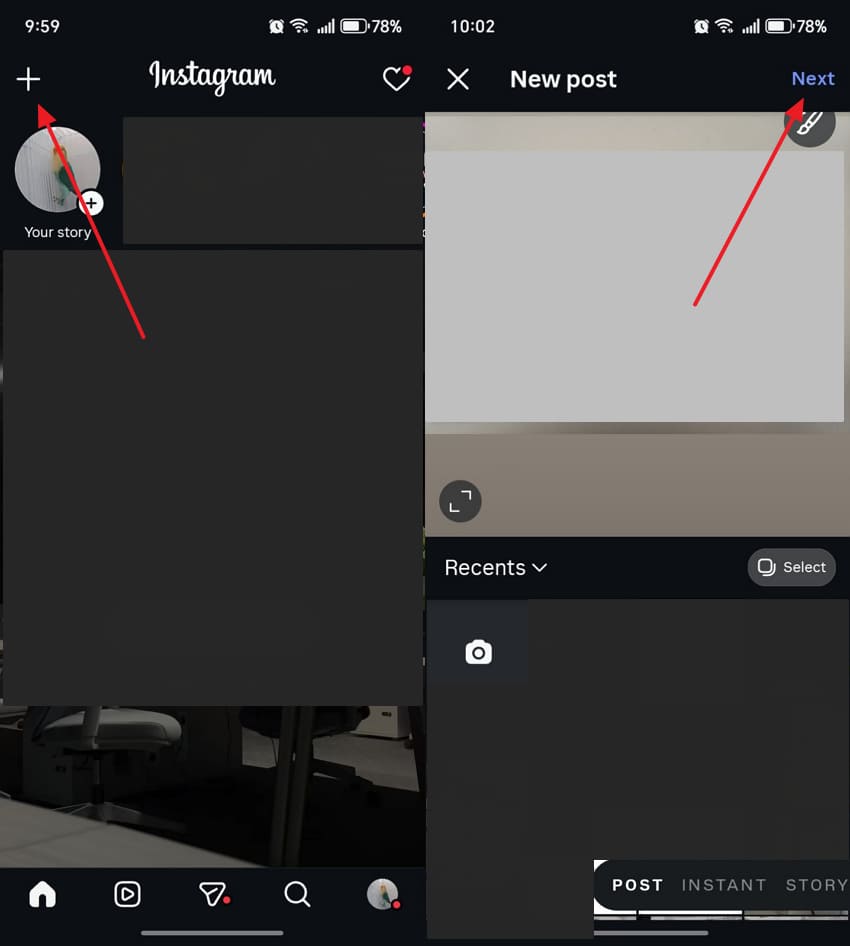
Step 1. Users need to tap the “+” button showing on their Instagram main screen. Then, add the desired photo and press the “Next” option.
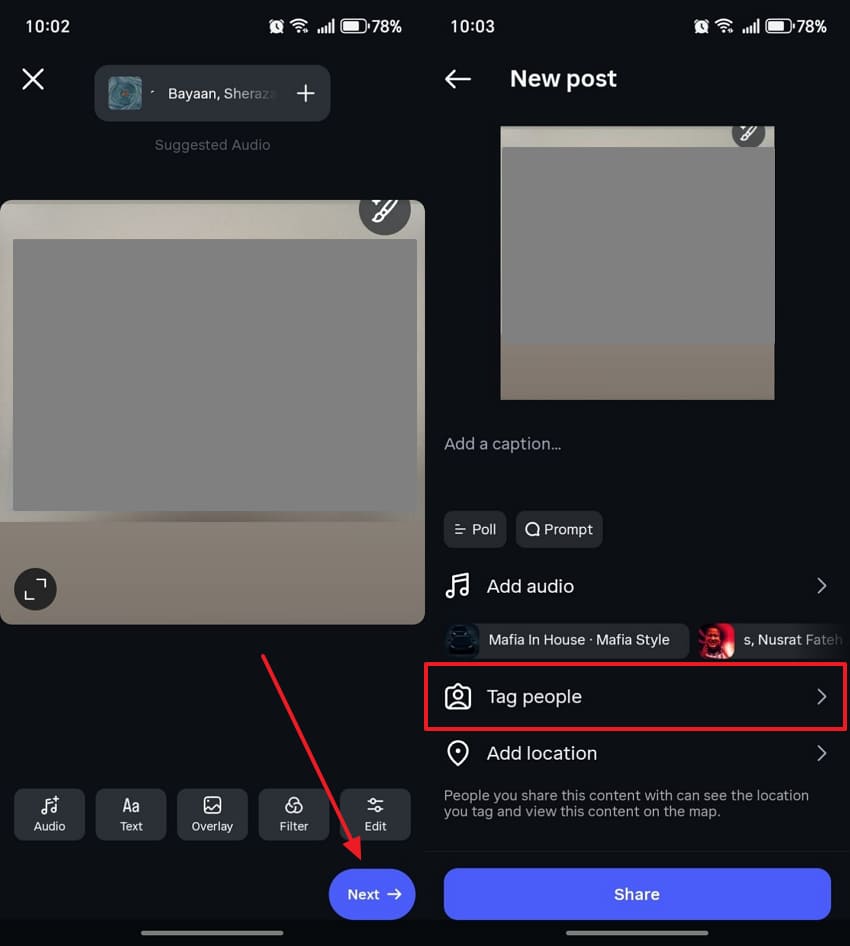
Step 2. The app then lets you edit posts, like adding text or applying filters. Upon editing your post, press “Next” and tap “Tag People” to add your friends and post it.
Conclusion
In summary, you have now discovered how to add photos in Instagram comments. This feature adds a more expressive and visual layer to your everyday comment interactions. Yet, you must keep your app updated and grant the necessary photo access permissions first.
Users also explored some alternatives, like DMs or stories, if they don’t have this new feature. Besides, if you ever lose your Instagram photos from your computer before posting, tools such as Recoverit can help you restore them.
FAQ
-
Q1. Why is the camera icon not showing in my Instagram comment box?
The camera icon only appears for accounts that have received this feature update. Instagram is still rolling out photo comments gradually across different user groups. Still, you can try to update your app to the latest version, which may help trigger the appearance of this feature. -
Q2. Does adding a photo comment notify the original post creator?
Yes, the post creator receives a standard notification whenever someone leaves a comment. This notification appears regardless of whether your comment contains text or a photo. The creator can view your photo comment directly within their post's comment thread. -
Q3. Will my photo comment be visible to everyone on Instagram?
Your photo comment visibility depends on the post's privacy settings. Public posts allow any Instagram user to view all comments, including photo replies. Private account posts restrict comment visibility only to approved followers of that account. -
Q4. What should I do if my Instagram photos get deleted before I post them?
Accidentally deleting Instagram photos can feel disturbing when you plan to share them. In such cases, software like Recoverit can scan your device storage and restore those deleted photos. It handles over 10,000 loss scenarios, ensuring reliable photo recovery.


