
 TL;DR:
To safely recover files from a virus-infected computer, you must first isolate the machine from networks and remove the active malware using Windows Virus and Threat Protection before restoring data via built-in system backups, command line utilities, or dedicated recovery software.
● If the malware only hid your files on a functional system, you can restore their visibility by opening Command Prompt, navigating to the affected drive, and executing the attrib *. -h -s /s /d command.
● For severe infections where the computer cannot boot, either create an Avast Antivirus Rescue Disk on a USB drive to scan the system outside the main operating system, or physically remove the hard drive and connect it to a healthy PC via a USB-to-SATA adapter.
● When files are actively deleted or corrupted beyond the scope of Windows File History, you will need third-party tools like Wondershare Recoverit for deep scanning, with professional data recovery services remaining the final and most expensive option for complex file damage.
Ask AI for a summary
 ChatGPT
 Perplexity
 Gemini
 Claude
 Grok
Grok
Most files are corrupted or deleted when your devices are infected with a virus or malware. We have narrowed down the 5 most efficient methods for you to know how to recover files from virus infected computer easily. Now you can easily recover your lost files safely using appropriate recovery methods, without further harming your system. This ultimate guide walks you through the complete process of retrieving data from a virus-infected computer.
Try Recoverit to Perform File Recovery
 Security Verified. 3,591,664 people have downloaded it.
In this article

Part 1. How Does a Computer Become Infected with Malware?
Before you recover files deleted by a virus, let's explore how your PCs get infected with that malware:
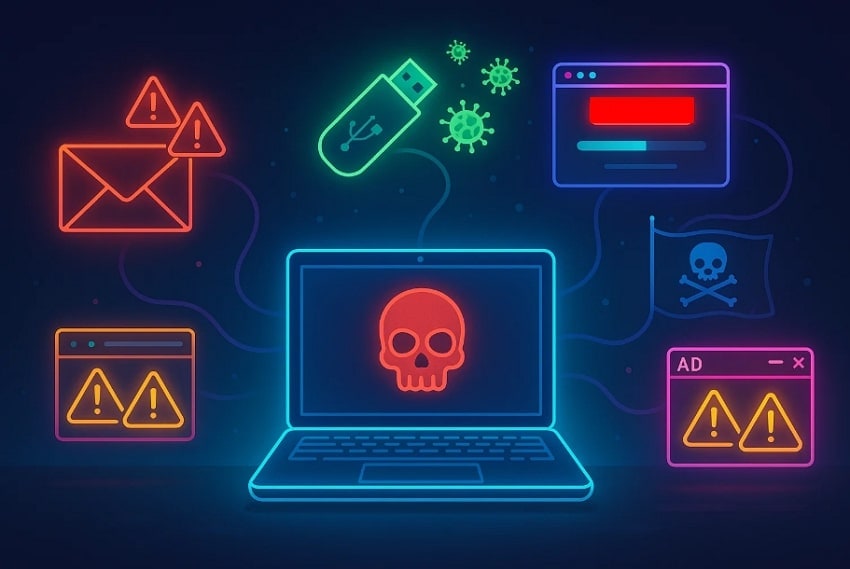
- Suspicious Email: Malware can infect your devices if you open links or attachments in emails from unknown or suspicious senders.
- Infected USB: Using infected USB drives or other external storage devices can directly introduce malware.
- Outdated Software: If your software is outdated, it may not run new antivirus programs, which can lead to malware infections.
- Running Pirated Software: Downloading pirated or cracked software often leads to malware infections, as such software usually contains hidden virus code.
- Malicious Advertisement: While browsing or interacting with malicious ads, malware can be automatically downloaded to your PC.
Part 2. What Will Happen When a Virus Attacks Storage Space?
Upon hearing the causes of virus attacks, the next step is to know what happens when it targets your storage space:
- Slowing Down the Computer: Viruses consume system resources and storage space, slowing the computer.
- Loss or Disappearance: User experiences the loss or disappearance of their files, which suddenly vanish or are moved to unknown locations, resulting in lost file access.
- Corruption Files: Your essential files can be automatically damaged if these viruses block access to them.
- Blue Screen Error: After getting malware-infected, your PC gets a blue screen error, and you are unable to access anything.
- Inaccessible Hard Drives: All of a sudden, your hard drives will become inaccessible, or you encounter boot problems as a virus targets them.
Part 3. Signs You Need to Know How to Recover Files from Virus-Infected Computer
While exploring how to recover virus deleted files, here are some red flags that you should consider instantly:
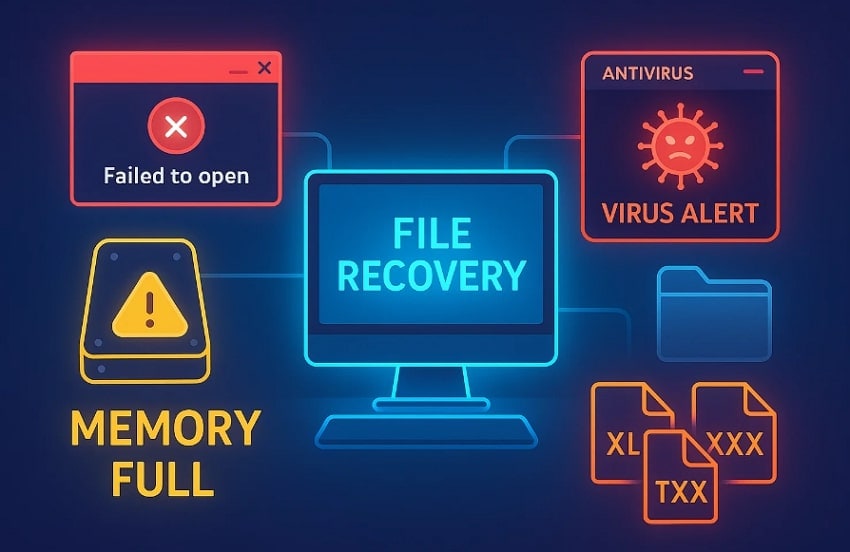
- Programs Fail to Open: If a program you regularly use suddenly stops working or displays an error message, it will require file restoration.
- Storage Files Behave Abnormally: If your storage device shows fake error messages, such as "memory is full," even though you have not added new files.
- System's Warnings: You receive warnings from antivirus software to resolve file corruption issues due to a virus attack.
- Folders are Hidden: If your saved folders are automatically vanishing, especially from external storage devices such as a USB drive or SD card.
- Altered File Names: You witnessed that the file name extensions are automatically altered without your changing them.
Part 4. How to Recover Files from Virus-Infected Computer
Now, if you have faced these signs and want to recover files deleted by a virus, then follow the given methods. For your better understanding, we have divided all methods into 3 scenarios, ranging from easy to complex.
Scenario #1. How to Recover Files Deleted by a Virus on a Cleaned PC
In case your files get deleted due to any error, first check your recycle bin to see if the files are automatically saved there. Most probably, the lost file will be available there; you can simply right-click it to save it to the device. However, if the missing files are not available there, opt for Windows' built-in features like "Restore Previous Versions" or File History.
Scenario #2. How to Recover Files Deleted by a Virus on a Soft-Infected Computer
Are you worried about how to recover files from virus-infected computer? This section covers some efficient built-in methods for recovering lost files. Furthermore, we will also provide you with third-party software. Explore this section:
1. Isolate and Remove the Virus
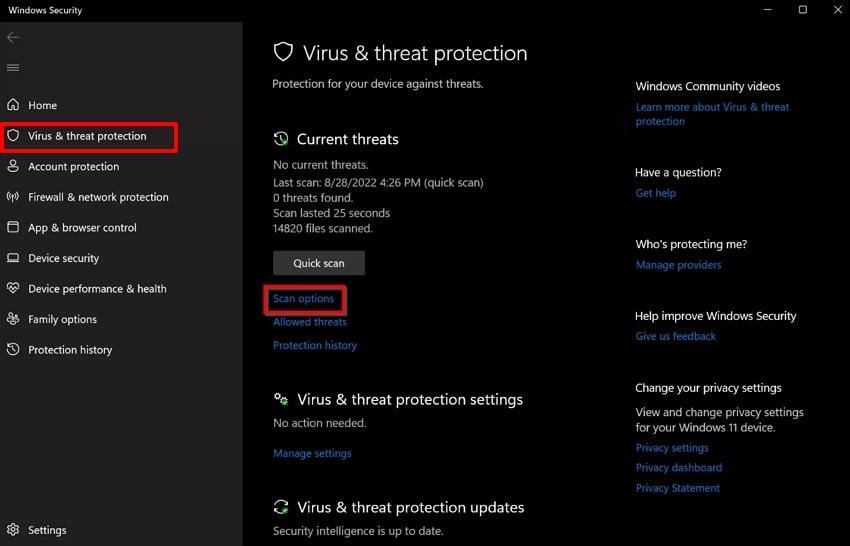
To remove a virus from a soft-infected computer, begin by disconnecting the affected computer from other networks. In this way, it will save your computer by spreading the virus, then access the built-in virus and threat protection tool. This process will ensure active malware is removed before starting the recovery. Overall, it's the safest method, so explore the following guide:
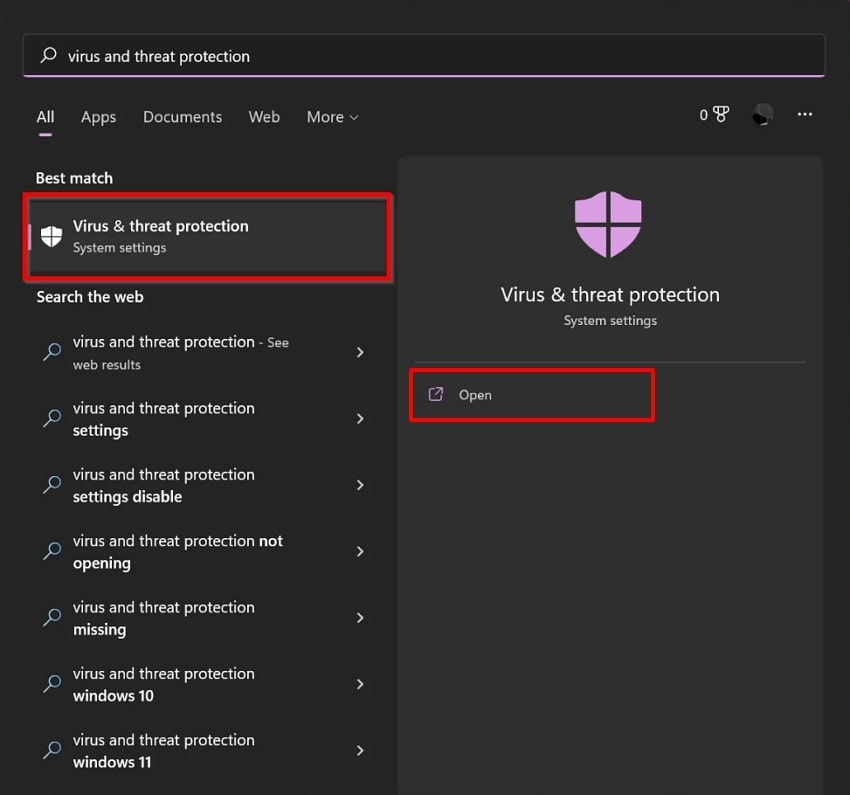
- Go to the Start menu, click on the "Virus and Threat Protection" option, and hit the "Open" button to enter.
- Here, choose the "Scan" options within the "Current Threats" tab.
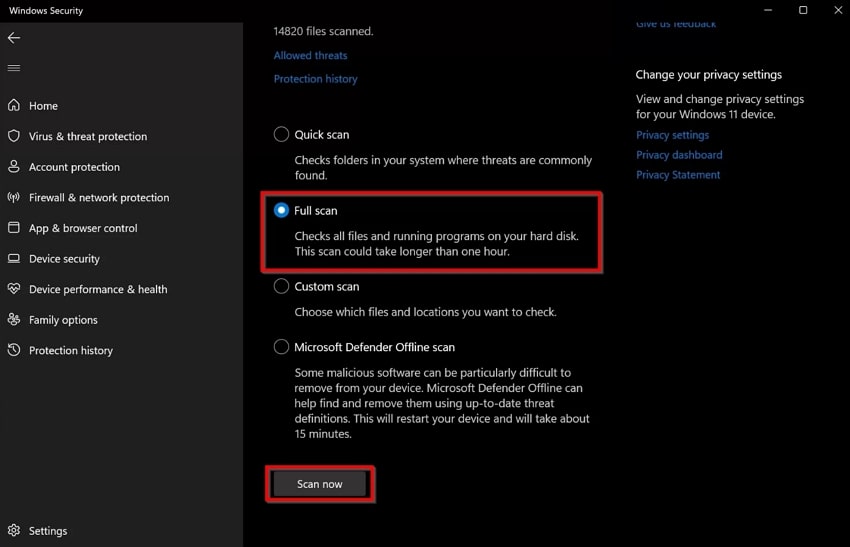
- Now, enable the "Full scan" option, then click "Scan Now" to start the scan.
2. Restore Files Hidden by the Virus via Command Prompt (CMD)
Users can also restore the command prompt CMD to restore hidden files within the PC. Without requiring any technical knowledge, you can simply insert a command to locate files. CMD works on all storage devices, including USB drives, HDDs, and SSDs. So, if you want to recover virus infected files with this fast and lightweight method, then read:
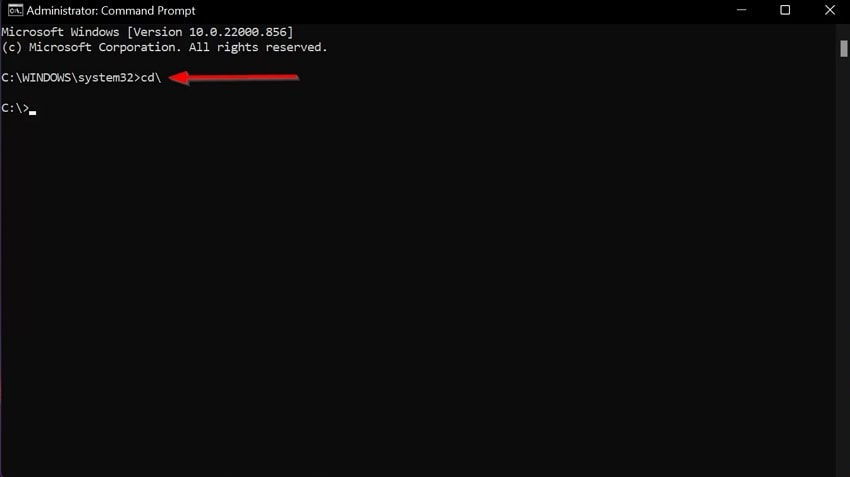
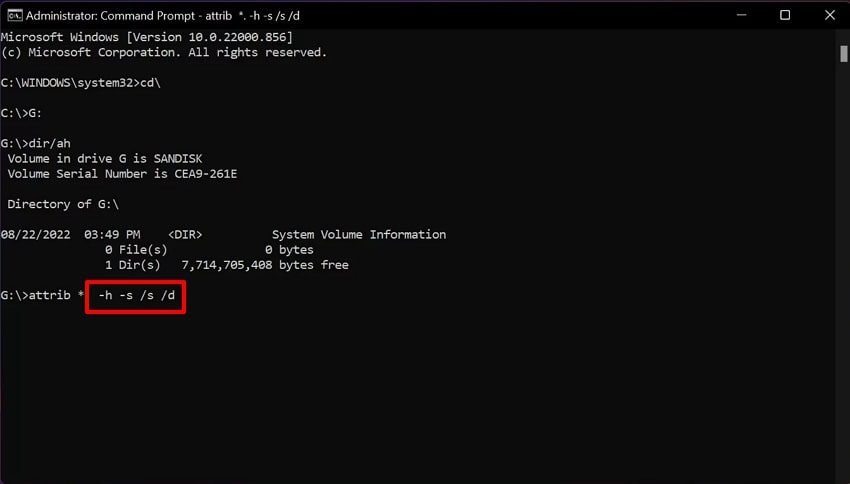
- Click "Windows Key + S" on the keyboard to open the command line interface. After opening CMD, type the "cd\" command and press "Enter."
- Here type the "\>G" command and hit the Enter button. Following this, enter "dir/ah" and hit the enter button. It will show you all hidden files and directories that CMD finds in the drive of your device.
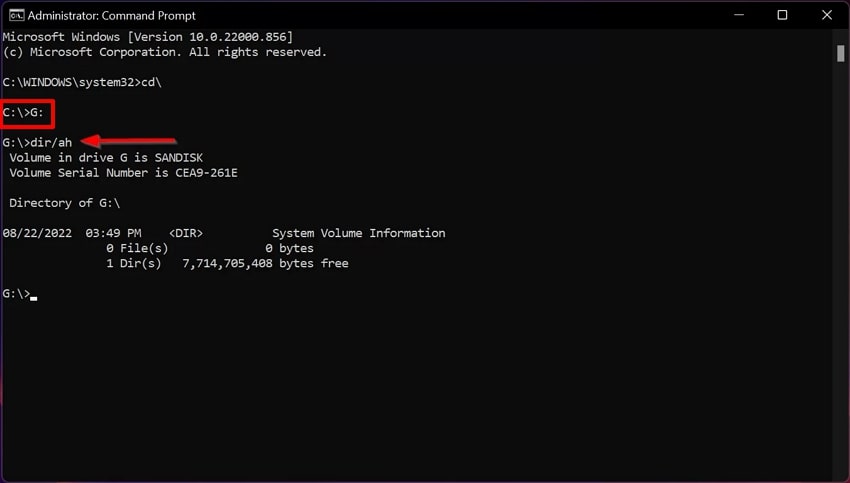
- Lastly, write "attrib *. -h -s /s /d" and hit the Enter button. After this command, go to your device folder to find the unhidden files instantly. During this procedure, the command line may seem stuck but wait for the process to end instead of panicking.
3. Retrieve Virus-Infected Files Via Backup
You can restore your virus-infected files by accessing your backup history of the device. Without downloading any third-party software, it lets you easily retrieve your file stored before the virus infection. Furthermore, restoring from backup is usually fast and primarily minimizes the chance of data loss. Upon hearing its features, have a look at the following guide:
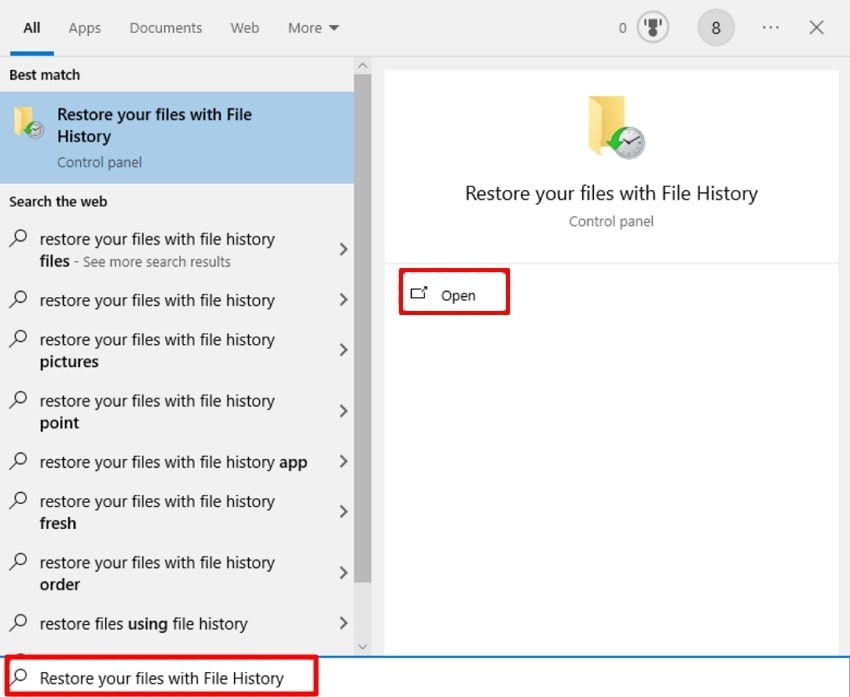
- Initiate by pressing "Windows + S," typing "Restore your files with File History," and clicking the "Open" button.
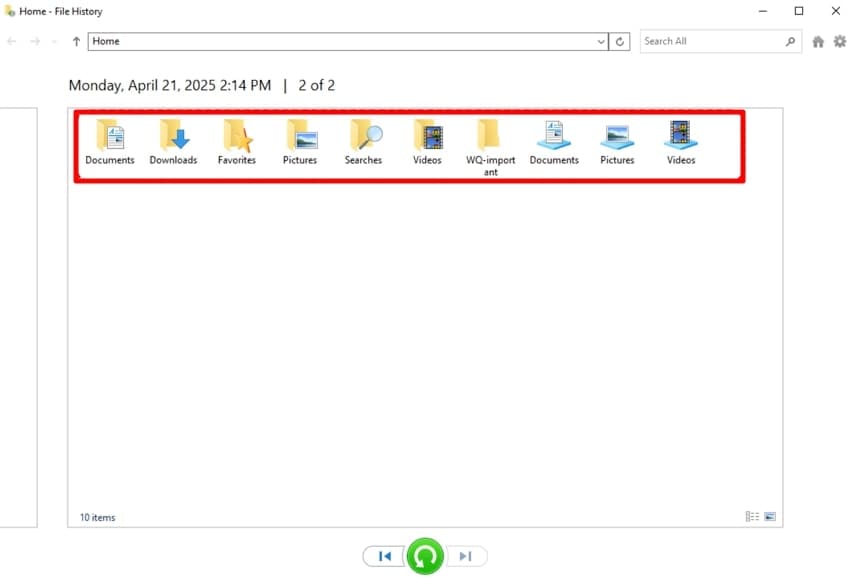
- Here, all the folders are available, so browse through them to locate the desired deleted file.
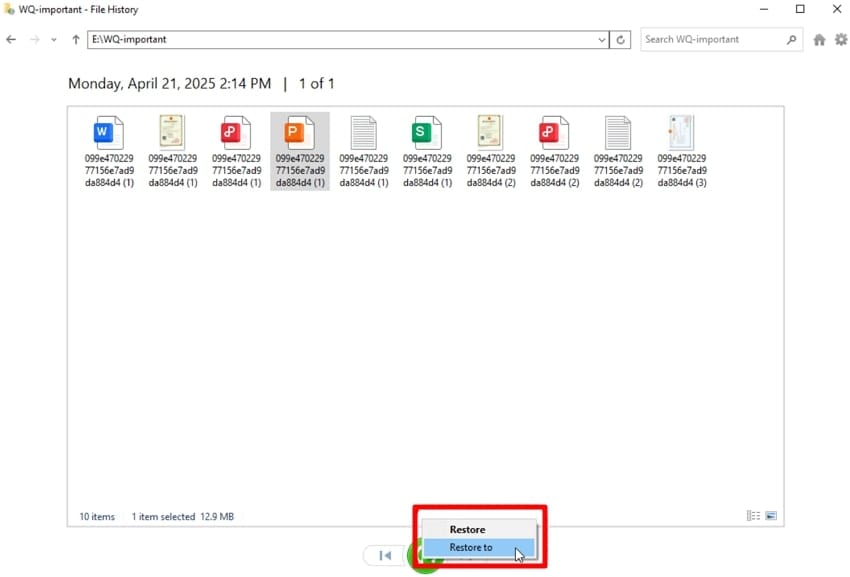
- Now, select the desired file folder and hit the "Green Arrow" button. Following this, choose the "Restore" or "Restore to" button to get it restored to the device.
4. Recover Deleted or Corrupted Files Using Recovery Software
Imagine you are a wedding photographer and have just finished a bridal shoot. While examining them on your computer, you found out that some files had vanished completely. Rather than panicking due to the client's pressure, we recommend using Wondershare Recoverit. This tool lets you retrieve your efficient files instantly while providing 99.5% accuracy.
Recoverit is capable of recovering data lost due to any scenario, including a power outage and a virus attack. Furthermore, it provides both Quick and Deep scanning options to let you choose according to your scenario. Users can also preview the recovered outcome to ensure its complete accuracy before exporting it.
Key Features
- Batch Processing System: This tool lets you retrieve all your lost files simultaneously to save your extra manual work.
- File Support: Recoverit provides huge support to numerous files, including images, videos, emails, PPTs, and much more.
- Device Compatibility: Users can easily retrieve their lost data from various external devices, including SD cards and USB drives, to provide wider compatibility.
Detailed Stepwise Guide to Retrieve Files Using Wondershare Recoverit
After exploring its key features, if you want to recover files deleted by a virus, then read the following detailed stepwise guide below:
- Select Hard Drives and Locations to Choose Quick Access
After entering the tool, tap on the "Hard Drive and Locations" option from the left tab. Following this, choose the desired locations within the "Quick Access" tab.
- Scan the Lost Data With Recoverit
After choosing a location, it will automatically initiate the scanning procedure with "Quick Scanning". Here, if you are unable to find the file, you can search for it by "File name" or "File size."
- Preview and Render the Recovered Outcome
Finally, the files are recovered. Tap on the "Preview" button to preview the outcome. After previewing, click the "Recover" button to save the files to the device.
Scenario #3. How to Recover Data from a Hard-Infected PC
In the worst scenarios, the above-discussed method will probably not work due to severe file damage. This seems impossible, but there are some options that you can opt for, as we have discussed below. So, if you are wondering how would you recover data from a virus infected computer, this section is for you:
Create a Rescue Disk to Scan a Virus-Infected Computer That Won't Boot
This method is beneficial as it operates outside of your computer's main operating system. It scans the hard drive without activating any virus, which normally starts with Windows. Furthermore, a rescue disk is related to antivirus providers, which ensure maximum virus detection. Being a straightforward method, it is easily accessible for everyone, so let's explore it in a detailed stepwise guide:
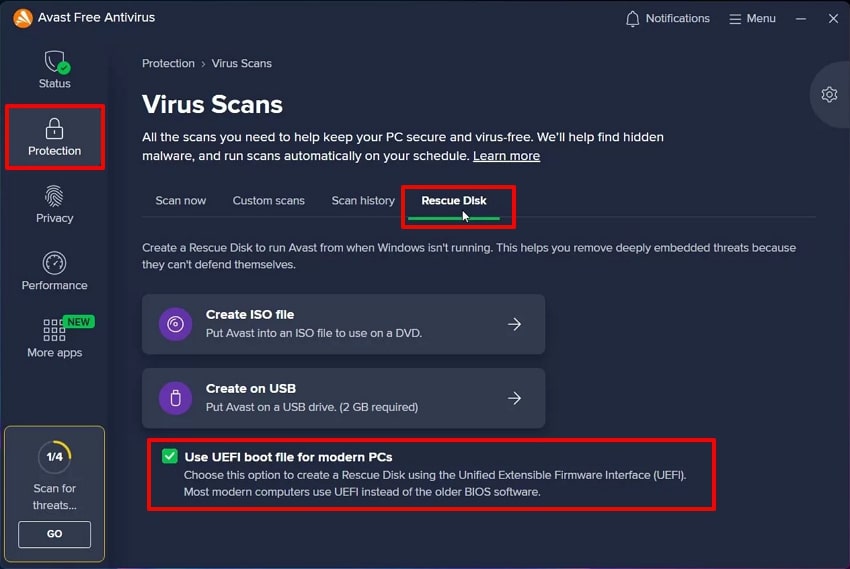
- Open the "Avast Antivirus" software and click on the "Protection" option from the left tab. Following this, choose the "Rescue Disk" tab and enable the "Use UEFI boot file for Modern PCs" option at the bottom.
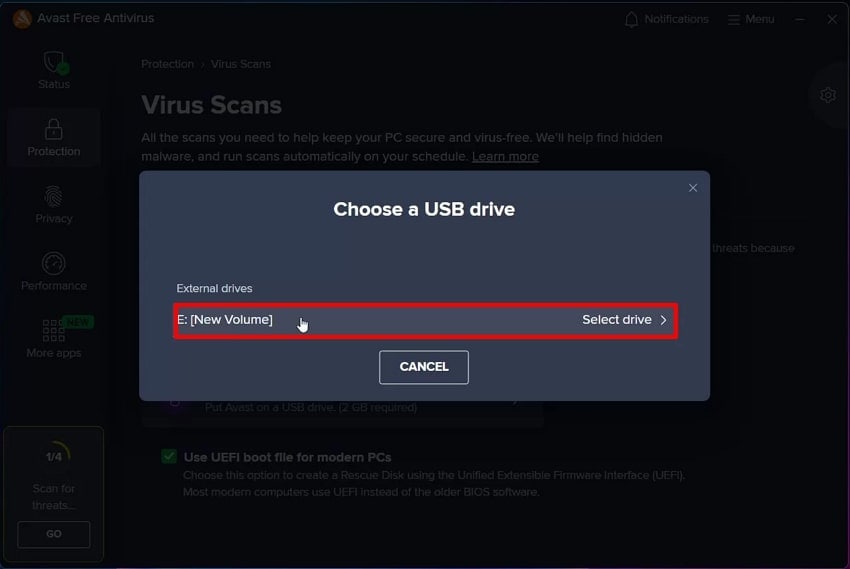
- Now insert your USB drive and tap the "Create on USB" option. Afterward, hit the "Select Drive" option to choose the desired drive, and the process will initiate to create the rescue disk.
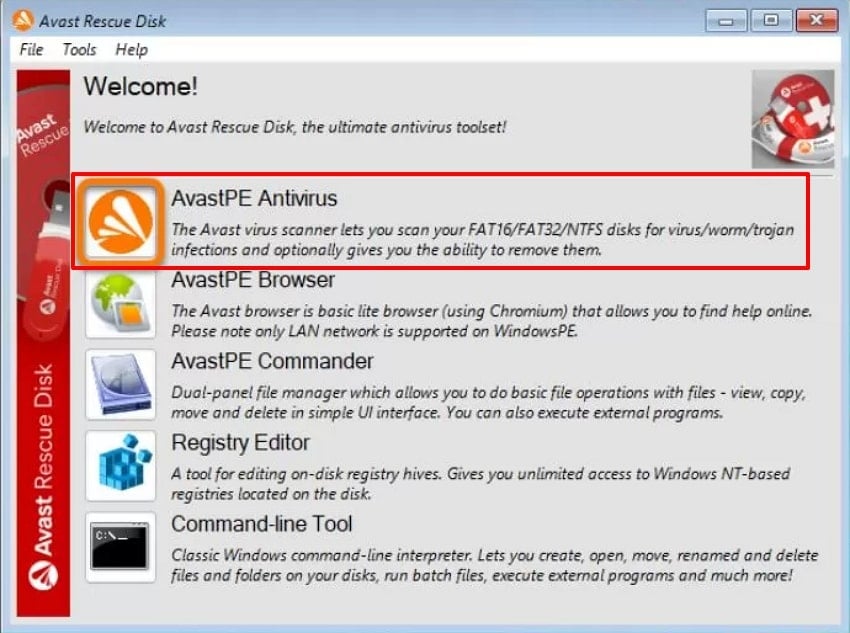
- Next, insert this USB drive with the generated rescue disk into your corrupted computer. Start the PC and immediately type "Esc" or "F12." Follow the ongoing instructions and choose the AvastPE Antivirus option in the Rescue Disk menu.
- Afterwards, choose the desired folder within the "All hard disk" menu and hit the "Next" button to scan for antivirus.
However, if this method also fails, you can access the following methods to recover files deleted by a virus:
Scan The Drive on A Different Computer
Sometimes a virus can cause serious damage to your computer, resulting in essential data loss. This method is beneficial as it minimizes the risk of spreading malware to other parts of the PC. Furthermore, it boosts the chances of data retrieval and reduces reinfection risk when attempting recovery. Upon hearing these features, have a look at the following detailed stepwise guide:
- Initiate by turning off your computer, opening the back case, and carefully disconnecting the drive.
- Now, connect the drive with the USB-to-SATA or external drive enclosure. Afterwards, connect the adapter to the working computer.
- Here, when you open the working computer, this drive will appear as "External Storage Device." However, ensure you run a full virus scan before using that corrupted drive to avoid spreading the virus.
Consult Professional Data Recovery
In case all the above-discussed methods and third-party tools did not work, you can opt for professional help. These professionals have specialized tools to recover lost data even in complex scenarios. However, always keep in mind that these services are more expensive than DIY methods and online tools.
Part 5. Tips to Prevent the Need to Recover Files from Virus-Infected Computer

- Keep Antivirus Updated: Regularly update your antivirus and anti-malware software to protect your system from the latest threats.
- Back Up Your Data: Always maintain frequent backups to store data so you can restore an uninfected version and avoid permanent loss.
- Avoid Downloading Unknown Software: Download programs from reputable and trusted sources, as unverified software may contain malicious code that affects your system.
- Be Cautious with Email: Never open email attachments or click on links from unfamiliar senders, and always be suspicious of unexpected messages.
- Scan External Drives: Whenever you connect a USB or external hard drive, scan it immediately to prevent hidden threats from spreading to your device.
Conclusion
Summing up, we have provided all the necessary details to know how to recover files from virus infected computer. In this article, we have narrowed down the different methods for retrieving your data efficiently and instantly. However, among these methods, we recommend using Wondershare Recoverit, which ensures 99.5% data accuracy.
FAQ
1. What's the first thing I should do if my files are missing after a virus attack?
As soon as you lose data, check your recycle bin, as files are sometimes only moved there. However, if you are still unable to find data, opt for recovery software like Recoverit, which provides various scanning modes.2. Can I recover files deleted by a virus without third-party software?
Absolutely, users can easily retrieve their lost data using third-party software such as Wondershare Recoverit. This tool provides you with a batch-processing system to recover lost data while ensuring 99.5% accuracy.3. How do I recover files from a computer that doesn't boot?
In this case, opt for a rescue disk/bootable antivirus on a USB or connect another computer's drive. This method lets you scan, remove malware, and safely copy your data instantly.4. Can professional services help if recovery software doesn't work?
Yes, if all DIY methods and third-party software failed to recover virus infected files from your computer. You can go for professional help for your data recovery, but remember that it will be expensive, so choose wisely.


