

 TL;DR:
To stop Roblox from silently crashing on a PC after a recent update, you must resolve local file conflicts by resetting game preferences, disabling interfering background overlays, or repairing required Windows runtimes.
● Delete the "frm.cfg" and "GlobalSettings_13.xml" files located in the "%localappdata%\Roblox" directory to clear corrupted launch data and safely restore default client settings.
● Turn off in-game overlays within applications like Discord and GeForce, as these tools frequently interrupt newly updated graphics processes and force the Roblox Player to close.
● If a sudden shutdown deletes your active gameplay recordings, immediately stop saving new data to the capture drive and use Recoverit to scan and rebuild the missing MP4 or MOV files.
Ask AI for a summary
 ChatGPT
 Perplexity
 Gemini
 Claude
 Grok
Grok
Roblox updates often bring smoother features, but they can also create PC crashes. When the platform suddenly closes, players lose progress without receiving warnings. Moreover, Roblox closing automatically without error can feel confusing after a recent update. That silence slows down normal troubleshooting for many Windows users today.
Therefore, this guide explains safer fixes before advanced repairs begin. It covers update conflicts, damaged files, permissions, and system stability checks. Thus, each technique will help users test causes without first changing risky settings.
Try Recoverit to Perform Data Recovery
 Security Verified. 3,591,664 people have downloaded it.
In this article
Part 1. 6 Causes of Roblox Auto-Crash After Update with No Error Message
Prior to applying any fix, it helps to understand why Roblox is crashing after the update, with no error message. The following causes explain common PC-side issues that can force Roblox to close during launch or gameplay:
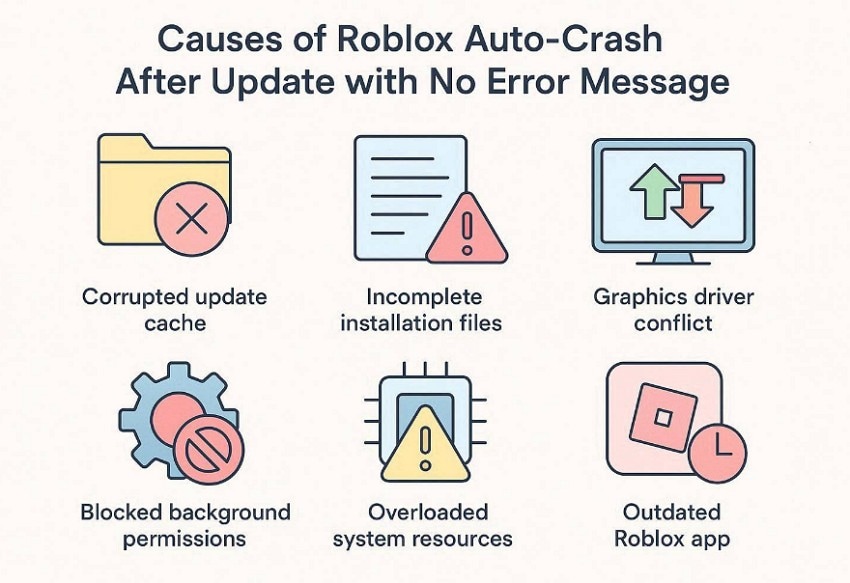
- Corrupted Update Cache: Old temporary Roblox data may clash with files from the latest update. Clearing the cache helps Roblox rebuild cleaner launch data on Windows again.
- Incomplete Installation Files: An interrupted update can leave missing or damaged Roblox files on the computer. This broken setup may cause the game to close before the experience loads properly.
- Graphics Driver Conflict: New Roblox updates may not work smoothly with outdated display drivers. Updating the graphics driver can improve rendering support and reduce sudden crashes.
- Blocked Background Permissions: Windows security settings may restrict Roblox after a fresh update. Limited access can stop required processes without showing a clear warning message.
- Overloaded System Resources: Too many background apps can reduce available memory during Roblox gameplay. Closing extra programs gives Roblox more room to run smoothly.
- Outdated Roblox App: Sometimes, Roblox does not update correctly through the existing launcher. Reinstalling it can replace damaged files with a cleaner working version.
Part 2. How to Stop Roblox Crashing After Update on PC?
Once the possible causes are clear, the next step is applying fixes carefully. The following methods will help you stop Roblox from crashing after updates.
Way 1. Update Roblox
When Roblox keeps crashing silently in 2026, the first check should be the installed version. An older or partially updated Roblox client may not communicate properly with the latest platform files. Moreover, updating Roblox helps replace outdated components without touching account data or saved progress. Start with the update steps below before moving to deeper repairs:
Step 1. Start by opening Roblox in a browser and choosing the "Discover" option from the top menu.

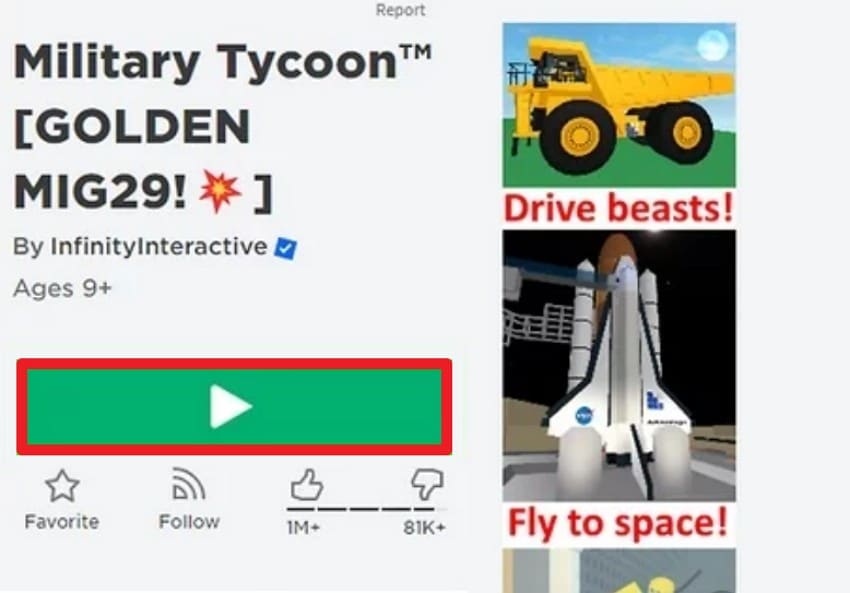
Step 2. Afterward, select the Roblox experience, then press the green "Play" button.
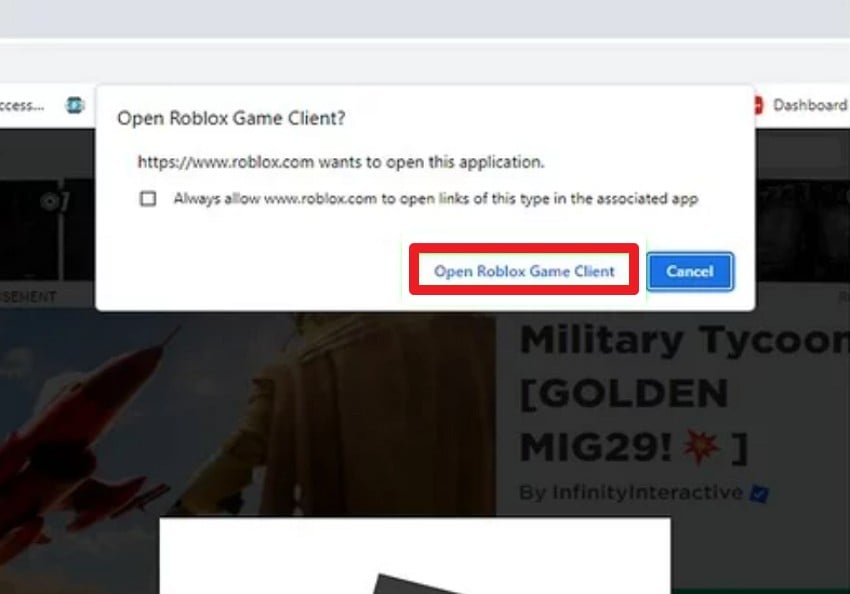
Step 3. Next, click on the "Open Roblox Game Client" when the browser prompt appears. Then, Roblox Player will launch and install the latest update automatically.
Way 2: Run Roblox as Administrator
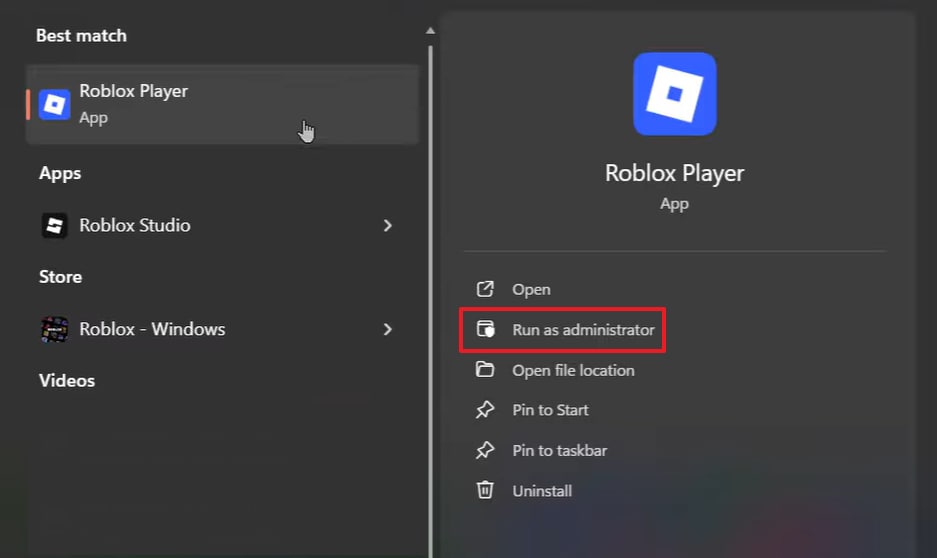
Roblox Player may shut down suddenly when Windows restricts required access after updates. Administrator mode provides temporary access to folders, services, and runtime files during launch. However, this approach should confirm permissions rather than become routine daily PC usage. Use the instructions below to run Roblox as Administrator:
Instructions. Search Roblox Player in Start, then right-click to choose "Run as administrator" once. After that, launch any game or experience and check whether the silent crash returns again.
Way 3. Clear Roblox Cache
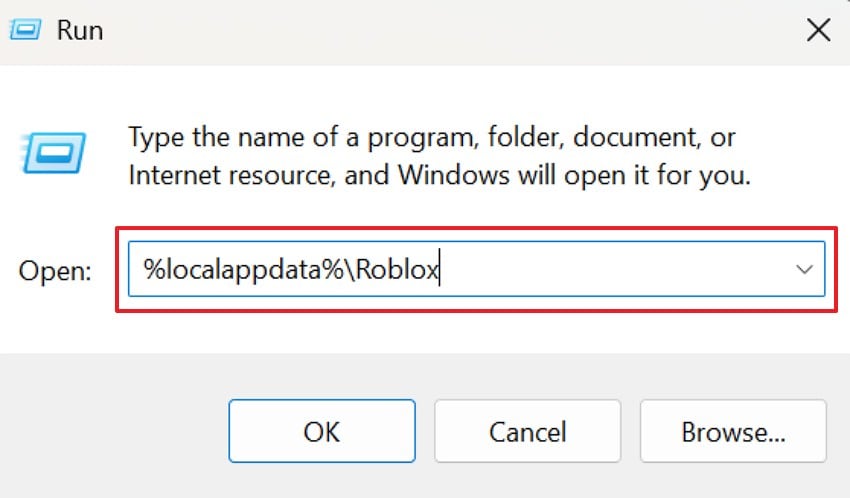
If Roblox randomly closes with no error on Windows 11, the corrupted cache needs attention. Old folders may preserve broken launch data after a fresh update cycle. Additionally, removing cache does not delete Roblox accounts or personal progress data. Follow the cleanup instructions below for a cleaner Roblox Player launch on Windows again:
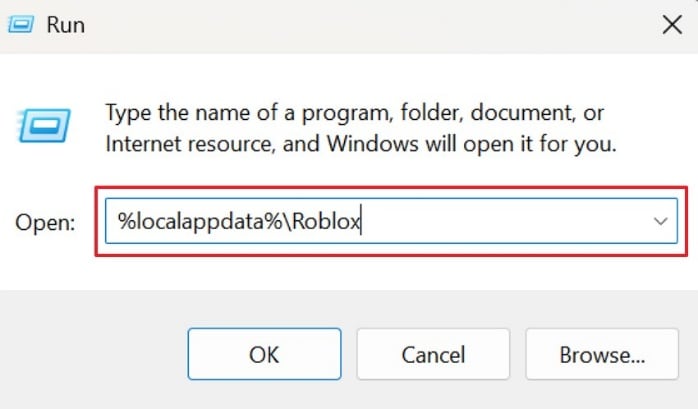
Instructions. Close Roblox completely, then use "Windows + R" to launch the Run box. After that, type "%localappdata%\Roblox," remove cache folders, then restart Roblox Player.
Way 4. Disable Overlays (Discord/GeForce)
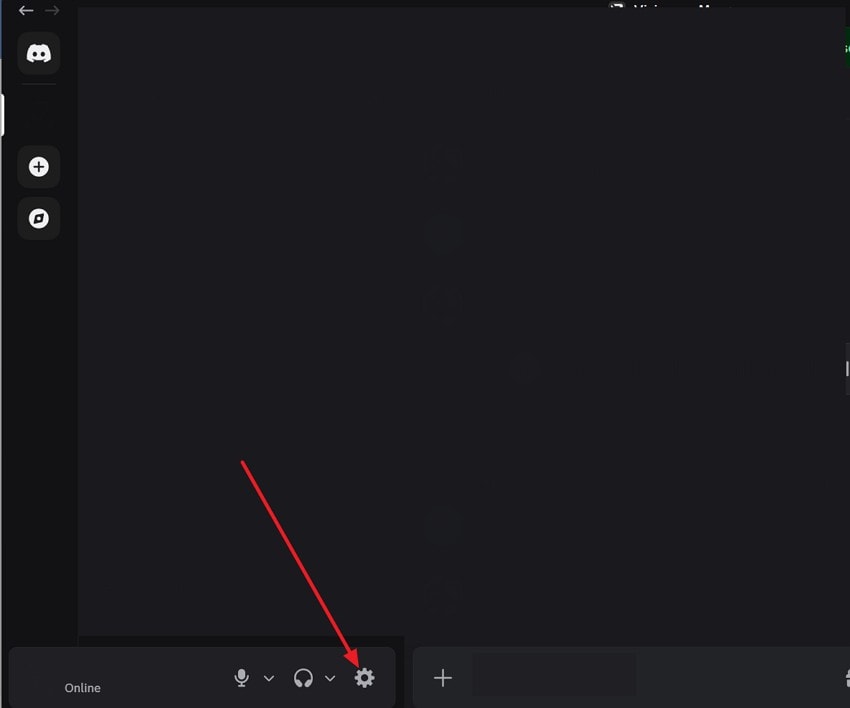
Overlays from Discord, GeForce, and recorders may conflict with the Roblox startup silently. These tools sometimes hook into graphics processes after updates and cause crashes. Meanwhile, disabling them reduces interference without removing the programs completely from Windows. Adhere to the overlay steps below to disable Discord overlays:
Step 1. Open Discord, click the "Settings" icon, and select "Game Overlay."
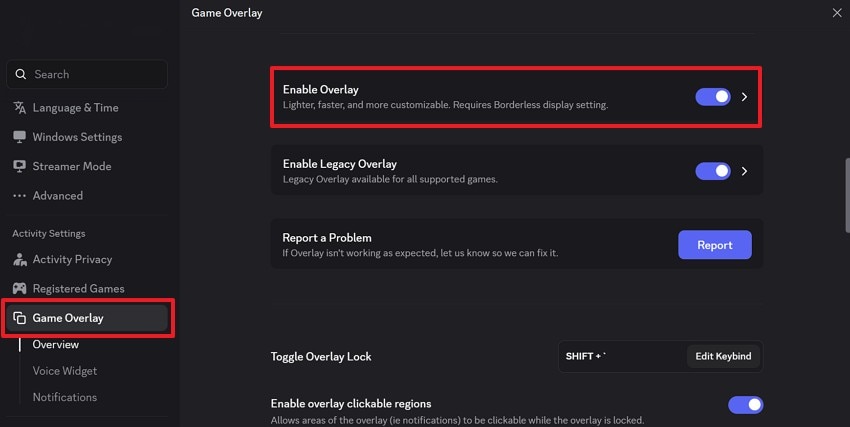
Step 2. In Game Overlay, turn off "Enable Overlay," then relaunch the Roblox Player again.
Way 5. Reset Roblox Settings
For a Roblox crashing silently Windows 11 fix, reset settings carefully first. Custom graphics or launch preferences may clash with newer Roblox Player behavior. Furthermore, resetting settings can remove unstable choices without reinstalling Roblox entirely. Try the reset steps below to return Roblox settings to safe defaults:
Step 1. To start, press "Windows + R," type "%localappdata%\Roblox," and click "OK."
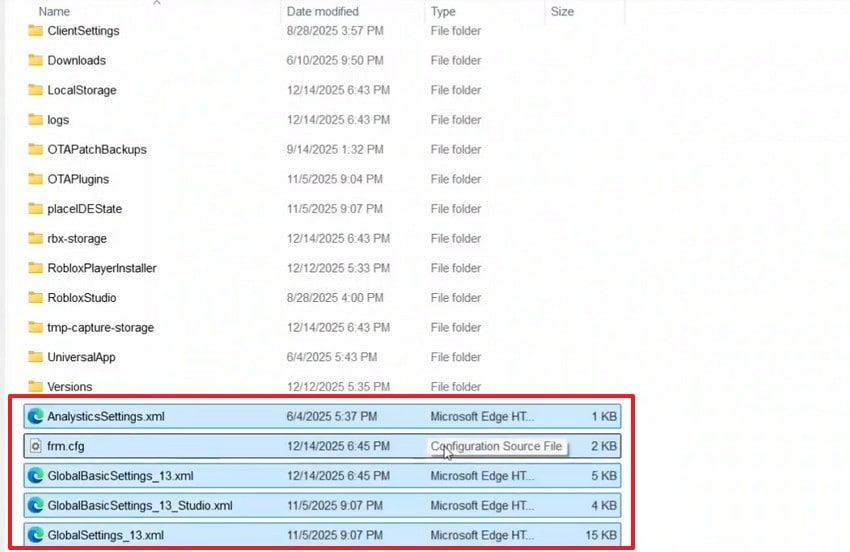
Step 2. After that, select Roblox settings files, such as "frm.cfg" and "GlobalSettings_13.xml," then delete them. Restart the Roblox Player so it can rebuild fresh default settings.
Way 6. Reinstall Visual C++ Redistributables
Microsoft Visual C++ redistributables support the runtime components Roblox needs during startup. After updates, damaged packages may trigger Roblox crashing after update, with no error message. Besides, repairing these runtimes can restore missing libraries without changing game settings. Follow the runtime repair steps below to refresh the required Windows support files:
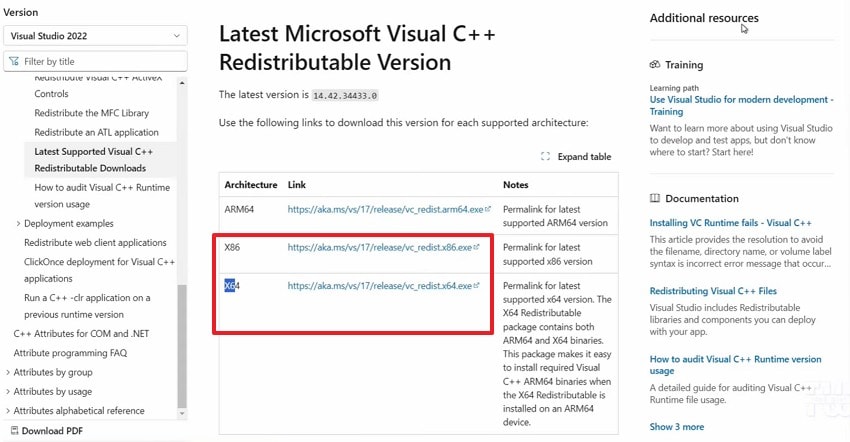
Step 1. Go to Microsoft’s official Visual C++ Redistributable page and choose the correct package. Select the "x86" or "x64" installer according to the Windows version installed on the PC.
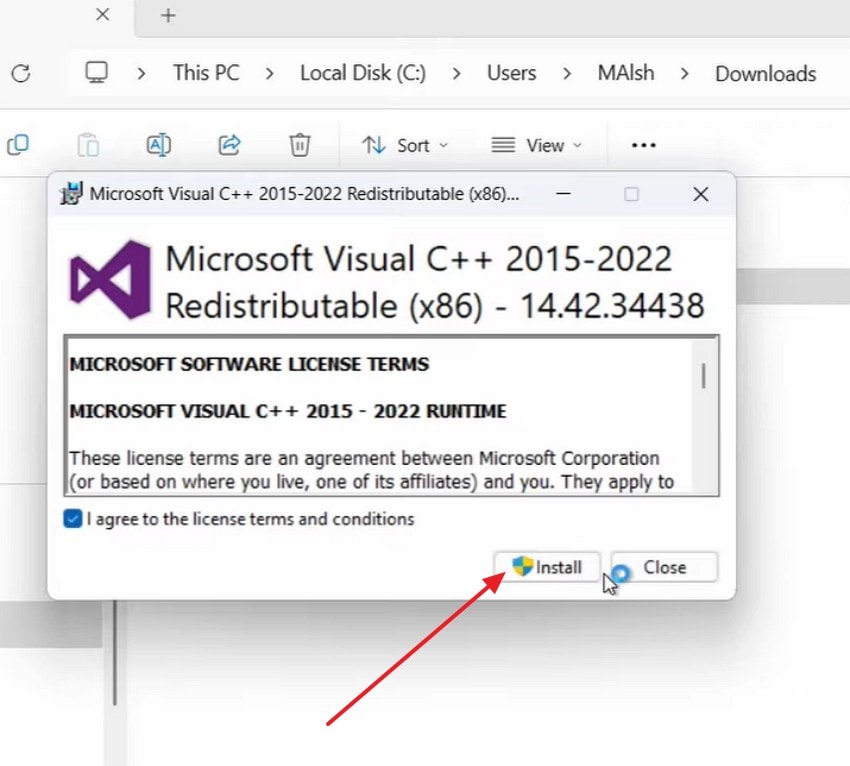
Step 2. After the download is complete, run the installer from the "Downloads" folder. Agree to the license terms, click "Install," and wait until Windows finishes adding the required runtime files.
Pro Tip. Restore Your Roblox Recordings Using Recoverit
A Roblox crash does not always affect only the game session. If players were recording gameplay, sudden shutdowns may leave clips missing, unsaved, or removed from the capture folder. This situation becomes more stressful when Roblox crashes after an update, and no error message appears during a tutorial, montage, or match recording. At that point, the recording file needs separate recovery attention.
In that situation, Recoverit is a practical recovery option for lost Roblox recordings. It scans the original location where the clip was saved, such as an internal drive, external drive, or specific folder. Moreover, its preview feature also helps users check recoverable videos before saving them, which reduces confusion when several recording files appear after scanning.
Key Features
- Enhanced Video Recovery: Helps rebuild fragmented gameplay videos, useful when crash interruptions leave recordings unreadable or incomplete.
- Wide Video Format Support: It supports common recording formats, including MP4 and MOV, which are often used by screen recorders.
- File Type Filter: Users can filter video results, making recovered Roblox recordings easier to identify after scanning.
Guide to Restore Your Roblox Recordings Using Recoverit
After checking Recoverit’s recovery features, the following steps show how to restore missing Roblox recordings safely:
Step 1. Choose the Roblox Recording Save Drive
Start by navigating to "Hard Drive and Locations" to select the drive or folder where the Roblox recording was originally saved.

Step 2. Scan for Missing Gameplay Videos
Now, start the scan and wait while Recoverit searches for recoverable files in that location. All the recoverable files will appear under the "File Location" tab.

Step 3. Preview and Save the Recovered Recordings
Preview the video to confirm it is the correct Roblox recording before recovery. After that, press "Recover" and save the file to another safe drive or folder.

Conclusion
To conclude, Roblox closing automatically without error after an update usually points to a conflict between the client, Windows settings, or required support files. A careful troubleshooting order helps players restore stable gameplay without making unnecessary changes. If a sudden crash also removes recorded clips, Recoverit offers a practical way to recover lost Roblox gameplay recordings safely afterward.
FAQ
-
1. Why does Roblox close automatically after an update?
Roblox may close after updates when new files conflict with Windows components' settings. Checking permissions, cache, and runtimes helps identify the exact cause safely on a PC. -
2. Is Roblox crashing without an error message always a server issue?
No, silent Roblox crashes usually happen on the local Windows system first instead. Server problems may affect joining games, but they rarely close the Roblox Player. -
3. Can clearing the Roblox cache delete my account or saved progress?
Clearing the Roblox cache only removes temporary files stored locally on the computer. Account data, purchases, and progress remain linked to the Roblox account online. -
4. What should I do if Roblox recordings disappear after crashing?
Stop saving new files to the same drive after recordings disappear suddenly. Afterward, scan the original recording location using Recoverit to check for possible file recovery.


