

 TL;DR:
To resolve the Subnautica 2 "game might not have exited correctly" startup crash loop, ensure your system meets the Windows 10/11 64-bit and DirectX 12 minimum requirements, then address file conflicts by updating system components and disabling intrusive overlays.
● Disable in-game overlays for Steam and Discord, and update your GPU drivers to prevent rendering freezes and software conflicts with DirectX 12.
● Run Steam's "Verify Integrity of Game Files" tool and cleanly reinstall both the x86 and x64 versions of the 2015-2022 Microsoft Visual C++ Redistributables to replace missing or damaged runtime dependencies.
● Launch Steam, Epic, or Game Pass as an Administrator temporarily to bypass restricted folder access, and use Wondershare Recoverit if the recurring crashes have permanently deleted your Subnautica 2 save files or screen recordings.
Ask AI for a summary
 ChatGPT
 Perplexity
 Gemini
 Claude
 Grok
Grok
What if you launched Subnautica 2 after a long day, but you faced an error instead of playing the game? The screen says, "Your game might not have exited correctly," and the quest to dive into the ocean fails. In this situation, many users who want to search for the Subnautica 2 game might not have exited correctly fix and desire to know the cause of this issue.
So, this guide will uncover the simple solutions to restore the game and fix crash-on-exit problems. Additionally, learn how to return to Subnautica 2 without losing your screen recording or game files for a seamless experience.
Try Recoverit to Perform Data Recovery
 Security Verified. 3,591,664 people have downloaded it.
In this article
Part 1. What Is This Error in Subnautica 2?
The "Your game might not have exited correctly" or "Subnautica 2 verify system meets minimum requirements" error means the game crashes. It also means it froze and closed improperly during the last session. This type of warning often appears immediately after you press the "Play" button, and the message typically prompts you to check the requirements.
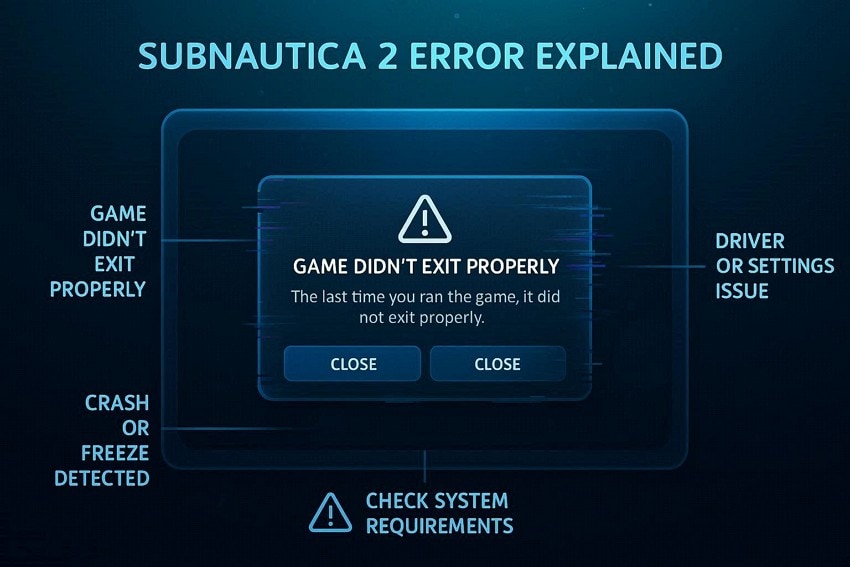
You might also be asked to update the drivers or lower the game settings, and it is mainly a Steam issue. Overall, it's just a warning for the game and will continue to appear every time you launch it until it's fixed.
Why Subnautica 2 Didn’t Exit Properly Error Occurs
Before you search for the Subnautica 2 not launching after crash fix, review the 5 mentioned reasons to know the cause:
| Reason | What happens |
| Previous Crash or Forced Close | Game crashes, freezes, or is killed in Task Manager, so it never shuts down cleanly and is flagged as an improper exit next launch. |
| Corrupted or Missing Game Files | Damaged or incomplete install files cause the game to fail during load or shutdown, resulting in a crash‑to‑desktop instead of a normal exit. |
| Outdated or Unstable GPU Drivers | Buggy graphics drivers crash during rendering or when closing the game, causing the process to end abruptly and triggering the warning. |
| System Below or Just Meet the Requirements | Weak CPU/GPU or low RAM can cause loading and saving issues, leading to hangs or black screens on exit, which are treated as crashes. |
| Bad Configs, Overlays, or Background Apps | Broken settings files, Steam/Discord overlays, or conflicting software interfere with the game process, causing it to crash instead of exiting normally. |
Subnautica 2 Requirements [Steam]
As you continue with the Subnautica 2 update graphics driver crash fix, know if the system meets the requirements of the game:
| System Requirements | Minimum | Recommended |
| OS | Windows 10/11 | Windows 11 |
| Processor | Intel Core i5-8400 / AMD Ryzen 5 2600 | Intel Core i7-13700 / AMD Ryzen 7 7700X |
| Memory | 12 GB RAM | 16 GB RAM |
| Graphics | GeForce GTX 1660 6GB / RX 5500 XT 6GB | Geforce RTX 3070 8GB / RX 6700 XT 8GB |
| DIRECTX | Version 12 | Version 12 |
| Network | Broadband Internet connection | Broadband Internet connection |
| Storage | 50 GB available space | 50 GB available space |
| Additional Notes | Requires a 64-bit processor and operating system | Requires a 64-bit processor and operating system |
Part 2. Subnautica 2 Crash on Exit Error? Easy Fix Methods
Regarding the Subnautica 2 stuck in crash loop startup fix, or the relevant error solutions, this section has you covered. Review the 5 main fixes mentioned below and learn whether they can be effective.
Way 1. Update Graphics Drivers
New drivers can improve the DirectX 12 compatibility, fix known GPU bugs, and reduce FPS drops and stuttering. In addition, this solution resolves conflicts with features such as DLSS, overlays, and resolution scaling. So, as you update the graphic drivers via the mentioned steps, it will help the game run more smoothly and close without errors:
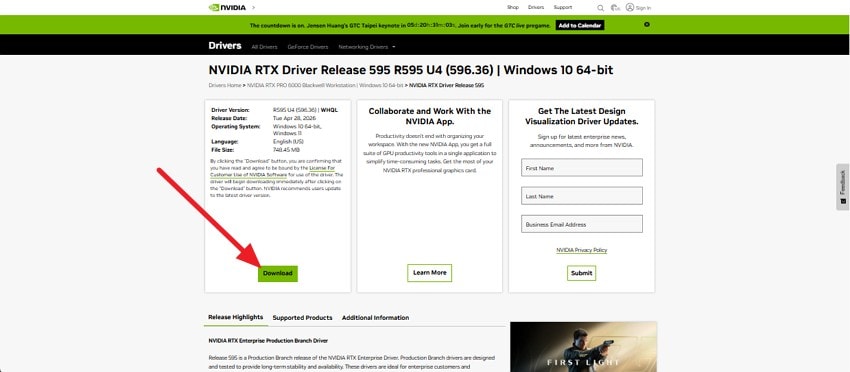
Step 1. Visit the NVIDIA Driver Downloads page, pick the graphics card model and Windows version, and click the "Find" button.

Step 2. On the newest Game Ready Driver, press "View," then press "Download" on the new window. To proceed, follow the instructions on the screen and reboot the device once the driver has been updated.
Way 2. Run Game as Administrator
As the Subnautica 2 game might not have exited correctly fix, it gives the game full permission to access important files, folders, and cached data. Thus, this can prevent crashes caused by the blocked file access or Windows security restrictions. Users can also resolve issues with overlays, recording tools, and background apps that interfere with the games. You can properly install or use DirectX and Visual C++ components, as guided:
Note: Use this solution as a temporary fix only, as keeping games in admin mode all the time can pose security risks.
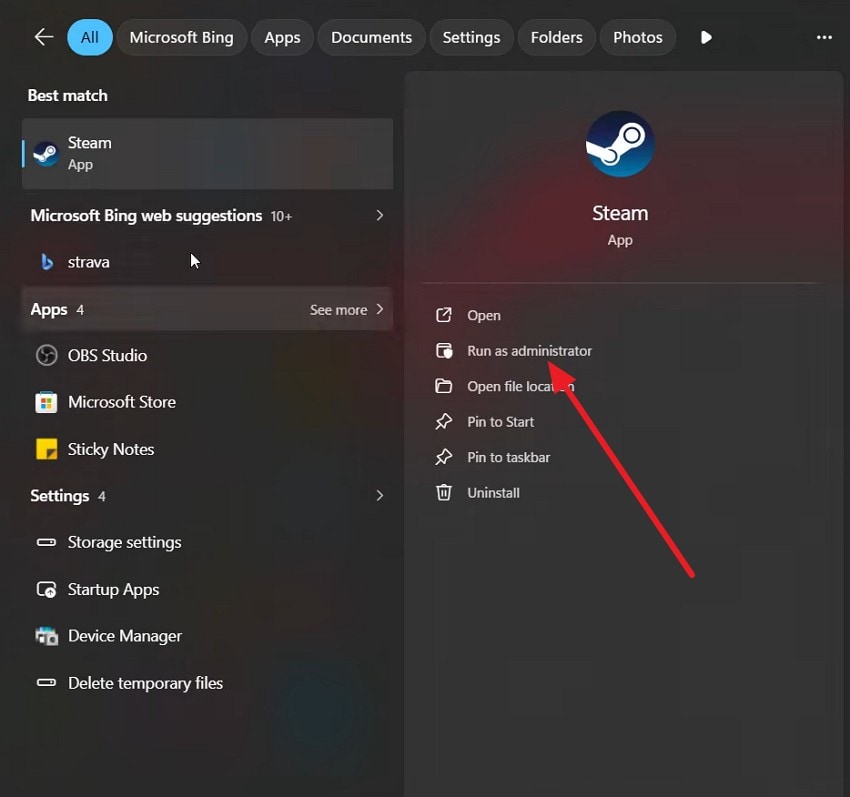
Run The Launcher (Steam/Epic/Game Pass) As Administrator
Instructions. Search for "Steam" in the Start menu and choose the "Run as Administrator" option. When prompted, pick "Yes" in the popup window and start Subnautica 2 from your Library and test if the issue persists.
Way 3. Disable Overlays (Steam/Discord)
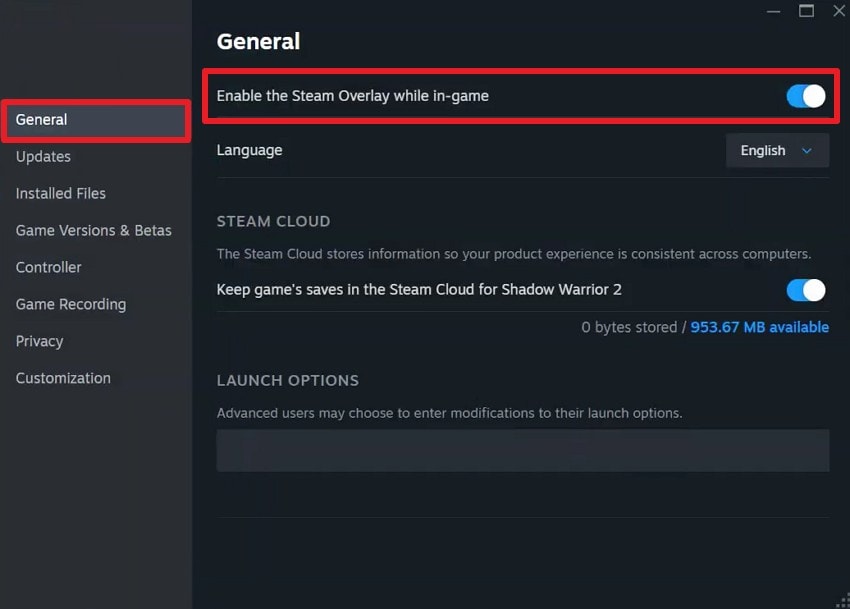
Regarding Subnautica 2 not launching after the crash fix, it's best to disable overlays from Steam, Discord, GeForce Experience, MSI Afterburner, and RivaTuner. This is because such tools add extra code on top of the game, which may conflict with DirectX 12 and cause freezes. Hence, as you turn them off, it improves game stability, reduces performance issues, and helps you know whether the issue was the game itself, as shown:
Turn Off Steam Overlay (Global or Just Subnautica 2)
Instructions. In the "Library" tab, right-click on the Subnautica 2 and choose properties to access the "General" tab in the popup window. There, turn off the "Enable the Steam Overlay While In-Game" option, then close the window to relaunch the game.
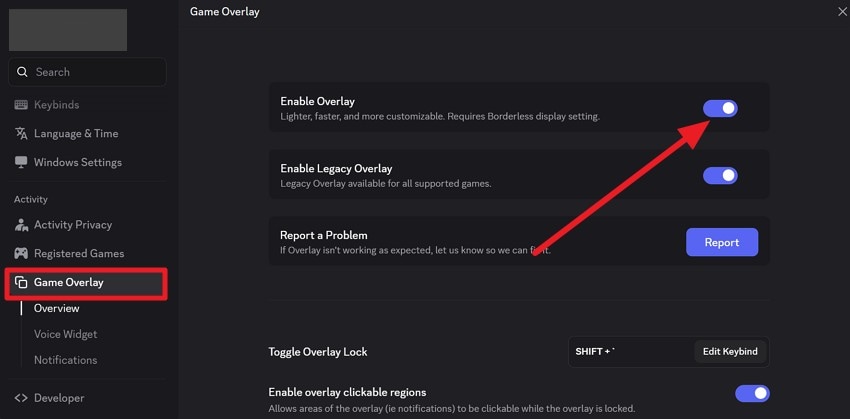
Turn Off Discord Overlay
Instructions. Tap the "Settings" icon and go to the "Game Overlay" tab to disable the "Enable Overlay" option.
Way 4. Verify Game Files
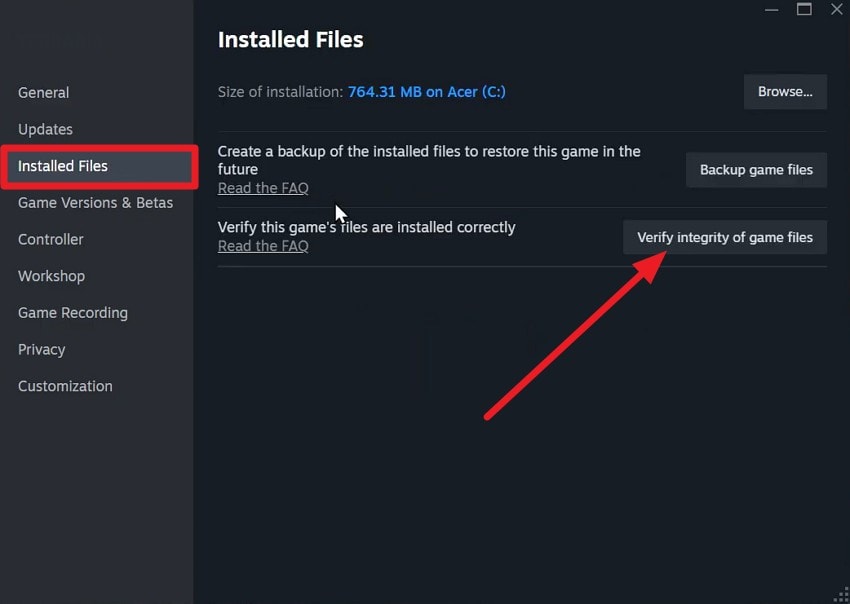
If you still get the Subnautica 2 verify system meets minimum requirements error, verify the game files. This process scans all game files via Steam and automatically re-downloads any broken or incomplete data caused by failed updates. Furthermore, it removes the problem caused by mods or manual file edits, and the steps are mentioned ahead:
Instructions. Right-click on the Subnautica 2 in the "Library" to choose the "Properties" and "Installed Files" tab. There, press the "Verify Integrity of Game Files," and Steam will automatically scan and fix any broken files.
Way 5. Reinstall Visual C++ Redistributables
If these components are broken, Subnautica 2 may show black screens, runtime errors, or sudden exits. Thus, a clean reinstall of the 2015-2022 Visual C++ packages (both x86 and x64) replaces the damaged files and removes version conflicts. Users can also restore the missing components and improve overall stability, as guided below:
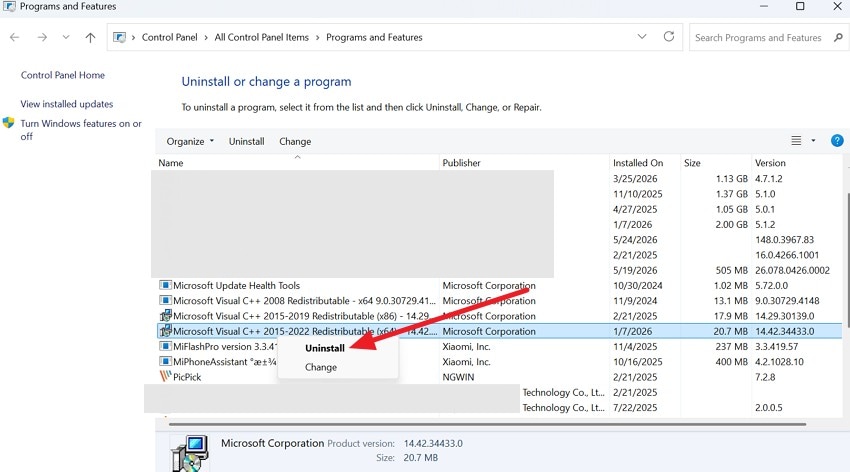
Uninstall Old Visual C++ Packages
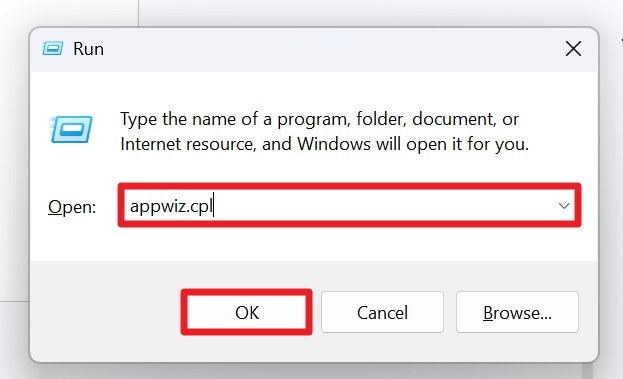
Step 1. Press "Win + R," type "appwiz.cpl," and press the "OK" button or "Enter" key.
Step 2. In Programs and Features, locate the "Microsoft Visual C++ … Redistributable," especially for 2015-2022, and choose the "Uninstall" button when you right-click.
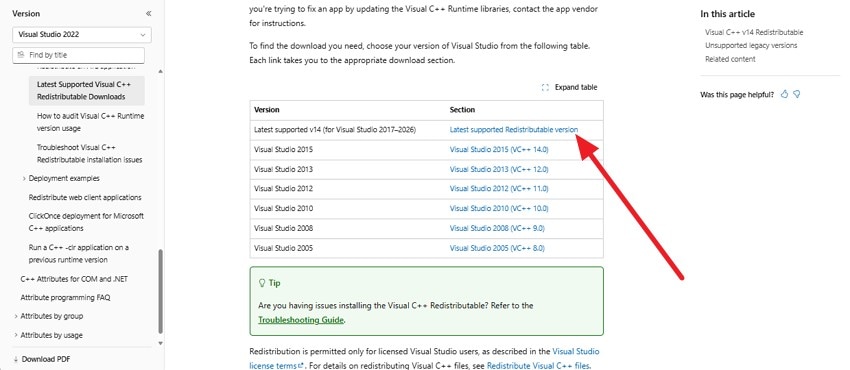
Download the latest Visual C++ Redistributables from Microsoft
Step 1. Go to the official Microsoft page for the latest Visual C++ redistributables and choose the "Latest Supported Redistributable Version."
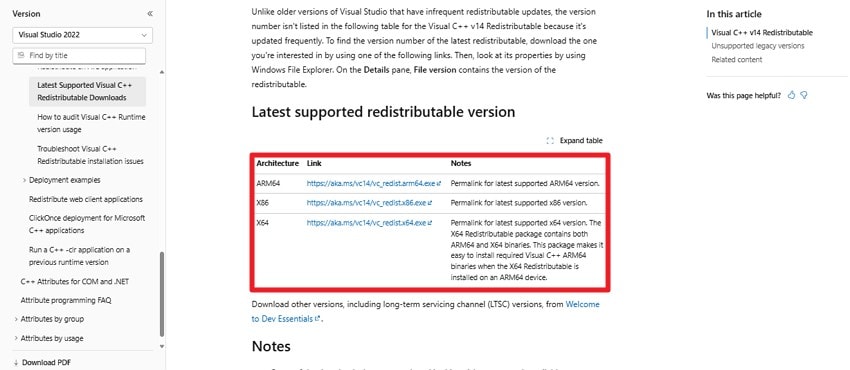
Step 2. Download both "VC_redist.x64.exe" and "VC_redist.x86.exe" and install all packages properly one by one. Once done, restart the computer to apply the new changes for the Visual C++ Redistributables.
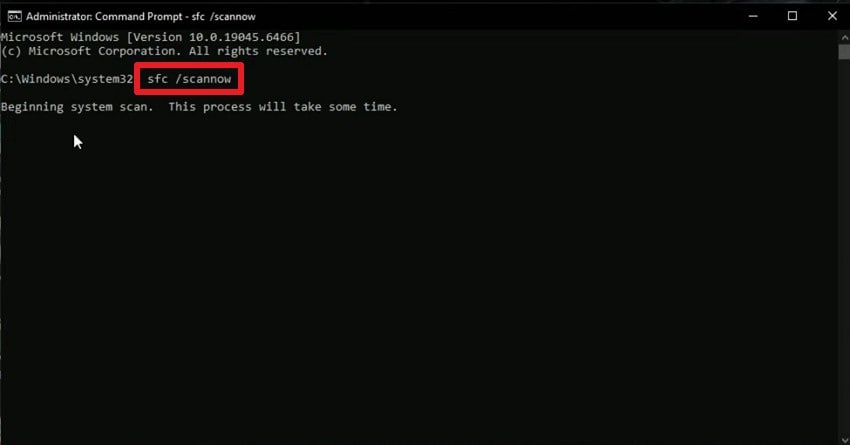
(Optional, But Recommended) Run System File Checker:
Now, run Command Prompt as an administrator and enter the "sfc /scannow" command. As the scan ends, it will repair the damaged Windows system files that can also cause runtime crashes.
Pro Tip. Restore Your Lost Screen Recordings & Game Save Files with Recoverit
If the Subnautica 2 verify system meets minimum requirements error has damaged or lost your save files and game recordings, Recoverit can help. This tool can thoroughly scan HDDs, SSDs, and external drives to restore deleted data, including Subnautica 2 saved files and recordings. In this regard, it can retrieve multiple formats, such as images, videos, audio, and other data found in game files.
Hence, using the deep‑scan algorithms, the tool can perform Quick and Advanced scans to locate lost data, which you can pause and resume at any time. Nevertheless, it can also recover data from formatted, corrupted, or partially damaged partitions if crashes or disk errors have affected your game drive. Users can also use it to retrieve files from a crashed Windows PC by creating a bootable USB drive.
Key Features
- Filter Option: When recovering data from the computer, users can filter files by size, location, and type.
- Batch Processing and Preview: The tool can recover multiple files at once and lets you preview them in detail before you save to the device.
- Storage Options: The tool lets you choose from hard drives and SD card locations to start the Quick Scan for file recovery.
- Compatibility: Users can use this data recovery tool on Windows and Mac, and try the free mode/limited recovery options to test the tool.
Guide to Recover the Lost Subnautica 2 Files with Recoverit
When exploring the Subnautica 2 stuck in crash loop startup fix, recover the lost game data in this section. The detailed guide for data recovery is mentioned in this section to test whether the tool delivers what it claims:
Step 1. Locate the Subnautica 2 Lost Data Location
Choose from "Hard Drives and Locations" in the "File Recovery" section to pick the driver where Subnautica 2 data was lost.

Step 2. Filter the Subnautica 2 Lost Data Files During Scan
This will start the Quick Scan, and you can go to the "File Location" or "File Type" menus to locate the targeted data files.

Step 3. Select and Recover Your Subnautica 2 Data
When the scan ends, press the "Recover" button, preview the files, and click "OK" to save to your computer.

Conclusion
If you are facing the Subnautica 2 game might not have exited correctly error, along with the system requirements error, this guide has you covered. From updating graphics cards to reinstalling Visual C++ Redistributables, each solution is explained to restore the game.
So, make sure they meet all the requirements mentioned for Subnautica 2 to avoid potential errors. Somehow, if the crashes have already caused data loss, tools like Recoverit can perform a quick and deep scan to recover multiple game files and saved recordings.
FAQ
-
1. Can low storage space cause Subnautica 2 exit errors?
Yes, if your drive is almost full, the game can fail to create cache or save files, leading to crashes and "Didn’t Exit Correctly" warnings. -
2. Does reinstalling the game fix all crash issues?
Reinstalling helps if the files are corrupted, but it won’t fix driver issues, outdated hardware, or overlay conflicts. -
3. Why does the game freeze when I alt-tab?
Alt-tab crashes usually happen due to full-screen mode bugs, overlay conflicts, or GPU driver instability with DirectX 12.


