

 TL;DR:
To resolve Google Chrome link loading failures, systematically clear corrupted cache files, disable interfering browser extensions, and bypass overactive system security blocks or corrupted user profiles.
● Resolve immediate browser conflicts by clearing the cache and cookies, manually removing extensions that block necessary website scripts, and updating Chrome to the latest build to ensure modern website compatibility.
● If the browser remains unresponsive, temporarily turn off your system's real-time antivirus protection to test for false-positive website blocking, or create a completely new Chrome user profile to bypass hidden configuration errors.
● In cases where the browsing issues are caused by missing configuration files, you can use the Recoverit software to scan your local drive and restore up to 500MB of deleted Chrome bookmarks, cache, and settings for free.
Ask AI for a summary
 ChatGPT
 Perplexity
 Gemini
 Claude
 Grok
Grok
You tap a search result expecting a page to load, but instead, nothing happens or an error appears, leaving you stuck and confused. This frustrating situation is common for users who are unable to open a link in Google, whether they're browsing on a phone, tablet, or desktop. When links refuse to respond, it disrupts quick research, work tasks, and everyday browsing.
The issue often feels random, making it hard to know where to begin. This article walks you through clear, practical solutions designed to restore smooth link access and help you get back to searching, clicking, and browsing without interruptions or unnecessary delays.
Try Recoverit to Perform Chrome File Recovery
 Security Verified. 3,591,664 people have downloaded it.
In this article
- Fix 1: Restart Chrome and Your Computer
- Fix 2: Check Your Internet Connection
- Fix 3: Clear Cache and Cookies in Chrome
- Fix 4: Update Google Chrome to the Latest Version
- Fix 5: Disable or Remove Problematic Extensions
- Fix 6: Reset Chrome Settings to Default
- Fix 7: Disable Antivirus or Firewall Temporarily
- Fix 8: Scan for Malware or Harmful Software
- Fix 9: Reinstall Google Chrome Completely
- Fix 10: Use a Different User Profile in Chrome

Part 1. What It Means for You When Chrome Can't Open Links
When Chrome can't open links, it means the browser is failing to load the requested web pages properly. Users may click a result, but nothing happens, or a blank page appears. This often shows up as Chrome not loading pages, even though the internet appears to be active. Browsing becomes slow and unreliable. Important searches, downloads, and online tasks get interrupted, reducing productivity and overall user experience.
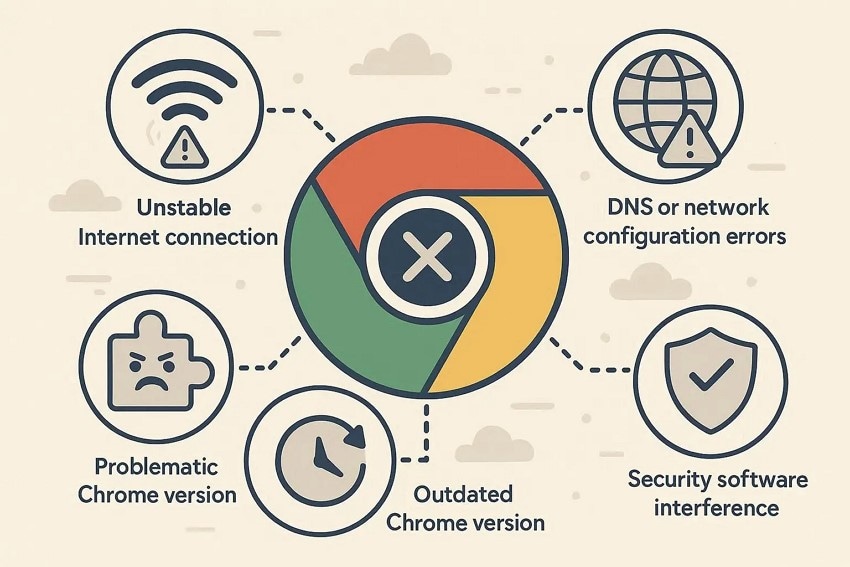
Part 2. Why Google Chrome Can't Load Links or Websites - 6 Reasons
When Google Chrome is not loading pages, the issue is often caused by specific browser or system-related problems. Understanding these reasons makes troubleshooting much easier.
- Unstable Internet Connection: A weak or inconsistent network can interrupt page loading. Chrome may fail to open links even though the connection appears active.
- Corrupted Cache or Cookies: Damaged cache files can conflict with website data. This prevents pages from loading correctly.
- Problematic Extensions: Some extensions block scripts or redirects needed for websites to open. Disabling them often restores normal browsing.
- Outdated Chrome Version: An old browser version may not support newer websites. This leads to loading failures and broken links.
- DNS or Network Configuration Errors: Incorrect DNS settings can stop Chrome from finding websites. Pages may time out or never load.
- Security Software Interference: Antivirus or firewall tools may block safe websites by mistake. Chrome then fails to open links properly.
Part 3. Google Chrome Stuck? Step-by-Step Fix for Loading Problems
If you keep seeing "Chrome can't open this page" errors, it's a clear sign that the browser needs direct action rather than guesswork. The following step-by-step fixes focus on restoring proper page loading, clearing hidden conflicts, and helping Chrome respond normally again:
Fix 1: Restart Chrome and Your Computer
Restarting Chrome and your computer helps clear temporary glitches that stop pages from loading. Closing Chrome refreshes stuck background processes that may block links. Restarting the system resets memory usage and network connections. This simple step often resolves loading errors quickly and requires no technical changes, making it a good first fix to try. To learn how to perform this fix, read the instructions provided next:
Restart Chrome
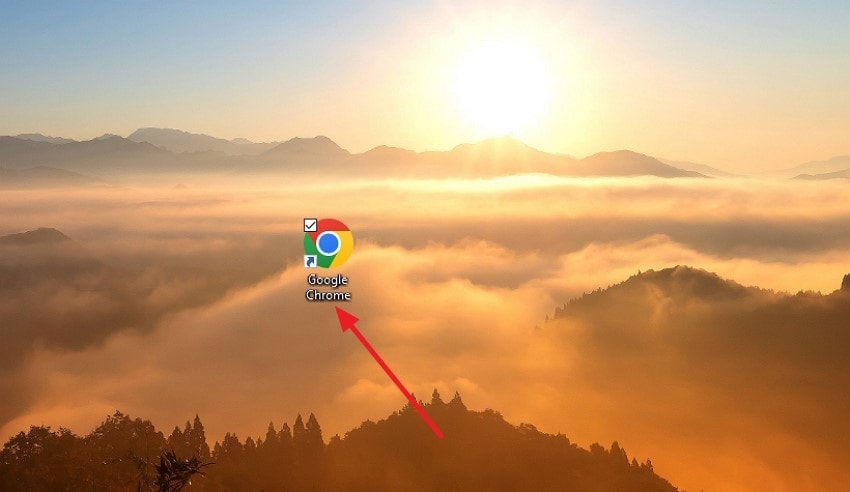
Instructions. You can simply restart Chrome by first closing the browser and then clicking on its icon within your system to restart the browser.
Restart Computer
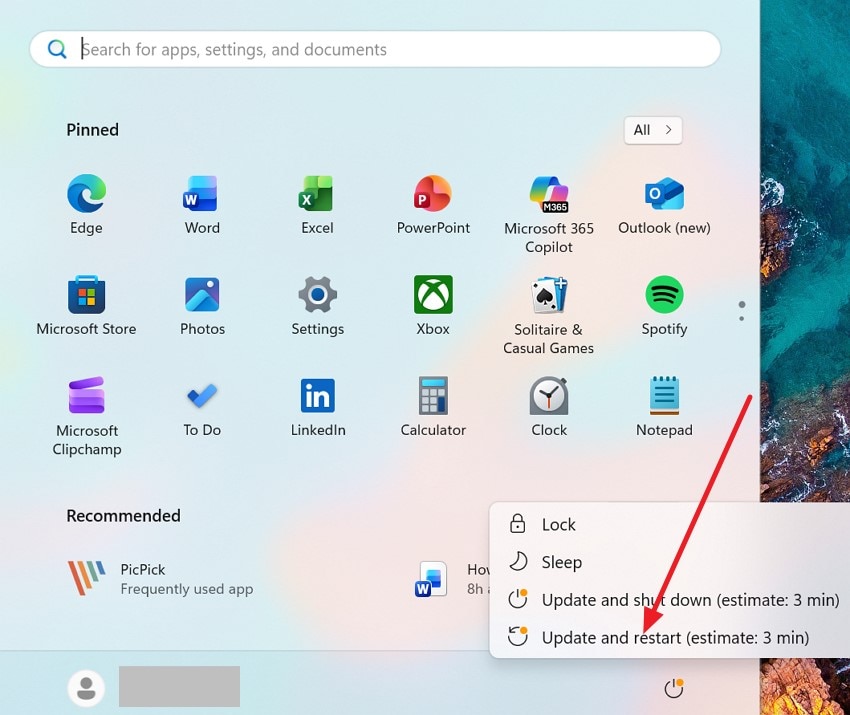
Instructions. Press the "Start" option from the bottom of your screen and choose the "Power" option. Now, locate the "Restart" option and click on it to successfully shut down and then start your system again.
Fix 2: Check Your Internet Connection
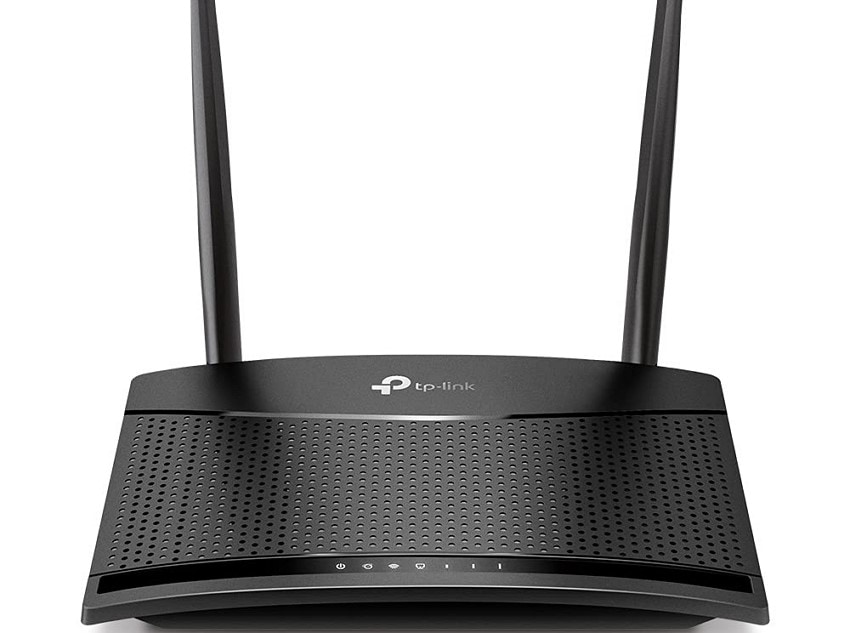
A stable internet connection is essential when you're unable to open a link in Google. Check your Wi-Fi or Ethernet connection and try reconnecting or restarting the router. You can also test other websites to ensure the network is working. Fixing connection issues on your laptop often resolves Chrome loading problems quickly.
Fix 3: Clear Cache and Cookies in Chrome
When "Chrome not loading pages" becomes a frequent issue, clearing cache and cookies can help. Stored browser data may become outdated or corrupted over time. Removing it forces Chrome to load fresh website files. After clearing the cache and cookies, restart the browser and try opening the link again to check if the problem is resolved. Follow the steps provided next to learn how to clear cache and cookies in Chrome:
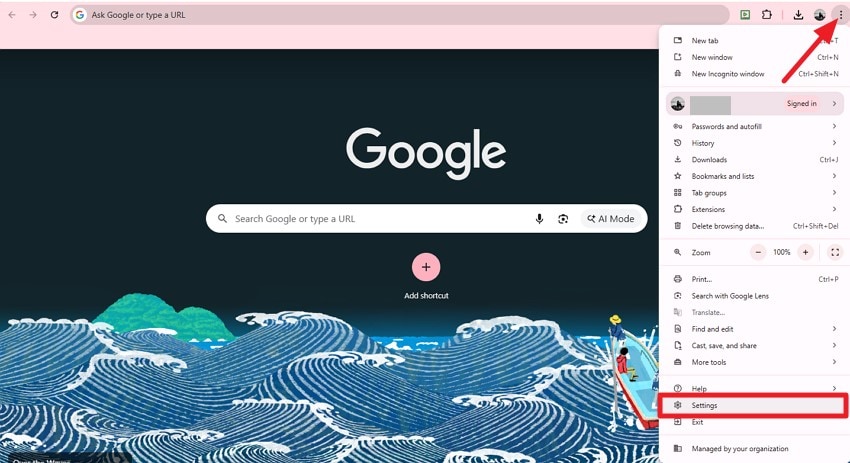
- Open Google Chrome on your device and head to the top-right corner to press the "Three Dots" icon. Now, locate the "Settings" option and click on it from the extended list.
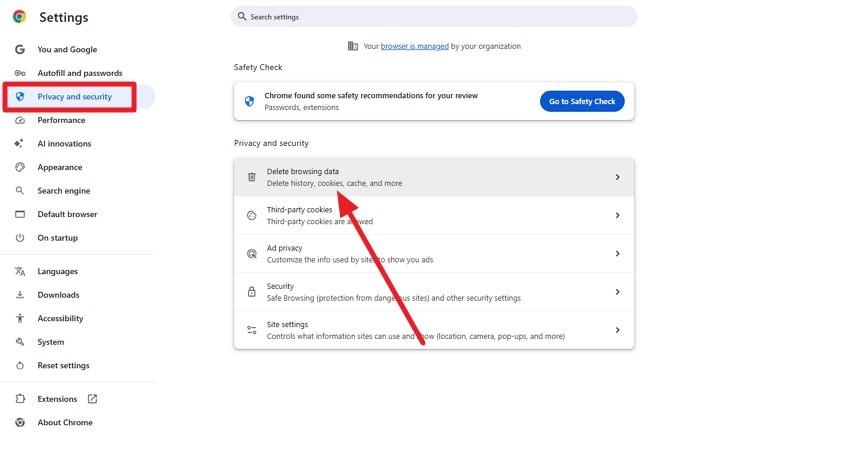
- Access the "Privacy and Security" tab from the left and click on the "Delete Browsing Data" option.
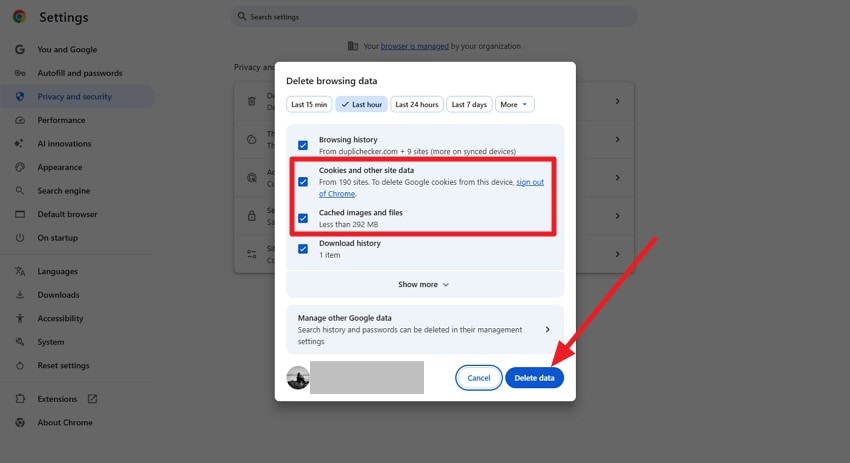
- Tick the checkboxes for cookies and cache, and press the "Delete Data" button to clear cache and cookies.
Fix 4: Update Google Chrome to the Latest Version
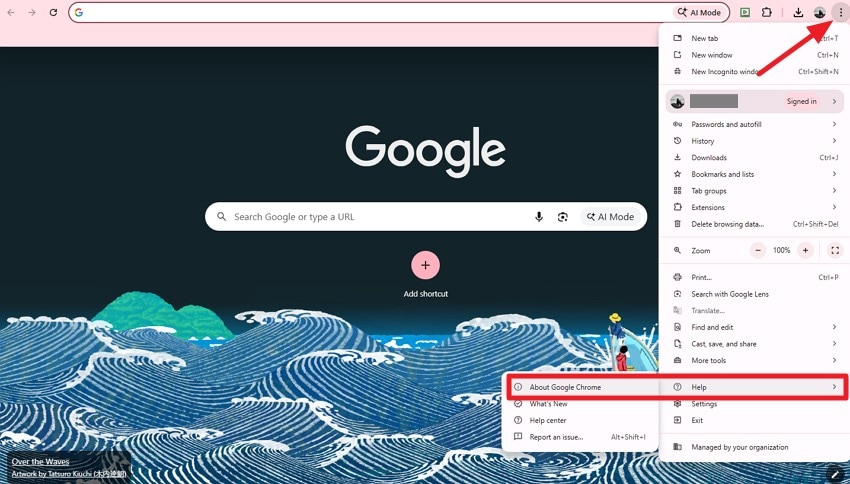
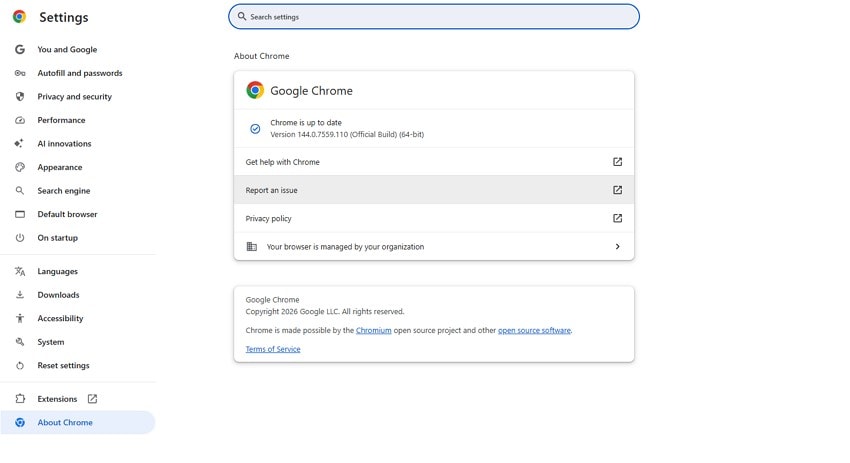
If Google Chrome is not loading pages, an outdated browser version is often part of the problem. Older builds may struggle with modern website scripts and security requirements. Updating Chrome improves compatibility, fixes hidden bugs, and enhances overall performance. A current version allows Chrome to load pages smoothly and reduces recurring errors during everyday browsing. To learn how to update Chrome, read the steps provided next:
- To begin, open Chrome and click on the "Three Dots" icon located in the top-right corner. Hover over "Help" and select "About Google Chrome."
- Chrome will automatically check for updates. If an update is available, it will download and install it. After the update is complete, restart Chrome to apply the changes.
Fix 5: Disable or Remove Problematic Extensions
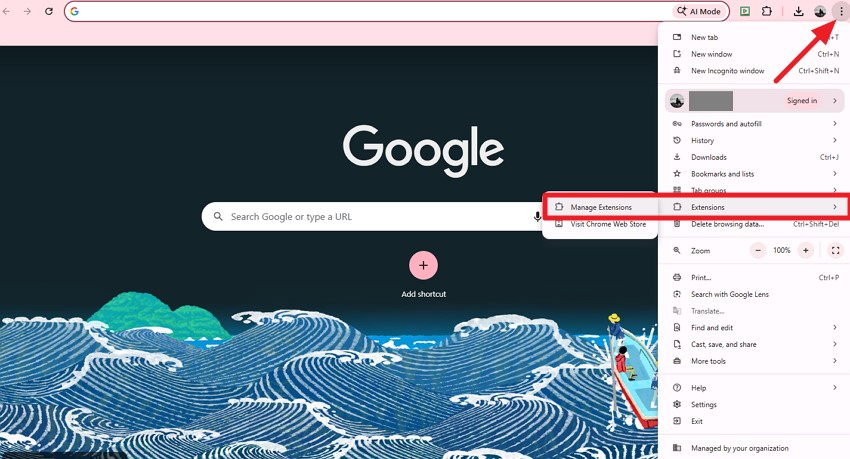
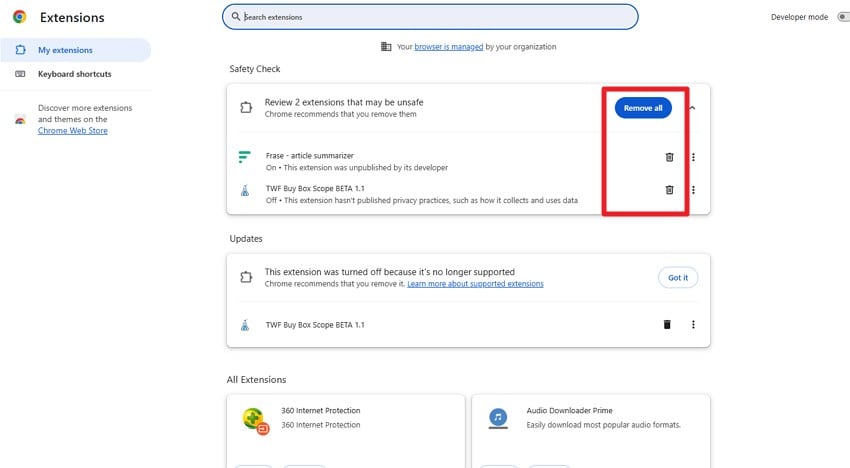
When you're unable to open the link in Google, browser extensions may be interfering in the background. Some extensions block redirects, scripts, or page elements without notice. Disabling or removing unnecessary extensions helps Chrome load links normally. Once the conflict is removed, pages usually open faster, and browsing becomes more stable. Read the steps provided next to learn how to remove extensions from Chrome:
- Start by opening Google Chrome and accessing the "Three Dots" icon from the right. Next, locate the "Extensions" option and choose "Manage Extensions" from the expanded list.
- Find the extension you want to remove and click the "Bin" icon. To delete all the extensions, press the "Remove All" button located within the interface.
Fix 6: Reset Chrome Settings to Default
When errors like Chrome can't open this page keep appearing, resetting Chrome settings can help. Over time, changed preferences and hidden configurations may disrupt browsing. Restoring default settings removes these conflicts without deleting bookmarks. This refresh often brings Chrome back to a stable state and allows links and websites to load properly again. To learn how to reset Chrome settings to default, read the steps provided next:
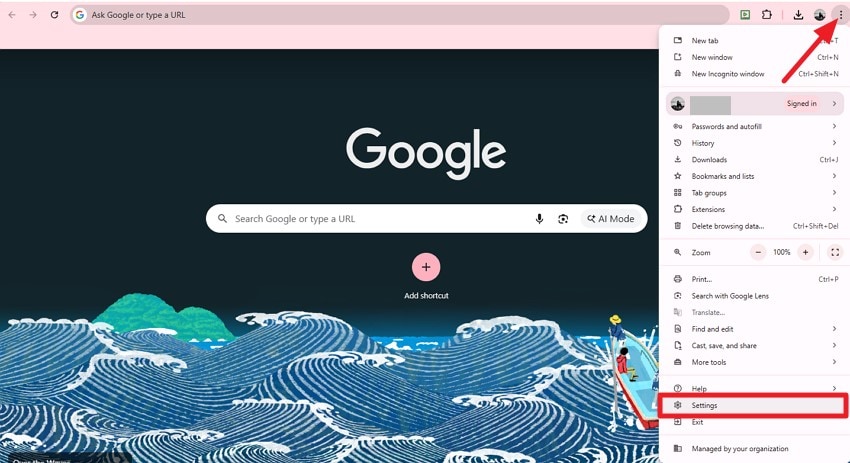
- After opening Google Chrome, access the "Three Dots" icon and choose the "Settings" option.
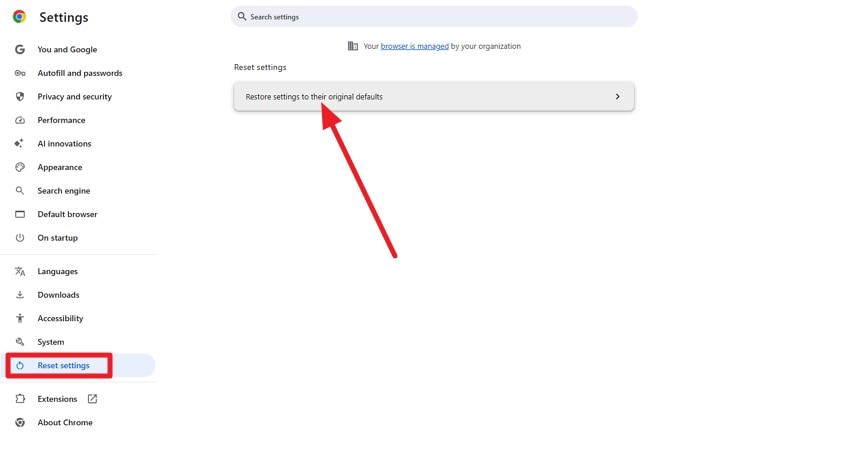
- Access the "Reset Settings" from the left and click on the "Restore Settings to their Original Defaults" option.
Fix 7: Disable Antivirus or Firewall Temporarily
If Chrome is not loading pages despite other fixes, security software may be blocking access. Antivirus programs or firewalls sometimes mistake safe websites for threats. Temporarily disabling them helps confirm whether they're causing the issue. Once identified, adjusting security settings can restore normal page loading without fully compromising system protection. Follow the steps provided next to learn how to disable antivirus software:
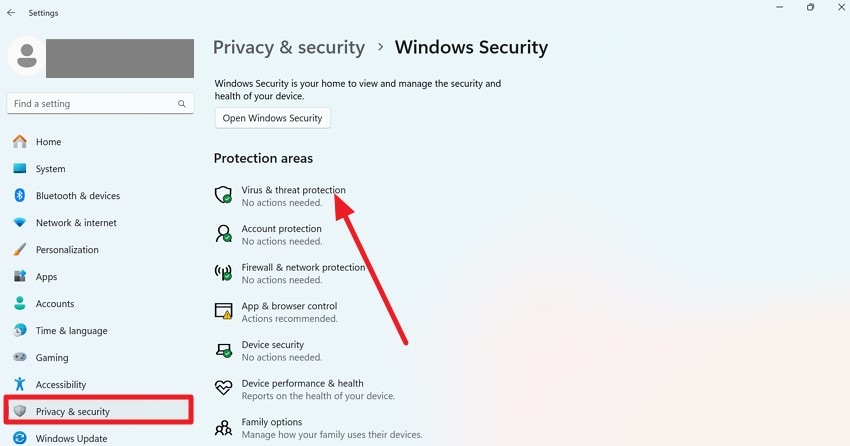
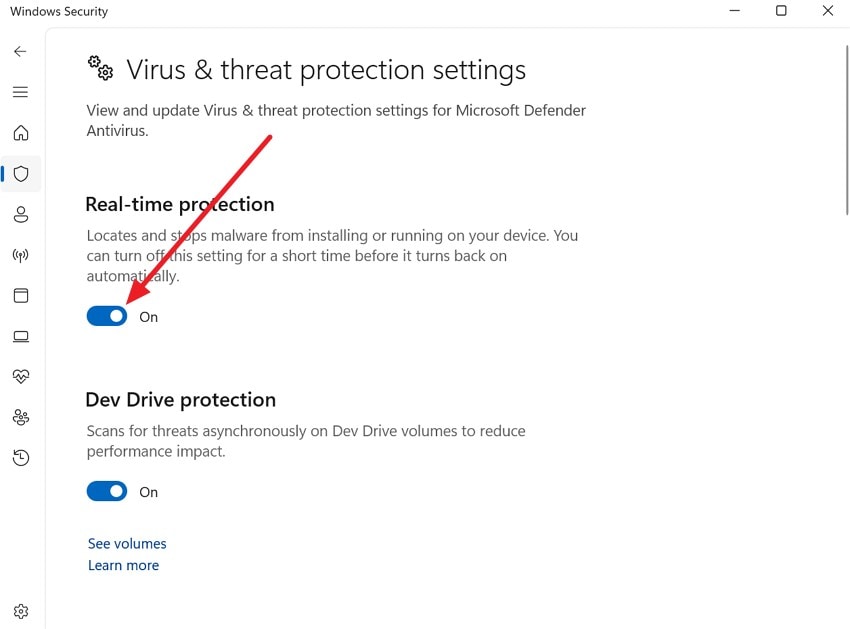
- Open System Settings and select "Privacy & Security" from the left panel. Then find and click on "Virus & Threat Protection" to proceed.
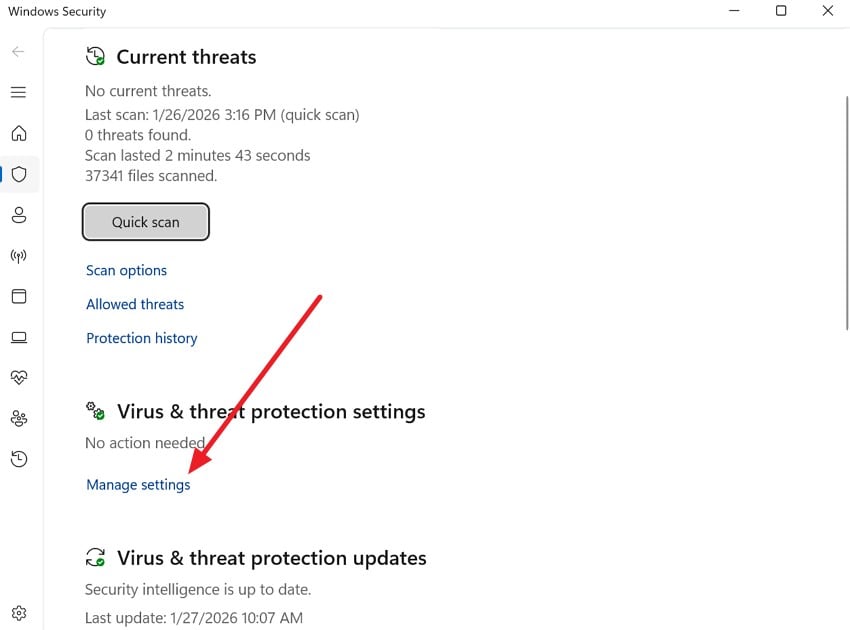
- On the next screen, choose "Manage Settings" under the "Virus & Threat Protection" section.
- Finally, switch off the "Real-time Protection" toggle to temporarily disable the antivirus on your system.
Fix 8: Scan for Malware or Harmful Software
When you're unable to open a link in Google, hidden malware or harmful software could be interfering with Chrome's behavior. Malicious programs may block redirects, inject scripts, or disrupt browser functions. Cleaning the system often restores normal browsing and allows links to open without errors. To learn how to check for malware, read the steps provided below:
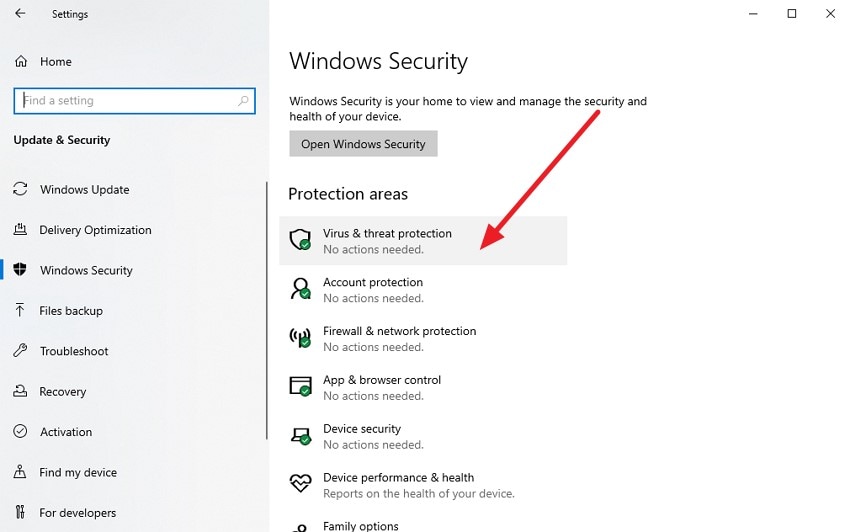
- Open Windows Security from the settings and choose the "Virus & Threat Protection" option.
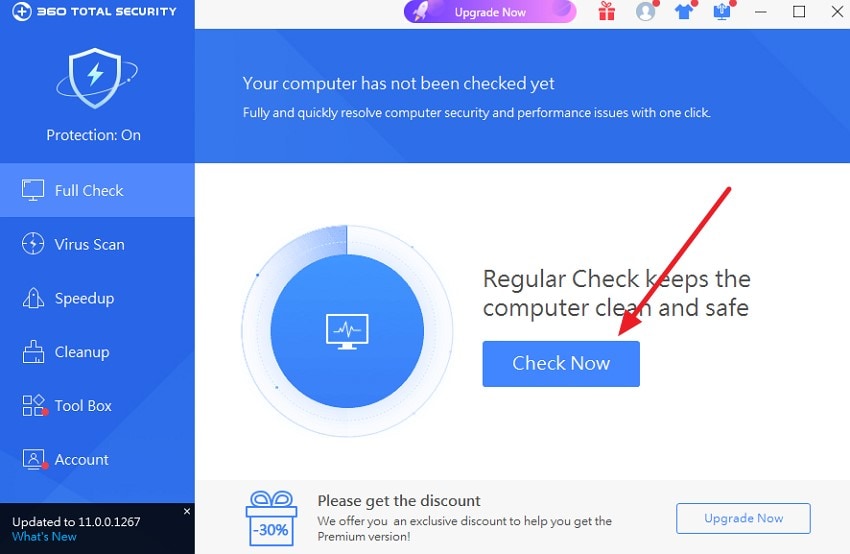
- Once the tool is launched, press the "Check Now" option to check for harmful malware.
Fix 9: Reinstall Google Chrome Completely
If Google Chrome is not loading pages after trying multiple fixes, a full reinstall can resolve deeper issues. Corrupted program files or incomplete updates may prevent Chrome from working correctly. Reinstalling replaces damaged components and refreshes browser performance. This fix often restores normal page loading and improves overall stability. Follow the steps provided next to learn how to reinstall Google Chrome:
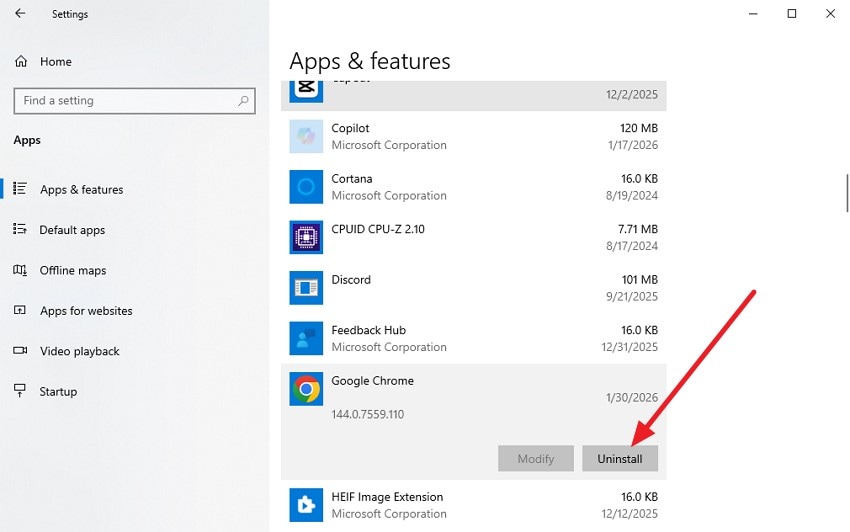
- Head to the "Apps & Features" from settings and locate the "Google Chrome" app. Press the "Uninstall" button to successfully remove the app.
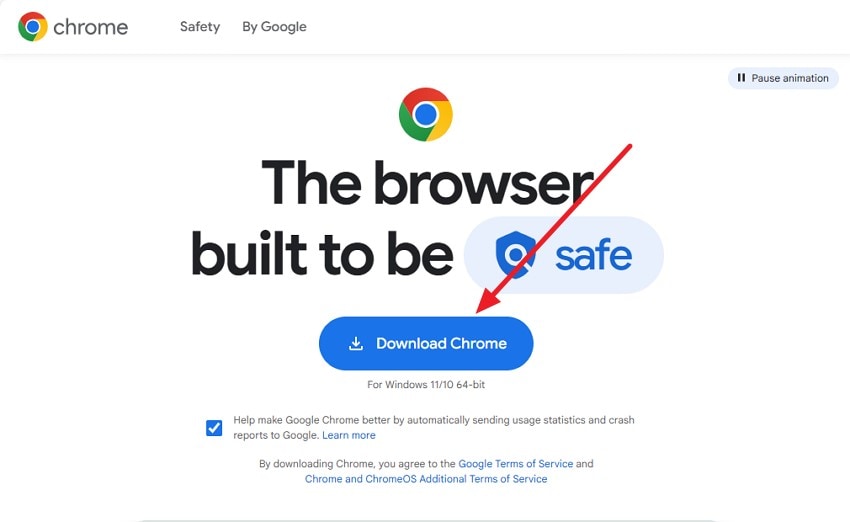
- Now, access the Google Chrome official website and download the latest version.
Fix 10: Use a Different User Profile in Chrome
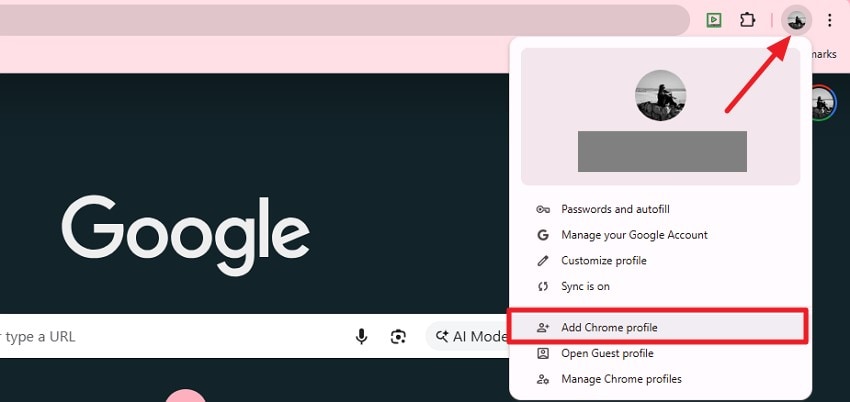
Sometimes the problem lies in a corrupted user profile when Chrome can't open this page. Creating or switching to a new profile provides a clean setup without old settings or conflicts. This approach often fixes persistent loading issues, letting Chrome open links and websites smoothly while keeping your original data intact. If you do not know how to switch profiles in Chrome, read the instructions provided below:
Instructions. Click the profile icon in the top-right corner and select the "Add Profile" option to setup other Google account. Chrome will open a new window using that profile, with its bookmarks, settings, and extensions.
Pro Tip: How Recoverit Can Restore Deleted or Lost Chrome Files
If Chrome problems result from lost or deleted files, Recoverit can help. It scans your laptop or PC deeply to find missing data. Bookmarks, settings, and cache files can all be recovered. This makes troubleshooting easier and faster. Even small files that affect browser performance can be restored quickly.
Recoverit is easy to use with a simple interface, requiring no technical skills from users for data recovery. You can easily recover 500MB of data using the platform for free. The tool ensures important files are restored safely, as it is a reliable option when standard fixes fail.
Coherent Features Offered By Recoverit
- Batch File Recovery: Recoverit allows you to restore multiple files at once. This saves time compared to recovering files individually.
- Preview Before Saving: You can check recovered files before finalizing the recovery. This ensures you only save the files you actually need.
- Multiple File Format Support: The tool works with a wide range of file types. It can recover documents, images, videos, and more seamlessly.
Comprehensive Steps to Recover Missing Chrome Files With Recoverit
Having learned about this data recovery tool in detail, let us have a look at how to recover Chrome files when Chrome is not loading pages:
- Select the Storage Location
Open Recoverit and choose the drive or folder where your lost game or Chrome files were originally stored. The program will start scanning the selected location automatically, searching thoroughly for recoverable files.
- Choose Files to Recover
After the scan finishes, review the list of recovered items carefully. Select the files you want to restore, making sure to pick only what's necessary, and click "Recover."
- Preview and Save the Files
Before finalizing, preview the recovered files to confirm they are intact and usable. Once verified, save them to a safe location on your device using the "Recover" button.
Part 4. Try 5 Tips to Prevent Chrome Loading Issues
When Chrome can't open this page, it's not just frustrating; it can slow down work and browsing. While fixes help, prevention is even better. Following a few simple habits can reduce the chances of future loading issues and keep Chrome running smoothly:
- Keep Chrome Updated: Always install the latest updates for better performance. New versions fix bugs and improve compatibility with modern websites.
- Regularly Clear Cache and Cookies: Old cache and cookies can slow browsing or cause errors. Clearing them ensures Chrome loads fresh data every time.
- Limit Extensions: Too many extensions can conflict with pages and scripts. Keep only the essential ones active to maintain smooth performance.
- Check Network Stability: A weak or unstable connection affects page loading. Using reliable Wi-Fi or Ethernet reduces errors and timeouts.
- Use a Clean User Profile: Corrupted profiles can cause persistent loading problems. Creating a fresh profile prevents conflicts and improves browser stability.
Conclusion
To wrap it up, this article provided a complete guide on how to resolve the "unable to open link in Google" issue using various effective methods. Following these fixes can restore smooth browsing quickly. If lost or deleted Chrome files are contributing to the problem, Recoverit is a reliable solution. It can scan your system, recover essential files like bookmarks, cache, and settings, and help get your browser back to functionality.
FAQ
1. Why am I unable to open a link in Google on my laptop?
This can happen due to unstable internet, corrupted cache, problematic extensions, or outdated Chrome. Checking your network and browser settings usually resolves the issue.2. How can I fix "Chrome can't open this page" errors quickly?
Restarting Chrome, clearing cache, updating the browser, or disabling extensions often fixes the problem. If issues persist, creating a new user profile can help.3. Can lost Chrome files cause links not to open?
Yes, missing bookmarks, cache, or settings can prevent Chrome from loading pages properly. Using Recoverit can help restore these lost files safely.4. Is there a tool to recover deleted Chrome files easily?
Absolutely. Recoverit scans your system to recover lost or deleted files, including bookmarks, cache, and settings, restoring Chrome's functionality efficiently.5. How do I prevent Chrome loading issues in the future?
Keep Chrome updated, clear cache regularly, limit unnecessary extensions, use a stable network, and maintain a clean user profile to minimize errors.


