


 TL;DR:
You can permanently remove the 360 Extreme Browser to resolve privacy concerns and system slowdowns by uninstalling the application directly through your Windows settings or Control Panel.
● Windows 11 users must search for "Add or Remove Programs" and use the three-dot menu to uninstall, whereas Windows 10, 8, and 7 require selecting the browser within the legacy Control Panel's "Programs and Features" list.
● The uninstallation process will delete associated browser history and bookmarks, and users experiencing unexpected local file loss during removal can utilize data recovery software like Recoverit to retrieve missing documents.
● To block future unauthorized installations of this browser, manually deselect pre-ticked bundled software offers during routine application setups and restrict administrator installation privileges on shared computers.
Ask AI for a summary
 ChatGPT
 Perplexity
 Gemini
 Claude
 Grok
Grok
Uninstall 360 extreme browser can help improve stability and security on your Windows PC. Many users remove it due to privacy concerns or unwanted changes. The process is simple when you follow the correct steps for each version of Windows OS. This guide shows safe methods to delete the browser and its leftover files. You will also learn how to prevent future unwanted installations for a cleaner and more reliable system.
Try Recoverit to Perform File Recovery
 Security Verified. 3,591,664 people have downloaded it.
In this article

Part 1. Why You Might Want to Uninstall 360 Extreme Browser from Windows
Many users consider removing 360 Extreme Browser due to performance, security, or preference-related concerns. The following points explain why you might want to delete this software:
- Privacy and Data Concerns: Some users worry about the browser’s data collection practices and unclear privacy policies. Removing it helps ensure your browsing information isn’t shared without your consent.
- Unwanted Pop-Ups or Ads: The browser may display aggressive ads or redirect you to unfamiliar pages. Uninstalling it can restore a cleaner, safer browsing experience.
- Slow Performance and Resource Usage: It can consume noticeable system resources, causing Windows to feel slower. Removing it often improves overall system responsiveness.
- Difficulty Switching to Other Browsers: install 360 extreme browser may reset defaults or resist replacement by other browsers. Uninstalling it frees you to use Chrome, Edge, or Firefox without interference.
Part 2. How to Completely Uninstall 360 Extreme Browser from Windows 11, 10, 8, or 7
No matter which Windows version you are using, this browser can bring privacy issues. These are the methods to remove the 360 Extreme Browser from your system running on different Windows versions:
Windows 11
The latest Windows version refined uninstallation with a redesigned Settings interface, improved visual clarity, and deeper integration of app management tools. Right-click context menus and streamlined animations provide faster, more intuitive removal experiences compared to earlier versions, with enhanced system stability controls. The steps below explain how you can uninstall 360 browser on Windows 11:
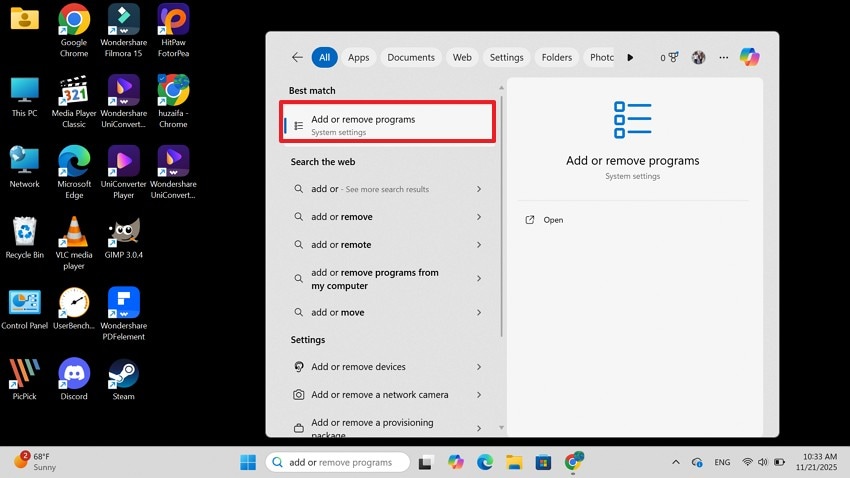
- To start, enter the search bar at the bottom and search for “Add or Remove Programs.” When the relevant tab opens, select it to open the next window.
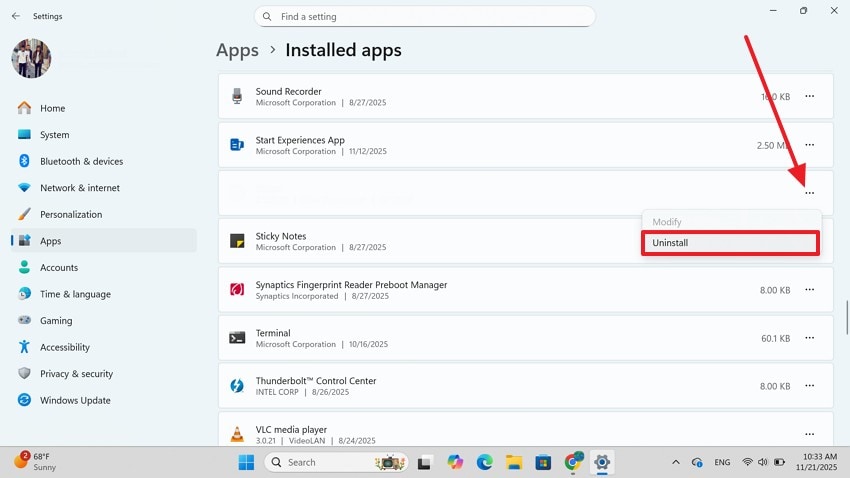
- In the following interface, locate the 360 Extreme Browser and click the “Three Dots Menu” to “Uninstall” it from your PC.
Windows 10
Windows 10 centralized uninstallation within the Settings app under Programs and Features simplifies access and search capabilities. It also retained Control Panel compatibility, offering clearer progress indicators, fewer confirmation interruptions, and background removal processes for supported applications during routine updates. Follow these guidelines for completely uninstall 360 browser from Windows 10:
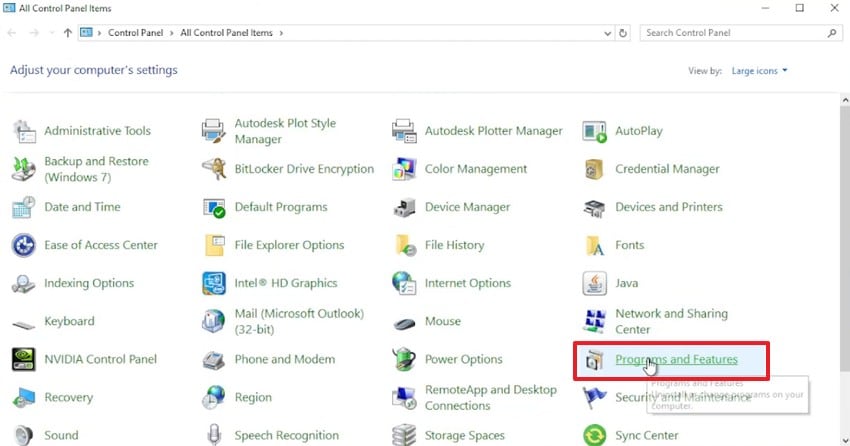
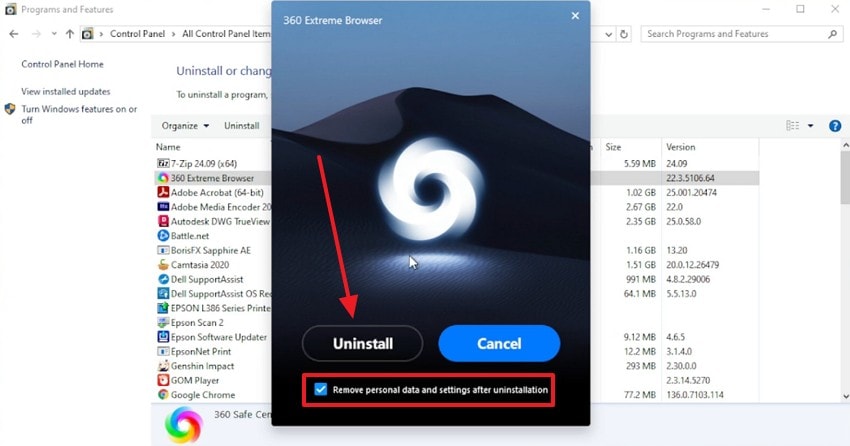
- To begin with, open the Control Panel from the desktop of your device and select the “Programs and Features” tab on the next page.
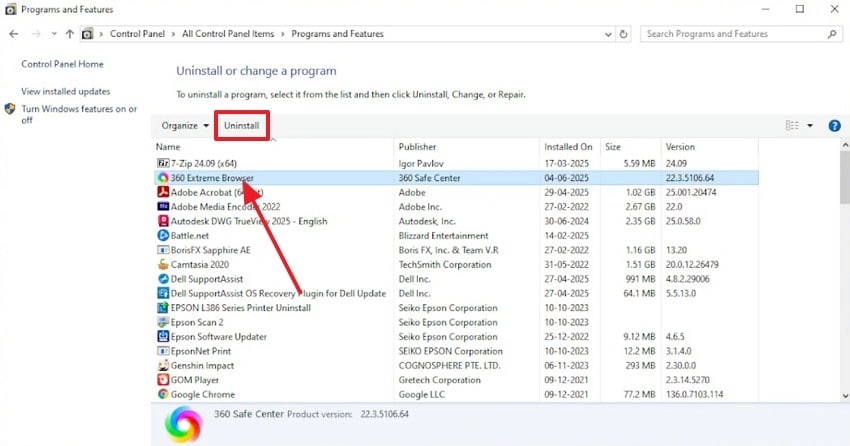
- On locating the 360 Extreme Browser, click on it and navigate to the top to select the “Uninstall” option.
- Using the next window, check the box given at the bottom and hit the “Uninstall” button to remove the app for good.
Windows 8
This version of Windows introduced a dual approach, allowing uninstallation through Control Panel or the new PC Settings interface for modern apps. Users could right-click Start screen tiles to remove apps, while traditional desktop programs still followed legacy removal steps for security. Follow these steps and see how to uninstall 360 extreme browser on Windows 8:
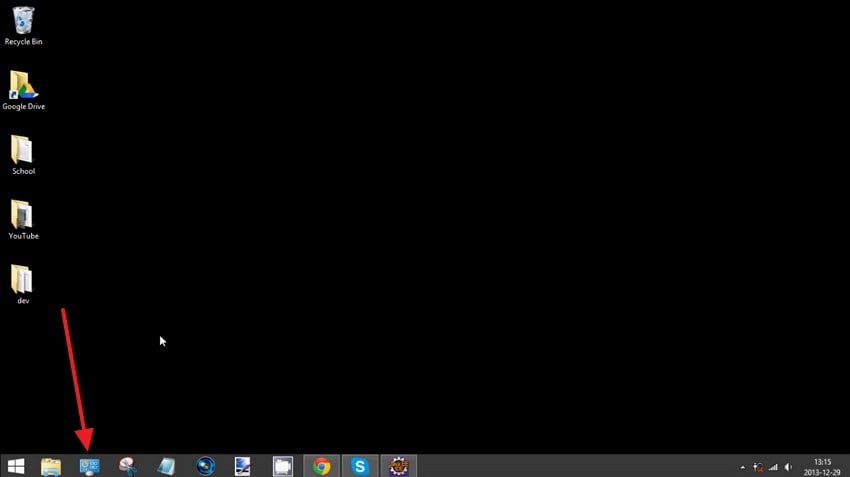
- Select the “Control Panel” tab at the taskbar and head to the following interface.
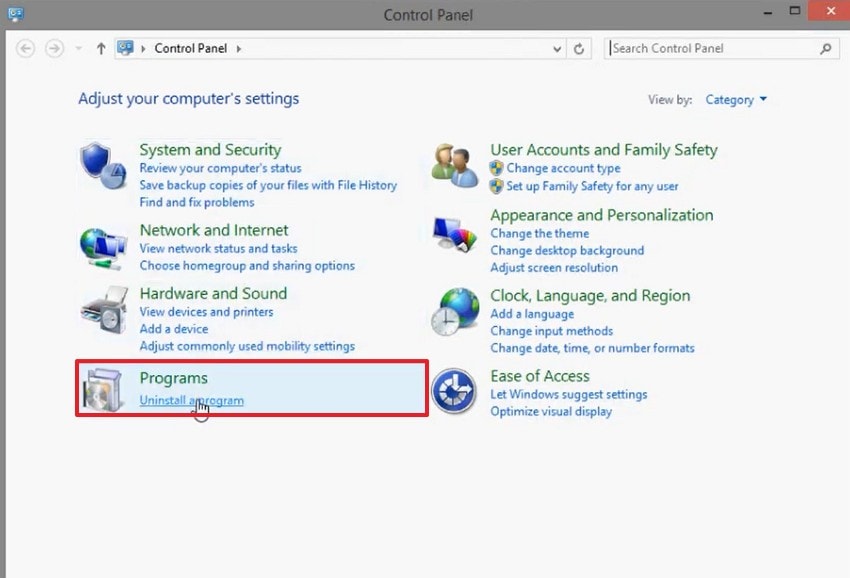
- On reaching the next window, select the “Programs” tab to open a new interface.
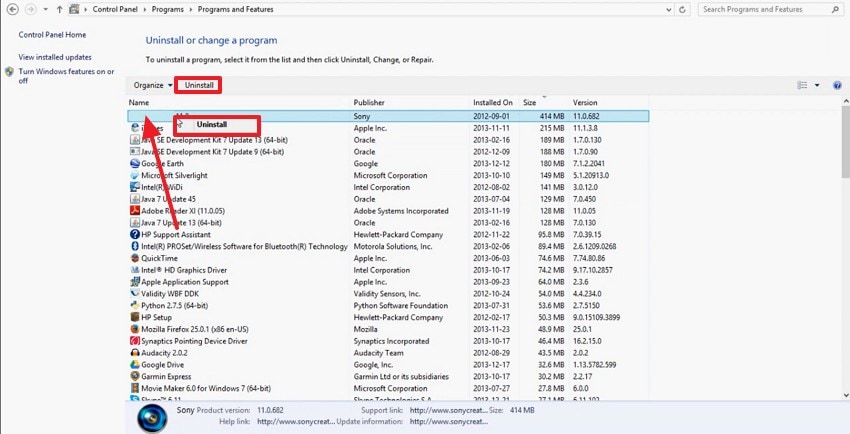
- As you locate the browser on the next page, you can either right-click on it or select it to “Uninstall” the program from the top bar.
Windows 7
Windows 7 uninstallation relies on Control Panel and Programs and Features, where users select applications and choose Uninstall. There is no modern Settings app integration, and elevated permissions appear more frequently, requiring confirmation dialogs and system restarts for complete removal. The following steps explain how to uninstall 360 browser from your device:
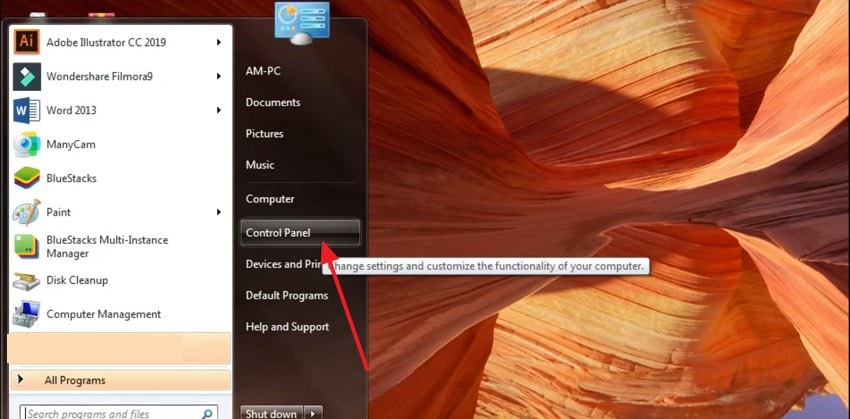
- On your Windows 7 Desktop, use the Start menu to enter the “Control Panel” on the next interface.
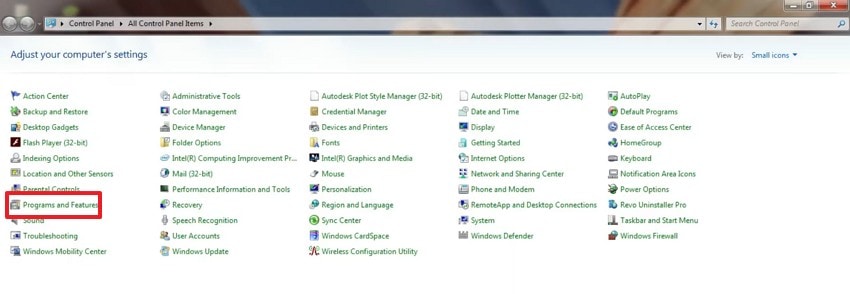
- Here, select the “Programs and Features” option and access the list of software on your device.
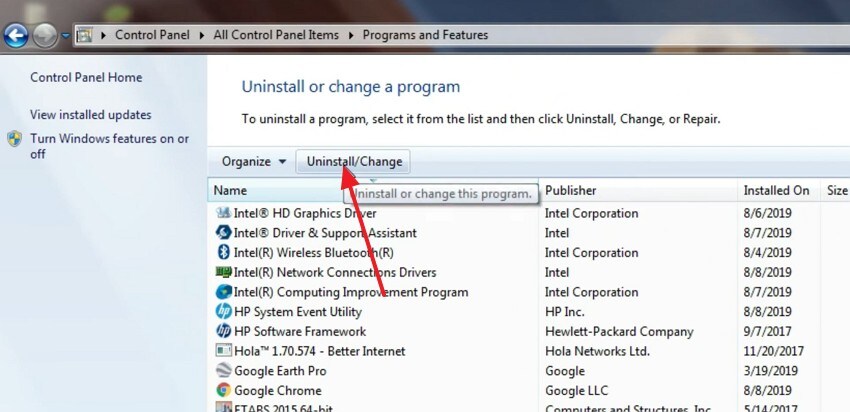
- On finding the browser, select it and navigate to the top bar to “Uninstall/Change” it from your PC.
Pro Tip. Use Recoverit to Restore Any Lost Files During Uninstallation
Many users complain about losing important files while removing this browser from their Windows devices. Using tools like Recoverit can help you restore missing files with ease. This platform has robust algorithms that efficiently scan your storage devices and restore them. Recoverit offers many modes of running a file scan and gives you the option of starting and stopping at any time.
The tool's user-friendly interface lets you search for a specific file using filters. In addition to system files, this platform recovers documents from over 1,000 file types, including media and Word documents. You can also run a deep scan and find missing zipped files from your storage devices. Once you have recovered the lost documents, they can be saved in your desired location on the device.
Key Features
- Multiple Files Recovery: This platform offers a batch recovery process and enables you to retrieve multiple files at once, saving the time and effort of separate processes.
- Various Device Support: It provides data recovery for over 1 million storage devices, including SD cards and external hard drives.
- Preview Before Saving: You can preview and analyze the recovered file within the tool before saving it to your device.
A Guide to Using Recoverit for Restoring Files
Using a robust recovery tool helps you retrieve files effectively. The following steps include a guide to recovering files lost while uninstall 360 extreme browser:
- Begin By Selecting a Location
After launching Recoverit, select the game file location drive by clicking on it. As soon as you select the location, the tool will begin scanning it.

- Select Files To Recover
Once the scan is completed, select the files you want back by clicking on them and hit the “Recover” button located at the bottom.

- Preview the Results and Save
Preview the recovered game files within the tool’s interface and save the result to your device successfully.

Part 3. Preventing Future Issues from Unwanted Browser Installations
Keeping your PC safe from unwanted browser installations helps maintain control over your browsing environment. The following simple habits can prevent suspicious software from slipping into your system again.
- Download Software Only from Trusted Sources: Avoid installing programs from pop-ups, unknown websites, or bundled installers. After uninstall 360 extreme browser, sticking to official pages greatly reduces the risk of hidden browsers.
- Watch for Bundled Offers During Installation: Many installers include optional browsers pre-ticked by default. Reading each step carefully helps you deselect unwanted add-ons before they install.
- Use Reliable Antivirus and Real-Time Protection: Security tools can block deceptive installers that try to add extra software. Real-time monitoring also alerts you to suspicious system changes.
- Restrict Admin Privileges on Shared PCs: Limiting installation permissions prevents others from adding unwanted browsers. This keeps your Windows setup cleaner and better protected.
Conclusion
In conclusion, uninstall 360 extreme browser is significant for keeping your device’s security intact. This article discussed the methods of removing this browser from your Windows 7, 8, 10, and 11. It is observed that users tend to lose important files while deleting this browser from their devices.
If this happens to you, you can use Recoverit to retrieve the missing files efficiently. With its high success, it restores documents from over 1 million storage devices.
FAQ
-
1. Will uninstalling 360 Extreme Browser delete my bookmarks?
Uninstalling this browser may remove all browser data, including bookmarks and history. It is important to back up important data before proceeding. -
2. Why should I uninstall 360 Extreme Browser?
This browser may slow your system, display unwanted ads, or compromise your privacy. Removing it from your device helps improve PC performance and security. -
3. How to retrieve a document lost during the uninstallation of 360 Extreme Browser?
If you lost any important documents during the uninstallation of this browser, recover them using a third-party solution. Recoverit is a robust file recovery software that has a 99.5% success rate in recovering lost files. -
4. What kind of files can be recovered that were lost during the uninstallation?
If you use Recoverit to retrieve files, you can recover more than 10,000 formats of missing files. This includes PPTs, Word documents, and system files.


