

 TL;DR:
To fix the "uplay_r164.dll missing" error blocking Ubisoft games, immediately reinstall the game or the Ubisoft Connect launcher to safely restore the exact file version rather than risking manual alterations.
● Avoid manually downloading uplay_r164.dll from third-party websites or copying it from other computers, as version mismatches and architecture incompatibilities frequently cause further game crashes.
● Temporarily disable Windows Security's real-time protection if the error occurs immediately after installation, because antivirus software often falsely flags and quarantines this specific launcher dependency.
● When local files are permanently deleted and system restore points are unavailable, scanning the system storage with a data recovery tool like Recoverit can retrieve the original missing DLL without overwriting existing game progress.
Ask AI for a summary
 ChatGPT
 Perplexity
 Gemini
 Claude
 Grok
Grok
As a gamer, nothing feels worse than a favorite game failing to open suddenly. The errors often appear after updates, crashes, or missing files inside game folders. Players usually see a confusing message and do not know what went wrong. One common issue appears when the system says "uplay_r164 dll was not found."
Also, the issue can stop Ubisoft games from loading and waste your free time. Many people even worry about broken systems, but the problem is often simple. Still, there are various ways to resolve this error without risking saved progress. So, this guide is written to help you understand causes without technical language.
Try Recoverit to Perform DLL File Recovery
 Security Verified. 3,591,664 people have downloaded it.
In this article
- Fix 1: Restart Your Computer
- Fix 2: Reinstall the Game or Update It
- Fix 3: Restore the Missing DLL File Manually
- Fix 4: Update Windows and Install Missing Libraries
- Fix 5: Disable Antivirus or Security Software Temporarily
- Fix 6: Reinstall or Repair the Ubisoft/Uplay Launcher
- Fix 7: Scan for Malware or Harmful Software
- Fix 8: Use System Restore to Undo Recent Changes
- Fix 9: Use a DLL Repair Tool or File Recovery Tool (e.g., Recoverit)

Part 1. The Purpose of uplay_r164.dll in Game Launching
uplay_r164.dll is a required game file that helps Ubisoft games start properly. This file allows the game to connect with the Ubisoft launcher installed. During startup, the game checks this file before showing menus or loading. Plus, it confirms login status, game ownership, and online features needed at launch.
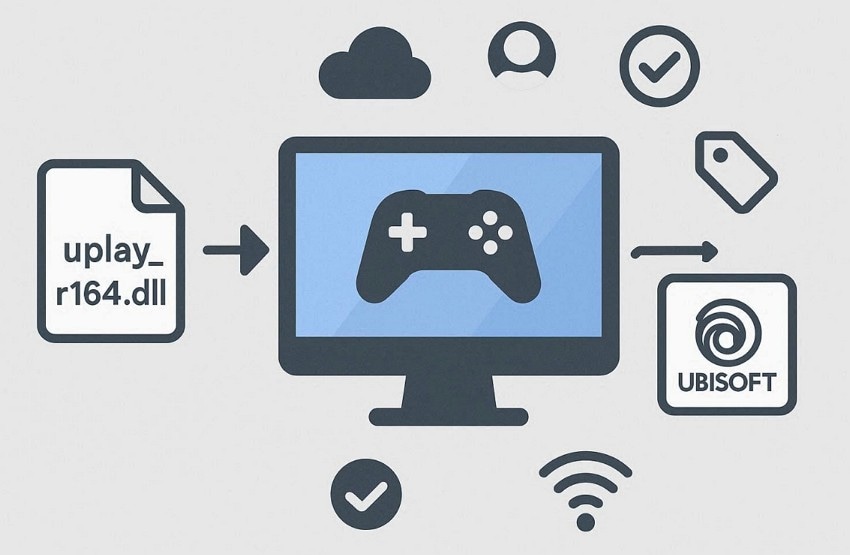
If uplay_r164.dll is missing or damaged, Windows stops the game from starting up immediately. This is why players often search for "uplay_r164.dll not found fix online. Additionally, the file is included with Ubisoft Connect and the game installation package. However, problems appear after broken updates, antivirus actions, or incomplete game installation processes.
Common Symptoms of uplay_r164.dll Missing Error
- Error Messages: On-screen alerts state missing uplay_r164.dll and stop games from opening immediately.
- Launch Failure: The game refuses to start and closes after clicking the play button.
- Sudden Crashes: Sometimes the game crashes before logos appear due to damaged launcher link files.
- Install Errors: It may appear during installation when required files fail to copy to the system.
- Startup Warnings: Windows may show warnings at startup when broken entries reference missing file paths.
Part 2. Understanding the Root Causes of uplay_r164.dll Issues
Users often want to know why this error appears before trying any fixes. Below are the causes that explain why messages like "uplay_r164.dll was not found" appear:
- File Deletion: The uplay_r164.dll file may be deleted by users or other programs. As a result, it cannot locate the required data during the startup check process.
- Malware Damage: Malware infections can damage DLLs, causing instability during game launch attempts. Such activity often leads to repeated crashes or warnings linked to this file.
- System Issues: Outdated system files or failed updates can prevent the game from loading. Therefore, startup checks fail, and games stop opening normally without warning.
- Wrong Version: Sometimes updates replace this file with a version the game cannot use. Then the game reads the file, but fails because the versions do not match.
- Security Removal: Antivirus software may flag the DLL and move it to the storage location. When this happens, games cannot access the file and show missing error messages.
Part 3. Can't Launch Your Game? Here's How to Fix uplay_r164.dll
Many users face this problem when games fail to open due to missing required files. This section explains each "uplay_r164 dll not found fix by using simple and easy steps:
Fix 1: Restart Your Computer
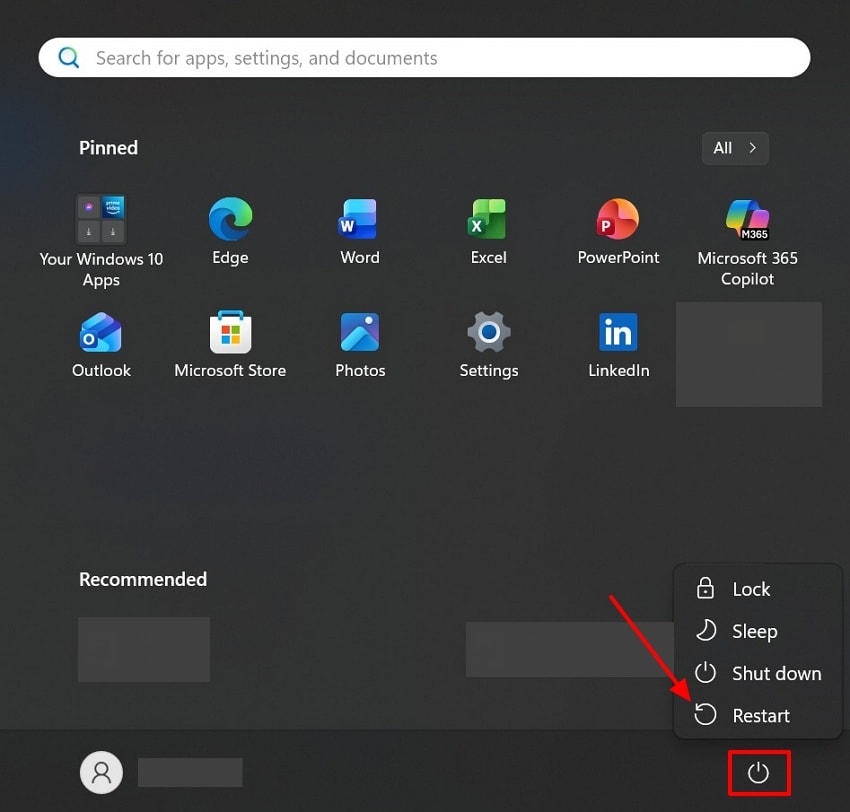
A simple restart can resolve temporary issues, such as the "uplay_r164.dll was not found" error. The process clears cached data and resets memory states that block DLL loading. It even releases locked files held by crashed games or background processes. Therefore, a reboot ensures all new files register after updates or game installations. So, go through the given guide below to learn how to restart a computer:
Instructions. Press the "Start" button in the bottom-left corner of your window, then opt for the "Power" icon. At last, click the "Restart" option from the menu to restart your computer.
Fix 2: Reinstall the Game or Update It
You should also consider either reinstalling or updating the game to fix DLL problems. This method provides a good "uplay_r164 dll not found fix by restoring the correct files. Reinstalling the game restores the correct version of uplay_r164.dll in its folder. It also recreates registry entries and configuration files, preventing "path not found" errors. Ubisoft Connect updates include the latest API files to ensure the game can load the DLL.
Fix 3: Restore the Missing DLL File Manually
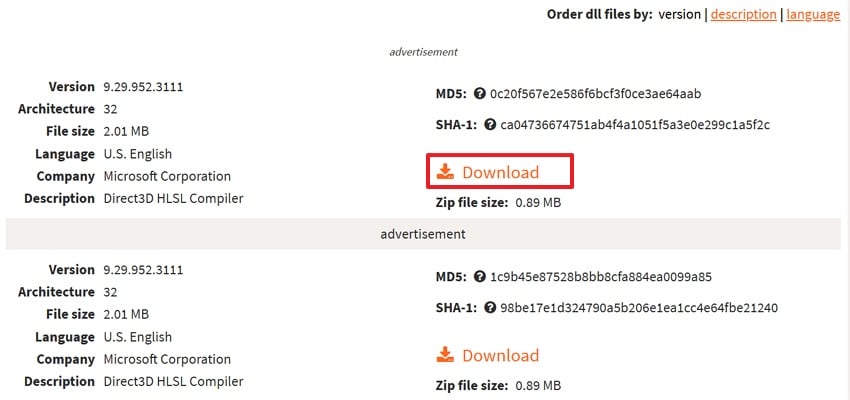
Another simple way to fix launch problems is by manually getting back the missing DLL. This option often offers a reliable "uplay_r164 dll was not found" solution by replacing corrupted files. Restoring a fresh DLL into the game folder satisfies its dependency, allowing proper startup. If the previous file was damaged, the clean copy removes crashes and load failures. Hence, review the guide below to restore the missing DLL files:
Instructions. Go to the trusted site of d3dcompiler_43.DLL, like "DLL-Files." Afterward, scroll down, then choose the preferred version and press the "Download" option.
Fix 4: Update Windows and Install Missing Libraries
Sometimes updating Windows and installing missing libraries can resolve persistent DLL errors. This approach refreshes system components and fixes underlying issues causing game launch failures. It provides a "uplay_r164 dll not found fix by restoring essential system files. After updating, programs can find the DLL without manual downloads or copying. Thus, let's explore the steps below to update Windows:
- To initiate, open the "Settings" app of your computer from the "Start" menu.
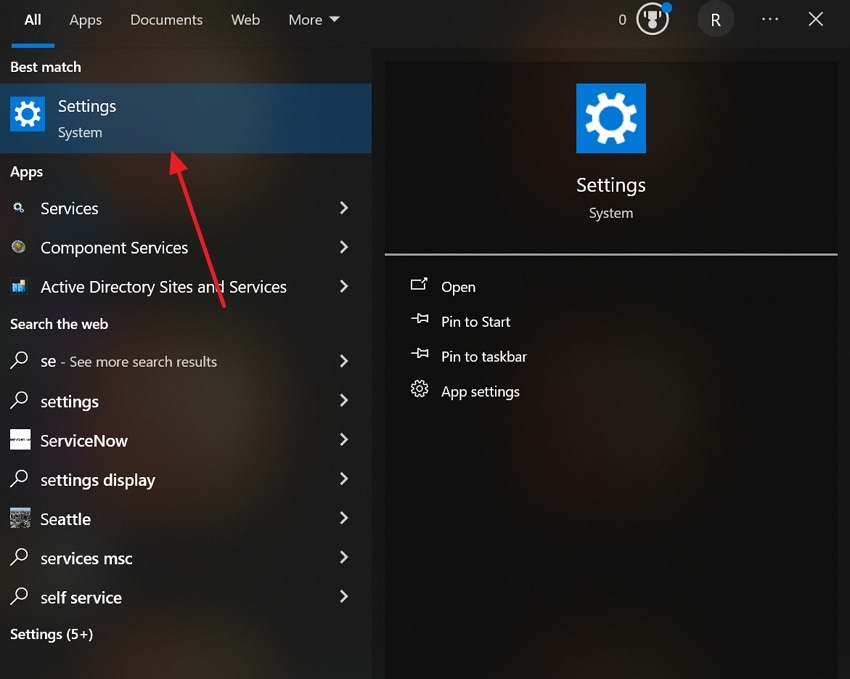
- As you access it, pick the "Update & Security" option.
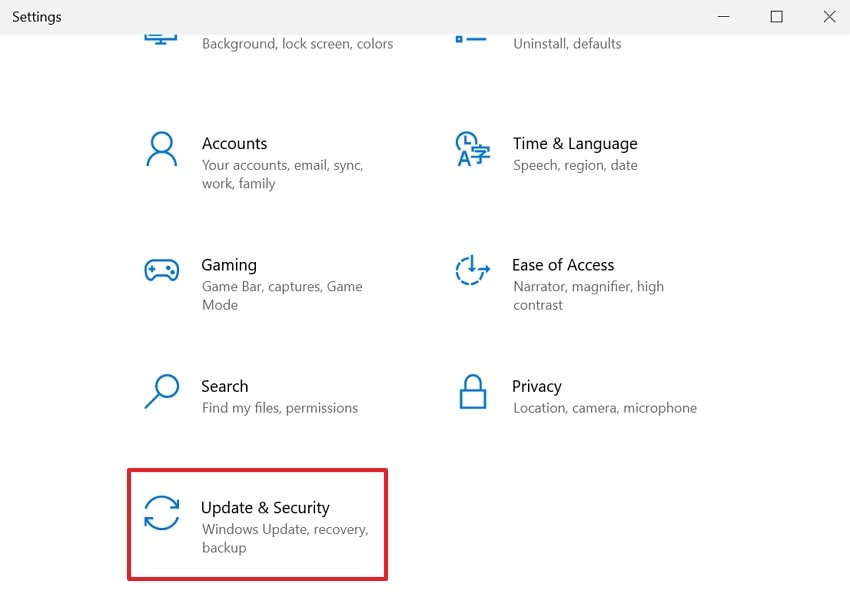
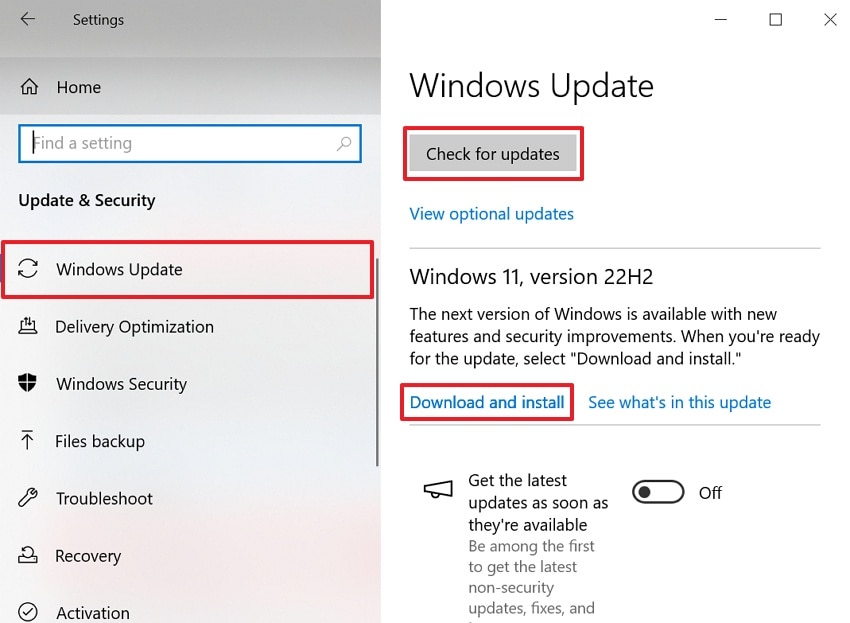
- At last, in the "Windows Update" section, hit the "Check for Updates" button. If an update is available, press "Download and Install" and then restart your system after installation.
Fix 5: Disable Antivirus or Security Software Temporarily
Windows security programs can sometimes interfere with essential game files, causing launch errors. This may trigger errors showing that uplay_r164 dll was not found, even when installed. Real-time protection can quarantine or block the DLL, mistaking it for an unsafe game. During the game or Ubisoft Connect installation, the DLL may fail to copy due to restrictions. Thus, go through the given steps below to disable antivirus or security software:
- At first, from the "Start" menu, search for "Windows Security" and opt for the "Open" option.
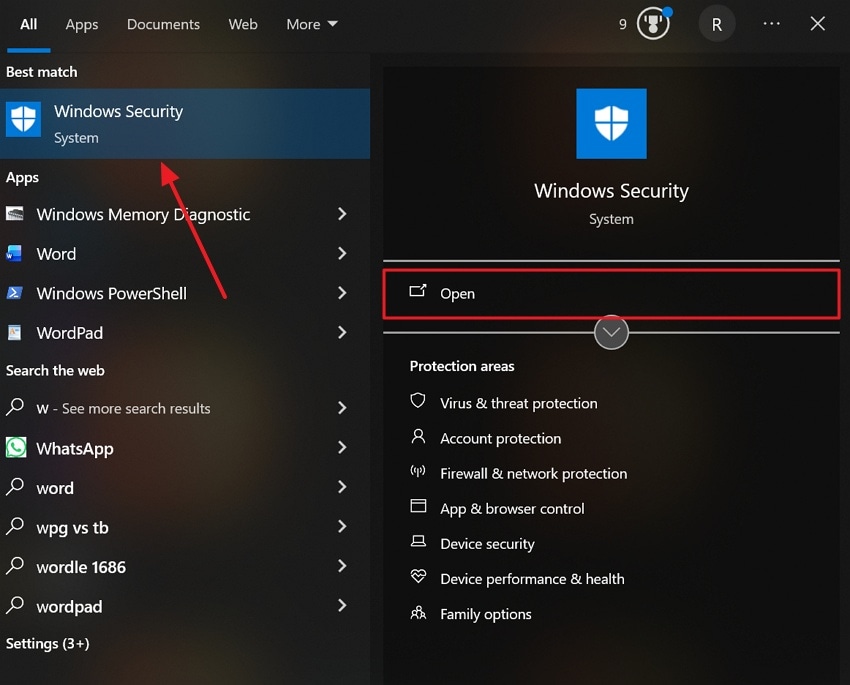
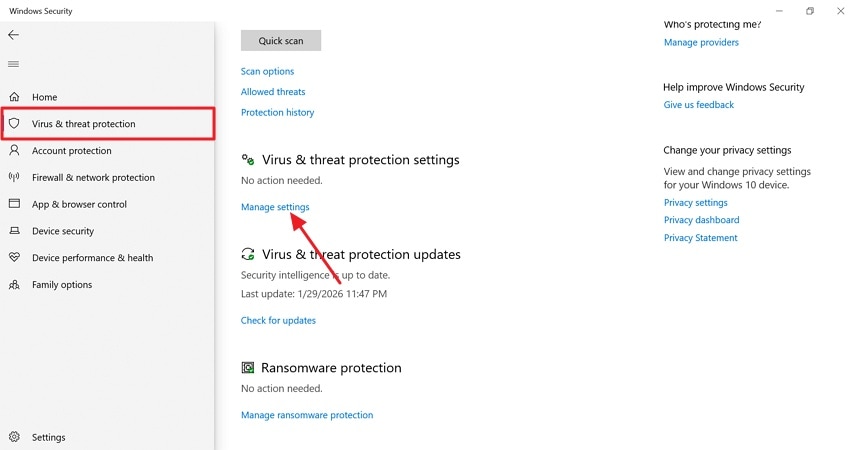
- Upon accessing it, choose the "Virus & Threat Protection" option and hit "Manage Settings."
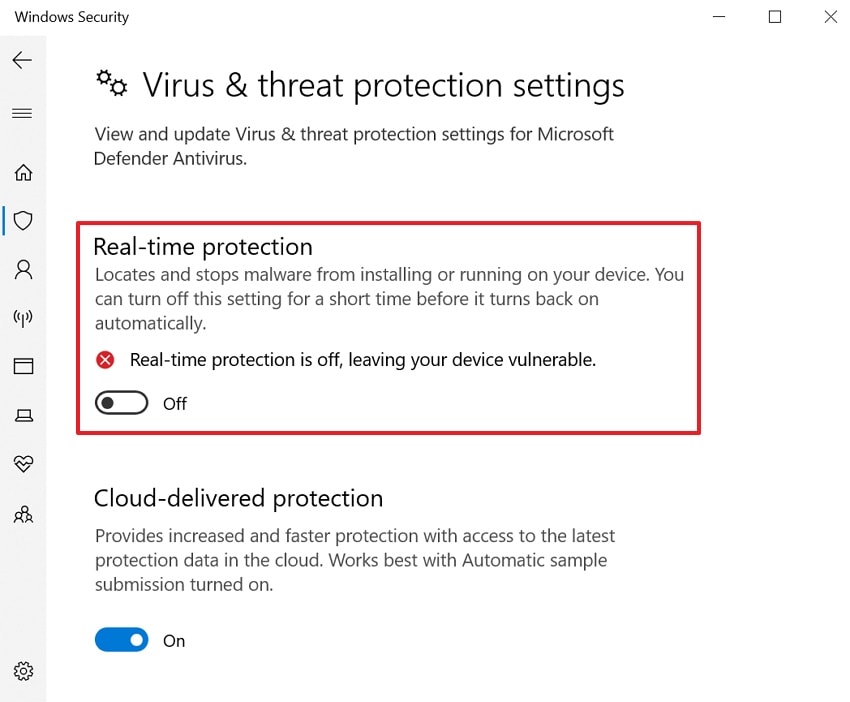
- At last, switch off the "Real-Time Protection" and confirm the move.
Fix 6: Reinstall or Repair the Ubisoft/Uplay Launcher
Reinstalling the Ubisoft Connect restores essential launcher files for games. This process provides a "uplay_r164 dll not found fix by replacing corrupted DLLs. It ensures the correct version of uplay_r164.dll matches the game's expected dependencies. Any missing or damaged launcher components are re-downloaded and verified for proper functionality. So, take guidance from the given steps to reinstall the Ubisoft/Uplay launcher:
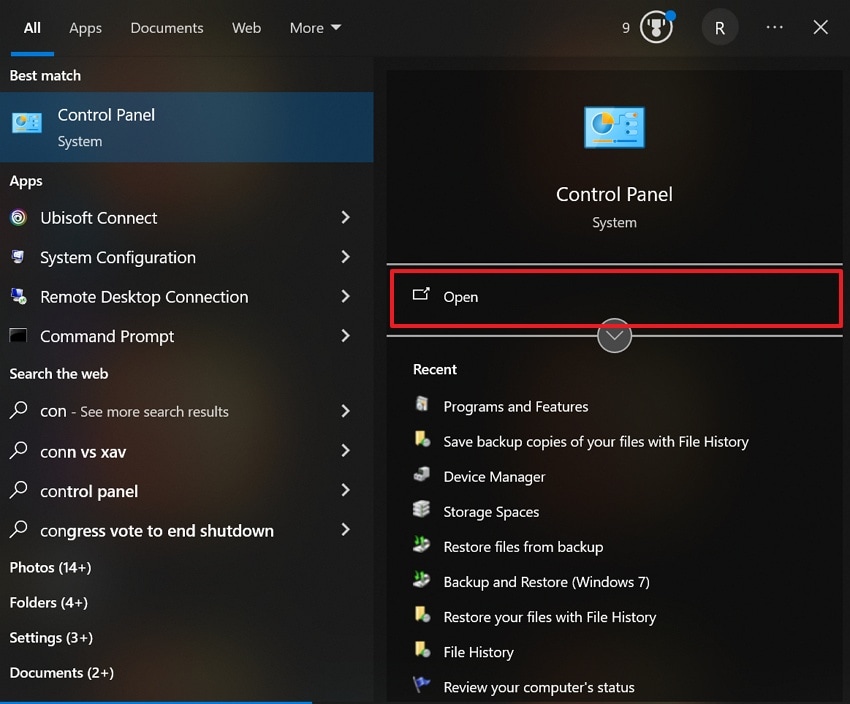
- To initiate, in the "Start" menu, search for "Control Panel" and choose "Open."
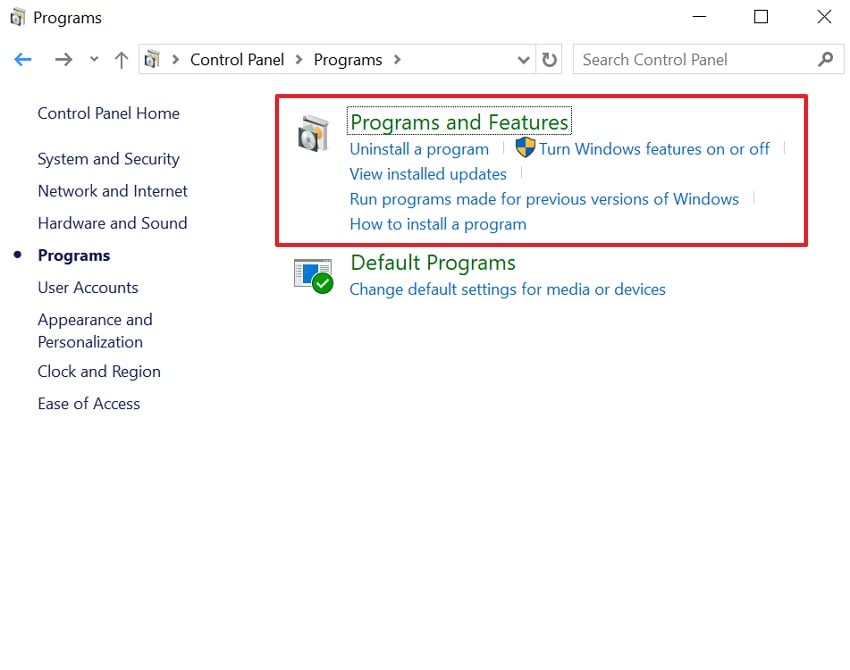
- After accessing it, select the "Programs and Features" option.
- Next, find the "Ubisoft Connect" and right-click on it, then choose "Uninstall."
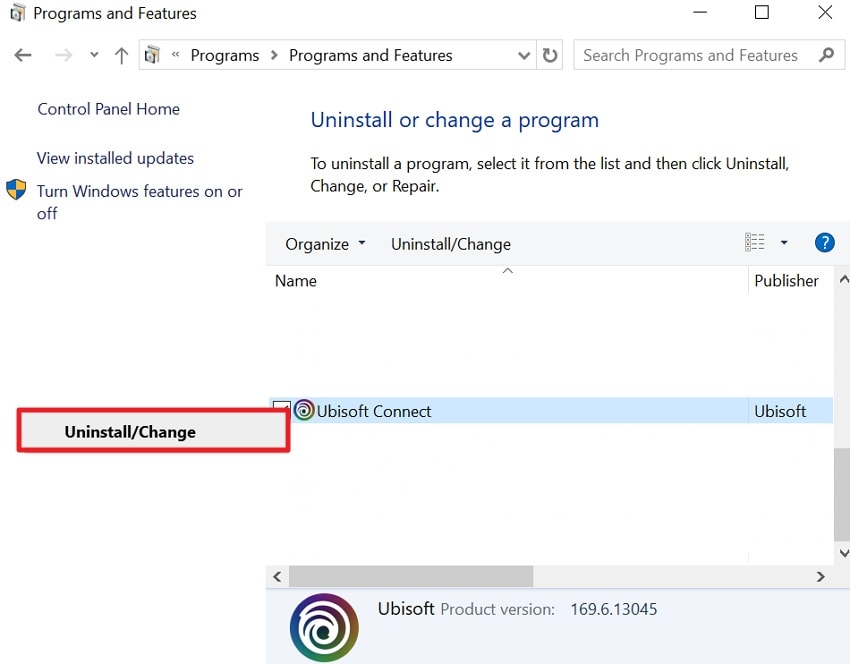
- Now, access the official website of "Ubisoft" and opt for the "Download Ubisoft Connect" option.

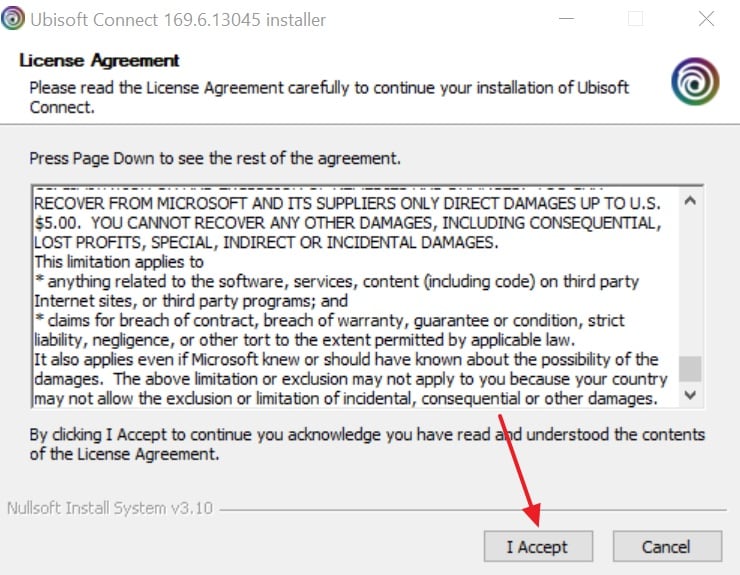
- When it's downloaded, click the "I Accept" option from a pop-up.
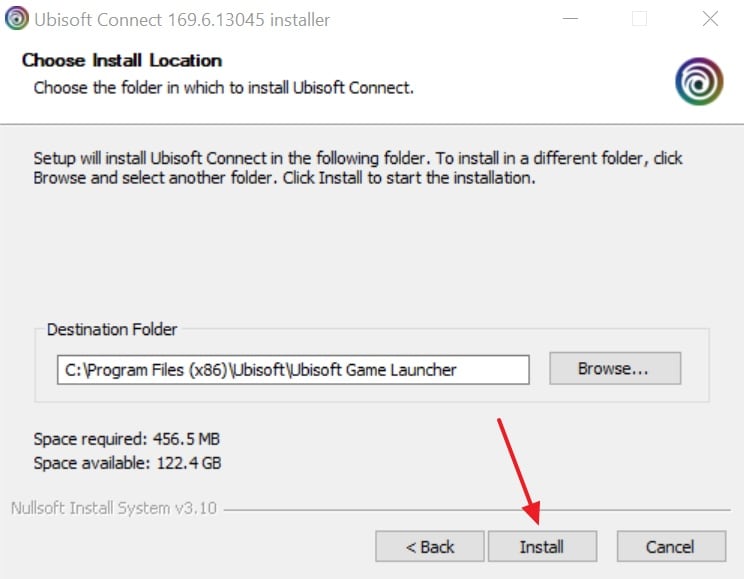
- At last, opt for the "Install" button to complete the installation process.
Fix 7: Scan for Malware or Harmful Software
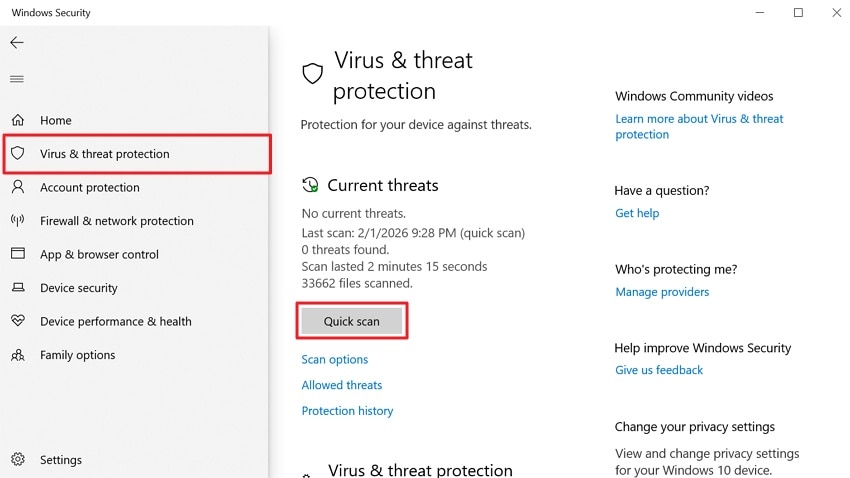
Many times, malware or harmful software triggers "uplay_r164.dll was not found" errors in games. Corrupted or modified files prevent the game from loading the required DLL correctly. Moreover, malicious programs alter uplay_r164.dll or related system files, blocking proper loading. Scanning detects malware that damages or removes DLLs, preventing recurring launch failures. Therefore, adhere to the given instructions below to scan for malware or harmful programs:
Instructions. Go to the "Windows Security" and choose "Virus & Threat Protection," then click "Quick Scan."
Fix 8: Use System Restore to Undo Recent Changes
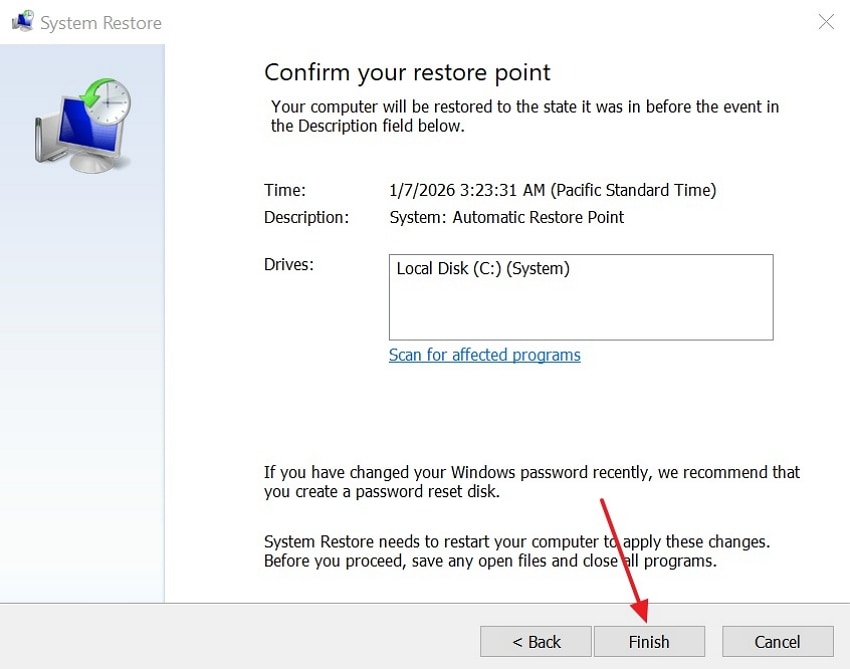
System Restore also rolls back Windows to a previous state when DLL errors appear. This approach can serve as a reliable "uplay_r164 dll not found fix after recent changes. Also, it restores original system files, drivers, and registry entries linked to uplay_r164.dll. However, corrupted uplay_r164.dll or broken registry references can be repaired by rolling back to an earlier snapshot. Go through the steps below to use System Restore:
- Access "Create a Restore Point" from the "Start" menu and click the "Open" option.
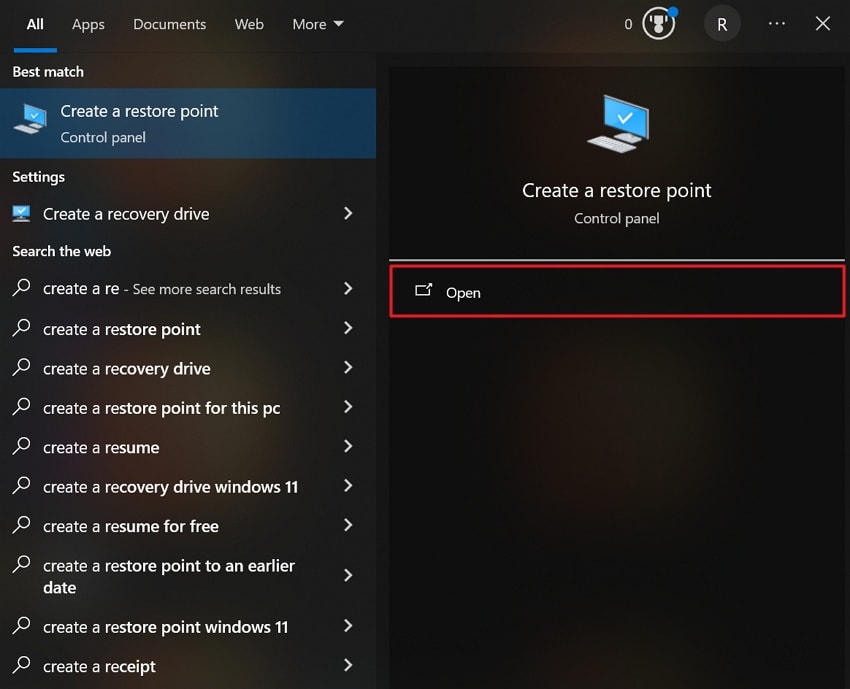
- After accessing it, go to the "System Protection" tab and press the "System Restore" button.
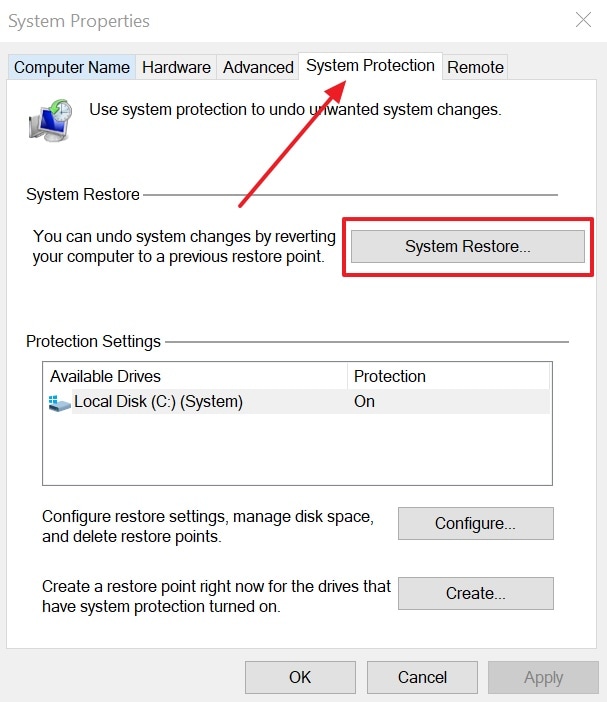
- When you get a new interface, click the "Next" button.
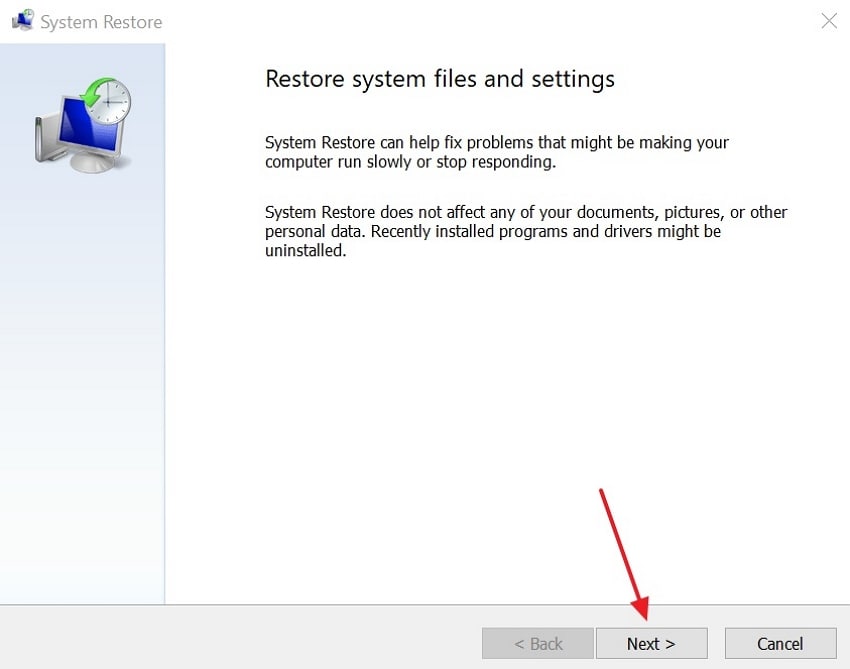
- After that, choose a different restore point and opt for the "Next" button.
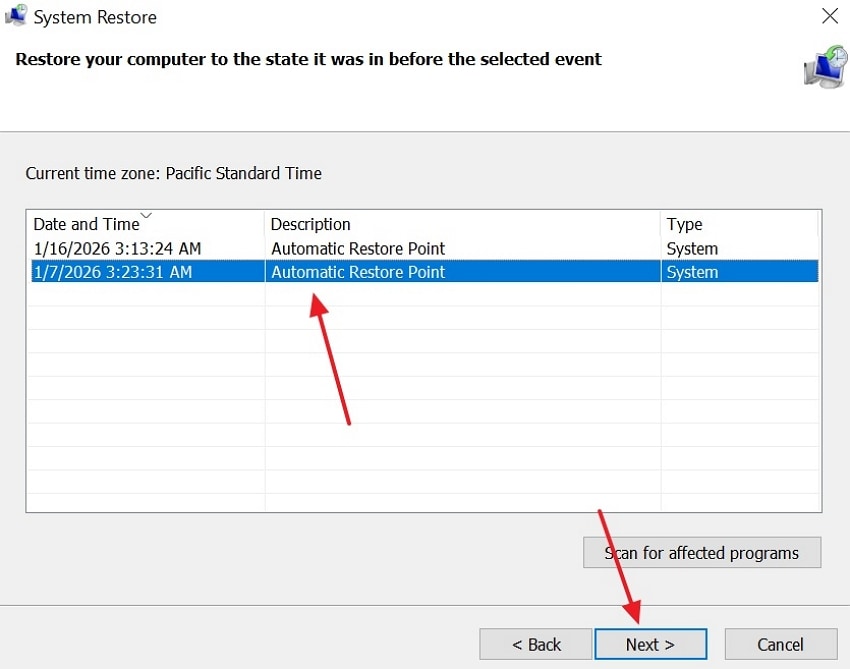
- Once it's finished, hit the "Finish" button to start restoration. Now, Windows will restart automatically and restore settings and system files.
Fix 9: Use a DLL Repair Tool or File Recovery Tool (e.g., Recoverit)
When uplay_r164 dll was not found using the above methods, it may be possible that the DLL is missing or corrupted. Therefore, many gamers need an advanced AI tool that can recover lost or deleted files. For this need, Recoverit stands out as an ideal option as it recovers lost files from 1M+ storage devices. This advanced tool recovers files without overwriting existing data or causing additional errors.
Moreover, gamers can recover lost files using intelligent AI-powered detection for accurate restoration. Recoverit also allows users to restore up to 500MB of data at no cost. Plus, users can choose which files to restore, reducing time and disk usage. The software performs file scans in 5 minutes and achieves 99.5% recovery rate for lost files. It even allows previewing recovered files before restoration, including DLLs and multimedia files.
Key Features
- Previous Versions: Restores files using Windows previous version backups, including system-protected DLLs.
- Recycle Bin: Get back forever-deleted files directly from the Recycle Bin or trash folder.
- Error Scenarios: Handles 10000+ file-loss scenarios, including software failures and hardware issues.
Detailed Guide to Recover Lost DLL File from Computer Using Recoverit
You need to review the guide below to recover your lost gaming DLL files without effort:
- Choose a Location of Missing Files
As you head to the "Hard Drive and Location" section, choose a location where your files were lost.
- Deep Scan the Elected Location
The program will do a deep scan to locate the lost files, and the results will be displayed in real-time.
- Preview Lost Files and Recover
Now, preview the lost files and then press the "Recover" button to recover them. Later, you need to click the "Recover" button to download the recovered files.
Part 4. Preventing DLL Errors: Best Practices for Gamers
Gamers need prevention beyond uplay_r164 dll not found fix to avoid future crashes. This section explains best practices to reduce file damage risks and keep game files stable:
- Official Installs: Install games using official launchers so the required files stay updated. Also, built-in repair tools replace missing parts without unsafe manual changes.
- Safe Updates: Keep Windows updated because updates often fix hidden game file problems. Meanwhile, update DirectX drivers and Visual libraries to support modern games properly.
- Security Scans: Run reputable antivirus scans daily to avoid malware from destroying files. However, check warnings carefully because false alerts can remove needed game files.
- Smart Backups: Create restore points so you can undo harmful system changes quickly. Similarly, keep backups of games to recover fast after update issues appear.
- Avoid Downloads: Never download random DLL files because they often cause crashes. Instead, reinstall the game so the correct files return from the official source.
Conclusion
In conclusion, the uplay_r164.dll error can interrupt gameplay but is usually fixable. By understanding causes and applying the right solutions, gamers can restore smooth launches. Each method helps restore game files safely without harming progress. If the system shows "uplay_r164 dll was not found," quick action prevents repeated crashes. Therefore, Recoverit provides a safe and reliable way to restore lost system files.
FAQ
1. Can cloud gaming services cause uplay_r164.dll errors locally?
Cloud gaming itself does not use local DLL files for execution. However, local Ubisoft installations may still show errors if partially installed or corrupted. Ensure local installations are complete before assuming cloud services caused the problem.2. What if uplay_r164.dll is missing and backups are unavailable?
In such cases, Recoverit helps retrieve deleted DLL files from system storage effectively. The tool scans deep locations where removed files still exist but remain inaccessible. Recoverit reduces manual risks and restores DLLs without overwriting existing game data.3. Can the uplay r164 dll be copied over to another computer?
A false positive caused by overly aggressive security settings is often resolved by repeated deletion. Add the game folder to antivirus exceptions to avoid future automatic deletions. Always verify alerts before deleting files critical for game launching and stability.4. Is it safe to copy uplay_r164.dll from another computer?
Replication DLLs from across different systems can introduce version mismatches and architecture incompatibilities. Different Windows builds may require different DLL registrations or dependencies. Official reinstall methods remain safer than manual copying between computers.


