


 TL;DR:
To resolve the "We can't create a recovery drive on this PC" error in Windows 10 or 11, you must repair missing or corrupted Windows Recovery Environment (WinRE) files or bypass the broken files using a properly formatted 16GB+ USB drive.
● Bypass corrupted system files immediately by unchecking "Back up system files to the recovery drive" in the creation wizard, which allows you to successfully generate a smaller drive limited to basic repair tools.
● Repair underlying system corruption by running `sfc /scannow` and `dism.exe /online /cleanup-image /restorehealth` in an administrator Command Prompt, then execute `reagentc /enable` to reactivate the recovery environment.
● If enabling WinRE fails with a "file not found" error, use 7-Zip to extract the `winre.wim` file from a Windows installation ISO (`\Sources\Install.esd`), copy it to `C:\Windows\System32\Recovery\`, and rerun the enable command.
Ask AI for a summary
 ChatGPT
 Perplexity
 Gemini
 Claude
 Grok
Grok
A recovery drive acts as your safety key when Windows fails to start or runs into trouble. Yet, some users see the error "we can't create a recovery drive on this pc" while trying to make one on Windows 10 or 11. This message feels frustrating, especially when you just want a secure backup option. The issue often comes from missing system files or improper USB setup.
However, there are many simple ways to solve it, and with smart steps, you can create a working recovery drive again. To learn about these simple solutions, review the guide to keep your Windows system ready for any emergency.
Try Recoverit to Perform Computer Data Recovery
 Security Verified. 3,591,664 people have downloaded it.
In this article
-
- Use a Larger or Different USB Drive
- Format or Clean the USB Drive
- Disable Antivirus Temporarily
- Run a Basic System File Check
- Repair the Corrupted System Files
- Perform a DISM Scan to Restore Health
- Recreating Windows Recovery Environment via CMD
- Uncheck the "Back up System Files" Option
- Fix WinRE with Windows Installation Disc or Media

Part 1. Signs You Need to Fix "We Can't Create a Recovery Drive on This PC" on Win 10/11
The message "we can't create a recovery drive on this pc" means Windows cannot make a backup drive that helps repair or restore your system later. This happens when system files go missing, the USB drive has issues, or some recovery tools are disabled.

In simple terms, your computer fails to copy important recovery data to the USB. Without this drive, you may not fix Windows easily if it crashes. The error does not mean your computer is broken; it just needs some quick checks to allow Windows to create the recovery drive properly.
Signs You Need to Fix "We Can't Create a Recovery Drive on This PC"
When you have a problem creating recovery drive, here are some signs you can look for:
| Sign or Symptom | Description |
|---|---|
| Error message during creation | Windows shows "We Can't Create a Recovery Drive on This PC" or a similar failure notice |
| Progress stops or creation fails midway | The progress bar freezes or stops, and the USB drive shows only partial folders, like EFI or sources |
| USB drive not recognized or formatted errors | Windows doesn't detect the USB properly, asks to format it repeatedly, or gives file system errors |
| "Backup system files" option triggers failure | Creation works only if "Back up system files to the recovery drive" is unchecked, meaning system files can't be copied |
| System file integrity warnings or corruption found | An SFC scan (sfc /scannow) or Event Viewer reports corruption or missing files, blocking creation |
Part 2. Common Reasons for Fix "We Can't Create a Recovery Drive on This PC" on Win 10/11
To know why you are having the "we can't create a recovery drive on this pc" issue in the first place, review the listed reasons:
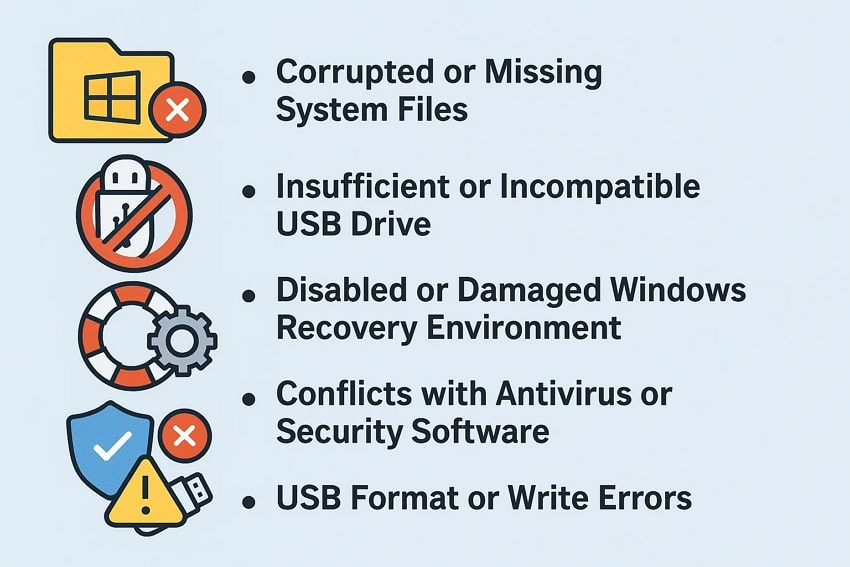
- Corrupted or Missing System Files: When essential Windows files, such as winre.wim or other recovery components, become damaged or go missing, the system fails to collect the necessary data. This disruption stops Windows from preparing or copying the required recovery content.
- Insufficient or Incompatible USB Drive: A USB drive that lacks enough storage space, has a faulty structure, or uses an unsupported format can prevent Windows from transferring recovery files. Such drive limitations lead to the system's inability to build the recovery drive successfully.
- Disabled or Damaged Windows Recovery Environment (WinRE): If the Windows Recovery Environment is deleted, disabled, or incorrectly configured, the system cannot access its recovery image. This missing or broken link between Windows and its recovery partition often triggers the error message.
- Conflicts with Antivirus or Security Software: Certain antivirus or security programs may interrupt Windows by blocking its attempt to copy or write system files. This interference causes conflicts during the recovery drive creation and prevents Windows from completing the process.
- USB Format or Write Errors: Errors within the USB drive's format, partition layout, or storage sectors can stop data from being written properly. These physical or structural faults on the USB lead to a failure in generating the recovery drive.
Part 3. Step-by-Step Solutions to Fix "We Can't Create a Recovery Drive on This PC" on Win 10/11
To address the problem creating recovery drive, this section offers you 9 simple solutions to try. So, review them and determine which one helps you to keep your Windows system ready for any emergency.
1. Use a Larger or Different USB Drive
A larger or new USB drive often solves the "we can't create a recovery drive on this pc" error in Windows 10 or 11. Since the error is caused by low space, a larger or properly formatted USB drive provides enough space for recovery files and updates. It also allows faster creation and restoration times, plus larger drivers also hold recovery data and personal files for extra use.
2. Format or Clean the USB Drive
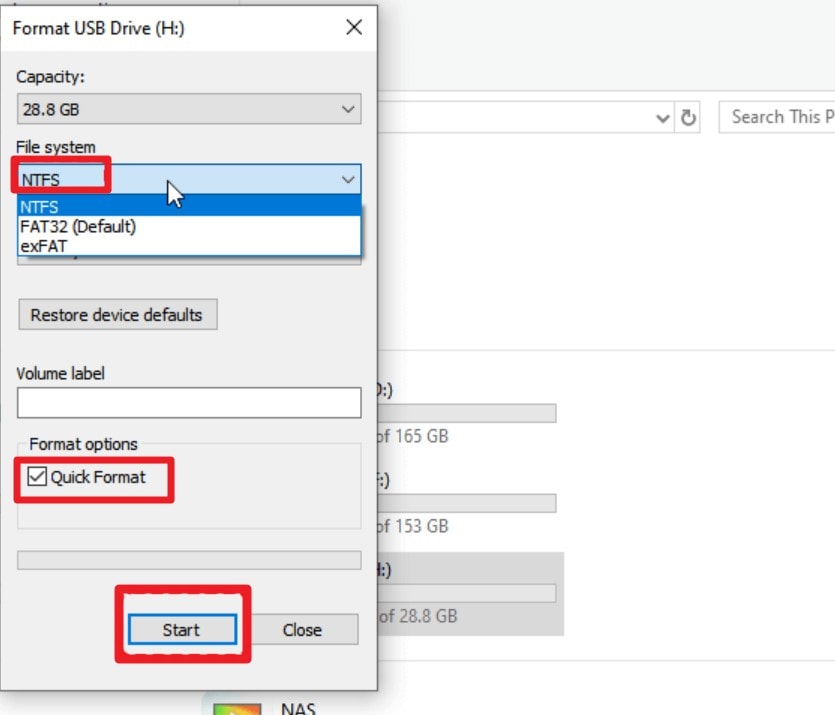
Try to format or clean the USB drive to fix the problem creating recovery drive, since it clears corruption and removes leftover data. This solution also checks the driver's health and frees full space for recovery files. As you erase the faults and set a proper format via the listed guide, you can avoid file errors and improve readability.
Instructions. As you insert the USB, open File Explorer and right-click to select the "Format" option. Now, from the pop-up menu, stretch the menu for "File System" and set it to "NTFS." Also, ensure the "Quick Format" option is checked at the bottom of the menu and hit the "Start" button. Doing so will erase all data on the drive and format it with a file system that Windows handles well for large tasks.
3. Disable Antivirus Temporarily
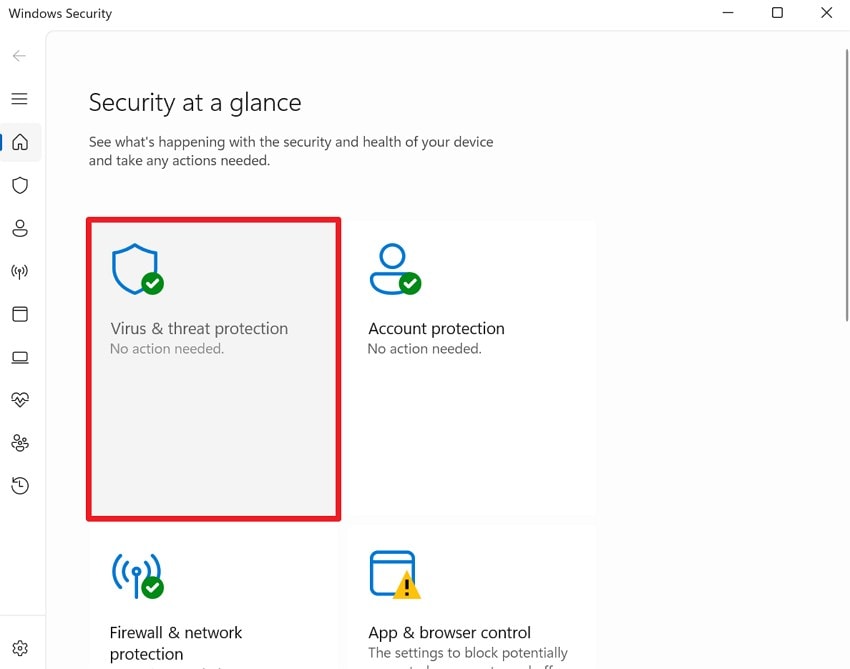
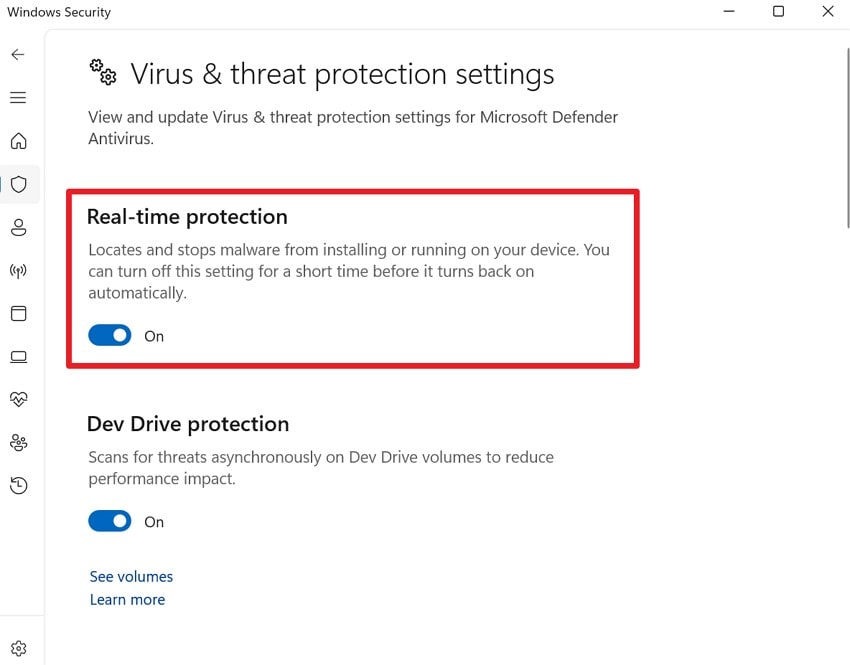
You can also turn off the antivirus for a short time to fix the "we can't create a recovery drive on this pc" error. Antivirus programs sometimes block system files or stop USB write actions that Windows needs. Additionally, it also gives Windows full access to copy files and avoid false threat alerts. It allows smooth recovery drive creation and stops random errors, as illustrated in the given guide:
- As you search for the "Windows Security" option, head to the "Virus & threat Protection" section on the main interface.
- Within the "Virus & threat Protection settings," choose the "Manage Settings" option and toggle off the "Real-time Protection" option. If prompted by Windows or the antivirus, confirm the action, and remember to turn it back on after creating the recovery drive to stay protected.
4. Run a Basic System File Check
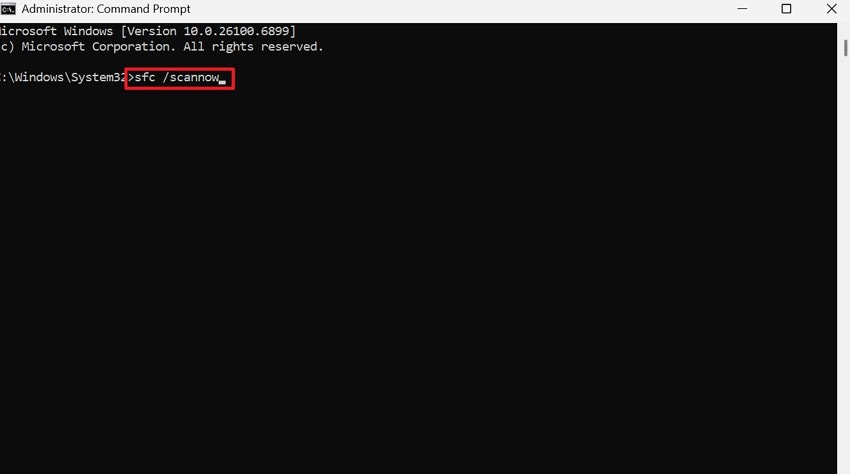
Run the System File Checker with the sfc /scannow command, as this tool checks important system files and replaces any corrupt or missing ones. It helps restore system stability and allows the recovery drive process to finish without faults. SFC also prevents full reinstallation and ensures a smooth recovery setup. Overall, the solution is easy and built into all modern Windows versions for quick repair.
Note: Follow the steps for Fix 5 "Repair the Corrupted System Files" to run the Basic system file check and review if the error is resolved.
5. Repair the Corrupted System Files
To deal with the problem creating recovery drive, repair corrupted system files. The recovery tool depends on healthy system files, and damaged or missing ones stop the process. Repair through SFC, DISM, or repair install replaces broken parts and restores proper function. The solution will improve the stability and avoid full reinstallation while it fixes update faults and malware damage, once performed via the given guide:
Instructions. As you access the Command Prompt as an administrator, type the "sfc /scannow" command and hit the "Enter" key.
6. Perform a DISM Scan to Restore Health
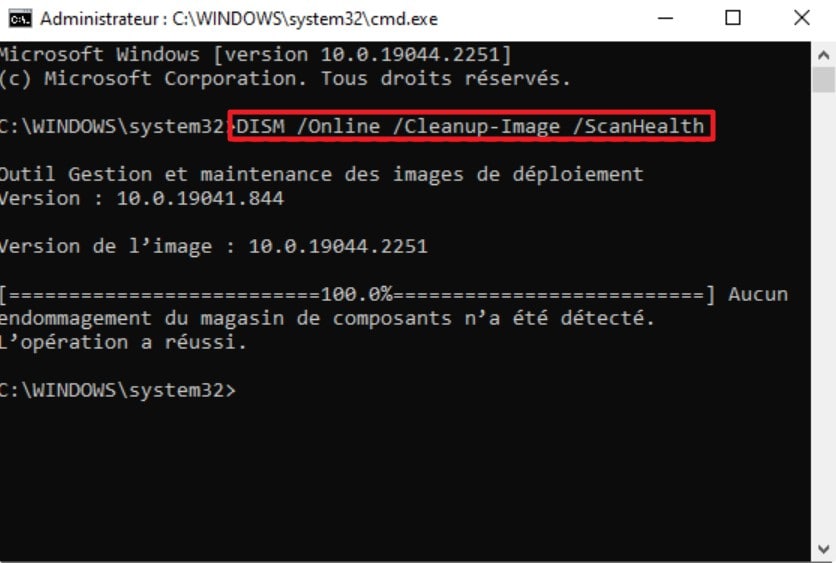
Run the DISM /Online /Cleanup-Image /RestoreHealth command to fix the "we can't create a recovery drive on this pc" error in Windows 10 or 11. DISM will repair deep corruption in the Windows system image that blocks recovery creation. Hence, it restores damaged files, fixes WinRE components, and prepares the system for proper recovery setup. To know how you can perform this solution, adhere to the given steps:
Instructions. If SFC reports errors it cannot fix, run DISM and launch the Command Prompt as administrator. After that, type the given command and press the "Enter" key.
dism.exe /online /cleanup-image /scanhealth
dism.exe /online /cleanup-image /restorehealth
7. Recreating Windows Recovery Environment via CMD
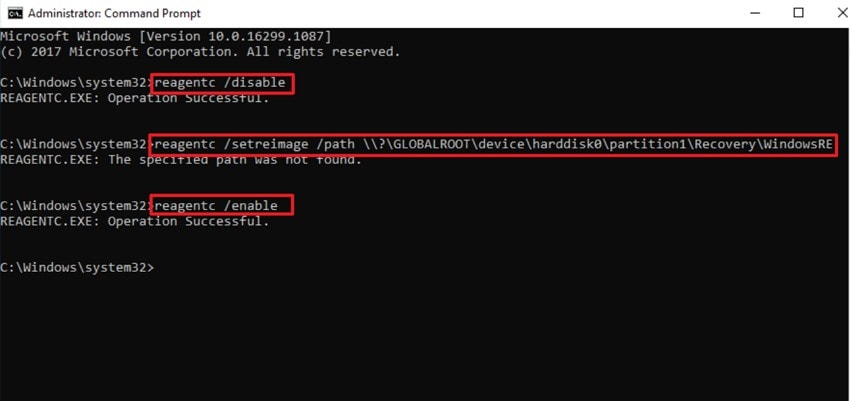
You can recreate the Windows Recovery Environment through Command Prompt, as it's another dependable solution. WinRE holds key recovery tools, and if it's disabled or missing, Windows cannot make a recovery drive. Whereas the usage of CMD allows you to repair or enable the WinRE, fix file paths, and restore partitions. This solution brings back the recovery ability and avoids reinstallation, as listed in the given guide:
Instructions. Launch the Command Prompt as administrator, type the following commands, and hit the "Enter" key.
reagentc /disable
reagentc /setreimage /path \\?\GLOBALROOT\device\harddisk0\partition1\Recovery\WindowsRE
reagentc /enable
After that, reboot your computer and determine if the issue is resolved or not.
8. Uncheck the "Back up System Files" Option
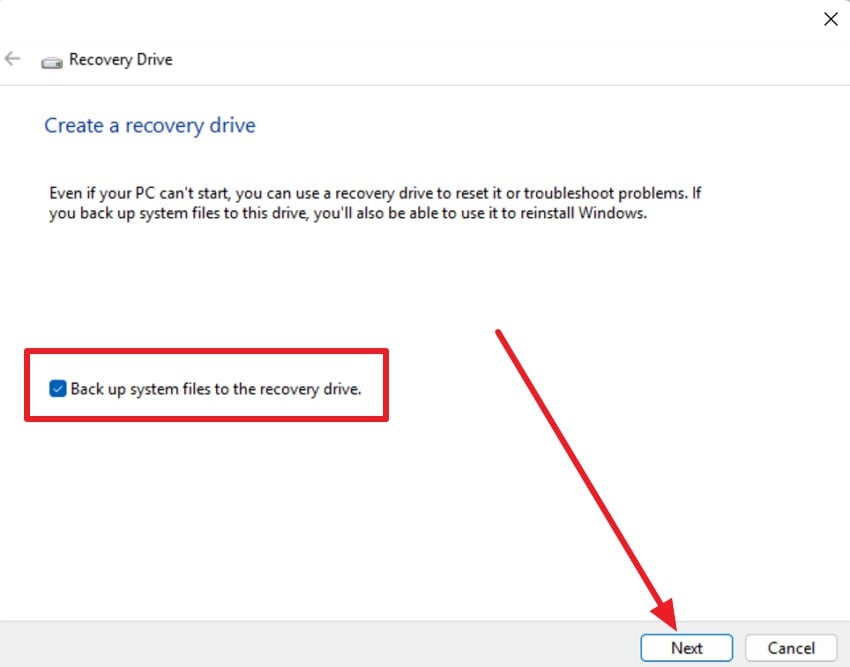
If you still face the problem creating recovery drive, uncheck the "Back up System Files" option. This step skips damaged or missing system files and creates a smaller recovery USB with basic repair tools. It also avoids storage limits, partition faults, and backup errors that cause the issue. The drive still opens the Windows Recovery Environment and provides restore and repair options, so follow the listed guide to uncheck this option:
Instructions. Search for the "Recovery Drive" from the Start menu and uncheck the "Back Up System Files To The Recovery Drive' option. Choose the USB drive you want to use for the recovery drive, then click "Next" and follow the steps:
Choose your USB drive, confirm deletion of all contents, and continue. The recovery drive will usually complete successfully, even if some system files are missing or damaged.
9. Fix WinRE with Windows Installation Disc or Media
Use a Windows installation disc or media to fix the "we can't create a recovery drive on this pc" error in Windows 10 or 11. This solution will restore the missing or corrupted WinRE files, partitions, and settings with official source files. To restore the full recovery tools, replace broken system files, and ensure Windows recognizes the correct environment, follow this guide:
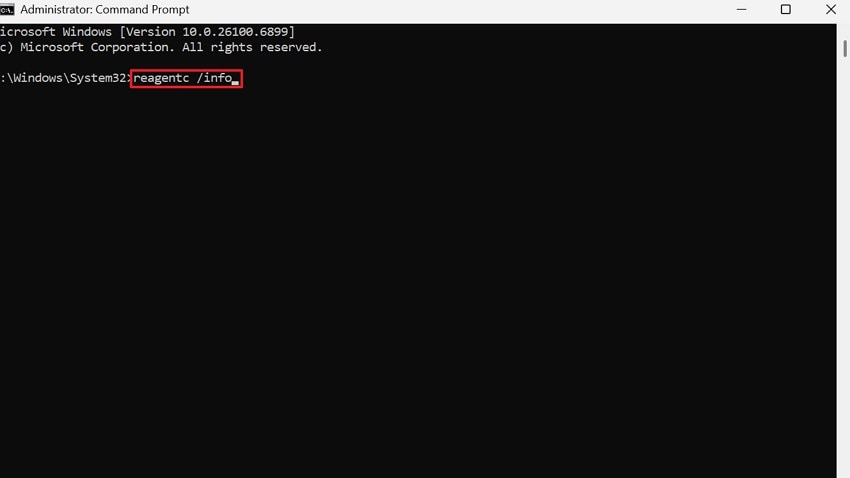
- Run the Command Prompt as administrator, type the "reagentc /info" command, and hit the "Enter" key. Check the WinRE status and if it's disabled, enter the command "reagentc /enable" and press the "Enter" key. If this fails with a "file not found" error, the winre.wim file does not exist.
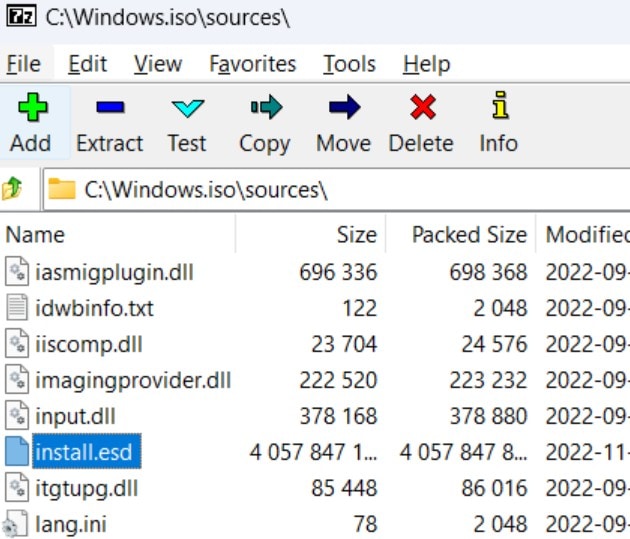
- Open your Windows installation ISO or USB, go to \Sources\Install.esd (or Install.wim), use 7-Zip to open the file, navigate to 1\Windows\System32\Recovery\, and extract winre.wim to C:\Windows\System32\Recovery\.
Once done, run the "reagentc /enable" command again and see if the issue is resolved. This quick fix works faster than a system repair and directly resolves the missing file error, allowing recovery drive creation.
Pro Tip. What if I Can't Recover Data Through Windows or Mac built-in tools?
While trying the fixes for "we can't create a recovery drive on this pc," if your system has crashed unexpectedly, and you want to restore the lost data, use Recoverit. The tool guarantees to restore all the data, regardless of booting issues, blue screen of death, or any other cause. It's easy to use and offers data recovery for various formats or multiple operating systems with a 98% success rate.
Additionally, the tool only enables you to create bootable media and provides data recovery. The foremost aspect is that the entire process is guided, and beginners can easily use it to retrieve the lost data. When the copying and scanning process for Hard Disk Copy and Data Recovery ends, Recoverit allows you to choose the location where you seek to save the data.
Key Features
- Simple Recovery: Unlike other tools, Recoverit limits the effort of extensive setup and just requires you to connect a USB for data recovery.
- Preview Data: After the copy and scan process completes, users can easily preview different data types and formats to assess accuracy.
- Complete Control: With an intuitive interface for data recovery from a crashed computer, the tool gives users full control and lets them decide whether to format the drive.
Extensive Guide to Recover Data Through Windows After a Computer Crash - Recoverit
After having the detailed idea of this recovery solution, adhere to the given guide and determine how it works:
- Access the Tool and Locate the System Crashed Computer Option
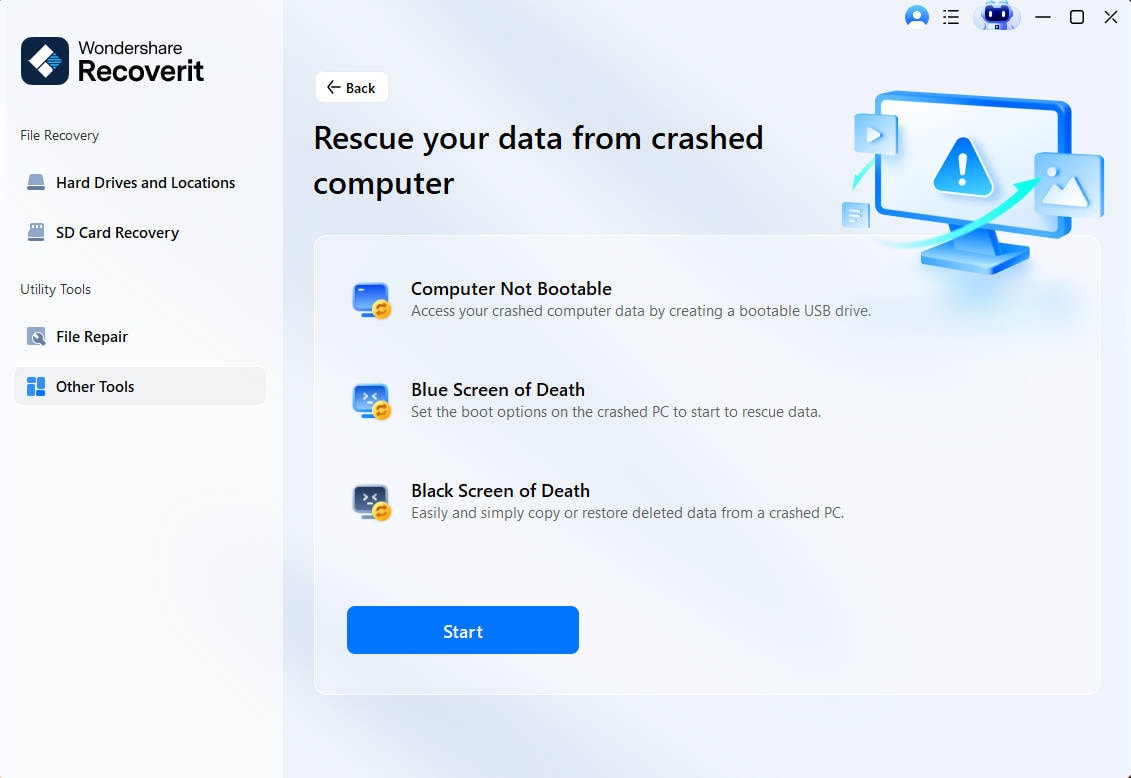
As you access the "System Crashed Computer" option within the "Others" tab of Recoverit, press the "Start" button.
- Create a Bootable Drive with Recoverit From a Flash Drive
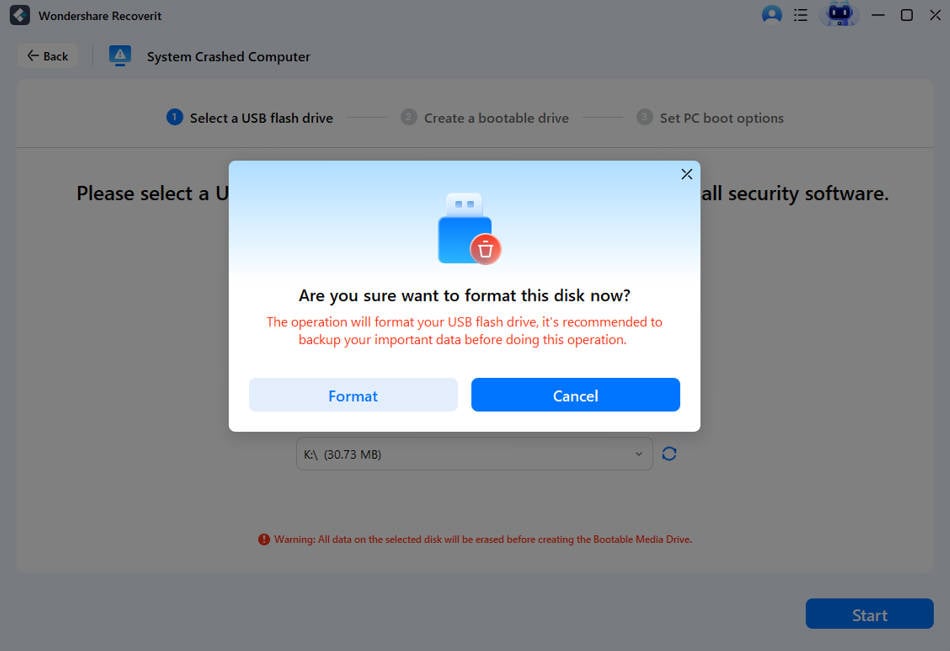
After that, connect the USB flash drive to the PC and select the "Select A USB Flash Drive" section so the tool can read it. This will prompt you to format the drive, so ensure everything is backed up and pick the "Format" option. You will be directed to the "Create a Bootable Drive" section, and the tool will format the USB flash drive and create a bootable drive.
- Choose the Hard Disk Copy or Data Recovery for Data Recovery
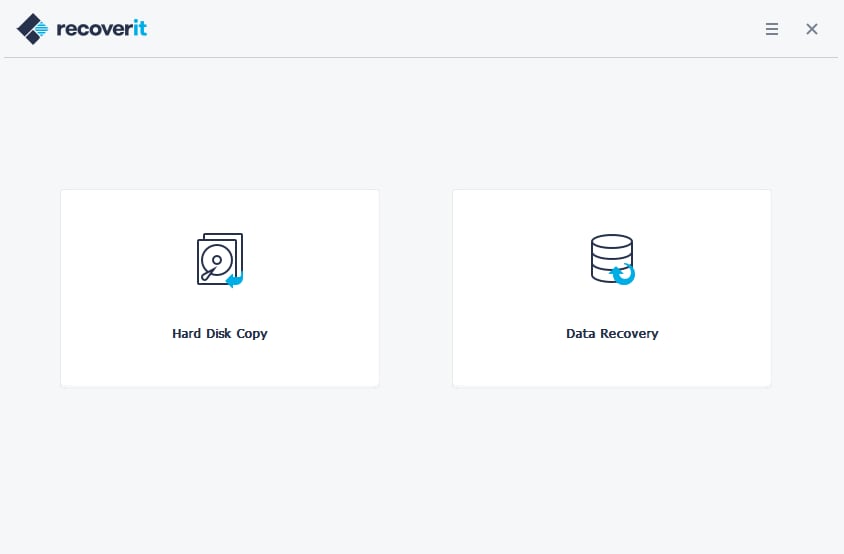
Once it's created, disconnect it and connect to the system that was crashed. Set your crashed computer to boot from the USB flash drive, and once it starts, choose either the "Hard Disk Copy" or "Data Recovery" option. No matter the option you choose for data recovery, preview the data and save it to another safe location, like an external hard drive or removable device.
Part 4. Prevent Future Issues With Fix "We Can't Create a Recovery Drive on This PC" on Win 10/11
To ensure you don't have any problem creating recovery drive, adhere to the listed expert's tips in this section:
| Tip | What to Do | Why It Helps |
|---|---|---|
| Use a quality USB drive of at least 16GB | Choose a reliable, blank USB flash drive; format it as NTFS or FAT32 | Ensures enough space and a compatible format for system files, reducing write errors |
| Enable Windows Recovery Environment | Verify WinRE status using reagentc /info; enable with reagentc /enable | Makes WinRE partition and recovery tools available, ensuring Windows can create the drive |
| Run SFC and DISM scans periodically | Use sfc /scannow and DISM /Online /Cleanup-Image /RestoreHealth | Repairs missing or corrupted system files essential for recovery drive creation |
| Temporarily disable antivirus/firewall | Turn off security software before running the Recovery Drive wizard | Prevents interference or false flagging that could block file copying or formatting |
| Keep Windows updated & check partitions | Regularly install Windows updates; inspect partitions with Disk Management | Updates maintain system integrity and recovery partition health for smooth recovery creation |
Conclusion
Summing up, this guide has addressed the "we can't create a recovery drive on this pc" issue. To that end, 9 simple and effective solutions have been shared to help you create a recovery drive seamlessly. However, if you lose any data while trying any of these solutions, it is recommended to use Recoverit. The tool offers a Quick and Deep Scan option to retrieve data in real time.
FAQ
-
1. What is the main purpose of a recovery drive on Windows 10/11?
A recovery drive stores essential Windows tools and files to restore the system when normal startup fails or crashes occur. It acts as a backup option that helps users repair Windows problems without reinstalling or losing important system functions. -
2. Can I create a recovery drive on another computer and use it on mine?
A recovery drive made on one PC often fails to match another system's unique drivers and settings. Each recovery drive holds system-specific data, so using another computer's version usually causes errors or compatibility issues. -
3. Does the recovery drive include my personal files and apps?
It only carries Windows repair tools and system data, not personal photos, documents, or installed software. Your personal data needs separate backup methods, as the recovery drive protects only the system's essential operating components.


