 TL;DR:
To fix a Dell laptop that will not shut down in Windows 11, you must troubleshoot based on the exact symptom by verifying power-button configurations, testing with Fast Startup temporarily disabled, or checking for stop codes if the system repeatedly reboots.
● Test a full Restart from the Windows Power menu, as Microsoft confirms this bypasses Fast Startup; if Restart completes normally but Shut down hangs, clear the Fast Startup checkbox in Control Panel to determine if the saved hibernation state is causing the conflict.
● If the laptop instantly restarts instead of staying powered off, Windows 11 may be triggering an automatic reboot after a system crash; clear "Automatically restart" under Startup and Recovery settings to keep the screen active long enough to record the specific stop code.
● Force a physical power-off by holding the power button for 5 to 10 seconds only when Windows is completely unresponsive and no BIOS update is actively writing, then immediately press F12 during the next boot to run Dell Pre-Boot Diagnostics for hardware validation.
Ask AI for a summary
 ChatGPT
 Perplexity
 Gemini
 Claude
 Grok
Grok
"When I click shut down, it does not shut down. Screen go dark then again turn on." - Dell user report on Reddit
A Dell laptop won't shut down problem does not always look the same. Windows 11 may stay on the Shutting down screen, the display may go black while the fans or power light remain active, the laptop may restart instead of powering off, or Start > Power > Shut down may work while the physical power button does something else.
The safest fix depends on that exact behavior. Windows processes, Fast Startup, an update, a recently changed driver, a third-party service, Dell firmware, power-button settings, Modern Standby, an external device, or hardware can all produce different shutdown symptoms. Microsoft also distinguishes shutdown, sleep, hibernation, and other system power states, so a dark screen alone does not prove that the computer has fully powered off.
Do not make repeated forced shutdowns your normal workaround. Cutting power can discard unsaved work and can interrupt active disk writes. If Windows later becomes inaccessible, protect important local files before a reset or reinstall. Recoverit is relevant only for data recovery in that situation; it does not repair Windows, BIOS, drivers, batteries, or other hardware.
In this article
Part 1. Dell Laptop Won't Shut Down: Identify the Exact Behavior
When a Dell laptop is not shutting down, start by describing exactly what happens after you choose Shut down. The symptom is more useful than applying every power fix at once.
| What Happens | Likely Area to Check First | Best Next Step |
| Stuck on the Shutting down screen | Active update, app, service, or driver that is not closing | Wait for visible progress, then use the Part 3 Windows checks |
| Screen turns off but fans or power lights stay on | Incomplete shutdown, external device, driver, firmware, or sleep/power-state behavior | Disconnect nonessential devices after transfers finish, then compare Start menu shutdown with the physical button |
| Laptop restarts instead of staying off | System crash with automatic restart, driver issue, or firmware/power problem | Use Part 4 and look for a stop code or reliability event |
| Start menu Shut down works but the power button does not | Power-button action, sleep behavior, or model-specific power behavior | Use Part 5 |
| Laptop is completely unresponsive | Windows or the whole system is frozen | Use the emergency procedure in Part 6 only after safer controls fail |
If the display turns black but the keyboard, fans, or power LED remain active for a long time, do not automatically treat it as the same problem as a powered-off laptop. If your Dell is clearly running with no usable display, the related guide on a Dell laptop that powers on with a black screen covers that separate symptom in more detail.
What Windows Power Options Actually Do
Windows can look "off" while using different power states. That distinction matters when you are diagnosing a Dell laptop not shutting down.
| Power Option | What Happens to the Session | Why It Matters for Troubleshooting |
| Shut down with Fast Startup enabled | Apps close and users sign out, but Windows saves kernel and driver state to the hibernation file | A saved kernel state can make shutdown behavior differ from Restart |
| Shut down with Fast Startup disabled | Windows performs a full shutdown | Useful as a temporary diagnostic comparison |
| Restart | Windows closes and starts a fresh boot cycle | Microsoft states that Fast Startup does not apply to Restart |
| Sleep or Modern Standby | The system enters a low-power state rather than a normal shutdown | Fans, LEDs, networking, or wake behavior can be confused with a shutdown problem |
| Hibernate | The user session is saved to storage before the system powers down | The next start resumes the saved session rather than beginning from a normal clean boot |
Dell's current Fast Startup shutdown guidance explains why Restart can be a useful comparison even though that Dell article is titled for Windows 10. Microsoft also documents that Fast Startup does not apply to Restart.
Part 2. What to Do Before Forcing a Dell Laptop to Turn Off
A forced power-off should be a last resort. Before holding the power button, use these checks to determine whether Windows is still capable of shutting down normally.
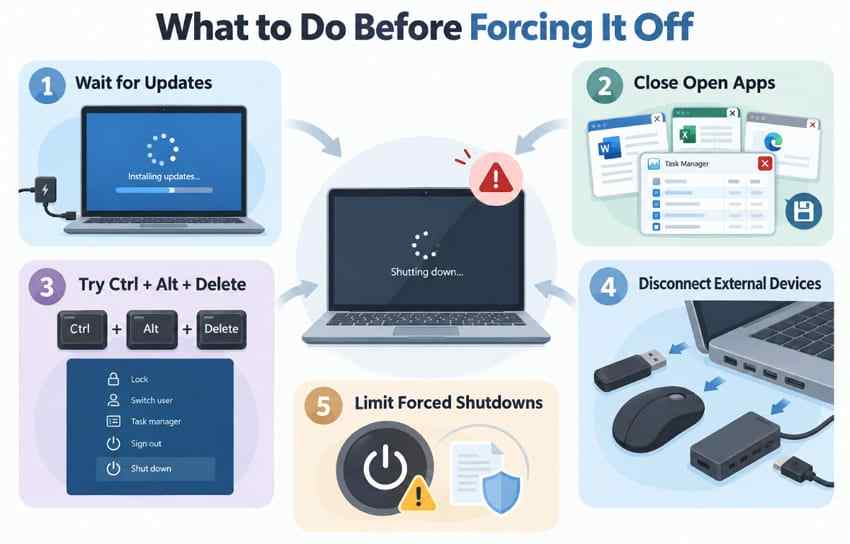
- Wait when Windows is completing an update or disk operation: If the screen shows changing update progress, an installation is still advancing, or a file transfer is active, allow it to finish. Do not intentionally cut power during a BIOS or firmware update.
- Save work and close responsive applications: If only one program is frozen, press Ctrl + Shift + Esc to open Task Manager and end only the unresponsive app when possible.
- Try Ctrl + Alt + Delete: If the Windows security screen opens, use its Power menu and select Shut down. A responsive security screen means you still have a cleaner option than cutting power.
- Disconnect nonessential devices after transfers finish: Safely eject external storage, then unplug docks, USB accessories, printers, and external displays. Dell's current USB troubleshooting guidance also starts by isolating external USB devices.
- Avoid repeated forced shutdowns: One emergency shutdown is different from using a hard power-off every day. Repetition can hide the real software, firmware, power, or hardware problem and increases the number of times active work can be interrupted.
Part 3. Fix a Dell Laptop That Will Not Shut Down From Windows
If Start > Power > Shut down begins normally but never completes, start with Windows-level checks. Test one change at a time so you can identify what actually affects the behavior.
Fix 1. Test a Full Restart First
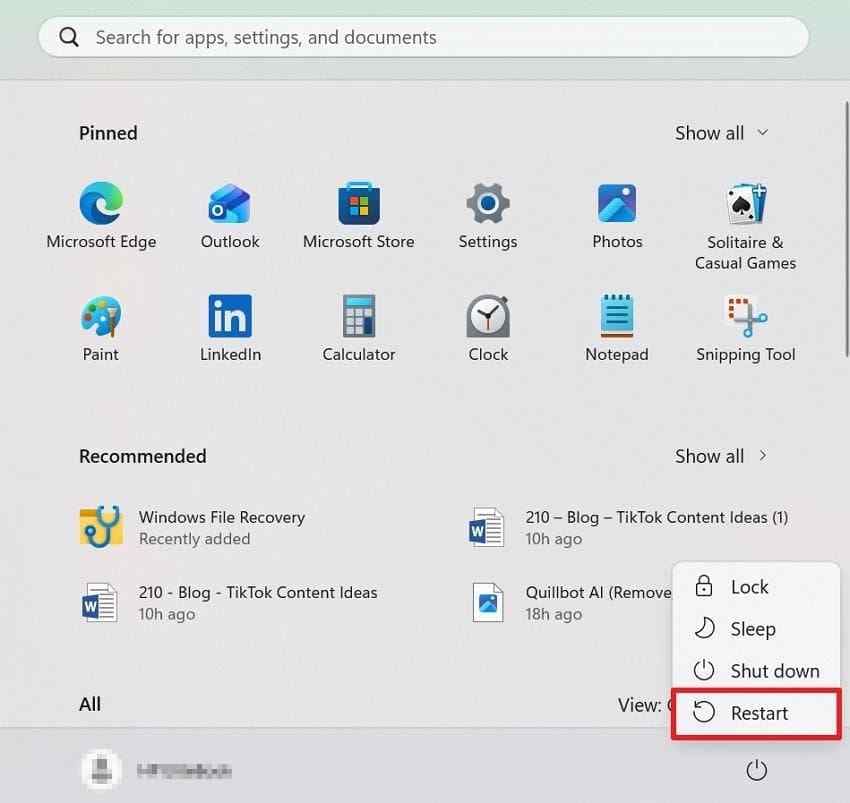
Restart is a useful diagnostic because it performs a full Windows boot cycle and does not use Fast Startup. If Restart completes normally but Shut down repeatedly hangs or leaves the laptop partly active, test Fast Startup next.
Instructions: Select Start > Power > Restart. Wait until Windows returns to the sign-in screen. Then sign in and select Start > Power > Shut down once more.
If both Restart and Shut down fail, continue with the broader Windows checks below. For additional non-Dell-specific context, see the Recoverit guide to a Windows PC that will not turn off or shut down.
Fix 2. Disable Fast Startup as a Diagnostic Test
Fast Startup saves the Windows kernel session and device-driver state to the hibernation file when you shut down. Microsoft notes that Fast Startup is enabled by default on supported systems and does not recommend disabling it as a permanent blanket fix. Use this as a test: if it does not change the symptom, turn it back on.
Step 1. Open Control Panel > Hardware and Sound > Power Options, then select Choose what the power buttons do.
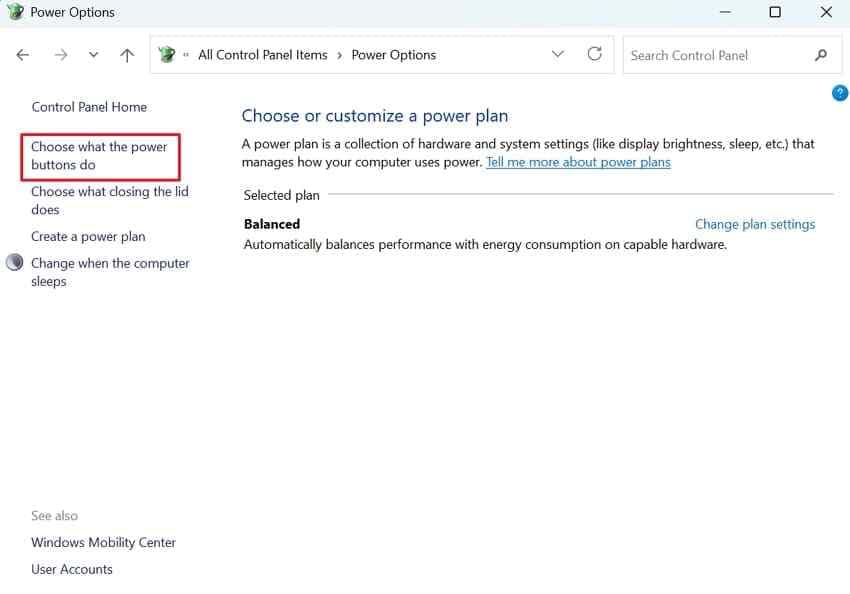
Step 2. Select Change settings that are currently unavailable. Under Shutdown settings, clear Turn on fast startup (recommended), save the change, and test Shut down again.
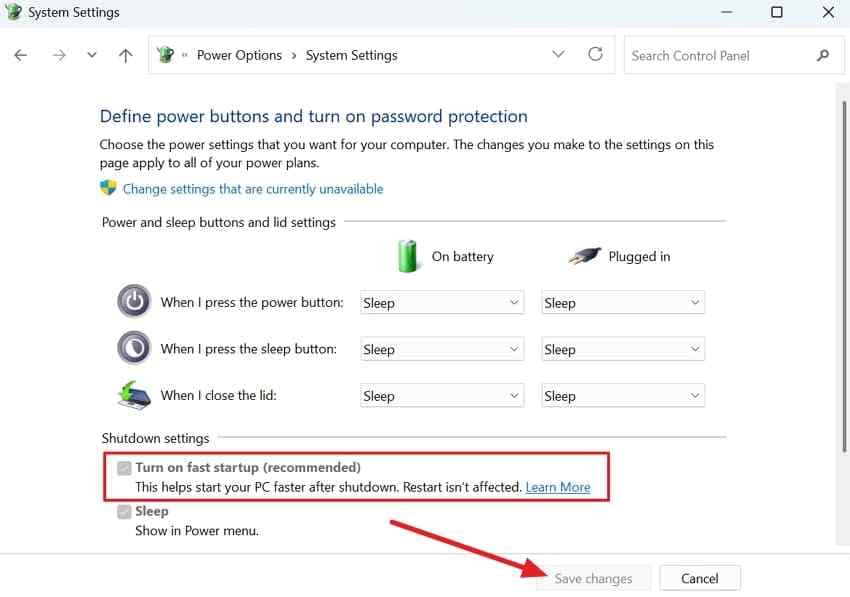
If the Dell now shuts down consistently, Fast Startup or a driver state restored through hibernation may be involved. If nothing changes, re-enable Fast Startup and continue.
Fix 3. Check Windows Update History and Recent Drivers
If the shutdown problem started suddenly, compare the start date with recent Windows, driver, and firmware changes instead of randomly removing updates.
Check Windows Update history: Open Settings > Windows Update > Update history. Microsoft documents this path in its current Windows Update FAQ. Note any quality update, driver update, or firmware update installed immediately before the problem began.
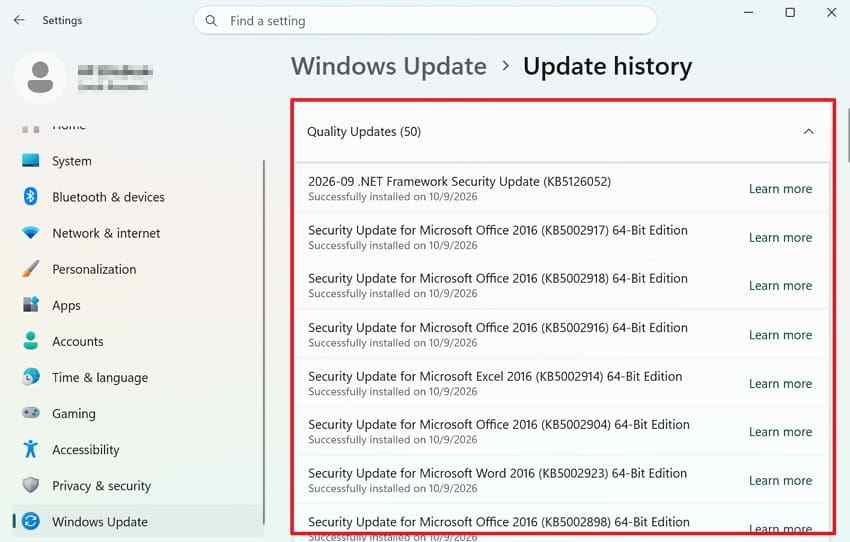
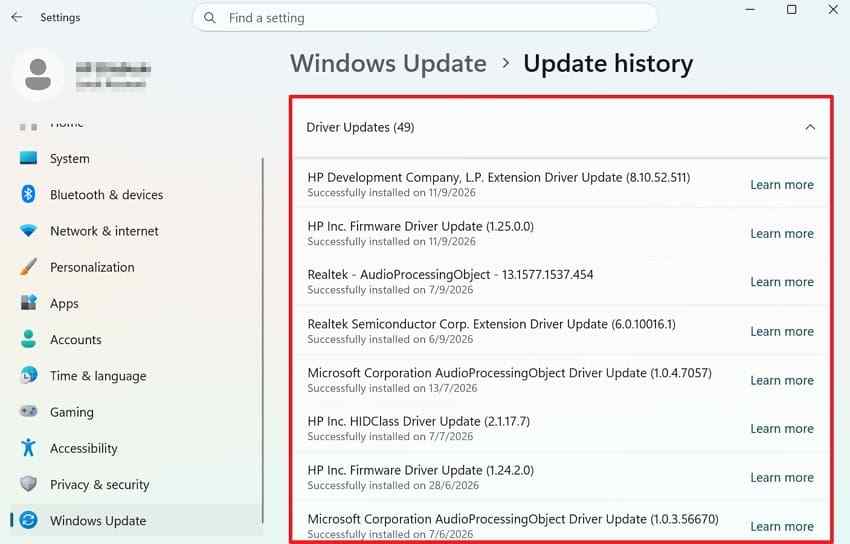
Check recent driver changes: In Update history, expand Driver Updates. You can also open Device Manager, expand the relevant device category, and review Properties > Driver for the version and date. Do not roll back a driver merely because it is recent; use the rollback method in Part 4 only when the timing matches the first shutdown failures.
Fix 4. Use a Clean Boot to Find a Software Conflict
A clean boot starts Windows with Microsoft services and a reduced set of startup software so you can test whether a third-party service or startup app is blocking shutdown. Microsoft recommends restoring normal startup after the test is complete.
Step 1. Search for msconfig and open System Configuration. On the Services tab, select Hide all Microsoft services, then select Disable all. Follow the current Microsoft clean boot procedure.
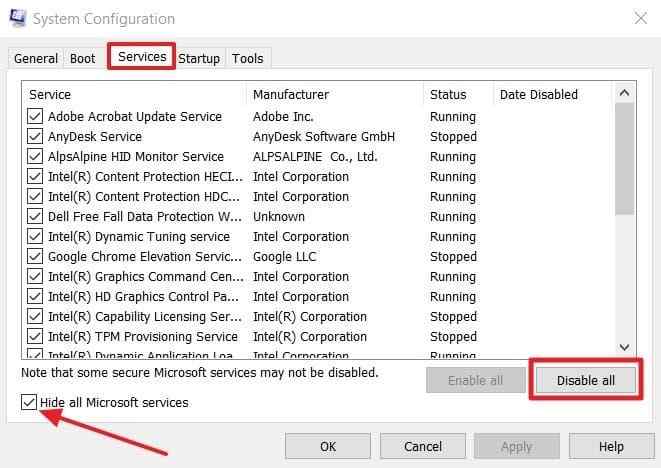
Step 2. Open the Startup tab, select Open Task Manager, and disable the enabled startup apps for the test. Restart Windows, then test Shut down.
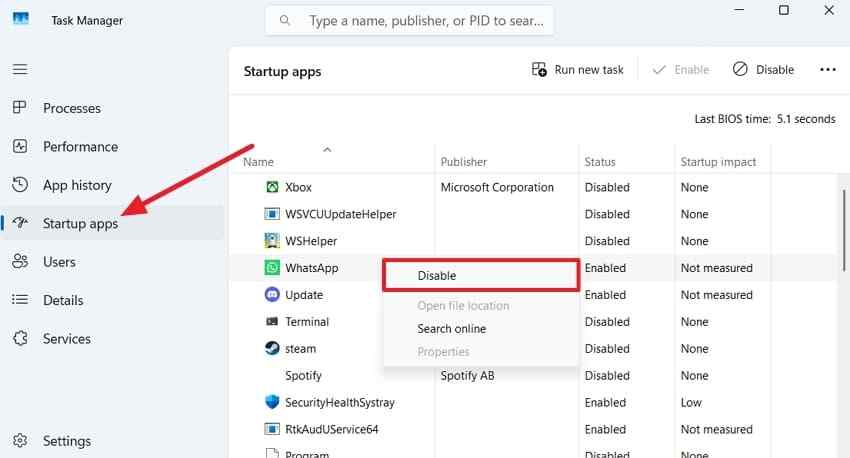
If shutdown works in the clean-boot state, re-enable services and startup items in smaller groups until the conflict returns. When testing is finished, restore Normal startup and re-enable the items you intentionally disabled.
Fix 5. Repair Windows Components With DISM and SFC
Corrupted Windows components can contribute to freezing or other abnormal operating-system behavior. Microsoft currently recommends running DISM before System File Checker so SFC has a healthy component source available.
Step 1. Run DISM: Open Command Prompt as administrator, enter the following command, and wait for it to finish:
DISM.exe /Online /Cleanup-Image /RestoreHealth
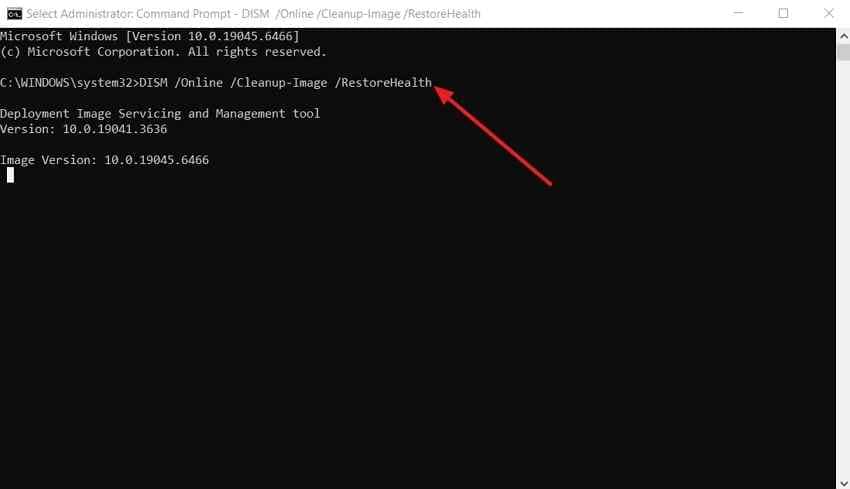
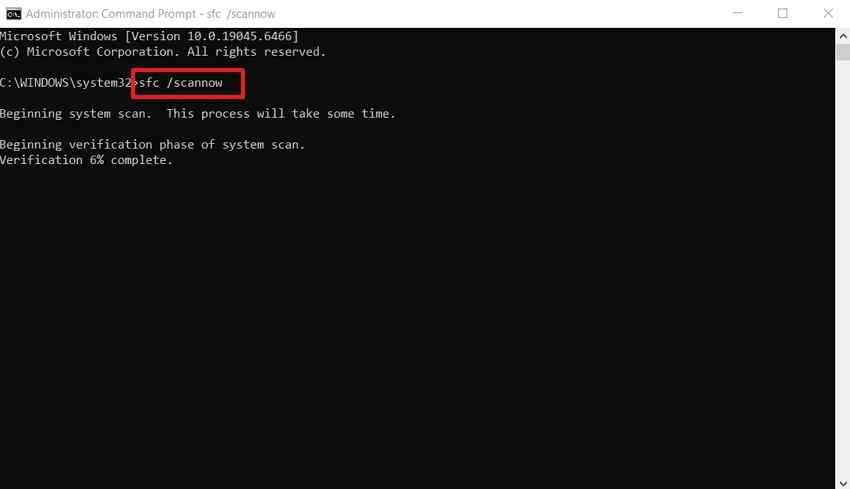
Step 2. Run SFC: In the same elevated Command Prompt, enter:
sfc /scannow
Do not close the window before verification reaches 100%. Microsoft explains the expected results in its official DISM and System File Checker guidance.
Fix 6. Test Shutdown From a New Windows User Profile
A temporary second account helps separate a machine-wide shutdown problem from an account-specific startup app, shell extension, or user configuration problem.
Step 1. Open Settings > Accounts > Other users and select Add account.
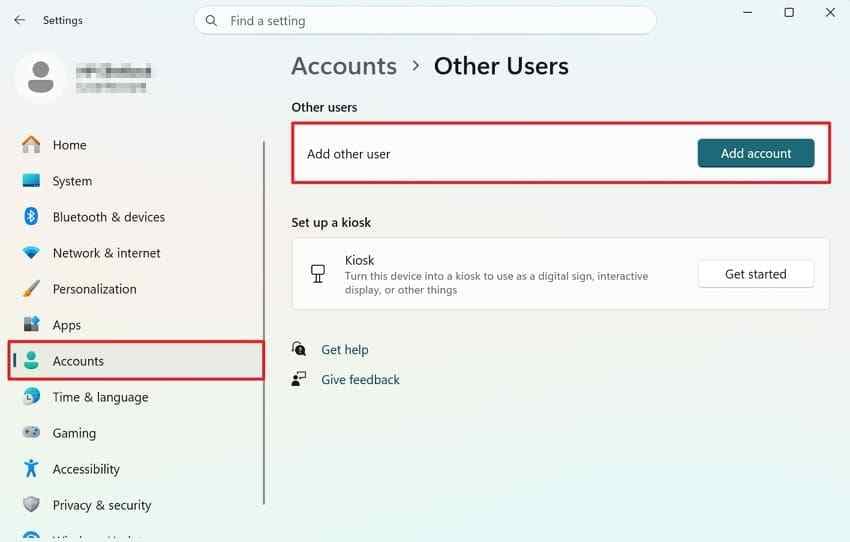
Step 2. For a short troubleshooting test, you can choose I don't have this person's sign-in information > Add a user without a Microsoft account, create the account, sign in to it, and test Shut down. Microsoft documents the current Windows 11 account path in Manage User Accounts in Windows.
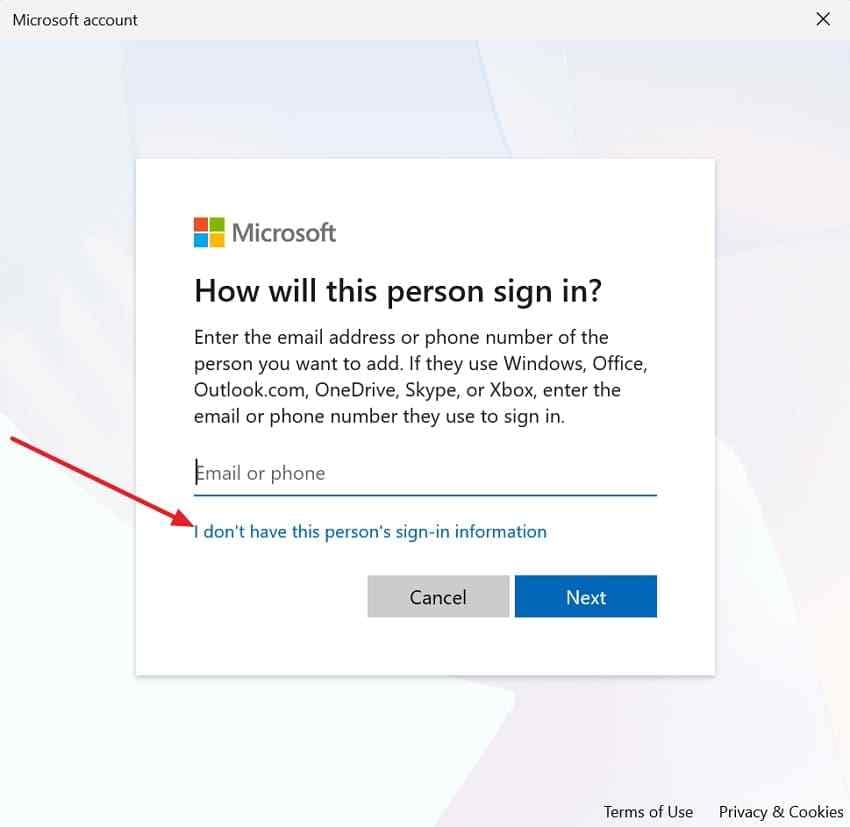
If shutdown works only in the new profile, focus on account-specific startup apps and settings. If it fails in both profiles, continue with the system, driver, firmware, and hardware checks below.
Part 4. Fix a Dell Laptop That Restarts Instead of Shutting Down
A Dell that turns off briefly and immediately boots again may not be completing a clean shutdown. Windows can restart automatically after a serious system error, and driver or firmware problems can make the restart look like a normal power cycle.
Fix 1. Check for a Crash That Triggers Automatic Restart
Microsoft notes that Windows 11 can restart automatically after a stop-code error. Temporarily disabling automatic restart can make the actual error stay visible long enough to record it.
Step 1. Open Settings > System > About > Advanced system settings. Under Advanced > Startup and Recovery, select Settings.
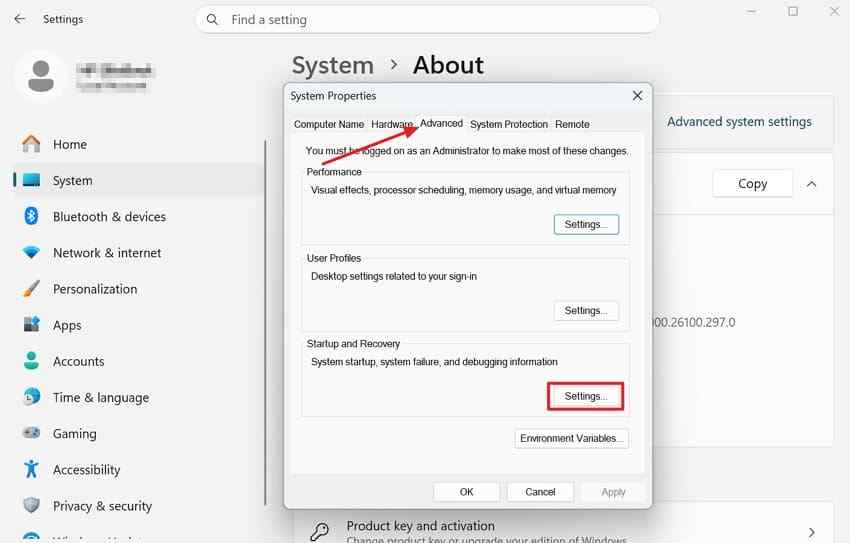
Step 2. Under System failure, temporarily clear Automatically restart, select OK, then reproduce the shutdown problem. If Windows shows a stop code, photograph or write it down before changing anything else. Microsoft provides current guidance for unexpected restarts and stop-code errors.
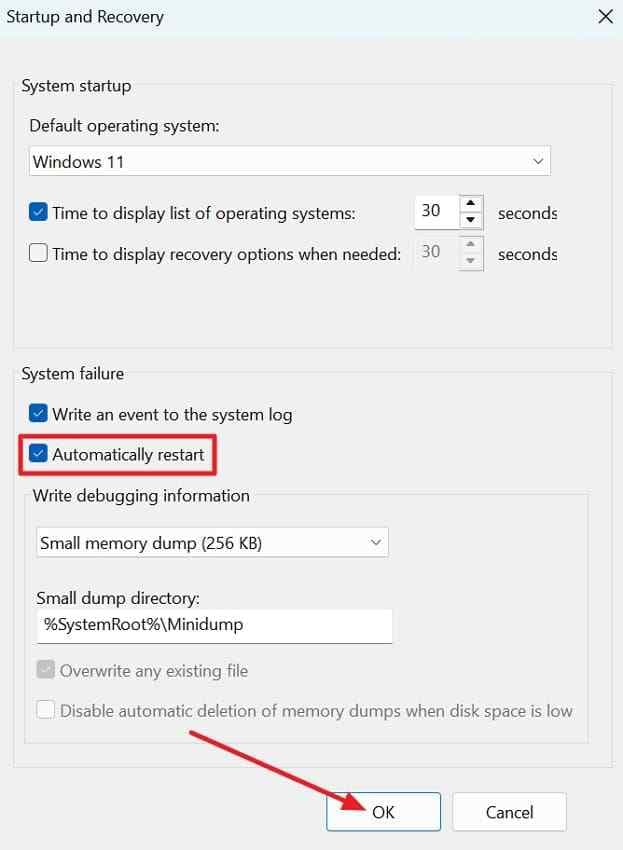
After you capture the evidence, you can restore the original automatic-restart setting. If your symptom is a repeated restart loop rather than a shutdown problem, the separate guide for Windows stuck on restarting covers that path.
Fix 2. Check Reliability Monitor for the Failure Pattern
Reliability Monitor can help you compare application, Windows, and hardware failures with the exact date and time the unwanted restart began.
Instructions: Search for Reliability and open View reliability history, or press Windows + R, enter perfmon /rel, and select OK. Review red critical-event markers around the time the laptop restarted. Open individual events and record any faulting application, hardware error, or Windows failure details.
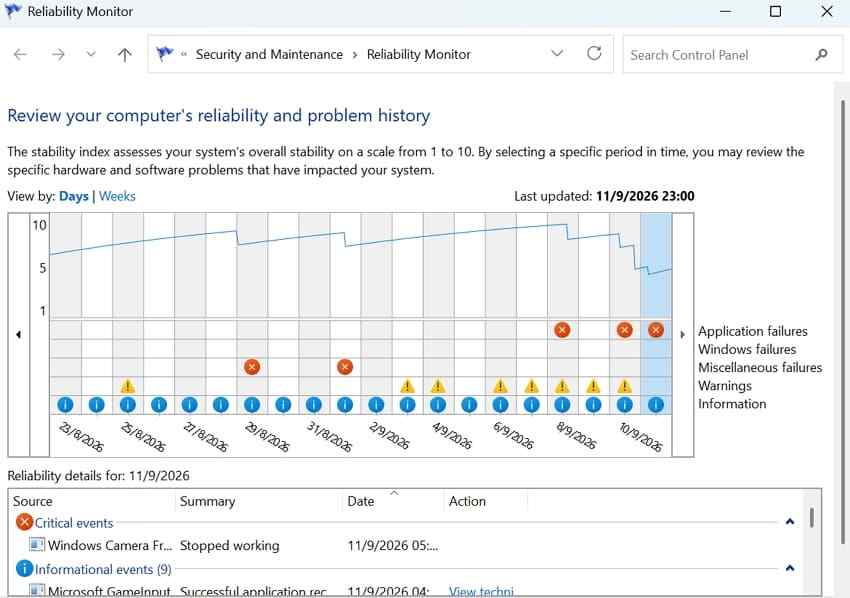
Use Reliability Monitor as evidence, not as a diagnosis by itself. A red event can tell you what Windows recorded near the failure, but you still need to match it with the shutdown behavior and the timing of driver or firmware changes.
Fix 3. Roll Back a Driver Only When the Timing Matches
If the problem began immediately after a driver change, a rollback is more targeted than removing unrelated updates.
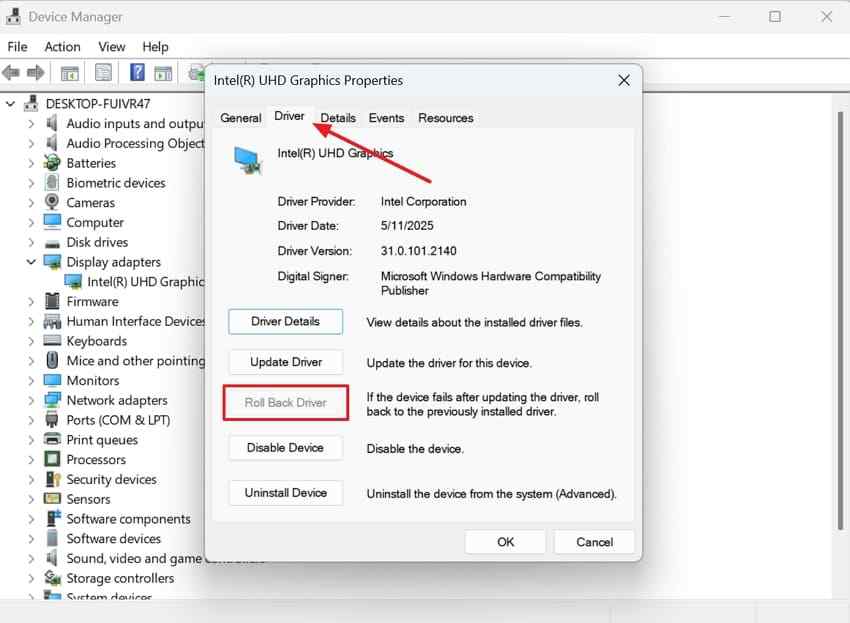
Instructions: Open Device Manager > device category > device > Properties > Driver. If Roll Back Driver is available and the driver date matches the beginning of the shutdown problem, roll back that specific driver, restart, and test Shut down again. If the button is unavailable or the timing does not match, do not force a rollback.
Fix 4. Check Dell Drivers and Firmware for the Exact Model
Power-management and shutdown behavior can depend on model-specific BIOS, chipset, Intel or AMD platform drivers, graphics drivers, and Dell firmware. Use your Service Tag or exact model on Dell Support instead of installing a BIOS package intended for another Dell system.
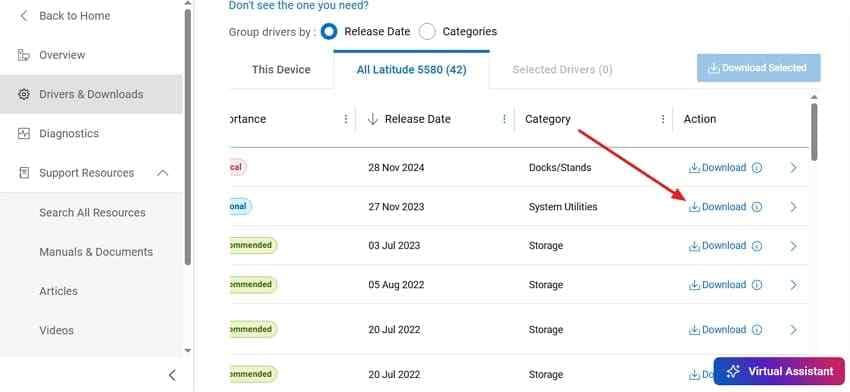
Step 1. Go to Dell Support, identify the laptop by Service Tag or model, open Drivers & Downloads, and review recommended BIOS and platform updates. Dell's current BIOS and UEFI update guide also explains supported update methods.
Step 2. If you install a BIOS update, keep the AC adapter connected, follow the model-specific instructions, and do not interrupt power. Dell also instructs BitLocker users to suspend BitLocker protection before a BIOS update; otherwise, Windows may ask for the recovery key after the reboot.
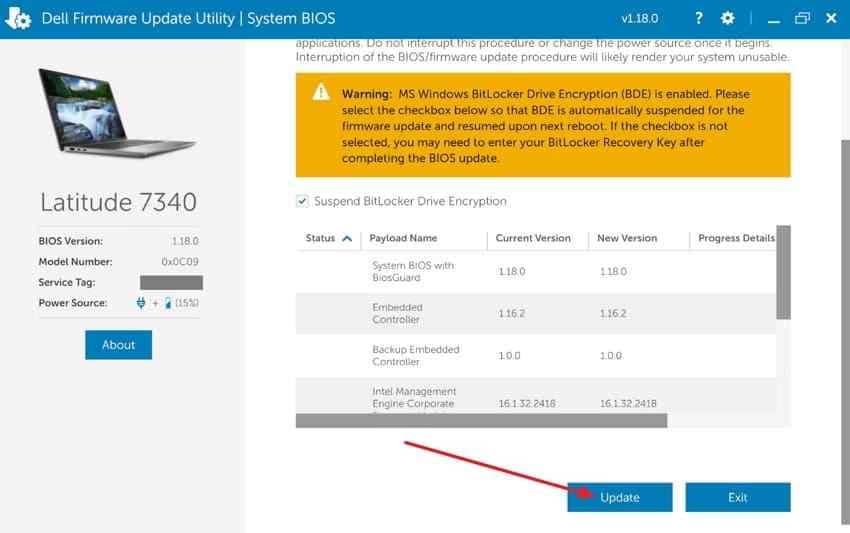
Important: Never force the laptop off while a BIOS, UEFI, embedded-controller, or other firmware update is actively writing. A stalled-looking update should be handled with Dell's model-specific support guidance rather than a routine hard power-off.
Part 5. Fix a Dell Power Button That Does Not Shut Down Windows
If Start menu Shut down works but pressing the physical power button does not, separate the Windows button action from the laptop's normal shutdown behavior.
Fix 1. Check the Windows Power-Button Action
Windows can assign different actions to the physical power button when the laptop is on battery and when it is plugged in.
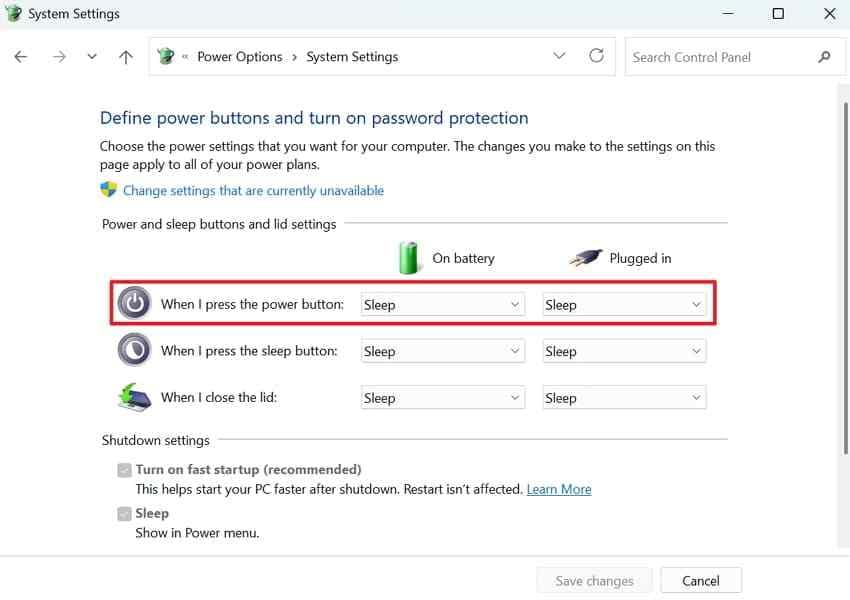
Instructions: Open Control Panel > Hardware and Sound > Power Options > Choose what the power buttons do. Next to When I press the power button, set the desired On battery and Plugged in actions to Shut down, then save the changes. Microsoft also documents power-button configuration in its current shutdown, sleep, and hibernate guidance.
Fix 2. Separate Power-Button Behavior From Lid-Close Behavior
The power button, sleep button, and lid-close action can have separate settings. For example, the physical power button can be configured for Shut down while closing the lid is configured for Sleep. Check each row before assuming that the hardware button has failed.
If Start menu Shut down consistently works but the button does not, first confirm the button action is not set to Sleep, Hibernate, or Do nothing. If the setting is correct and the button still behaves inconsistently, move to Dell model-specific support or hardware diagnostics.
Fix 3. Understand Modern Standby on Supported Dell Models
Modern Standby is a low-power sleep model used by supported Windows PCs. It is not the same as a normal shutdown. If the power button is configured for Sleep, pressing it can move a supported Dell into Modern Standby while the system remains capable of background activity and fast wake.
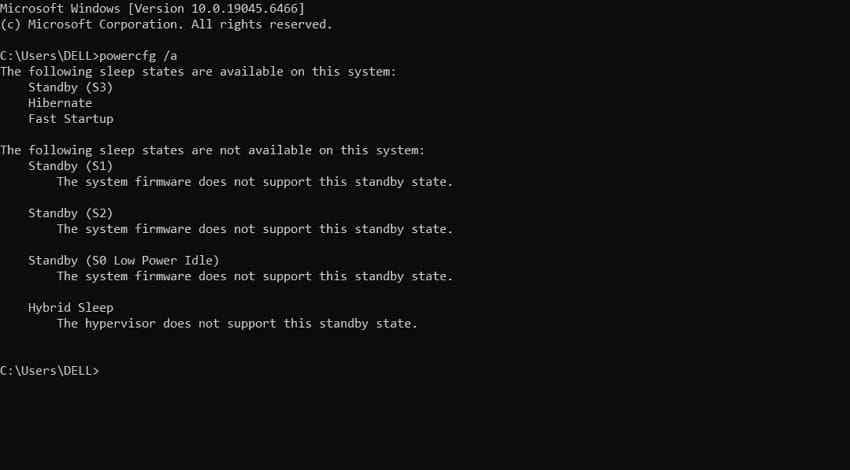
Check the supported states: Open Command Prompt and run:
powercfg /a
Microsoft documents that this command lists the sleep states available on the computer.
Dell-specific exception: On the Latitude models listed in Dell's current Swipe to Shutdown advisory, holding the power button for about five seconds can display Swipe to Shutdown, while a roughly ten-second hold overrides that behavior and performs a forced power-off. Dell also states that older or non-Modern-Standby laptops generally force off after about five seconds. Treat these intervals as Dell model guidance, not as a universal rule for every PC.
Fix 4. Compare the Physical Button With Start Menu Shutdown
Run one controlled comparison:
- If Start > Power > Shut down works but the physical button does not, focus on the button action, Modern Standby behavior, the physical switch, or a model-specific Dell advisory.
- If both Start menu shutdown and the physical button fail while Windows is still responsive, return to the Windows, driver, and firmware checks in Parts 3 and 4.
- If the laptop becomes completely unresponsive, use the emergency path in Part 6.
Part 6. Force Shut Down or Diagnose the Dell Laptop
Force power off only when Windows no longer responds to normal keyboard or shutdown controls. After the laptop restarts, diagnose the freeze instead of repeatedly using the same forced shutdown.
Step 1. Force Power Off Only When Windows Is Completely Unresponsive
Before cutting power, confirm that Ctrl + Alt + Delete does not respond and that no BIOS or firmware update is running.
Instructions: Press and hold the Dell power button until the system fully turns off and the display, fans, and activity lights stop. Dell's documented interval depends on model behavior: older or non-Modern-Standby systems generally force off after about five seconds, while specific supported Modern Standby Latitude models in Dell's advisory may require about ten seconds for a forced power-off. Wait briefly, then start the laptop normally.
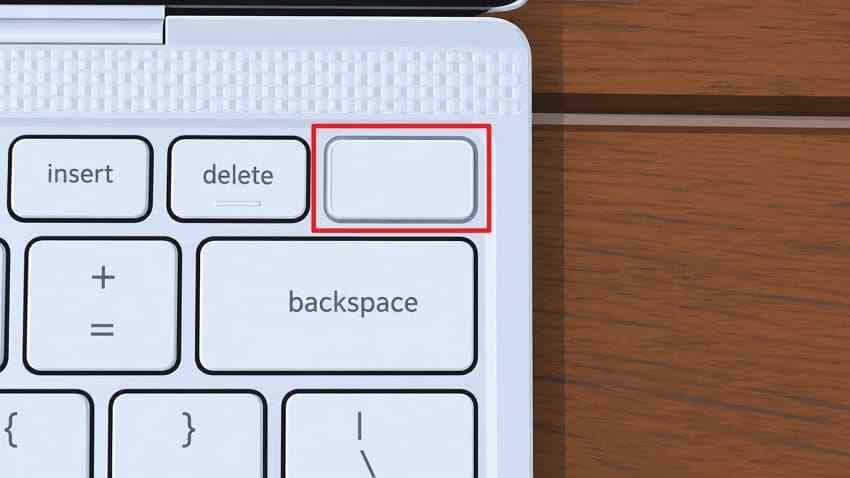
A forced shutdown is sometimes called a dirty shutdown because Windows does not complete its normal close-and-power-off sequence. It is an emergency action, not a fix for the underlying cause.
Step 2. Run Dell Pre-Boot Diagnostics After Restarting
If shutdown freezes keep returning, Dell's current pre-boot diagnostics can test supported hardware before Windows loads.
Step 1. Restart the laptop. At the Dell logo, press F12 repeatedly until the One Time Boot Menu appears, then choose Diagnostics. Dell documents this exact path in How to Run Dell Preboot Diagnostics and Hardware Tests.
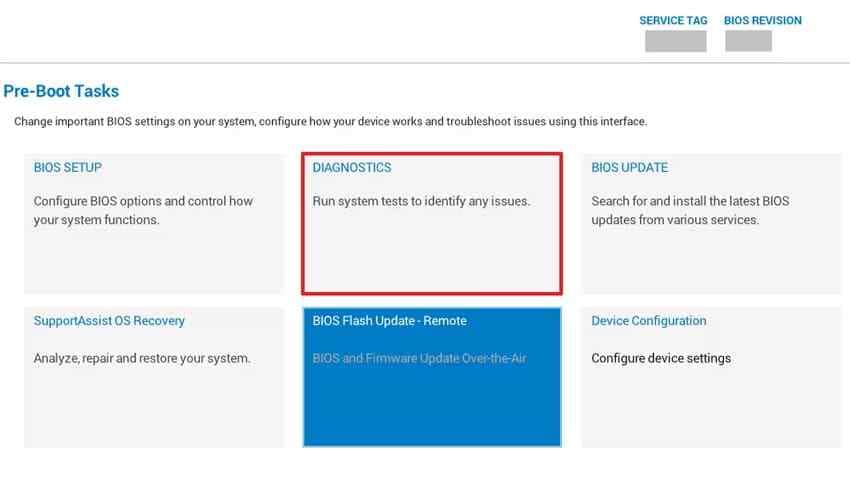
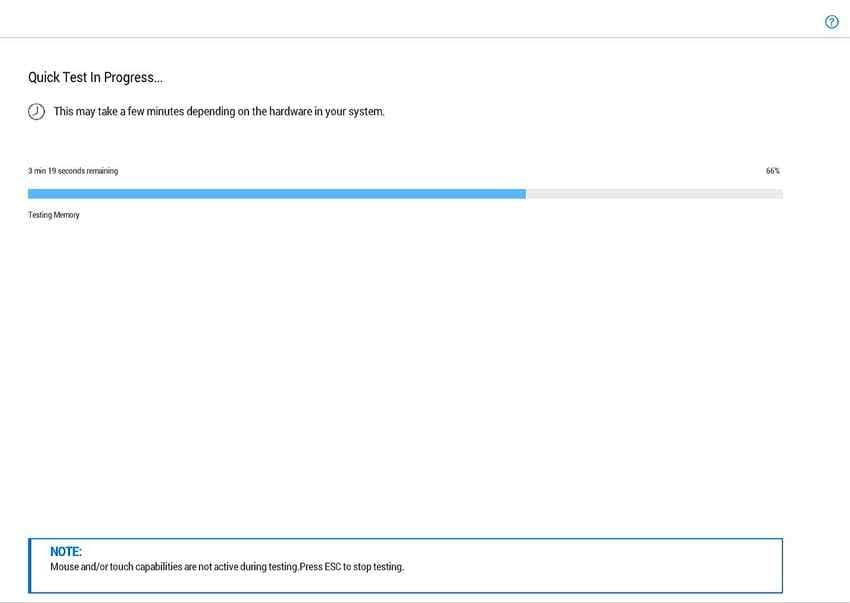
Step 2. Let the quick test complete. If Dell reports a hardware error, record the error code, validation code, and Service Tag before contacting support. Advanced test options vary by the installed hardware.
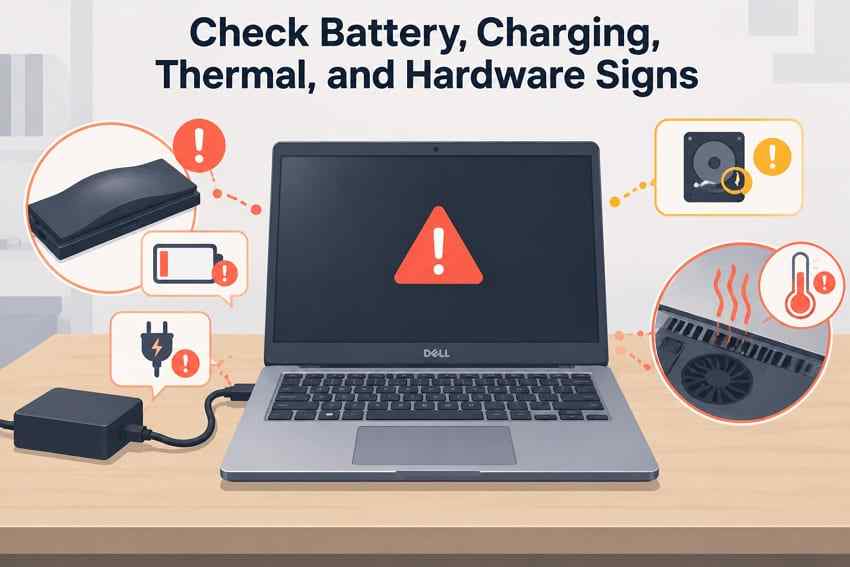
Step 3. Check Battery, Charging, Thermal, and Hardware Warning Signs
Shutdown failures accompanied by abnormal heat, charging faults, swollen-battery symptoms, repeated hardware diagnostic errors, or sudden freezes need hardware attention rather than endless Windows tweaks.
- Swollen battery: If the case is warped, the trackpad is lifting, or the laptop no longer sits flat, stop using a swollen battery and follow Dell's safety guidance. Dell warns not to puncture, bend, or compress it in its current battery safety and recycling guidance.
- Charging or adapter warnings: Note any BIOS or SupportAssist battery/adapter warning before changing software.
- Thermal symptoms: Persistent overheating, thermal warnings, or freezes under light workload can justify service or more focused cooling/thermal diagnostics.
- Storage or memory errors: Treat an ePSA/SupportAssist error code as a hardware lead and record it exactly.
Step 4. Contact Dell With Useful Diagnostic Evidence
If the Dell laptop is still not shutting down after Windows tests, a clean boot, targeted driver checks, correct power-button settings, current model-specific firmware, and Dell diagnostics, collect evidence before contacting Dell Support:
- Exact Dell model and Service Tag.
- Whether Start menu Shut down, Restart, and the physical power button behave differently.
- Any Windows stop code, Reliability Monitor event, or recent driver/update timing.
- Dell diagnostic error and validation codes.
- Whether the problem occurs on AC power, battery power, docked, and undocked.
This gives support a much clearer starting point than the generic statement that the laptop "will not turn off."
Part 7. Recover Files if a Dell Shutdown Problem Blocks Windows Access
A Dell shutdown problem does not automatically mean your files are lost. If Windows still starts and your important files open normally, a normal backup to external storage or another safe location is the best first step. Data recovery becomes relevant only when files are missing or inaccessible, or when Windows can no longer boot and you need the data before a reset, reinstall, drive replacement, or other risky repair.

When Data Recovery Is Actually Needed
| Situation | Best Data Action |
| Windows starts and important files are accessible | Back them up normally; do not scan the drive just because shutdown was abnormal |
| Files disappeared or became inaccessible after repeated forced shutdowns | Minimize new writes and consider file recovery from the affected readable drive |
| Windows no longer boots but the internal SSD/HDD is still detected | Recover important files before reset or reinstall |
| Drive is not detected, clicks, disconnects, or reports physical failure symptoms | Stop software recovery attempts and consider professional data recovery |
| BitLocker-encrypted drive is locked | Use the legitimate BitLocker recovery key; Recoverit does not bypass or decrypt BitLocker |
For a broader unbootable-PC workflow, see how to recover data when a PC will not boot. Recoverit can help recover files from supported, readable storage; it cannot fix the underlying Dell shutdown, Windows, BIOS, battery, or hardware fault.
How to Recover Files With Recoverit Before Resetting or Reinstalling
If the Dell will not boot but its internal drive is still detectable, the current Recoverit Windows guide describes a bootable recovery workflow that starts from another working computer. Prepare a working PC, a blank USB drive, and a separate storage device for recovered files.
Step 1. Open System Crashed Computer on a Working PC
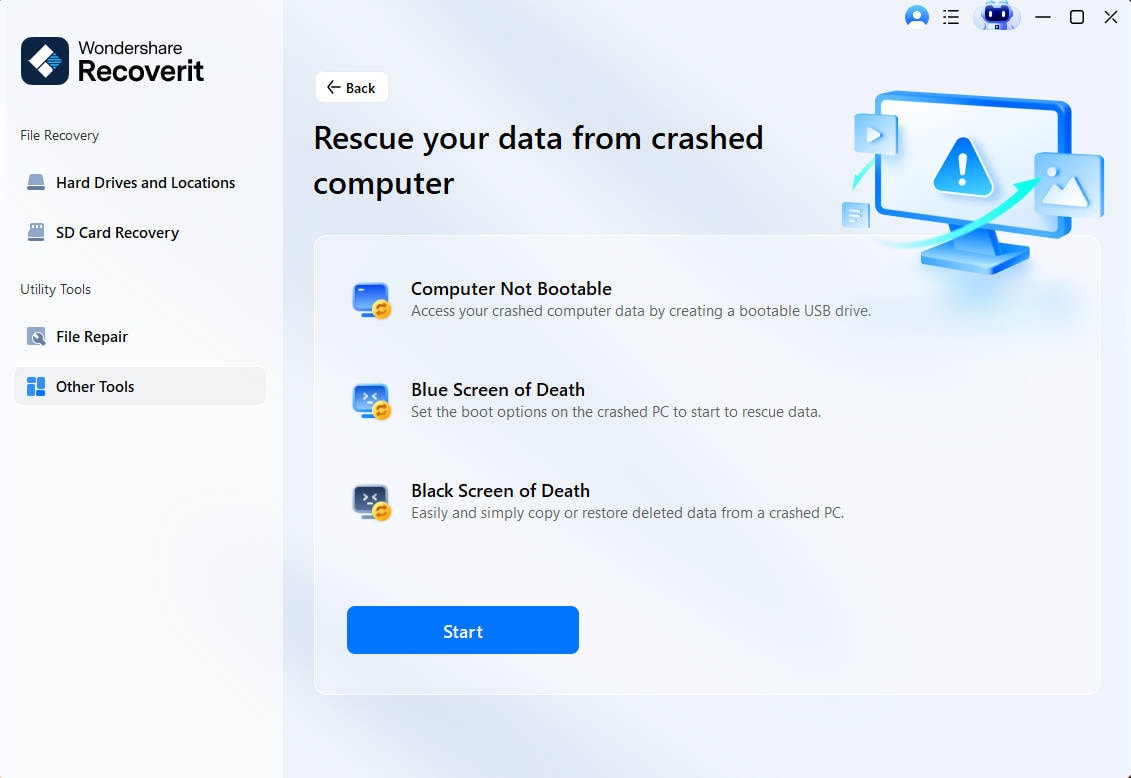
Install and open Recoverit on a working Windows computer. Go to Other Tools > System Crashed Computer and select Start. Some older interface screenshots may use the label Computer Not Bootable, but the current Recoverit guide names the workflow System Crashed Computer.
Step 2. Create the Bootable USB Drive
Connect a blank USB drive, select it as the bootable-media target, and create the drive. The USB is formatted during this process, so copy anything important off that USB before confirming.

Step 3. Boot the Dell From the USB
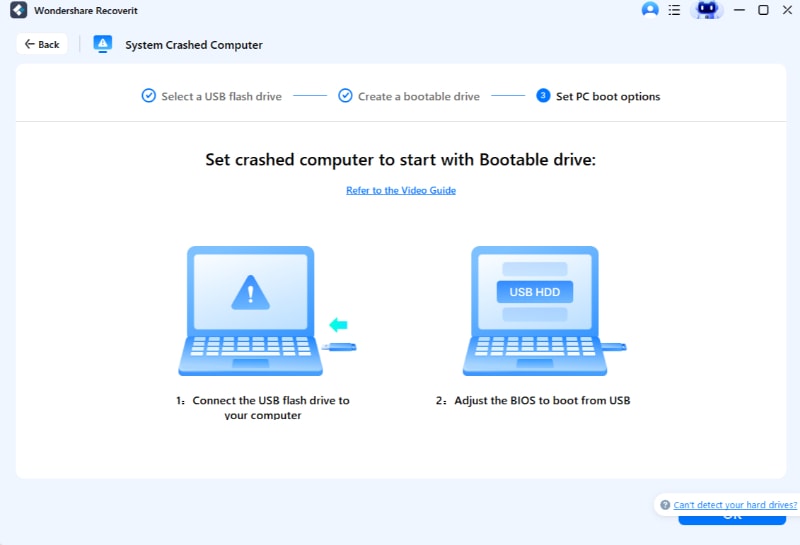
Connect the bootable USB to the affected Dell. Start the laptop and use the appropriate Dell boot-menu or firmware option to boot from USB. On many Dell laptops, F12 opens the One Time Boot Menu, but the exact boot option can vary by model and configuration.
Step 4. Recover to a Different Physical Drive
After the Recoverit recovery environment loads, choose Data Recovery or the appropriate disk-copy option, select the readable source disk, and connect a separate healthy drive for the output. Scan the source, preview supported files when available, and save recovered data to the separate drive rather than back to the disk being scanned. Recovery depends on drive condition, overwriting, encryption, and detectability.
Recover Files if a Dell Shutdown Problem Blocks Windows Access
 Security Verified. Over 7,302,189 people have downloaded it.
Conclusion
When a Dell laptop won't shut down, the fastest route is to match the fix to the exact symptom. A system stuck on Shutting down needs a different investigation from a Dell that restarts, a screen that turns off while power remains on, or a physical power button configured for Sleep. Start with low-risk Windows checks, use Fast Startup only as a diagnostic test, match driver actions to the timing of the failure, and apply Dell BIOS or firmware updates only for the exact model.
Force power off only when the machine is completely unresponsive and no firmware update is running. If repeated shutdown failures later make Windows inaccessible, protect important files before resetting or reinstalling Windows. Use Recoverit only for the data-recovery step when the storage is still readable, and escalate physically failing or undetected drives to professional recovery.
FAQ
-
Why Is My Dell Laptop Stuck on Shutting Down?
An active update, a process that is not closing, a third-party service, a driver, an external device, or a Windows component problem can delay shutdown. If the laptop still shows changing update progress or disk activity, give it time. If Windows remains responsive, close apps, use Ctrl + Alt + Delete, and work through the Windows checks before forcing power off. -
Why Does My Dell Laptop Restart Instead of Shutting Down?
Windows can automatically restart after a serious system error, so a crash during shutdown may look like an ordinary restart. Temporarily disable Automatically restart in Startup and Recovery to capture a stop code, then compare the timing with recent drivers, Windows updates, and Dell firmware changes. -
Why Do the Fans or Power Light Stay On After the Screen Turns Off?
The laptop may not have completed shutdown, or it may have entered a sleep or Modern Standby state instead. Disconnect nonessential devices after transfers finish, test Start menu Shut down, check the power-button action, and run powercfg /a to see which sleep states the system supports. -
Why Does the Start Menu Work but the Dell Power Button Does Not?
The physical power button has its own Windows action and can be configured for Sleep, Hibernate, Shut down, or another available behavior. Open Power Options and check When I press the power button for both battery and plugged-in modes. If it is already set correctly, check Dell model-specific guidance or hardware diagnostics. -
Can Repeated Forced Shutdowns Damage Files?
They can cause data loss or corruption if power is removed while an application or the file system is actively writing. Unsaved changes can also be lost. A forced shutdown does not automatically damage every file, but it should remain an emergency action rather than the normal way to turn off the Dell laptop.


