

 TL;DR:
A 403 Forbidden error indicates a server-level access denial that is primarily fixed by correcting folder and file permissions, resetting configuration files, or clearing client-side network blocks.
● Correct server-side authorization blocks by using an FTP tool like FileZilla to set directory permissions to 755 and file permissions to 644.
● Resolve hidden configuration conflicts by regenerating the .htaccess file through your hosting File Manager, or temporarily disabling your VPN, CDN, and website plugins to isolate access rules.
● If file loss occurs during a site lockout, Wondershare Recoverit can be used on Windows or Mac systems to scan and retrieve deleted data and media files.
Ask AI for a summary
 ChatGPT
 Perplexity
 Gemini
 Claude
 Grok
Grok
Seeing a "403 Forbidden" message when you try to open a page you need can be confusing, especially when everything seems fine. This error usually indicates that the server knows exactly what you're requesting but is blocking your access. However, the best news is that you can fix this error by using appropriate methods.
This article explains the error in detail, including its different types and primary causes. Furthermore, it also provides various methods to explore how to fix the 403 Forbidden Error effortlessly.
Try Recoverit to Perform Data Recovery
 Security Verified. 3,591,664 people have downloaded it.
In this article
- Solution 1. Refresh The Page and Double-Check The URL
- Solution 2. Clear Your Browser Cache
- Solution 3. Modify Your File Permissions
- Solution 4. Delete and Restore .Htaccess File
- Solution 5. Deactivate And Reactivate Your Plugins
- Solution 6. Temporarily Deactivate Your CDN
- Solution 7. Check For Misconfigured Hotlink Protection
- Solution 8. Disconnect From Your VPN
- Solution 9. Run A Malware Scan
- Solution 10. Contact Your Hosting Provider

Part 1. Decoding the 403 Forbidden Error: A Simple Guide
A 403 Forbidden error is an HTTP status code indicating that the server understood your request but is refusing to grant access. Rather than a technical failure, it relates to an authorization failure stemming from file or directory permissions.
The 403 status code is also part of the 4xx "client error" family, but it differs from other HTTP errors. HTTP errors are not properly authenticated and usually require logging in or providing valid credentials. Although the server recognizes the request, it denies permission to proceed.
Types of Error 403 Forbidden
Now that you know what an HTTP 403 error means, let's explore its different types below:
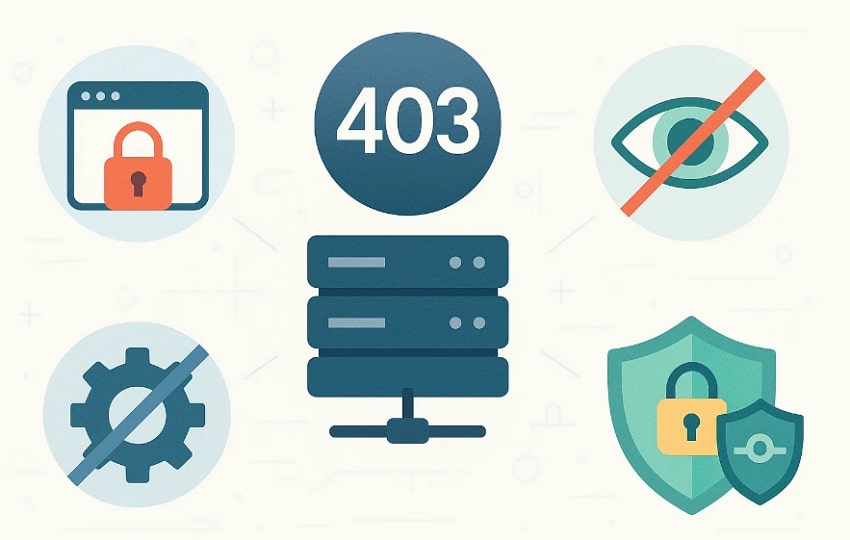
- Generic 403 Forbidden: Within this error, the server understood the request, but didn't authorize it, typically due to missing permissions or access rules.
- 403.1- Execute Access Forbidden: The server blocks running executable content, such as scripts or CGI, in that directory.
- 403.2 – Read Access Forbidden: This 403.2 error denies read access, so the resource exists but is not allowed to be viewed.
- 403.4 – SSL Required: As the access is only allowed over HTTPS links, plain HTTP requests are rejected by the server.
- 403.5 – SSL 128 Required: The server requires a minimum encryption strength, like 128‑bit SSL, before granting access to the user.
Part 2. Why 403 Forbidden Errors Happen: Main Reasons Explained
Understanding the root cause is key, so review the primary reasons for the HTTP 403 Forbidden error:

- Core Permissions: Sometimes, file or folder permissions on the server are incorrect, causing the web server to block execution of those files or folders.
- Security and Access Control: If your security plugins, web application firewalls, or CDN rules flag, it will also result in a 403 error.
- Authentication and Authorization: In case the user is authenticated but lacks the required permissions to access the requested resource.
- Browser and Cache: In some cases, if your browser is outdated or corrupted, it can lead to a 403 Forbidden error.
- Configuration Issues: A common reason is that your domain links to the wrong or outdated IP address, resulting in denied access.
Part 3. Fix 403 Forbidden Error: Simple Solutions That Actually Work
Once the root causes are clear, we have listed some efficient methods to know how to fix the 403 Forbidden error:
Solution 1. Refresh The Page and Double-Check The URL
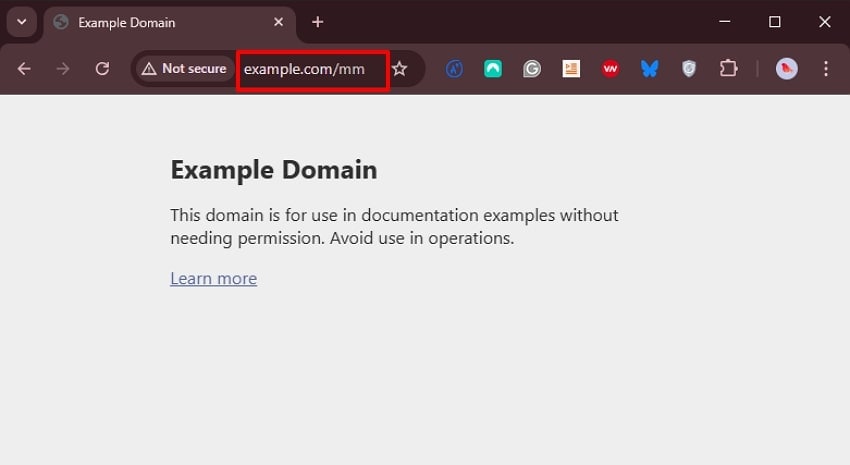
If you are facing the 403 error, try reloading the page by pressing F5 (CMD+R for Mac), as sometimes the problem is just a temporary glitch. If it didn't work, double-check your URL, as a simple typo can lead to the wrong website, which has been denied access. Overall, this method does not change any configuration, files, or permissions, making it the safest option.
Solution 2. Clear Your Browser Cache
To fix the 403 Forbidden error, clearing your cache is considered the safest and quickest method. Since the browser saves old files too, delete your browser cache file to fix the error. In addition to the 403 error, it can resolve other client‑side issues like 400 Bad Request or redirect problems. The foremost part is that it doesn't change the permissions, so let's explore the steps below to apply this fix:
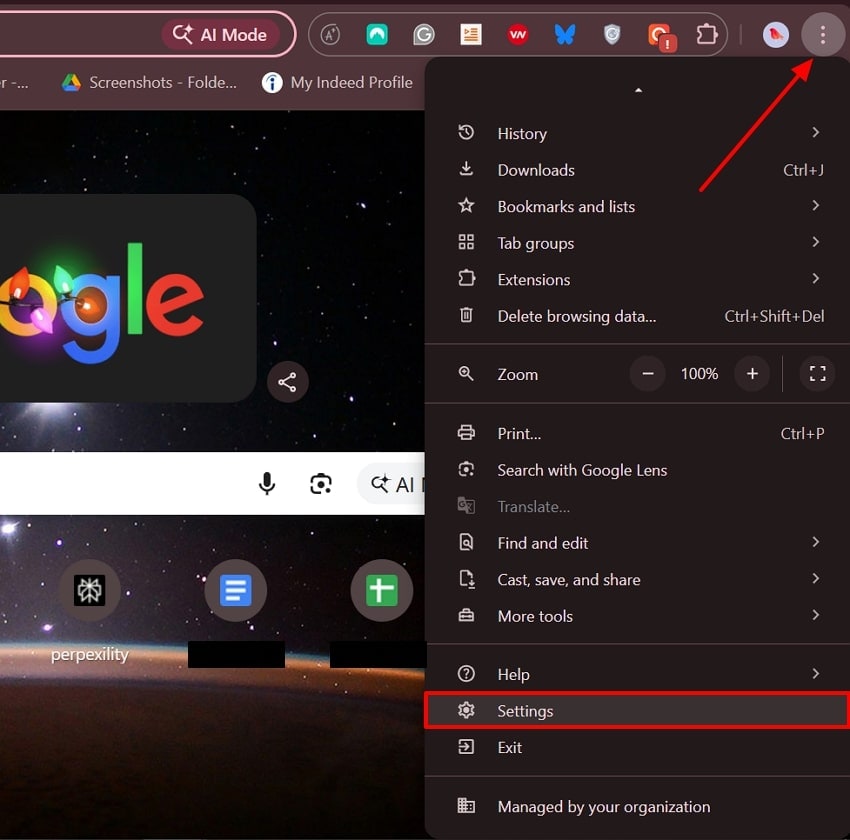
- Upon entering Google Chrome, click on the "Three Dots" icon in the right corner. Next, scroll down the pop-up and select the "Settings" option.
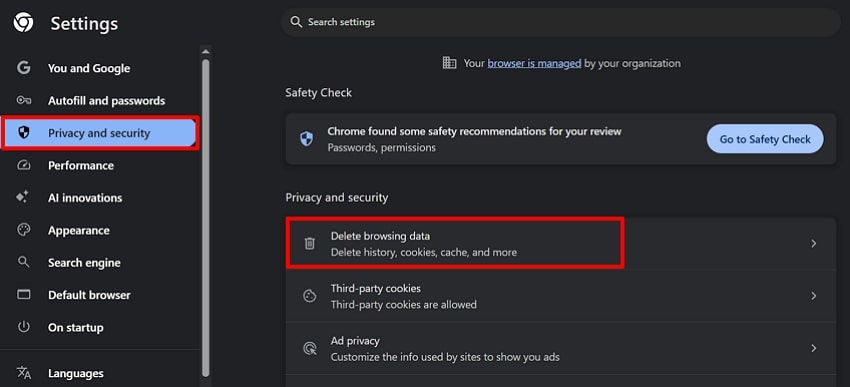
- Following that, choose the "Privacy and Security" option from the left sidebar and select the "Delete Browsing Data" option.
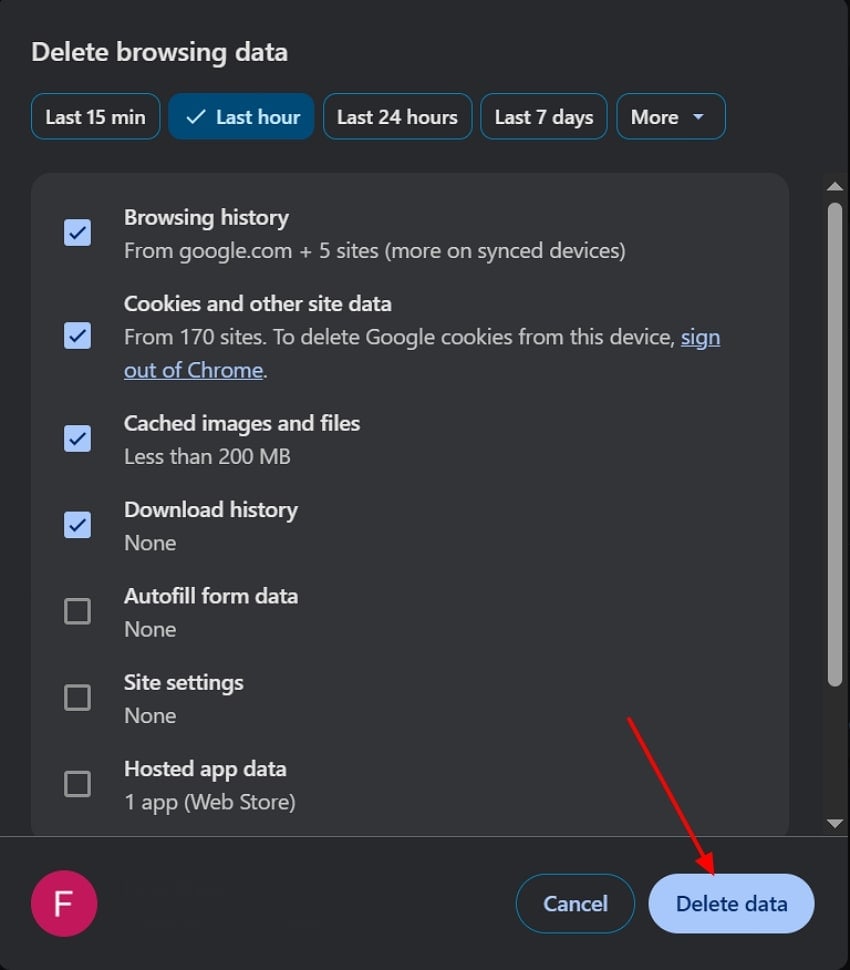
- Lastly, ensure all the options are checked and hit the "Delete data" button to delete all cache data.
Solution 3. Modify Your File Permissions
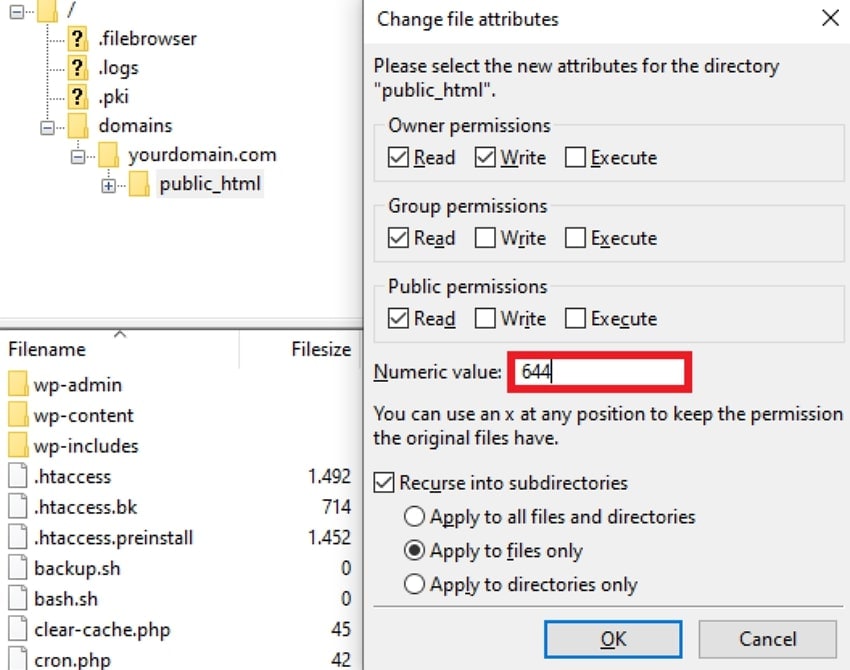
Modifying file permissions is essential when the server causes an HTTP 403 Forbidden error. This method is beneficial because it provides access to all block permissions granted by the server. Users are recommended to enter values like 755 for folders and 644 for files to keep your site accessible. Furthermore, it easily adjusts the error if methods like removing cache do not work, so have a look at this method:
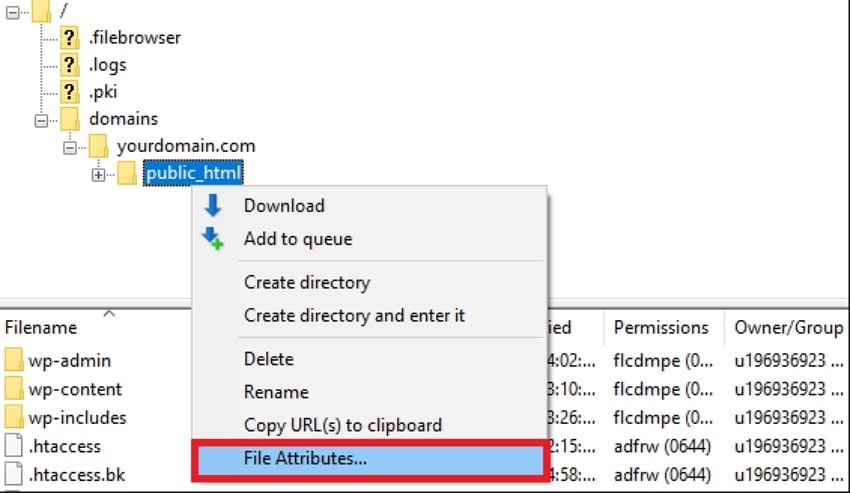
- Initiate by connecting a tool like "FileZilla" to your website. Next, expand the "Domains" menu, choose "Public_html", and select the "File Attributes" option.
- Here, enter the “755” value into the “Numeric Value” tab. Toggle the “Apply to Directories Only” option and click the “OK” button.
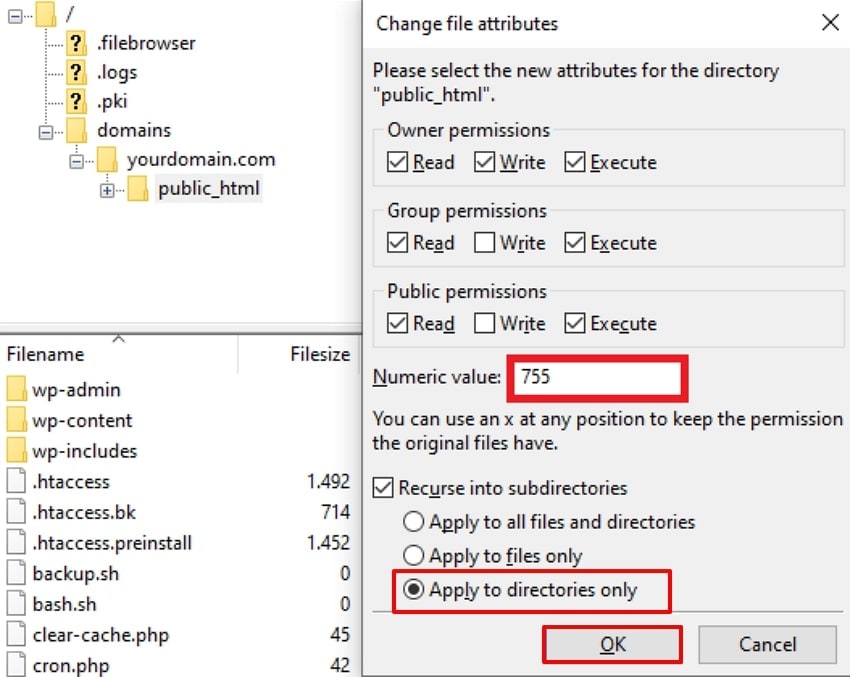
- Set the “Numeric Value” to 644, enable the "Apply to Files Only" option, and click the "OK" button to save it.
Solution 4. Delete and Restore .Htaccess File
Users can opt for this method when hidden configuration rules are triggering a 403 Forbidden error. Regenerating .htaccess from the Permalinks settings restores the correct rewrite rules for your URLs without needing manual code. Unlike other fixes, this method works on the web server configuration level, which leads to the error. Upon hearing the details of this method, go through the following detailed guide below:
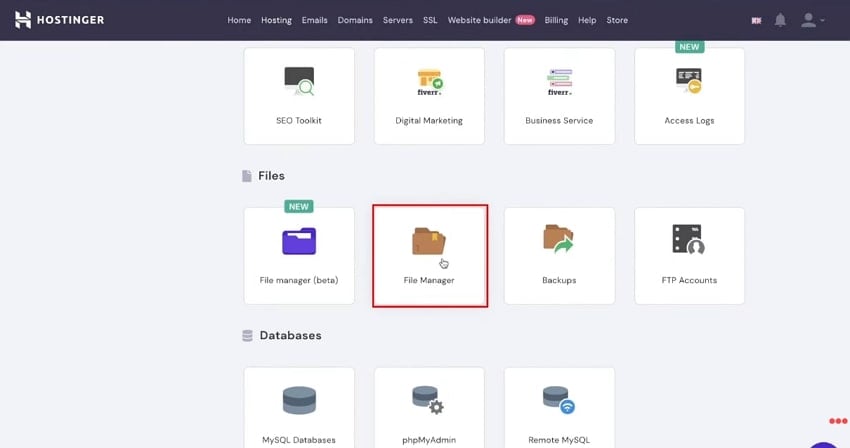
- Initiate by accessing the Hostinger website and choosing the "File Manager" app in this interface.
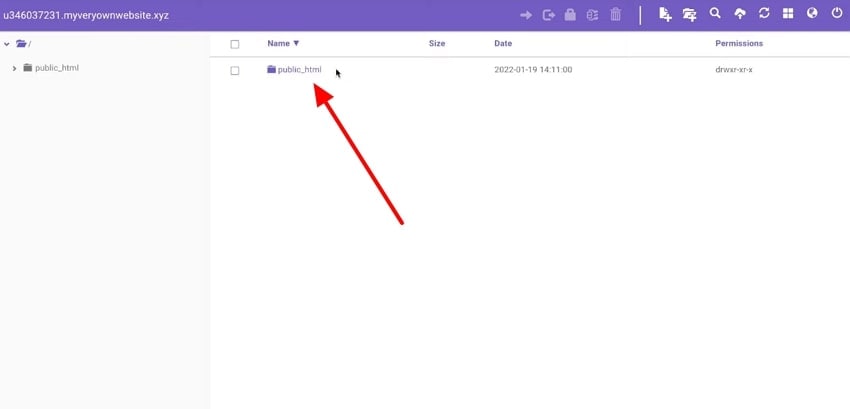
- Here, choose the "Public_html" section to jump into the next interface.
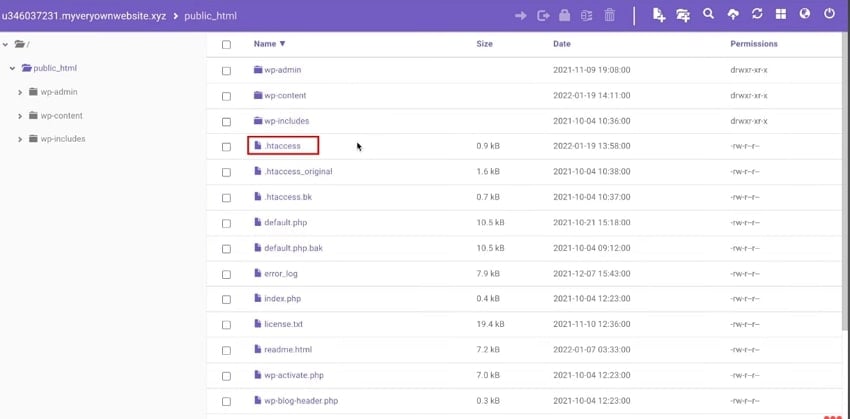
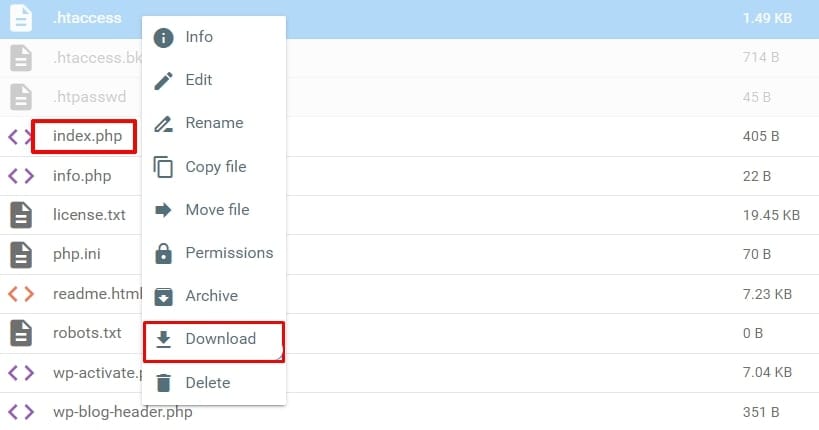
- Following this, choose the “.htaccess” file option from the given screen.
- Finally, choose the desired file and hit the "Download" button from the pop-up.
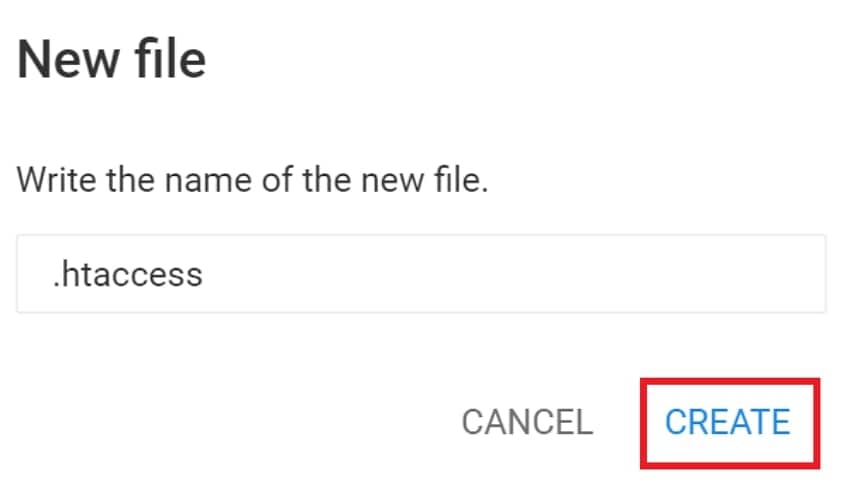
- Here, name the new file in the “Name” tab and hit the “Create” button to restore the .htaccess file.
Solution 5. Deactivate And Reactivate Your Plugins
By deactivating the plug-in, you can quickly identify which plugin is blocking access or adding overly strict security rules. As many as HTTP 403 errors start right after the recent updates; this method directly tests the most likely source without touching core files. Furthermore, deactivation does not delete your data, and you can reactivate it instantly when needed. You can even rename the plugin to gain access, so explore this guide:
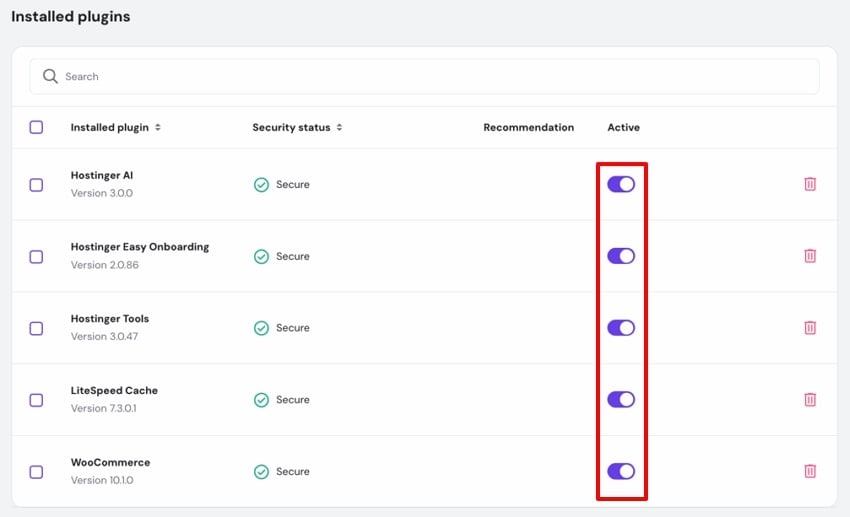
Instructions. From the website dashboard, go to the "Installed Plugins." Here, toggle off all the plugins and check your site after each change. After examining, enable all the plug-ins again and access the site for further usage.
Solution 6. Temporarily Deactivate Your CDN
By disabling your CDN, you route traffic directly to your origin server, so you can immediately see whether the 403 is occurring. This can easily cache stale data and continue serving it even after the underlying issue is fixed. As some CDNs use aggressive bots to block visitors, disabling them is essential. Furthermore, most CDNs let you pause or disable acceleration with a single toggle, making it the safest option.
Instructions. Log in to your hosting or CDN dashboard and look for the CDN section. Next, navigate to the desired website and click the “Disable” option to stop it.

Solution 7. Check For Misconfigured Hotlink Protection
Hotlink protection prevents other websites from embedding your images on their pages, which steals your bandwidth. Reviewing the allowed URL list lets you add all variants of your domain so it can be easily accessed. Within this method, you simply check the list and ensure that all the URLs are listed on the website. Here, if your domain is missing, make sure that you add the link to the list.
Solution 8. Disconnect From Your VPN
Some firewalls and CDNs treat VPN traffic as high risk and deny it with 403 Forbidden, so disconnecting helps you fix this issue. Without requiring any technical expertise, it takes only a few seconds to toggle off the retry the page. If disconnecting fixes the issue, you can easily determine that the VPN was the main error. In this situation, download another VPN and have a look at the following guide to disable it.
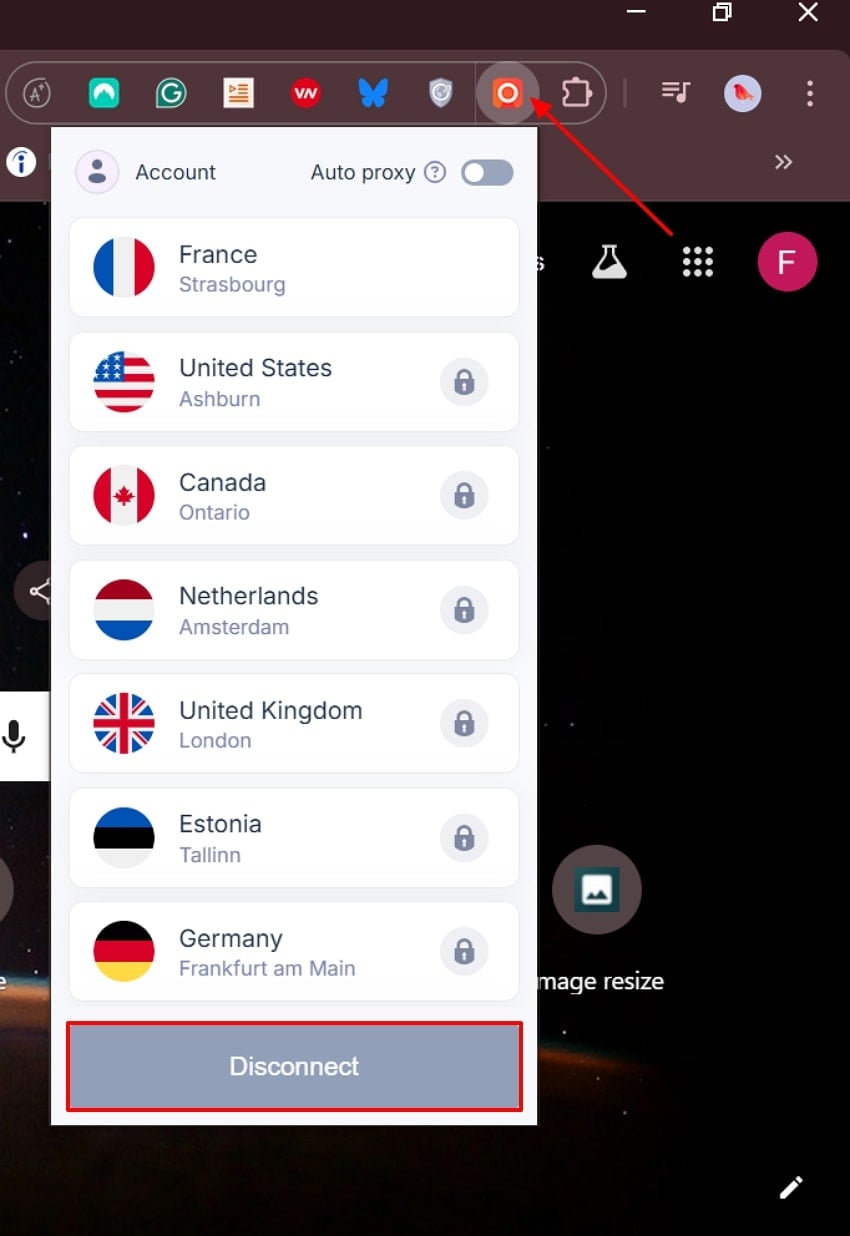
Instructions. First, click on your downloaded VPN and select the “Disconnect” button to disable the VPN.
Solution 9. Run A Malware Scan
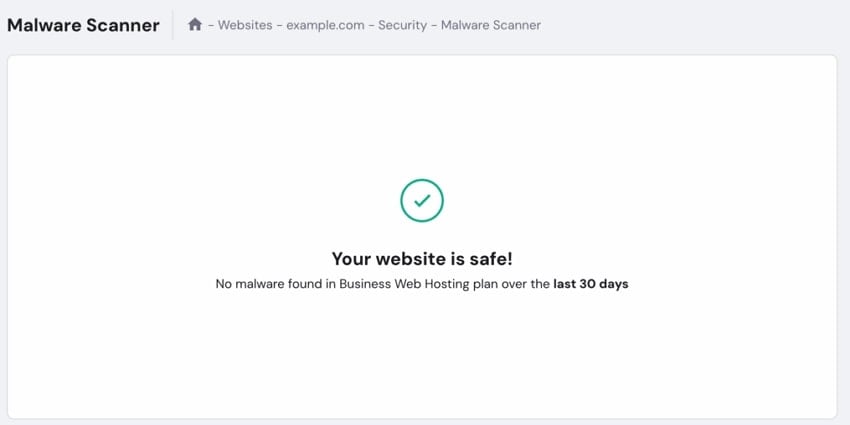
To fix the HTTP 403 Forbidden error, try scanning your website for any malware attacks. Using this method reduces the risk of your site being used to spread malware or getting blacklisted by browsers. Moreover, host-level scanners can check all files in your hosting space, catching infections in backups and subdomains. Overall, this method is beneficial for resolving various errors, so explore the following guide.
Instructions. Go to your website dashboard and open the Malware Scanner. Here, this tool will list down all the infected files, if available, that need to be cleaned.
Solution 10. Contact Your Hosting Provider
In case none of the methods work to fix the 403 Forbidden error, then try to reach out to the host’s provider. By doing this, the host’s team will inspect server error logs and firewall rules to find the main error behind the denying access issue. Moreover, they can also inspect if your country's IP address is blocked from the host website.
Pro Tip. Recoverit: Your Backup Solution When 403 Forbidden Blocks Your Data
Imagine you are an online store owner, and all your products and data have been saved to your PC. However, one morning, you tried to access your website and received a 403 Forbidden error. You tried to consult with the hosting provider, and they said it will take some hours to retrieve it. In this scenario, we recommend using Recoverit, which lets you retrieve lost data using its advanced technology.
Being an efficient tool, Recoverit lets you easily restore data from any operating system, including Windows and Mac. Users can efficiently recover their lost data from media devices like cameras, drones, and GoPro. Furthermore, it uses advanced AI algorithms to ensure complete accuracy while recovering lost files.
Key Features
- Supporting File Formats: This tool lets users restore numerous file formats, including Images, PPT, Excel sheets, video, and much more.
- Batch Processing: One can access the batch processing system to retrieve multiple files simultaneously, saving extra time and manual effort.
- Scanning Options: It lets you choose between Quick and Deep scanning options depending on your requirements.
Detailed Expert Guide on How to Restore Lost Data with Recoverit
Now, if you want to restore deleted files due to a 403 Forbidden error, then go through the following guide:
- Choose Hard Drive and Location to Select the Location
Upon accessing the tool, tap on the "Hard Drive and Locations" option from the left-side toolbar. Next, choose the desired location within the "Quick Access" menu.
- Initiate the Scanning Mode to Recover Lost Data
Now, it will automatically start the scanning procedure with the "Quick Scanning" mode.
- Preview the Scanned Data to Recover Lost Files
Finally, preview the recovered data and choose the "Recover" button to complete the recovery.
Conclusion
To conclude, people can now easily resolve the 403 Forbidden error by using appropriate methods. This article has covered the main types of this error and its main fixes, along with their detailed guides. Furthermore, if you've lost your data, we recommend using Recoverit, which provides maximum accuracy while recovering complete data.
FAQ
1. Is a 403 Forbidden error always my fault as the user?
It is not compulsory, as it can be caused by server‑side settings, misconfigured permissions, plugins, or security tools. However, this issue can be easily resolved by deleting extra cache data or modifying file permissions.2. Can a 403 Forbidden error be a sign that my site was hacked?
Yes, malware can change file permissions or inject rules into configuration files that can lock it. You can’t access the files until you clean the malware from your files.3. Why does disabling my VPN or proxy sometimes make the 403 error disappear?
Many websites and CDNs block various VPNs from accessing their websites, leading to a 403 Forbidden error. Thus, users should try disabling their VPN services and then try accessing the specific sites.4. What to do if you lost your essential data due to a 403 forbidden error?
Users can easily recover their lost files using an advanced recovery tool like Recoverit. Furthermore, it provides various scanning modes, including both Quick and Deep scanning modes.


