
 TL;DR:
The "Internet Explorer Cannot Display the Page" error typically stems from misconfigured proxy settings, outdated TLS/SSL protocols, or corrupted cache, requiring specific network and browser adjustments to restore connectivity.
● Disable the "Use Proxy Server for Your LAN" option in Internet Properties and ensure the browser has both Public and Private access enabled in the Windows Defender Firewall to bypass local network restrictions.
● Because older Internet Explorer versions lack support for modern security protocols, persistent connectivity failures on otherwise functional networks require updating Windows components or switching to supported browsers like Google Chrome or Firefox.
● If network failures during downloads result in missing or corrupted files, Wondershare Recoverit V14 can be utilized to recover up to 500 MB of lost data for free across Windows, Mac, and Linux environments.
Ask AI for a summary
 ChatGPT
 Perplexity
 Gemini
 Claude
 Grok
Grok
Many users encounter the “Internet Explorer Cannot Display the Page” issue right when they need the browser most. In some cases, the page endlessly spins and times out, whereas when you open it in another browser, it works smoothly. That mismatch makes it hard to tell whether the problem is with the internet connection or Windows settings.
If you are facing this issue, this article covers efficient methods to resolve it. Furthermore, you will be introduced to a recovery tool to restore your lost data due to a connection issue.
Try Recoverit to Perform Data Recovery
 Security Verified. 3,591,664 people have downloaded it.
In this article
- Fix 1. Check Internet Connection and Network Status
- Fix 2. Reset Internet Explorer Settings to Default
- Fix 3. Clear Cache and Temporary Internet Files
- Fix 4. Disable Proxy Settings That Block Access
- Fix 5. Check Firewall or Antivirus Network Restrictions
- Fix 6. Update Internet Explorer and Windows Components
- Fix 7. Use Compatibility or Switch to a Modern Browser

Part 1. What Does "Internet Explorer Cannot Display the Page" Mean?
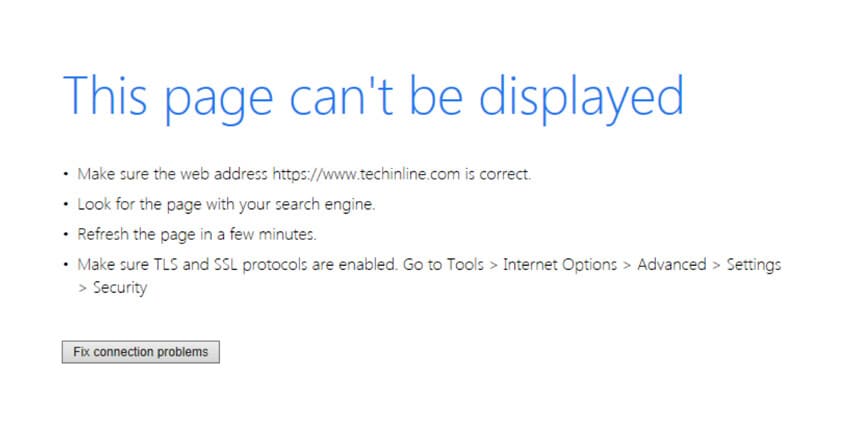
It is a generic error message that indicates the browser tried to reach a website but was unable to establish a connection. In simpler terms, this error means it cannot download or display the page you requested for an apparent reason. Furthermore, it is related to a problem somewhere between your browser and the site’s server, not necessarily a fault with the website itself.
Part 2. 5 Common Reasons Behind Internet Explorer Connection Errors
Before you diagnose connection problems, we have listed some of the causes that can lead to this specific error:
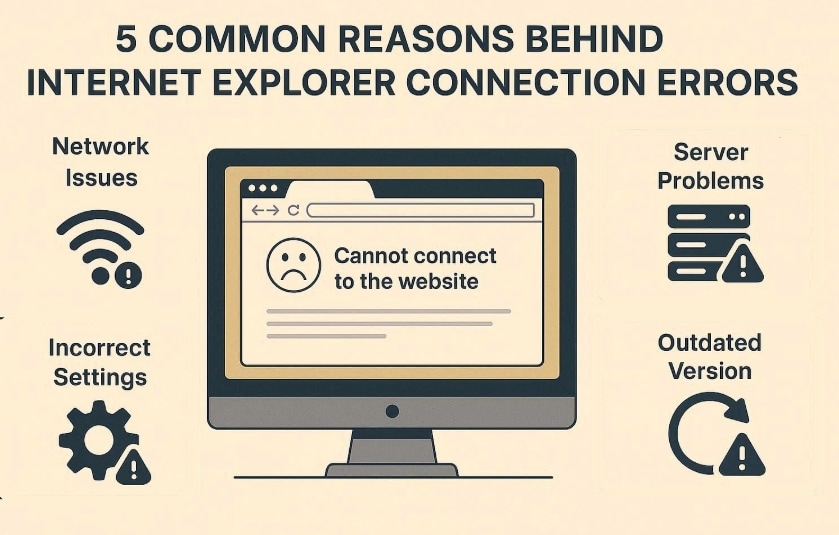
- Misconfigured Proxy Settings: When Internet Explorer is configured to an invalid or offline proxy, every request is sent to the wrong destination. This is especially common on systems that were once part of a corporate network or had a VPN.
- Corrupted Network Components: Damaged add‑ons, broken Winsock/TCP/IP stack entries, or corrupted cache can stop pages from loading. Resetting the explorer can often resolve these hidden software glitches.
- Outdated Protocols: Older versions of Internet Explorer may not support modern TLS/SSL standards. In such cases, pages might work in newer browsers but always show connection errors in Internet Explorer.
- DNS Configuration Problems: If your device has a valid IP address or is using incorrect DNS servers, Internet Explorer cannot resolve the website. In this case, many sites fail across the browser until the network settings are changed.
- Server‑Side or Website Outages: Sometimes the issue isn't on your end, as the site's server may be down. In this case, Internet Explorer shows errors even though your internet and other sites are working fine.
Part 3. How to Diagnose Connection Problems in Internet Explorer
Here we have listed some efficient approaches to fix the “Internet Explorer cannot display the page” error easily:
Fix 1. Check Internet Connection and Network Status
Sometimes the issue behind the error is an internet issue, not the browser itself. For this method, you simply access the system settings and check for the network status. With this move, you can quickly diagnose the issue rather than wasting time resetting Internet Explorer. Upon hearing its features, let’s dive into its detailed guide below:
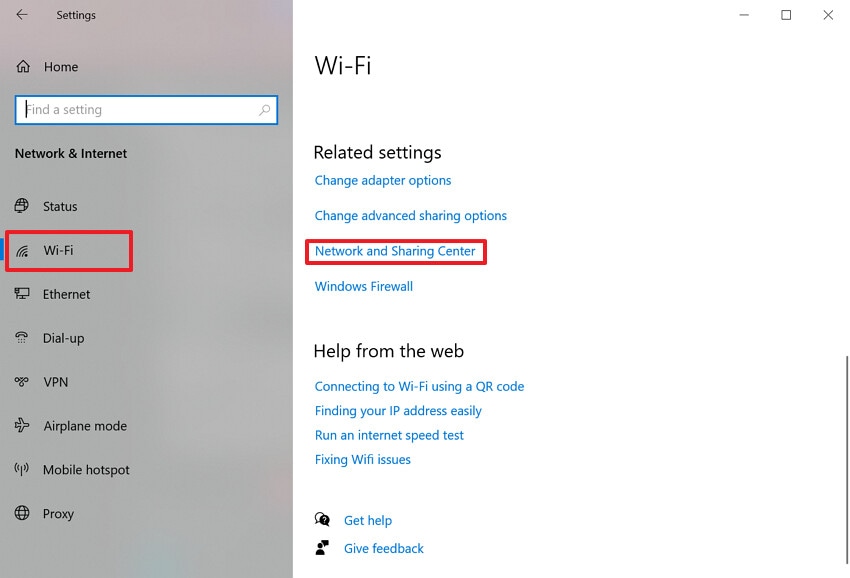
- At first, search for “Network Status” in the Windows search bar, then click the “Open” option to access its interface.
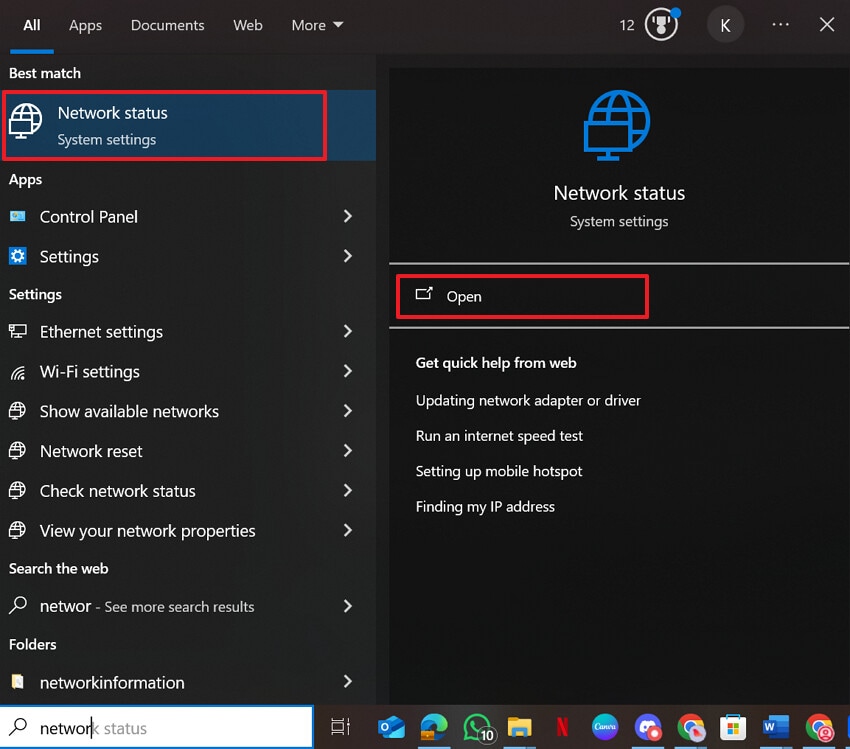
- Here, choose the “Wi-Fi” option and select the “Network and Sharing Center” option under the “Related Settings” tab.
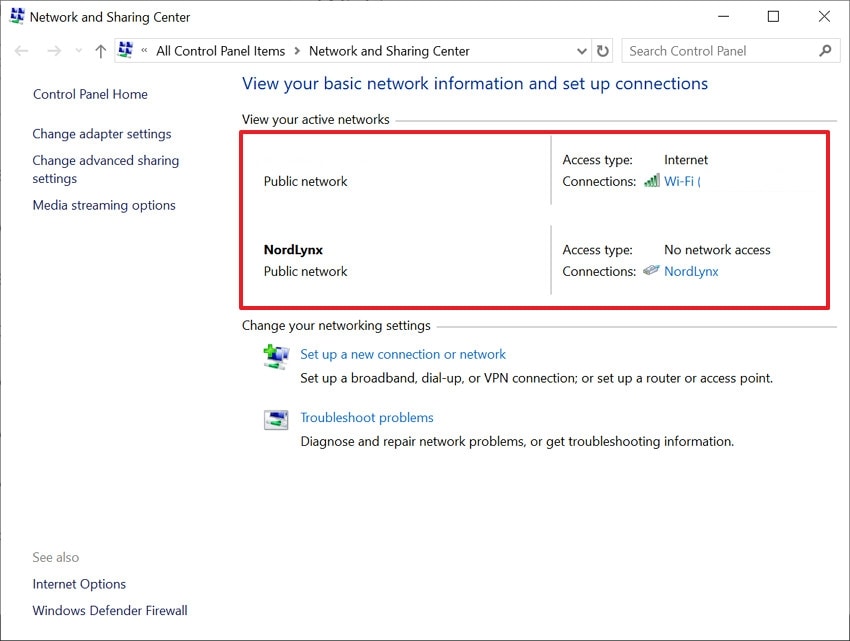
- Now, verify the details of your internet connection to see if it is working properly.
Fix 2. Reset Internet Explorer Settings to Default
If your internet is working fine, try resetting Internet Explorer to its default settings. It quickly resolves accumulated changes or corrupted add-ons that are preventing Internet Explorer from working. This method restores the Internet Explorer security, privacy, and other advanced options as defined by Microsoft. While you know how to diagnose connection problems, have a look at the detailed guide to reset the internet connection:
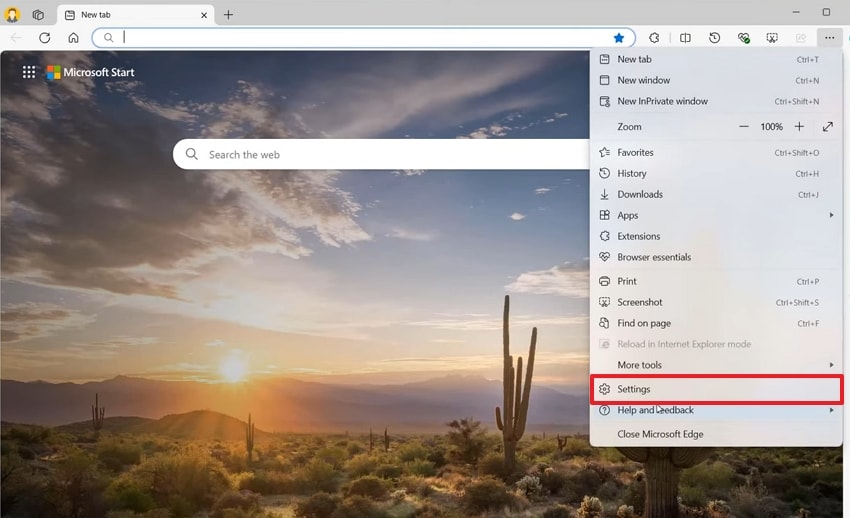
- Initiate by opening Internet Explorer and choosing the "3 Dots" option. Afterwards, choose the "Settings" option from the pop-up menu that appeared.
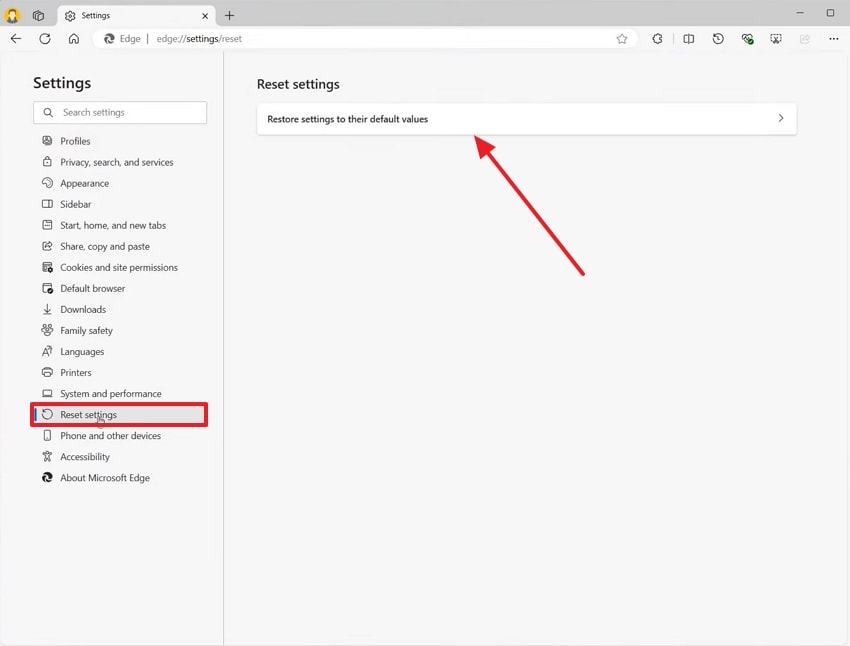
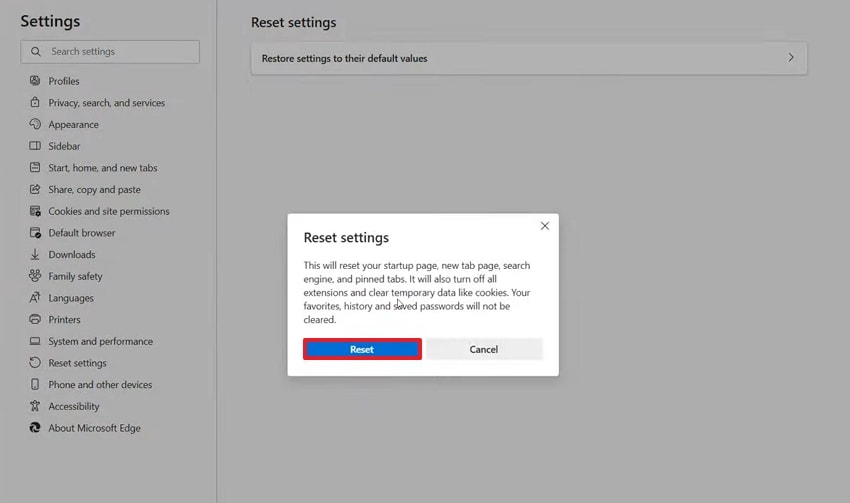
- Here, select the "Reset Settings" option from the left sidebar and choose “Reset Settings to their Default Values.”
- At the end, hit the “Reset” button again to start the resetting procedure for Internet Explorer.
Fix 3. Clear Cache and Temporary Internet Files
Users can opt for this method to fix the "Internet Explorer cannot display the page" error. It simply deletes all the corrupted sites that are leading to the sites opening incorrectly. Most of the time, deleting cache data can fix this error without opting for complex repair tools and methods. Furthermore, it also frees up the disk space, so let’s see how to apply this method step-by-step:
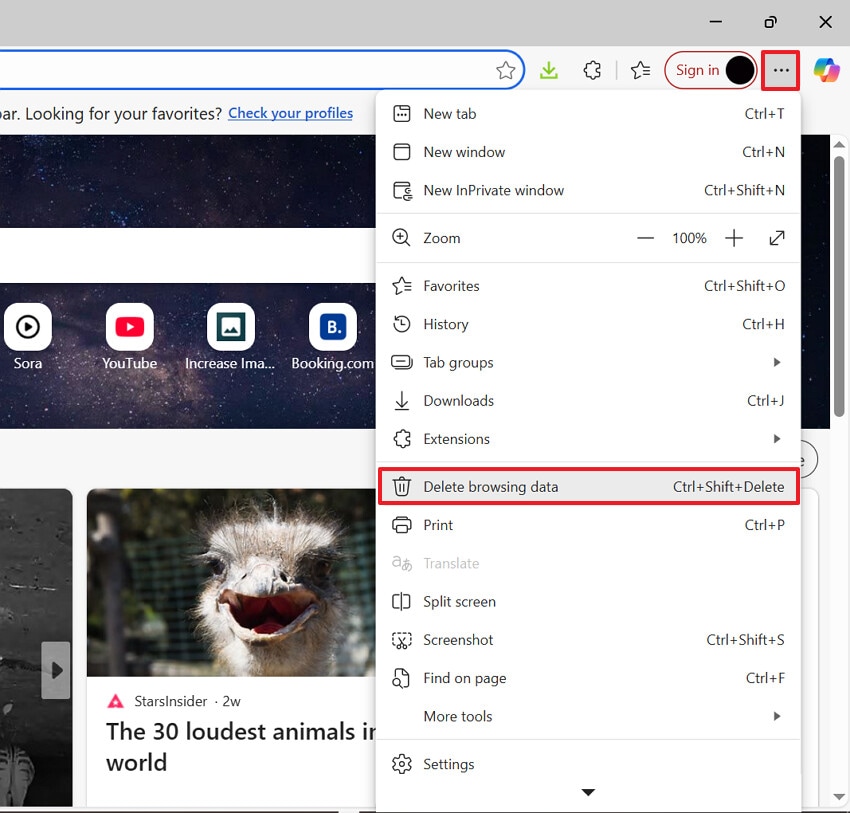
- Open Internet Explorer, click on the "3 Dots" menu, and hit the "Delete Browsing Data" option from the pop-up menu.
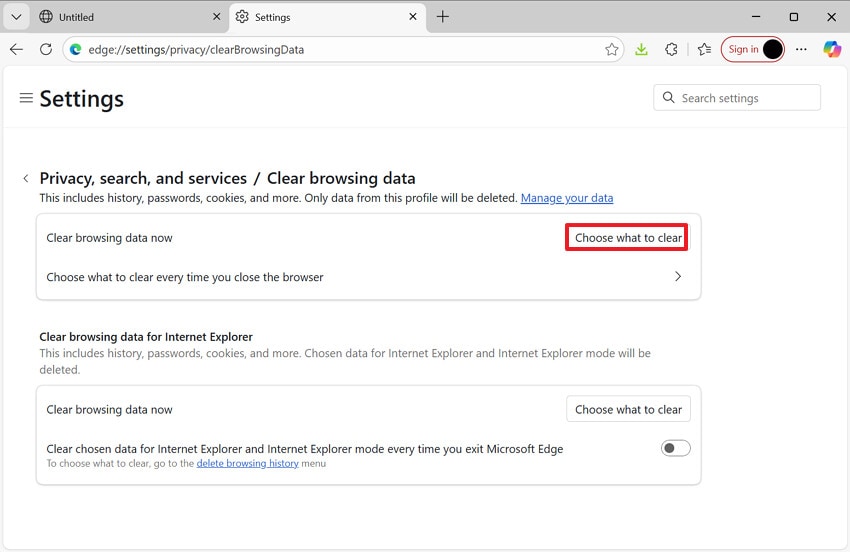
- Here, select the “Choose What to Clear” button available alongside the "Clear Browsing Data” option.
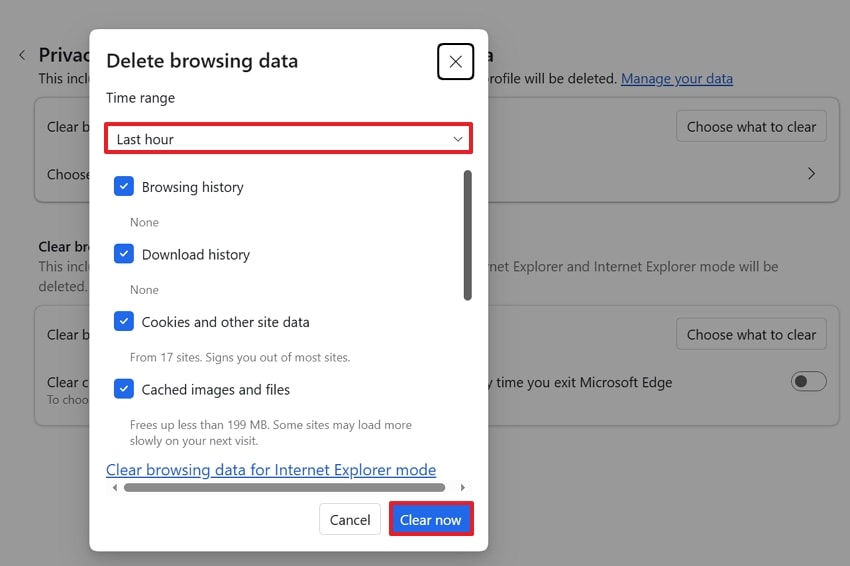
- Lastly, choose the desired "Time Range", enable the desired options, and hit the "Clear Now" button to start the deletion.
Fix 4. Disable Proxy Settings That Block Access
As you diagnose connection problems and find out that the main error is due to proxy settings. In this case, you simply disable the proxy settings in the connections tab. Disabling it will remove unwanted or irrelevant proxy entries that silently send all traffic to an unwanted server. Moreover, it is a quick and low-risk method. Now that the functionality is clear, let’s walk through the procedure in detail:
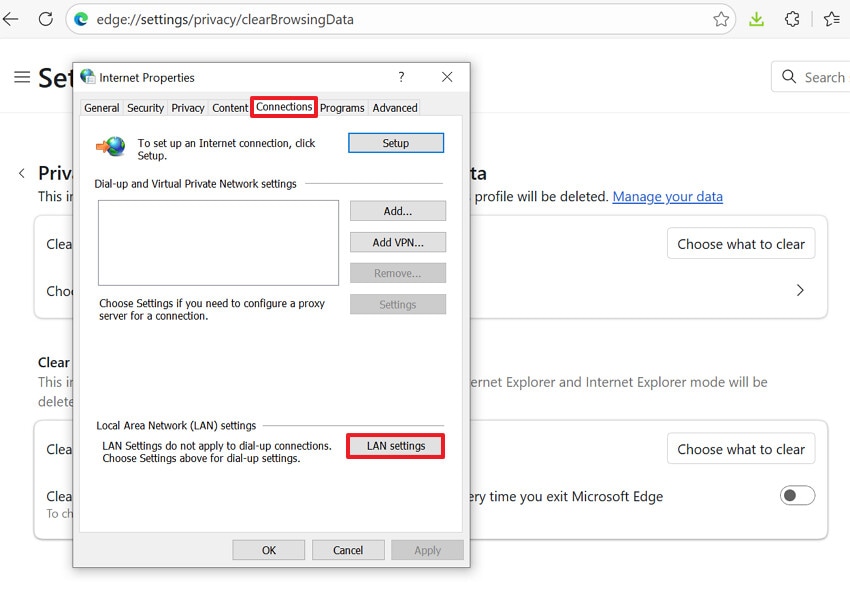
- Upon entering the Internet Explorer interface, open the “Internet Properties” settings. Here, choose the “Connection” tab and select the “LAN Settings” button under “Local Area Network (LAN) Settings.”
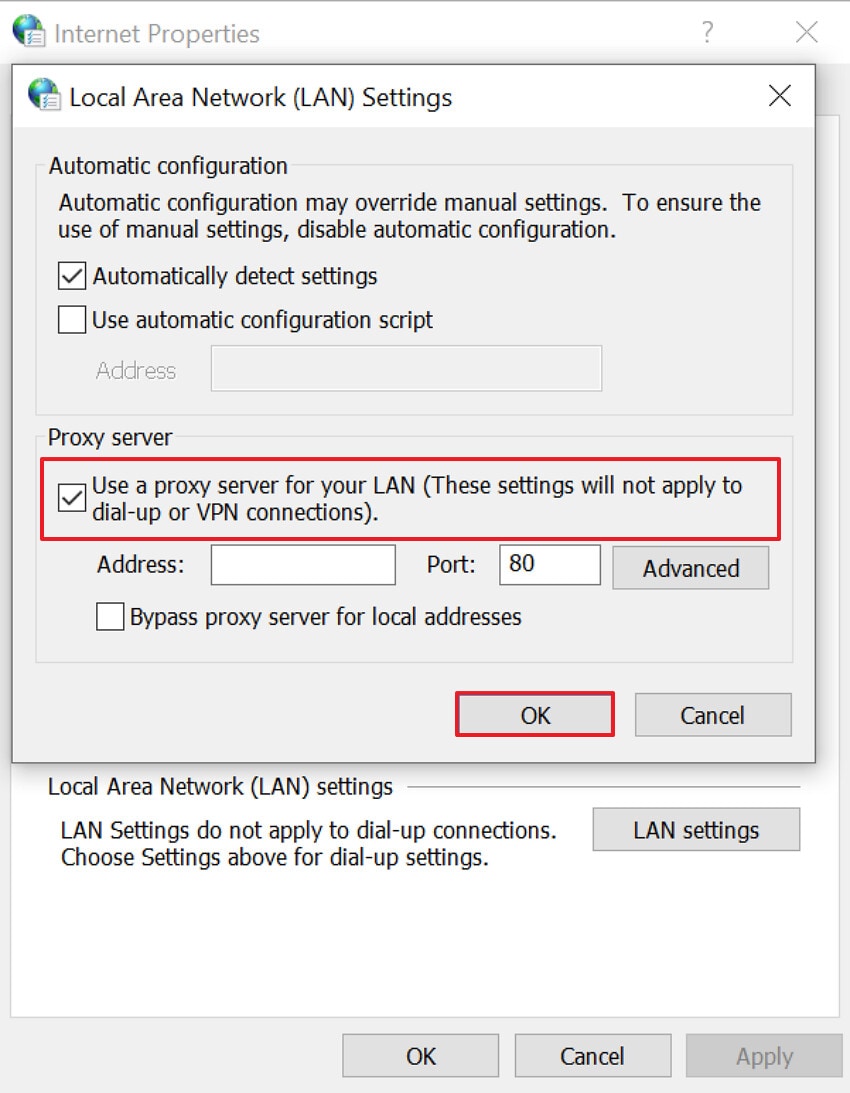
- Following this, disable the “Use Proxy Server for Your LAN” option and click the “OK” button to save the changes.
Fix 5. Check Firewall or Antivirus Network Restrictions
By checking the firewall connection, you can easily diagnose whether the security tool is causing the error. These issues can seem like a broken browser connection due to the restriction. By briefly adjusting these rules, you can quickly fix the specific rule instead of reinstalling browsers or Windows. Now, if you want to fix the “Internet Explorer cannot display the page” error, then read the following guide:
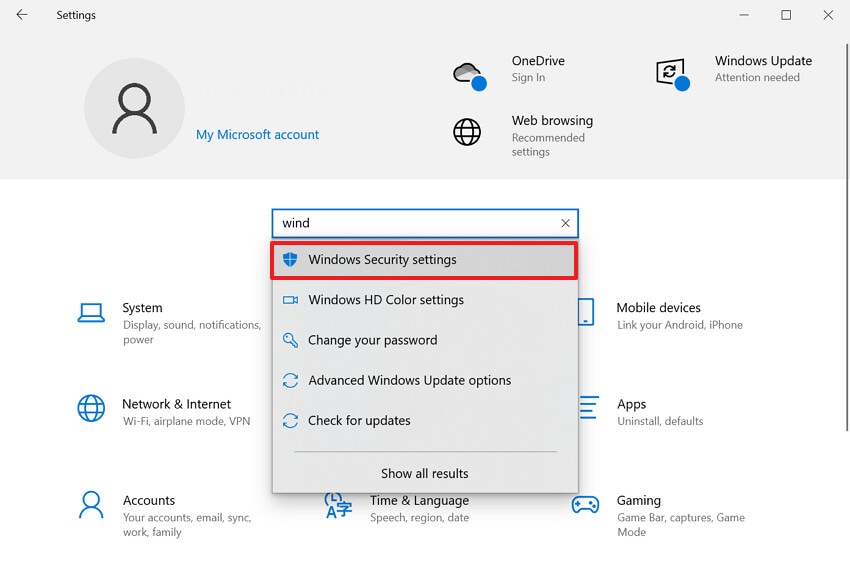
- Initiate by entering the “Settings” interface and clicking on the “Windows Security Settings” option by searching in the search bar.
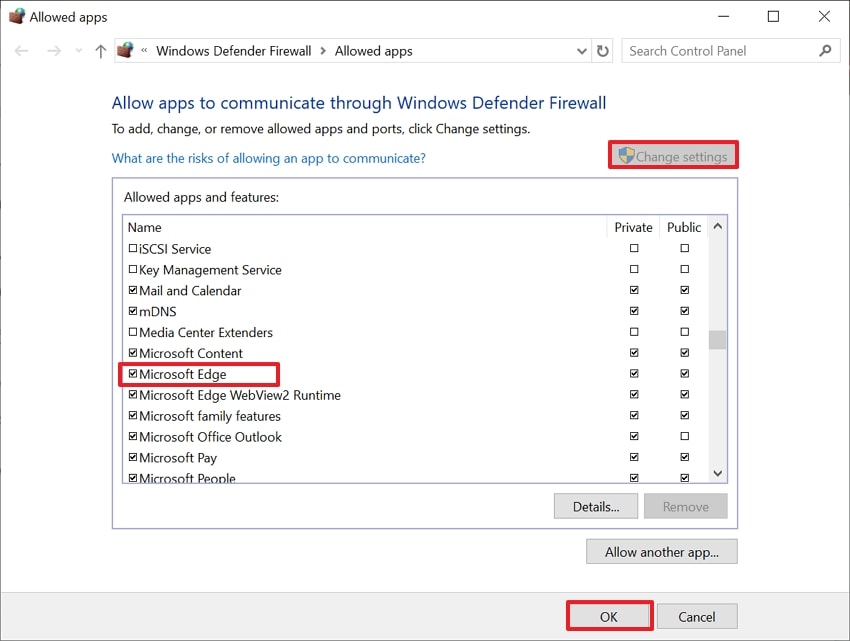
- Here, choose the "Windows Defender Firewall" icon from the left sidebar and select the "Allow an App Through Firewall" option.
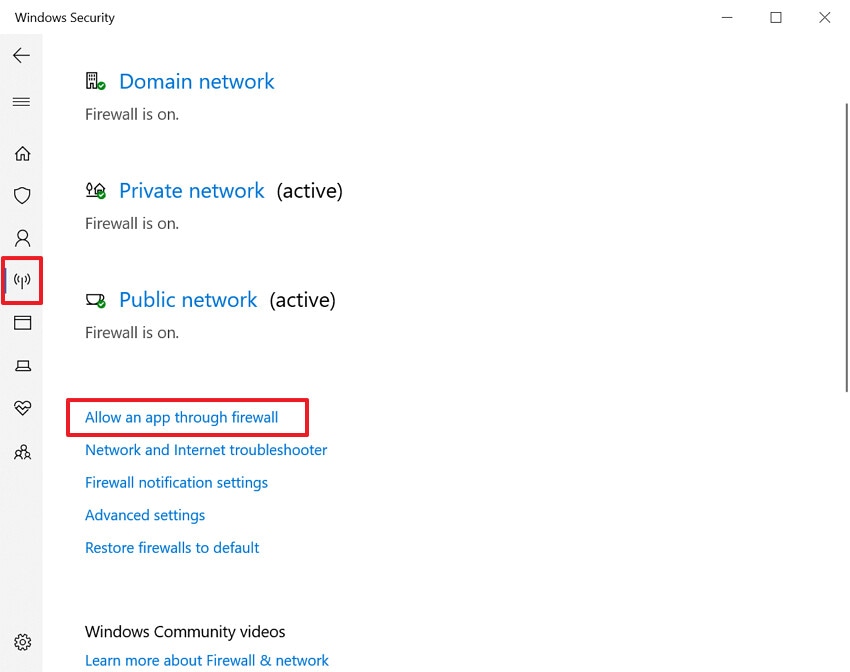
- Lastly, choose the "Change Settings" button and scroll down to find the Microsoft Edge option. Here, make sure that it is enabled for both "Private and Public" options and hit the "Ok" button.
Fix 6. Update Internet Explorer and Windows Components
Sometimes the error is caused by outdated software or a corrupt Windows installation. Users should keep them updated to remove errors and download new plug-ins. Furthermore, it will add new security protocols and compatibility updates that older versions of Internet Explorer do not support. Overall, this method will prevent future risks like “Internet Explorer cannot display the page” error, so go through its guide:
- As you enter Internet Explorer, open its settings interface and choose the “About Microsoft Edge” option.
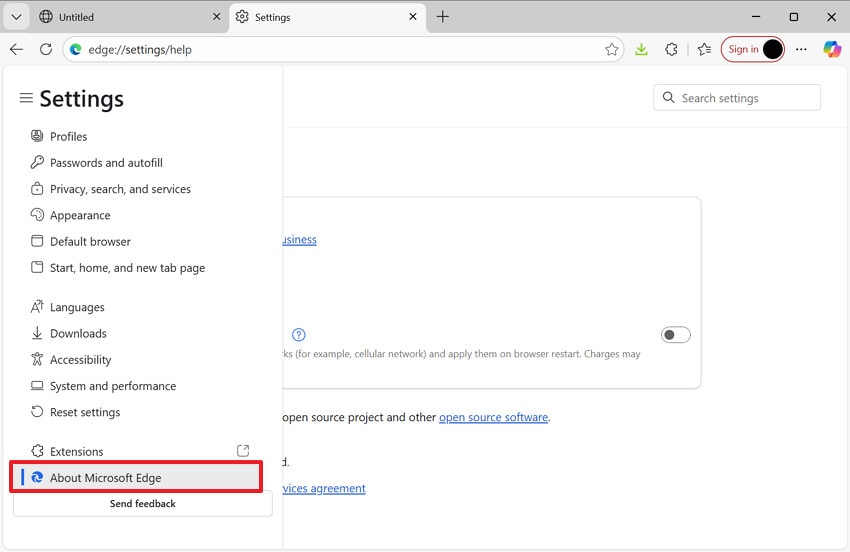
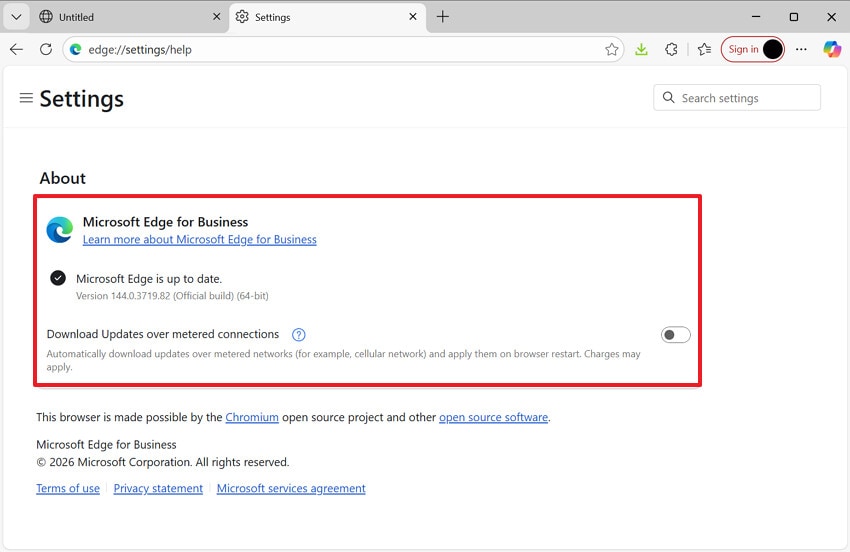
- Here, check for any new updates and click on the updates option to start the update procedure.
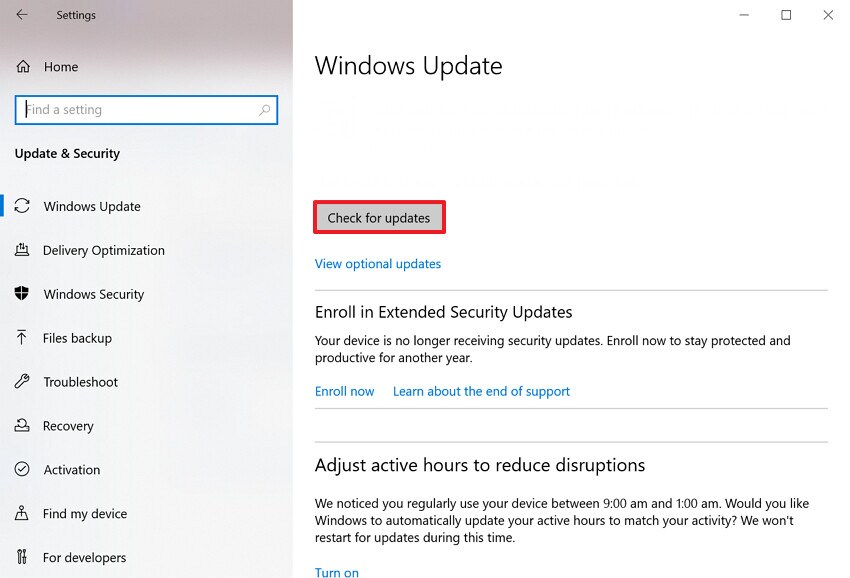
- Go to the “Settings” interface and select the “Windows Update” option from the main interface.
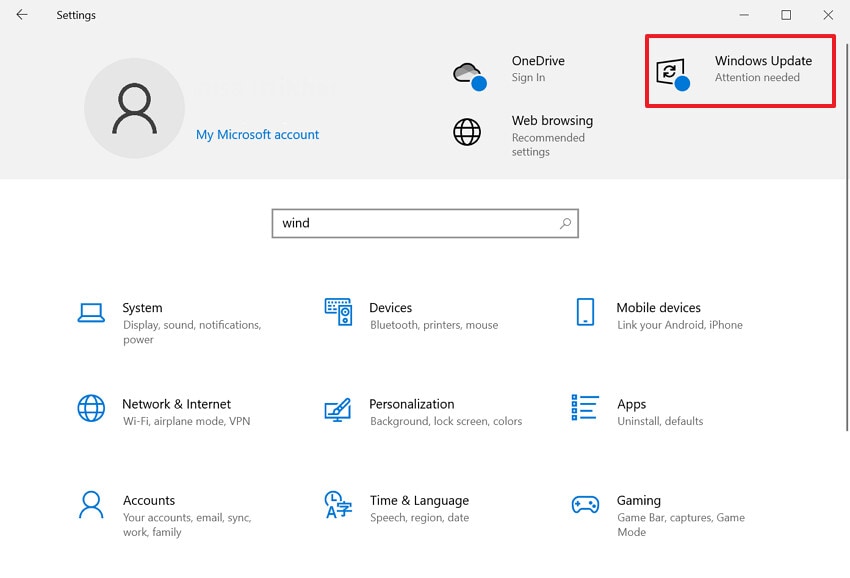
- Lastly, click the “Check for Updates” button to start the update process immediately.
Fix 7. Use Compatibility or Switch to a Modern Browser
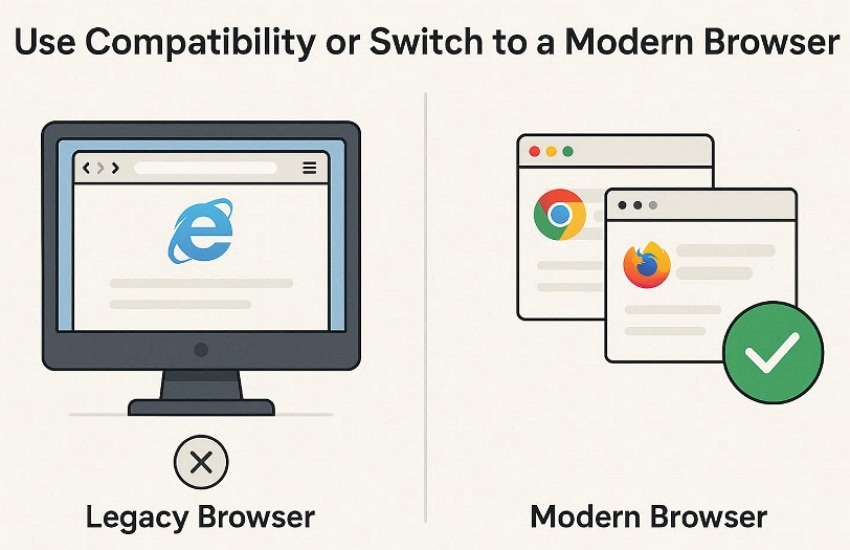
After using the above-mentioned method, if the error persists, it is recommended to try another browser. By switching to another browser, you save time wasted trying to access the desired link in the faulty browser. There are numerous modern browsers available, such as Google Chrome or Firefox, that you can choose from. Users can instantly switch to another browser after they diagnose connection problems in Explorer.
Pro Tip: Use Recoverit to Recover Lost Data After Network or System Errors
One day, you are downloading an important project report over a weak office Wi‑Fi, and it stops in the middle. When the system finally comes back, the folder is downloaded, but some files are missing. In this scenario, we recommend using Recoverit, which lets you recover up to 500 MB for free. Furthermore, an efficient tool offers multiple scanning modes to address every data loss scenario.
Users simply choose the lost data location, and it will retrieve the files in minutes. Powered by AI, this tool offers recovery options for system crashes, computer recovery, and hard drive recovery. Moreover, you can access this tool from any operating system, including Windows, Mac, and Linux. It has also launched its new version, V14, which ensures maximum data accuracy.
Key Features
- Data Loss Scenarios: This efficient tool can handle multiple data loss scenarios, including power outages or virus attacks.
- Pinpoint Files: Users can boost their workflow by searching for files through File name, size, and location.
- Batch Processing: It efficiently processes multiple lost files in a single go, making it an ideal choice.
Extensive Guide on How to Use Recoverit to Retrieve Data
Now, if you want to retrieve your lost data because Internet Explorer cannot display the page, then adhere to this guide:
- Specify the Lost Data Location in Recoverit
With the tool running, click on the “Hard Drive and Location” from the left sidebar. Afterwards, choose the desired location under the “Quick Access” tab.
- Let the Tool Scan to Find Lost Files
Upon selecting the location, the scanning procedure will automatically start in “Quick Scanning” mode. Here, if you are unable to find a file, you can switch to the “Deep Scanning” mode.
- Complete the Recovery Procedure to Save Files
Here, examine the retrieved files to ensure their completeness, then hit the “Recovery” button to finish the recovery procedure.
Conclusion
In summary, users can now easily fix the "Internet Explorer cannot display the page" error with simpler steps. For your convenience, this guide covers 7 efficient approaches to fix the specific error, each with a detailed guide. Furthermore, if you lost your essential data, we recommend using Recoverit, which provides free data recovery up to 500 MB, making it an ideal choice.
FAQ
1. Why does Internet Explorer say “cannot display the webpage” while Chrome works fine?
This usually means your Windows network connection is working, but Internet Explorer has its own problem. It can be due to bad proxy settings, outdated security protocols, or corrupted IE configuration.2. Can a simple router restart really fix this error, or is it always a browser issue?
Absolutely, a router restart can fix many cases where DNS or connection leases are stuck. However, if you lost your essential files with this error, we recommend using Recoverit, which provides maximum accuracy.3. How do I know if my firewall or antivirus is blocking Internet Explorer?
To diagnose connection problems, you found out that all other apps are working fine except Internet Explorer. So, in this situation, you simply give access to Explorer within its settings.4. Does clearing the cache and cookies really help with connection errors?
Corrupted cached files and cookies can break login flows, which can cause certain pages to fail. Clearing unnecessary cache also gives extra space to let the tool work smoothly without any errors.


