 TL;DR:
A MacBook Air displaying a white screen with horizontal or colored lines indicates a disrupted image signal that requires an immediate external monitor test to separate physical hardware failure from macOS loading errors.
● Connect the Mac to an external monitor to isolate the fault; if the secondary display functions normally, the built-in LCD or display cable requires physical repair, but if both screens show lines, the problem stems from the GPU, logic board, or a system-level graphics conflict.
● Boot into Safe Mode to test if the display improves without third-party system extensions loading, but strictly avoid repeatedly forcing shutdowns or erasing the startup disk to prevent irreversible file system corruption.
● Stop adjusting the display angle if the lines flicker during lid movement, and prioritize extracting local files to an external drive using bootable media like Recoverit Mac Data Recovery, which rescues data but cannot repair damaged display components or liquid damage.
Ask AI for a summary
 ChatGPT
 Perplexity
 Gemini
 Claude
 Grok
Grok
A MacBook Air white screen with lines usually needs careful diagnosis. A plain white startup screen may be related to macOS loading, startup disk errors, or a failed update. A white screen with colored, horizontal, or vertical lines often points more strongly to display signal trouble, LCD damage, display cable issues, graphics instability, or logic board faults.
Do not start with erasing macOS or repeating forced restarts. First, check whether the lines appear on the built-in display only, whether an external monitor works, whether the Mac reaches Safe Mode or macOS Recovery, and whether the issue began after a drop, pressure, liquid exposure, or macOS update.
This guide explains how to diagnose a MacBook Air screen white with lines problem, try safer software checks, recognize hardware repair signs, and recover files before reinstalling, erasing, or sending the Mac for repair. If the internal drive is still readable, Recoverit Mac Data Recovery can help recover local files before advanced fixes. Recoverit cannot repair a damaged display, display cable, GPU, logic board, battery, or liquid damage.
In this article
-
- Fix 1. Force Restart Once and Watch Whether the Lines Return
- Fix 2. Check for Pressure, Liquid, Hinge, or Screen Damage
- Fix 3. Connect an External Monitor to Test the Built-In Display
- Fix 4. Check Brightness, Color, and Display Settings
- Fix 5. Start Up in Safe Mode on Apple Silicon or Intel MacBook Air
- Fix 6. Remove Login Items or Recent Apps If Safe Mode Works
- Fix 7. Reset NVRAM or PRAM on Intel MacBook Air
- Fix 8. Reset SMC on Intel MacBook Air Models That Support It
- Fix 9. Run Apple Diagnostics to Check for Hardware Issues
- Fix 10. Install Pending macOS Updates If the Mac Still Boots
- Fix 11. Run Disk Utility First Aid From macOS Recovery
- Fix 12. Reinstall macOS Without Erasing Data After File Recovery
Part 1. What Does a MacBook Air White Screen With Lines Really Mean?
A MacBook Air white screen with lines means the display is receiving a bad or incomplete image signal. The lines may be horizontal, vertical, colored, flickering, fixed on one side, or spread across the whole screen. The Mac may still be running in the background, or it may be stuck before macOS finishes loading.
This symptom is different from a normal blank screen during startup. Apple notes that a blank screen can appear briefly while a Mac starts up, but a Mac that remains stuck on a blank screen needs troubleshooting. White lines, colored lines, flicker, or distortion add a stronger display-hardware signal to the diagnosis.
| Screen Pattern | What It Usually Suggests | First Safe Check |
| Plain white screen before login | Startup disk, macOS loading, or firmware-related startup issue | macOS Recovery and Disk Utility First Aid |
| White screen with colored lines | Display cable, LCD panel, graphics output, or logic board issue | External monitor test |
| Lines only on the built-in display | Internal display, backlight, cable, or connector issue | Back up files and arrange display inspection |
| Lines on built-in and external display | macOS graphics issue, GPU path, or logic board problem | Safe Mode and Apple Diagnostics |
| Lines after sleep or lid close | Power state, display wake, cable, or graphics driver issue | Restart once, then test Safe Mode |
The timing matters. If the white lines appear before the Apple logo, hardware or firmware is more likely. If they appear after the Apple logo, macOS, graphics loading, or startup disk errors become more likely. If they appear when the lid moves, after pressure, or after liquid exposure, treat the MacBook Air as a hardware repair case and protect your files first.
Part 2. Quick Diagnosis: Which MacBook Air White Screen Problem Do You Have?
Use this table before trying fixes. It helps separate a software-startup problem from a likely screen or logic board issue.
| Diagnosis Sign | Likely Meaning | Best First Action |
| MacBook Air screen is white with horizontal lines | Display cable, LCD panel, or graphics signal issue | Test an external monitor |
| White screen with colored lines after the Apple logo | macOS graphics loading, update, or driver-related conflict | Start in Safe Mode |
| Lines flicker when moving the lid | Display cable or hinge-path issue | Stop moving the lid and plan service |
| External monitor works normally | Built-in display hardware is likely affected | Recover files and arrange screen inspection |
| External monitor also shows lines | Graphics, logic board, or macOS-level issue | Run Safe Mode and Apple Diagnostics |
| White screen began after an update | Update, startup cache, or macOS loading issue | Safe Mode, update completion, or Recovery |
| White lines appeared after a drop or pressure | Physical display or connector damage | Do not press the screen; back up files |
| Mac will not boot normally and files matter | Data may be at risk during repair | Recover files before erase, reinstall, or service |
Part 3. Why Your MacBook Air Screen Is White With Lines
A MacBook Air screen white with lines can come from display hardware, macOS startup, graphics output, or storage problems. Common causes include:
- Display cable fault: A loose, worn, or damaged display cable can interrupt the signal between the logic board and display.
- LCD panel damage: A damaged screen panel can show white areas, colored lines, flicker, edge lines, or uneven brightness.
- Hinge or pressure damage: Pressure on the lid, a drop, or hinge strain can affect the display assembly or cable path.
- Liquid damage: Moisture can corrode the display connector, keyboard area, or logic board and cause unstable display output.
- Graphics or logic board issue: If both internal and external displays show lines, the problem may be deeper than the built-in screen.
- Heat-related instability: Excessive heat can worsen display flicker, graphics artifacts, or sudden white-screen behavior.
- macOS update problem: An interrupted update can affect startup, graphics loading, or system caches.
- Login item or extension conflict: Apps that load at startup can create display issues after login, especially after system updates.
- NVRAM settings on Intel Macs: Display resolution, startup disk, and other settings stored in NVRAM can behave unexpectedly on Intel models.
- Power-management issue on Intel Macs: SMC-related behavior may affect lid, sleep, charging, thermal, or display-wake functions.
- Startup disk errors: File system or directory errors can prevent macOS from loading normally and leave the Mac stuck on a white or blank screen.
Part 4. Important Steps Before Fixing MacBook Air White Screen With Lines
Before trying repairs, take these safety steps to reduce data loss and hardware risk:
- Stop pressing the screen: Pressure can worsen LCD damage or display cable problems.
- Avoid repeated forced shutdowns: Forced restarts during disk activity can increase file system corruption.
- Do not erase macOS first: Erasing or reinstalling can remove files or reduce recovery options.
- Check whether the Mac still runs: Listen for startup sound, charging sound, fan activity, keyboard backlight, or external display output.
- Test an external monitor: This is the fastest way to tell whether the built-in display is the main issue.
- Identify Apple silicon vs Intel: Safe Mode, Recovery, NVRAM, and SMC steps differ by chip type.
- Back up or recover files first: Do this before Disk Utility repairs, reinstalling macOS, erasing the disk, or sending the MacBook Air for service.
- Record recent changes: Note drops, liquid exposure, macOS updates, app installs, external monitor use, and when the lines first appeared.
Part 5. How to Fix MacBook Air White Screen With Lines
Try these fixes in order. If the lines remain on the built-in screen but not on an external monitor, stop software troubleshooting and prepare for display repair.
Fix 1. Force Restart Once and Watch Whether the Lines Return
If the MacBook Air is frozen on a white screen with lines, hold the Power or Touch ID button for up to 10 seconds until the Mac turns off. Wait a few seconds, then turn it on again.
Use this as a one-time reset, not a repeated habit. If the white screen returns, continue with external display, Safe Mode, and data protection checks instead of repeatedly forcing shutdowns.
Fix 2. Check for Pressure, Liquid, Hinge, or Screen Damage
Look for cracks, bright spots, liquid marks, a swollen case, keyboard liquid residue, hinge resistance, or lines that change when the lid angle changes. If any of these signs appear, do not press the screen or keep opening and closing the lid. Back up or recover important files and arrange service.
This check matters because software fixes cannot repair a cracked LCD, corroded connector, or damaged display cable.
Fix 3. Connect an External Monitor to Test the Built-In Display
Connect the MacBook Air to a reliable external display using a known-good USB-C, Thunderbolt, HDMI adapter, or hub. If the external display looks normal while the built-in MacBook Air screen remains white with lines, the internal display assembly, display cable, or connector is likely affected.
If both displays show the same white screen with colored lines, test Safe Mode, Apple Diagnostics, and macOS Recovery because graphics output, macOS, or the logic board may be involved.
Fix 4. Check Brightness, Color, and Display Settings
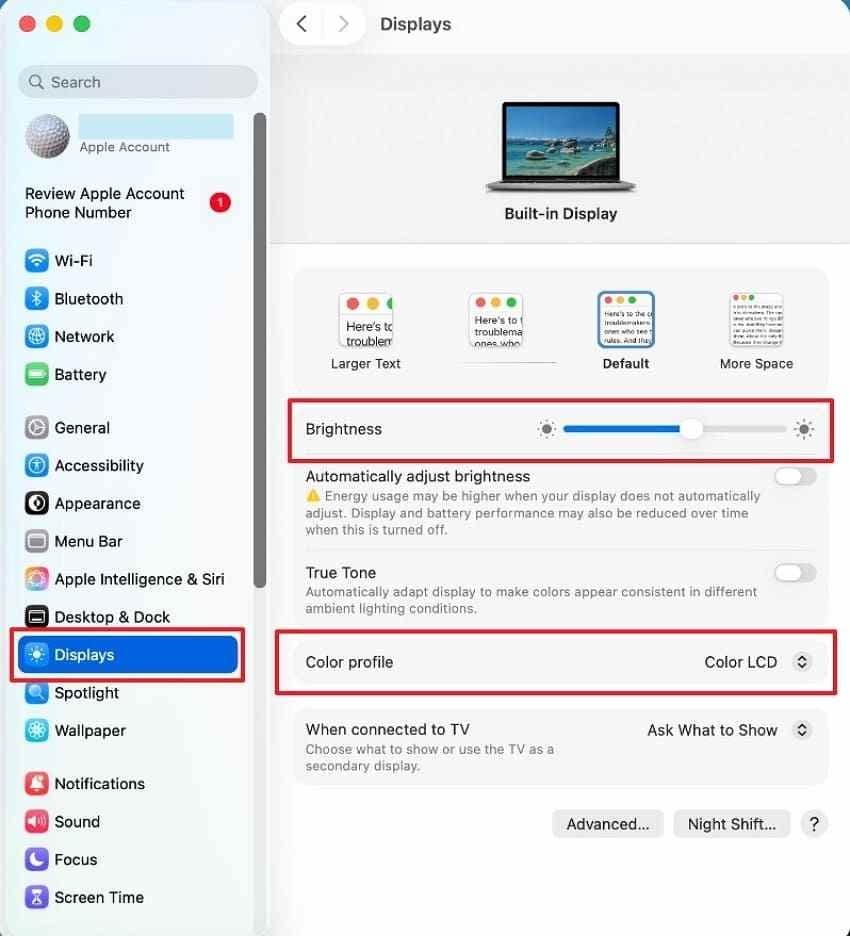
If the Mac reaches the desktop, open Apple menu > System Settings > Displays. Check brightness, color profile, resolution, refresh options if available, and external display arrangement. Disconnect unnecessary hubs and display adapters, then restart once.
Fix 5. Start Up in Safe Mode on Apple Silicon or Intel MacBook Air
Safe Mode helps identify whether software that loads during startup is causing the display problem. It also checks the startup disk at a basic level and clears some system caches.
Apple silicon MacBook Air: Shut down the Mac. Press and hold the power button until startup options appear. Select the startup disk, hold Shift, then click Continue in Safe Mode.
Intel MacBook Air: Turn on or restart the Mac, then immediately hold Shift until the login window appears. You may see Safe Boot in the menu bar or login window.

Fix 6. Remove Login Items or Recent Apps If Safe Mode Works
If the MacBook Air display looks better in Safe Mode, restart normally. If the white screen with lines returns after login, remove recently installed apps, display utilities, screen recorders, VPN tools, security apps, and login items that load automatically.
Open System Settings > General > Login Items. Remove suspicious items, restart, and test again. If the problem began after a specific app or system extension, uninstall it before reinstalling macOS.
Fix 7. Reset NVRAM or PRAM on Intel MacBook Air
NVRAM reset applies to Intel-based MacBook Air models. It does not apply to Apple silicon Macs and is not needed on those models. NVRAM stores settings such as display resolution, startup disk selection, sound volume, and time zone.
Shut down the Intel MacBook Air. Turn it on and immediately hold Option + Command + P + R for about 20 seconds. After the Mac restarts, check whether the display behavior improved and adjust any reset settings if needed.

Fix 8. Reset SMC on Intel MacBook Air Models That Support It
The SMC manages power, charging, thermal behavior, lid behavior, and some hardware functions on Intel Macs. Apple silicon Macs reset these functions automatically during restart or shutdown, so no manual SMC reset is needed.
For an Intel MacBook Air with a T2 Security Chip, shut down the Mac. Hold Control + Option + Shift for 7 seconds, then keep holding those keys and press the Power button for another 7 seconds. Release all keys, wait a few seconds, then turn on the Mac.
For older Intel MacBook Air models without a T2 chip, follow the SMC reset method for your exact model. Use this only when white-screen symptoms appear with power, charging, sleep, fan, or heat issues.

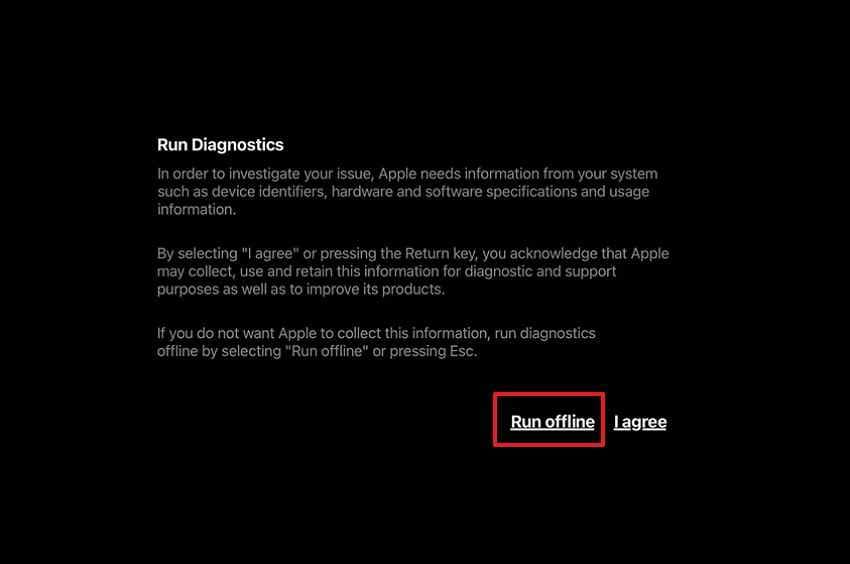
Fix 9. Run Apple Diagnostics to Check for Hardware Issues
Apple Diagnostics can help determine whether a hardware component might be at fault. Disconnect nonessential accessories first and keep the Mac on a hard, flat surface with ventilation.
Apple silicon: Shut down the Mac, press and hold the power button until startup options appear, then press and hold Command + D.
Intel: Turn on the Mac and immediately hold D. If that does not work, try Option + D.
Write down any reference code. If Diagnostics reports a display, memory, storage, or logic board issue, recover important data before arranging service.
Fix 10. Install Pending macOS Updates If the Mac Still Boots
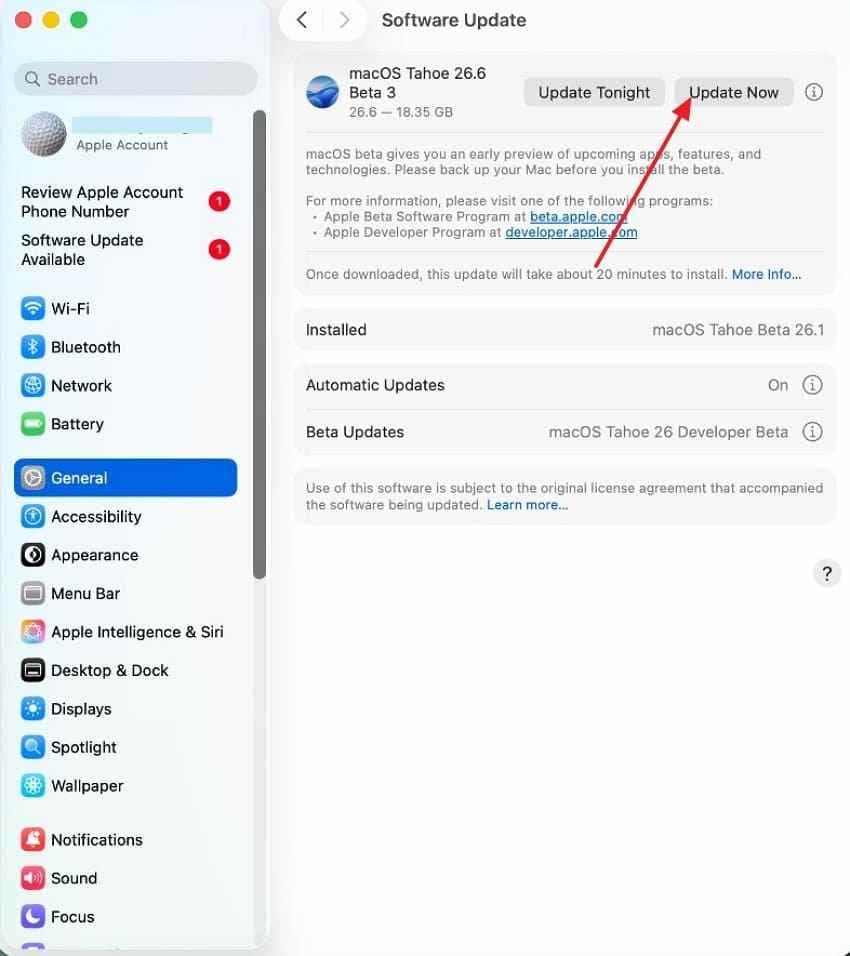
Install updates only if the Mac can reach the desktop and stays stable long enough to complete the process. This helps when the white screen began after an incomplete update or a known graphics-related macOS issue.
Step 1. Open Apple menu > System Settings > General > Software Update.
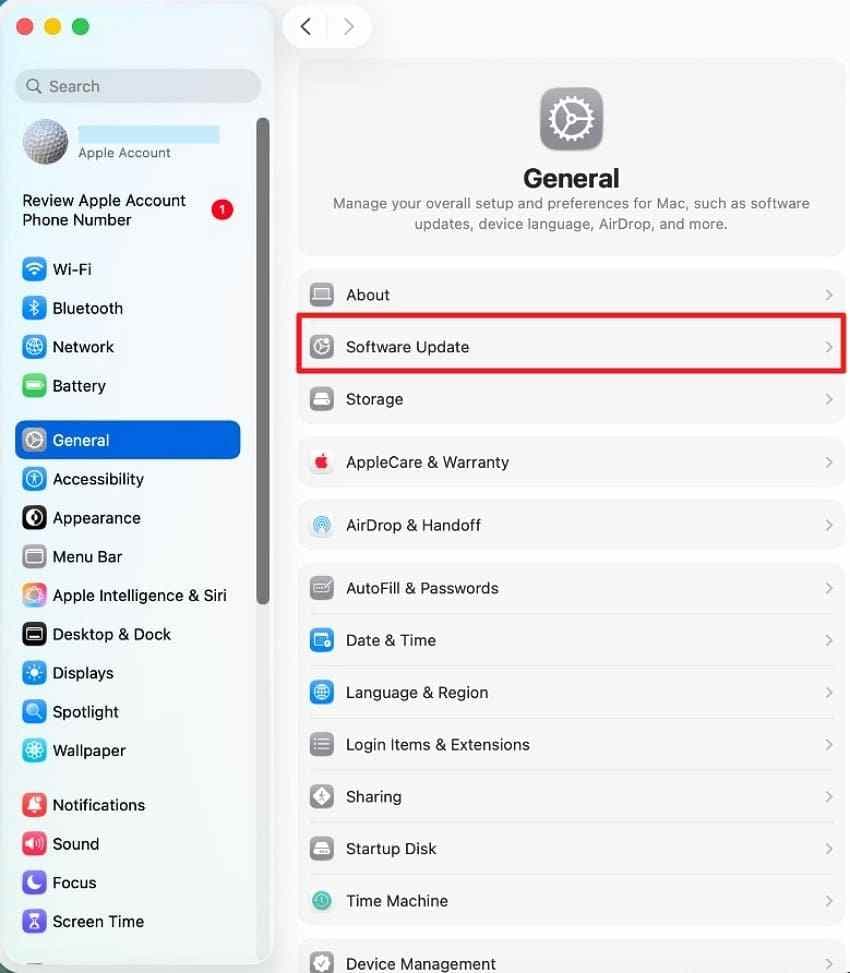
Step 2. Install the available update and keep the Mac connected to power until it finishes. Do not interrupt the update if the progress is moving.
Fix 11. Run Disk Utility First Aid From macOS Recovery
Use Disk Utility First Aid if the MacBook Air shows a white or blank startup screen, fails before login, or behaves like macOS cannot load correctly. Apple recommends having a backup before repair because Disk Utility may find errors it cannot fix.
Step 1. Enter macOS Recovery.
- Apple silicon: Shut down the Mac. Hold the power button until startup options appear. Choose Options > Continue.
- Intel: Restart and immediately hold Command + R until the Apple logo or spinning globe appears.
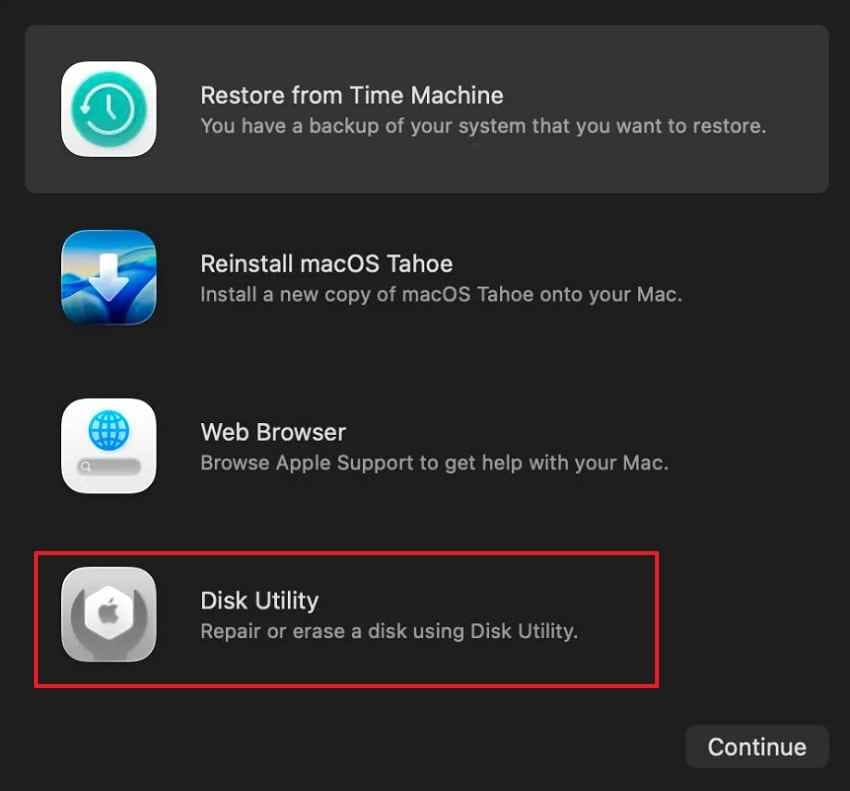
Step 2. Open Disk Utility, choose View > Show All Devices if available, then run First Aid on volumes, containers, and the physical disk in the proper order.
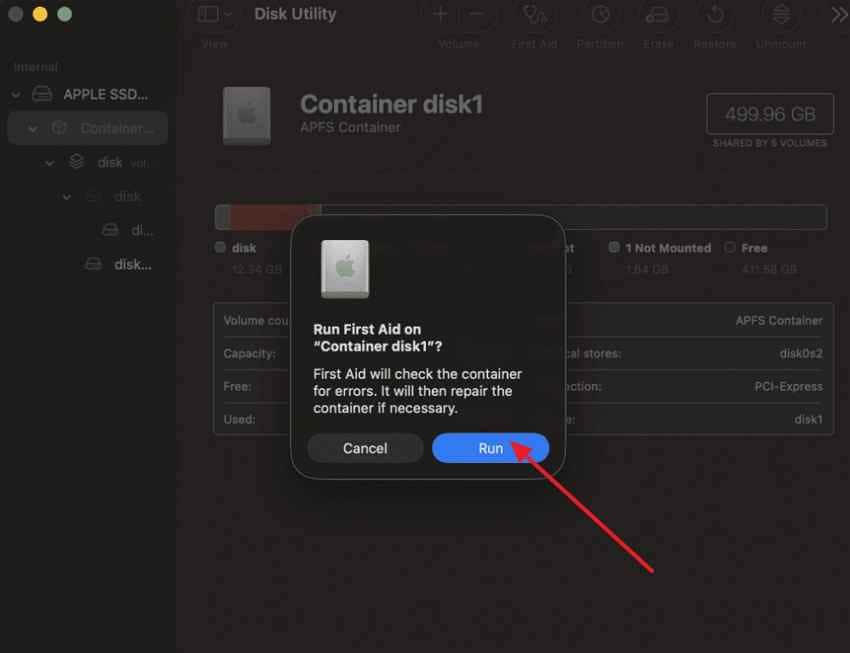
If Disk Utility cannot repair the disk or the internal drive does not appear, stop and recover files or contact a professional before erasing.
Fix 12. Reinstall macOS Without Erasing Data After File Recovery
If Safe Mode and Disk Utility do not resolve a startup-related white screen, reinstalling macOS from Recovery may replace system files without intentionally erasing personal files. Still, recover or back up important data first because unstable storage, FileVault, or interrupted installation can increase data risk.
Enter macOS Recovery, choose Reinstall macOS, and follow the onscreen instructions. Do not choose erase or format unless you have already recovered or backed up the files you need.

Part 6. Recover Files Before Reinstalling, Erasing, or Repairing Your MacBook Air
If the MacBook Air white screen with colored lines prevents normal use, protect files before advanced repair. Display repair, logic board repair, macOS reinstall, firmware restore, disk erase, or repeated failed startup attempts can affect access to local data.
Recoverit Mac Data Recovery is useful when the internal or external Mac storage is still readable and files need to be recovered before risky actions. It is not a screen repair tool, and it should not be presented as a way to fix the display itself.
When Recoverit Can Help
- Startup failure: The Mac cannot boot normally, but the storage drive is still detectable.
- Deleted or lost files: Files were deleted, lost after formatting, or affected by partition issues.
- External storage recovery: Files need recovery from external hard drives, SSDs, USB drives, SD cards, or cameras used with the Mac.
- Pre-repair data protection: You need local files before reinstalling macOS, erasing the disk, replacing hardware, or sending the MacBook Air for service.
When Recoverit Cannot Help
- It cannot repair a MacBook Air LCD panel, display cable, backlight, GPU, logic board, battery, keyboard, or liquid damage.
- It cannot bypass FileVault encryption, Mac login passwords, firmware locks, or Apple ID Activation Lock.
- It cannot guarantee recovery from a physically failed SSD, overwritten files, or a drive that is no longer detected.
- It should not be installed onto the same affected drive when recovering deleted or lost files from that drive.
How to Recover Files From a MacBook Air Stuck on a White Screen
Use another working Mac and an empty USB drive. If FileVault is enabled, keep the login password or recovery key available.
Step 1. Install and open Recoverit on the working Mac. Choose Computer Not Bootable from the recovery tools and start the crash recovery workflow.
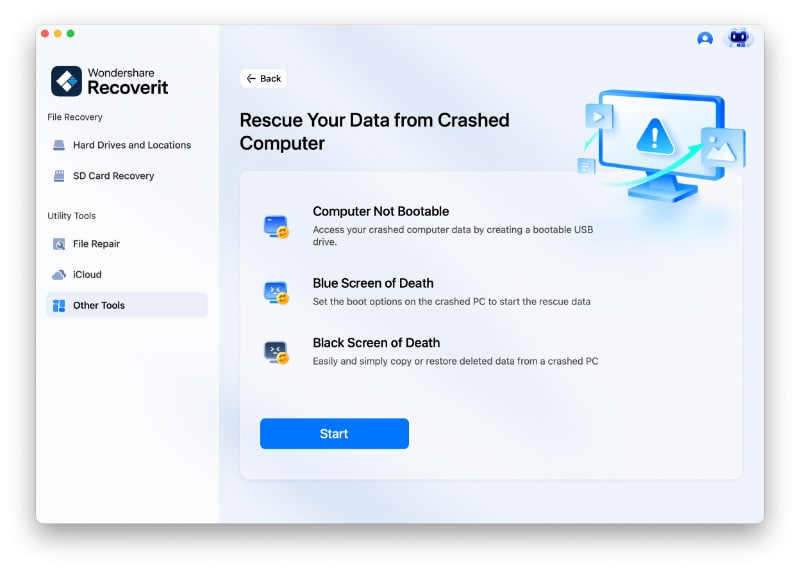
Step 2. Select the USB drive and create bootable recovery media. Back up the USB first because creating bootable media can erase it.
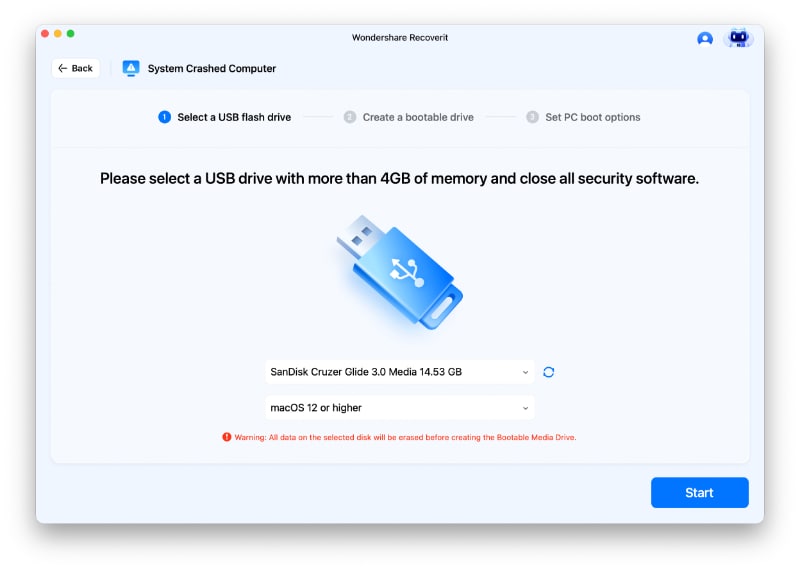
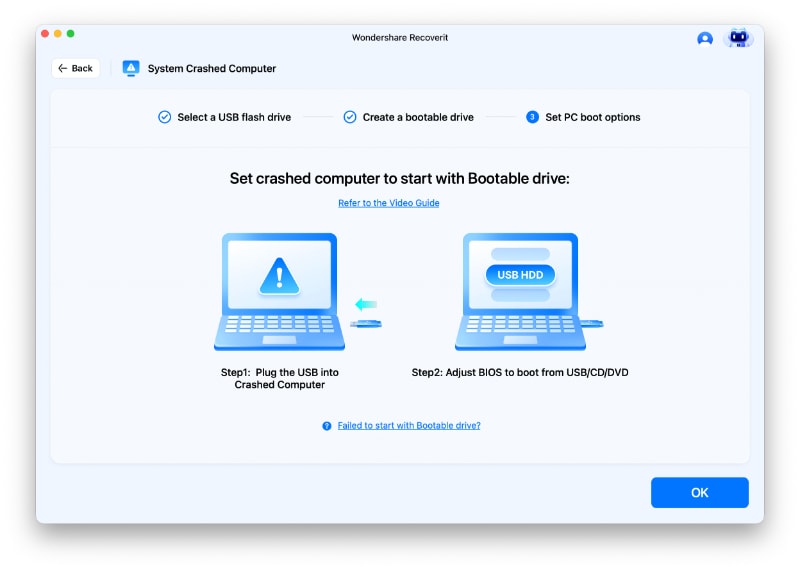
Step 3. Insert the bootable USB into the affected MacBook Air, start from the USB drive, scan the internal storage, preview recoverable files when available, and save recovered data to a separate external drive.
Part 7. When MacBook Air White Screen With Lines Means Hardware Repair
Software fixes cannot solve every Mac Air white screen problem. If the symptoms below appear, professional inspection is safer than repeated resets or do-it-yourself screen work.
| Hardware Sign | What It Usually Means |
| External display works normally | The built-in display panel, backlight, cable, or connector is likely affected |
| Lines change when the lid moves | The display cable or hinge-path connection may be damaged |
| Lines stay visible in Safe Mode and Recovery | The issue is less likely to be caused by normal startup software |
| Both internal and external screens show lines | Graphics output, logic board, or deeper hardware may be involved |
| Apple Diagnostics shows a reference code | Record the code and share it with Apple or an authorized technician |
| Drop, pressure, or liquid exposure happened | Physical display or board damage should be inspected professionally |
| MacBook Air becomes hot or shuts down | Thermal or board-level issues may be worsening the display problem |
Before repair, check warranty or AppleCare coverage and recover important files if the Mac still allows it. If the screen is unreadable but an external monitor works, use the external monitor to back up or recover files before service.
Part 8. How to Prevent MacBook Air White Screen With Lines in the Future
Not all display failures are preventable, but these habits reduce the risk of screen, software, and data-loss problems.
| Prevention Tip | How It Helps |
| Keep objects off the keyboard before closing the lid | Prevents pressure damage to the thin MacBook Air display |
| Avoid carrying the MacBook Air under heavy pressure | Reduces lid flex, screen stress, and cable strain |
| Keep liquids away from the keyboard and hinge area | Reduces corrosion risk around display and logic board connectors |
| Use a padded sleeve during travel | Protects the display from impact and compression |
| Keep macOS and apps updated | Improves software stability and graphics compatibility |
| Avoid unsupported system extensions | Reduces startup and graphics conflicts after macOS updates |
| Do not interrupt macOS updates | Prevents incomplete system installation and startup problems |
| Back up files regularly | Protects local files before unexpected display failure or repair |
| Monitor storage health and free space | Reduces startup failures caused by disk errors or low space |
Conclusion
A MacBook Air white screen with lines should be treated as both a display problem and a data-safety problem until diagnosis proves otherwise. Start with external monitor testing, Safe Mode, Apple Diagnostics, and Disk Utility First Aid. If the built-in screen is the only display showing lines, prepare for hardware inspection. Before reinstalling, erasing, or repairing the MacBook Air, recover important files with Recoverit or another reliable backup method.
FAQ
-
Can a loose display cable cause a MacBook Air white screen with lines?
Yes. A loose, worn, or damaged display cable can interrupt the signal to the screen and cause white screens, flickering, colored lines, horizontal lines, or vertical lines. -
Why does my MacBook Air show white screen with colored lines after startup?
It may be caused by macOS graphics loading, a failed update, display driver behavior, a damaged LCD panel, a display cable issue, or a logic board problem. Test Safe Mode and an external monitor to narrow it down. -
Will Apple Diagnostics detect every MacBook Air screen problem?
No. Apple Diagnostics can detect some hardware faults and provide reference codes, but it may not identify every display cable, LCD, hinge, or intermittent connector issue. -
Can Recoverit fix a MacBook Air white screen with lines?
No. Recoverit is a data recovery tool. It can help recover files from readable Mac storage before erase, reinstall, or repair, but it cannot repair a damaged screen, display cable, GPU, logic board, or liquid damage.



