
On a Mac, a permission denied message in Terminal can appear when you try to run a shell script, open a document, access a folder, or work with an external drive. You may see zsh: permission denied, bash: Permission denied, or Operation not permitted. Although these messages look similar, they do not always come from the same restriction. macOS applies file permissions, ownership rules, privacy controls, and system-level protections to different operations.
This guide helps you identify the blocked command and choose a targeted fix on current macOS versions. It covers path checks, script execution permissions, Finder settings, Terminal privacy access, and legitimate administrator tasks without weakening built-in security protections.
In This Article
Part 1. Identify the Command and Permission Layer That Failed
A denied operation is a symptom, not a recommendation to run sudo. First decide whether the shell tried to execute a folder, a script lacked permissions, a protected location denied access, or the target was read-only. The following sequence is designed to leave unrelated permissions unchanged.
1. Read the Exact Error and Confirm the Command Host
Read the full error line and note the exact command, file path, and application displaying it. macOS grants privacy access to the app hosting the shell, which may be Terminal, iTerm2, or a code editor with an integrated terminal. Apple explains this app-by-app behavior in its Files & Folders access guide.
- Terminal.app: Usually started in Applications > Utilities; verify which user and shell are active.
- Third-party Terminal: A permission enabled for Terminal does not automatically grant iTerm2 the same access.
- Integrated terminal: A shell started inside an editor can require permission for the editor itself.
A related Reddit report about a Mac app being labeled damaged describes an application that macOS said could not be opened. That message is not by itself a Unix file-permission error. Do not disable Gatekeeper or macOS security simply because a download produces an access-related warning.
2. Separate Permission Denied From Operation Not Permitted
The underlying system can return different error types. Apple's file-permission system-call reference distinguishes errors such as EACCES, EPERM, and EROFS; Apple's developer explanation of macOS file access adds how ACLs and privacy protections interact with Unix permissions.
| Message | Likely layer | What to check first |
| Permission denied | File or directory permissions; a non-executable script; blocked traversal | Check the file type, path, and permissions with ls -ld or ls -l. |
| Operation not permitted | Possible privacy restrictions, ACLs, SIP, or other policy | Identify the command host, protected location, and relevant macOS security control. |
| Read-only file system | A volume mounted read-only or a protected system volume | Confirm disk format and read-only status; chmod will not make it writable. |
| No such file or directory | Incorrect path or a missing/unmounted target | Verify the quoted path and mount point before changing permissions. |
Note: An error message alone cannot prove which security layer blocked access. Use the next section to test the exact target.
3. Check the Folder, Quoted Path, and Target File
Apple's Terminal instructions for specifying files and folders explain how the working directory and spaces in file names affect commands. Check the current location before making changes:
Step 1. Run pwd to show your current working directory.
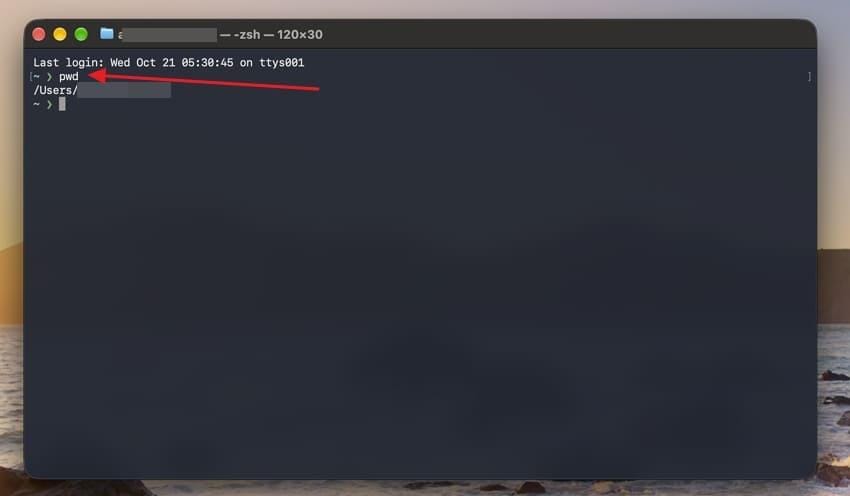
Step 2. For a file, run ls -l "/path/to/your file.sh". For a directory, use ls -ld "/path/to/folder". Replace the example paths with real ones; the text in quotes is not a literal file you should expect to have.
Step 3. If you intended to enter a directory, use cd "/path/to/folder", not its pathname alone as a command. Use ./script.sh only when you intend to execute that script. Dragging an item from Finder into Terminal can insert a correctly escaped path.
Part 2. Fix a Trusted Script That Cannot Run
Fix execution permissions only after you have inspected the script and trust its source. If the failure came from a downloaded app that is blocked by Gatekeeper, these script steps may not apply.
1. Check Whether the Script Is Readable and Executable
Run ls -l "script.sh" from the script's directory. Apple's guide to making a file executable documents how execute permission changes allow direct execution. Compare the owner, group, and other columns:
| File mode | Meaning | Direct execution |
-rw-r--r-- |
Owner can read and write; no user has execute permission | ./script.sh normally fails with permission denied. |
-rwxr--r-- |
Owner can read, write, and execute; other users cannot execute | Works for the owner if the script, directory, and security settings permit it. |
-rwxr-xr-x |
Owner, group, and others have execute permission | Executable for those users unless another restriction applies. |
---x--x--x |
Executable but not readable | A text-based shell script generally cannot run because its interpreter needs read access. |
A script that is readable but not executable may still run through its appropriate interpreter. That is different from changing file permissions.
2. Grant Only the Required Permission to One Script
For a trusted script you personally own, chmod u+x adds the owner execute bit without granting permission to everyone else. Check that the folder and script really belong to your account before using it.
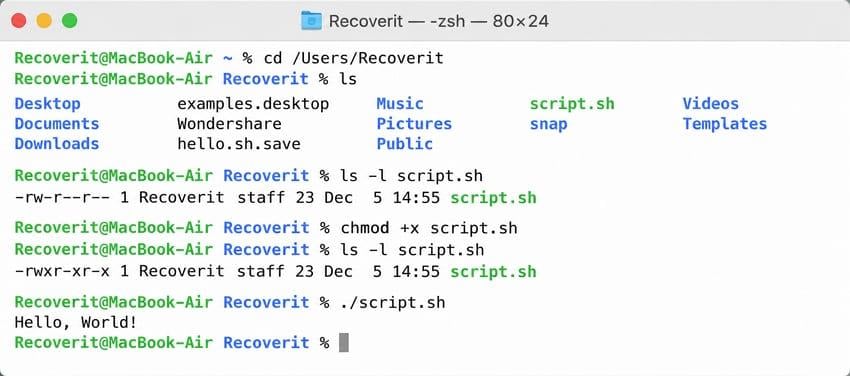
Step 1. In the script folder, run chmod u+x "script.sh".
Step 2. Verify the changed permissions with ls -l "script.sh". Look for x in the owner execute position.
Step 3. Run ./script.sh and inspect the result.
Important: Do not run a script simply because you can make it executable. Do not use chmod -R 777, a system-wide chmod, or blanket sudo as a shortcut.
3. Use the Matching Interpreter When Appropriate
Apple's introduction to shell scripts explains that the first line often identifies the intended interpreter. For a trusted readable shell script, using the correct shell can help distinguish a missing execute bit from a shell-specific syntax problem.
- zsh script: If the first line is
#!/bin/zsh, you may runzsh "script.sh". - bash script: If it starts with
#!/bin/bash, you may runbash "script.sh". - Not a shell script: Do not feed an arbitrary binary or downloaded application to bash or zsh.
An interpreter still needs read permission and directory traversal access. It cannot bypass privacy controls, encryption, or System Integrity Protection.
Part 3. Check Access to the File or Folder
If a command starts correctly but fails while reading, changing, or copying a file, investigate the destination and its ownership. Start with Finder for personal files, then use Terminal only when more detail is needed.
1. Review Sharing and Permissions in Finder
Select the affected file or folder in Finder, then choose File > Get Info > Sharing & Permissions. Apple documents available privileges in its Mac file and folder permissions guide.
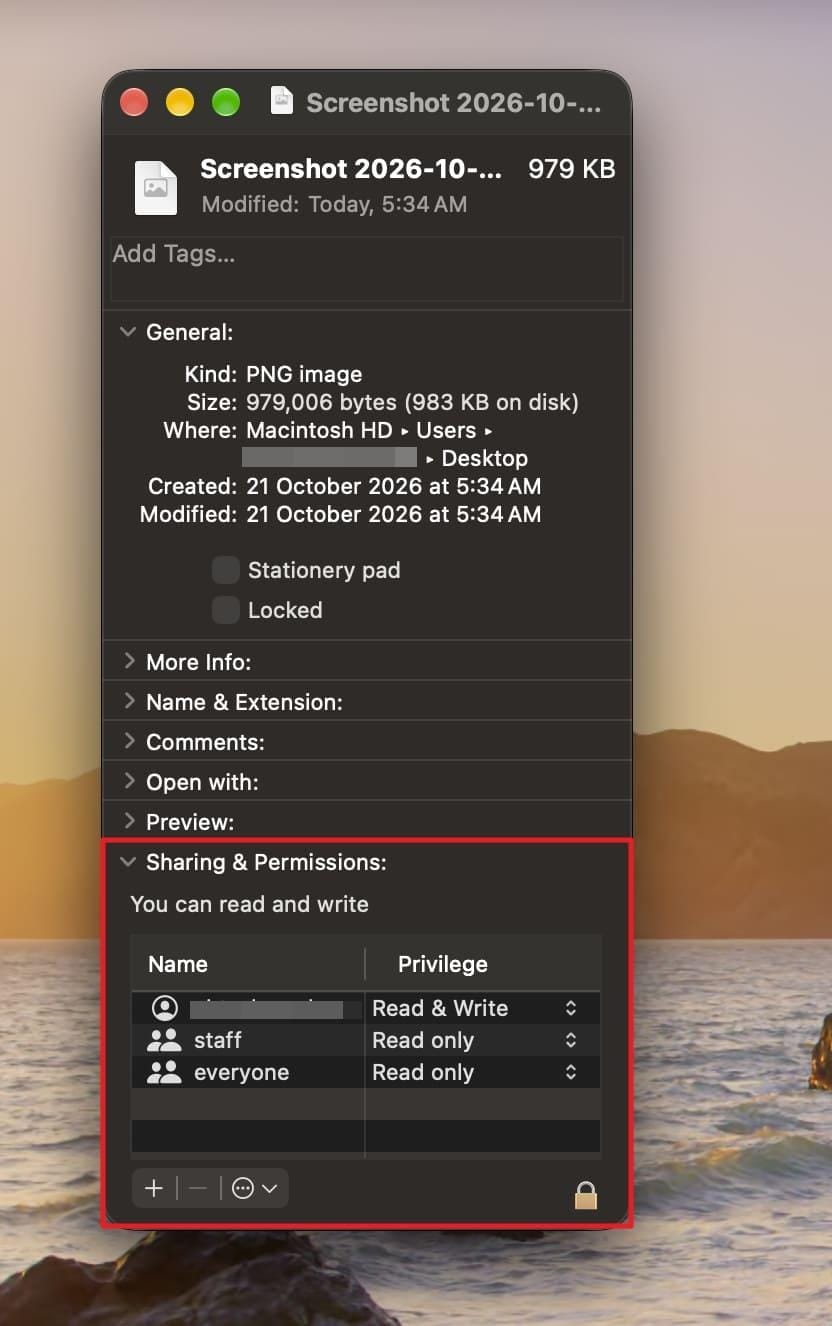
- Read & Write: Your account can open the item and modify its contents.
- Read only: Your account can read the item but cannot change it.
- No Access: Your account is not permitted to open the item.
Change a permission only if you own the item or have authorization. Avoid Apply to enclosed items unless every nested file and folder actually needs the same change; it affects the whole subtree.
2. Inspect Ownership and ACLs Before Changing Them
Use ls -le "/path/to/file" to examine the file mode, ownership, and any Access Control List entries. The macOS ls manual with ACL options documents -e for displaying ACLs alongside the long listing. A + after permission bits indicates extended ACL information may exist.
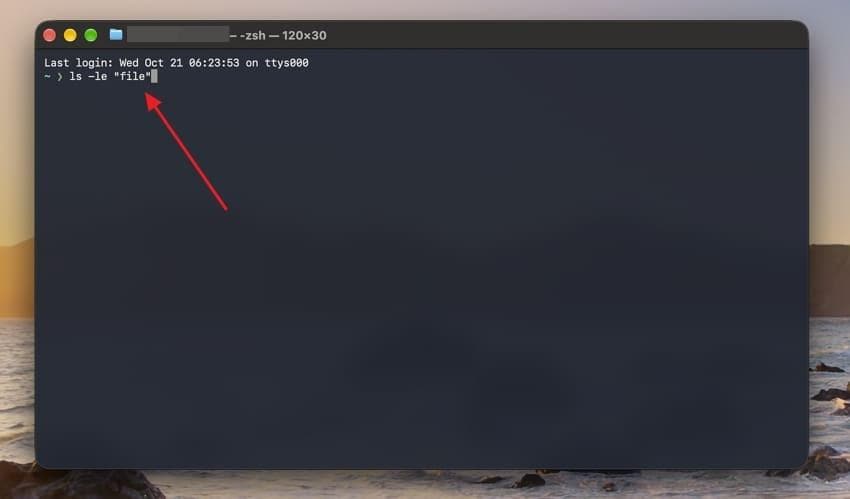
A file created with a one-off sudo command may unexpectedly belong to root. Before changing its owner, check whether it is genuinely your personal working file, not an operating-system file, managed folder, shared asset, or Time Machine backup.
Only if appropriate: An administrator who has verified accidental root ownership of a personal file can use sudo chown "$USER" "/path/to/file", then run ls -l again. Changing ownership does not remove an ACL deny rule or grant privacy access. If an ACL or ownership rule was deliberately assigned by another user or organization, request authorization instead.
3. Check Whether an External Volume Is Read-Only
An external disk can look like a Terminal permission problem even when macOS mounted the volume read-only. Apple's guide to permissions on a Mac disk explains the optional Ignore ownership on this volume setting for some disks. That option is not a cure for every file system or privacy issue.
Step 1. Check whether the volume appears in Disk Utility and whether it is mounted. Use diskutil info "/Volumes/DriveName", replacing DriveName with the actual volume name, to inspect its read-only and file-system properties.
Step 2. If the drive is NTFS, remember that macOS normally has limited native write support. Apple's Disk Utility guidance for Windows-compatible formats documents supported formatting choices, but reformatting erases data and must not be used as a first fix.
Step 3. If needed, check the command app's Removable Volumes access in Part 4. A missing disk, a read-only file system, and an ACL denial require different solutions.
If files have actually been deleted or lost from a readable external drive, address that separate data-loss problem before any erasing or disruptive troubleshooting. Recoverit for Mac may help scan supported storage for recoverable files, but it does not change Terminal permissions, unlock encrypted content, or repair the file system.
When recovering eligible local files, follow the official Recoverit for Mac recovery guide and save any recovered files to a different healthy location. Do not install recovery software on the affected drive.
Missing files on your Mac or external drive? If your files were deleted or lost rather than blocked by permissions, Recoverit can scan supported, readable storage for recoverable documents, photos, and videos. Preview results before saving recovered files to a separate healthy drive.

Part 4. Review macOS Privacy Access for the Command Host
macOS privacy rules can deny access even when standard Unix permissions look correct. Apple applies this per application, so identify whether the command ran in Terminal, iTerm2, a code editor, or another host.
1. Allow the Required Files and Folders Access
Open Apple menu > System Settings > Privacy & Security > Files & Folders. Apple's Files & Folders controls describe how an app can request access to specific protected locations. The app may appear here only after it has requested access.
Step 1. Find the app that actually ran the command. If you launched an integrated terminal from an editor, look for the editor rather than automatically changing Terminal permissions.
Step 2. Turn on only the needed category, such as Documents Folder or Removable Volumes, if it is available for that app.
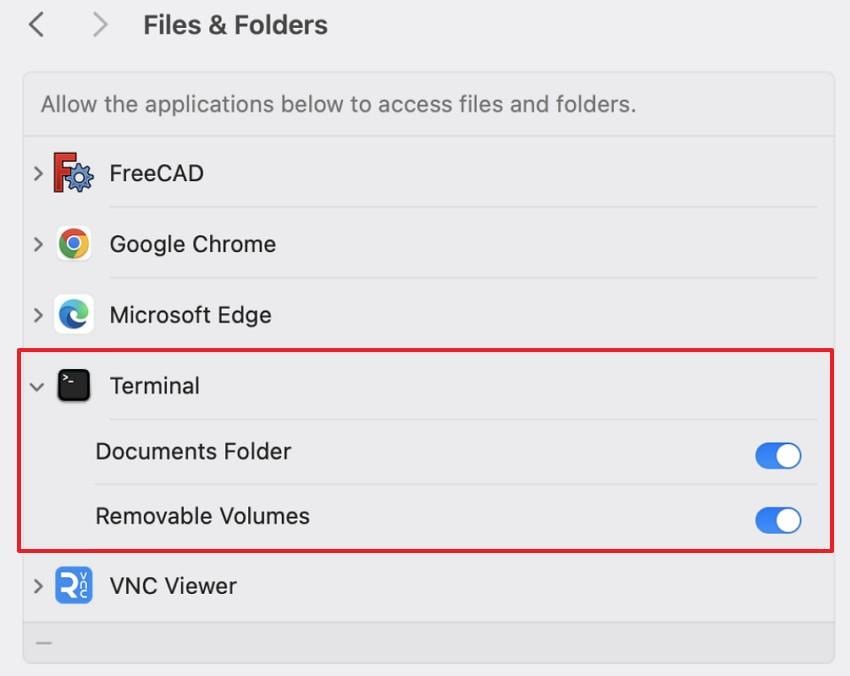
Step 3. Reopen that app and try the original command again. If no relevant toggle is shown, do not assume Full Disk Access is always required; inspect the exact target and error first.
2. Use Full Disk Access Only When Necessary
Full Disk Access allows a trusted application to reach substantially more protected data than a single Files & Folders category. Apple's Privacy & Security settings guide documents the control, and the 2026 Full Disk Access developer update discusses how the permission is handled.
| Setting | Access scope | Best use |
| Files & Folders | Specific protected folder or volume categories | A command needs access to a particular location. |
| Full Disk Access | Broad access to protected data, including data owned by other apps | An authorized backup, maintenance, or specialized recovery operation specifically requires it. |
| Administrator access via sudo | Elevated privileges for an understood command | A legitimate system-administration task; it is not a general privacy bypass. |
Enable Full Disk Access only when necessary and authorized. It cannot override System Integrity Protection. If the Mac is managed by an organization, consult your administrator before granting broad access.
3. Reopen the App and Retest the Exact Command
Some macOS privacy changes require an app restart. Fully quit the same app with Command-Q, reopen it, return to the original folder, and run the same command without adding sudo or changing several settings at once.
If the error disappears, you have identified a meaningful permission dependency. If it does not, restore permissions you enabled only for testing, then continue to check file ownership, read-only status, and system protection.
Part 5. Recognize Administrative and Protected-System Limits
Some operations are deliberately restricted even for Mac administrators. Recognizing this prevents a common escalation path in which users grant wider permissions but never address the real cause.
1. Use sudo Only for a Known Administrative Task
Apple's Terminal administrator-command guidance explains that sudo runs a command with elevated privileges. It can be suitable for a known administrative change, but only after you understand the command, its target, and any effects on ownership.
- Before sudo: Verify the path, the source of the command, and whether the file is personal or system-managed.
- After sudo: Confirm the result without leaving unexpected root-owned files in a personal project folder.
- Do not use it: As a generic answer to a downloaded app warning, missing script execute permission, or every Operation not permitted message.
2. Identify Paths Protected by SIP and the Signed System Volume
Apple's System Integrity Protection overview explains that SIP restricts changes to protected system areas, including /System, /bin, /sbin, and most of /usr. Some locations such as /usr/local are exceptions.
The signed system volume security documentation also explains why much of the modern system volume is sealed and read-only. A denial when trying to modify a protected macOS path is not a reason to weaken those protections.
| Location | Typical meaning | Safer response |
/System, /bin, /sbin |
macOS system-protected locations | Do not edit; use supported settings, installers, or APIs. |
/usr except designated exceptions |
Mostly protected system content | Use the appropriate non-protected installation path. |
/usr/local |
Usually available for administrator-managed tools | Check owner and installer instructions before making changes. |
| Personal project folder | May be governed by ownership, ACLs, or TCC | Investigate the exact file and command host first. |
3. Avoid Broad Permission Changes and Disabling SIP
Avoid widely circulated permission "fixes" such as chmod -R 777, changing permissions across your home directory, or turning SIP off to run an unfamiliar app. Apple's SIP developer documentation treats protection changes as exceptional workflows for authorized testing, not routine file access troubleshooting.
For security warnings about untrusted downloads, follow the legitimate publisher's installation instructions and Apple's security prompts. Permission changes should not be used to force unknown code to run.
Part 6. Verify the Fix Without Broadening Access
A successful fix should make the original intended task work while leaving unrelated apps, files, and macOS protections unchanged. Check the outcome under the same conditions that produced the error.
1. Retry the Original Command With Normal Permissions
Step 1. Return to the same shell host, user account, directory, and file. Repeat the original command without adding sudo.
Step 2. If it succeeds, test the actual task, such as opening the file or writing only to the intended directory. A successful ls -l listing does not prove the original operation will now work.
Step 3. If the command works only with elevated privileges, your ordinary account still lacks access. Determine whether that is intentional rather than forcing a permanent privilege change.
2. Review and Remove Temporary Access Changes
Review what you changed during testing. Keep a permission only if the legitimate task still requires it.
- Privacy access: Remove Full Disk Access or Files & Folders toggles granted solely for a temporary test.
- File permissions: If you added a script execute bit temporarily and no longer need it, consider
chmod u-x "script.sh"for that one owned script. - Volume preferences: If you changed an optional ownership setting on an external drive, restore it when appropriate.
Do not reverse an access change blindly if an installed application or ongoing workflow depends on it. Record the final working configuration.
3. Ask the Owner or Administrator When Access Is Intentional
A school or company Mac may use device management to enforce privacy settings, while shared folders may intentionally deny your account access. Apple's device-management privacy controls documentation describes how administrators deploy such policies. If a requested operation remains blocked by an intentional restriction, contact the owner or administrator with the exact command, path, error line, and what you have already tested.
For private files, ask the owner for access rather than taking ownership of shared or system folders yourself. This is especially important for network shares, other users' home directories, and backup volumes.
Conclusion
Fixing permission denied in Terminal on Mac starts with the actual command and file path, not a blanket permission change. Check whether a trusted script needs execute access, whether a folder has the right owner or ACL, and whether the command host has the required macOS privacy permission. Reserve sudo for authorized administrator work and leave SIP enabled. If the original command still fails, compare the error against a read-only volume or intentional policy. Keep any successful fix narrow and remove unnecessary temporary access afterward.
FAQ
-
What does "zsh: permission denied" mean on Mac Terminal?
It commonly means the current user cannot execute or access the target. For example,./script.shcan fail if the script lacks execute permission, and entering a directory path as a command can produce a similar message. Inspect the path withls -ldorls -lbefore changing anything. -
Why does Terminal show "operation not permitted" even with sudo?
macOS privacy controls, ACLs, and System Integrity Protection can restrict access even when a command runs with administrator privileges. Check whether the app has the necessary location-specific permission and whether the target is a protected system path. Do not disable SIP as a generic workaround. -
How can I fix permission denied when accessing an external drive on Mac?
First confirm that the disk is mounted and inspect its format and read-only status in Disk Utility or withdiskutil info. Then check Finder permissions and the command app's Removable Volumes access. A read-only NTFS volume is not fixed simply by runningchmod; preserve its data before considering any format change. -
Does changing Terminal permissions affect Mac security?
Yes. Granting execute access to an untrusted script or Full Disk Access to a shell app can increase risk. Make the smallest authorized change, verify that the task works, and remove permissions that were needed only for testing. Avoid recursive permission changes to directories containing unrelated files.