
Seeing a printer offline on Mac even while the printer is powered on can leave print jobs stuck on a MacBook or iMac. The problem affects USB, Wi-Fi, and Ethernet models from HP, Epson, Brother, and Canon. Network isolation, paused print queues, a changed printer IP address, and incompatible software can all make an otherwise working printer appear unavailable.
Before changing drivers or resetting every printer, determine whether another device can print and whether the Mac can reach the printer. This guide starts with low-risk connection checks, moves through queue and AirPrint settings, and covers brand-specific fixes. A system-wide printing reset comes last, after you have tried the safer options.
In This Article
Part 1. Check the Printer and Identify the Connection
A Mac can report that a printer is offline even if its power light is on. Identify whether the printer has a hardware warning, whether it is connected by USB or over the network, and whether the problem affects other devices. That tells you whether to troubleshoot the printer, the network, or the Mac queue.
Confirm Power, Paper, Error Messages, and the Printer Display
Check the printer itself before changing macOS. Wake it from sleep, look for paper jams or ink and toner warnings, and make sure its display shows a ready state. If your model supports a self-test or nozzle-check page from its control panel, print one without the Mac. Apple recommends checking printer status and error messages before modifying saved queues.
- Self-test prints: The printer can produce a page on its own; investigate its Mac or network connection next.
- Self-test fails: Resolve the device error or consult its model manual before changing printer entries.
- Network status: On a wireless or Ethernet model, print its network report if available to record its IP address and connection state.
Separate USB, Wi-Fi, and Ethernet Connections
A direct USB cable and a Wi-Fi printer fail for different reasons. For a USB printer, inspect both cable ends and use a direct Mac port where possible. With Wi-Fi or Ethernet, compare the printer's network report with the Mac's network connection. Apple's guide to adding printers on Mac distinguishes automatic discovery from manual IP configuration.
| Connection | Typical offline cause | First safe check |
| USB | Loose cable, hub or adapter, or accessory permission | Reconnect directly; check macOS accessory approval if prompted |
| Wi-Fi | Wrong SSID, printer sleep, guest isolation, or lost network association | Check printer Wi-Fi status and the Mac network |
| Ethernet | Cable issue, port fault, or changed IP address | Check port lights, cable, and network report |
On Apple silicon Mac laptops, a newly connected USB device may require approval. Review Apple's USB accessory permission instructions if macOS does not recognize the connected USB printer.
Test Whether Another Device Can Print
Send a short test page from a second computer or an iPhone on the same local network. If the printer supports AirPrint, Apple's AirPrint requirements explain how compatible devices discover the printer without additional drivers.
- Other device prints: The printer probably works; concentrate on your Mac's queue, network connection, or saved printer entry.
- No device prints: Check printer errors, its wireless association, and the router before changing only the Mac.
- Only one app fails: Check that app's print dialog, document and preset before doing a system-wide reset.
This is a real user scenario: a Brother printer owner reported an offline warning on Mac after reconnecting to Wi-Fi. Treat it as an example of a user report, not proof that every Brother model has the same cause.
Part 2. Restore the Connection and Clear the Affected Queue
These checks are less disruptive than removing printer entries. Try them while retaining the current printer configuration, and stop when the test page prints.
Reconnect the USB Cable or Confirm Network Reachability
Step 1. For USB, unplug and reconnect the printer cable directly. With a wireless printer, check that the printer and Mac are on the same network and not on isolated guest networks.
Step 2. For a network printer, compare the current IP on its network report with the address used by any previously configured IP printer. If the device has a web-management page, open its local address only when your network permits. A failed connection can indicate an IP mismatch or isolation rather than a broken printer.
If the printer does not even appear when you try to add it, do not immediately delete the current queue. First complete the reachability and router checks below.
Check Guest-Network Isolation and a Changed Printer IP Address
Some routers block device-to-device traffic on guest networks even when both devices have internet access. TP-Link's explanation of AP isolation notes that local printer discovery can fail when devices cannot talk to each other. Do not disable security controls on a managed office network; ask its administrator for an allowed printing route.
- Different Wi-Fi networks: Move both devices to an approved network that permits local printing.
- AP or client isolation: Check the router's settings or ask the network administrator for help.
- Changed IP: A manual IP printer entry can become stale. Use the printer's current IP, or consider a supported DHCP address reservation once connectivity is restored.
A Wi-Fi printer that works right after reconnecting but goes offline after a router restart often warrants an IP-address check before software reinstallations.
Resume a Paused Queue and Remove the Job That Is Stuck
A paused queue can look like a network failure. Apple's Print Center instructions cover printer and job-level controls.
Step 1. Open Applications > Utilities > Print Center, or click its Dock icon when printing. Select the affected printer and inspect its pending jobs.
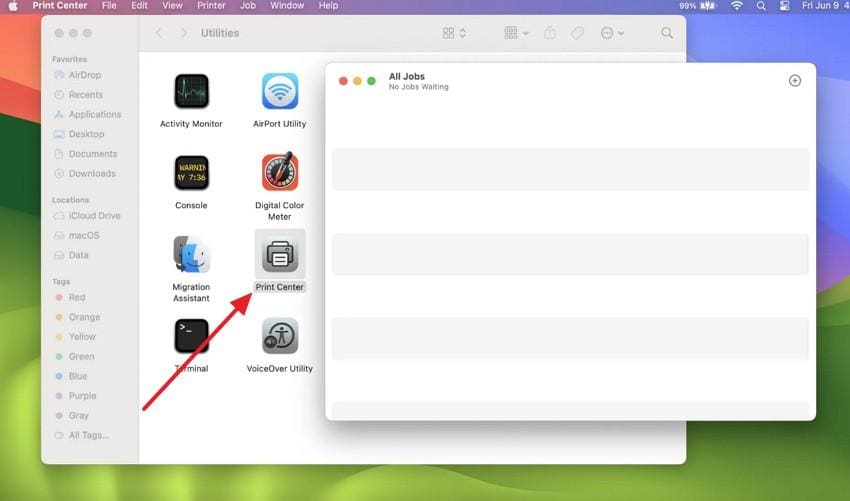
Step 2. If the printer queue is paused, select Resume Printer or the available resume control. If one document is blocking the queue, delete only that job. For an individually paused job, resume the job rather than deleting the entire queue.
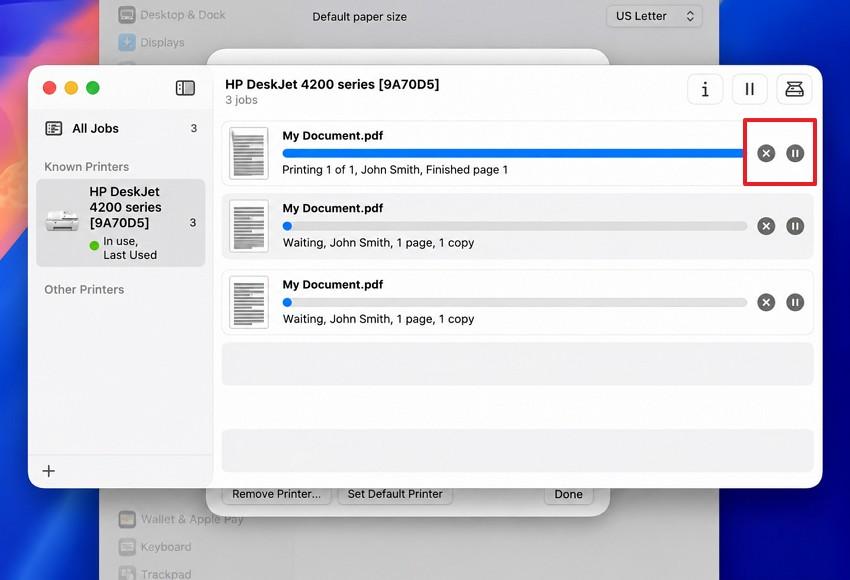
Step 3. Print a short document again. If the queue advances and printing succeeds, leave the printer configuration unchanged. If the printer remains unreachable, continue with a restart.
Restart the Affected Printer and Mac Before Changing the Setup
For transient connection faults, restart the affected printer and Mac. HP's offline-printer guidance also recommends checking the network and restarting the devices involved before deeper troubleshooting.
Instructions. Turn off the printer using its normal power control and wait until it shuts down. Choose Apple menu > Restart on the Mac, then power the printer on and allow the connection to return. Restart the router only if there is evidence of a network-wide problem and doing so will not disrupt others.
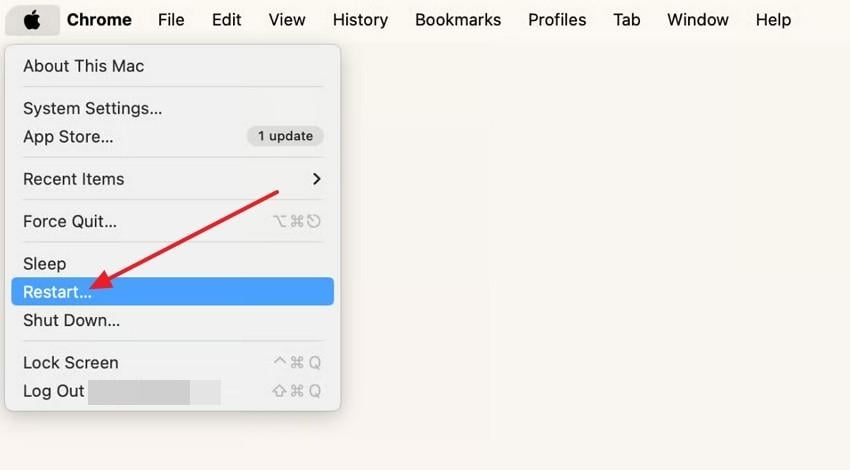
If a test page now prints, stop. Otherwise, investigate the saved printer entry and the supported driver.
Part 3. Repair the Printer Entry on the Mac
When the printer is reachable but macOS still considers its queue offline, inspect the software and saved printer settings. Avoid deleting every printer: Apple recommends testing a newly added queue before removing the old one.
Confirm AirPrint or the Compatible Manufacturer Software
Open Apple menu > System Settings > Printers & Scanners and select the affected printer. Review its driver version or software information. Most supported AirPrint printers work without a separate vendor driver; other models may require compatible software from their manufacturer.
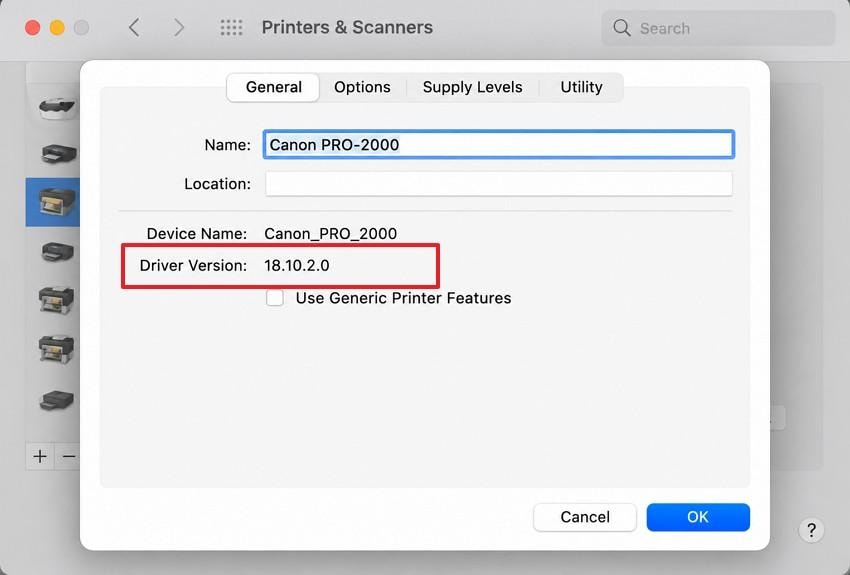
- AirPrint supported: Prefer AirPrint when it provides the features you need.
- Manufacturer driver required: Check the exact model and macOS version on the official vendor site.
- Older hardware: Do not assume a generic driver includes advanced duplexing, maintenance, or color controls.
If the printer does not appear at all, return to the network and accessory checks before installing unrelated software.
Remove and Re-Add Only the Affected Printer
Step 1. From System Settings > Printers & Scanners, note the printer name and current queue. Click Add Printer, Scanner, or Fax to find it again without removing the old entry first.
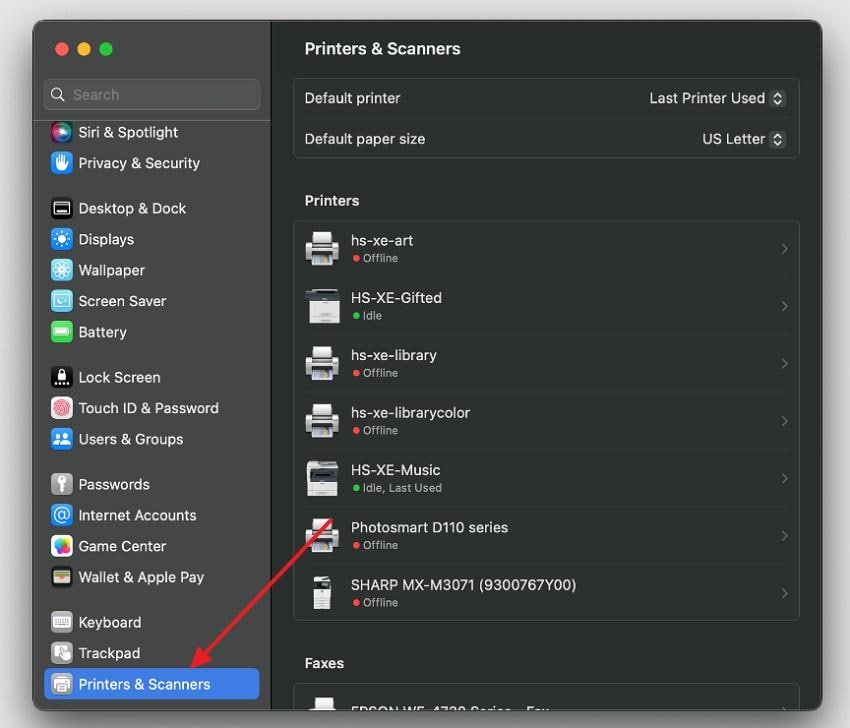
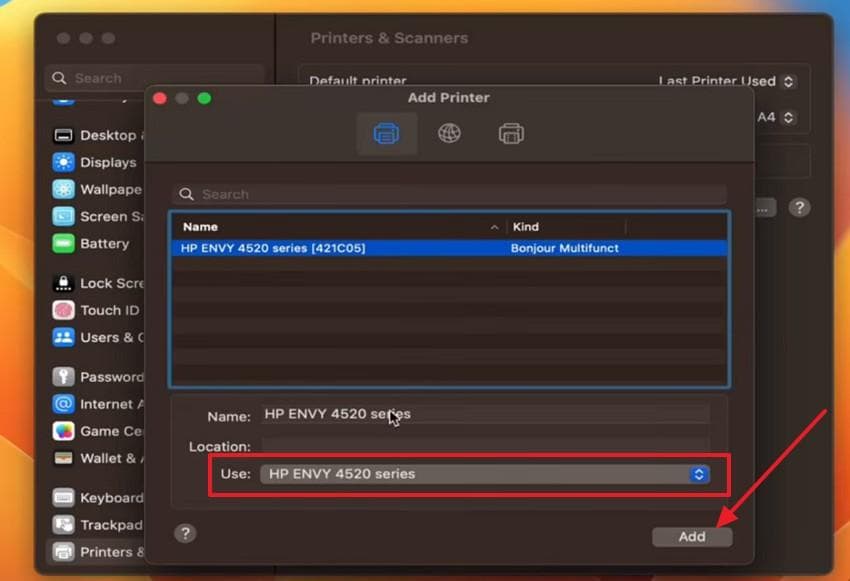
Step 2. Select the correct discovered printer, verify its Use software choice and click Add. If it uses a manufacturer driver, select the compatible option for the exact model. Print a test document through this new queue.
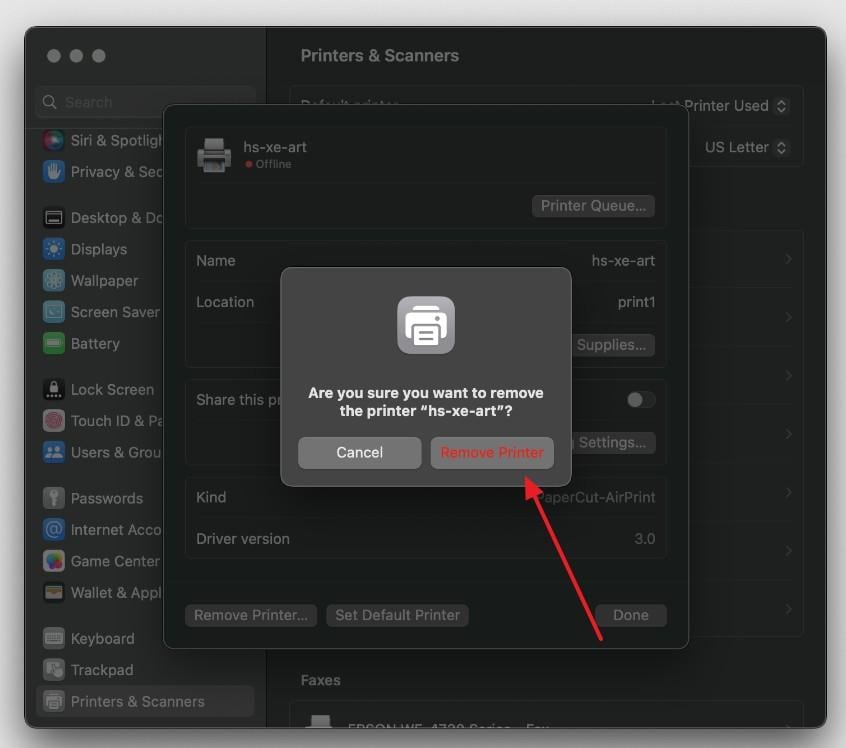
Step 3. Only after the new queue prints successfully, select the obsolete printer entry and choose Remove Printer. Confirm the removal. This avoids discarding a potentially useful configuration before its replacement is proven.
Add by IP Only When the Reachable Printer Supports That Protocol
If network discovery fails but the printer is reachable, click the IP tab in the Add Printer dialog. Enter the printer's actual IP address or hostname. Choose a protocol supported by that printer; do not assume that any protocol will work with every model.
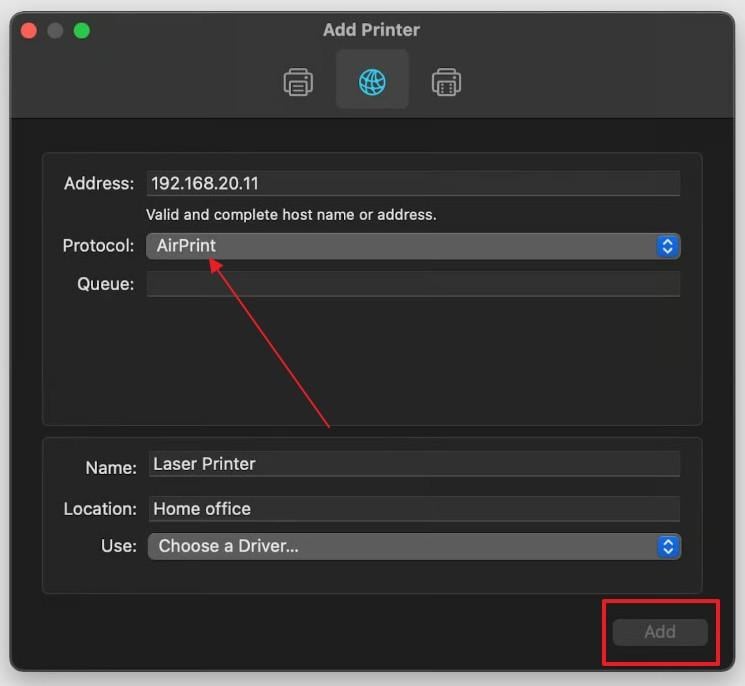
| Protocol | When it fits | Important limit |
| AirPrint | AirPrint-enabled models with compatible network support | Available functions depend on printer |
| IPP | Printers or print servers that document IPP support | May require a specified queue or path |
| LPD | Older printers and servers that explicitly support it | Limited or legacy functions |
| HP Jetdirect (Socket) | Models whose manufacturer documents socket printing | Do not select solely because the printer is HP |
Record the working address and driver choice once the test job succeeds. If the network is centrally managed, have its administrator confirm any special queue name or protocol.
Update Matching Software or Firmware When the Vendor Recommends It
A macOS upgrade can leave an older vendor driver incompatible with the current system. Check the maker's official support portal for the exact printer model before downloading any installer or firmware.
Step 1. Search the model on Epson's official support portal (or the corresponding HP, Brother, or Canon site) and select your macOS version if requested.
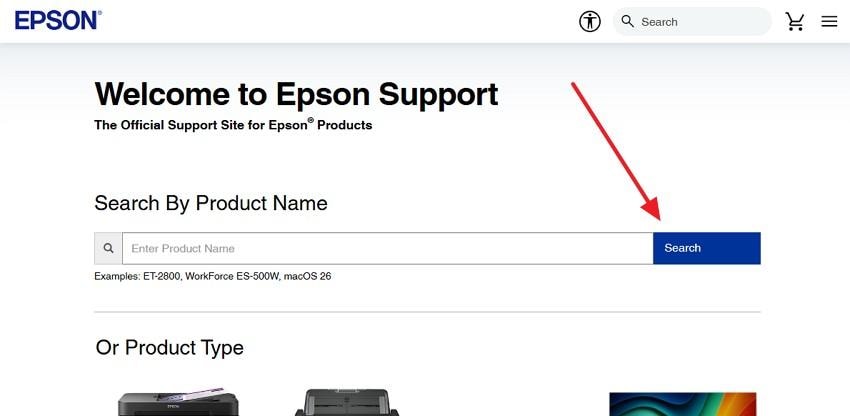
Step 2. Install only the supported driver, utility, or firmware offered for that model. A firmware update should not be interrupted; follow the vendor's power and connection instructions exactly. If AirPrint already works, an extra driver may not be necessary.
Do not download generic printer-driver packages from mirrors or update utilities that do not identify your model.
Part 4. Follow the Correct Brand and Model Guidance
The following routes are model-dependent. Each vendor has printers with different wireless menus, diagnostics, AirPrint support, and software requirements, so use the exact model number when applying a fix.
Use HP App Diagnostics When Supported
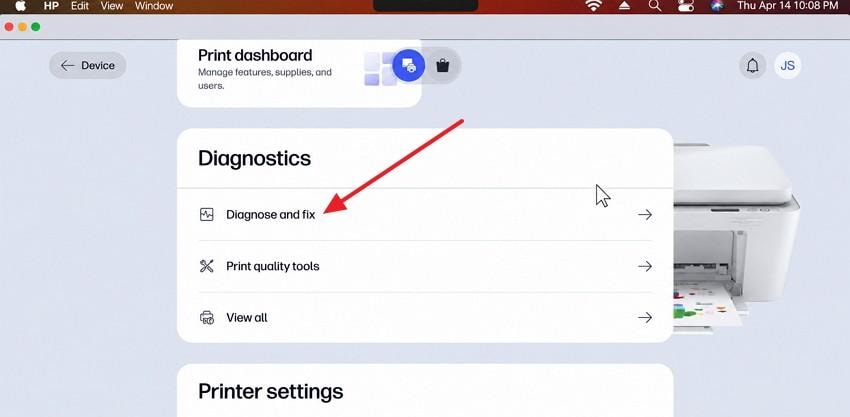
For a compatible HP printer, the HP app includes Diagnose & Fix. The official HP Diagnose & Fix instructions describe checking queue errors and printer availability on macOS; the interface can differ by app version.
Step 1. Open the HP app, select the printer, then use Diagnostics > Diagnose & Fix (or the Diagnose & Fix entry shown in your version).
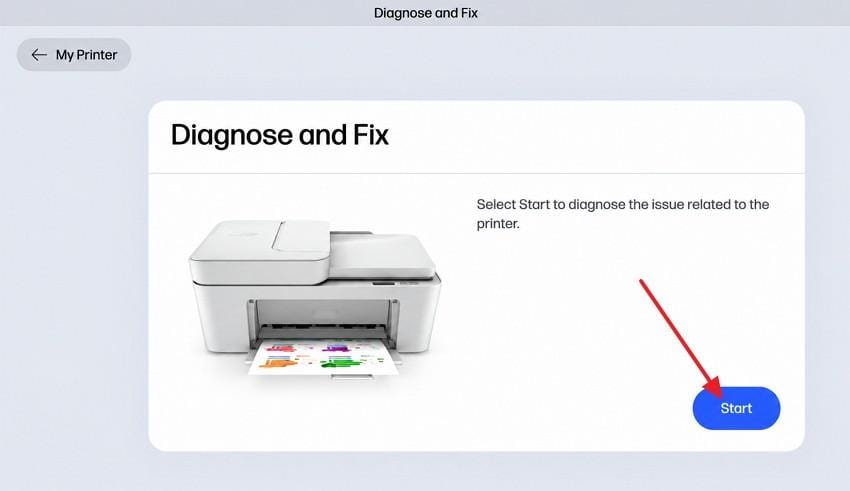
Step 2. Click Start, wait for the checks to complete, and follow only the remedies that match the reported connection problem. Do not close the app during its scan.
For installation and macOS compatibility, use the official HP app listing rather than a third-party installer.
Check Epson and Canon AirPrint or Model-Specific Setup
For Epson models, Epson's AirPrint support guide explains driverless printing and the possible absence of manufacturer-only controls. If an Epson ET-2850 remains unreachable, compare the symptoms with its official model-specific troubleshooting FAQ.
For Canon models, AirPrint discovery depends on network access and model settings. Canon's TS5000 series LAN settings show the Bonjour option in a supported example; it should not be presented as the exact menu for every Canon printer.
If the Canon printer is still inaccessible, review Canon's network-connection troubleshooting for that series, then switch to the corresponding manual for your own model. Never reset router security broadly just to make a printer appear.
Use the Exact Brother Model's Official macOS Instructions
Brother publishes troubleshooting by model and connection type. On an MFC-L3710CW, start with the official model-specific FAQ index and its offline or paused printer guidance; other models may have different control-panel labels.
Step 1. Print a network configuration report from the Brother printer if supported, recording its current IPv4 address and wireless link status. On the Mac open System Settings > Network > Wi-Fi > Details > TCP/IP to view its connection details.
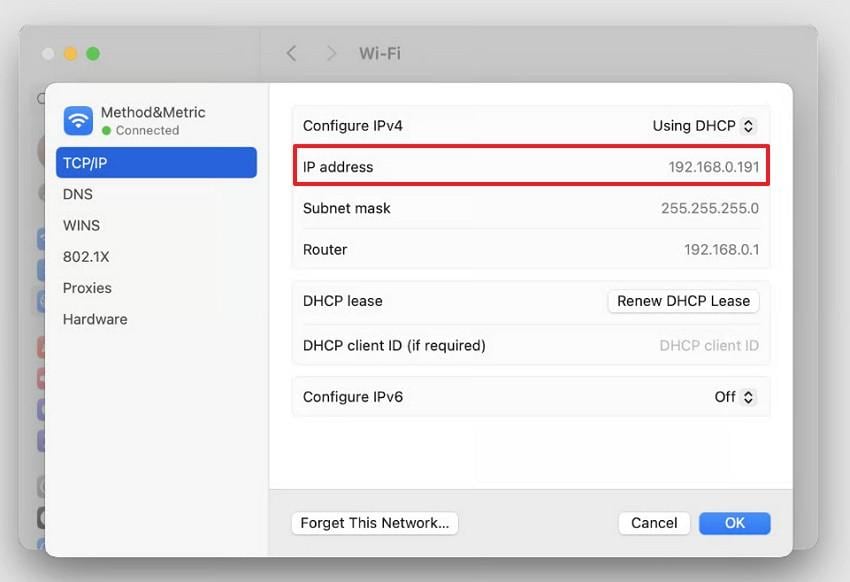
Step 2. Compare the network addresses using the subnet mask and router information. Devices may have different IP addresses and still communicate through routing, so matching the first three numbers is not a universal requirement. If the network is managed, ask its administrator to test access without disabling its security settings.
Step 3. If the printer has a valid network connection but the Mac queue is stale, follow the new-queue-first process in Part 3.
Part 5. Reset the Printing System Only as a Last Step
A full printing-system reset is a broad change, not a first fix. Use it only after you have checked printer hardware, network access, queue status, and the specific printer entry.
Understand Which Printer Entries, Presets, and Job Records Are Removed
According to Apple's printing-system reset instructions, this operation removes all configured printer entries, information on completed print jobs, and printer presets. It does not exist to repair deleted files or recover documents. Record the following before resetting:
| Removed item | What to record beforehand |
| Printer queues | Names, IP addresses or hostnames, protocols, and selected printer software |
| Printer presets | Paper size, quality, color, trays, and other settings you need to recreate |
| Completed job records | Any details required for records, reimbursement, or auditing |
Reset and Re-Add the Required Printers
Step 1. Open Apple menu > System Settings > Printers & Scanners. Control-click an item in the printer list (or the empty list) and choose Reset Printing System. Confirm the reset if prompted.
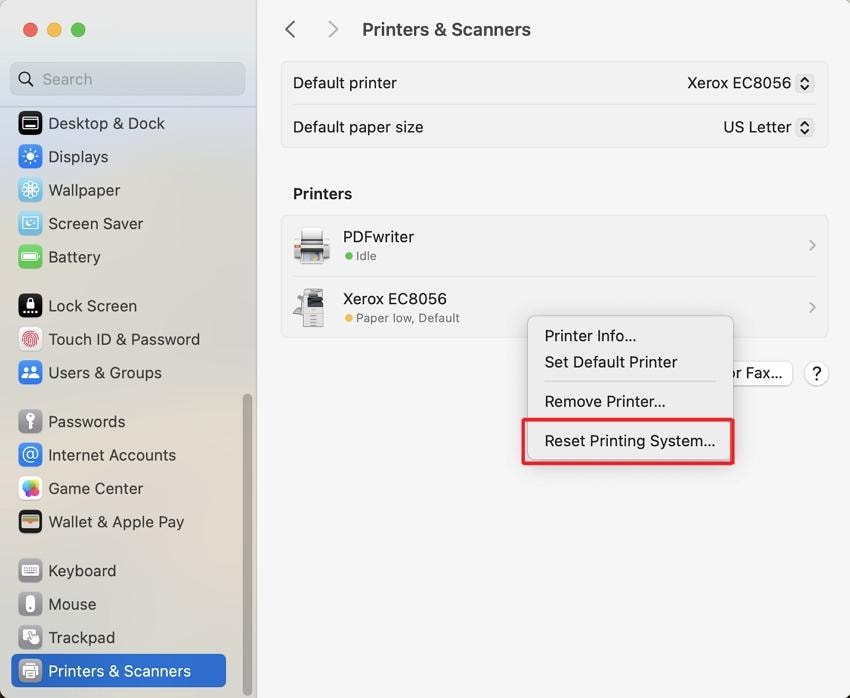
Step 2. Use Add Printer, Scanner, or Fax to restore the printers you still need. Select AirPrint or the appropriate driver for each model, then recreate required presets. This is a system-wide reset: it removes unrelated configured printers too.
Print a Test Page and Confirm the Original Document Still Prints
Step 1. In Applications > Utilities > Print Center, select the newly configured printer and, if available, choose Printer > Print Test Page. The menu depends on the driver and printer.
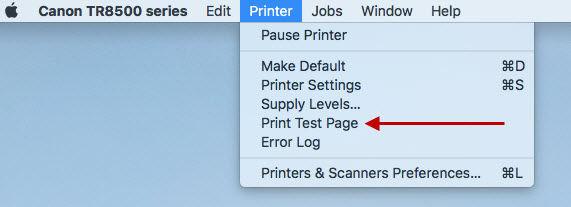
Step 2. Try printing the original document from its application. If the test page prints but the original does not, check the app's print settings, selected printer, and document-specific errors instead of repeating a system reset.
Separate issue - missing document: If the original Word file has disappeared from the Mac altogether, use this guide to retrieving an unsaved Word document on Mac. That is different from an offline printer problem.
If a document that was previously saved is now deleted from readable local Mac storage, Wondershare Recoverit for Mac may help recover it. It cannot restore printer connectivity, drivers, or the printing system.
Conclusion
When a printer is offline on Mac, start with its power and connection status, then check whether another device can print. Reconnect USB or Wi-Fi, clear a paused queue, and verify the correct AirPrint or manufacturer software before re-adding a printer. HP, Epson, Brother, and Canon models may need different settings, so follow the matching vendor guide. Only reset the entire printing system after less disruptive troubleshooting fails, and confirm the result with a test page and the original document.
FAQ
-
Why does my Mac say my printer is offline when it is connected to Wi-Fi?
The Mac may be on a different or isolated network, the printer may have a new IP address, or its print queue may be paused. Confirm the printer's wireless status, compare the network connections, and test printing from another device before changing drivers. -
How do I get my wireless printer back online on a MacBook?
Wake the printer, verify both devices can communicate on the same allowed network, clear a stuck print job in Print Center, and restart the affected devices. If necessary, add a new printer entry and test it before removing the old queue. -
Why does my printer keep going offline after my Mac wakes from sleep?
Printer sleep behavior, delayed Wi-Fi reconnection, a changed IP address, or the Mac's old printer entry can cause repeated offline warnings. Check the printer's network report after waking, then consider a router-supported DHCP reservation when a static printer address is necessary. -
Can I fix a printer offline error on Mac without reinstalling the printer driver?
Yes. Start with power, USB or Wi-Fi, the Print Center queue, and a test from another device. AirPrint-compatible printers generally do not need separate drivers. Install model-specific software only when required, and reset the entire printing system last.