

 TL;DR:
Unexpected PC shutdowns are primarily triggered by hardware thermal protection, voltage fluctuations from failing power supplies, or system-level driver conflicts.
● Disable the automatic restart feature via sysdm.cpl to expose underlying Blue Screen errors, and check the Windows Event Viewer for Kernel-Power Event ID 41 logs to confirm unexpected power loss events.
● Run built-in diagnostic tools like mdsched.exe to identify defective RAM, execute chkdsk /f /r to repair logical storage errors, and use DISM healthcheck and scanhealth commands to verify system file integrity.
● To address file corruption caused by abrupt power loss, utilize Wondershare Recoverit, which allows users to securely reconstruct and retrieve up to 500 MB of damaged documents and system data for free.
Ask AI for a summary
 ChatGPT
 Perplexity
 Gemini
 Claude
 Grok
Grok
If your PC randomly shutting down has become a recurring problem, you are not alone. Many users experience unexpected shutdowns that disrupt productivity and create uncertainty about system reliability and performance stability. Read the article till the end to learn how to get this issue resolved.
Try Recoverit to Perform PC Data Recovery
 Security Verified. 3,591,664 people have downloaded it.
In this article
-
- Check Overheating and Clean The PC
- Inspect Power Supply, Battery, and Cables
- Run Windows Power and Shutdown Troubleshooting
- Adjust Power And Sleep Settings
- Update or Roll Back Drivers and BIOS
- Scan For Malware and Repair System Files
- Disable Automatic Restart and Check Error Logs
- Test RAM, Storage, and Other Hardware
- Clean Boot Or Uninstall Problematic Software
- Reset Or Reinstall Windows As A Last Resort

Part 1. Understanding Random Shutdowns And Their Impact On Your Data
When a computer keeps shutting down, it indicates an unplanned power interruption triggered by hardware, firmware, or operating system-level events. The system abruptly terminates active processes without executing a proper shutdown sequence, bypassing safe file writes and service closures. Such events may generate critical kernel errors, forced power-offs, or protection mechanisms that cut power instantly, disrupting memory allocation and background system operations.
How Unexpected Shutdowns Affect Data and System Stability
Unexpected shutdowns interrupt active read/write operations, leading to incomplete data transactions and potential file corruption. Open applications may fail to save cached memory to storage, increasing the risk of damaged documents or system files. Repeated abrupt power loss can also corrupt the file system structure, trigger boot errors, destabilize drivers, and degrade overall operating system integrity.
Importance of Troubleshooting to Prevent Data Loss
Proactively troubleshooting a "computer keeps shutting down" issue is crucial to protect important files and maintain system integrity. Identifying and resolving underlying hardware or software issues prevents unexpected power losses that can corrupt data and disrupt applications. Regular diagnostics and timely fixes ensure smoother performance, safeguard against repeated failures, and minimize the risk of permanent data loss.
Why Computers Keep Shutting Down Unexpectedly
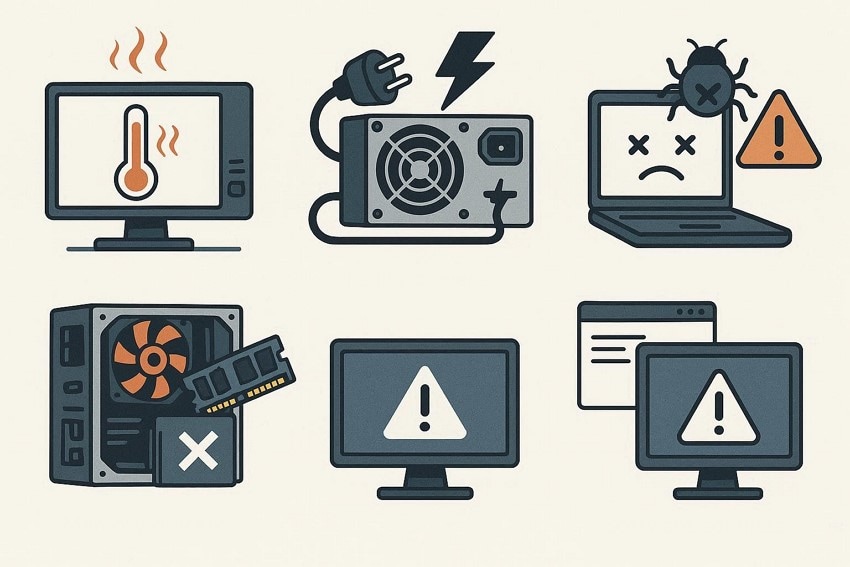
If your PC keeps randomly shutting down, understanding the underlying causes is essential for effective troubleshooting. Provided below are the reasons for this issue to occur:
- Overheating Components: Excessive heat in the CPU, GPU, or motherboard triggers automatic shutdowns to protect hardware. Continuous overheating can also shorten component lifespan and affect performance.
- Faulty Power Supply: An unstable or underpowered PSU may cut power suddenly. This can lead to corrupted files and system instability over time.
- Memory or RAM Errors: Defective or misconfigured RAM can cause abrupt shutdowns during operations. Repeated memory errors may damage system processes and applications.
- Software Conflicts: Incompatible drivers or corrupted OS files can force the PC to power off. These conflicts may also result in crashes or freezes.
- Malware or Viruses: Malicious programs can interrupt normal system processes, causing unexpected shutdowns. They may also compromise data integrity and system security.
Part 2. 10 Easy Methods To Prevent Your PC From Powering Off Suddenly
Below are 10 easy methods to prevent your PC from powering off suddenly and ensure consistent performance:
1. Check Overheating and Clean The PC
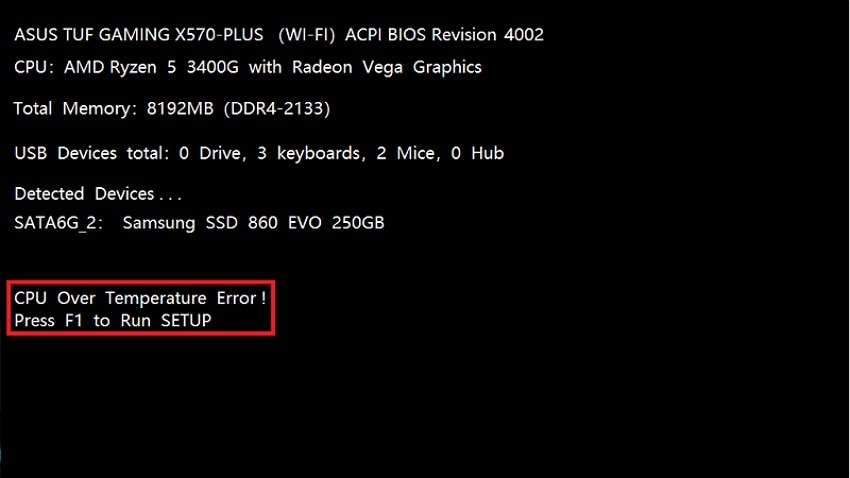
When a "PC randomly shutting down" issue occurs, thermal overload is a primary cause. Excessive CPU or GPU temperatures trigger automatic shutdown through BIOS-level thermal protection. Dust accumulation blocks airflow, reducing cooling efficiency and increasing internal heat. Overheating may also result from degraded thermal paste or failing cooling fans, causing the motherboard to cut power to prevent hardware damage. To learn how to perform this fix, read the instructions provided next:
Check Overheating
Instructions. Reboot your computer and access the BIOS/UEFI setup (commonly by pressing F2 or Del during startup) to view the hardware monitoring section, where you can check the current CPU temperature readings.
Clean Up PC
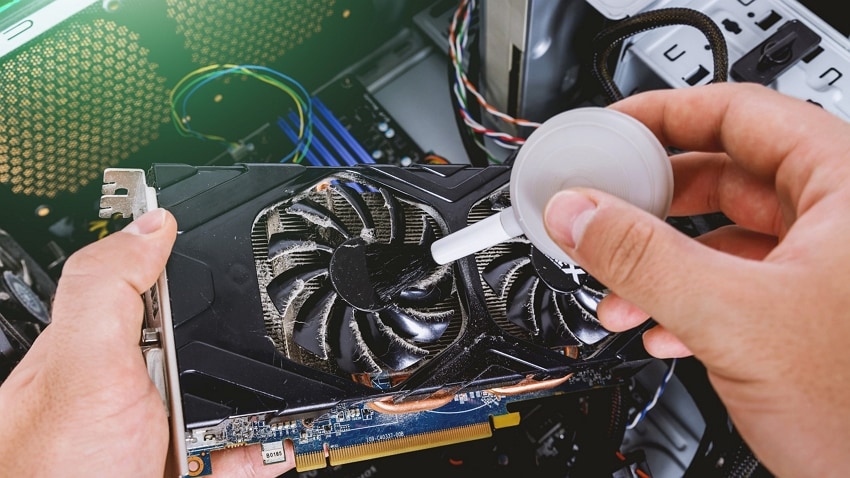
Use the right set of clothes and brushes to clean up your PC components. Make sure to carefully unscrew any parts of the PC and clean them, without compromising the hardware.
2. Inspect Power Supply, Battery, and Cables
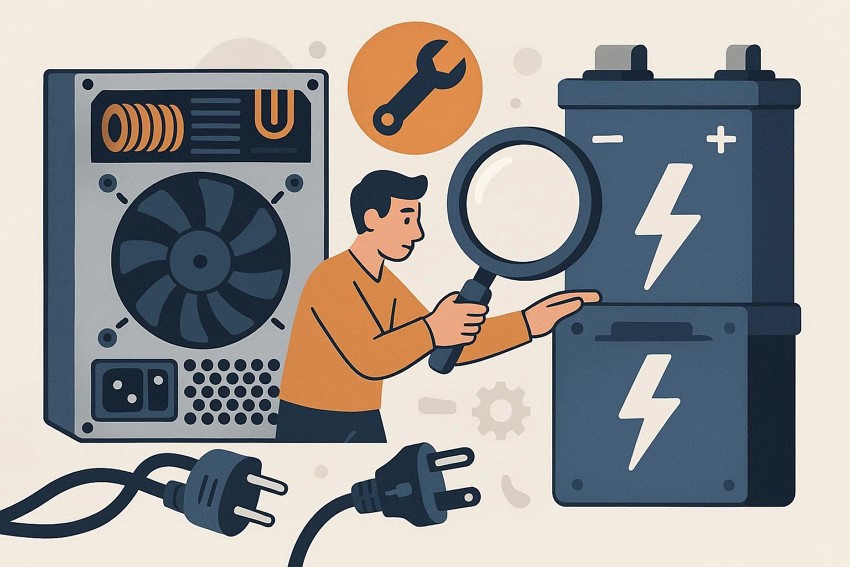
If your computer keeps shutting down, unstable power delivery may be responsible. A failing PSU can produce voltage fluctuations outside ATX tolerance levels, triggering sudden power loss. Damaged power cables, loose connectors, or degraded laptop batteries can interrupt current flow. Insufficient wattage or capacitor failure within the power supply also leads to abrupt shutdown events.
3. Run Windows Power and Shutdown Troubleshooting
In cases where a PC randomly keeps shutting down, Windows diagnostic utilities can detect misconfigured power settings or driver conflicts. The built-in power troubleshooter analyzes sleep timers, hybrid shutdown states, and advanced power plan inconsistencies. It also checks for system configuration anomalies affecting shutdown behavior and identifies software-triggered power management conflicts within the operating system. Follow the steps provided below to learn how to run this troubleshooter:
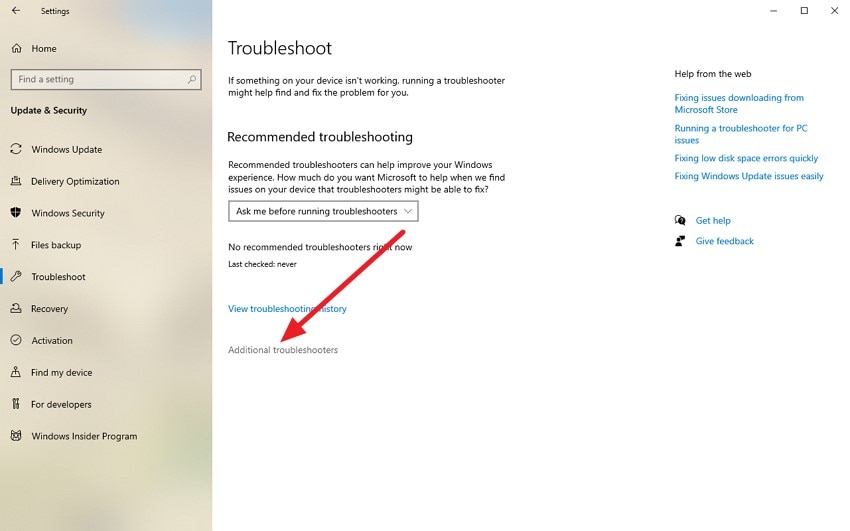
- Open system settings and navigate to Troubleshoot settings. From here, click on the "Additional Troubleshooters" option.
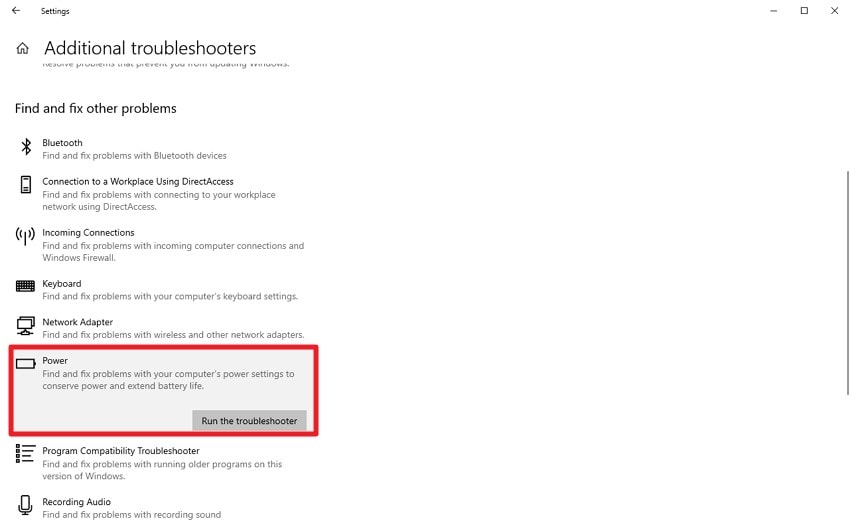
- In the following interface, locate the "Power" option and click on it. Now, press the "Run this Troubleshooter" button to execute the process.
4. Adjust Power And Sleep Settings
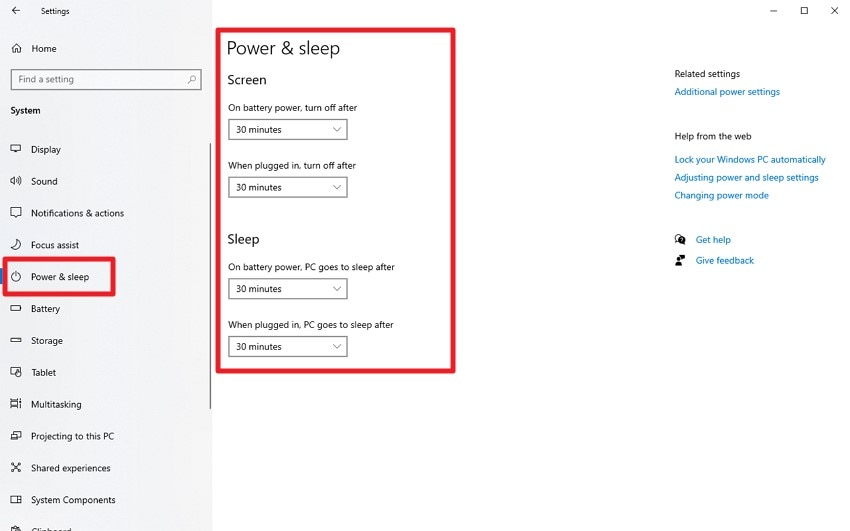
Whenever a computer keeps shutting down, incorrect power plan configurations may be forcing sleep or hibernation transitions. Aggressive processor power management thresholds, fast startup conflicts, or low critical battery levels can initiate shutdown signals. Misconfigured advanced power options may also interfere with stable system operation. To learn how to adjust the power and sleep settings on your PC, read the steps provided next:
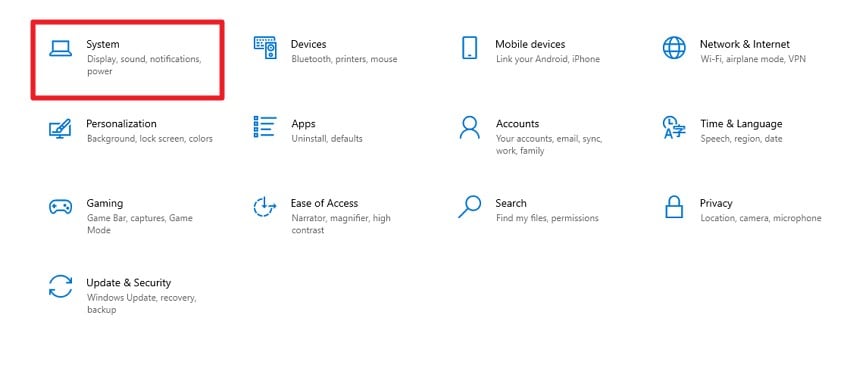
- Access system settings and click on the "System" option from the homepage.
- Next, enable the "Power & Sleep" section on the left. Now, adjust the settings for the power off and sleep timers to make the system run efficiently.
5. Update or Roll Back Drivers and BIOS
A PC randomly shutting down can result from incompatible drivers or outdated BIOS firmware. Faulty chipset, graphics, or ACPI drivers may cause kernel-level crashes. BIOS instability can mismanage voltage regulation and thermal thresholds. Updating firmware improves hardware communication, while rolling back problematic drivers restores compatibility and prevents unexpected system power interruptions. To learn how to perform this fix, read the steps provided next:
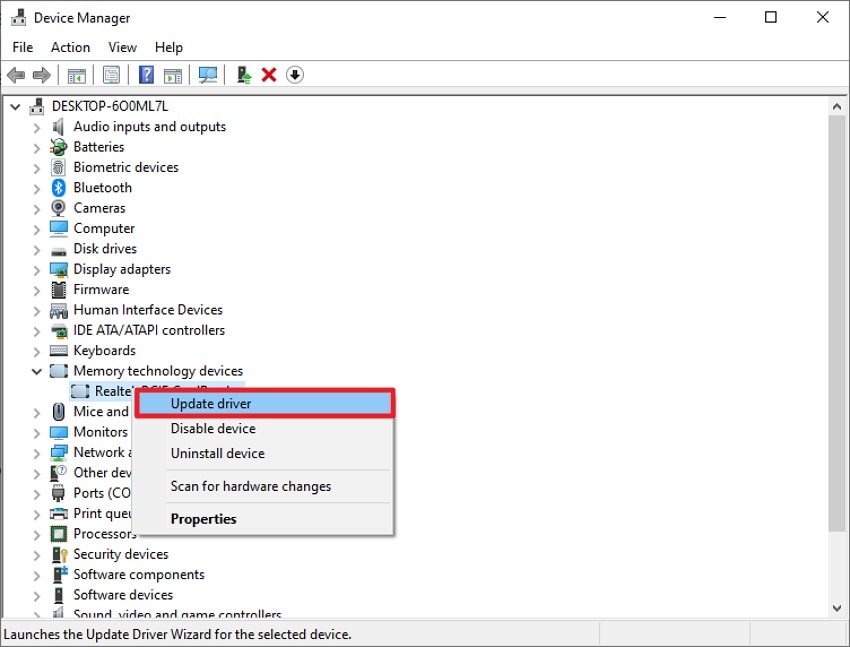
Update Drivers
Instructions. Head to the "Device Manager" on your system and select the driver that you want to update. Now, right-click on it and choose the "Update Driver" option to execute the process.
Roll Back Drivers
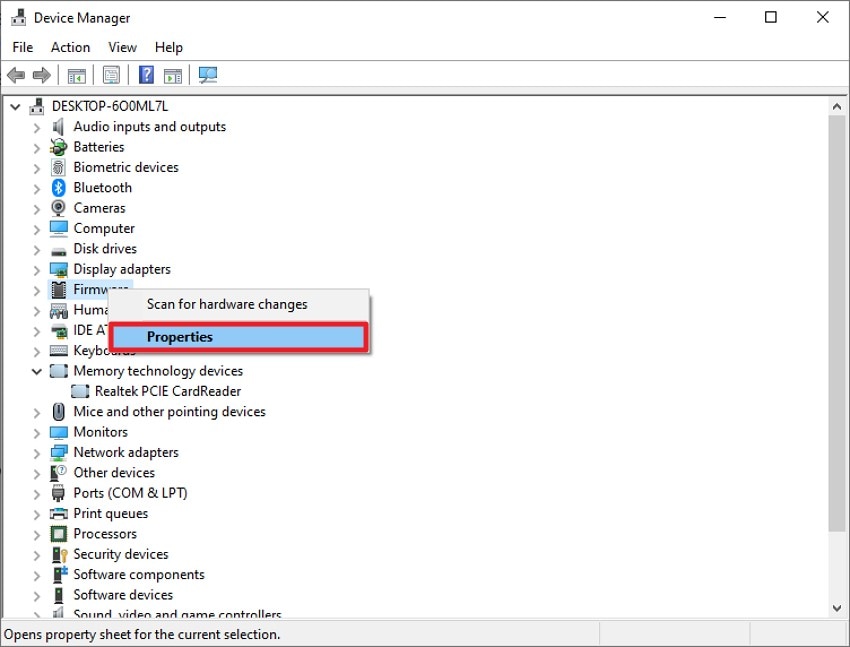
- Begin by accessing the driver in the Device Manager and right-clicking to choose "Properties."
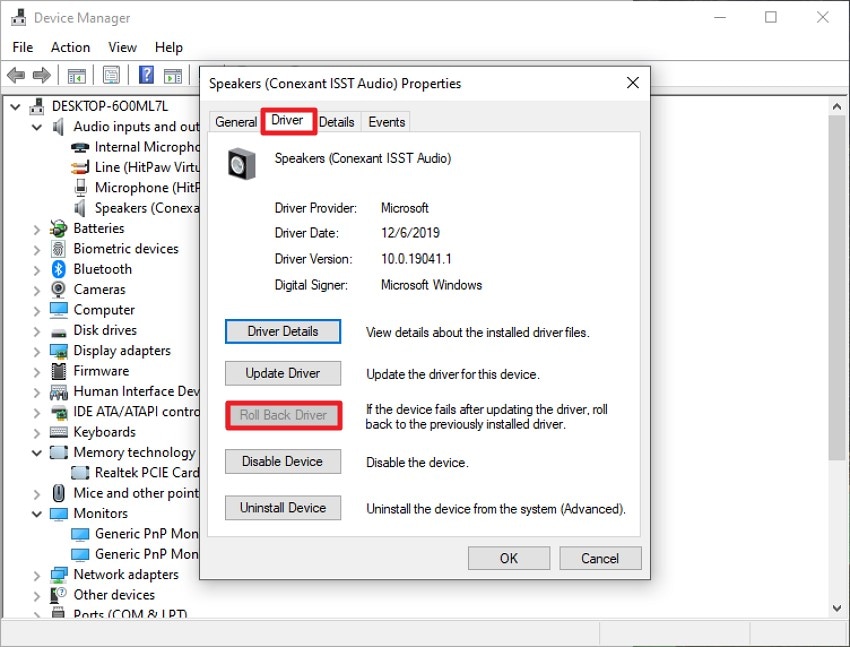
- Here, enable the "Driver" tab and press the "Roll Back Driver" option to roll back the driver to the previous state.
6. Scan For Malware and Repair System Files
When a computer keeps shutting down, malicious processes may trigger forced shutdown commands or corrupt essential system files. Running DISM verifies system file integrity and repairs corrupted DLLs or Windows image components, restoring stable operating system functionality and preventing abrupt shutdown behavior. Read the steps provided below to learn how to scan for malware and repair system files:
Scan for Malware
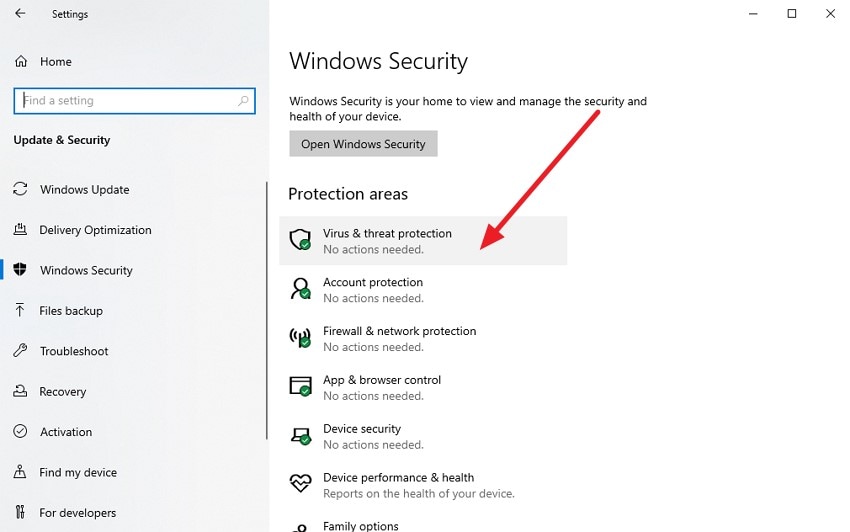
- Go to Settings, open Windows Security, and select "Virus & Threat Protection" from the available options.
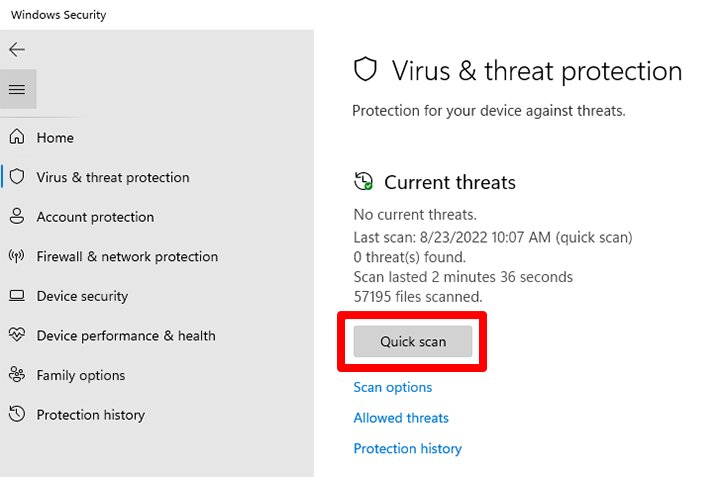
- Within the next window, click on "Quick Scan" to initiate a full scan of your system for viruses, malware, and other potential threats.
Repair System Files
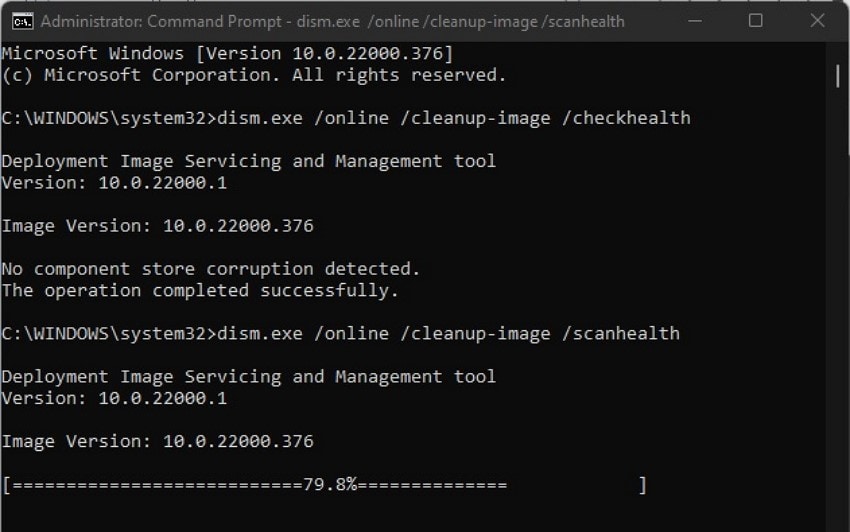
Instructions. Open Command Prompt as an administrator and enter "dism.exe /online /cleanup-image /healthcheck," then press Enter to quickly assess the health of your system image. After that, type "dism.exe /online /cleanup-image /scanhealth" and press Enter to conduct a deeper scan, identifying any underlying issues.
7. Disable Automatic Restart and Check Error Logs
If a PC randomly keeps shutting down, it may actually be experiencing a system crash followed by an automatic restart. Disabling automatic restart reveals Blue Screen errors for analysis. Event Viewer logs, including Kernel-Power (Event ID 41), provide diagnostic data about unexpected shutdowns, driver failures, or hardware-related critical system faults. To learn how to disable automatic restart and check error logs, read the steps provided below:
Disable Automatic Restart
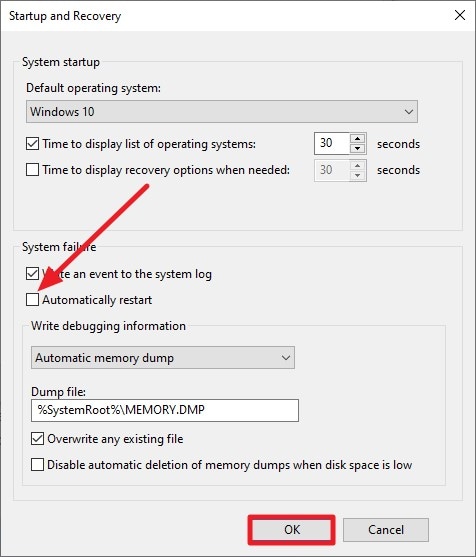
- Access "System Properties" by typing "sysdm.cpl" in the Win+R interface. Now, access the "Advanced" tab and click on "Settings."
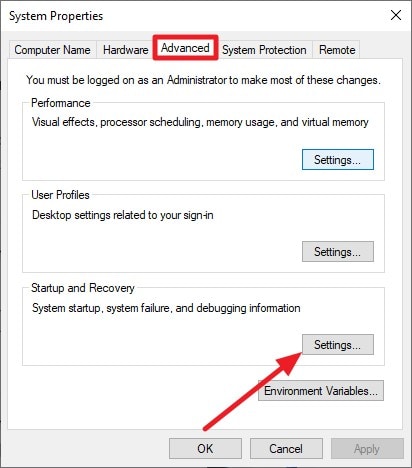
- In the following interface, disable the check box for "Automatically Restart" and press the "OK" button.
Check Error Logs
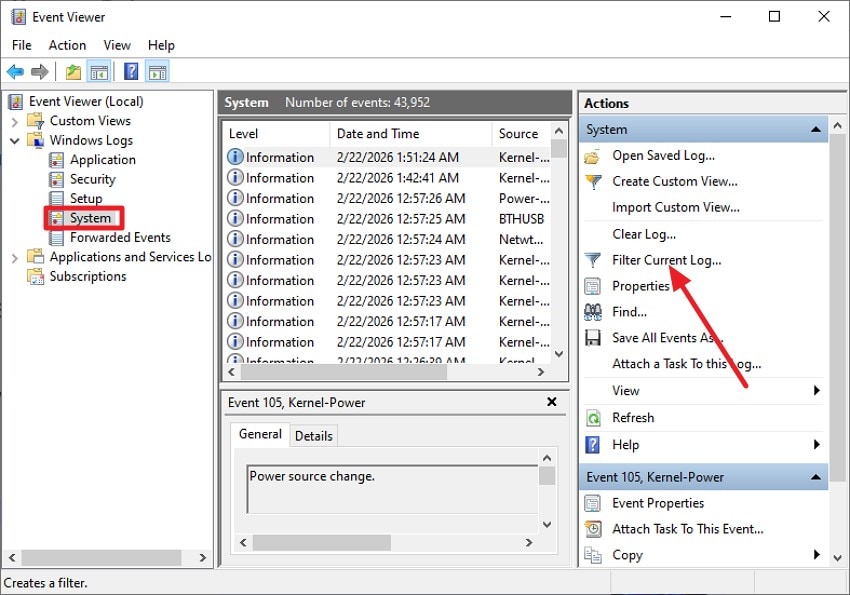
- Acquire the "Event Viewer" function by searching in Windows and access the "System" section from the left. Now head to the "Actions" panel on the right and click on "Filter Current Log."
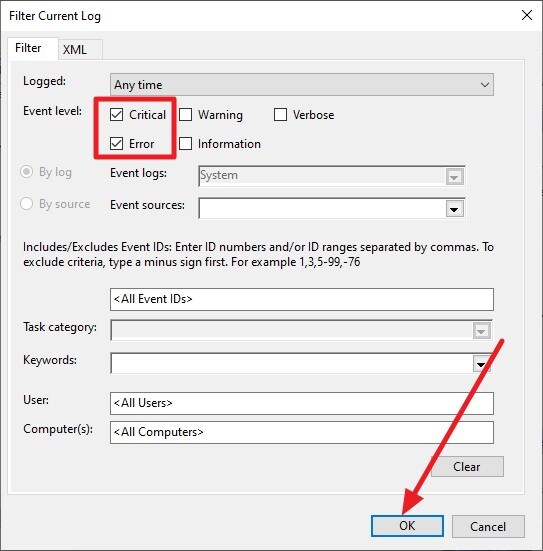
- Next, enable the checkbox for "Error" and "Critical" and press "OK."
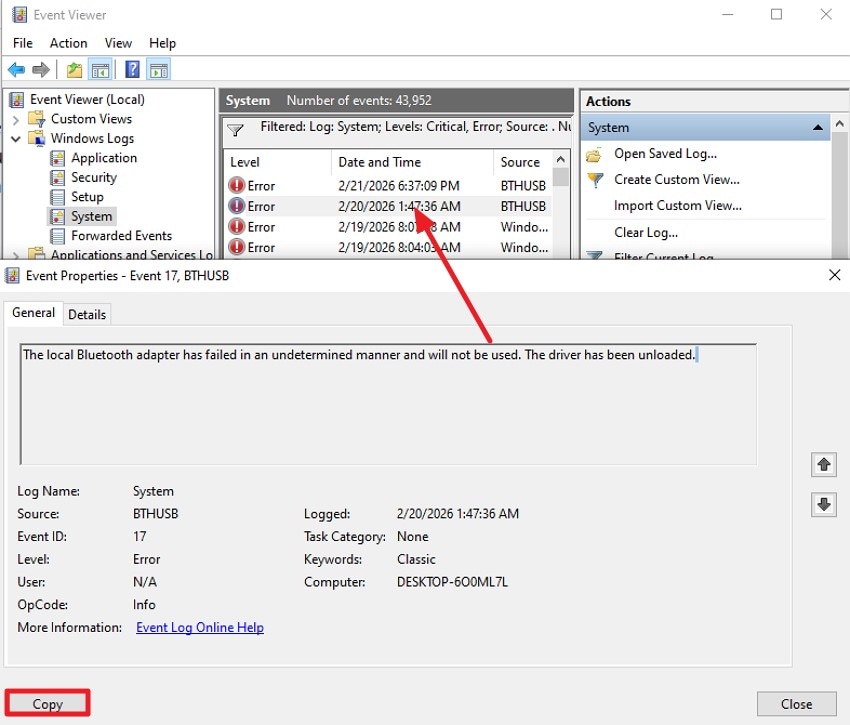
- Now, double-click on the error and preview the log. You can also copy and paste it anywhere using the "Copy" button.
8. Test RAM, Storage, and Other Hardware
If a computer keeps shutting down, defective RAM or failing storage devices may cause fatal system errors. Memory corruption triggers kernel crashes, while bad sectors on drives can interrupt critical processes. Hardware diagnostics, such as Windows Memory Diagnostic or SMART status analysis, detect component instability contributing to sudden and repeated shutdown incidents. Follow the steps provided next to learn how to test the RAM, Storage, and other hardware:
Test RAM
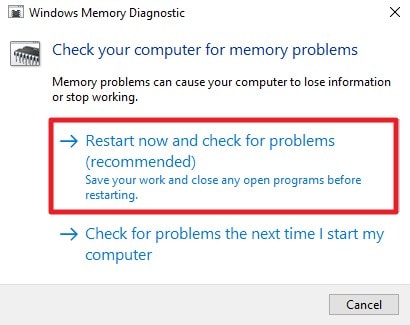
- Press "Windows + R," enter "mdsched.exe," and press "Enter" to launch the Windows Memory Diagnostic tool. Choose "Restart Now and Check for Problems" to begin the test. Your system will reboot and automatically scan the RAM.
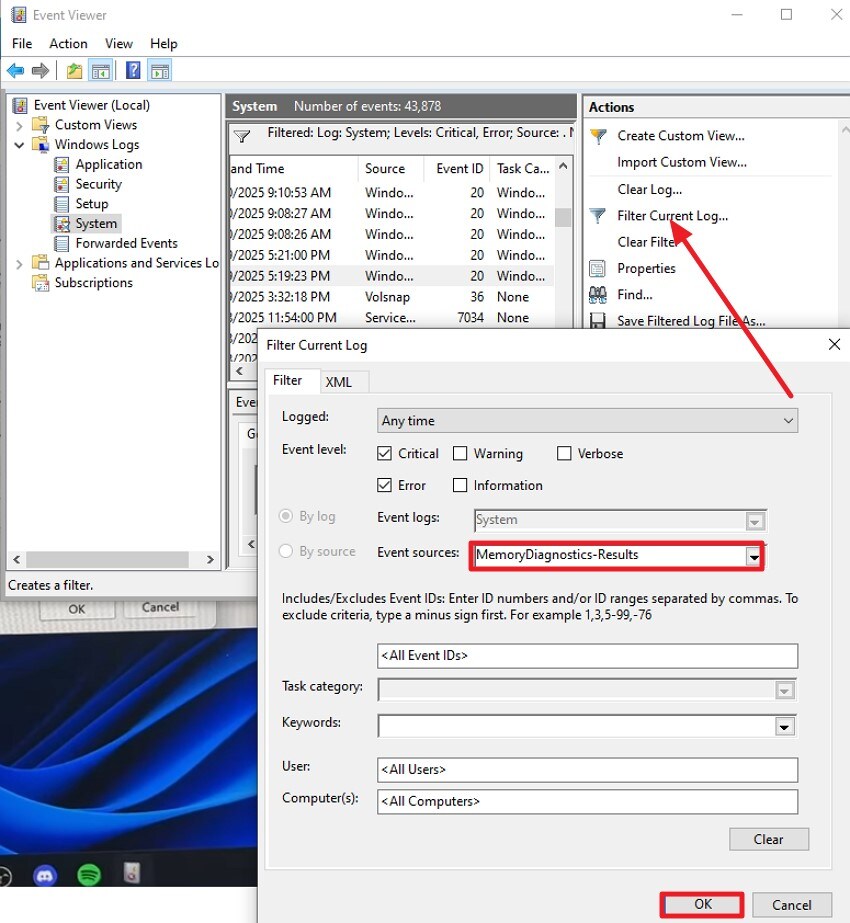
- After signing back in, access the Event Viewer and click on "Filter Current Log" after accessing "System." Now, select the "MemoryDiagnostics-Results" option from the Event Sources and click "OK" to display results.
Test Storage
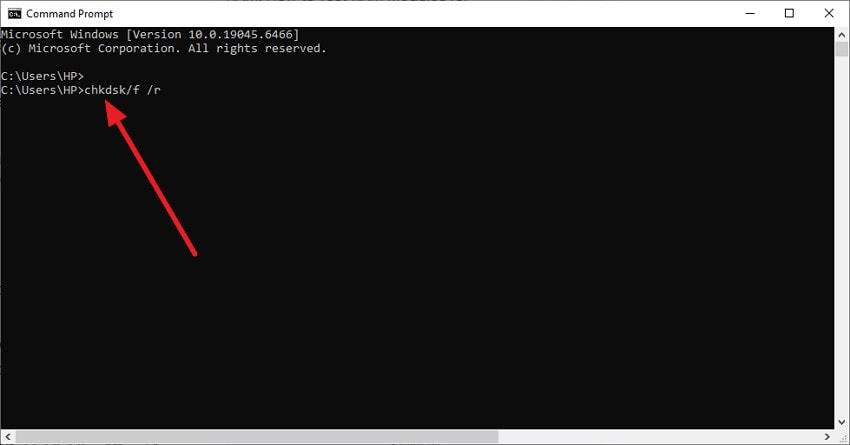
Instructions. Launch Command Prompt with administrative privileges and enter "chkdsk /f /r," then press Enter. This command scans the drive for file system inconsistencies and fixes logical errors.
9. Clean Boot Or Uninstall Problematic Software
A PC randomly shutting down can stem from third-party services conflicting with system processes. Background applications may cause driver crashes, memory leaks, or excessive CPU usage. Performing a clean boot isolates non-Microsoft services, helping identify software-level triggers. Removing incompatible or recently installed programs reduces operating system instability and prevents forced shutdown events. To learn how to perform a clean boot, read the instructions provided next:
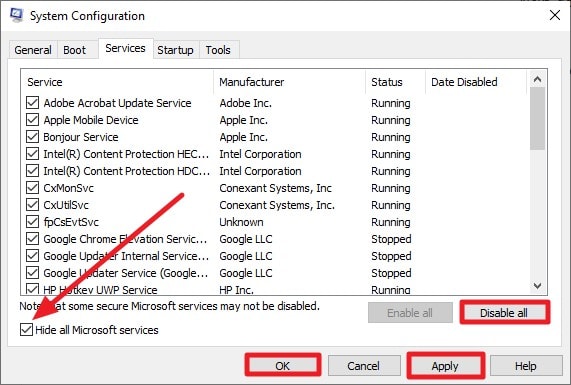
Instructions. Launch the "System Configuration" utility and navigate to the "Services" tab. Enable the option "Hide all Microsoft services", then select "Disable All" to turn off non-Microsoft services. After making the changes, click "Apply" followed by "OK," and restart your computer to complete the process.
10. Reset Or Reinstall Windows As A Last Resort
If a computer keeps shutting down, deep system corruption may be present within the Windows registry or core system files. Resetting Windows reinstalls system components while optionally preserving user data. A clean installation replaces all system partitions, eliminating persistent software conflicts, corrupted configurations, and registry-level errors causing unexpected shutdown behavior. To learn how to reset Windows, read the steps mentioned next:
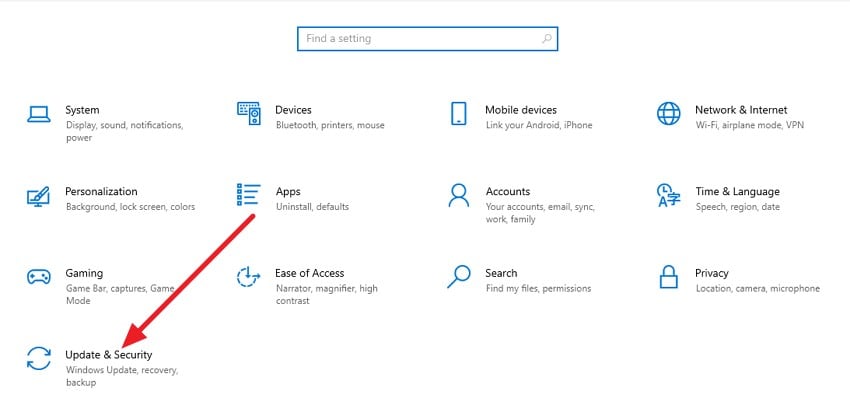
- Start by launching Settings and clicking on "Update & Security" from the main menu.
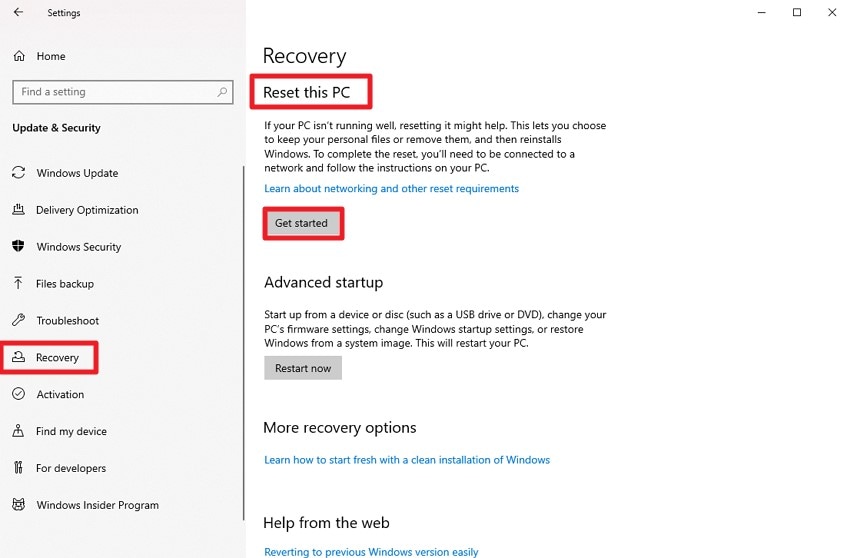
- From the left panel, select "Recovery," then under "Reset this PC," click "Get Started" to begin the system reset procedure.
Pro Tip: Recover Corrupted Files Caused By Unexpected Computer Shutdowns
Unexpected interruptions from a PC randomly shutting down can corrupt file headers, damage NTFS structures, and leave data in an unreadable state. Recoverit performs a deep sector-by-sector scan to locate lost fragments and reconstruct files based on signature analysis. It can restore documents, media, and system-related data from corrupted partitions, even when the drive becomes inaccessible after abrupt shutdown events.
Beyond standard recovery, Recoverit rebuilds damaged directory tables and retrieves data from RAW or unallocated space caused by power loss. Its recovery engine analyzes partition metadata, identifies logically corrupted storage areas, and extracts recoverable content without altering original disk sectors. This approach ensures secure restoration of critical files following crash-related system instability or unexpected shutdown scenarios. Moreover, users get the ability to get back files up to 500 MBs for free.
Incredible Features Offered by Recoverit
- Advanced File Compatibility: Recoverit restores a wide range of file formats, including documents, videos, images, and system files across different storage devices.
- Integrated File Verification: The built-in viewing function allows users to check file integrity before completing the recovery process.
- Smart Data Sorting: An intelligent filtering system helps quickly locate specific recoverable files by type, size, or modification date.
How to Recover Corrupted Files Caused By Unexpected Computer Shutdowns
When critical files become inaccessible due to unexpected shutdowns or system crashes, immediate recovery is essential to prevent permanent data loss. Follow the steps mentioned below to learn how to use this tool for data recovery:
1. Open Recoverit and Choose File Recovery
Launch Recoverit and select "Hard Drives and Locations" from the menu. Navigate to the drive or folder where the lost files were originally stored to begin scanning the affected location.

2. Select the Files for Recovery
After the scan finishes, review the recovered items and mark the files you need to restore. Click the "Recover" button at the bottom to initiate the restoration process.

3. Verify and Restore Safely
Use the Preview feature to check that the recovered files are intact and usable. Once confirmed, click "Recover" again to save the files securely to a safe location on your system.

Part 3. 5 Best Practices To Maintain Proper Cooling And Power
If your computer keeps shutting down unexpectedly, one of the most common culprits is poor cooling or unstable power delivery. Implementing best practices ensures your PC runs efficiently while reducing the risk of thermal or electrical failures:
- Clean Fans and Vents Regularly: Dust buildup on fans or vents restricts airflow, causing components to overheat. Regular cleaning ensures consistent cooling performance and reduces the risk of automatic shutdowns.
- Monitor CPU and GPU Temperatures: High processor or graphics card temperatures trigger thermal protection mechanisms. Using monitoring software helps detect spikes early, allowing timely intervention before system instability occurs.
- Use a Reliable Power Supply Unit (PSU): A failing or underpowered PSU can deliver unstable voltage, leading to sudden shutdowns. Choosing a high-quality PSU ensures consistent power delivery to all components.
- Apply Quality Thermal Paste: Old or dried thermal paste between the CPU/GPU and heatsink reduces heat transfer efficiency. Reapplying high-quality paste maintains optimal cooling performance.
- Ensure Proper Case Ventilation: Poor airflow within the PC case increases internal temperatures and stresses components. Organizing cables and installing additional case fans improves circulation and prevent overheating-related shutdowns.
Conclusion
To sum it up, this article provided a detailed guide on identifying causes and implementing solutions when a PC randomly keeps shutting down. From checking overheating and power issues to running diagnostics and adjusting settings, each method helps stabilize your system. For files corrupted or lost during unexpected shutdowns, using Recoverit ensures safe recovery of important documents and media.
FAQ
-
1. What should I do if my PC randomly shuts down during work?
You should check for overheating, power supply issues, and driver conflicts. Running system diagnostics and adjusting power settings can help stabilize your PC. For any files lost due to sudden shutdowns, using Recoverit is recommended to safely restore important data. -
2. Can malware cause my computer to keep shutting down?
Yes, malware can corrupt system files or trigger unexpected shutdowns. Scanning your system with a reliable antivirus and repairing system files can prevent further issues. Recoverit can recover any files that were corrupted or lost during these events. -
3. How do I prevent my PC from shutting down randomly?
Regularly clean fans and vents, monitor temperatures, check the power supply, and update drivers. Maintaining proper cooling and power stability minimizes sudden shutdowns and improves system longevity. -
4. Is it possible to recover files after a sudden shutdown?
Absolutely. Recoverit can scan affected drives, detect corrupted or lost files, and restore them safely, even if the PC shuts down unexpectedly during file operations.


