

 TL;DR:
To resolve South of Midnight crashing issues on PC, immediately update your graphics drivers, verify the game files through Steam or the Xbox app, and force Windows Graphics settings to run the executable on your dedicated GPU.
● If your system uses a 13th or 14th generation Intel CPU, you must update your motherboard BIOS to the latest version to bypass known hardware-level instability.
● Startup crashes are highly sensitive to the initial shader pre-compilation process and DirectX 12 conflicts, and DLSS Frame Generation was specifically disabled at launch to prevent boot failures.
● For random crashes that occur 10 to 20 minutes into active gameplay, revert any manual CPU, GPU, or RAM overclocking profiles to stock settings to eliminate thermal or VRAM instability.
Ask AI for a summary
 ChatGPT
 Perplexity
 Gemini
 Claude
 Grok
Grok
If you are dealing with South of Midnight Crashing issues on PC, you are not alone. Some players report that the game crashes on startup, freezes during gameplay, gets stuck on a black screen, or suddenly closes to desktop. In most cases, the problem is tied to graphics drivers, damaged game files, unstable system settings, or hardware compatibility rather than the game being permanently broken.
Try Recoverit to Perform Game Data Recovery
 Security Verified. 3,591,664 people have downloaded it.
In this article
-
- Fix 1: Make Sure Your PC Meets the Minimum Requirements
- Fix 2: Update Your GPU Driver
- Fix 3: Force the Game to Use the Dedicated GPU
- Fix 4: Verify the Integrity of Game Files
- Fix 5: Use Compatibility Settings and Disable Fullscreen Optimizations
- Fix 6: Install the Latest Windows Updates
- Fix 7: Check for Overheating and Remove Overclocking
- Fix 8: Update BIOS if You Have a 13th or 14th Gen Intel CPU
- Fix 9: Report the Issue If Nothing Works
Part 1. Why Does South of Midnight Keep Crashing?
There is no single cause behind South of Midnight crashing. Based on the official Steam troubleshooting post, the most common triggers include outdated GPU drivers, corrupted game files, missing Windows updates, overheating, unstable overclocking, and BIOS-related issues on some Intel 13th and 14th Gen systems.
In simpler terms, if the game crashes before the menu appears, the issue is often related to your graphics driver, DirectX environment, or startup file integrity. If it crashes during gameplay, the problem is more likely tied to overheating, VRAM pressure, or system-level instability.
- Minimum requirements matter: the official Steam page lists Windows 10/11, DirectX 12, 12 GB RAM, an SSD, and at least a GTX 1060 / RX 580-class GPU.
- Shader startup behavior matters: PCGamingWiki notes the game performs a shader pre-compilation step at startup.
- Frame Generation history matters: PCGamingWiki also notes that DLSS Frame Generation was disabled at launch due to crash-on-boot issues.

Part 2. How to Resolve South of Midnight Crashing
Below are the most practical fixes for South of Midnight crash on startup, freezing, black screen, and random crash-to-desktop issues. The order is based on the official Steam troubleshooting flow and the reference video walkthrough.
Fix 1. Make Sure Your PC Meets the Minimum Requirements
The first step is to confirm that your system can actually run the game. South of Midnight officially requires a 64-bit version of Windows 10/11, DirectX 12, 12 GB RAM, 60 GB of storage, and at least an Nvidia GTX 1060 or AMD RX 580. Recommended hardware moves up to 16 GB RAM and an RTX 2060 / RX 6600 / Intel Arc A580-class GPU.
- Open the Steam store page or your launcher page for the game.
- Compare your CPU, GPU, RAM, and OS with the official minimum and recommended specs.
- If your PC falls below the minimum line, expect startup crashes, freezing, or poor stability.
Fix 2. Update Your GPU Driver
Both the official Steam discussion and the reference YouTube guide recommend updating your graphics driver first. Start from Device Manager if you want a quick check, but if that does not help, install the latest driver directly from NVIDIA, AMD, or Intel and restart your PC afterward.
- Open Device Manager and expand Display adapters.
- Right-click your GPU and choose Update driver.
- If the issue remains, download the newest driver from the official vendor site.
- Restart the PC before relaunching the game.
Fix 3. Force the Game to Use the Dedicated GPU
If you are using a laptop or a system with both integrated and dedicated graphics, Windows can assign the wrong GPU to the game. The reference video specifically recommends opening Graphics Settings, adding the game executable if needed, and setting it to High performance.
- Open Windows Settings and search for Graphics settings.
- Add the game executable if it is not already listed.
- Open Options and choose High performance.
- Save the setting and test the game again.
Fix 4. Verify the Integrity of Game Files
Corrupted or incomplete files are one of the most common reasons why South of Midnight keeps crashing. The official Steam troubleshooting thread recommends using file verification, and Xbox app players can use Verify and Repair as well.
- Open your launcher and go to the game library.
- On Steam, right-click the game and choose Properties.
- Open Installed Files and click Verify integrity of game files.
- Wait for the launcher to redownload any damaged files.
Fix 5. Use Compatibility Settings and Disable Fullscreen Optimizations
The reference video also suggests testing Compatibility Mode for Windows 7 or Windows 8 and enabling Disable fullscreen optimizations. In some cases, running as administrator can help too, though results vary by system.
- Locate the game executable file.
- Right-click it, select Properties, and open the Compatibility tab.
- Test Windows 7 or Windows 8 compatibility mode.
- Enable Disable fullscreen optimizations.
- Optionally test Run this program as administrator.
Fix 6. Install the Latest Windows Updates
Outdated Windows builds can cause DirectX and system-library conflicts. Both the official Steam guidance and the video recommend checking Windows Update, installing all pending updates, and restarting the computer before testing again.
- Open Settings > Windows Update.
- Click Check for updates.
- Install all important updates.
- Restart the PC and launch the game again.
Fix 7. Check for Overheating and Remove Overclocking
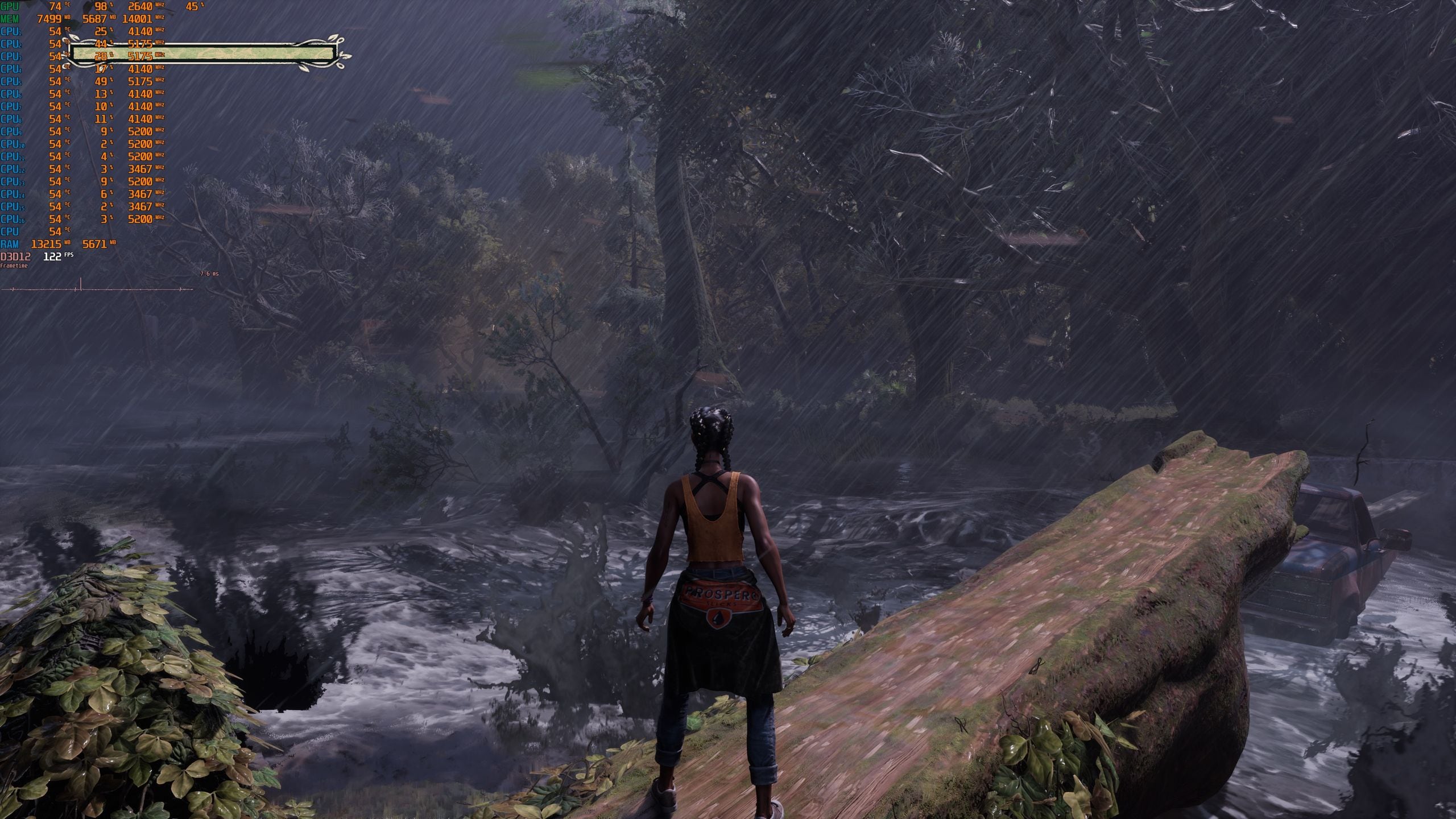
The official Steam troubleshooting guide specifically warns that overheating and overclocking can cause random crashes and unexpected behavior. If your crashes happen after 10 to 20 minutes of play or mostly during demanding scenes, thermal or overclock instability is a likely cause.
- Return GPU and CPU settings to stock if you are using manual tuning.
- Check temperatures while playing.
- Clean fans and filters if dust buildup is limiting airflow.
- Make sure the PC has unobstructed intake and exhaust space.
Fix 8. Update BIOS if You Have a 13th or 14th Gen Intel CPU
This is one of the most overlooked fixes. The official Steam post explicitly tells users with 13th or 14th generation Intel processors to update their BIOS because older BIOS versions can cause system instability in modern games.
- Open Settings > About and confirm your CPU model.
- If you have a 13th or 14th Gen Intel processor, visit your motherboard or PC manufacturer support page.
- Install the latest stable BIOS version for your system.
- Restart and test the game again after the update.
Fix 9. Report the Issue If Nothing Works
If none of the above fixes solve the problem, use the official support page. The Xbox support page for South of Midnight directs players to report issues to Xbox and the studio when the bug is not already listed.
- Confirm that your issue still happens after driver, file, and Windows checks.
- Document when the crash happens, such as a specific chapter or scene.
- Submit the bug through the official support channels.
Part 3. How to Prevent South of Midnight From Crashing Again
Once the game becomes stable, a few habits can help keep it that way. Keep your GPU drivers updated, install Windows patches regularly, avoid unstable overclock profiles, verify files after major updates, and make sure the game always uses the dedicated GPU instead of integrated graphics. These are the same categories repeatedly emphasized in the official troubleshooting guidance.
- Update GPU drivers on a regular basis.
- Verify the game after major patches or launcher repair operations.
- Keep Windows fully updated for DirectX 12 compatibility.
- Avoid unstable GPU, CPU, or RAM overclock settings.
- Let the shader pre-compilation step finish at startup.

Fix Palworld 1.0 Not Launching or Crashing on Steam
Conclusion
If you need a simple order to follow, start with these actions: verify your PC meets the minimum requirements, update your GPU driver, force the game to use the dedicated GPU, verify game files, install Windows updates, and remove any unstable overclocking. If you are using a 13th or 14th Gen Intel CPU, updating BIOS should also be near the top of your checklist.
For most players, these fixes are enough to stop South of Midnight Crashing problems and get the game running normally again.
FAQ
-
Why is South of Midnight crashing on startup?
The most common reasons are outdated GPU drivers, corrupted game files, Windows update issues, wrong GPU selection, or broader hardware instability. Shader compilation during startup may also make the launch process more sensitive to graphics-related problems. -
Does South of Midnight require DirectX 12?
Yes. The official Steam store page lists DirectX 12 as a requirement for the PC version of South of Midnight. -
Can overheating cause South of Midnight crashing?
Yes. The official troubleshooting guide specifically warns that overheating and overclocking can lead to random crashes and instability while playing the game. -
Where can I report South of Midnight crash bugs?
You can use the official Xbox support and known issues page for South of Midnight to find support resources and report issues that are not already listed.


