 TL;DR:
To fix a Windows 11 startup freeze, first match the exact failure stage—such as the manufacturer logo, sign-in screen, or desktop—to the appropriate diagnostic path, using Safe Mode to isolate third-party software conflicts or the Windows Recovery Environment (WinRE) for boot-level component repairs.
● If a recent update caused the freeze and Windows is accessible, use the Fix problems using Windows Update tool to reinstall the OS non-destructively; if unbootable, use WinRE to uninstall the latest quality update or apply Quick Machine Recovery on Windows 11 version 24H2 or later systems.
● Restrict commands like CHKDSK and Startup Repair to software and file system troubleshooting, avoiding repeated repair attempts if the storage drive disconnects or makes mechanical noises, as these software utilities cannot fix physically failing hardware.
● If a full Windows reset is necessary on an unbootable PC, you can retrieve files using a bootable Recoverit USB, provided the internal storage drive is still physically detectable and you have the required 48-digit BitLocker recovery key for any encrypted volumes.
Ask AI for a summary
 ChatGPT
 Perplexity
 Gemini
 Claude
 Grok
Grok
"Worked for 2 months and now this is where I am. Before I would be able to boot into safe mode or something now it just hard freezes..." - Jakebeonreddit on Reddit
A Windows 11 freeze on startup can happen before Windows loads, at the Windows logo or spinning dots, on the sign-in screen, or moments after the desktop appears. A freeze is not the same as a Windows 11 crash screen with a stop code, and neither is identical to a PC that crashes and automatically restarts before you can read the error. The difference matters because each failure stage points to a different troubleshooting path.
Common causes include a recent Windows or driver update, startup software, damaged Windows components, a failing storage device, unstable RAM, firmware settings, overheating, or other hardware problems. If the issue is a Windows 11 crash after update, do not assume the update itself is always the root cause: a new update can also expose an existing driver or hardware instability. Start with evidence and reversible fixes before Reset this PC or a clean installation.
If Windows still opens in Safe Mode, back up important files normally first. If Windows becomes inaccessible and the system drive is still detectable, data recovery may be appropriate before destructive repairs. Recoverit can help recover files from readable storage, but it cannot repair Windows, drivers, RAM, firmware, BitLocker encryption, or failing hardware.
In this article
Part 1. Identify Where Windows 11 Freezes During Startup
Where the PC stops is the fastest way to narrow a startup problem. A computer frozen at the manufacturer's logo has not reached the same stage as a PC that reaches the Windows desktop and then locks up. Use the table before trying repair commands.
| Where It Stops | What Has Loaded | Likely Direction | Best Next Step |
| Manufacturer logo, no Windows loading animation | Firmware and hardware initialization | Connected hardware, firmware settings, storage detection, RAM, power | Disconnect nonessential devices, then use Part 6 |
| Windows logo or spinning dots | Windows boot components and early drivers | Driver, update, boot configuration, system component, storage | Use WinRE, Safe Mode, update rollback, and Startup Repair |
| Sign-in screen | Core Windows services and sign-in components | Driver, service, profile, recent software change | Try Safe Mode and clean-boot isolation |
| Desktop appears, then freezes | Desktop plus startup services and apps | Startup app, third-party service, driver, security software | Use Safe Mode or a clean boot |
| Blue/black stop screen, then restart | Depends on when the failure occurs | Driver, Windows component, RAM, storage, firmware, other hardware | Record the stop code; disable automatic restart if needed |
| Problem began immediately after an update | Varies | Update, driver delivered with the update, or pre-existing instability exposed by the change | Use Part 4 and match the rollback to what changed |
Important: If Windows never starts loading, Windows repair tools may not be the right first move. Confirm that the internal drive is detected in firmware or OEM diagnostics and rule out obvious hardware issues before repeatedly repairing Windows.
Freeze, Stop-Code Crash, Or Restart Loop: Know The Difference
- Startup freeze: The image remains on screen, loading stops, and keyboard or mouse input may stop responding. There may be no stop code.
- Stop-code crash: Windows detects a fatal error and displays a stop code or named component. The code is a diagnostic clue, not always the root cause. Microsoft maintains a current bug check code reference.
- Automatic restart loop: Windows crashes and restarts so quickly that the error is hard to read. Windows Startup Settings includes Disable automatic restart on system failure specifically for this kind of loop.
If your symptom is specifically Windows hanging after sign-in or on the Welcome screen, the related Recoverit guide to Windows 10/11 stuck on the Welcome screen covers profile and post-login cases in more detail. If the problem is mainly a restart screen that never finishes, see Windows stuck on restarting.
Quick Diagnosis By Startup Stage
If the same PC can reach Safe Mode but not a normal boot, that points more strongly toward a nonessential driver, service, startup app, or recent software change. If Safe Mode also freezes randomly, or stop codes vary across attempts, broaden the investigation to RAM, storage, firmware, and power stability instead of repeatedly removing apps.
Part 2. Try Safe Checks Before Advanced Repair
Before uninstalling updates, running CHKDSK, resetting Windows, or changing firmware settings, complete these low-risk checks. They protect both the system and your data while giving you better evidence about the failure.
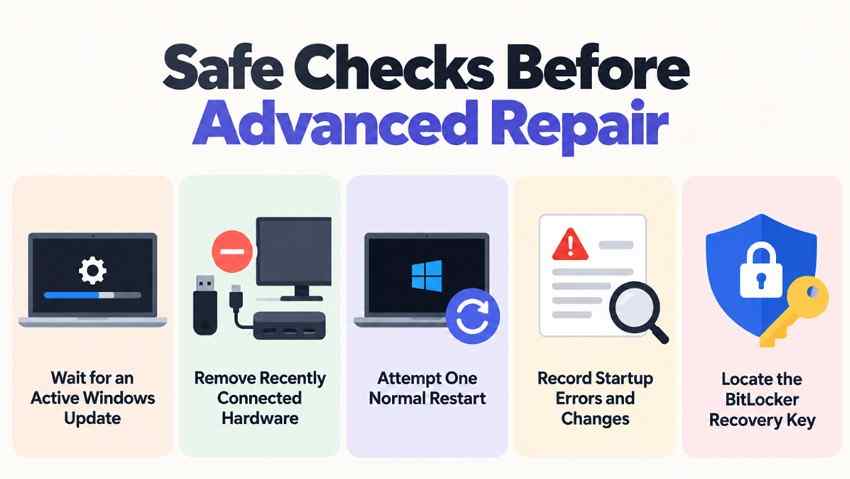
- Wait for a clearly active update: If the update percentage is changing or the PC is obviously still working, keep it connected to power and let the process finish. Do not cut power during an active update or firmware process.
- Disconnect newly added and nonessential hardware: Power the PC off, then disconnect USB storage, docks, card readers, printers, secondary displays, and other recently added peripherals. Microsoft's current stop-error guidance recommends removing new hardware while diagnosing unexpected restarts and blue screens. See troubleshooting unexpected restarts and stop-code errors.
- Try one normal restart: Note exactly where startup stops. If it fails at the same point again, move to diagnosis instead of repeatedly forcing the computer off.
- Record the evidence: Photograph any stop code, named driver, Automatic Repair message, update rollback message, or exact freeze point. Also note whether the problem began after a Windows update, GPU/storage/chipset driver update, firmware change, new app, or new hardware.
- Keep the BitLocker recovery key available: Windows Recovery Environment can request the 48-digit key before it can access an encrypted drive. Microsoft explains where to find it in Find your BitLocker recovery key.
Stop before disk repair if the drive looks physically unhealthy. Repeated disconnects, missing-drive behavior, unusual HDD noises, severe read errors, or OEM storage diagnostic failures are reasons to protect data first. CHKDSK and repeated repair attempts are not substitutes for diagnosing a failing SSD or HDD.
Part 3. Start Windows In Safe Mode Or Clean Boot
Safe Mode is the best early split test when Windows itself starts loading. Microsoft describes Safe Mode as a limited Windows state that starts only essential files and drivers. If the problem disappears there, default Windows settings and basic device drivers become less likely causes, which makes third-party drivers, services, and startup software stronger suspects.
Step 1. Enter Windows Recovery Environment
If Windows repeatedly fails to start, it can enter Windows Recovery Environment (WinRE) automatically. If it does not, use Windows installation or recovery media created on another working PC rather than continuing an endless hard-power cycle.
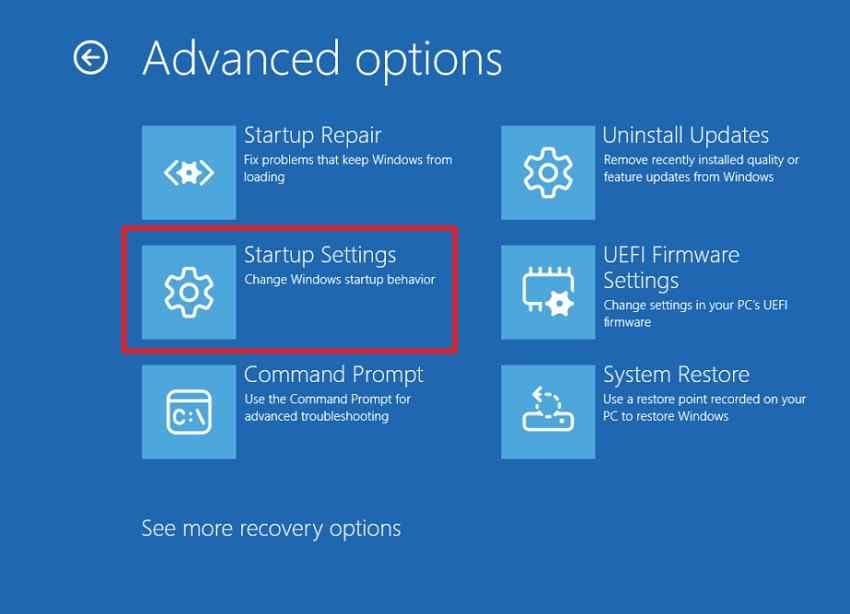
Step 1. Let Windows attempt startup. If repeated failures trigger Automatic Repair, choose Advanced options to enter WinRE.
Step 2. Select Troubleshoot > Advanced options > Startup Settings > Restart.
Step 2. Start Safe Mode And Capture A Restart-Loop Error
After Startup Settings restarts the PC, press 4 or F4 for Safe Mode. Use 5 or F5 for Safe Mode with Networking only when network access is necessary for the next step.
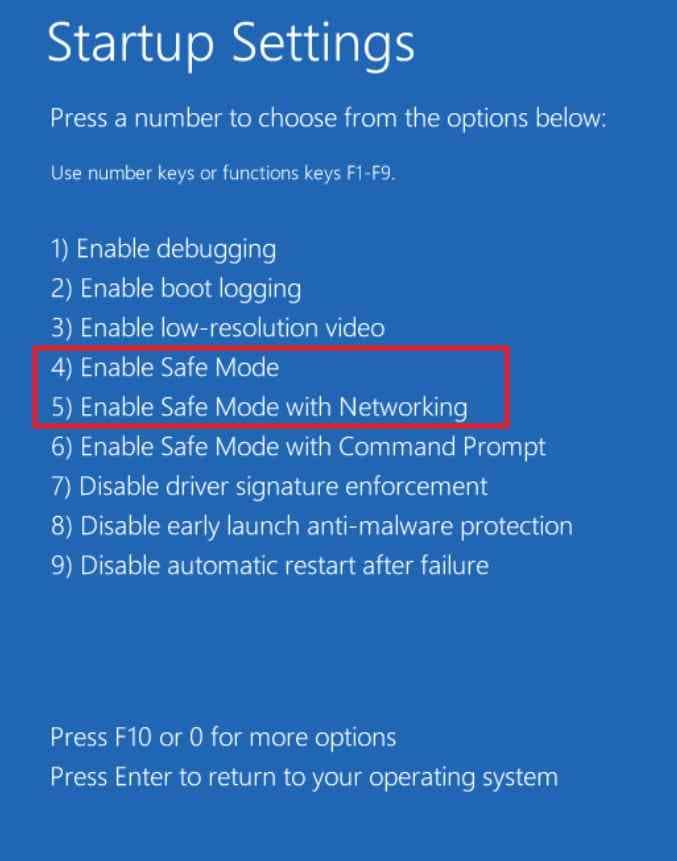
If Windows 11 keeps crashing and restarting before login, return to Startup Settings and choose 9. Disable automatic restart on system failure. This can keep a stop screen visible long enough to record its code and any named driver.
Interpret the result carefully: Stable Safe Mode makes third-party drivers, services, and startup apps more likely, but it does not completely rule out intermittent RAM, storage, firmware, or thermal problems.
Step 3. Remove A Recently Added Driver Or Startup App
If the problem began immediately after a driver change and Safe Mode is stable, test a rollback rather than removing unrelated drivers.
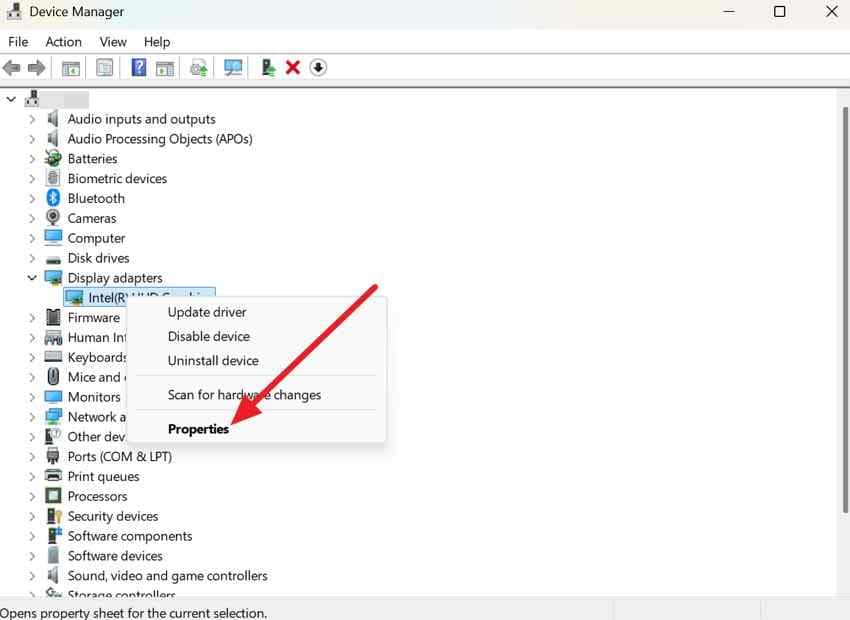
Step 1. In Safe Mode, open Device Manager, right-click the device that changed near the start of the problem, and open Properties.
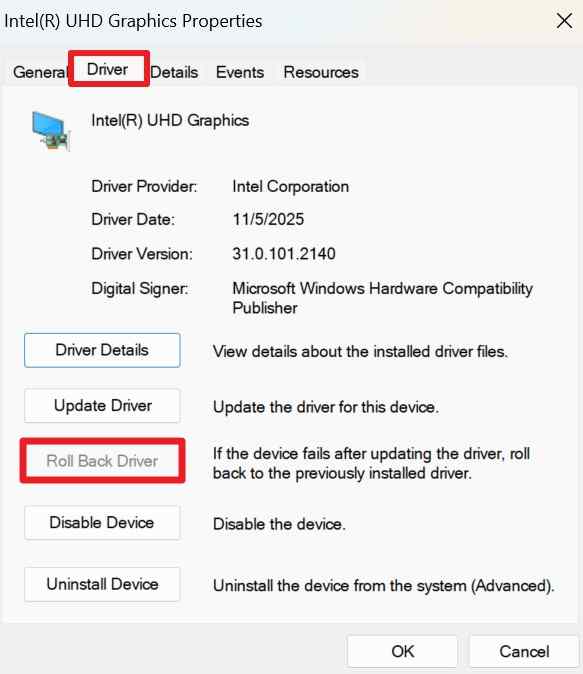
Step 2. Open the Driver tab and choose Roll Back Driver when available. Microsoft's current Device Manager driver guidance documents rollback when a recent driver update causes problems. Restart normally and test the same startup path.
If the failure started after adding a startup utility, VPN, RGB tool, antivirus component, storage utility, or other background app, disable that specific item first. Do not uninstall every program at once because doing so destroys the timing evidence that helps identify the conflict.
Step 4. Use A Clean Boot Only When Windows Reaches The Desktop
A clean boot is useful when Windows reaches a usable desktop but freezes shortly afterward. Microsoft's current clean boot instructions explicitly note that this workflow is not for a PC that cannot boot into Windows at all.
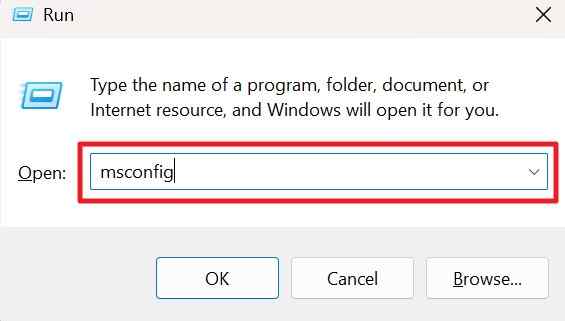
Step 1. Press Windows + R, type msconfig, and press Enter.
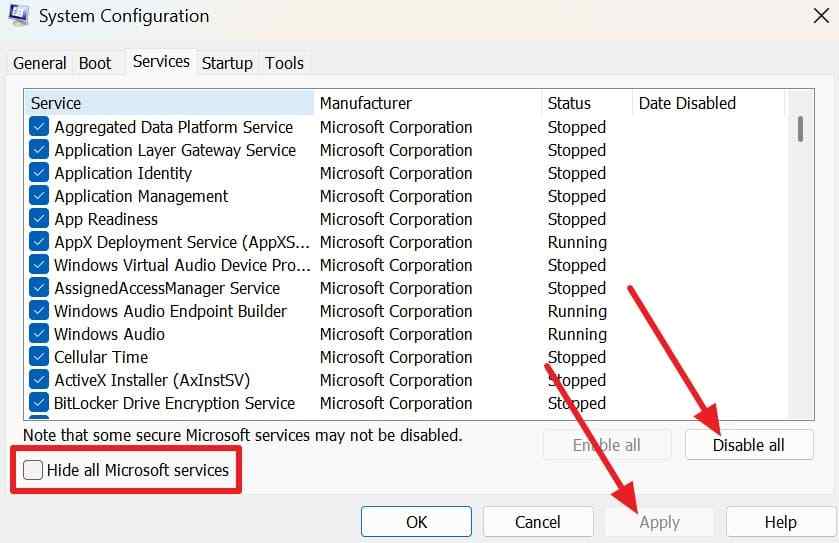
Step 2. In System Configuration > Services, check Hide all Microsoft services, then choose Disable all and Apply.
Step 3. Open Startup > Open Task Manager. Disable each currently enabled startup app for the test and record what you changed.
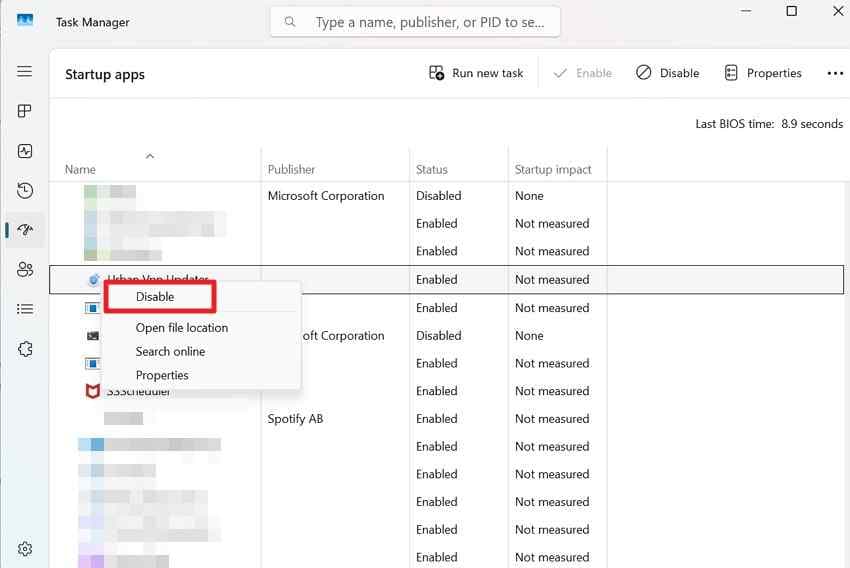
Restart and test. If Windows becomes stable, re-enable services and startup apps in small groups until the problem returns. Then isolate the specific item. When troubleshooting is complete, restore normal startup and re-enable the services or apps you intentionally disabled.
Part 4. Fix A Startup Freeze That Began After An Update
A Windows 11 crash after update makes recent changes reasonable suspects, but timing alone does not prove causation. Use the least disruptive option that matches what changed. If Windows remains usable in Safe Mode or normal mode, check for a newer corrective update or a repair reinstall before removing security updates. If Windows cannot boot, use WinRE options that do not require a normal desktop.
Fix 1. Check For A Newer Update Or Repair Reinstall First
If Windows can stay running long enough, open Settings > Windows Update and choose Check for updates. Microsoft notes that Windows 11 receives current fixes and security updates through Windows Update. See the current Windows Update FAQ.
On supported Windows 11 systems that can still boot, Settings > System > Recovery > Fix problems using Windows Update > Reinstall now can reinstall the current Windows version while preserving apps, files, and settings. This is covered in more detail in Part 5. If the PC is unbootable, skip this option and continue with WinRE.
Fix 2. Uninstall The Latest Eligible Quality Update In WinRE
If startup failures began immediately after a Windows quality update and Windows cannot remain usable, WinRE can remove an eligible recent update. Microsoft also notes that some updates cannot be uninstalled.
Instructions. In WinRE, choose Troubleshoot > Advanced options > Uninstall Updates > Uninstall latest quality update. Use Microsoft's Windows Update removal guidance for the current interface.
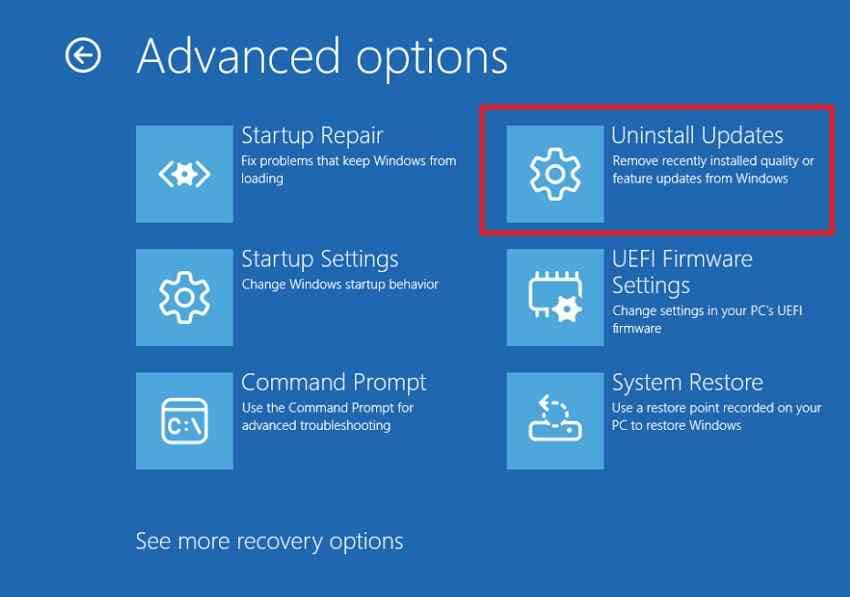
Do not remove updates randomly. If the crash started after a driver update delivered at the same time, the driver may be the better rollback target. For a major Windows version upgrade, the separate Go back option may be available only for a limited time.
Fix 3. Roll Back A Driver Only When The Timing Matches
Use the driver rollback process from Part 3 when the first startup failure closely matches a display, chipset, storage, network, or other relevant driver update. Focus on hardware involved near the crash rather than updating or rolling back every device.
Fix 4. Use System Restore When A Suitable Restore Point Exists
System Restore can roll system files, registry settings, drivers, and installed programs back to an earlier restore point without deleting personal files. It is useful when the problem began after a recent system change and a restore point from before the issue exists.
Instructions. In WinRE, open Troubleshoot > Advanced options > System Restore. Choose a restore point from before the first freeze or crash, review affected programs, and confirm the restore.
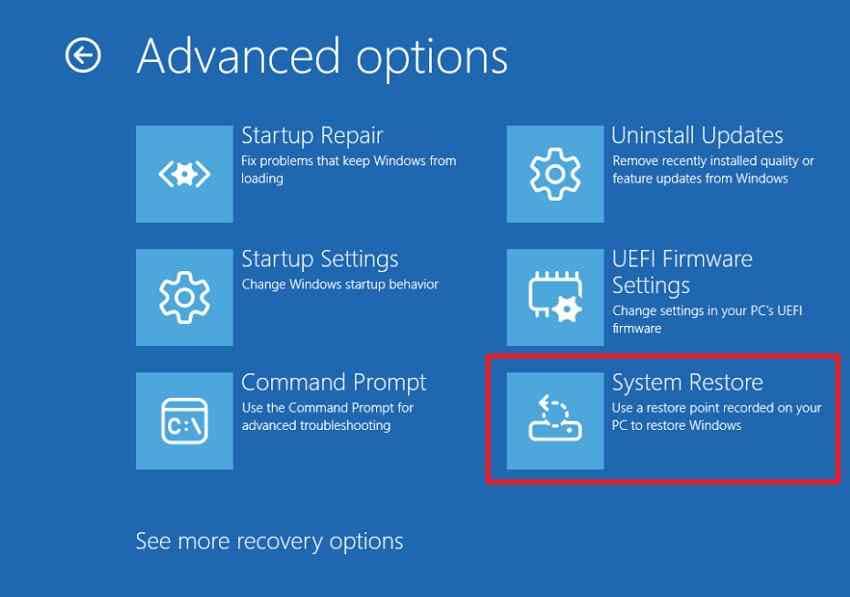
2026 Windows 11 note: Microsoft now also documents Point-in-time restore on Windows 11 version 24H2 or later when the feature is available. It is not the same as System Restore: point-in-time restore can roll back personal files as well as apps and settings to a recent automatic snapshot. If that option appears, understand what it will change and protect current files first. See Microsoft's current Windows recovery options.
Fix 5. Use Quick Machine Recovery For A Supported Known Issue
Quick Machine Recovery is designed for repeated startup failures caused by a known, widespread Windows issue. On supported Windows 11 version 24H2 or later systems, Windows RE can connect to Microsoft's recovery service, look for a published remediation through Windows Update, apply it if available, and restart. It is not a general fix for a bad SSD, unstable RAM, a one-off driver problem, or every boot loop.
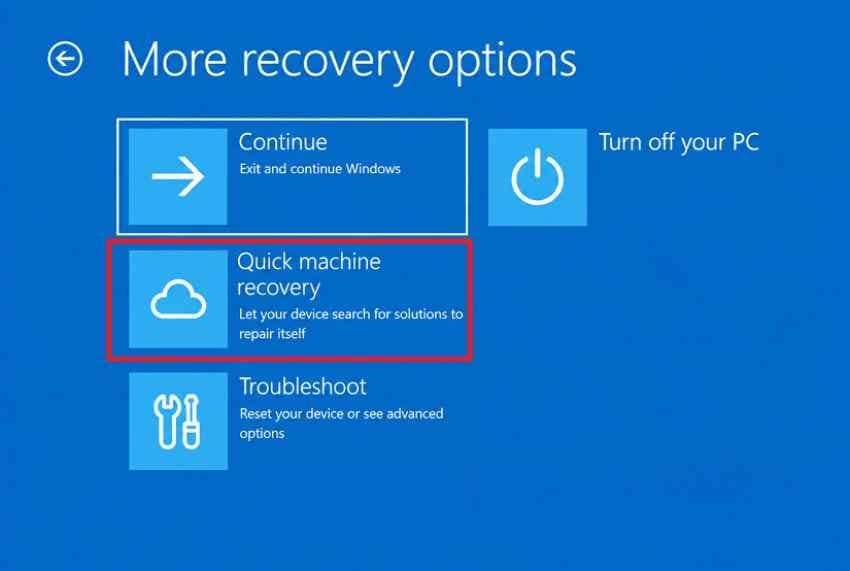
Instructions. In WinRE, choose Troubleshoot > Advanced options > Quick machine recovery. Connect to a supported network and allow Windows to check for an available remediation. If none exists, return to the other recovery tools.
Part 5. Repair Windows Startup And System Components
If update rollback, driver testing, and Safe Mode evidence do not resolve the failure, move to Windows repair tools. Keep boot-level repair, system-file repair, and disk repair separate: they solve different problems and have different data risks.
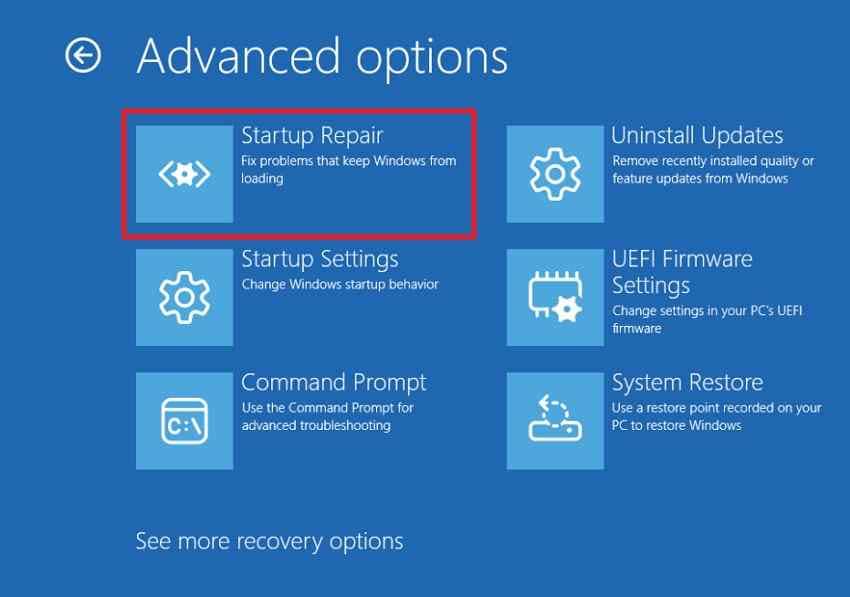
Method 1. Run Startup Repair For Boot-Level Failures
Startup Repair runs from WinRE and can diagnose common problems that prevent Windows from starting, including damaged startup files or boot configuration. It is a better fit for a boot-level failure than for a desktop that freezes only after login.
Instructions. Open Troubleshoot > Advanced options > Startup Repair, choose the Windows installation when prompted, and let the process complete before testing another startup.
If Startup Repair repeatedly says it could not repair the PC, do not run it in an endless loop. Record the message and log path if shown, then move to the next evidence-based repair. Recoverit's guide to Startup Repair could not repair your PC covers that specific failure separately.
Method 2. Run DISM Before SFC When Windows Is Accessible
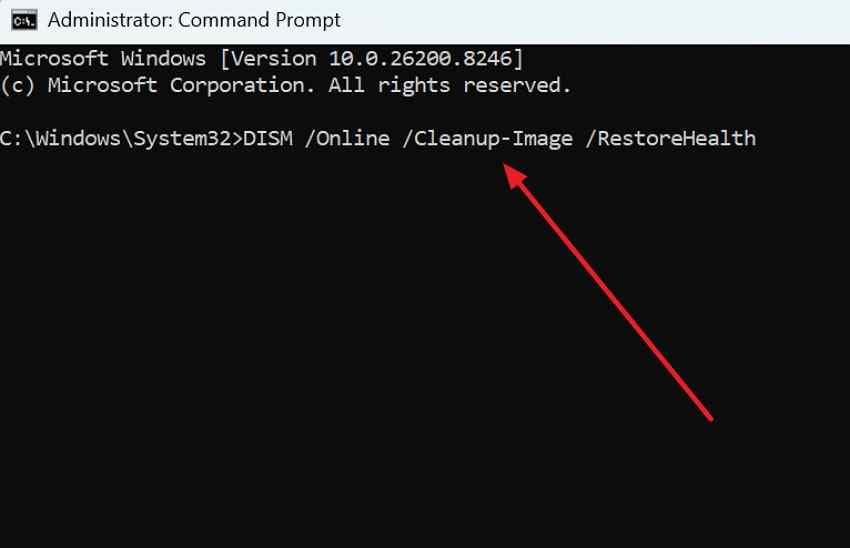
Use the online DISM command only when the installed Windows environment is running normally or is stable enough in an appropriate Safe Mode session. DISM repairs the Windows component store; System File Checker then uses Windows servicing resources to check protected system files.
Step 1. Open Command Prompt as administrator and run:
DISM /Online /Cleanup-Image /RestoreHealth
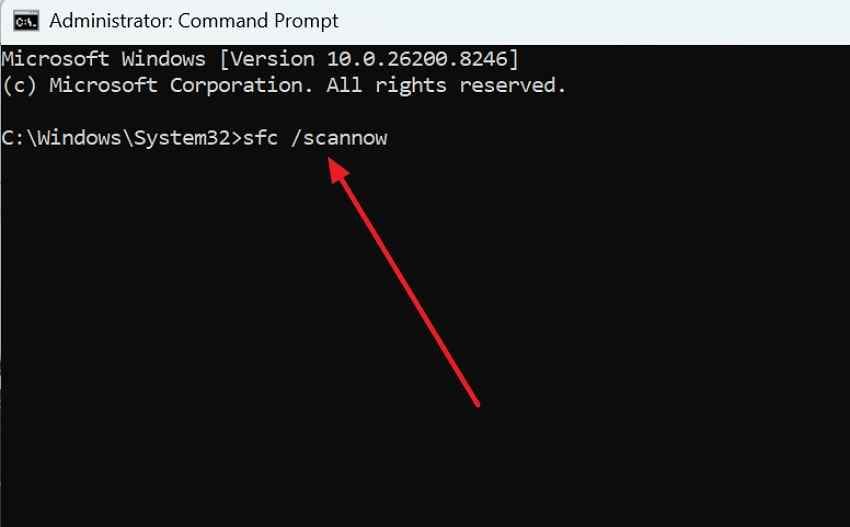
Step 2. After DISM completes, run:
sfc /scannow
Restart after the scan finishes and test a normal startup.
Important: Do not copy the /Online command into WinRE and assume it repairs the offline Windows installation. In WinRE, the running environment is different, and offline servicing requires the correct Windows image and paths. If Windows is not accessible enough to run the online commands safely, use Startup Repair, update recovery, or other WinRE options first.
Method 3. Repair-Reinstall The Current Windows Version
On supported Windows 11 systems that can still boot, Microsoft now provides Fix problems using Windows Update. The Reinstall now option reinstalls the same Windows version and is designed to preserve apps, files, and settings. Keep the PC connected to power and the internet during the process.
Preferred current path: Open Settings > System > Recovery. Under Fix problems using Windows Update, choose Reinstall now if the option is available.
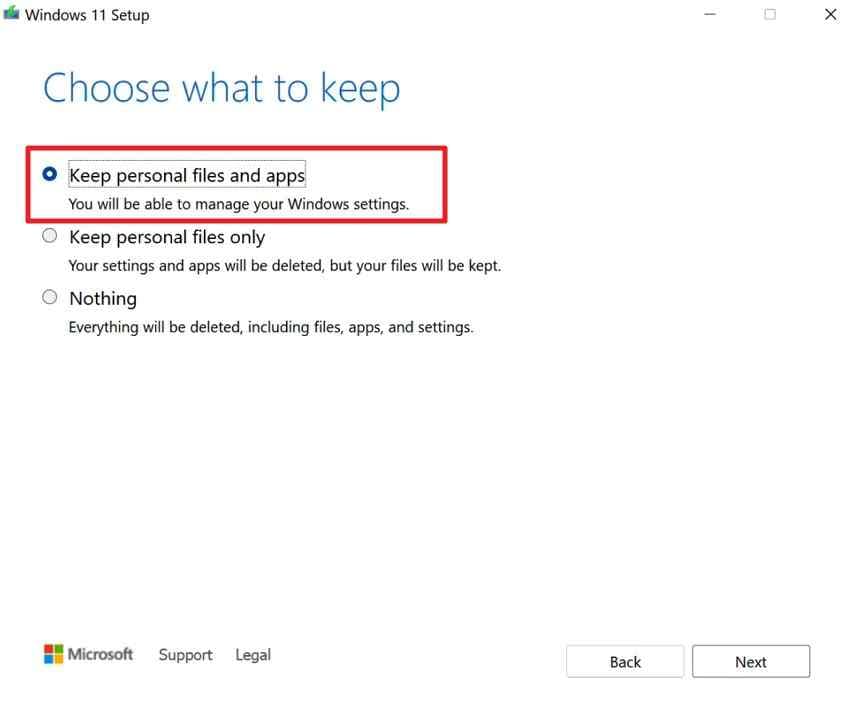
Fallback for a usable desktop: If that option is unavailable, a compatible Windows 11 installation image can be mounted and setup.exe launched from inside Windows. Microsoft's installation-media reinstall guide explains the choices. Select Keep personal files and apps only when Setup offers it and the edition, language, architecture, and installation path are compatible.
A repair reinstall is not a recovery path for a PC that cannot remain booted long enough to run Setup. In that case, protect data and use WinRE or bootable recovery options instead.
Method 4. Check System Drive Space
Critically low free space can make updates, temporary-file creation, servicing, and normal Windows operation less reliable. If normal Windows or Safe Mode is stable enough, check storage before moving to a reset.
Step 1. Open Settings > System > Storage and review the Windows system drive.
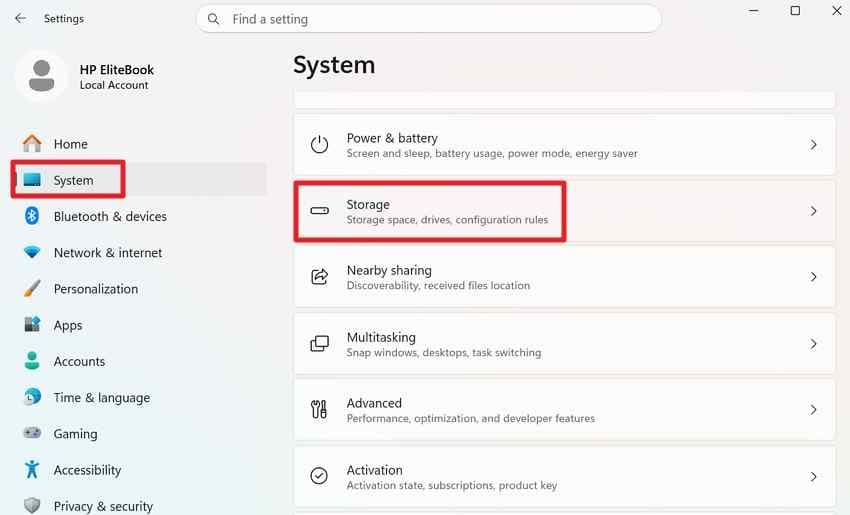
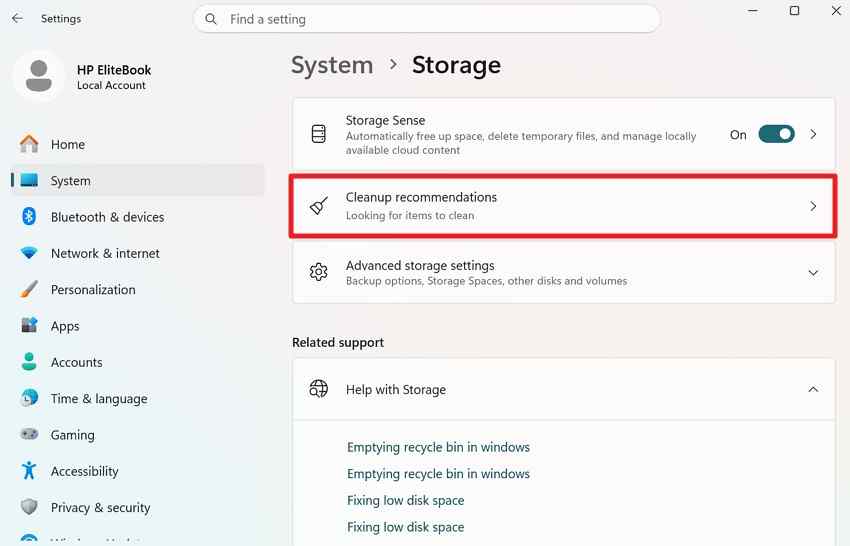
Step 2. Use Cleanup recommendations or Storage Sense to remove clearly unnecessary temporary files. Do not delete unknown user folders or recovery files just to gain space.
Method 5. Check The File System Before Repairing It
CHKDSK checks the file system; it is not a complete SSD or HDD health test. If the drive is detected normally and there are no physical-failure signs, start with an online scan when Windows is usable:
chkdsk C: /scan
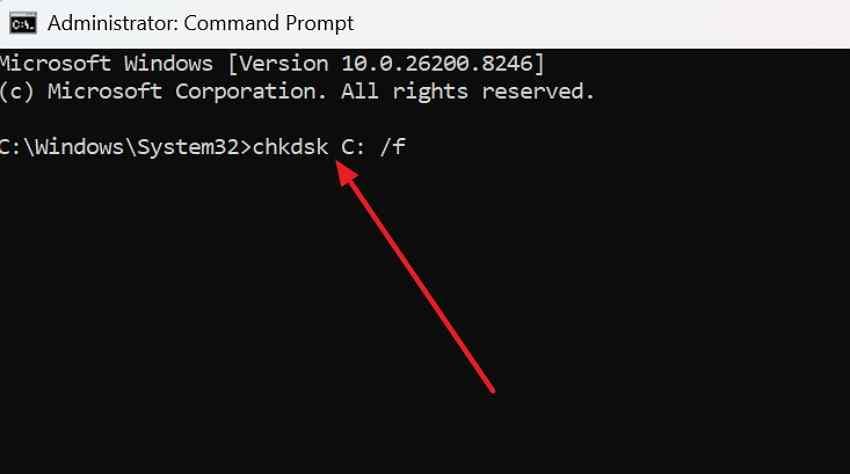
If CHKDSK reports file-system errors that require repair, protect important data first. Then, when the storage hardware itself appears healthy, you can schedule a repair with:
chkdsk C: /f
Type Y if Windows asks to schedule the repair for the next restart. Replace C: if Windows is installed on another drive letter.
Do not keep running CHKDSK on a drive that disconnects, disappears, makes unusual mechanical noises, or fails vendor diagnostics. In those cases, additional writes or retries can make data protection harder. Move to the storage checks in Part 6 and recover or back up important files first.
Part 6. Test Hardware When Software Fixes Do Not Hold
Hardware becomes a stronger suspect when the PC freezes before Windows starts, when Safe Mode is also unstable, when stop codes vary randomly, or when software repairs appear to work only temporarily.
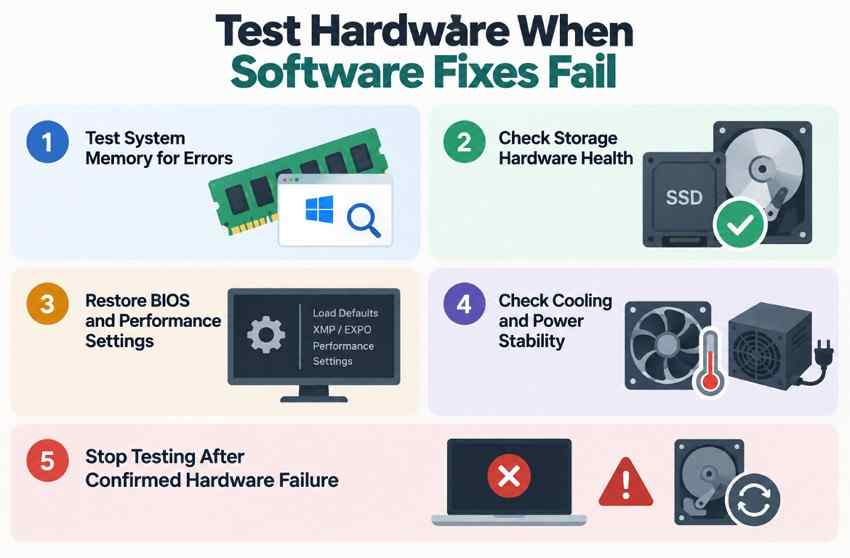
- Test RAM for repeated random errors: Microsoft still recommends Windows Memory Diagnostic as part of blue-screen troubleshooting. Search Windows Memory Diagnostic or run
mdsched.exe, choose Restart now and check for problems, and review the result after restart. If the tool is unavailable or cannot run on the affected system, use the PC or motherboard manufacturer's memory diagnostics instead. See Microsoft's blue-screen troubleshooting guidance. - Check SSD or HDD health and readability: Use the SSD, hard-drive, or PC manufacturer's diagnostic utility when available. A drive that repeatedly disappears, reports hardware errors, or cannot be read reliably can cause freezes that Windows repair tools cannot solve.
- Return overclocking and undervolting to supported defaults: Restore CPU, GPU, and memory tuning to defaults. Temporarily disable manual overclocks, undervolts, and memory overclocking profiles such as XMP or EXPO while diagnosing random startup failures.
- Check temperature and power stability: Verify fan operation, power supply or charger behavior, and whether crashes appear only as the system warms up or comes under load. Thermal or power instability can look like a Windows problem.
- Stop DIY software repair after confirmed hardware failure: If reliable diagnostics identify failing RAM, storage, or another component, repair or replace the hardware instead of repeatedly resetting Windows. If the storage device is physically failing and important data is not safely backed up, consider professional recovery rather than repeatedly scanning or repairing it.
Part 7. Recover Files Before Resetting Or Reinstalling Windows
Reset, reinstall, and clean installation affect apps, settings, and sometimes personal files. Microsoft currently recommends backing up important files before recovery operations because some options can cause data loss. Protect data before choosing the most disruptive recovery path.
When Normal Backup Is Still The Best Option
If Safe Mode or normal Windows is stable enough to open your files, copy important documents, photos, projects, and other local data to a separate external drive or verified cloud location. Normal copying is preferable to data-recovery software when the files are already accessible.
Use Recoverit only when files are missing or inaccessible, or when Windows cannot start and you need a bootable recovery workflow. If the system drive is BitLocker-encrypted, you still need the legitimate BitLocker recovery key to access locked data. Recoverit does not bypass or decrypt BitLocker without the key.
Compare Repair Reinstall, Reset, And Clean Install
| Recovery Option | Keeps Installed Apps | Keeps Personal Files | Requires Windows to Boot | Use It When |
| Fix problems using Windows Update | Yes | Yes | Yes | Windows runs but components need repair; option is available |
| In-place repair reinstall with installation media | Yes, when Keep personal files and apps is offered | Yes | Yes | Windows runs, Windows Update repair reinstall is unavailable, and Setup compatibility is correct |
| Reset this PC - Keep my files | No | Designed to keep personal files | No | Safer repairs failed and apps/settings can be reinstalled |
| Reset this PC - Remove everything | No | No | No | You intentionally want a full reset after data is protected |
| Clean install | No | No on the selected Windows installation | No | Final option after backup/recovery when a fresh installation is required |
Microsoft's current Windows recovery options place less disruptive recovery methods before reset or clean reinstall. Even when using Keep my files, create a verified backup first whenever possible.
Recover Files From An Unbootable PC With Recoverit
If Windows no longer opens in normal mode or Safe Mode and the internal storage is still detectable, Recoverit Windows Data Recovery can help recover files before you reset, reinstall, format, or replace the system drive. Recovery depends on drive detectability, readable sectors, overwriting, and encryption. Recoverit cannot repair the underlying Windows startup failure or physically failed hardware.
For the broader recovery workflow, you can also review Recoverit's Windows system recovery page and its guide to recover data when a PC will not boot.

Prepare another working Windows PC, an empty USB drive, and a separate drive for recovered data. An 8 GB or larger empty USB drive is a practical choice; it will be formatted during bootable-media creation.
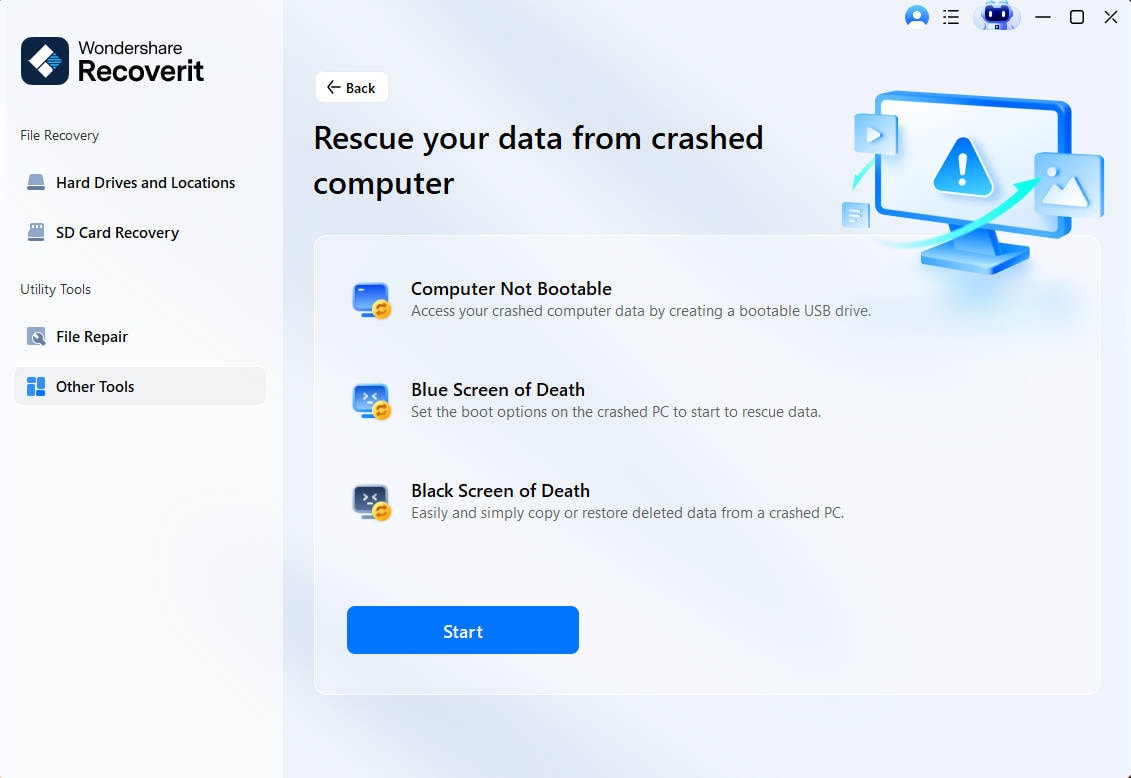
Step 1. Open the crashed-computer recovery tool. Install and open Recoverit on the working PC. Under Other Tools, choose the crashed/unbootable-computer recovery option shown in your build, then start bootable-media creation. Current Recoverit documentation refers to this workflow as System Crashed Computer, while some current UI screenshots label the entry Computer Not Bootable.
Step 2. Create the bootable USB. Insert the empty USB drive, select it as the target, and start the creation process. Back up anything on that USB first because the tool formats it. The current Recoverit Windows guide documents the bootable-media workflow for a crashed computer.

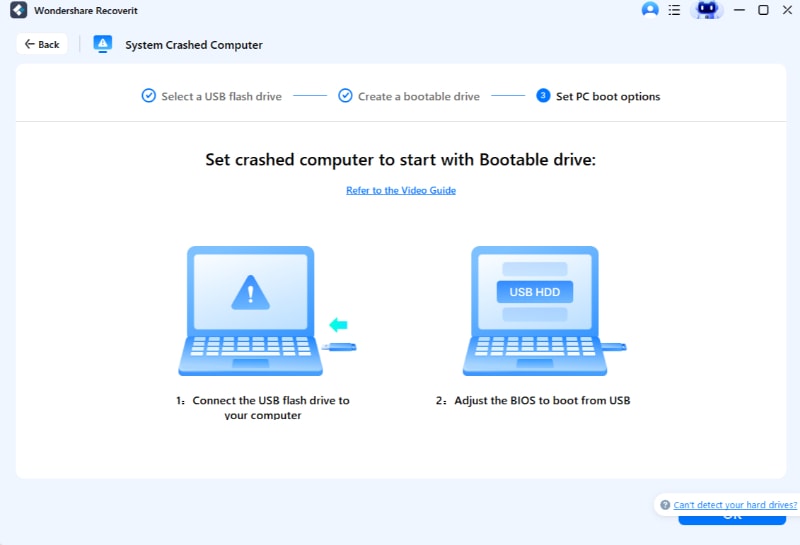
Step 3. Boot the affected PC from USB and recover to another drive. Connect the Recoverit USB to the problem PC, enter its firmware boot menu, and select the USB as the startup device. Once the recovery environment loads, choose the detectable source drive, scan for the files you need, and save recovered files to separate storage rather than back to the source disk.
Stop software recovery if the drive is physically failing or not detected. Repeated scans are not appropriate for a drive that clicks, disconnects, vanishes from firmware, or fails hardware diagnostics. In those cases, professional data recovery is safer.
Recover Files From An Unbootable PC With Recoverit
 Security Verified. Over 7,302,189 people have downloaded it.
Conclusion
A Windows 11 freeze on startup is easier to fix when you first identify where the failure occurs and keep freezes, stop-code crashes, and restart loops separate. Start with low-risk checks, Safe Mode, and evidence from the failure. If the issue began after an update, check for a newer corrective update or a repair reinstall when Windows still boots, then use WinRE update rollback, driver rollback, System Restore, or Quick Machine Recovery only when the scenario fits. Use Startup Repair and DISM/SFC for the Windows problems they are designed to repair, and treat CHKDSK as a file-system tool rather than a drive-health test.
Keep Reset this PC and clean installation near the end of the process. If important files are still accessible, back them up normally. If Windows is inaccessible but the drive remains detectable, Recoverit may help recover files before a reset or reinstall, but it does not fix the underlying operating-system or hardware problem.
FAQ
-
Why Does Windows 11 Freeze on Startup but Work in Safe Mode?
Safe Mode starts Windows with a limited set of drivers, services, and startup components. If the PC stays stable there, a recently changed third-party driver, service, startup app, or software conflict becomes a stronger suspect. Stable Safe Mode does not completely rule out intermittent RAM, storage, firmware, or thermal problems. -
Why Did Windows 11 Start Crashing After an Update?
The timing can point to a Windows update, a driver delivered with the update, or an existing instability that the update exposed. If Windows still boots, check for a newer update or use the Windows Update repair reinstall when available. If Windows will not boot, use WinRE to remove the latest eligible quality update or roll back a driver only when the timing matches. -
What Does a Windows 11 Crash Screen Stop Code Mean?
A stop code describes the type of fatal error Windows detected. A named driver or module can narrow the investigation, but it does not always identify the root cause. Record the code before changing the system, especially when the PC restarts automatically. -
Why Does Windows 11 Keep Crashing and Restarting Before Login?
A pre-login restart loop can come from a faulty driver, failed update, damaged Windows components, RAM or storage instability, firmware, or another startup failure. In Startup Settings, use Disable automatic restart on system failure so you can capture the stop code, then choose the repair path that matches the evidence.


