 TL;DR:
To resolve a Windows 11 update black screen, press Ctrl + Shift + Esc to restart Windows Explorer if a movable cursor is visible, or access the Windows Recovery Environment to roll back the display driver or uninstall the recent quality update if the desktop is entirely inaccessible.
● Press Windows + Ctrl + Shift + B to quickly reset the graphics driver before forcing a hard reboot, which can interrupt pending update writes and worsen boot issues.
● Differentiate the exact screen behavior: a blinking text cursor indicates a boot device failure requiring Startup Repair, whereas a black stop-code screen on Windows 11 version 24H2 or later is a system crash requiring stop-error diagnostics rather than display fixes.
● Secure your 48-digit BitLocker key and back up files via Safe Mode or a bootable extraction tool before running Reset this PC, keeping in mind that the system reset process can naturally sit on a black screen for more than 15 minutes without failing.
Ask AI for a summary
 ChatGPT
 Perplexity
 Gemini
 Claude
 Grok
Grok
"Win11 updates whenever it wants... After the update... it will go to a black screen and then won't ever wake up until I hard reboot..." - Branimator22 on Reddit
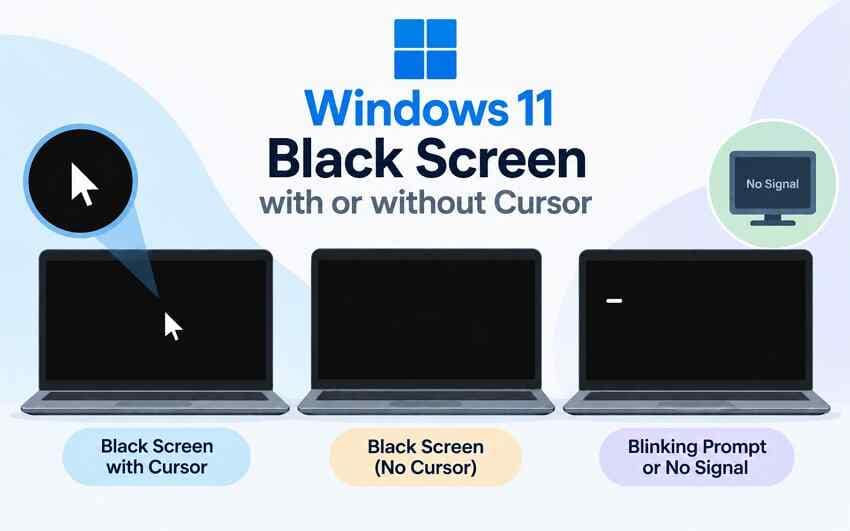
A Windows 11 update black screen can appear before sign-in, after sign-in, during startup, or with only the mouse pointer visible. The first thing to identify is what the display is actually showing. A movable cursor usually means Windows is still producing graphical output, while a monitor that says No Signal, a blinking text cursor, or a black stop-code screen points to a different layer of the startup process.
Microsoft's current blank-screen guidance lists stalled Windows processes, display-output problems, incompatible graphics drivers, and incomplete updates among common directions to investigate. Also, on Windows 11 version 24H2 and later, a serious stop-code error may itself use a black screen; that is different from a blank screen with no stop message. Start with reversible display and Explorer checks, then move to Safe Mode, driver or update rollback, Windows Recovery Environment, and only later to reset or reinstall options.
If Windows or Safe Mode still gives you access to important files, back them up normally before deeper repair. If Windows becomes inaccessible and the internal drive remains readable and detectable, Recoverit can help recover stored files before Reset this PC or a clean installation. It does not repair Windows, graphics drivers, firmware, display hardware, or BitLocker encryption.
In this article
Part 1. Windows 11 Update Black Screen: Identify The Exact Symptom
A black screen after a Windows 11 update is a symptom, not a diagnosis. Before uninstalling an update or resetting Windows, match what you see to the most likely troubleshooting direction.
| What You See | What It Usually Tells You | Best Next Step |
| Black screen with a movable mouse cursor | Windows is still producing graphical output; Explorer, a startup process, or the display driver may be involved | Part 3 |
| Black screen with no cursor, but monitor remains powered | Display output, graphics driver, Windows startup, or hardware may be involved | Part 2, then Part 4 |
| Blinking text cursor | Windows has not reached the normal desktop startup stage; Microsoft associates this symptom with the firmware not finding a boot device | Part 5 and storage detection checks |
| Monitor says No Signal | The monitor is not receiving a usable video signal | Check cable, input, output routing, GPU, dock, and monitor first |
| Black screen with a stop code and restart message | Windows detected a serious stop error; on newer Windows 11 builds the stop screen itself may be black | Record the stop code and use crash troubleshooting, not blank-screen fixes alone |
Black Screen With A Mouse Cursor
A visible, movable pointer is a useful clue because it means the display path is working at least partially. Microsoft's current blank-screen guidance says this pattern is often associated with a stalled Windows process or driver issue. Start with Task Manager and Windows Explorer before moving to Safe Mode or driver rollback.
Black Screen With No Cursor, A Blinking Cursor, Or No Signal
These three symptoms should not be treated as interchangeable. A powered display with no cursor can still be a Windows or graphics problem. A No Signal message points more strongly to display output, cabling, a dock or adapter, or hardware. A blinking text cursor is earlier in the boot path; Microsoft's current Windows blank-screen article specifically says this can occur when UEFI or BIOS cannot find a boot device.
Black Stop-Code Screen Is Not The Same As A Blank Screen
Do not confuse a blank display with a Windows crash screen that contains text such as Your device ran into a problem and needs to restart. Microsoft notes that the color of a stop-code screen varies by Windows 11 version; version 24H2 and later can display a black stop-error screen. Record the stop code and any named driver before the PC restarts because that evidence may point away from the display system entirely.
Part 2. What To Do First When Windows 11 Goes Black After An Update
Start with checks that do not alter Windows. If the update screen still shows changing progress or obvious disk activity, give it time to finish and keep the PC connected to power. Do not interrupt an active update simply because the display pauses temporarily.
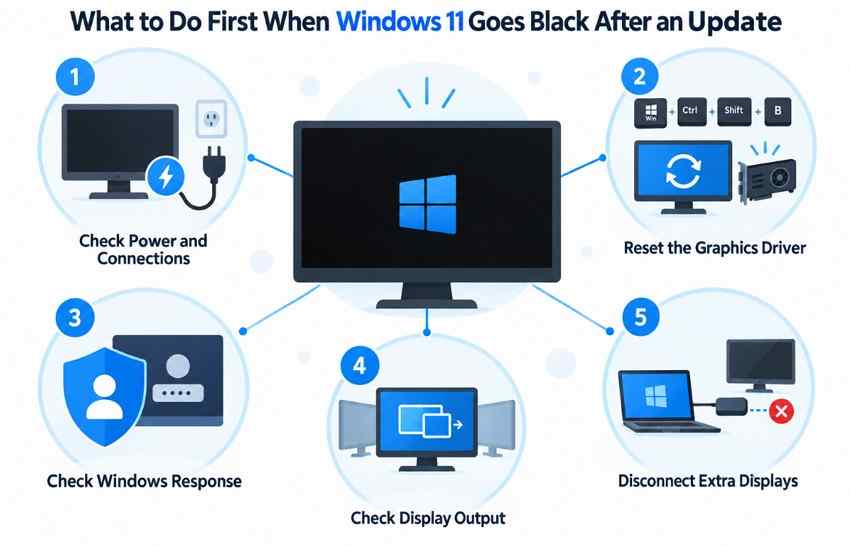
- Check power, cables, and monitor input: Confirm the display is powered, the cable is seated securely, and the correct HDMI or DisplayPort input is selected. If possible, test one monitor connected directly to the PC instead of through a dock.
- Reset the graphics driver: Press Windows + Ctrl + Shift + B. A successful reset may produce a beep or brief display flicker. Microsoft lists this shortcut in its blank-screen troubleshooting.
- Test Windows response: Press Ctrl + Alt + Delete. If the security screen appears, Windows is responsive enough to continue with Task Manager instead of immediately forcing the PC off.
- Switch display output: Press Windows + P, press P again, then press Enter. Repeat carefully to cycle through display modes if an update changed which display Windows is using.
- Disconnect nonessential displays and docks: Remove secondary monitors, USB display adapters, docks, projectors, capture devices, and other nonessential peripherals, then test with one display.
If none of these checks produces a usable screen and there is no active update in progress, move to Safe Mode or WinRE rather than repeatedly hard-powering the PC. Repeated forced shutdowns can interrupt pending writes and make an update-related problem harder to diagnose.
Part 3. Fix A Windows 11 Black Screen With A Cursor
A Windows 11 update black screen with cursor gives you one advantage: Windows is often far enough through startup that Task Manager can still work. Use that access before changing system files or removing updates.
Fix 1. Restart Windows Explorer
Windows Explorer supplies the taskbar, desktop, and file-management shell. If the pointer is visible but the desktop is not, restart Explorer first.
Step 1. Press Ctrl + Shift + Esc to open Task Manager. Under Processes, find Windows Explorer.
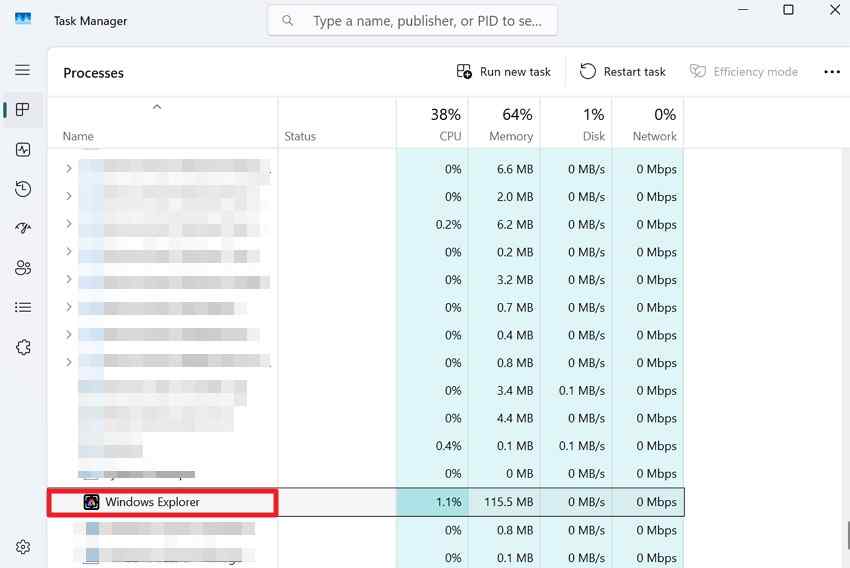
Step 2. Right-click Windows Explorer and choose Restart. Wait for the desktop, taskbar, and icons to reload.
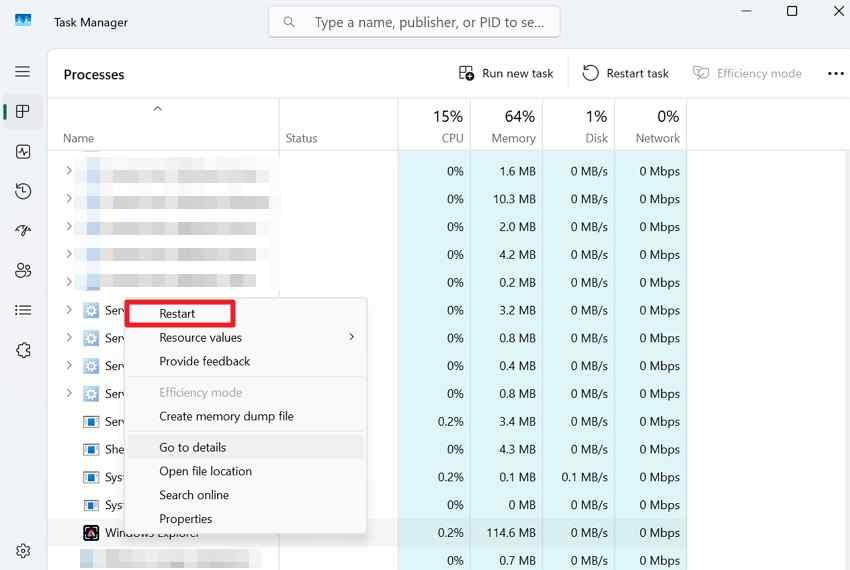
This procedure is also included in Microsoft's current Windows blank-screen guidance.
Fix 2. Launch explorer.exe Manually
If Windows Explorer is not listed, start the shell manually instead of assuming it is running.
Step 1. In Task Manager, choose File > Run new task.
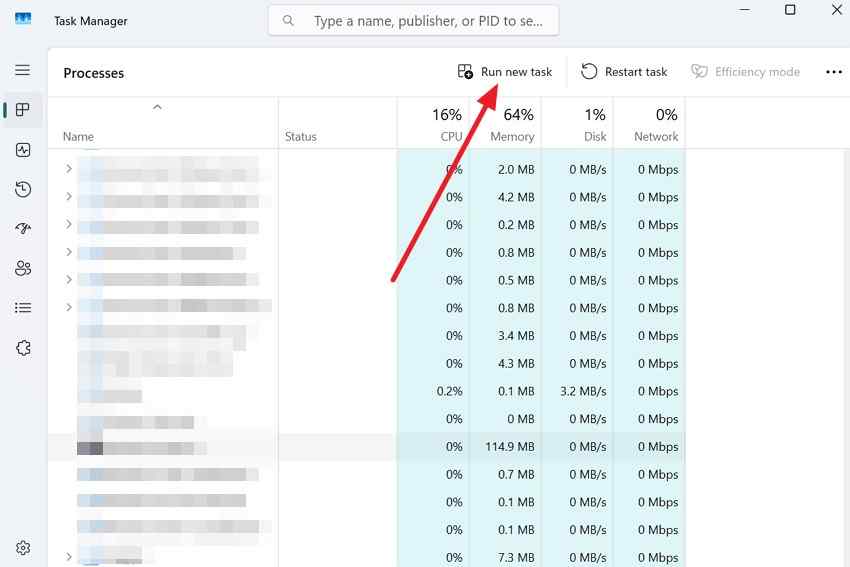
Step 2. Type explorer.exe and press Enter. If the desktop returns, save your work and continue diagnosing the recent update, display driver, or startup software instead of treating Explorer restart as a permanent fix.
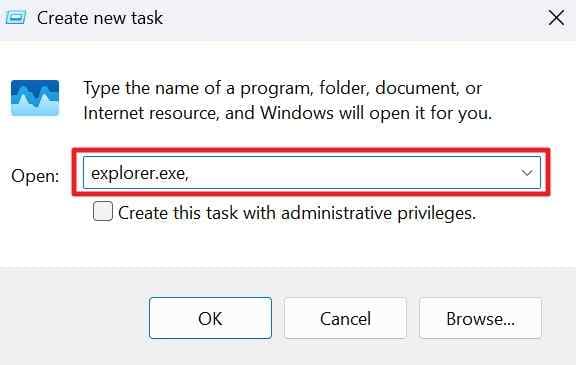
The original Windows troubleshooting discussion also referenced a Microsoft Q&A example of relaunching Explorer; use the Microsoft Support blank-screen page above as the primary procedural reference.
Fix 3. Roll Back Or Reinstall The Display Driver
If restarting Explorer restores the desktop but the black screen returns on the next boot, check whether the display driver changed with the Windows update. If Device Manager is usable, open Display adapters > your graphics adapter > Properties > Driver and use Roll Back Driver only when the timing matches. If the desktop is too unstable to do this safely, use the Safe Mode procedure in Part 4 instead. Avoid changing several unrelated drivers at once because that makes the cause harder to identify.
Fix 4. Disable Recent Display Utilities And Startup Software
Display color tools, overlays, GPU utilities, remote-desktop components, and other startup software can load immediately after sign-in. If the black screen began after one of these tools changed, disable the recent item temporarily and retest.
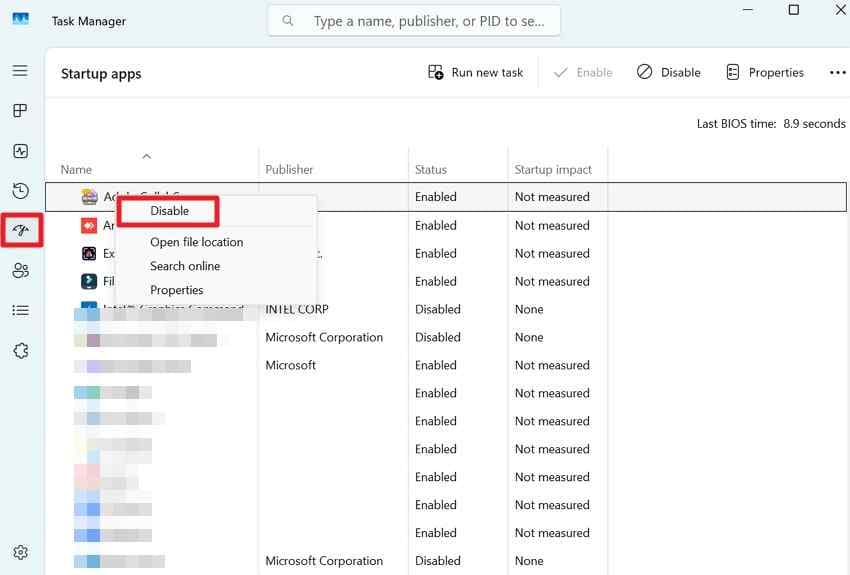
Instructions. Open Task Manager > Startup apps, disable the recently added or updated entries that match the timing, and restart. If the problem disappears, re-enable items one at a time rather than leaving unrelated startup software disabled permanently.
Fix 5. Use A Clean Boot When The Desktop Is Usable
If restarting Explorer gives you a stable desktop, a clean boot can isolate third-party services and startup software. This is different from Safe Mode: clean boot is for a Windows installation that can start far enough to use System Configuration.
Open System Configuration, select Services, check Hide all Microsoft services, and disable the remaining services for the test. Disable enabled startup apps in Task Manager, restart, and then re-enable items gradually after Windows becomes stable. Do not use clean boot as the first method when Windows cannot reach a usable desktop.
Part 4. Fix A Black Screen After A Windows 11 Update In Safe Mode
If normal startup still ends in a black screen, Safe Mode reduces Windows to a limited set of drivers and services. That makes it useful for testing a display driver or recent software change without loading the full startup environment.
Fix 1. Enter WinRE And Start Safe Mode
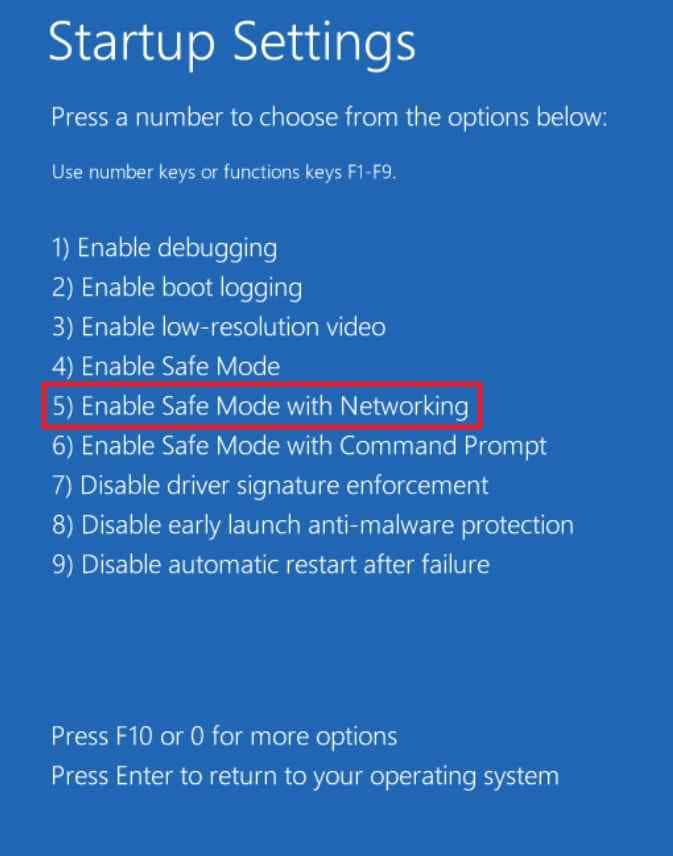
Use Windows Recovery Environment when normal Windows cannot load. If Automatic Repair appears after failed starts, choose Troubleshoot > Advanced options > Startup Settings > Restart. If WinRE does not appear, Windows installation or recovery media can provide access to recovery tools.
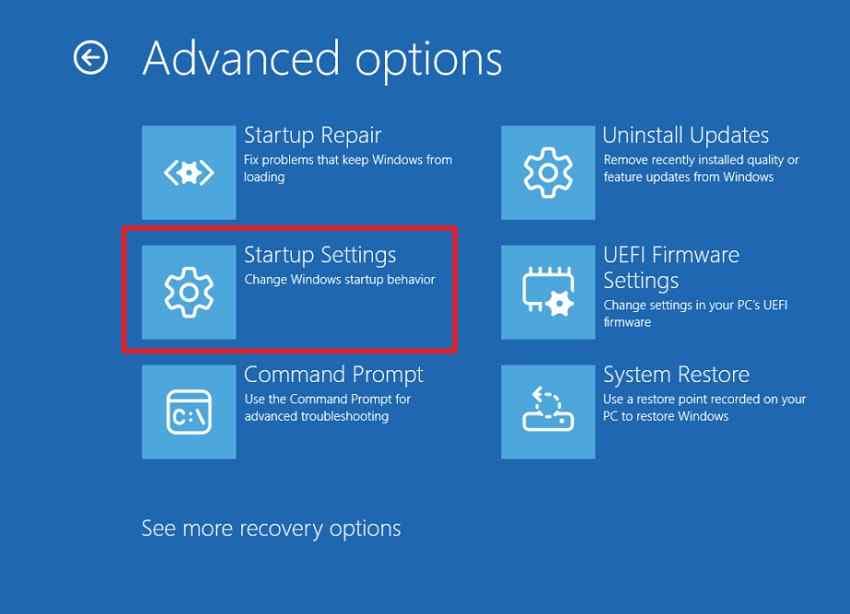
Press 5 or F5 for Safe Mode with Networking when network access is needed. Microsoft's current Startup Settings guidance explains the available boot modes; the canonical Windows Startup Settings page also confirms that Safe Mode starts Windows with only essential drivers and services.
BitLocker note: Before relying on WinRE, make sure you can access the 48-digit recovery key for an encrypted device. Microsoft explains where to locate it in Find your BitLocker recovery key. Neither Windows recovery tools nor Recoverit can recreate a missing BitLocker key.
Fix 2. Roll Back The Display Driver
If the black screen started immediately after Windows Update or a graphics-driver update, test the previous driver instead of replacing unrelated drivers.
Step 1. In Safe Mode, open Device Manager > Display adapters, right-click the graphics adapter, and select Properties.
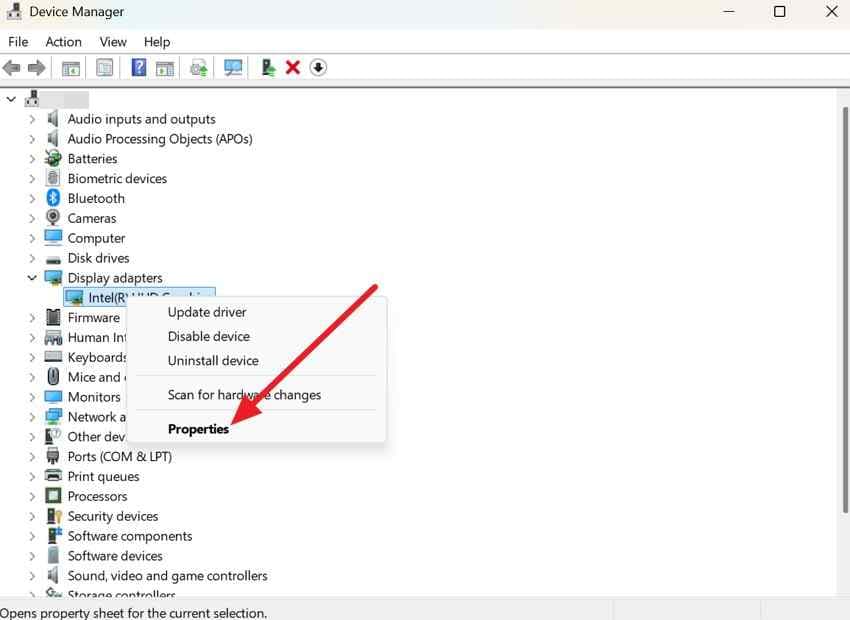
Step 2. Open the Driver tab and select Roll Back Driver if the button is available. Restart normally and test. Microsoft's display guidance also recommends driver rollback when the problem follows a recent change; see display-driver troubleshooting.
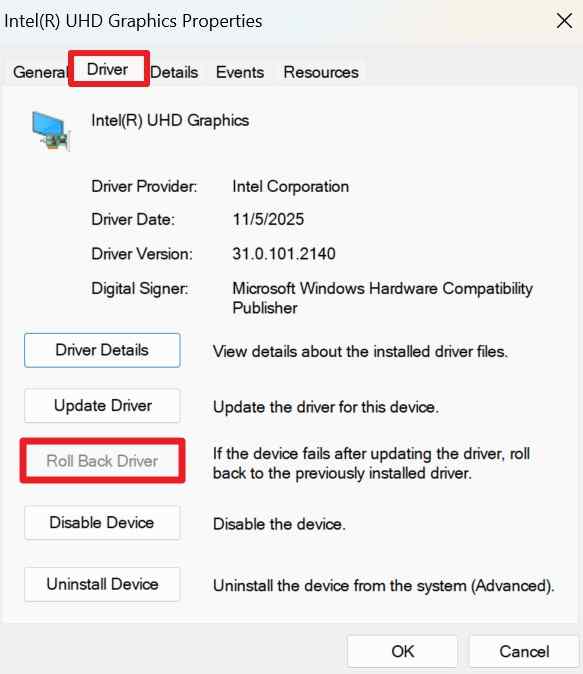
If Roll Back Driver is unavailable, Windows does not have a previous driver stored for that device. Do not download a random graphics package; use Windows Update or the PC/GPU manufacturer's official Windows 11 driver for the exact hardware.
Fix 3. Reinstall The Display Driver Or Remove A Recent Driver Change
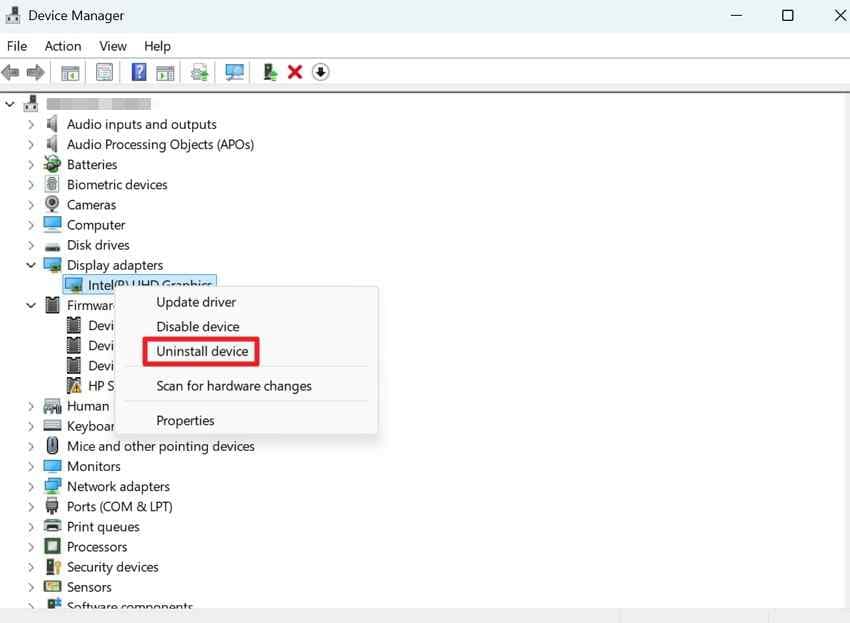
If rollback is unavailable or does not help, you can remove the graphics device from Device Manager and let Windows rediscover it on restart. This is most useful when the timing still points to the display driver.
Instructions. In Safe Mode, open Device Manager > Display adapters, right-click the graphics adapter, choose Uninstall device, confirm the removal, and restart Windows. After restart, verify which driver Windows installed before adding another package.
Fix 4. Repair Windows Components With DISM And SFC
If Safe Mode is stable and the issue appears broader than a single driver, repair Windows components using Microsoft's supported order: DISM first, then SFC. This can help when an interrupted or damaged servicing state leaves protected Windows files inconsistent.
Step 1. Open Command Prompt as administrator and run:
DISM /Online /Cleanup-Image /RestoreHealth
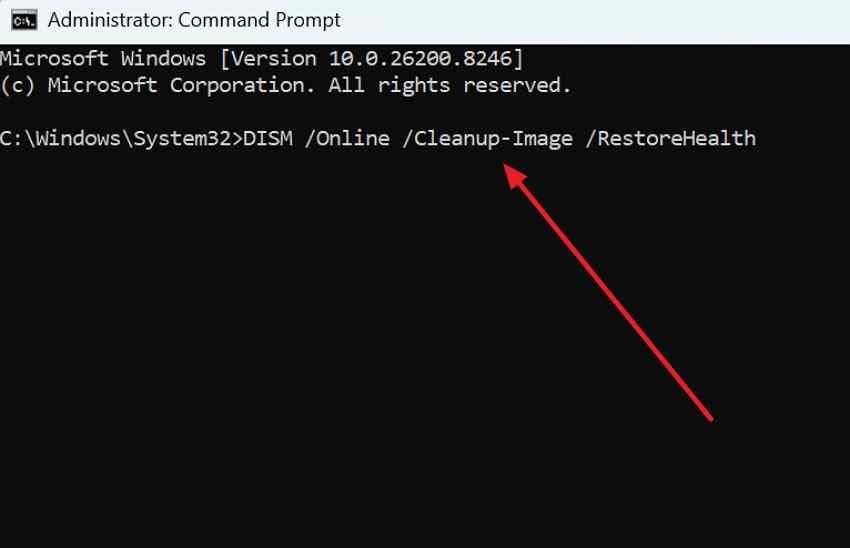
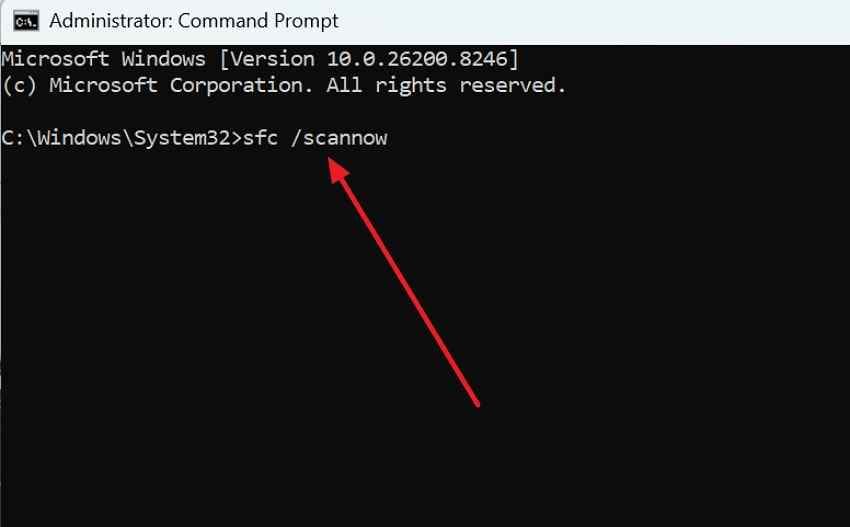
Step 2. After DISM completes, run:
sfc /scannow
Let the verification reach 100%, restart, and test normal startup. Microsoft's current DISM and System File Checker guidance uses this order.
Important: The /Online DISM command repairs the running Windows installation. Do not copy it into WinRE and assume it targets the offline Windows volume; offline servicing uses different image paths and syntax.
Part 5. Use Windows Recovery Options For An Update-Related Black Screen
If Safe Mode is unavailable or the black screen happens before Windows can reach a usable desktop, use WinRE. Keep the recovery sequence conservative: remove a clearly implicated update or driver before resetting the entire PC.
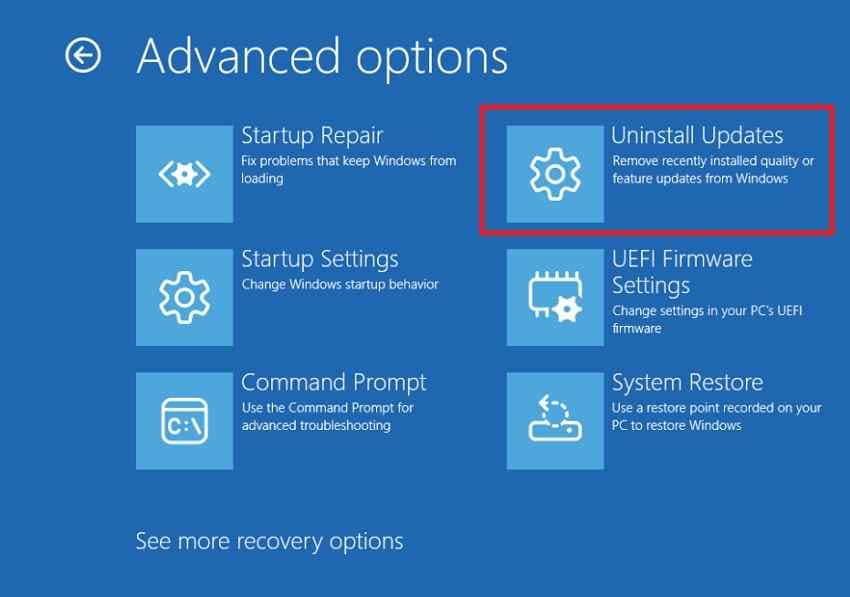
Fix 1. Uninstall The Most Recent Eligible Quality Update
If the problem began immediately after a quality update and Windows cannot start normally, open Troubleshoot > Advanced options > Uninstall Updates > Uninstall latest quality update. Microsoft's current Windows Update removal guide notes that some updates cannot be uninstalled.
If Windows is usable enough to reach Settings, Microsoft now recommends trying the less disruptive Fix problems using Windows Update repair reinstall before removing a security update. That option reinstalls the current Windows version while preserving apps, files, and settings. It is not available when the PC cannot remain booted long enough to use Settings.
Fix 2. Run Startup Repair For Boot-Level Failures
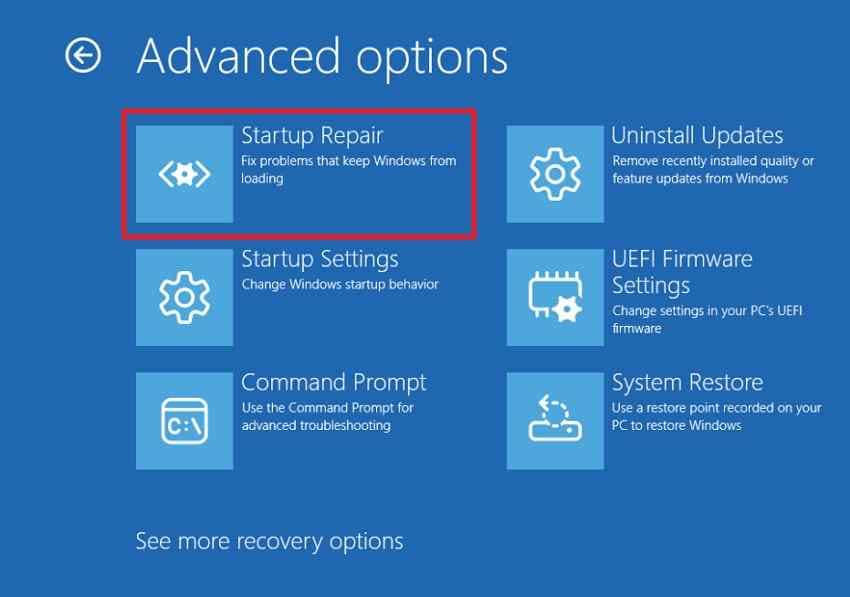
A blinking text cursor or a failure before sign-in can indicate a startup-level problem rather than a desktop display problem. Startup Repair can check common issues such as damaged startup files and boot configuration.
Instructions. In WinRE, select Troubleshoot > Advanced options > Startup Repair, choose the Windows installation or account if prompted, and let the process complete.
If Startup Repair repeatedly fails, avoid running it in a loop. Protect important files before moving into destructive boot repair, reset, or reinstall work. Recoverit's related guide on Preparing Automatic Repair followed by a black screen covers that recovery path in more detail.
Fix 3. Use System Restore When A Suitable Restore Point Exists
System Restore can roll system files, registry settings, drivers, and installed programs back to an earlier restore point without changing personal files. Use a restore point from before the black screen began and review the programs that will be affected.
Instructions. In WinRE, choose Troubleshoot > Advanced options > System Restore, select an appropriate restore point, choose Scan for affected programs when available, and confirm the restore.
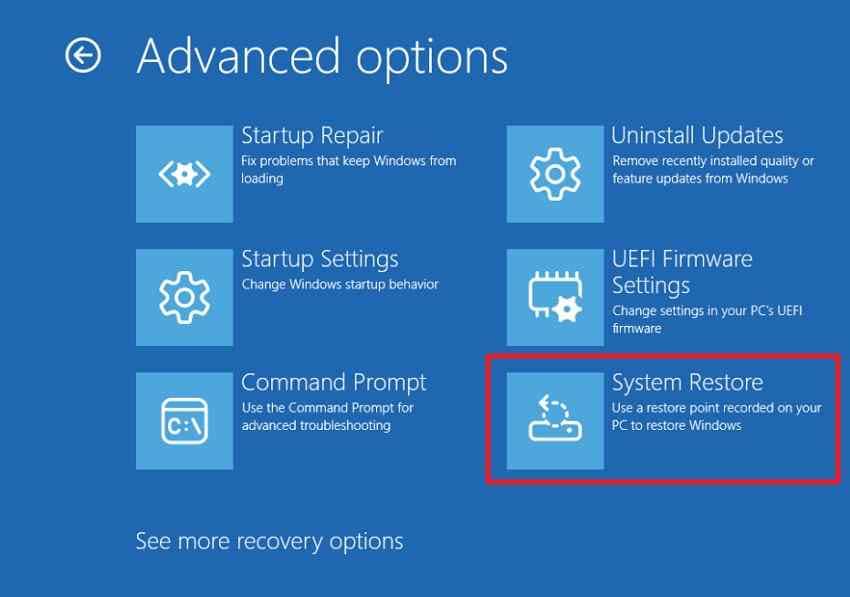
Current Windows 11 note: On supported Windows 11 version 24H2 or later devices, Point-in-time restore may also appear. It is not the same as System Restore: it can roll back personal files, apps, settings, passwords, certificates, and keys to a recent automatic snapshot. Protect current files before using it.
Fix 4. Use Go Back Only After A Supported Feature Upgrade
If the black screen followed a Windows feature-version upgrade, not an ordinary monthly quality update, the separate Go back option may be available. Microsoft says it is available for a limited time, in most cases 10 days after the upgrade. It keeps personal files but removes apps and drivers installed after the upgrade and reverses settings changes made since then.
Do not present Go Back as an option for every Windows Update. If the button is not offered, the rollback window or required previous-version files may no longer be available.
Fix 5. Check Quick Machine Recovery Only When It Applies
Quick Machine Recovery is designed for known, widespread Windows boot issues. On Windows 11 version 24H2 or later, WinRE can connect to Microsoft's recovery service, search Windows Update for a published remediation, apply it if one exists, and restart. It is not a universal fix for an individual graphics driver, broken monitor, failing SSD, or one-off black screen.
If Startup Repair reports that the device could not be repaired, open the available recovery options. If Quick machine recovery is present, connect to a supported network and let Windows check for a published fix.
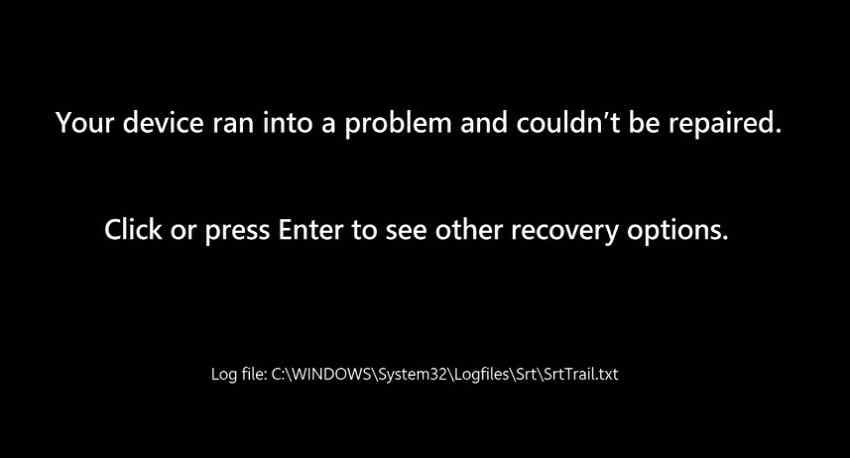
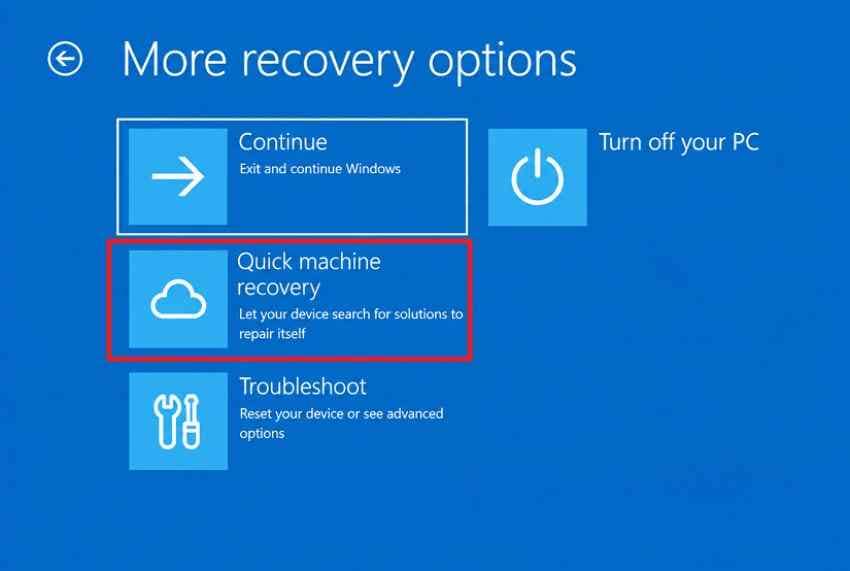
If QMR is not offered or no remediation exists, return to the other WinRE options. The older source link for Quick Machine Recovery has been superseded by the current Microsoft Support path used above.
Part 6. Protect Files Before Resetting Or Reinstalling Windows 11
A black screen is not, by itself, proof that files are lost. If normal Windows or Safe Mode works, copy important documents, project files, photos, and other irreplaceable data to separate storage before Reset this PC or a clean install. Open a sample of the copied files to verify the backup.
| Recovery Option | Personal Files | Apps | Best Fit |
| Uninstall latest quality update | Kept | Kept | Problem closely follows an eligible update |
| System Restore | Kept | Recent apps/drivers may be removed | Suitable restore point exists before the issue |
| Point-in-time restore, when available | Rolled back to snapshot state | Rolled back to snapshot state | Recent 24H2+ snapshot is available and current files are protected |
| Repair reinstall using Windows Update | Kept | Kept | Windows still boots and system components need repair |
| Reset this PC - Keep my files | Kept | Removed | Windows needs a broader reinstall after data is backed up |
| Reset this PC - Remove everything | Removed | Removed | Fresh reset is intentionally required |
| Clean install from bootable media | Removed from the selected Windows installation | Removed | Last-resort fresh installation after backup/recovery |
Microsoft's current Windows recovery options recommend less disruptive methods before Reset this PC. Also confirm your BitLocker recovery key before relying on WinRE, reset, restore, or recovery media.
If Windows is inaccessible but the internal drive is still detectable, protect files before moving to a reset or clean installation. Recoverit's guides to recovering data after a black-screen crash and recovering files when a PC will not boot cover the data-protection workflow separately.
Part 7. Recover Files From A Windows 11 Black Screen With Recoverit
When Recoverit Is Appropriate
Use recovery software only when you actually need access to stored files and normal Windows or Safe Mode cannot provide that access. If the system drive is still detected and readable, Wondershare Recoverit Windows Data Recovery can help scan for recoverable files before you reset or reinstall Windows.
Recoverit is a data recovery tool, not a black-screen repair tool. It cannot repair Explorer, remove a bad Windows update, reinstall a display driver, fix a GPU or monitor, bypass BitLocker, or recover data from an undetected physically failed drive. Recovery depends on storage condition, encryption, overwriting, and whether the drive can still be read.
For a black-screen or unbootable system, the current Recoverit Windows System Recovery page and official user guide describe a bootable USB workflow that lets you start a separate recovery environment and scan a detectable system drive without first reinstalling Windows.

How To Recover Files When Windows Cannot Start
Prepare another working computer, a blank USB drive that can be erased, and separate storage for the recovered files.
Step 1. Open The Crashed-Computer Recovery Tool
Install and launch Recoverit on the working PC. Open Other Tools, choose the crashed or non-bootable computer recovery option shown by the current app, and start the bootable-media workflow.
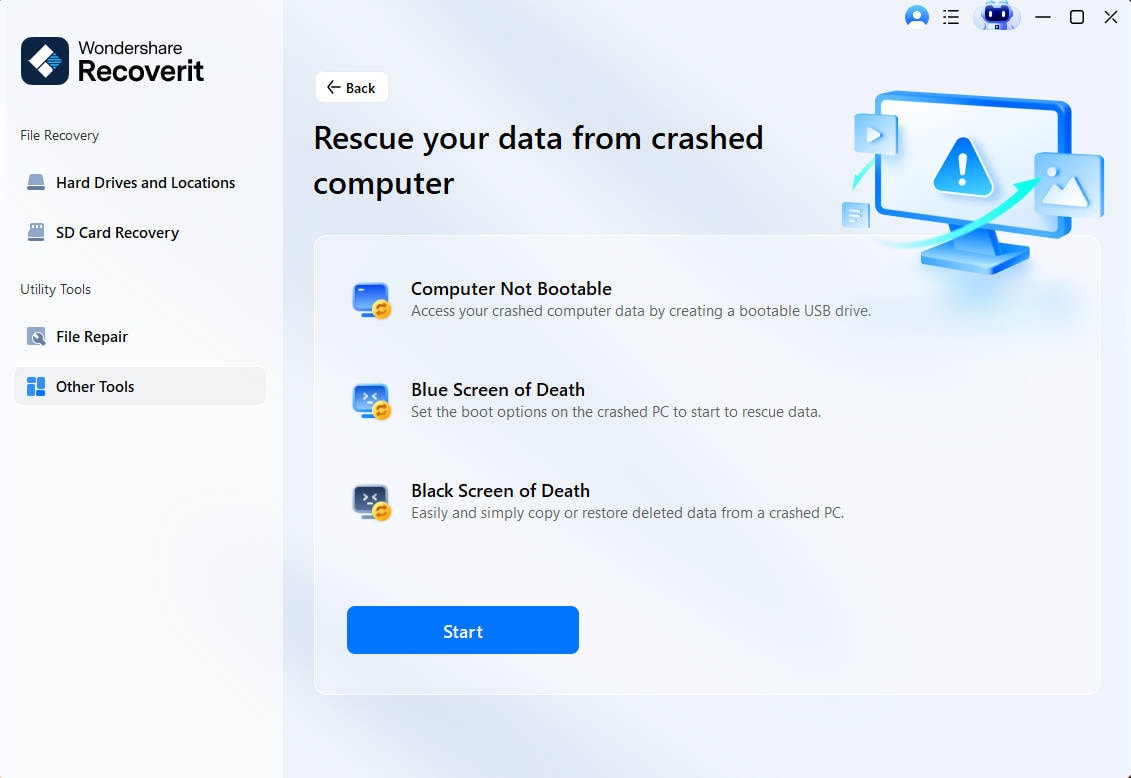
Step 2. Create The Bootable USB
Select the blank USB drive and start creating the bootable media. The selected USB will be formatted, so move anything important off that USB first.

Step 3. Boot The Affected PC From USB And Recover Files
Connect the bootable USB to the black-screen PC and follow the on-screen boot guidance to start from USB. When the recovery environment loads, scan the detectable internal drive, preview the files you need, and save recovered data to a different drive rather than back to the source disk.
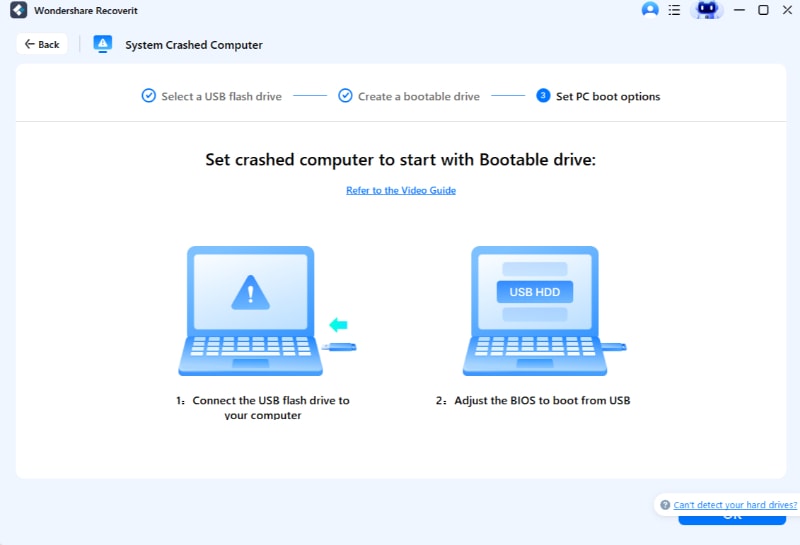
Stop and escalate if the internal SSD or HDD disappears from firmware/diagnostics, makes abnormal mechanical noises, repeatedly disconnects, or shows confirmed physical failure. Continuing software scans on unstable hardware can add stress; professional recovery is safer in that situation.
Recover Files From A Windows 11 Black Screen With Recoverit
 Security Verified. Over 7,302,189 people have downloaded it.
Part 8. Reset Or Reinstall Windows 11 As A Last Resort
Use reset or reinstall only after the less disruptive paths have failed and important files are protected. A reinstall can remove apps, settings, or all data depending on how it is started.
Reset This PC: Keep My Files Or Remove Everything
From WinRE, open Troubleshoot > Reset this PC. Microsoft's original Reset your PC link redirects to its current Windows recovery page.
- Keep my files: Reinstalls Windows and preserves personal files, but removes installed apps and resets many settings.
- Remove everything: Reinstalls Windows and removes personal files, apps, and settings.
- Cloud download: Downloads fresh Windows files from Microsoft.
- Local reinstall: Uses recovery files already stored on the PC.
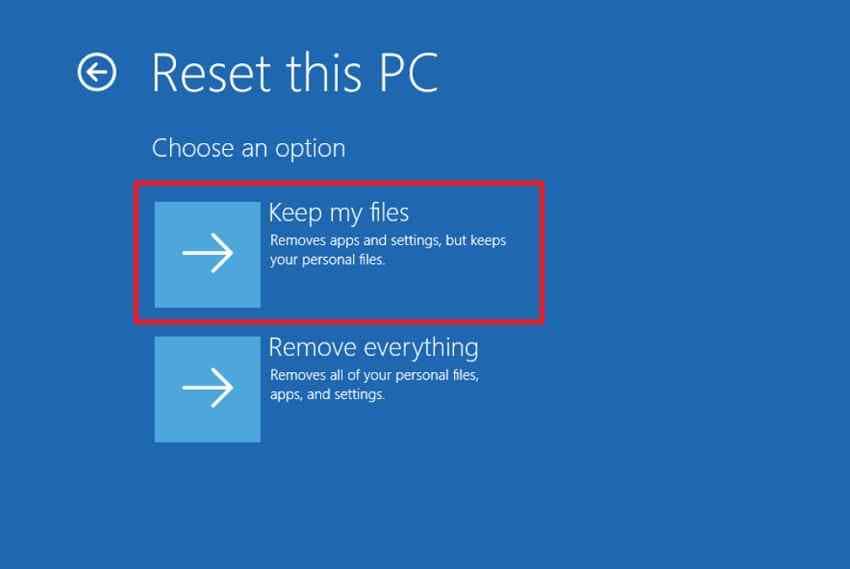
Do not misread a black screen during Reset this PC as immediate failure. Microsoft's current reset guidance warns that the display can remain black for a long period, occasionally more than 15 minutes, and the PC may restart itself. Manually restarting it during the reset can cause the process to fail.
Repair Reinstall Vs. Clean Installation
If Windows can still boot normally enough to use Settings, the least disruptive reinstall is Fix problems using Windows Update > Reinstall now. It reinstalls the current Windows version while preserving apps, files, and settings.
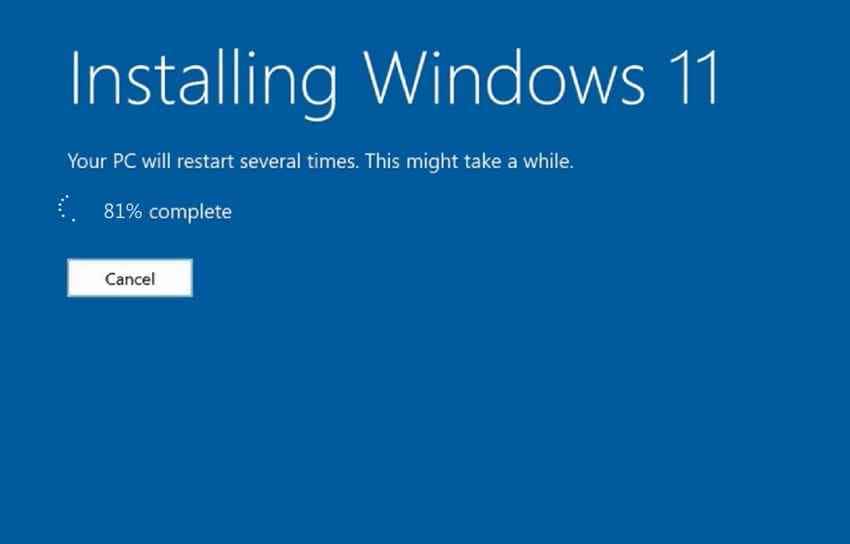
If Windows cannot be made usable and you intentionally choose a fresh installation, booting from installation media can remove the existing Windows installation, apps, settings, and personal files. Microsoft's original installation-media guide remains available. Protect data first and verify that you selected the correct target drive and Windows edition.
Check Hardware If The Black Screen Returns After Reinstalling
If a clean Windows installation still produces the same black screen, stop reinstalling repeatedly. Check the display cable and monitor, GPU and integrated graphics behavior, RAM, storage health, firmware, temperatures, and power stability. A persistent no-signal condition or repeated failure before Windows loads may be hardware-related rather than an update problem.
Conclusion
A black screen after a Windows 11 update should be diagnosed by what remains visible. A cursor points toward Explorer, startup software, or the graphics path; a blinking text cursor points earlier in the boot process; No Signal calls for display-path checks; and a black screen with a stop code is a Windows crash, not a blank-screen symptom. Start with display reset and Explorer, then use Safe Mode, targeted driver or update rollback, Startup Repair, System Restore, or Quick Machine Recovery only when the evidence matches. Protect important files before Reset this PC or a clean installation, and use Recoverit only for data recovery when Windows access is lost and the storage remains readable.
FAQ
-
Why Did My Screen Go Black After A Windows 11 Update?
A Windows 11 update black screen can follow an incompatible display driver, a stalled Windows process, an output-routing change, an incomplete update, or a separate hardware problem that appeared at the same time. Start by identifying whether you have a cursor, a No Signal message, a blinking text cursor, or a stop code before choosing a fix. -
How Do I Fix A Windows 11 Black Screen With A Cursor?
Press Ctrl + Shift + Esc to open Task Manager and restart Windows Explorer. If Explorer is missing, use File > Run new task, enter explorer.exe, and press Enter. If the black screen returns, test Safe Mode, a display-driver rollback, and recently added startup software. -
Can I Uninstall A Windows 11 Update If The Screen Is Black?
Yes, when Windows cannot start normally, WinRE can offer Troubleshoot > Advanced options > Uninstall Updates > Uninstall latest quality update. Some updates cannot be removed, and the timing should match the start of the problem before you treat the update as the cause. -
Will Fixing A Black Screen Delete My Files?
Restarting Explorer, rolling back a driver, Startup Repair, uninstalling an eligible update, and System Restore normally do not delete personal files. Reset This PC can remove apps and settings, Remove everything deletes personal files, and a clean install can erase the existing Windows installation. Back up or recover important files first. -
What Does A Blinking Cursor On A Black Screen Mean?
A blinking text cursor usually means Windows has not reached the normal desktop startup stage. Microsoft's current blank-screen guidance associates this symptom with UEFI or BIOS being unable to find a boot device, so check boot-device detection and use WinRE tools such as Startup Repair before treating it as an Explorer or desktop issue.


