


 TL;DR:
Illustrator protects cloud documents by saving changes directly to Adobe servers with version history, whereas local files use an auto-recovery system that generates separate backup copies at specified intervals inside hidden system folders.
● Illustrator 30.0 disables traditional interval settings by default to process backups through the Save in Background feature, while versions 29.2 through 29.8 create restricted .aishm files that rely entirely on the automatic crash prompt for restoration.
● Manually access local recovery files by searching %AppData% on Windows or navigating to ~/Library/Preferences/ on macOS to reach the Adobe Illustrator version settings directory and locate the DataRecovery folder containing standard .ai or .aid files.
● Cloud autosave operates on a default 5-minute interval that only activates after manually saving the document to the cloud once, and experiencing a secondary software crash during any recovery sequence can silently disable your File Handling protection settings.
Ask AI for a summary
 ChatGPT
 Perplexity
 Gemini
 Claude
 Grok
Grok
Few Adobe Illustrator settings cause as much confusion as its save options. Autosave in Illustrator works differently from auto-recovery, and cloud documents follow yet another schedule. This guide explains where recovery files are stored on Windows and Mac, how to configure the settings correctly, and what to do when the Illustrator autosave location folder appears empty. When a saved AI file disappears from the drive, Recoverit Windows Data Recovery can help scan local storage for recoverable Illustrator documents.
In this article
-
- Method 1. Reopen Illustrator After a Crash
- Method 2. Open Files From the Illustrator DataRecovery Folder
- Method 3. Restore an Illustrator Cloud Document
- Method 4. Restore a Saved Illustrator File From Windows Backup or Time Machine
- Method 5. Recover Lost Local Illustrator Files With Wondershare Recoverit
Part 1. How Does Autosave Work in Adobe Illustrator?
Illustrator autosave works in unexpected ways, which can put unsaved artwork at risk if you do not understand the differences between its save options.
Illustrator Autosave vs Auto-Recovery vs Auto-Backup
These three terms sound similar, but each protects your work differently.
| Feature | What It Does | Applies To | Where It Is Stored |
| Autosave | Writes changes back into the document itself. | Cloud documents only. | Adobe servers, with version history. |
| Auto-recovery | Writes a separate copy at a set interval. | Local AI files. | The DataRecovery folder on your computer. |
| Auto-backup | Handles the recovery write on newer releases. | Local AI files in version 30.0. | The same DataRecovery folder. |
Local Illustrator Files vs Cloud Documents
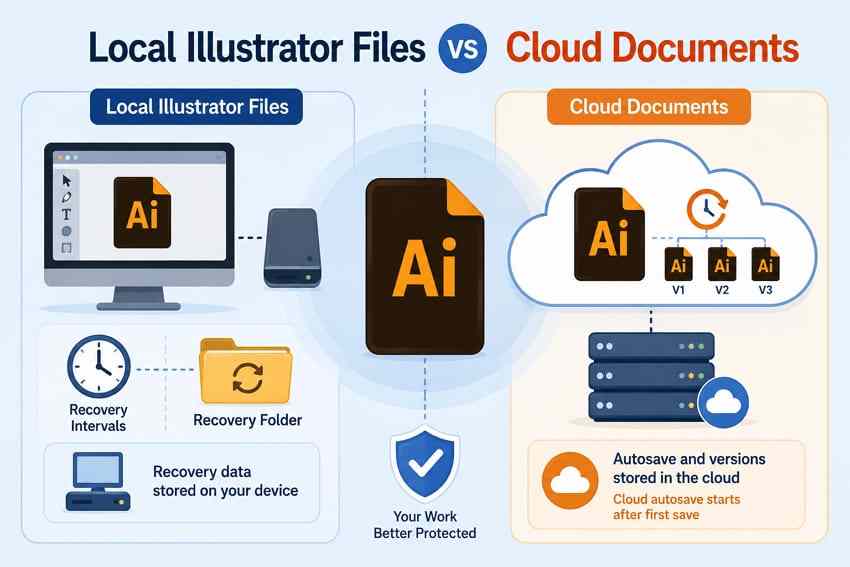
Local Illustrator files depend on recovery intervals and assigned recovery folders. Cloud documents save to Adobe servers and include version history. However, cloud autosave starts only after you save the document to the cloud one time.
How Often Illustrator Saves Recovery Data
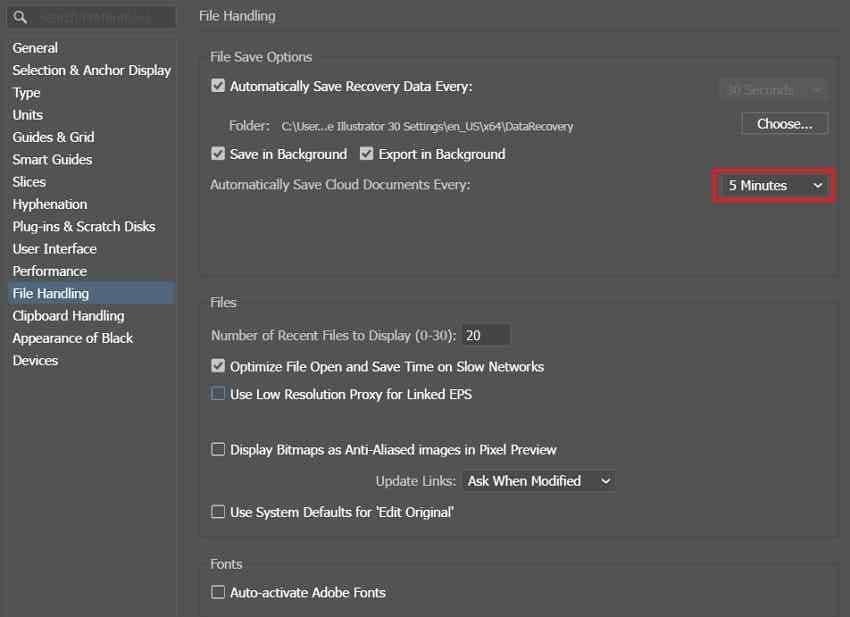
You choose recovery intervals from File Handling based on your work needs. Shorter intervals cause save pauses, while long intervals risk more work loss. Illustrator cloud documents use 5 minutes as the default autosave interval.
What Happens to Recovery Files After a Crash
Adobe explains that after a crash, Illustrator checks recovery data during the next launch. Found documents open with "Recovered" added to their original file names. Use Save As immediately because recovered work has not reached disk yet.
What Changed in Illustrator 30.0
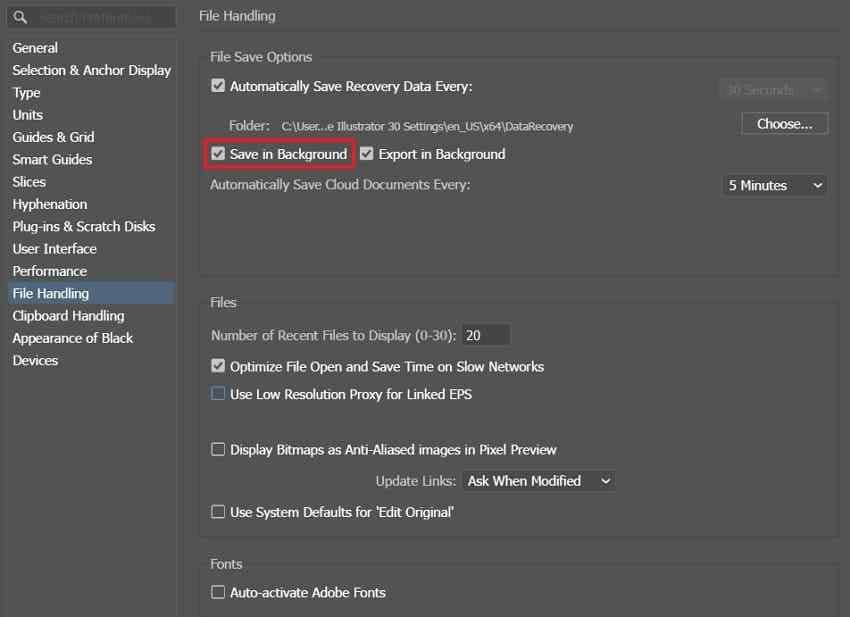
Illustrator 30.0 moved auto-backup into Save in Background for quick saves. Adobe disables the older recovery interval setting by default in version 30.0. An unchecked interval option does not mean your backup protection disappeared.
Part 2. Where Are Illustrator Recovered Files Stored?
Both platforms store recovery data inside hidden folders that users cannot access directly. Each folder path includes details for your Illustrator version and language code.
Illustrator Autosave Location on Windows
Windows stores recovery data inside the Roaming section of your user profile.
Path: %AppData%\Adobe\Adobe Illustrator [version] Settings\[locale]\x64\DataRecovery
Replace the version number (such as 30) and language code (like en_US). AppData stays hidden, so enter %AppData% in Windows Search to open Roaming.
Illustrator Autosave Location on Mac
macOS stores the same recovery data under Preferences within your user Library.
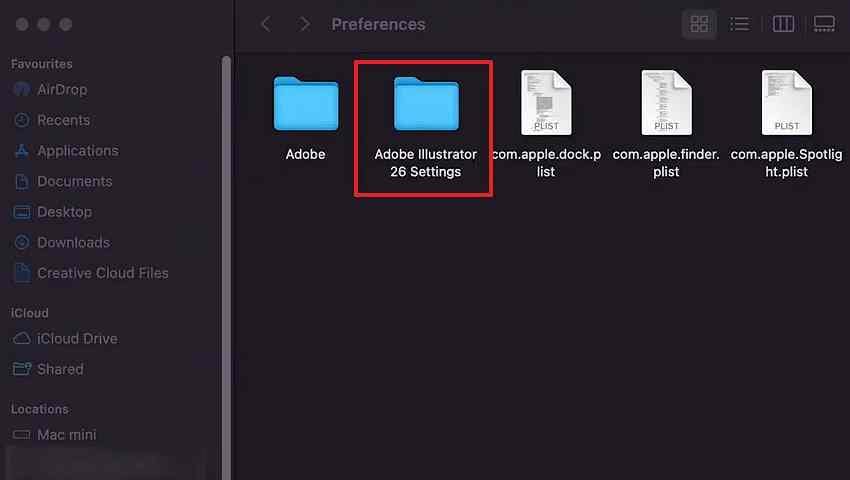
Path: ~/Library/Preferences/Adobe Illustrator [version] Settings/[locale]/DataRecovery
Finder hides Library, so use the Go to Folder shortcut described below.
AI, AID, and Recovery Files Explained
Adobe lists .ai and .aid files inside DataRecovery folders on supported releases. An .ai opens as normal, while an .aid requires saving under a new name. Some macOS files have no extension and need .ai added before Illustrator accepts them.
Illustrator 29.2 to 29.8 AISHM Recovery Difference
Illustrator versions 29.2 through 29.8 store recovery data as .aishm files instead. These files do not use the standard Illustrator autosave location or manual recovery method.
| Platform or Version | Recovery Location | File Type | How to Access |
| Windows | Adobe\Adobe Illustrator [version] Settings\[locale]\x64\DataRecovery | .ai and .aid | Search %AppData%, then follow the folder chain. |
| Mac | Preferences/Adobe Illustrator [version] Settings/[locale]/DataRecovery | .ai and .aid | Go to Folder, entering ~/Library/Preferences/. |
| Versions 29.2 to 29.8 | Same folders as above. | .aishm | Not openable manually; use the crash prompt. |
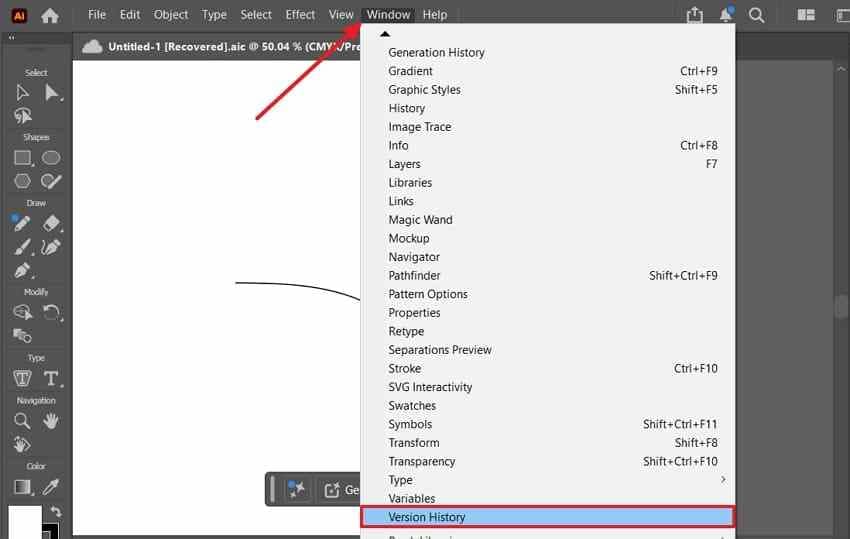
| Cloud Documents | Adobe servers, no local folder. | Server-side versions. | Window > Version History in Illustrator. |
How to Access Hidden Library or AppData Folders
Neither folder appears through ordinary browsing. On Windows, typing %AppData% into the search box opens the Roaming folder directly. On Mac, choosing Go > Go to Folder in Finder and entering ~/Library/ does the same job.
Part 3. How to Turn On and Configure Illustrator Autosave
Correct recovery settings make restoring your latest changes much easier after an unexpected crash.
Enable Recovery Settings on Windows
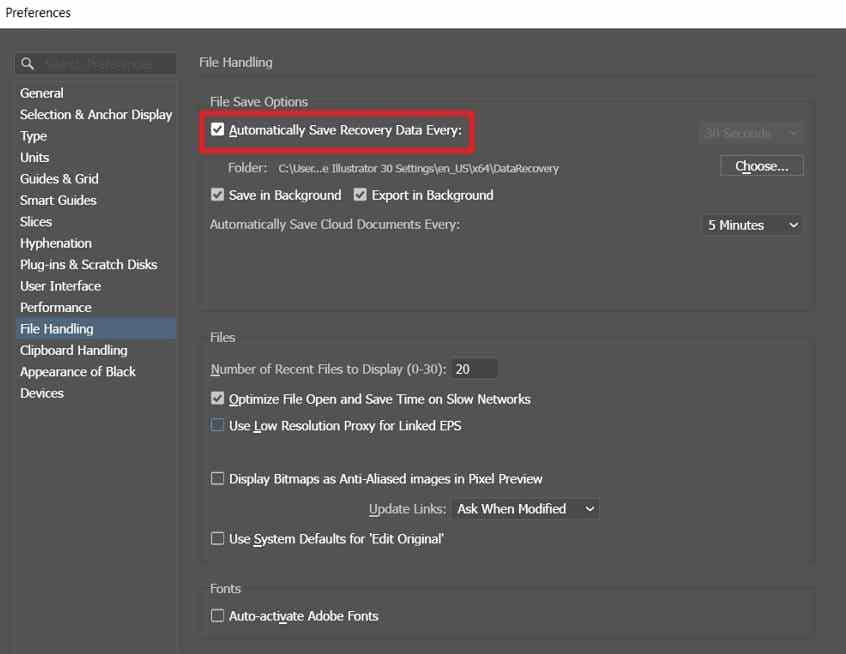
Version 30.0 leaves this option unchecked because Save in Background handles recovery. For other versions:
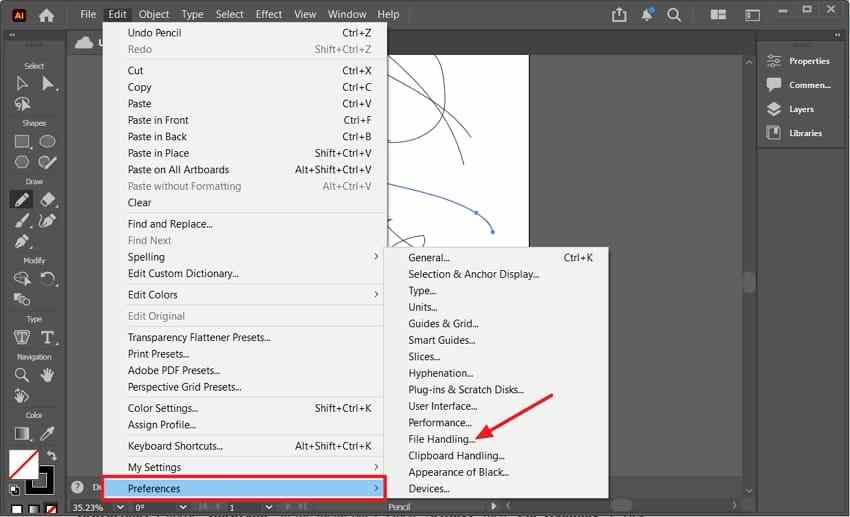
Step 1. In Illustrator, choose Edit > Preferences > File Handling.
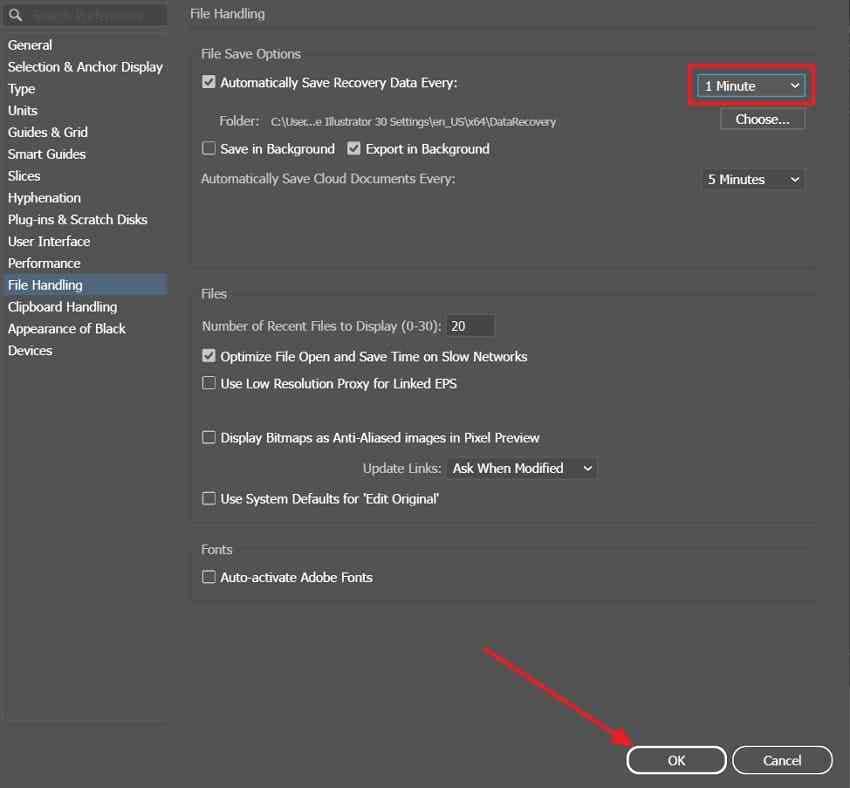
Step 2. Tick Automatically Save Recovery Data Every and confirm a folder path is listed beneath it.
Enable Recovery Settings on Mac
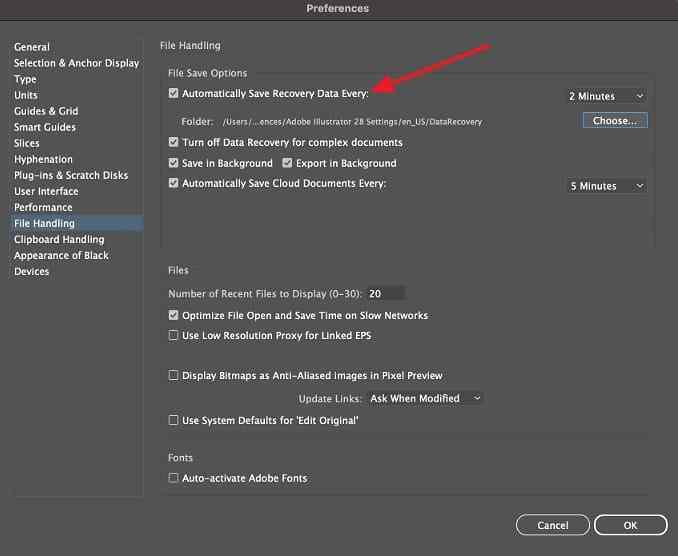
Choose Illustrator in the menu bar, open Settings, select File Handling, tick Automatically Save Recovery Data Every, and check the folder path shown beneath it.
Choose the Auto-Recovery Interval
Opt for a shorter recovery interval when your artwork changes frequently. Use a longer interval for complex files to reduce pauses while working.
Change the Illustrator Recovery Location
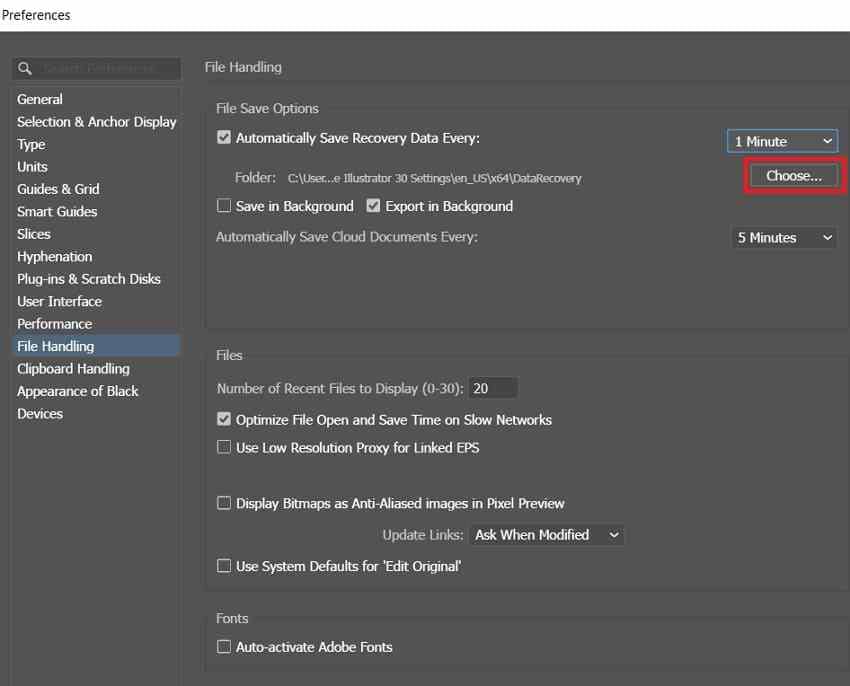
Adobe does not support network folders for storing Illustrator recovery data. In File Handling, click Choose, pick a local folder your account can write to, and confirm the new path appears in the panel.
Configure Save in Background in Illustrator 30.0
Keep Save in Background enabled because Illustrator 30.0 uses it for backups. Enabling it disables the recovery interval dropdown, which is normal behavior. Some features require foreground saving, including Live Paint and Freeform Gradient artwork.
Configure Autosave for Illustrator Cloud Documents
Cloud autosave begins only after saving your Illustrator document to the cloud. Adobe sets the default autosave interval for cloud documents at 5 minutes. Save the file as a cloud document once, then in File Handling Preferences, pick a time from Automatically Save Cloud Documents Every.
Part 4. How to Recover Illustrator Files From Autosave
Lost artwork may still be recoverable using the autosave Illustrator recovery options available.
Method 1. Reopen Illustrator After a Crash
Illustrator automatically checks available recovery data when reopened after an unexpected crash.
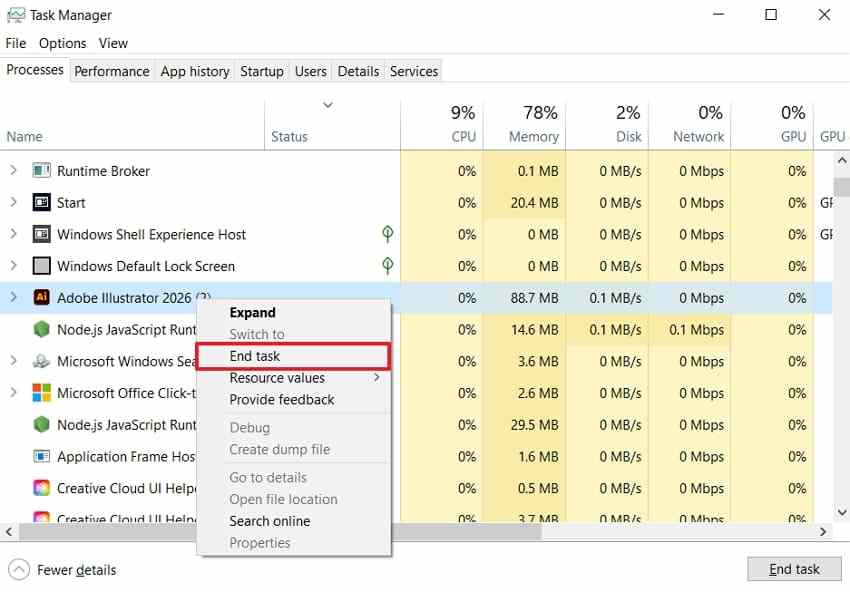
Step 1. After the crash, open Task Manager, search for Adobe Illustrator, right-click it, and click End Task on Windows. On Mac, use Activity Monitor.
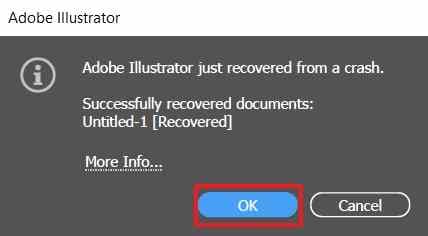
Step 2. Launch Illustrator again. If the file recovery pop-up appears, press OK.
Method 2. Open Files From the Illustrator DataRecovery Folder
Recovery data may remain stored locally when Illustrator does not show prompts.
For Windows:
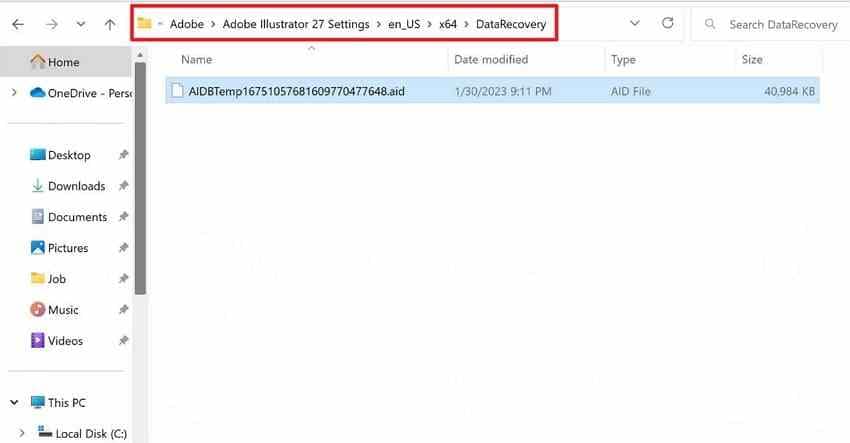
Step 1. Open Run, type %AppData%, and press Enter. Go to Adobe\Adobe Illustrator [version] Settings\[locale]\x64\DataRecovery and sort by Date Modified.
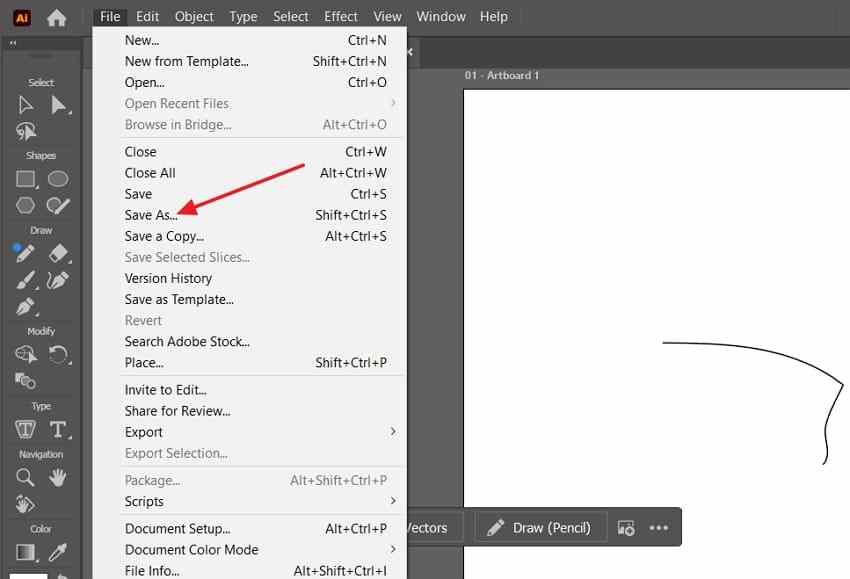
Step 2. Open the most recent Illustrator file and choose File > Save As to save it.
For Mac:
Step 1. Press Go > Go to Folder, type ~/Library/Preferences/, and press Return.
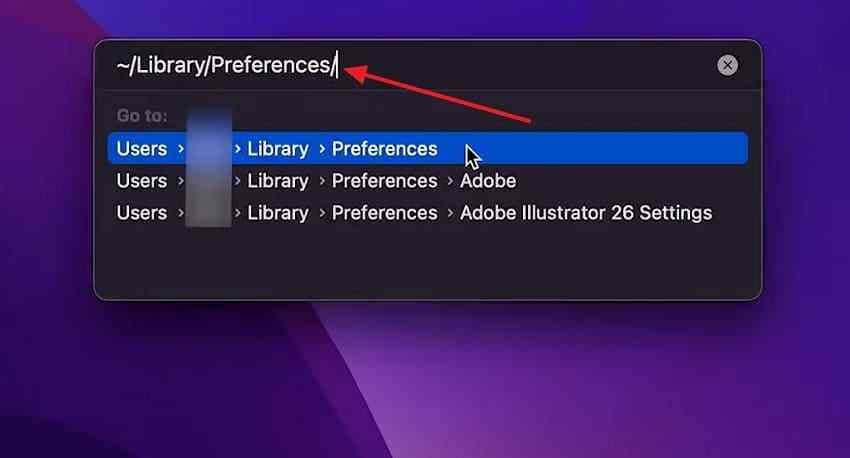
Step 2. Navigate to Adobe Illustrator [version] Settings/[language]/DataRecovery, sort by Date Modified, and open the most recent file.
Method 3. Restore an Illustrator Cloud Document
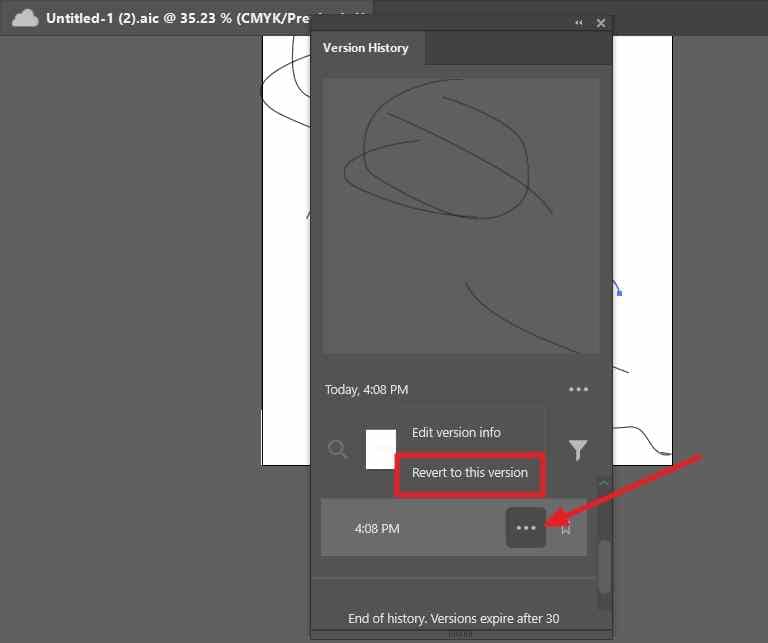
Adobe stores previous versions of cloud documents online instead of local recovery folders.
Step 1. Open the affected document and access Window > Version History (or File > Version History).
Step 2. Choose an older version and click the three-dots menu > Revert to this version.
Method 4. Restore a Saved Illustrator File From Windows Backup or Time Machine
Apple notes that document version tools can restore past saves when applications support versioning. Both Windows File History and Time Machine can help if backups were already enabled.
For Windows File History:
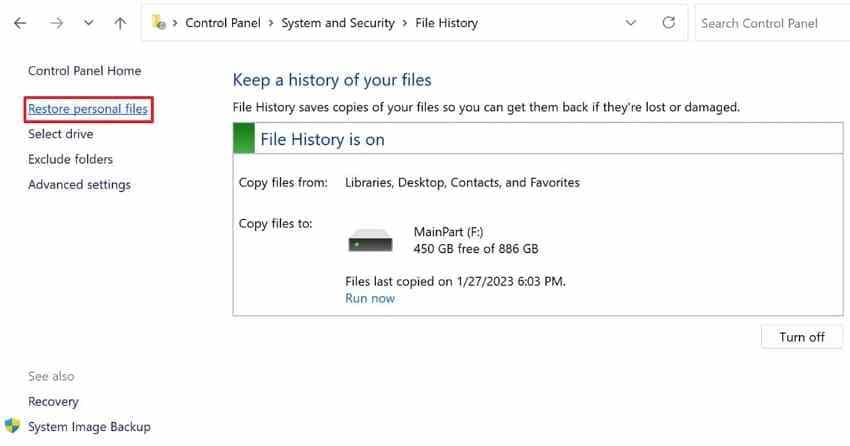
Step 1. Go to Control Panel > System and Security > File History and select Restore personal files.
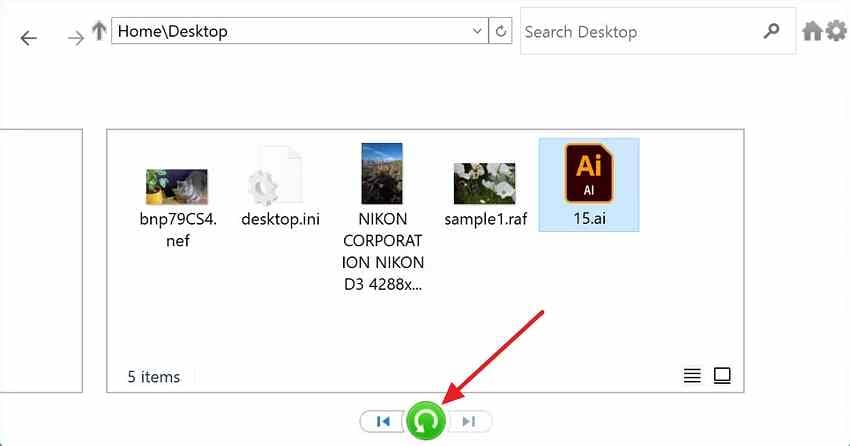
Step 2. Find the folder containing the AI file, select an earlier version, and click the green restore icon.
For Mac Time Machine:
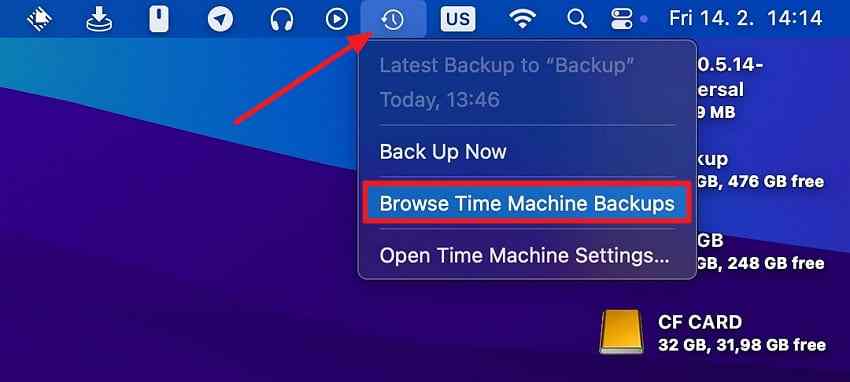
Step 1. Connect the Time Machine backup, open the folder containing the AI file, press the Time Machine icon, and choose Browse Time Machine Backups.
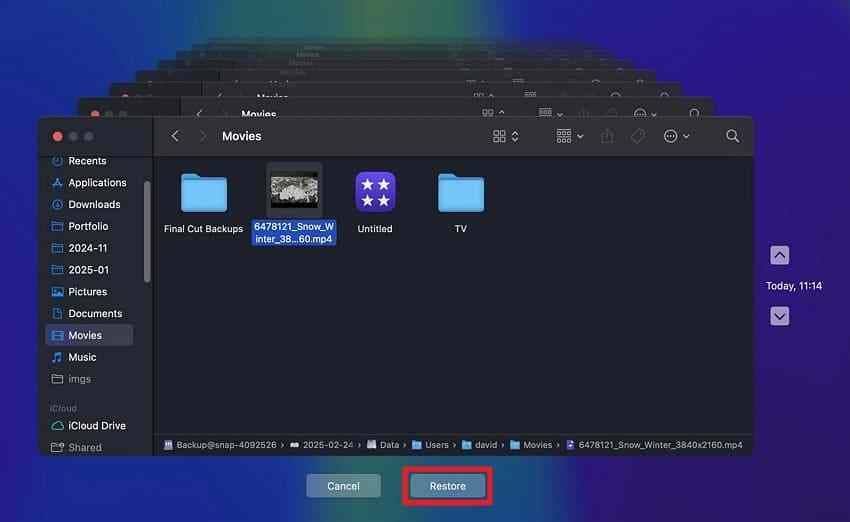
Step 2. Use the timeline to select the file and press Restore.
Method 5. Recover Lost Local Illustrator Files With Wondershare Recoverit
A saved Illustrator document may disappear after deletion, an emptied recycle bin, or drive problems. Recoverit scans storage to find missing Illustrator documents. It supports deep scanning, Recycle Bin recovery, formatted drive scanning, folder structure rebuilding, and Adobe format recognition for AI, EPS, PSD, and INDD files.
Step 1. Choose the Illustrator file drive. Open Hard Drives and Location and select the drive where your AI file existed.

Step 2. Scan the storage drive. Available files appear within the File Location tab as scanning continues.

Step 3. Check and restore the AI file. Preview your missing AI file and press Recover to save it to another drive.

Try Wondershare Recoverit to Perform Data Recovery
 Security Verified. Over 7,302,189 people have downloaded it.
Part 5. Why Illustrator Autosave or Recovery Files Are Missing
Missing recovery files can result from settings, crashes, cleanup, or location changes.
| Problem | Possible Cause | What to Check |
| Folder is completely empty | Recovery was never switched on. | File Handling preferences, then re-enable. |
| Newest file predates the crash | Illustrator crashed between two writes. | Shorten the interval for future sessions. |
| Recovery stopped after a crash | A second crash disabled the settings. | Re-tick the recovery boxes manually. |
| Folder exists but holds nothing | The location was changed previously. | The path shown beside the Choose button. |
| Files vanished after maintenance | A reset or cleanup removed them. | Whether preferences were reset recently. |
| Files present but will not open | The version wrote .aishm data. | Your Illustrator version number. |
A crash between backup intervals can erase changes made during that gap. Another crash during recovery may also turn the auto-backup settings off. Together, these problems can leave work unsaved and future sessions unprotected.
Part 6. How to Avoid Losing Illustrator Work
Good habits keep autosave in Illustrator ready when unexpected problems occur.
| Prevention Method | Why It Helps | When to Do It |
| Check recovery settings after crashes | A second crash during recovery can disable settings. | Before continuing important work after any crash. |
| Use an appropriate recovery interval | Shorter intervals reduce potential work loss. | Balanced with file size and performance. |
| Keep Save in Background enabled | Illustrator 30.0 uses this for auto-backup. | Check after any Illustrator update. |
| Save important projects as cloud documents | Cloud documents autosave and maintain version history. | For ongoing projects that benefit from versioning. |
| Maintain Windows or Time Machine backups | System backups preserve earlier saved copies. | Enable before important design sessions. |
| Save major project versions separately | Separate versions give fallback copies. | Before major revisions or client handoffs. |
Conclusion
Illustrator protects cloud and local files through two different systems. Cloud documents save changes and maintain version history, while local files create recovery data at set intervals. Understanding autosave Illustrator options helps you choose the right recovery method afterward.
When a saved AI file disappears from local storage, Recoverit can scan the original drive for recoverable files. It cannot restore artwork that was never written to disk, and it cannot replace Illustrator's own auto-recovery process.
FAQ
-
Does Illustrator autosave overwrite the original AI file?
No. Recovery data stays separate from your original saved Illustrator AI file. The recovery copy protects recent changes but does not replace normal backups. -
Can Illustrator autosave files take up a lot of disk space?
Yes, large or complex artwork can make recovery files consume more disk space. Illustrator can skip backups for complex documents to reduce storage and save pauses. -
What happens to recovery files after you save the recovered document?
Illustrator removes recovery data after you save the recovered document without any errors. Copy needed recovery files elsewhere before saving if you want them for reference. -
Can Illustrator autosave files be moved to another drive?
Yes. Select another drive with the Choose button inside File Handling preferences. Choose a local folder with write access because Adobe excludes network locations.


