 TL;DR:
Before using data recovery software, sign in to OneDrive.com to verify if the missing files exist in the cloud, Personal Vault, Shared view, or the web Recycle Bin, because local disappearances are typically caused by paused synchronization, unselected folders, or incorrect Microsoft account logins rather than permanent deletion.
● Restore deleted files from the web Recycle Bin within 30 days for personal Microsoft accounts or 93 days for work or school accounts, or use the Restore your OneDrive feature to roll back the entire library up to 30 days to undo mass deletions or ransomware.
● Unlock your Personal Vault manually to check for missing sensitive data since Vault files are intentionally excluded from standard web search results, and contact the original file owner if a Shared item vanishes because withdrawn access removes the file without sending it to your Recycle Bin.
● Run local storage recovery tools like Wondershare Recoverit only if a complete, offline-available file copy previously existed on a readable Windows or Mac drive, as local disk scans cannot retrieve data from blue-cloud placeholders that were exclusively stored online.
Ask AI for a summary
 ChatGPT
 Perplexity
 Gemini
 Claude
 Grok
Grok
Quick answer: Open OneDrive.com first and sign in to every Microsoft account you use. Search the complete web library, unlock Personal Vault, check Shared, and inspect the OneDrive Recycle Bin. If the file exists online but is missing from File Explorer or Finder, it is usually a sync, account, folder-selection, or Files On-Demand issue—not a deletion. Use local recovery software only if a complete copy once existed on a computer or another readable storage device.
When OneDrive files disappear, the most important question is not “Which recovery tool should I run?” It is “Where did the last complete copy exist?” OneDrive can show a cloud-only placeholder on a PC, keep a file inside Personal Vault, remove a shortcut after its owner withdraws access, or stop displaying a folder that is no longer selected for synchronization. Those cases need different fixes.
This guide follows a non-destructive order: confirm the cloud copy, diagnose visibility, restore from Microsoft’s recovery systems, then investigate local storage. That sequence protects the surviving version and avoids rolling back an entire library to solve a simple display problem.
Fact-checked on September 3, 2026: The search sequence, Recycle Bin periods, Files On-Demand behavior, version-history window, full-library restore limits, and reset guidance were checked against Microsoft’s current support pages. Recoverit claims were limited to functions documented on its current Windows product page.
Recover Missing OneDrive Files With Wondershare Recoverit
 Security Verified. Over 7,302,189 people have downloaded it.
In this article
Part 1. Why Are My OneDrive Files Missing?
A missing file is not automatically a deleted file. It may still exist in Microsoft’s cloud while the computer is looking at a different account or hiding the folder. It may also be inside Personal Vault, owned by someone who stopped sharing it, or waiting in a recovery location after deletion.
| Situation | Likely cause | Actually deleted? | Best first check |
| Nothing familiar appears on OneDrive.com | Wrong personal, work, or school Microsoft account | Usually no | Compare the signed-in email address and organization. |
| Files appear online but not on the computer | Sync is paused, signed out, filtered by Choose folders, or still processing | No | Check the OneDrive cloud icon and sync status. |
| A file has a blue cloud icon | Files On-Demand keeps the content online-only | No | Open it online or select Always keep on this device. |
| A sensitive file cannot be found by search | It may be stored inside Personal Vault | No | Unlock Personal Vault and search inside it. |
| A file under Shared disappeared | The owner deleted, moved, renamed, or stopped sharing it | Not necessarily; access may have changed | Ask the owner and recheck the Shared view. |
| The item appears in a Recycle Bin | It was deleted from OneDrive or a synchronized device | Yes, but still restorable | Restore it from the web Recycle Bin. |
| The cloud item and all bins are empty | Retention expired, permanent deletion occurred, or the file never uploaded | Possibly | Check version history, backups, other devices, and local storage. |
Microsoft’s current missing-file guidance recommends searching the OneDrive website first because it is the central location where connected devices synchronize and store cloud files. That web check creates a clean diagnostic split: online and missing locally, or absent from the cloud itself.
Also separate a missing shared item from a missing file you own. If another person owns the file, it may vanish from your view without entering your Recycle Bin. The owner’s library, permissions, and Recycle Bin control the recovery path.
Part 2. How to Find Files Missing From OneDrive
Complete these checks before restoring or scanning anything. They locate files that are hidden, moved, filtered, or attached to another account and leave existing data unchanged.
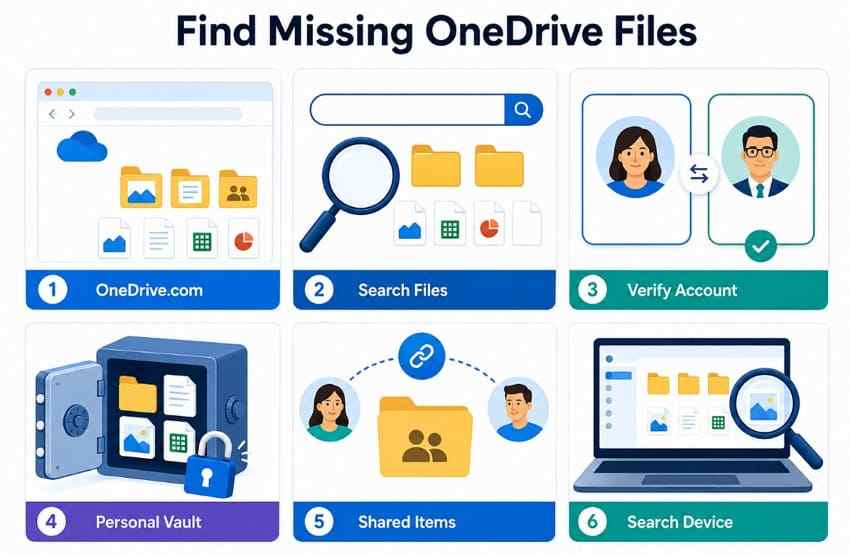
Check OneDrive.com First
Open OneDrive.com in a browser and sign in. Select My files, inspect the relevant folders, and look at Recent, Shared, and Recycle bin. The web library is more authoritative than a single computer’s sync folder because the computer can be paused, disconnected, or configured to display only selected folders.
If the missing file opens on the website, download a copy to a safe non-OneDrive folder before changing sync settings. This gives you an independent working copy while you repair local access. If it does not appear online, continue through the remaining locations rather than repeatedly resetting the desktop app.
Search With File Name, Date, Type, or Description
Use Search everything at the top of OneDrive.com. Try the exact name, a partial name, extension, date, tag, place, or a distinctive description. For example, search for xlsx, April, a client name, or words likely to appear in the item’s metadata. A file may have been renamed or moved, so do not rely only on its old folder.
Search has two important limits. Personal Vault content is excluded from normal OneDrive search, and content that someone else stopped sharing may no longer be visible to your account. Treat an empty search result as a clue, not final proof of deletion.
Check the Correct Microsoft Account
OneDrive keeps personal accounts and each work or school organization separate. Select the account picture on OneDrive.com and compare the displayed email address with the account used when the file was created. Repeat the search under every plausible account.
On the computer, select the OneDrive cloud icon and open Settings to see which account and local folder are connected. A similarly named organization account can point to a completely different library. Do not unlink an account until you have confirmed whether unsynchronized local files remain in its folder.
Look in Personal Vault
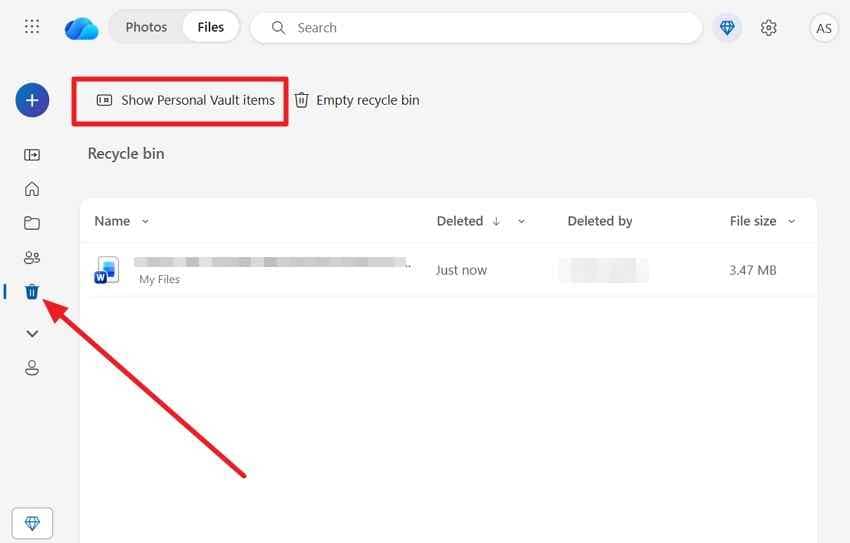
Unlock Personal Vault and browse or search within it directly. Microsoft states that Vault files do not appear in standard OneDrive search results. If a Vault file was deleted, open the web Recycle Bin and choose Show Personal Vault items when that option appears.
The extra authentication step is intentional. A successful general search outside the Vault does not prove a protected file is absent.
Check Shared Files and Folders
Open the Shared view and check both files shared with you and items you shared. Search email or Teams messages for the original sharing link. If the link reports that the item is unavailable, contact the owner and ask whether it was moved, deleted, renamed, or unshared.
A shortcut added to My files is not ownership. Removing the shortcut can remove it from the synced computer while leaving the owner’s source folder intact. Conversely, if the owner deletes the source, you normally cannot restore it from your own OneDrive Recycle Bin.
Search File Explorer or Finder
Search the whole computer, not only the current OneDrive directory. Check the Desktop, Documents, Downloads, recent-file lists, alternate OneDrive folders, Windows Recycle Bin, and Mac Trash. Look for renamed files and temporary copies created by the application that last edited the content.
If another computer used to synchronize the folder, inspect it too. When you reasonably believe it still has an unsynchronized copy, disconnect that computer from the network before opening the OneDrive folder. Copy the file to a location outside OneDrive, verify it, and only then reconnect. This prevents a pending cloud deletion from immediately propagating to the surviving copy.
Part 3. How to Recover OneDrive Files That Disappeared
Once search confirms that the file was deleted or changed, choose the narrowest Microsoft recovery method that fits. Restore one item from a bin before considering a full-library rollback.
Method 1. Restore Files From the OneDrive Recycle Bin
For a personal Microsoft account, OneDrive items are normally deleted automatically from the Recycle Bin 30 days after they enter it. For a work or school account, Microsoft currently states a normal 93-day period unless an administrator changes the setting. Restore important items immediately instead of treating either period as a guaranteed waiting time.
Step 1. Open the OneDrive Recycle Bin. Sign in at OneDrive.com with the account that owned the file, then select Recycle bin in the navigation pane. If relevant, reveal deleted Personal Vault items and unlock the Vault.
Step 2. Select and restore the missing items. Select the files or folders and choose Restore. OneDrive normally returns them to their original locations. Search My files afterward if the original folder was renamed, moved, or restored separately.
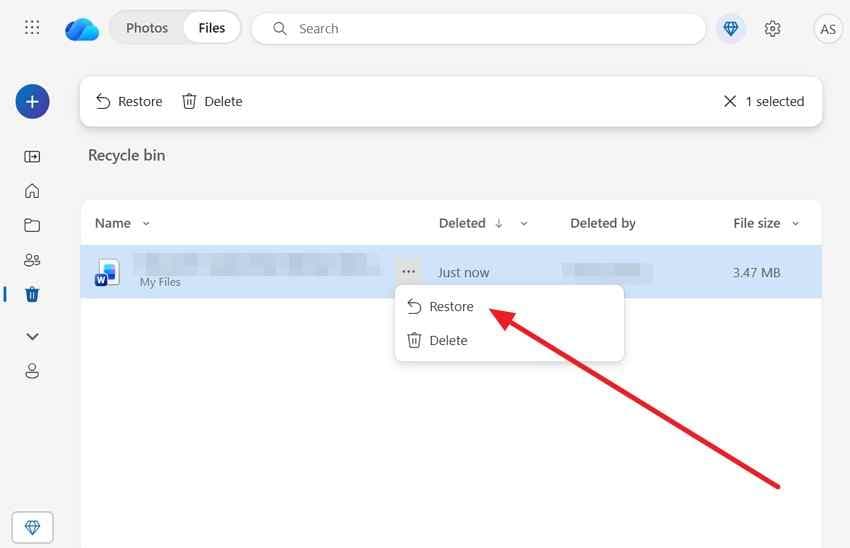
The current Microsoft Recycle Bin guide also confirms that an online-only deletion does not appear in the computer’s local Recycle Bin or Trash. Recover that item through the web service while it remains available.
Method 2. Check Windows Recycle Bin or Mac Trash
A local bin is relevant when the file was downloaded, synchronized, or marked for offline availability on that computer. It does not replace the web Recycle Bin and cannot contain the full data for a file that was always online-only.
Restore a Locally Available File on Windows
For Windows: Open Recycle Bin from the desktop or Windows search. Search for the file or sort by Date deleted and Original location, then right-click the item and select Restore.
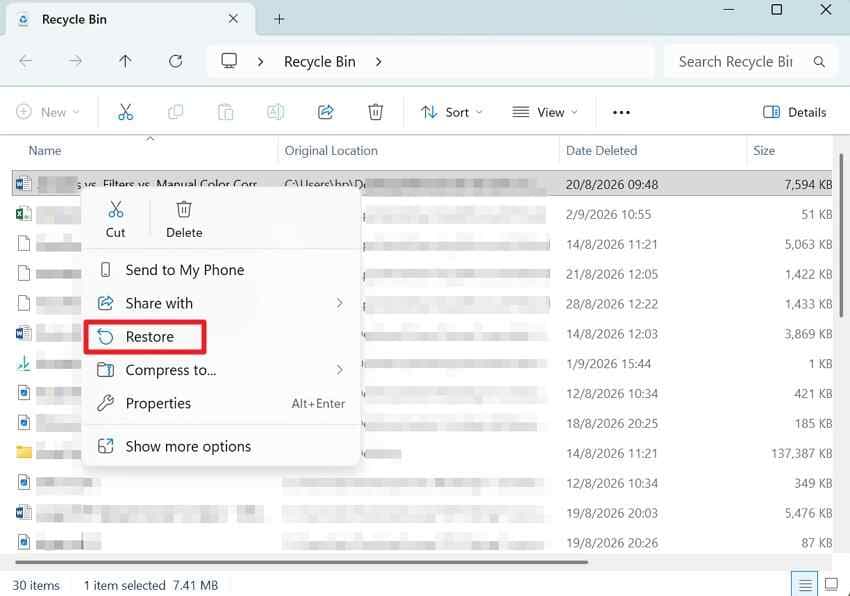
If the original synced folder is still active, OneDrive may upload or reconcile the restored file. Make a separate copy outside OneDrive first when you need to preserve it exactly as recovered.
Put Back a Locally Available File on Mac
For Mac: Open Trash from the Dock, Control-click the missing file, and choose Put Back. If the old OneDrive path is unavailable, drag the item to a safe local folder and verify it there.
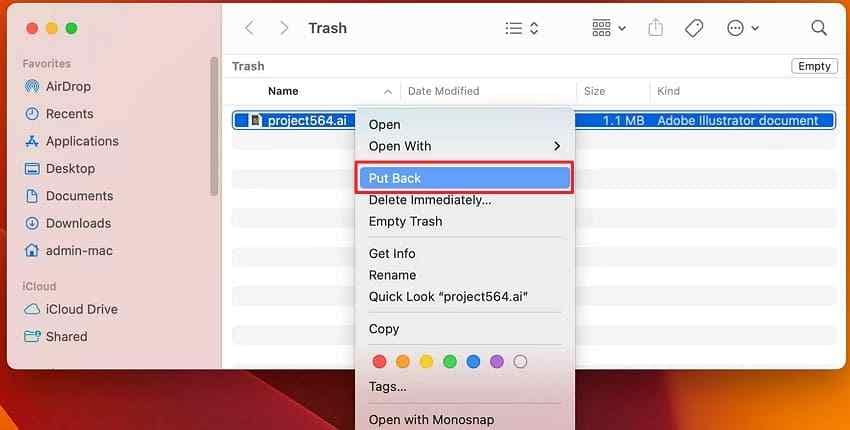
Boundary: A blue-cloud placeholder is not a complete local file. If it was deleted while online-only, use the OneDrive or SharePoint web Recycle Bin rather than a local undelete method.
Method 3. Restore a Previous File Version
Use version history when the file still exists but its contents were overwritten, edited incorrectly, corrupted, or replaced. Microsoft’s current OneDrive version-history guidance says versions are retained for 30 days and work or school administrators may disable document versioning.
Step 1. Open Version History. Sign in to OneDrive.com, locate the existing file, right-click it, and select Version history.
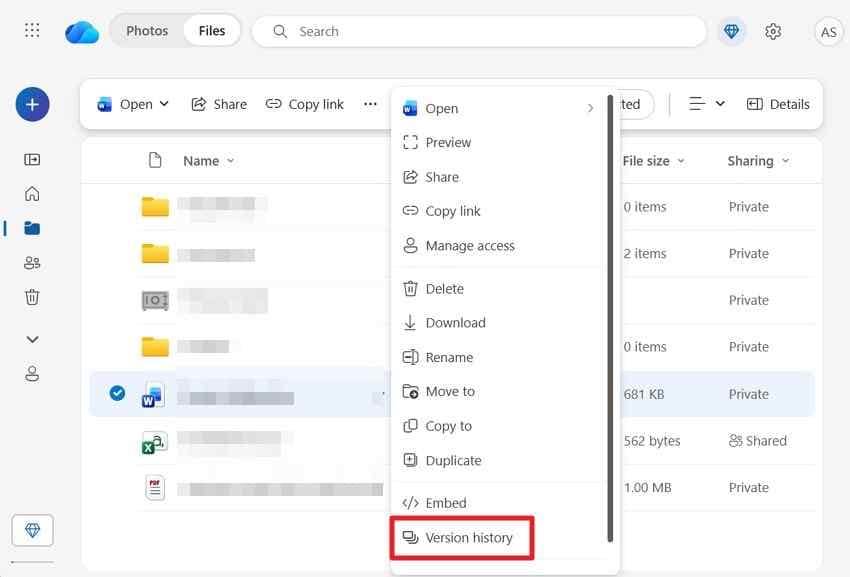
Step 2. Choose and restore the required version. Compare the available timestamps, authors, and file sizes. Open or download a candidate first when the interface allows it, then select the required version and choose Restore.
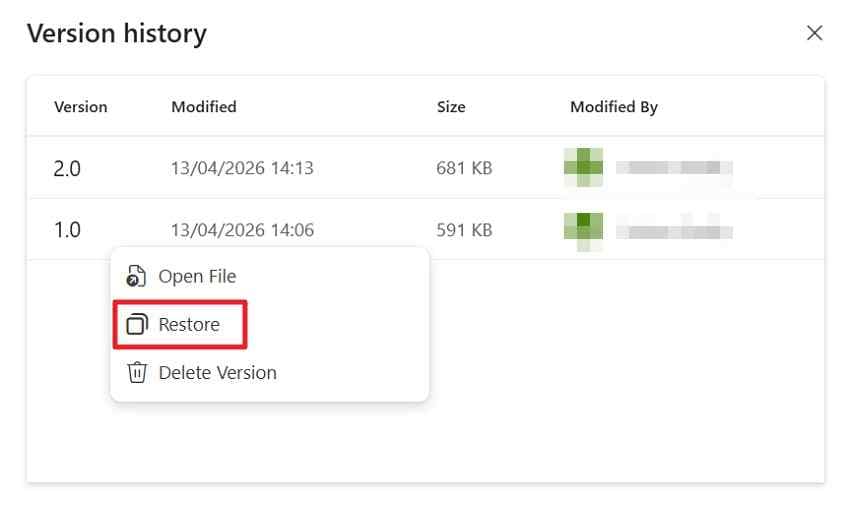
Version history restores one file at a time. It is better suited to an overwritten document than a folder that vanished entirely. Restoring an older version also creates a new current state, so preserve the present version when it may contain useful changes.
Method 4. Restore the Entire OneDrive to an Earlier Time
Restore your OneDrive is a Microsoft 365 feature for many files changed together by mass deletion, ransomware, corruption, or an unwanted synchronization. It can undo file and folder activity from the previous 30 days.
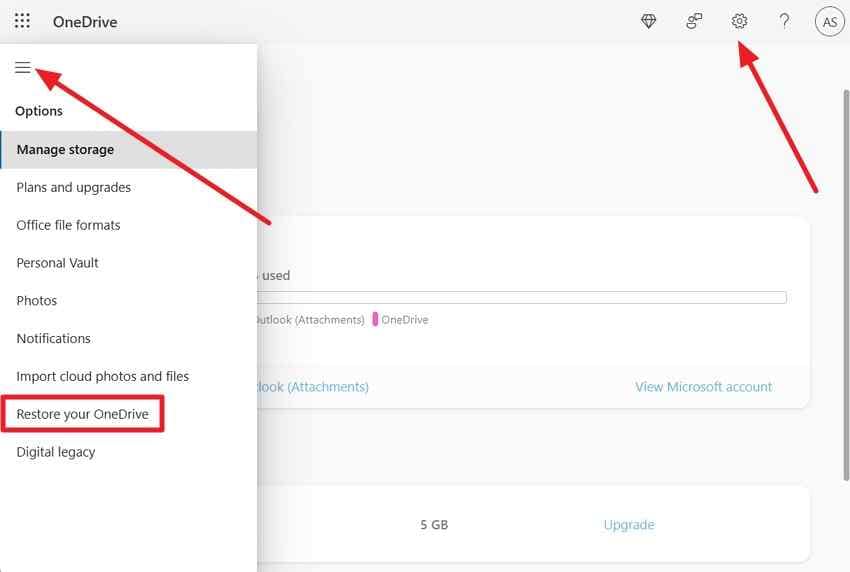
Step 1. Open Restore Your OneDrive. Sign in to OneDrive.com. For a personal Microsoft 365 account, open Settings > Options > Restore your OneDrive. Work or school users may see the restore command directly under Settings.
Step 2. Choose the restore point and review the activity. Select Yesterday, a preset period, or a custom date before the unwanted event. Review the activity chart and feed; selecting the earliest activity to undo also selects later activities. Preserve any newer files you still need, then choose Restore.
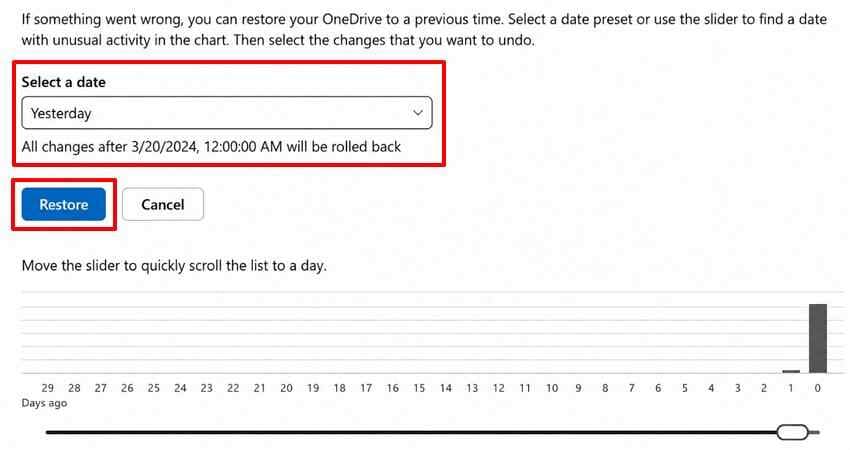
Important limits: This action affects the whole library rather than one isolated file. Files created after the selected point may be sent to the Recycle Bin. Microsoft also states that a file permanently deleted from the OneDrive Recycle Bin cannot be recovered with this feature.
Part 4. OneDrive Files Disappeared From PC but Still Exist Online
If the file opens on OneDrive.com, protect a downloaded copy and repair local visibility. Do not use cloud restore or disk recovery for content that still exists safely online.
Check Files On-Demand
Files On-Demand can display the entire OneDrive library without storing every file’s contents on the computer. Microsoft’s current icon guide distinguishes three common Windows states:
- Blue cloud: The file is online-only. It uses no local storage and downloads when opened.
- Green check in a white circle: The file is locally available now but can become online-only when space is needed.
- White check in a solid green circle: The file is marked Always keep on this device and is intended to remain available offline.
An online-only state is not deletion. The file should remain visible in File Explorer while the account and folder are synchronized, but it cannot open without internet access.
Confirm OneDrive Is Signed In
Step 1. Confirm the connected account. Select the OneDrive icon in the notification area or menu bar and open Settings. Resolve any Sign in, Paused, Attention required, storage-full, or organization-policy message. Compare the connected account with the account that displays the file online.
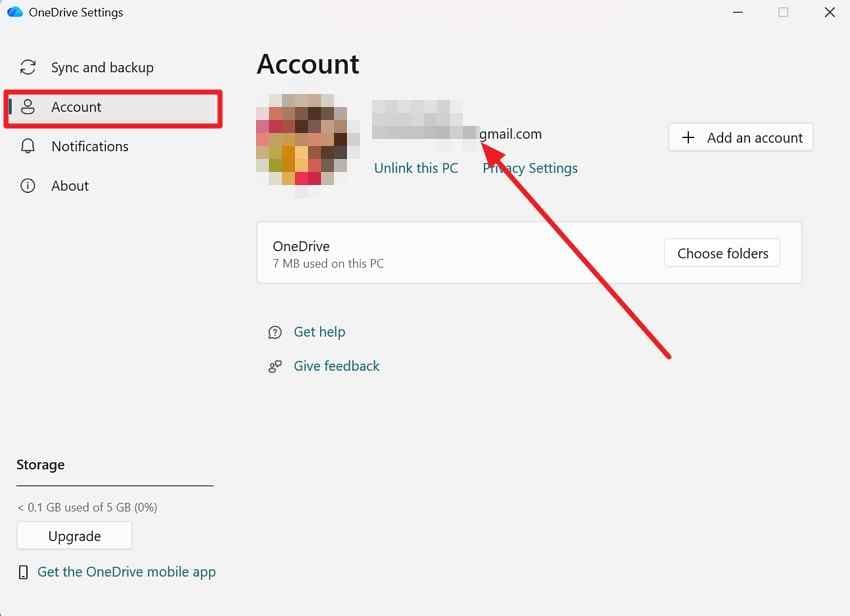
If multiple accounts are connected, note each local OneDrive path before changing anything. Unlinking a PC does not delete the cloud library, but online-only items in the disconnected folder are no longer usable locally until the account is linked again and the folder is selected.
Check Which OneDrive Folders Are Synced
Step 2. Choose the folders shown on the computer. Open the OneDrive cloud icon, select Settings, open Account, and choose Choose folders. Make sure the missing folder is selected. Deselecting a folder removes it from that computer while keeping it online.
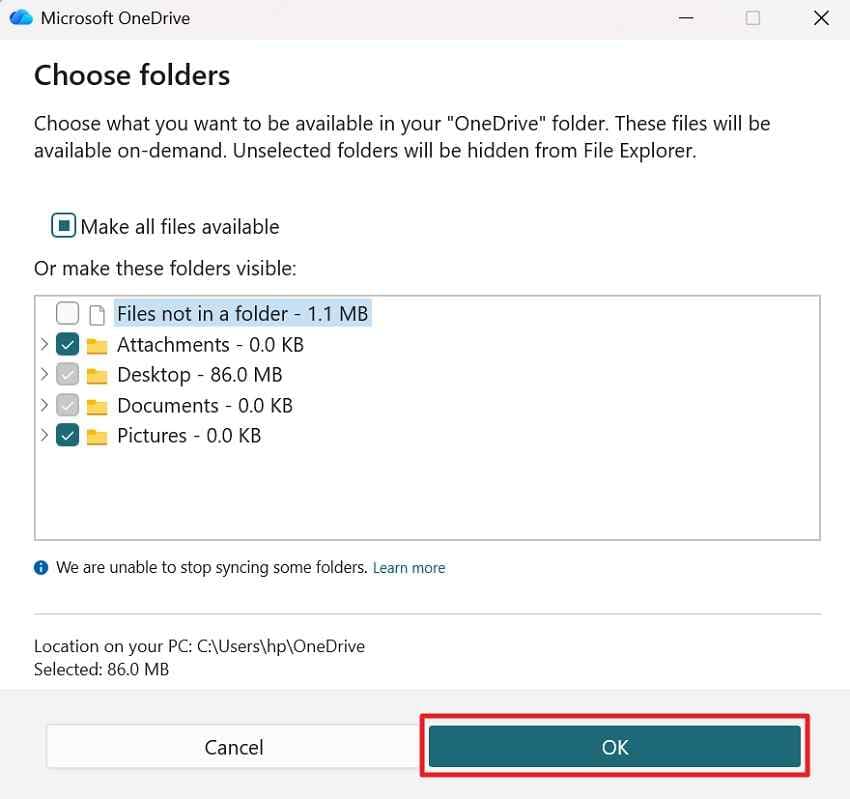
After applying the setting, allow OneDrive time to rebuild the folder view. Check the cloud icon for a progress message rather than repeatedly toggling the same folder.
Make Important Files Available Offline
Step 3. Keep important files available offline. Right-click a file or folder and select Always keep on this device. OneDrive downloads the complete content and shows the solid green status after synchronization. Open several critical files while offline to verify that the expected data is really present.
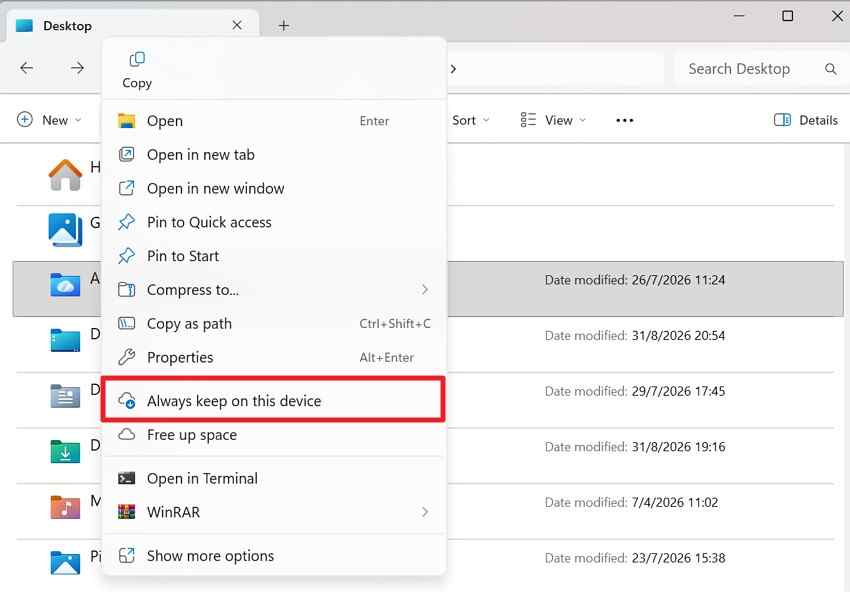
Offline availability improves access and makes the file eligible for local backup, but it is still inside the live sync set. A deletion can synchronize to every connected device, so keep a separate backup outside OneDrive for irreplaceable content.
Restart or Reset OneDrive Sync
Start with a normal restart: pause active transfers if needed, quit OneDrive from its cloud-icon menu, and reopen OneDrive from Start on Windows or Applications on Mac. Confirm that synchronization resumes and wait for pending changes to complete.
If the client remains stuck, use Microsoft’s current reset instructions for the installed OneDrive edition. Resetting does not delete cloud files, but it disconnects sync connections and triggers a full synchronization; folders selected previously may need to be selected again.
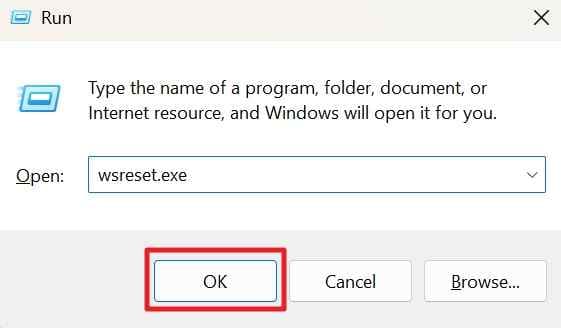
Step 1. Run the Store reset prerequisite when it applies. Microsoft’s current Windows Store-app route first uses wsreset.exe to reset the Store component. That is not a general “restart OneDrive” command, so use it only within Microsoft’s documented Store-app sequence.
Step 2. Reset the OneDrive sync app only if restarting did not help. For the standard Windows desktop sync app, the documented reset command is %localappdata%\Microsoft\OneDrive\OneDrive.exe /reset. If OneDrive does not reopen automatically, start it from the Windows search box. On Mac, Microsoft provides ResetOneDriveApp.command or ResetOneDriveAppStandalone.command inside the OneDrive application package.
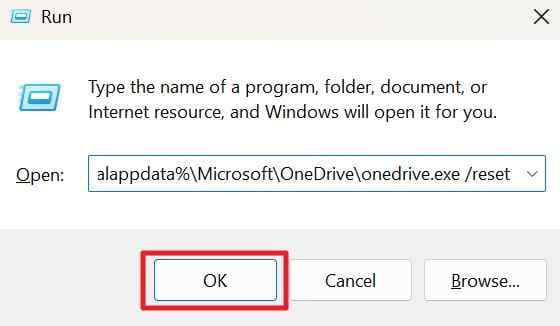
Do not reset repeatedly while uploads are still in progress. Verify important files on OneDrive.com first and preserve unsynchronized local work outside the OneDrive folder.
Part 5. Recover Missing OneDrive Files With Wondershare Recoverit
Use local recovery only after OneDrive.com, Personal Vault, Shared, cloud Recycle Bin, version history, another account, and existing backups have been checked. The file must once have existed as a complete local copy—not merely as a blue-cloud placeholder.
Wondershare Recoverit for Windows can scan a readable PC drive, external drive, USB drive, or memory card that previously stored the downloaded or synchronized file. It does not restore data from Microsoft’s servers.

When Recoverit Fits a OneDrive File-Loss Case
Recoverit is a storage-recovery option, not a OneDrive account-recovery feature. It is relevant when the file was fully downloaded, synchronized to a computer, copied to removable media, exported from an application, or stored outside OneDrive before being deleted.
- Readable local storage: Scan the internal disk or connected device that held the full file.
- Multiple file categories: Search for locally stored documents, photos, videos, audio, archives, and other supported formats.
- Filtering during a scan: Narrow results by file type, name, path, date, size, or status when those filters are available.
- Preview before saving: Preview supported files to check whether the correct content is intact.
- Separate recovery destination: Save recovered files to another healthy storage device to avoid overwriting the source.
A OneDrive sync error does not itself prove that data was deleted from local storage. Confirm whether the latest file exists online, locally, in an application’s recent files, or in a backup before scanning.
Not supported by this workflow: signing in to a Microsoft account through Recoverit, scanning OneDrive’s cloud servers, rebuilding an online-only file that was never downloaded, bypassing Microsoft retention, or restoring sharing permissions. If no complete local copy ever existed, a disk scan has no file content to recover.
How to Recover a Local OneDrive Copy
Stop writing new data to the affected storage. If possible, install Recoverit on another drive and prepare a different healthy drive for recovered results.
Step 1. Select the original storage location. Launch Recoverit and choose the Windows partition, external drive, USB drive, or memory card where the complete OneDrive file was previously stored. Start the scan.
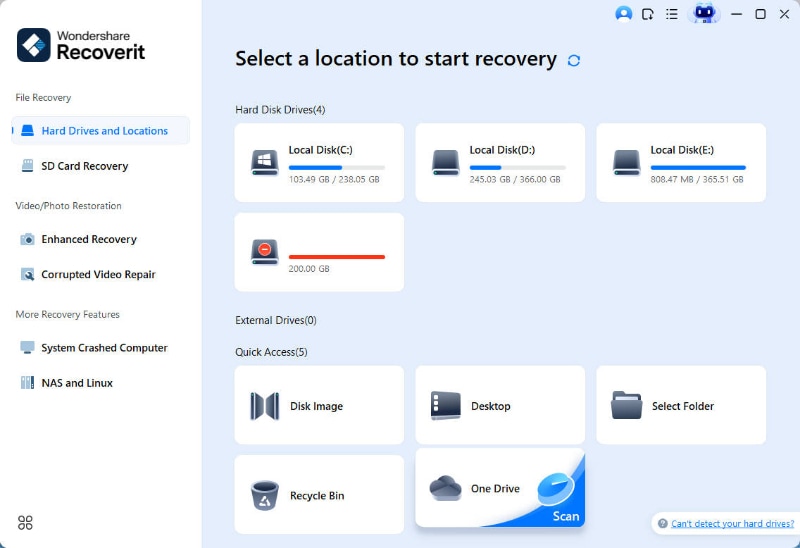
Step 2. Scan and filter the results. Let Recoverit examine the selected storage. Use the original file name, type, path, date, and size to narrow the result set. Avoid new downloads or OneDrive synchronization to the source drive during this process.
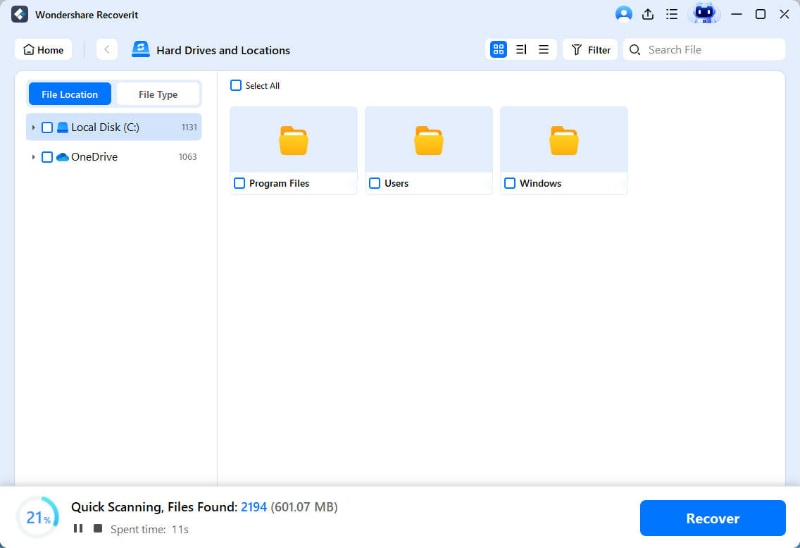
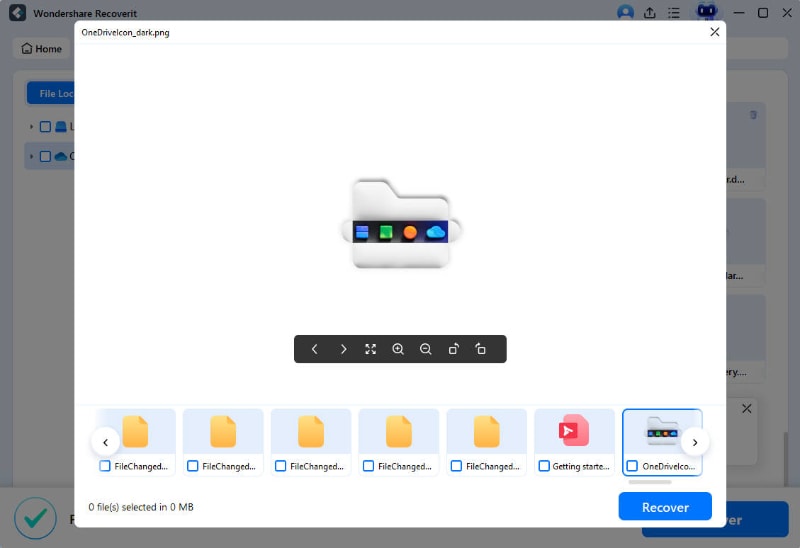
Step 3. Preview and save elsewhere. Preview the file where supported, select the required item, and recover it to another drive. Open the saved copy before reintroducing it to OneDrive.
Local recovery is not guaranteed. Overwriting, SSD TRIM, encryption, secure deletion, or physical failure can make the data incomplete or unavailable. If a drive disconnects, reports the wrong capacity, or is not detected reliably, stop repeated scans and consult a professional recovery service.
Recover Missing OneDrive Files With Wondershare Recoverit
Security Verified. Over 7,302,189 people have downloaded it.
Part 6. Files Missing From a OneDrive Work or School Account
Organization accounts add SharePoint storage, Teams-connected libraries, administrator controls, and retention policies. A file can be absent from the user’s OneDrive view while still existing in a team site, another tenant, a second-stage Recycle Bin, or a compliance-managed location.
- Check the exact organization account: Confirm the email domain and tenant shown in OneDrive. If you work with several clients or schools, repeat the search under each authorized account.
- Open the work or school Recycle Bin: Microsoft normally retains items for 93 days unless the administrator changes the setting. The period is controlled by the organization, so restore promptly.
- Check SharePoint and Teams: A file used in a Teams channel may belong to the connected SharePoint document library rather than the user’s personal OneDrive. Search the relevant team, channel, and SharePoint site.
- Review shared ownership and permissions: Ask the owner or site member whether the item was moved, renamed, replaced, or unshared. A permission loss is not repaired by scanning your computer.
- Contact the administrator: Provide the file or folder name, approximate path, owner, last-known date, and affected account. The administrator may be able to check a second-stage Recycle Bin, retention policy, hold, or backup that is not visible to the user.
Do not assume that “93 days” means 93 days in each Recycle Bin stage. For SharePoint-backed work or school storage, the overall retention timing starts with the original deletion and administrative settings may change the route.
Part 7. Why OneDrive Files May Not Come Back
Recovery fails when no accessible complete copy remains. Identifying that boundary prevents destructive repetition and misleading expectations.
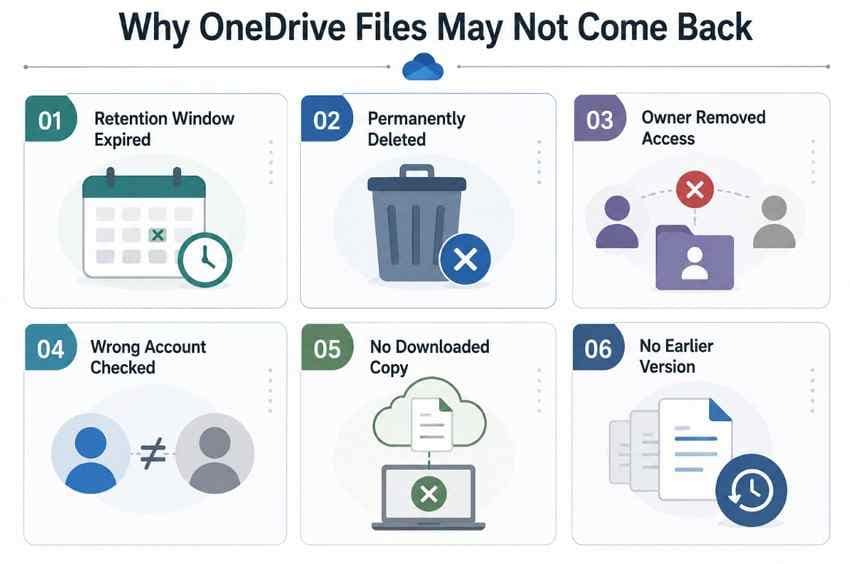
- The Recycle Bin period expired: A personal item passed the normal 30-day period, or a work or school item passed the applicable organization-controlled period.
- The item was permanently deleted: Microsoft states that Restore your OneDrive cannot recover a file permanently removed from the OneDrive Recycle Bin.
- The owner removed shared access: The file may still exist, but the recipient cannot see or restore an item owned elsewhere.
- The wrong account is being checked: Personal and organization libraries do not merge even when they are connected to the same computer.
- No complete local copy was stored: An online-only placeholder does not contain the full file data required for local recovery.
- No usable version or backup remains: Version history, File History, Time Machine, NAS snapshots, and external backups work only when they captured the file before loss.
- Local file data was overwritten or trimmed: Continued downloads, installations, synchronization, SSD TRIM, or secure deletion may eliminate recoverable blocks.
If OneDrive search and the applicable Recycle Bin are empty, Microsoft’s current missing-file page says the file usually cannot be retrieved through the normal account interface. A work or school administrator may still investigate organization-managed recovery. For personal files, continue only where there is evidence of another device copy, backup, export, attachment, or locally stored version.
Part 8. How to Prevent OneDrive Files From Disappearing Again
OneDrive synchronization improves access and collaboration, but synchronized deletion is not the same as an independent backup. Protect critical files with a second copy that is not continuously mirrored by the same account.
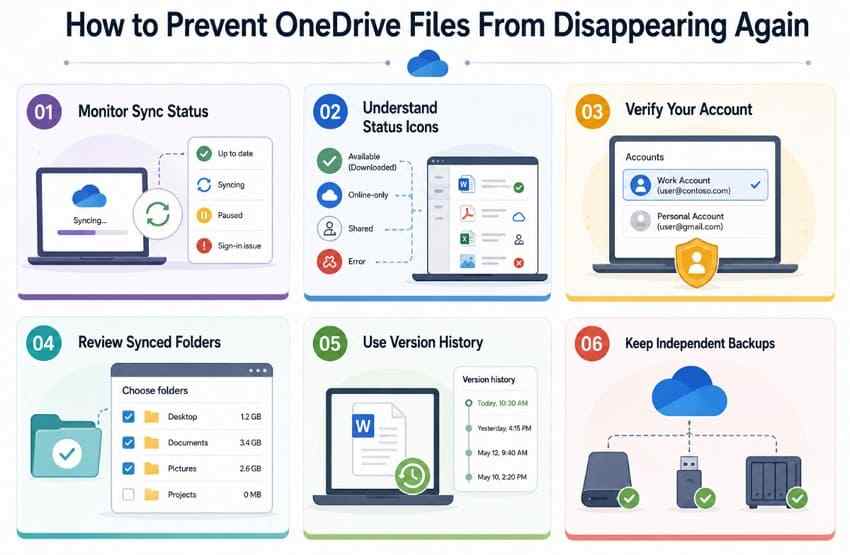
- Check sync status regularly: Resolve paused syncing, sign-in prompts, quota limits, and failed uploads before moving or deleting large folders.
- Understand Files On-Demand icons: Know whether the item is online-only, temporarily local, or marked Always keep on this device.
- Keep important files in more than one location: Maintain a separate external, NAS, managed backup, or other independent copy outside the live OneDrive sync folder.
- Use version history intentionally: Review versions after a wrong edit or overwrite, and restore within the available window rather than waiting.
- Confirm the account before changing sync settings: Record the connected account and local folder path before unlinking, resetting, or choosing folders.
- Back up complete files, not placeholders: Mark essential folders for offline availability and verify that your backup system captures the downloaded content.
- Protect shared work separately: If a shared file is business-critical, request an owned copy or store an authorized backup instead of relying solely on another person’s sharing permission.
Test recovery occasionally. A backup is useful only if you can locate the correct version, open it, and restore it without depending on the same OneDrive account that failed.
Conclusion
When OneDrive files are missing, start with evidence: the web library, the exact Microsoft account, Personal Vault, Shared, and both cloud and local Recycle Bins. If the file remains online, repair local visibility through Files On-Demand, Choose folders, sign-in status, or a controlled OneDrive restart. If the file was changed rather than deleted, version history may be the narrowest fix.
Reserve Restore your OneDrive for many related changes within the last 30 days. Use Recoverit only when a complete file once existed on readable local storage, and save the result elsewhere. That distinction between cloud state and local data is what keeps a missing-file investigation accurate—and prevents an online-only placeholder from being mistaken for recoverable disk content.
FAQ
-
Why Are OneDrive Files Online but Missing From File Explorer?
The PC may be signed in to a different account, OneDrive may be paused, or the folder may be excluded under Choose folders. Confirm the file opens on OneDrive.com, download a safe copy, then check the connected account and folder selection. An online-only file should normally remain visible with a blue cloud icon when its folder is synchronized. -
Can OneDrive Files Disappear After Unlinking a PC?
Unlinking stops synchronization but does not delete the cloud library. Files that were fully downloaded normally remain on the PC, while online-only placeholders are no longer usable through the disconnected folder. Check OneDrive.com before cleaning up the old folder, then relink the correct account and select the required folders. -
Why Did a File Shared With Me Suddenly Disappear?
The owner may have deleted, moved, renamed, or stopped sharing it. A shortcut under My files does not transfer ownership, so the item may vanish without entering your Recycle Bin. Reopen the original sharing link and contact the owner; recovery usually depends on the owner’s library and permissions. -
Can OneDrive Restore Multiple Missing Files at Once?
Yes. You can select multiple items in the web Recycle Bin. Microsoft 365 subscribers can also use Restore your OneDrive to undo broader file and folder activity from the previous 30 days. Review the activity carefully because a whole-library restore can move files created after the chosen point into the Recycle Bin, and it cannot recover items permanently purged from the bin.


