 TL;DR:
You can restore deleted Dropbox files via the Deleted files page on dropbox.com as long as the items are still within your plan's standard 30-day, 180-day, or 365-day recovery window.
● Use Dropbox Rewind to bulk-reverse mass deletions or unwanted folder changes, but you must manually back up recent files first because the tool undoes all edits made after your chosen restore point.
● Do not upgrade your subscription plan expecting expired files to reappear, because new retention limits or extended version history add-ons do not retroactively apply to previously deleted data.
● Third-party data recovery software can only restore local copies if the missing files were fully downloaded as "Available offline" content before deletion, not if they remained as "Online-only" placeholders.
Ask AI for a summary
 ChatGPT
 Perplexity
 Gemini
 Claude
 Grok
Grok
To recover deleted Dropbox files, sign in to dropbox.com, open Deleted files, select the missing item, and click Restore. This works only while the file remains inside your account's history window: normally 30, 180, or 365 days, depending on the plan. A deletion from a synced desktop folder may also remove the cloud copy; deleting something locally is not necessarily the same as keeping it in Dropbox.
If many files were accidentally deleted, moved, renamed, or changed, Dropbox Rewind can roll eligible content back to an earlier point, but it also undoes other changes during that period. Permanently deleted files and content older than your recoverable history cannot be brought back with those Dropbox features. A previously downloaded local copy may still offer a separate route when cloud recovery is no longer available.
This guide shows the safest order: check the account and recovery period, restore selected files, use Rewind only when necessary, investigate missing or shared content, then consider disk-level recovery of files that really existed on a computer.
In This Article
Part 1. How Long Can You Recover a Deleted Dropbox File?
Dropbox starts counting from the date a file or folder is deleted. For standard plans, Dropbox deleted files recovery lasts 30, 180, or 365 days, depending on the plan that holds the content. This is the window for restoring content through Dropbox, not a guarantee that a deleted file will remain available indefinitely.
Default Recovery Windows by Dropbox Plan
The account's retention period is the first thing to check, especially if a deleted file is no longer on the Deleted files page. Dropbox's current restoration guide lists these standard periods:
| Dropbox plan | Standard deleted-file recovery period | Practical implication |
| Basic, Plus, Family | 30 days | Check Deleted files promptly; Basic does not include Dropbox Rewind. |
| Professional, Essentials, Standard, Business | 180 days | Older deletions may still be available if they fall inside this plan's history. |
| Advanced, Business Plus, Enterprise, Education | 365 days | The longer default window still does not reverse permanent deletion. |
Note: A shared file may be governed by the account, folder ownership, and permissions relevant to that content. Confirm its history within the account that can restore it, rather than assuming that a collaborator has the same rights.
Extended Version History, Team Policies, and Early Deletion
Some plans allow longer retention through the Extended Version History add-on. Dropbox Plus can extend eligible history to one year; certain Business, Business Plus, Standard, Advanced, and Enterprise team plans can obtain up to 10 years of history through eligible add-ons. Availability and billing depend on the plan and purchase channel.
That extension starts when the plan or add-on is activated; it does not restore a deletion that had already aged out. Dropbox's version-history explanation expressly rules out retroactive extension.
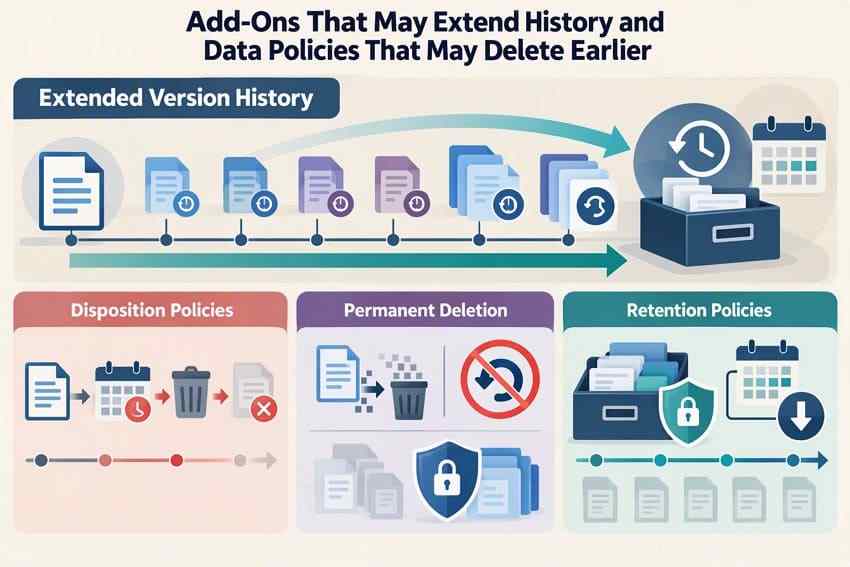
Team-level data policies are a separate exception. A disposition policy can cause content to be deleted earlier than a normal recovery window. A retention policy may keep eligible content under administrator control even after user deletion, but it does not make a permanently deleted item appear again in the ordinary Deleted files list.
Decision: If the file is still within the applicable history, use Part 2. If an incident affected many items, consider Part 3. If it is expired or permanently deleted, skip promises about plan upgrades and check Part 4 before investigating a separate local copy.
Part 2. Restore Individual Files or Folders From Deleted Files
For one missing document, a few deleted photos, or an accidentally removed folder, use Dropbox's built-in Deleted files first. This method restores selected content without rolling back unrelated changes made later by collaborators.
Open Deleted Files in the Correct Dropbox Account
Step 1. Sign in to dropbox.com with the account that held the file. If you switch between a personal account and a work team, check both rather than relying on the desktop app's currently connected account.
Step 2. In the left sidebar, select Deleted files. Review the available date and location filters if the list is long. Follow the official Dropbox restore instructions if your layout differs.
Step 3. Confirm that the date shown for the missing item falls within the account's available history. If the document still exists but contains incorrect edits, its version history is a better fit than Deleted files.
Select Files and Restore Them to Their Original Folder
Step 1. Check the box beside each file or folder you need. You can select multiple items from the same Deleted files view.
Step 2. Click Restore, confirm if requested, and let Dropbox finish. Restored items return to the folder from which they were deleted.
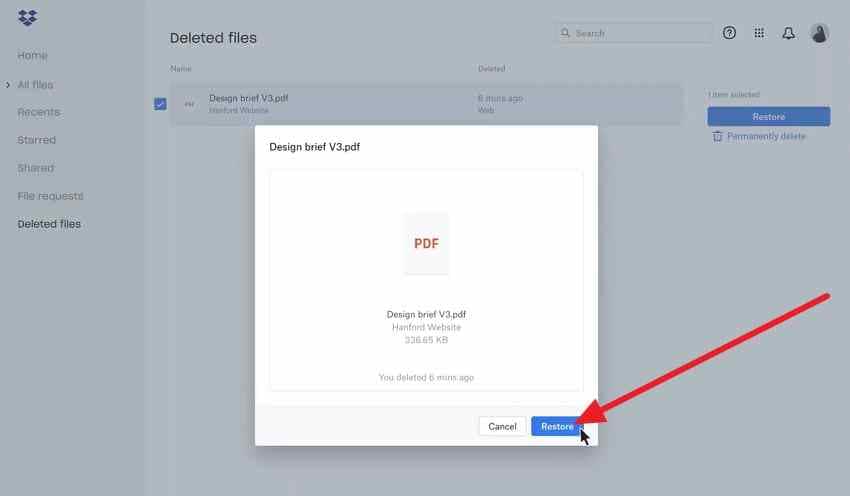
Step 3. Open the original folder on dropbox.com and confirm the files are present. For an important document, open it or download a copy to confirm that the expected content was restored. Allow time for desktop sync to update if the web copy is correct but the local folder has not refreshed.
Note: If you need to keep both the restored file and a newer version, download or duplicate the newer version before making changes. Do not use a broad Rewind for a single missing item.
Find Deleted Files Within a Specific Folder
When the original location is known, you do not have to sift through the whole account's history. On dropbox.com, open the folder, click the folder settings control, choose Folder settings, and select Show deleted files. Choose the desired item and restore it if it is eligible.
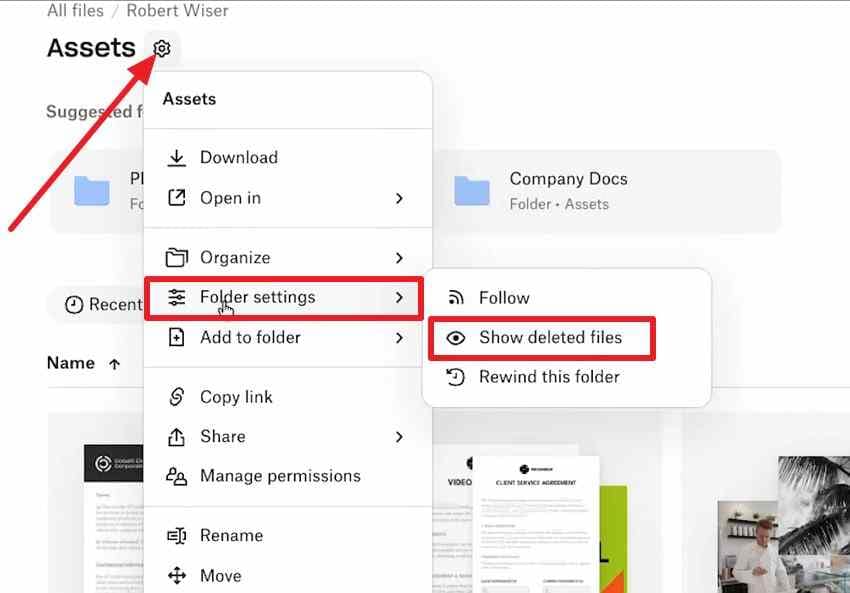
The exact menu position may differ across account interfaces, but Dropbox's current help article documents the folder-level Show deleted files action. If that view is unavailable, return to the main Deleted files page and broaden the relevant filters.
Check Shared-Folder Permissions Before Restoring
Dropbox normally permits a member with Can edit access to restore a deleted item in a shared folder. Can view members cannot restore shared content themselves. Ask the folder owner or an editor to restore the file, or ask a team admin to investigate if permissions changed.
The owner's original folder and other members' access will be affected when the file returns. For permission details, see Dropbox shared-folder permission rules.
Part 3. Use Dropbox Rewind for Many Changes at Once
Dropbox Rewind is a bulk rollback tool, not a more powerful version of the individual Restore button. It is most useful after mass deletion, unwanted renames, file moves, or a malware incident that changed many items in the same folder. It can also undo legitimate changes made after the point you choose.
Rewind a Folder or Eligible Account to an Earlier Point
Before starting, identify when the incident happened and make a separate copy of any important work created or edited afterward. Dropbox documents the current flow in its Rewind help guide.
Step 1. On dropbox.com, open the affected folder. Use its settings control, select Folder settings, then Rewind this folder. To rewind eligible account content, start from All files and use the corresponding folder settings.
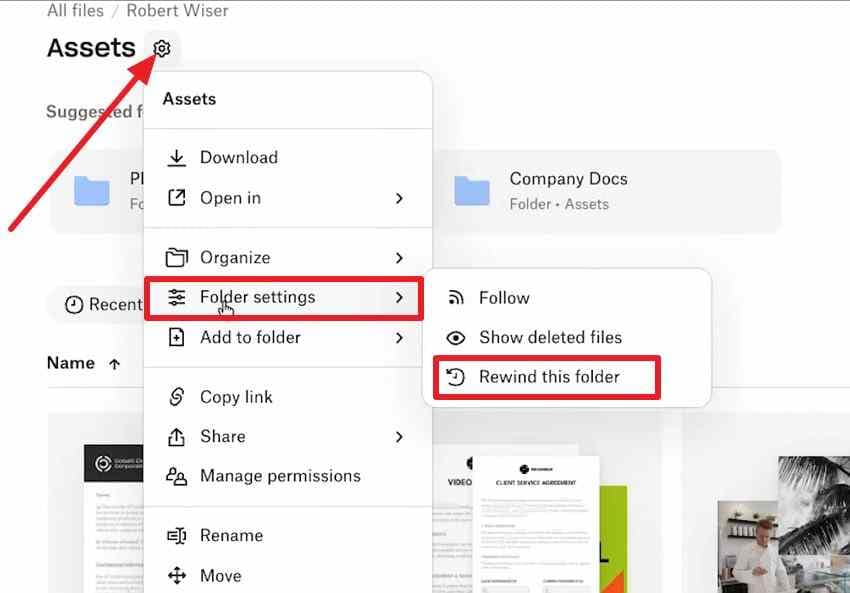
Step 2. Click Try Rewind and choose a date just before the unwanted deletion or edit. Look for a spike in activity when many changes were made at once.
Step 3. Click Continue to enter the Fine tune view. Locate the earliest change you want to undo and place the blue selection line below it.
Step 4. Review the proposed reversal, click Continue, and then select Rewind. Dropbox sends a confirmation email after the process finishes.
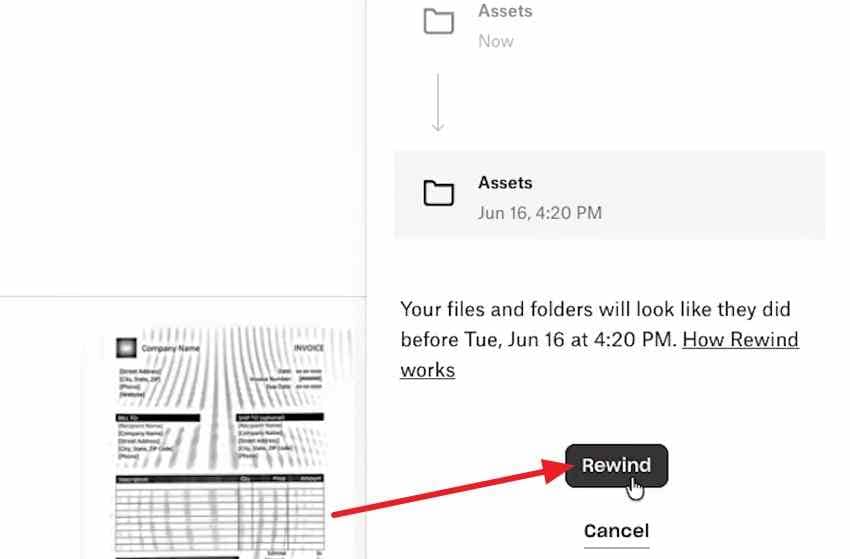
Review What Rewind Will Undo Before Confirming
Everything above the selection line is included in the reversal, not just the missing files. Check for newer documents, collaboration edits, renamed folders, and files added after the incident. Save wanted recent versions somewhere safe before clicking Rewind.
- Included actions: Rewind can undo supported edits, additions, renames, moves, and deletions within the selected scope.
- Folder scope: Rewinding a folder also affects its subfolders. On a team account, rewinding All files does not automatically rewind every team folder.
- Not recoverable with Rewind: Files permanently deleted, changes older than accessible version history, some externally owned team content, and membership changes.
- After a mistake: A Rewind is recorded in file history, so another Rewind may help undo a previous Rewind when the relevant history still exists.
Check Plan Eligibility and Team Permissions
Dropbox lists Rewind for Plus, Family, Professional, Essentials, Standard, Advanced, Business, Business Plus, Enterprise, and eligible Dropbox Backup subscriptions. It is not a general feature of Dropbox Basic and is unavailable in the mobile app.
Team admins normally control Rewind access by default; some teams allow members to rewind eligible personal, shared, or team folders. Team folders may need to be rewound individually. Check Rewind limitations and permissions rather than assuming your account shows the same controls as another user.
Choose Deleted Files or Rewind Without Losing More Work
| Your situation | Use this first | Why |
| One missing file or one deleted folder | Deleted files | Only selected items return to the original location. |
| An existing file has the wrong contents | Version history | Restore a prior version without rewinding a whole folder. |
| Hundreds of files moved, deleted, or changed together | Rewind, if eligible | Reverse a defined set of changes to an earlier point in time. |
| File is permanently deleted or outside history | Separate backups or local copies | Neither Deleted files nor Rewind can restore it through normal Dropbox tools. |
For a ransomware incident, contain the affected device and protect clean recent copies before resuming syncing; Rewind reverses supported file changes but is not a malware removal tool.
Part 4. Why a Deleted Dropbox File May Not Appear
A missing result in Deleted files is not proof that the file was permanently erased. It may have been moved, renamed, deleted under another account, removed from a shared folder, or never uploaded successfully. Investigate those explanations before moving on to disk-level recovery.
Check Account, Filters, File Moves, and Sync History
Use this order so you do not spend time scanning a computer for a file that is still in the cloud:
- Wrong account: Check both personal and work accounts, and confirm the team account or shared folder where the item belonged.
- Filters: Widen the date, folder, and team-member filters in Deleted files; an item hidden by filtering may still be within its recovery period.
- Moved or renamed: Search All files and check the account's recent file activity. A moved file may never have been deleted.
- Sync never finished: If you created a file only on a disconnected computer, it may never have reached Dropbox. Preserve and inspect that computer's local storage.
- Modified rather than deleted: Use Version history for earlier content, not the deleted-file list.
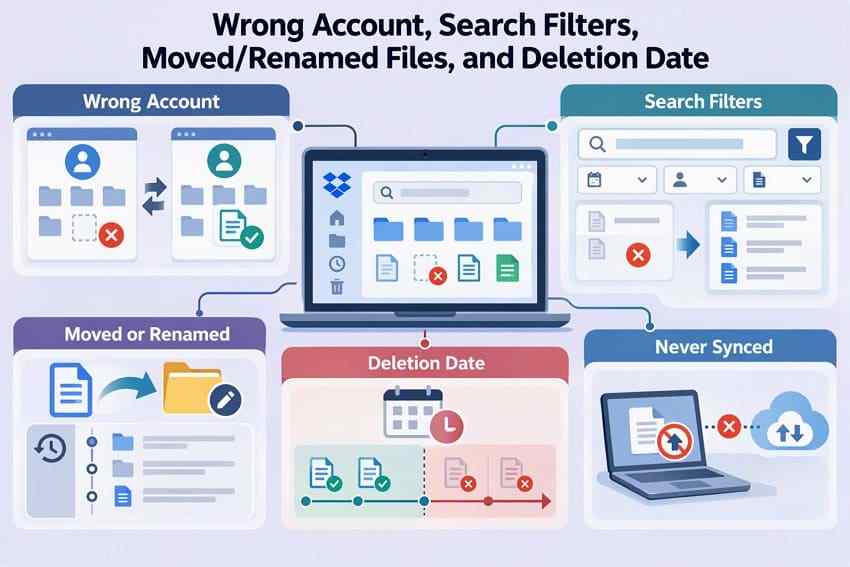
Dropbox's missing-file troubleshooting guidance also covers restored files that have not yet appeared locally. Verify the web version before taking actions that could resync an incorrect copy.
Ask a Folder Owner, Team Admin, or Eligible Dropbox Support
When a folder has been unshared or your Can edit permission has been revoked, ask the owner or a team admin to review the deleted content. Team administrators may have additional views of member activity and retained content, depending on the team's settings.
For eligible paid plans, Dropbox also documents a support-assisted file-recovery request for missing or corrupted files still within recoverable history. Its official support process uses an activity event link:
Instructions. Sign in, visit the Dropbox support page, choose the available File recovery contact route, open the relevant event from your account's Events page, and include the event link in the support request. The actual contact choices depend on your plan and signed-in interface.
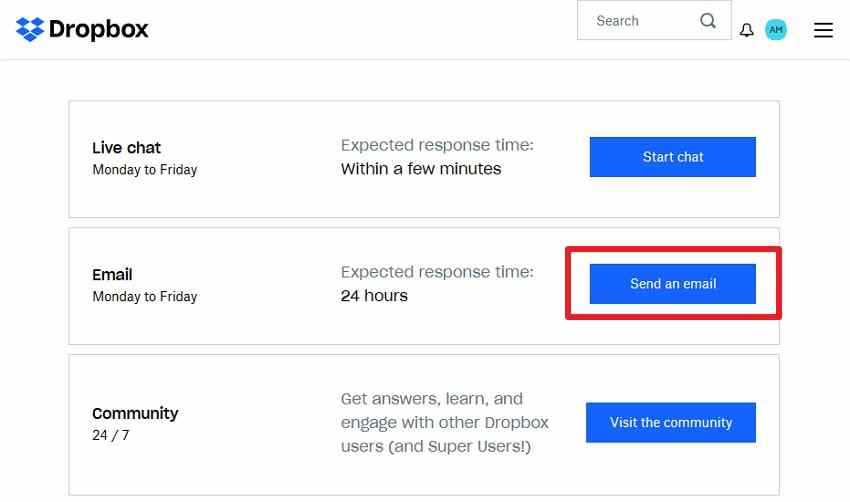
Note: The support screenshot shows a prior interface. Follow the live Dropbox support instructions if the buttons have moved. Dropbox explicitly states that support cannot bring back files permanently deleted or already outside the account's version history.
Recognize Expired Recovery Periods and Permanent Deletion
Once a file is outside the applicable recovery window, it is marked for permanent deletion under Dropbox's data retention policy. A user-initiated Delete permanently is different from an ordinary deletion into the Deleted files list. Dropbox says files marked for permanent deletion cannot be restored through its standard tools or by its support team.
For managed teams, a separate active retention or legal-hold policy may preserve a copy for an administrator's compliance process. That is not a promise that ordinary account users can restore a permanently deleted file.
Do Not Upgrade a Plan Expecting Expired Files to Reappear
Changing from a 30-day plan to a 180-day plan cannot retroactively restore files that have already disappeared beyond their former history. The same rule applies to new Extended Version History add-ons. Upgrade only for future protection, not as a paid recovery workaround for already expired data.
If a Dropbox recovery route genuinely fails, next look for a collaborator's independent copy, downloads, previous exports, offline backups, or a complete file that was once stored on a computer.
Part 5. Recover a Local Dropbox Copy Only After Cloud Recovery Fails
Local recovery is a last-resort path when you have exhausted Dropbox's supported cloud options. A desktop tool can scan a computer's drive for data that actually existed on that drive. It cannot access Dropbox's servers to recover cloud-only content that was never downloaded.
What Recoverit Can and Cannot Recover From Dropbox
Wondershare Recoverit File Recovery may locate deleted local copies on a readable HDD, SSD, external drive, or USB drive after those files are lost from Dropbox and no usable cloud recovery remains. It does not connect to Dropbox's deleted-file database, extend the account recovery window, restore account permissions, or override permanent cloud deletion.
Before any local scan, check the computer's Recycle Bin (Windows) or Trash (Mac), an external backup, and any files a collaborator downloaded separately. If the data is not currently recoverable through Dropbox and you believe a full local copy once existed, avoid new writes to the affected drive.
Available Offline, Online-Only, and Cached Files
The key question is whether the complete file was ever stored locally. Dropbox distinguishes available-offline files from online-only files:
| Dropbox storage state | What may exist on the computer | Local file recovery outlook |
| Available offline or explicitly downloaded | Complete file contents were stored locally. | A local copy may be recoverable if deleted sectors remain accessible. |
| Online-only and never opened | Only a placeholder and metadata may exist. | A complete file cannot be carved from sectors that never held it. |
| Opened/downloaded, later made online-only | The full file existed but may have been removed from active local storage. | Possible only if remnants are still readable and not cleared or overwritten. |
| Temporary Dropbox cache | Some transient files may exist in a hidden cache. | Check promptly; contents and completeness are not guaranteed. |
Dropbox documents a hidden cache that is normally cleared every three days. On Windows and older non-File-Provider macOS setups, it commonly uses a .dropbox.cache folder inside the Dropbox root. On current macOS File Provider installations, Dropbox's cache guide describes a different system-managed location. Do not clear the cache while investigating a missing file.
Important: Recovering from an SSD can be especially limited by TRIM and ongoing writes. A file with no local data, or data already cleared or overwritten, cannot be reconstructed by a software scan.
Scan a Previously Downloaded Local Copy With Recoverit
When the whole file previously resided on your Windows or Mac drive, use this local-only sequence. It does not change the Dropbox recovery window.
Step 1. Reduce New Local Writes
Use Dropbox's pause-sync control in the desktop app to pause further sync activity while investigating. Avoid downloading new files, installing applications on the source drive, or using the affected disk for exports. If local data is highly valuable on a failing device, consider specialist assistance instead of repeated scans.
Step 2. Select the Drive That Held the Full File
Install or run Recoverit from a healthy location, open Hard Drives and Locations, and select the drive or partition where the Dropbox file was previously stored. A missing online-only file is not a valid local scan target unless its full data was downloaded earlier.

Step 3. Scan and Review the Results
Let Recoverit scan the selected readable drive. Use available path, file-type, date, and search filters to narrow the results. Folder names may be missing if the original directory records were overwritten.

Step 4. Preview, Recover, and Save Outside Dropbox
Preview a supported file when possible, select the wanted results, then click Recover. Choose a different healthy physical drive outside the synced Dropbox directory. Open important recovered files to verify them before deciding whether to upload a copy back to Dropbox.


For ordinary local deletion cases beyond Dropbox, see how to recover files deleted from a computer. For a damaged but readable storage volume, the Recoverit hard drive recovery guide explains additional limits and safe scan practices.
When No Local Copy Can Be Recovered
If the file existed only in Dropbox's cloud and never downloaded, there are no complete local bytes for recovery software to scan. If the local SSD has cleared deleted blocks through TRIM, a normal scan may also find nothing useful. Don't keep running scans against a device that is overheating, disconnecting repeatedly, or reporting physical failure.
The remaining practical sources are independent backups, external exports, other computers that truly held an offline copy, or collaborators' copies. Once the cloud retention limit has expired, there is no supported trick to make Dropbox Rewind or an account upgrade retrieve that same cloud item.
Conclusion
For most users, Dropbox Deleted files is the safest first step for recovering one or several missing items within the plan's retention window. Use Dropbox Rewind for broad unwanted changes only after checking its scope and preserving newer work. Permanently deleted or expired cloud content cannot be rescued by an upgrade or cloud recovery software. Consider Recoverit only when the complete file previously existed on accessible local storage, and save any recovered data somewhere else.
FAQ
-
How Do I Recover a Deleted File in Dropbox?
Sign in to dropbox.com, choose Deleted files, select the file or folder, and click Restore. Dropbox returns eligible items to the folder from which they were deleted. The deletion must still be within the history available to that account. -
How Long Does Dropbox Keep Deleted Files?
Default recovery windows are 30 days on Basic, Plus, and Family; 180 days on Professional, Essentials, Standard, and Business; and 365 days on Advanced, Business Plus, Enterprise, and Education. Eligible add-ons can extend history prospectively, while data disposition policies can remove certain content sooner. -
Can Dropbox Recover Permanently Deleted Files?
No. Dropbox says files marked for permanent deletion cannot be restored through Deleted files, Rewind, or normal Dropbox Support recovery. A separate local copy or independent backup is different from restoring the deleted cloud object. -
Can You Recover Dropbox Files After the Recovery Period Expires?
Not through Dropbox's normal file restoration tools after the content is outside recoverable history. Upgrading a plan does not retroactively restore expired files. Check a collaborator's saved copy, external backups, or a previously downloaded local file that might still be recoverable from readable storage.


