


 TL;DR:
Resolve the Windows 10 Excel blank grey screen error by disabling Hardware Graphics Acceleration and unchecking the DDE restriction within the Advanced Options menu to restore normal workbook rendering.
● Run the excel/safe command to launch the application without COM add-ins, enabling you to isolate and disable the specific third-party extensions disrupting sheet initialization.
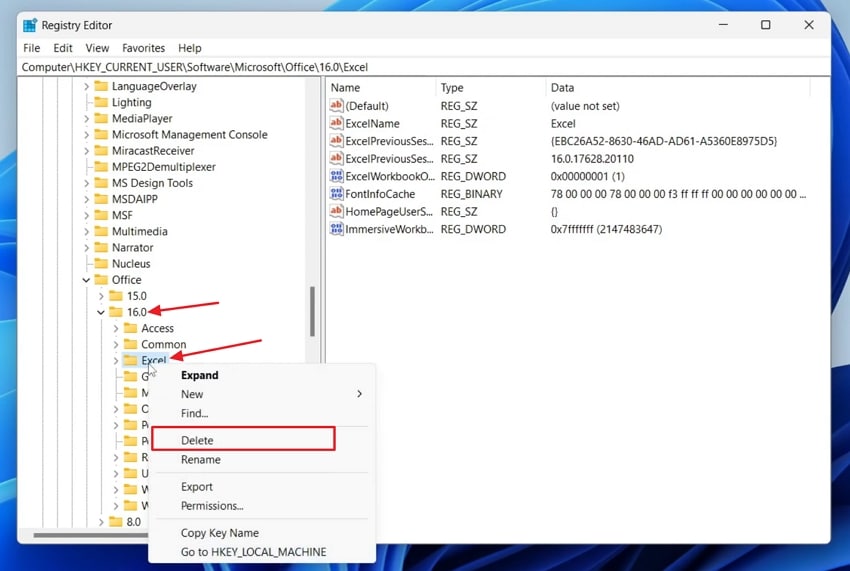
● Eliminate corrupted user profile variables by deleting the HKEY_CURRENT_USER\Software\Microsoft\Office\16.0\Excel path in the Registry Editor to force a factory reset of your interface customizations.
● Salvage structurally damaged workbooks using the Open and Repair tool located in the native Browse dialog, or utilize Wondershare Recoverit to retrieve inaccessible .xls and .xlsm data if built-in methods fail.
Ask AI for a summary
 ChatGPT
 Perplexity
 Gemini
 Claude
 Grok
Grok
When you open an Excel file and only a blank grey screen appears, it can be annoying if the file has important data. Even if the file name and size look normal, the issue can still occur. It usually happens because of wrong settings and add-in problems. You can fix this grey screen problem quickly with a few simple changes.
This guide explains the main causes behind the Excel file opens blank grey screen windows 10 problem and provides simple methods to fix it. You’ll also learn how to recover damaged Excel files and prevent the issue from happening again.
Try Recoverit to Perform Excel Data Recovery
 Security Verified. 3,591,664 people have downloaded it.
In this article

Part 1. Common Causes of Excel File Opens Blank Grey Screen
Before moving forward to fixing the Excel file opens blank grey screen problem, let’s understand some causes behind this issue.
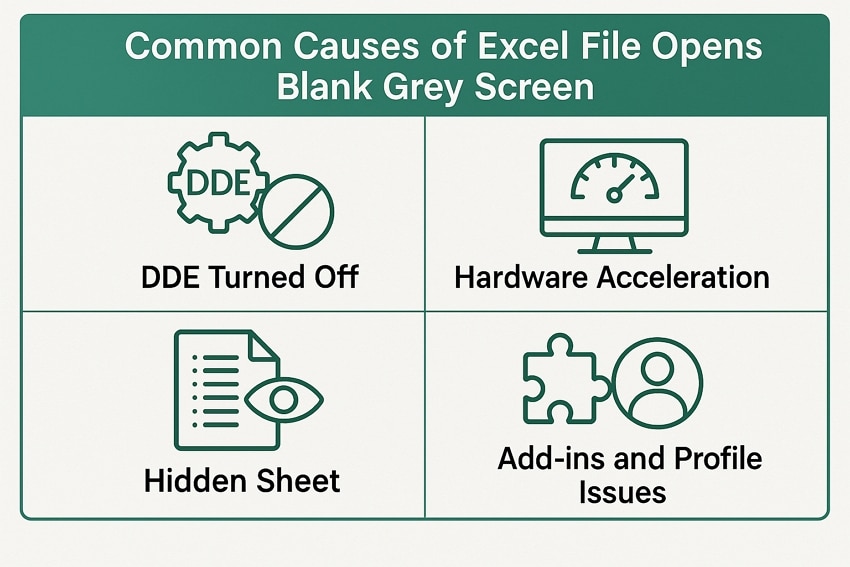
- DDE Turned Off: This problem arises when the “Ignore Other Applications that Use Dynamic Data Exchange” is enabled. In this case, a double click on the file launches the problem but doesn’t load the workbook, and causes a blank window.
- Hardware Acceleration: Certain GPU or drive combinations cause Excel to display a grey or blank canvas instead of a worksheet. The problem occurs when hardware graphics acceleration conflicts with Excel’s rendering process.
- Hidden Sheet or Window: The workbook opens with all sheets hidden or an empty window placed in front of the active one. This situation gives the appearance of a blank or grey screen, even though the file content exists.
- Add-ins and Profile Issues: Faulty COM or Excel add-ins and corrupted user profiles interfere with normal workbook rendering. Excel may load to a blank interface when these components fail to initialize correctly.
- Files Association or Outdated Excel: Incorrect file associations and outdated Office installations disrupt normal file loading behavior. Excel starts but does not display the workbook content in such cases.
Part 2. How to Fix Excel File Opens Blank Grey Screen Quickly
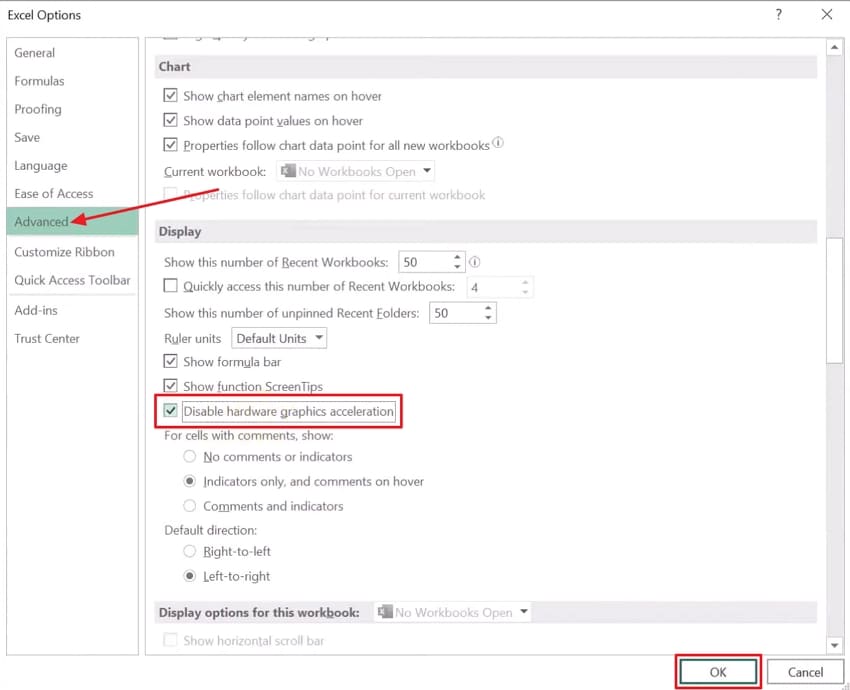
Software rendering replaces all GPU-driven drawing when hardware acceleration is turned off to protect Excel from graphics driver conflicts and increase compatibility across devices. UI composition and sheet visuals remain stable even as hardware varies for consistent editing and optimal display performance. This setting offers reversibility for diagnostic and stability purposes. Follow the steps below to fix the Excel file greyed out problem with this method:
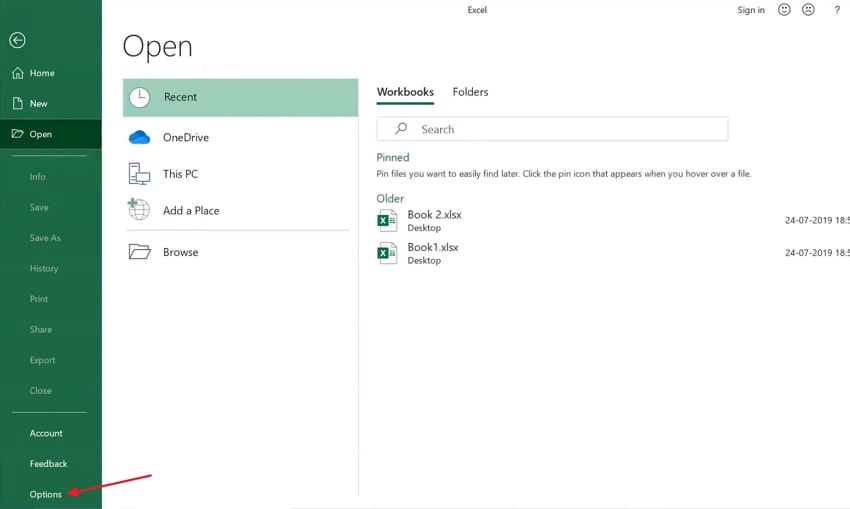
- First off, open the Excel app and click on the “Options” button in the bottom left corner.
- Hit the “Advanced” option and scroll down to locate the “Display” section. Select the “Disable Hardware Graphics Acceleration” option and press the “OK” button. Restart the Excel app to see if the issue is fixed.
Part 3. Fix Excel File Opens Blank Grey Screen by Repairing Excel Settings
If the blank grey screen problem persists after applying the initial fix, the issue may lie within Excel’s internal settings. Explore the repair Excel settings fixes below to overcome this issue.
1. Enable DDE
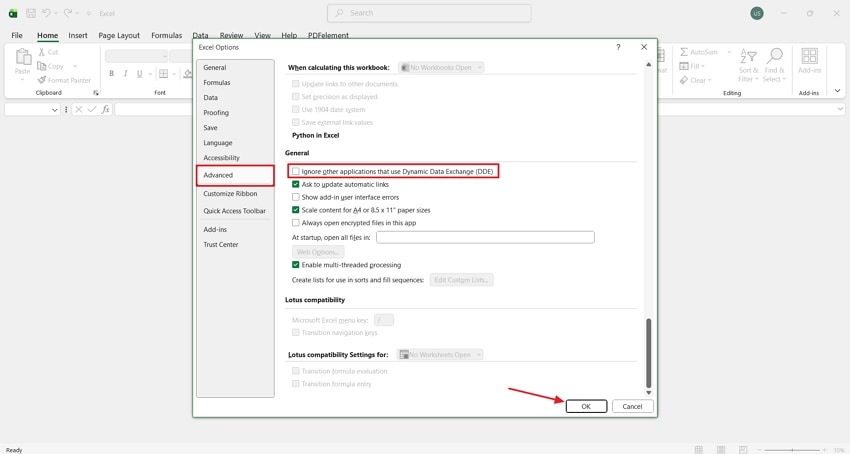
Excel regains efficient inter-application communication by enabling DDE, which allows file handoff and data updates from sources without blank screens. Dynamic Data Exchange supports ongoing or single data transfers to facilitate automatic updates in linked cells and spreadsheet workflows. Security practices generally recommend limiting server launch capabilities in managed environments. Adhere to the steps below to see how you can fix the Excel file opens blank grey screen issue:
Instructions. Firstly, click the “Options” button in the Excel app and hit the “Advanced” button. Now, scroll down and locate the “General section. Uncheck the box that says, “Ignore Other Applications that Use Dynamic Data Exchange (DDE)” and hit the “OK” button. After closing the Excel app, reopen it to check if this method works.
2. Reset Excel Preferences To Default
Excel’s view settings and customizations return to factory defaults to clear out conflicting options and old profile data. User registry options for the interface revert to original values to preserve files and core program binaries. Custom add-in UI changes and layout tweaks are removed, so a clean user profile ensures a stable startup. Follow the steps below to reset Excel preferences to fix the Excel file greyed out problem:
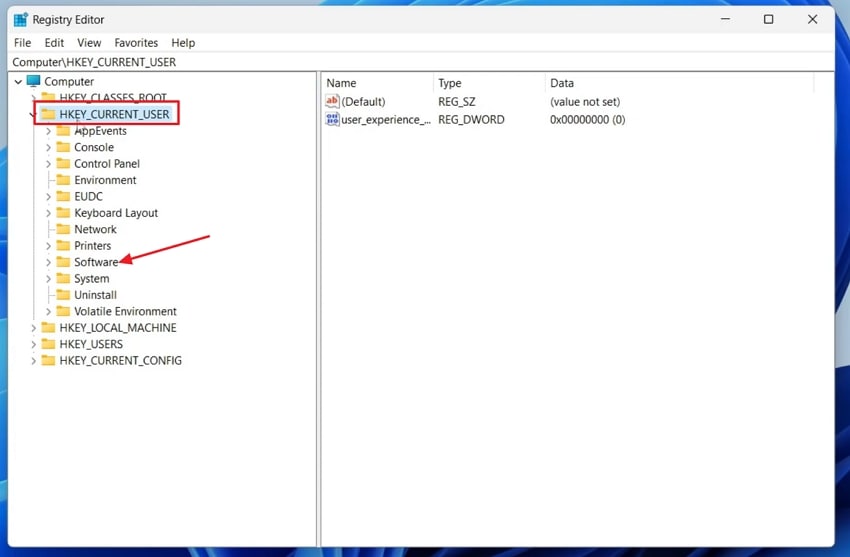
- Open the “Registry Editor” window and expand the “HKEY_CURRENT_USER” option. Now further expand the “Software” option.
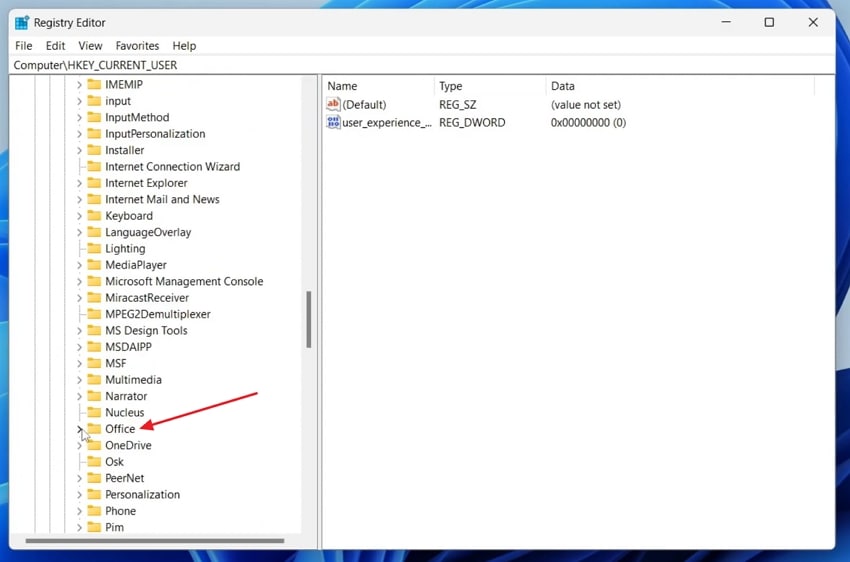
- Next, scroll down and expand the “Microsoft” option and further expand the “Office” tab.
- After that, tap on the “16.0” or any other Office version to expand. Right-click on the “Excel” folder and press the “Delete” option to reset preferences. Restart your PC to apply this setting.
3. Update Office Or Reinstall To Repair Registry Links
The Excel file opens blank grey screen windows 10 issues are resolved when Office is updated or reinstalled to maintain registry links. Core program associations refresh, so Excel provides file access and reliable sheet rendering for all document types. A fresh Office setup establishes stability and eliminates display errors to reinforce the visibility of workbooks throughout Windows 10. Go through the instructions below to update Microsoft Office:
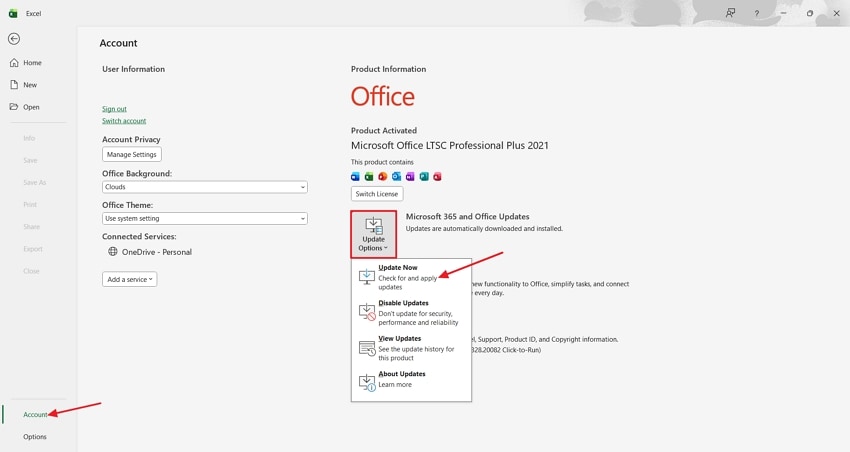
Instructions. Open the Excel app and click on the “Account” option in the bottom left corner. Press the “Update Options” button and click on the “Update Now” option. This will check for updates and install the new updates automatically.
Part 4. Fix Excel File Opens Blank Grey Screen with Add-In Check
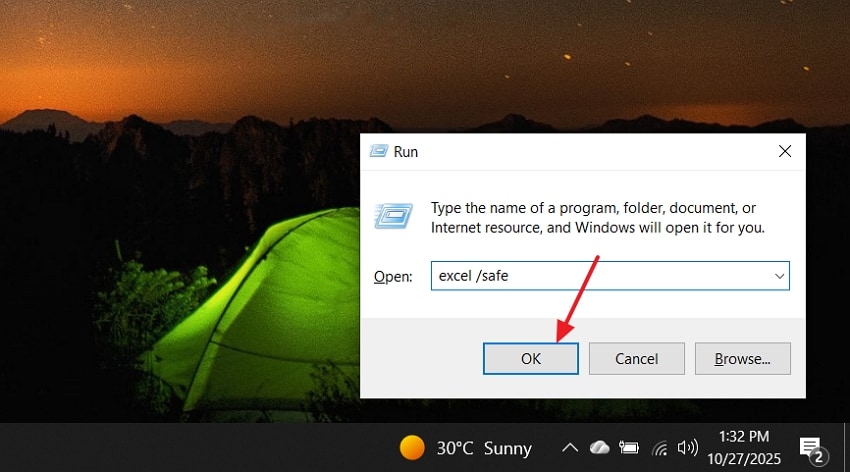
Some Excel add-ins cause file or interface components to fail to display, which shows the Excel file greyed out when opening workbooks. Safe Mode launches Excel without add-ins, so users can methodically disable or remove those extensions that disrupt sheet loading. A clean add-in profile provides stable workbook access across all Excel sessions. Follow the steps below to see how you can use this method:
- Open the “Run” box, type “excel/safe”, and press the “Ok” button to open the Excel app.
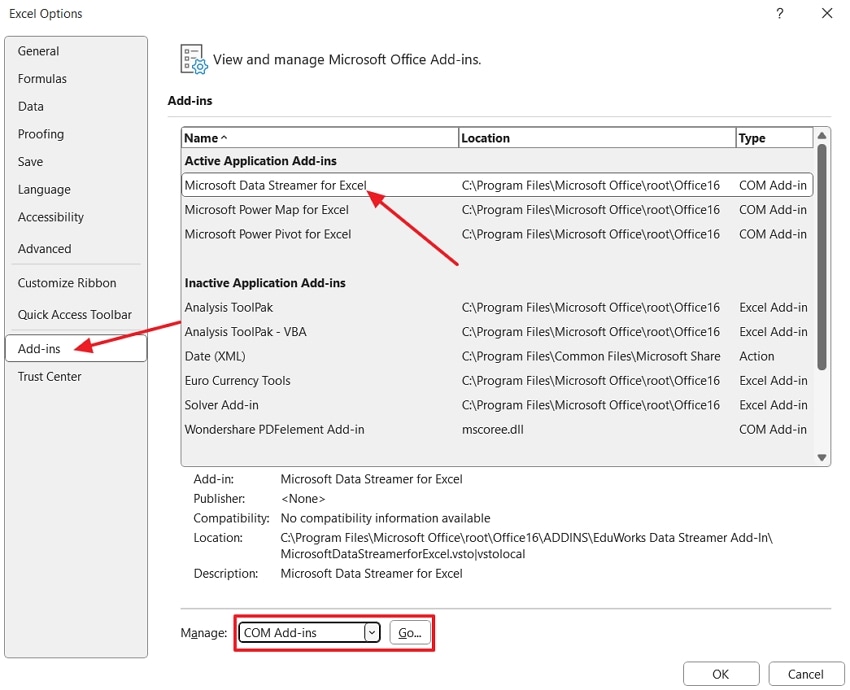
- Access the “Excel Options” window and hit the “Add-ins” option. Now, press any application and choose the “COM Add-ins” option in the “Manage” section. Press the “Go” button to proceed further.
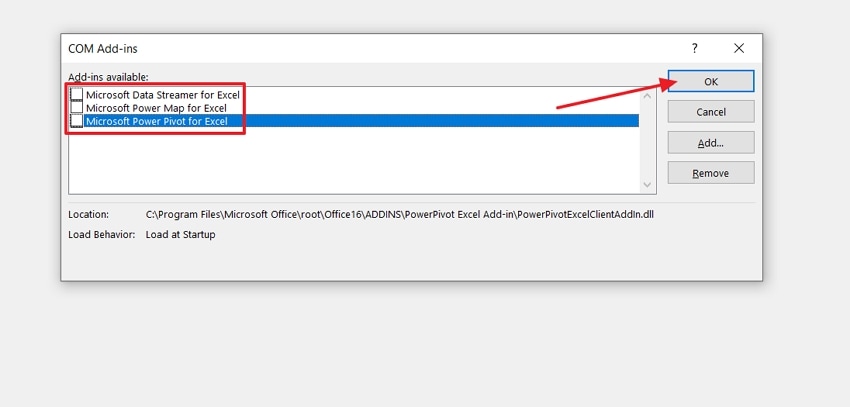
- Now, uncheck all the boxes and hit the “Ok” button to apply this setting. Restart the Excel app and check if any file shows a grey screen.
Part 5. Fixing Excel File Opens Blank Grey Screen Issue Due to File Damage
When your Excel files get corrupted or damaged, it also shows a grey screen while opening. However, this can be fixed with the simple methods mentioned below.
1. Open The File Using Open And Repair In Excel
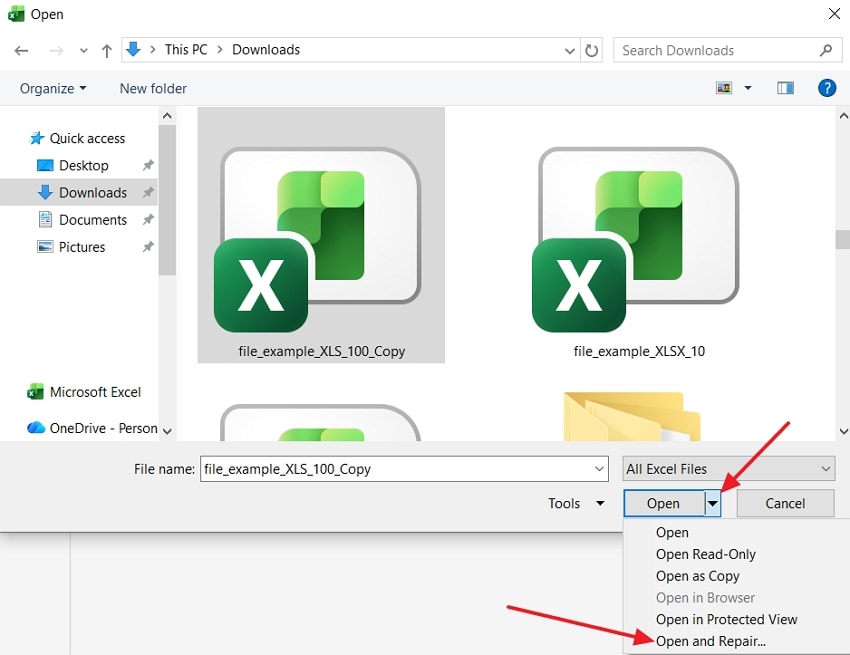
The Open and Repair method recovers a workbook that fails to display due to corruption. The Excel file opens blank grey screen, a problem associated with the file structure, which can be fixed using the built-in recovery tools. Built-in repair features restore cell data and formatting where possible for minimized data loss after recovery. Adhere to the steps below to see how the open and repair method works:
- Press the “Open” option in the Excel app and hit the “Browse” button to open a dialogue box.
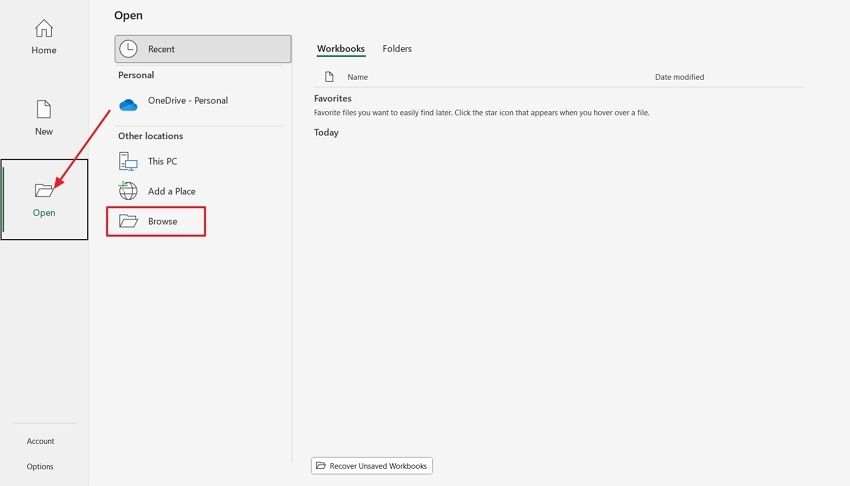
- Now, select the corrupted file from the Browse window and press the “Arrow” button alongside the “Open” button to access the “Open and Repair” option. Save the repaired file in a new destination.
2. Try Copying The File To A New Location Or a Different PC
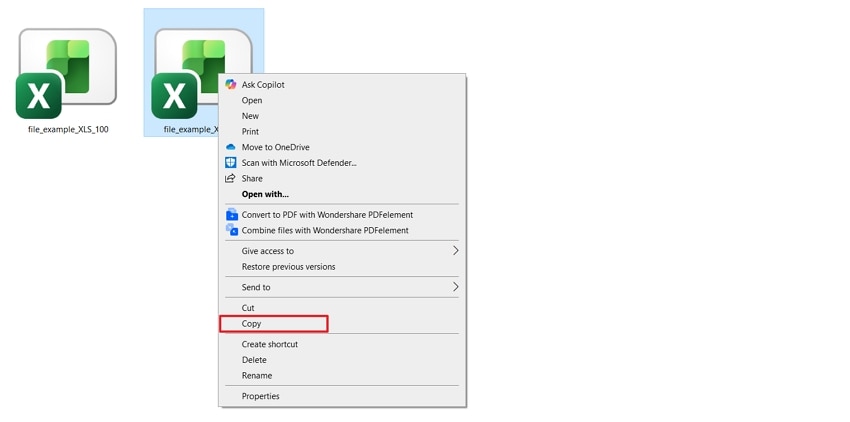
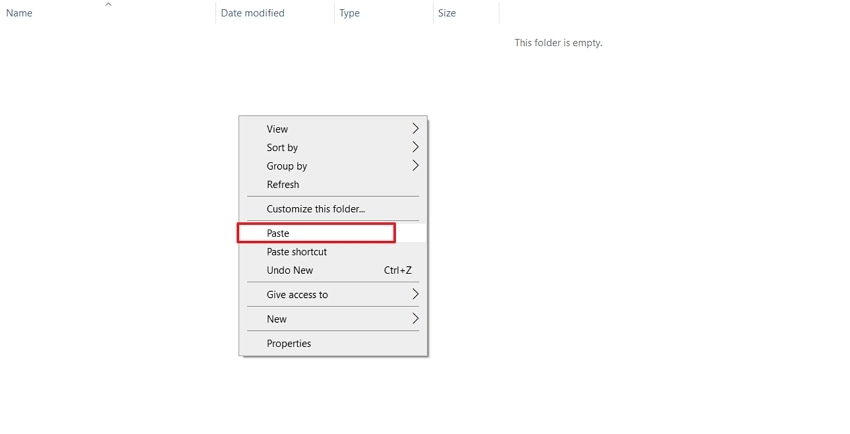
A new file location or device sometimes restores access to a workbook when the original file cannot load normally. Testing this approach removes PC-specific conflicts and enables Excel to reestablish a stable data structure and launch successfully. Alternative environments frequently bypass corruption that blocks opening and allows continued analysis of valued spreadsheet content. Now, go through the steps below to fix the Excel file greyed out issue:
- First off, “Right click” on the Excel file that is corrupted to reveal the context menu. Press the “Copy” option to duplicate the selected data to the clipboard.
- Go to another location, “Right Click” anywhere, and hit the “Paste” button to create a duplicate version of the corrupted Excel file. Open the pasted file and check if it shows the grey screen.
Bonus Part: Rescue Lost or Broken Excel Files in Minutes with Recoverit
After trying all the methods to fix the “Excel file opens blank grey screen” error, users might lose their important Excel files. Here, they find a tool that can restore their lost or corrupted files without compromising the file quality. This is where users can rely on Recoverit, which offers advanced data recovery solutions for grey screen Excel files.
It allows users to recover files of more than 1000 formats, such as XLS and XLSM. It can handle over 10,000 data loss cases from corrupted cache files to interrupted syncs. Recoverit uses AI-powered deep scanning technology, which recovers Excel files deleted at any time.
Key Features
- Preview Before Saving: Recoverit allows users to see the scanned files within the platform before saving them to the directory.
- Advanced Search Filters: Offers advanced search filters for file size and file type to narrow down the search process.
- Cloud Data Recovery: Search for deleted or lost files from iCloud or OneDrive and recover them in particular directories.
Ultimate Guide to Recover Lost or Broken Excel Files with Wondershare Recoverit
If you lost your important files while fixing the Excel file greyed out issue, follow the steps below to recover them:
1. Choose a Particular Directory To Start The Scanning Process
Once you enter the tool’s main interface, press the “Hard Drives and Locations” tab from the left side menu. Select a directory where the Excel file is stored to begin the scanning process.

2. Add File Filters During The Scanning Process
Now, click on the “Filter” icon at the top to view a drop-down menu. Apply the “File Type” and “File Size” filters to narrow down the scanning process.

3. Preview Scanned Files and Export
After the scanned files start appearing in the “File Path” panel, click on the file to see it in the “Preview” window. If the scanned files seem correct, hit the “Recover” button to export the file.

Part 5. Prevent Future “Excel File Opens Blank Grey Screen” Errors
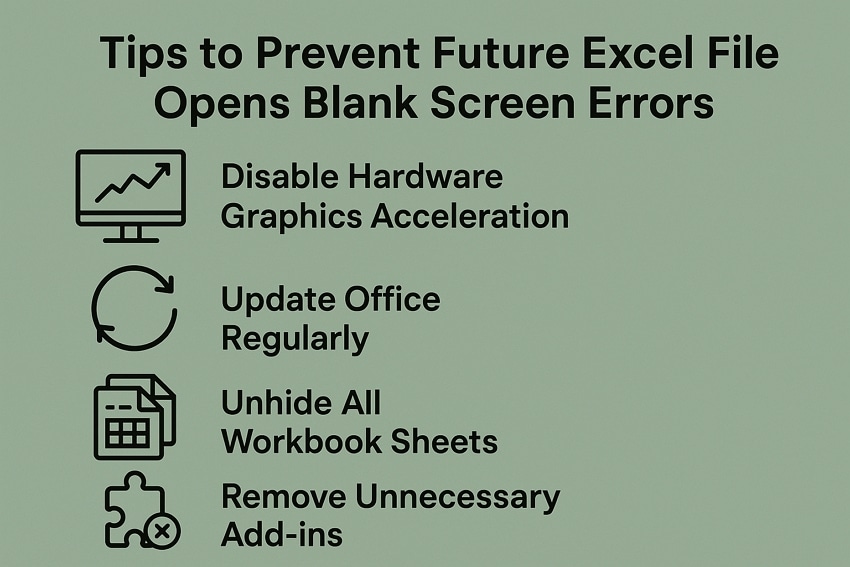
If Excel now opens your files correctly, it’s a good time to apply a few preventive measures. These tips help you avoid future instances of the Excel file opens blank grey screen error and keep your workbooks running smoothly.
- Disable Hardware Graphics Acceleration: Disable hardware acceleration in the advanced options of the Excel program to slow down display glitches and improve stability.
- Clean Up Office Periodically: Ensure that the office and windows are maintained with the most current updates to queue software bugs and registry conflicts to a minimum.
- Unhide Workbook Sheets: Unhide data and remove blank screens by un-hiding any hidden sheet in your workbooks.
- Disable Unnecessary Add-ins: Improve Startup speed and avoid loading conflicts by disabling troublesome or unwanted Excel add-ins.
- Backup and Repair Workbooks: Safeguard your data through regular backups and use built-in file repair features after corruption or failed loads.
Conclusion
In conclusion, we discussed different methods for users who frequently encounter the Excel file opens blank grey screen windows 10 error. By following these fixes, you can restore the workbook display and prevent future issues. Many users are concerned about the risk of losing Excel files during the fixing process. Wondershare Recoverit is the recommended solution to regain access to the Excel file without compromising on the quality.
FAQ
-
1. What if hardware acceleration isn’t in my settings menu?
Some Excel installations lack hardware acceleration options if video hardware or drivers do not support this. You can upgrade the system and update Office to restore settings and adjust graphical performance easily. -
2. Does Office repair change custom macros or code?
Office repair keeps custom macros and VBA code safe unless severe workbook corruption affects data. Create backup copies of important workbooks before repairing to verify all programming is preserved through the process. -
3. How to prevent file association errors after Office upgrades?
Manual file reassignment after you upgrade Office resolves typical Excel file greyed out errors caused by lost file associations. Confirm Excel is set as the default .xlsx program, so double-click always opens files with full access. -
4. Does Open and Repair work for files stored on the Cloud platforms?
Excel’s Open and Repair works with files from network drives and most cloud platforms, but local download first improves recovery chances. For accurate cloud recovery, use Recoverit to retrieve lost content and Excel files.


