

 TL;DR:
When Excel stops responding, you can salvage your unsaved work by waiting up to five minutes for heavy processing to clear, repeatedly pressing Ctrl + S to force a save command through the freeze, or using Task Manager to end the application and trigger a final save prompt.
● Access Excel's built-in temporary backups by navigating to File, Info, Manage Workbook, and Recover Unsaved Workbooks, then shorten your AutoRecover interval to 1-3 minutes to prevent future loss.
● Disconnect external drives or save locally before syncing to OneDrive or SharePoint, as storage connection drops and network delays are primary triggers for application freezing.
● Use a third-party utility like Wondershare Recoverit to extract missing XLS or TSV files directly from the disk partition if a forced abrupt closure corrupts your data.
Ask AI for a summary
 ChatGPT
 Perplexity
 Gemini
 Claude
 Grok
Grok
You’re immensely involved in a project, refining complex databases, when suddenly, Excel freezes. The screen turns pale, and an error appears on your screen: “Excel not responding.” In that split second, your focus shifts from productivity to panic with hours of unsaved work hanging in the balance. For anyone who depends on Excel for data-driven decisions, “Excel not responding how to save” becomes an essential need.
After all, losing hours of hard work to a frozen spreadsheet is every professional’s worst nightmare. The reassuring part is that the guide below covers every possible workaround to recover and protect your progress.
Try Recoverit to Perform Excel Data Recovery
 Security Verified. 3,591,664 people have downloaded it.
In this article

Part 1. Why You Encounter Excel Not Responding: How to Save
A deep understanding of the causes behind “microsoft excel not responding how to save” can help you troubleshoot effectively. For more clarity, head to the section and discover the most common reasons why Excel stops responding unexpectedly:

- Overloaded or Large Files: While you’re working with massive spreadsheets containing thousands of rows or high-resolution images, Excel can become overloaded. The program might struggle to process so much data at once, resulting in lag or complete unresponsiveness.
- Add-in or Extension Conflicts: Not all add-ins are optimized or compatible with every Excel version; some may contain outdated code or conflicting scripts. When this happens, Excel may crash during the setup or freeze while running an important task.
- Old or Outdated Excel Version: Like any other software, Excel requires regular updates to address faults and ensure compatibility with modern systems. With an outdated version, you might experience a recurring 'Excel not responding' error due to unpatched vulnerabilities or incompatible file formats.
- Insufficient System Resources: Excel is resource-intensive, especially when handling data-heavy operations such as running macros or working with embedded visuals. Working on a system that lacks adequate RAM, processing power, or available disk space, Excel might freeze mid-task.
- Due to Corrupted Workbook or External Links: Workbooks with broken formulas or links to missing external data sources, can cause Excel to hang indefinitely. Whenever Excel attempts to retrieve or recalculate these references, it might get stuck in a loop, causing the program to stop responding.
Part 2. Quick Fixes for Excel Not Responding: How to Save
In many cases, “Excel file not responding how to save” only requires a few simple actions to restore functionality. Go through some practical workarounds, complete with guided tutorials to aid you in saving your unsaved progress:
1. Wait a Few Minutes
When Excel stops responding without any notice, it's not always a sign of a crash, but rather that the program is simply overwhelmed. Massive datasets can cause the interface to freeze due to overload, while the program continues working behind the scenes. During this situation, avoid clicking repeatedly or do not close Excel immediately if the bottom status bar shows “calculating”. Simply wait for 2-5 minutes or longer if your file is exceptionally large.
2. Press Ctrl + S Repeatedly to Force a Quick Save
With a dreaded “Excel is not responding how to save work,” it might indicate that underlying processes are partially active. Pressing “Ctrl + S” repeatedly gives Excel multiple chances to recognize your save request before it crashes entirely. It's a simple yet effective trick to capture your latest edits, preserve your progress, and prevent hours of rework. Besides this, the keyboard shortcut can slip through even when clicking doesn’t actually work.
3. Close Unnecessary Apps to Free Memory
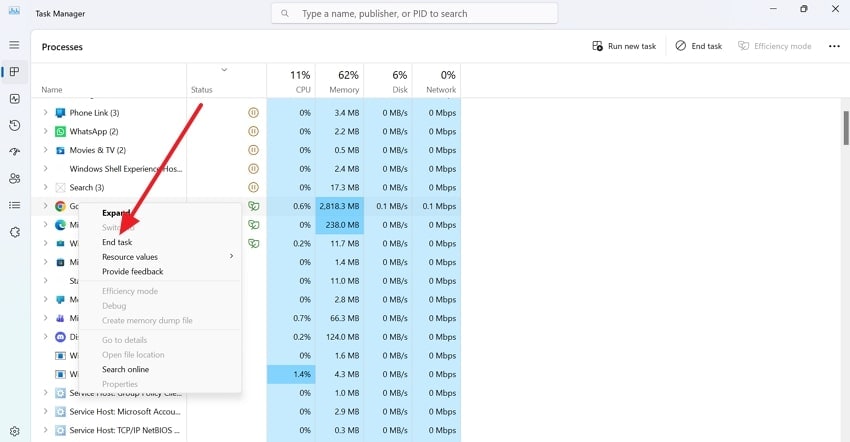
A computer that runs several other programs, like a web browser with dozens of tabs, these processes compete for valuable system resources. An overloaded CPU or RAM makes Excel struggle to function properly, leading to freezing or complete unresponsiveness. The only workaround is closing background applications, freeing up processing power and memory to recover Excel. Explore the tutorial and close unwanted apps to minimize the strain on your computer’s performance:
Instructions. Access Task Manager on your Windows, navigate to the unnecessary app occupying space, and right-click on it. Next, choose the “End Task” option from the drop-down menu to close the application completely.
4. Disconnect External Drives If Your File Is Stored There
The stability of the connection can impact Excel’s performance, showing “Excel file not responding how to save” if it's stored on an external device. Any interruption, lag, or temporary disconnection between your system and the storage source can cause Excel to hang. Excel attempts to read and write data to that location, and if it doesn’t receive a timely response, it gets stuck. Only disconnecting and reconnecting external drives can break this stalled communication.
Part 3. Use AutoRecover for Excel Not Responding: How to Save
For a recurring “my Excel is not responding and I haven’t saved” query, the built-in AutoRecover feature can be a savior. This functionality creates backup copies of your file at regular intervals to protect your unsaved work. Even if Excel freezes or lags, the program retains temporary versions of your file in a hidden recovery folder. To know how to proceed, follow the guidelines and make use of Excel’s AutoRecover:
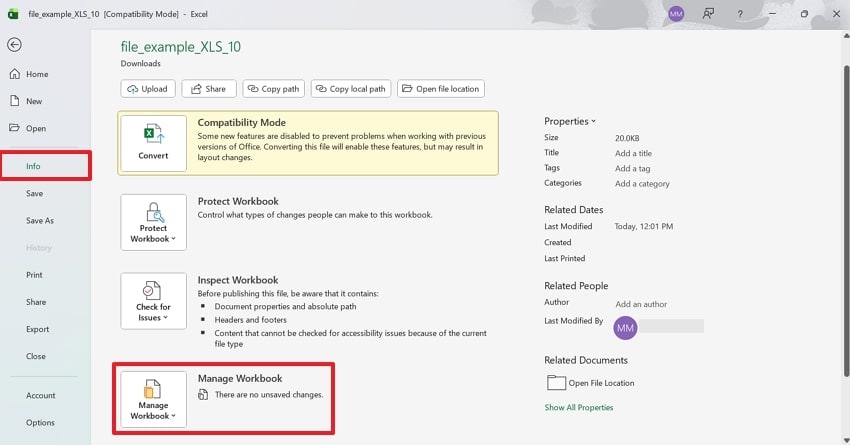
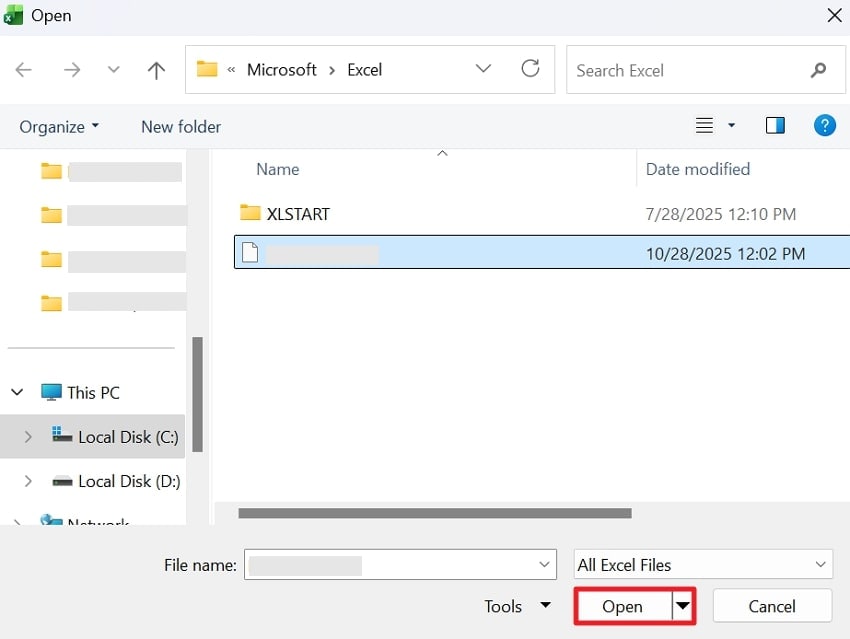
- Enter Excel first, access the “File” tab, and press the “Info” section from the panel. Next, navigate to “Manage Workbook” and click the downward arrow for more options.
- Move forward and press the “Recover Unsaved Workbooks” option to access the “Open” window.
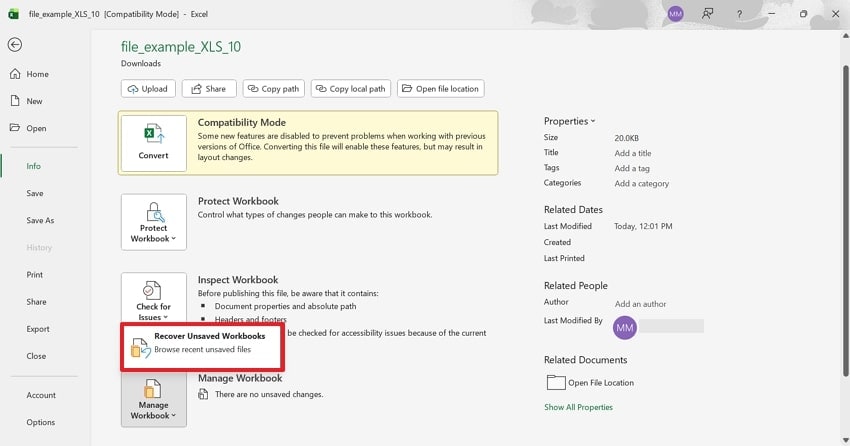
- Browse the available files, select the desired one, and click the “Open” button to save it immediately.
Part 4. Save Excel File When It’s Not Responding (Task Manager Trick)
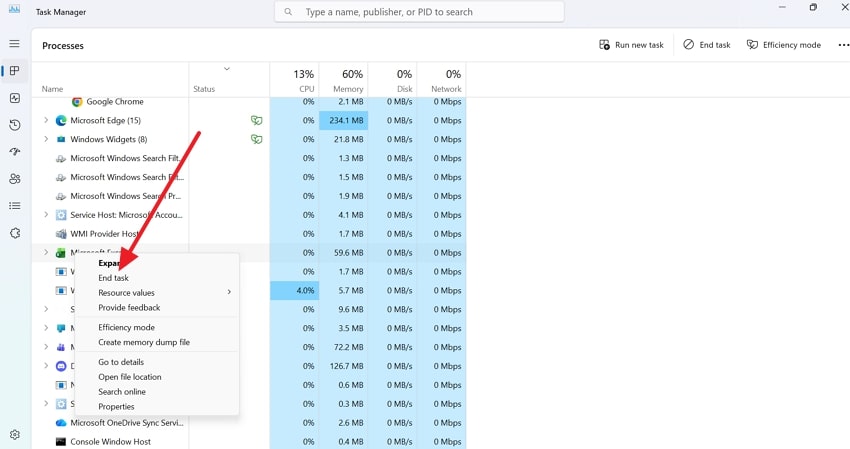
Once the Excel is completely unresponsive and none of the usual methods work, the Task Manager trick saves the day. It's a controlled way to close Excel without instantly ending the process, giving the program a final opportunity to save your work. While dealing with “Excel not responding how to save,” you can even recover the file this way without corrupting it. Follow the manual to optimize the Task Manager and save files:
Instructions. Gain entrance to the Task Manager, locate your Excel file in the “Processes” tab, and right-click it. Once done, choose the “End Task” option, allowing Excel to ask you to save the file before closing.
Pro Tip. When Excel Stops Responding, Recover Lost Data Fast with Recoverit
You’re completely engrossed in the zone, analyzing data or finalizing an important report, when suddenly Excel freezes. The cursor won’t move, the screen fades, and the familiar message pops up: “Excel file not responding how to save?” Built for moments exactly like this, Recoverit offers a practical solution for recovering unsaved or deleted files under any condition. It facilitates users to recover lost files from all storage devices, including disk partitions.
Besides this, you can easily rescue Excel files from crashed computers, Linux systems, and even NAS servers. More impressively, the program supports nearly all Excel formats that including XLS and TSV. With a high success rate and retrieval without any quality loss, it has been a popular choice among most users. In your chosen location, the software runs a quick, deep scan to recover all the lost files.
Key Features
- Recover Word Files: The program supports nearly all Word formats and works with Microsoft Office or earlier versions for quick recovery.
- ZIP File Recovery: You can recover important ZIP/RAR files lost due to accidental deletion, hard drive errors, or other reasons.
- Restore Lost Emails: This leading data recovery software lets users recover lost or deleted emails and attachments from multiple mailboxes.
In-Depth Tutorial to Recover Lost Excel Data
Soon, when “Excel not responding how to save” occurs mid-way, follow the provided guidelines and restore your data:
1. Specify the Location and Scan for Files
To begin, select a hard disk under the “Hard Disk Drives” tab or Desktop beneath the “Quick Access” section. Next, click the “Start” option to initiate a quick scan at the chosen location.

2. Review Real-Time Scanning Results
After this, analyze the real-time scanning progress on your screen and pinpoint files to check their results. Proceed ahead and press the “Recover” button to begin the recovery process.

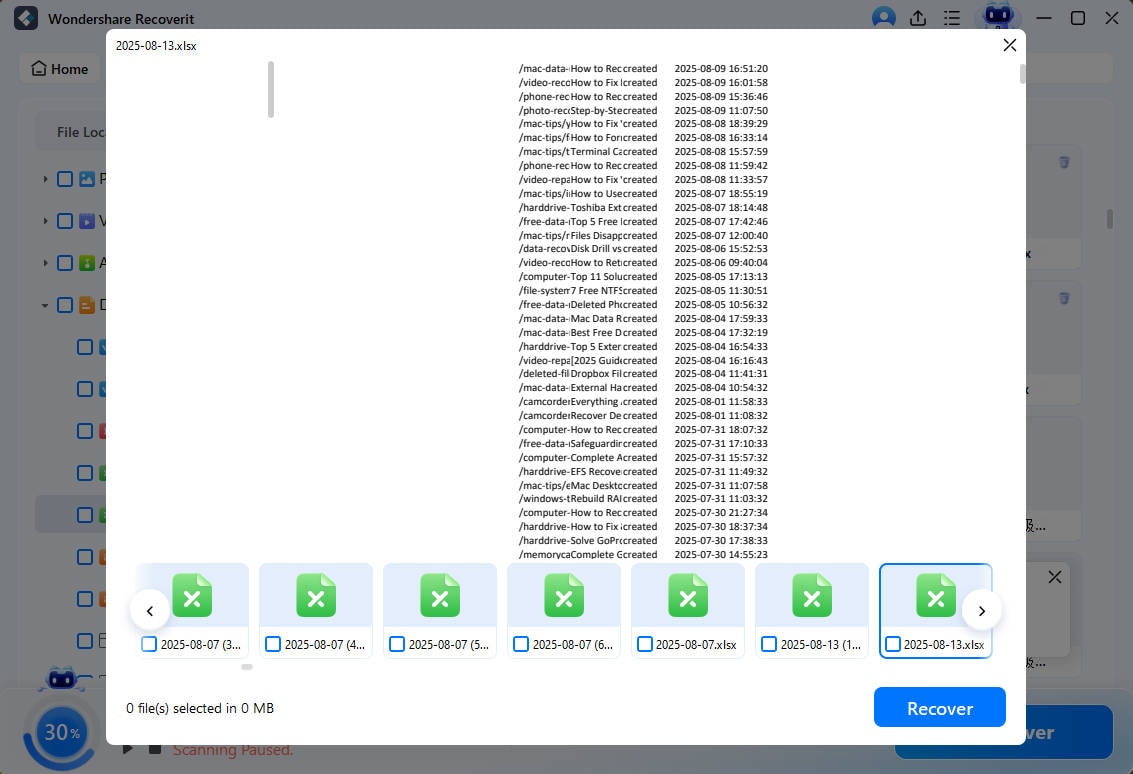
3. Preview Recovered Excel Files and Save them
Double-click the Excel files to preview them and save them on your device for later use.
Part 5. Prevent Excel Not Responding: How to Save in the Future
After a prolonged “microsoft excel not responding how to save” experience, following the listed preventive measures becomes an immense need:

- Access AutoSave and AutoRecover: Both ensure your work is automatically saved at regular intervals, and even if a crash occurs, your progress remains secure. With them enabled, you’ll rarely need to worry about losing unsaved edits again in Excel.
- Keep Excel and Windows Updated: Make sure to regularly update your Excel or Windows version, as these include essential patches and bug fixes. In addition, both your system and Excel updates ensure smoother operations and prevent common freezing errors.
- Do Not Overload Workbooks: Simplify your workbooks by splitting large files into smaller ones and minimizing complex formulas. This step is essential because a lighter workbook results in faster, more reliable Excel performance.
- Save Files Locally Before Syncing to the Cloud: While cloud storage like OneDrive is convenient, network interruptions can cause Excel to freeze. To avoid this, always save your files locally first, then upload them to have a corruption-free copy.
- Disable Problematic Add-ins: Besides this, a regular view and disabling any unnecessary or unstable add-ins to keep Excel running effectively. Most importantly, the fewer add-ins there are, means fewer conflicts and smoother performance.
Conclusion
In conclusion, a technical fix for “Excel not responding how to save” serves as a lifeline to protecting hours of hard work. Although options like AutoRecover and manual saves can help in some cases, they don’t always guarantee success. For a data recovery without loss, Recoverit becomes an ultimate assistant to safeguard files when nothing else works.
FAQ
-
1. Can a frozen Excel file cause data corruption?
Indeed, a frozen Excel can cause data corruption, especially if it is forced to close abruptly while saving. Which is why, let Excel finish its processing or use a recovery tool like Recoverit that specializes in restoring corrupted files. -
2. Why does Excel freeze when saving to OneDrive or SharePoint?
When saving to cloud platforms like OneDrive or SharePoint, unstable internet connections or sync delays can cause Excel to hang. Once the file is saved locally, it ensures your work isn’t lost due to connectivity interruptions. -
3. Does Excel automatically save files before crashing?
No, not always, but Excel's AutoRecover feature saves temporary files only at preset intervals. For instance, if your system crashed between those intervals, any recent changes made in between might be lost. To minimize “Excel file not responding how to save”, you’ll need to shorten the AutoRecover interval to every 1-3 minutes for important work.


