 TL;DR:
To recover a deleted OneDrive file, immediately check the web-based OneDrive Recycle Bin, which normally retains items for 30 days on personal accounts and 93 days on work or school accounts before permanent deletion.
● Local recovery methods, including the Windows Recycle Bin, Mac Trash, or drive-scanning software like Wondershare Recoverit, can only restore files that were previously downloaded or synced to the device; they cannot recover "online-only" placeholders.
● Microsoft 365 subscribers facing mass deletions, sync errors, or ransomware can use the "Restore your OneDrive" feature to undo widespread changes by rolling back the entire library to a custom point within the previous 30 days.
● Deleted items from a Personal Vault remain hidden in the web Recycle Bin until the Vault is actively unlocked, and missing files from work or school accounts may require checking a separate second-stage Recycle Bin managed by a SharePoint administrator.
Ask AI for a summary
 ChatGPT
 Perplexity
 Gemini
 Claude
 Grok
Grok
Quick answer: Open OneDrive on the web and check its Recycle Bin first. Microsoft normally keeps deleted items for 30 days in personal accounts and 93 days in work or school accounts, unless an administrator changes the policy. If the file was downloaded or synced to a computer, also check the local Recycle Bin, Trash, and backups. An online-only file has no complete local copy for recovery software to scan.
OneDrive deletion is confusing because the missing file may have existed in the cloud, on one computer, on several synced devices, or only as an online placeholder. A user in a Microsoft 365 community discussion described the worst version of this problem: files appeared to vanish across folders after a sync event. The right response is to identify where a full copy existed before choosing a recovery method.
Try Recoverit to Recover Deleted Files From OneDrive
 Security Verified. Over 7,302,189 people have downloaded it.
In this article
-
- Method 1. Restore Files From the OneDrive Recycle Bin
- Method 2. Restore Locally Synced Files From Recycle Bin or Trash
- Method 3. Recover Local OneDrive Copies With Wondershare Recoverit
- Method 4. Restore Your Entire OneDrive to an Earlier Time
- Method 5. Recover Work or School Files From the Second-Stage Recycle Bin
- Method 6. Restore OneDrive Files From a Computer Backup
Part 1. What Happens When You Delete Files From OneDrive?
A deletion can trigger different recovery paths depending on the account, the place where the deletion began, and whether the file had a full local copy. Establish those facts before installing software or restoring an entire library.
OneDrive Recycle Bin vs Windows Recycle Bin or Mac Trash
The OneDrive Recycle Bin is stored in Microsoft's cloud and is available at OneDrive.com. It is the first place to check after deleting a cloud file, regardless of which synced device initiated the deletion.
Windows Recycle Bin and Mac Trash are local. A locally available OneDrive file deleted from that computer may appear there as well as in the online Recycle Bin. By contrast, Microsoft states that an online-only file does not appear in the computer's local bin when deleted. See Microsoft's current guide to restoring deleted OneDrive files and folders.
Online-Only vs Locally Available OneDrive Files
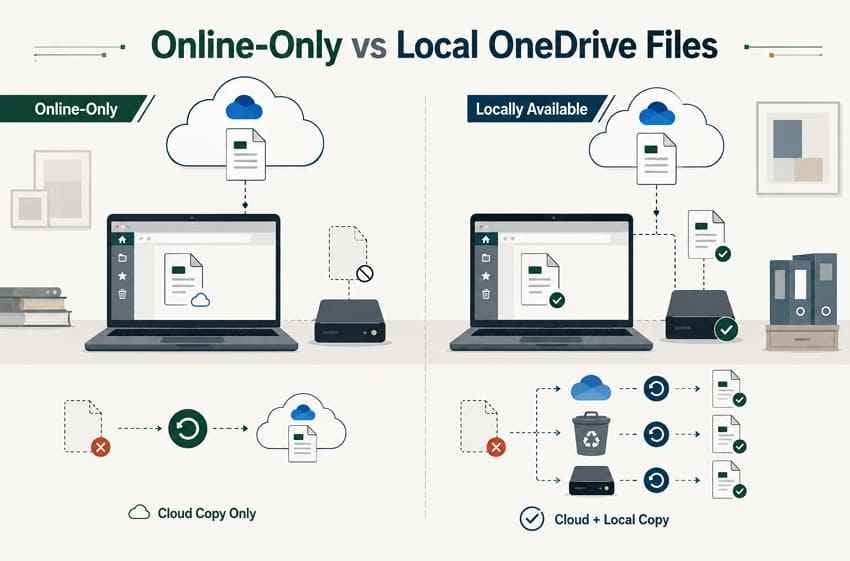
With OneDrive Files On-Demand, File Explorer can show a file that is not fully stored on the computer. A cloud icon identifies an online-only item. A green check indicates that a copy is available locally, while “Always keep on this device” is intended to retain a local copy.
This distinction determines whether local recovery is technically possible. If the deleted file was online-only and never opened or downloaded, the local drive generally contains only metadata or a placeholder—not the file content that recovery software would need.
Personal vs Work or School Account Retention
For a personal Microsoft account, OneDrive normally removes items from its Recycle Bin automatically after 30 days. For a work or school account, items are normally retained for 93 days, but the Microsoft 365 administrator can change the setting. The 93-day period is shared across the first-stage and second-stage Recycle Bins; moving an item between stages does not restart the clock.
Do not treat those periods as a guaranteed waiting window. If a Recycle Bin becomes full, Microsoft may remove the oldest items early. Recover important files as soon as you notice the loss.
Permanently Deleted OneDrive Files
“Permanently deleted” has a specific consequence in OneDrive. Microsoft says an item purged from the applicable OneDrive Recycle Bin cannot be recovered through OneDrive. A separate copy may still exist in File History, Time Machine, an external or NAS backup, a disk image, another unsynced computer, or local storage that previously held the downloaded file.
Personal Vault items require an extra check. They do not appear in OneDrive search, and deleted Vault items may remain hidden in the web Recycle Bin until the Vault is unlocked or the option to show Personal Vault items is selected. For a focused explanation, see OneDrive Personal Vault file recovery.
| Deletion scenario | Normal retention or copy location | Best first step |
| File deleted from a personal OneDrive account | OneDrive Recycle Bin, normally 30 days | Restore it at OneDrive.com immediately. |
| File deleted from a work or school account | Normally 93 days across both Recycle Bin stages, unless the administrator changes the policy | Check the main Recycle Bin, then ask the Microsoft 365 or SharePoint administrator about the second stage. |
| Locally available synced file deleted from a PC or Mac | Cloud Recycle Bin and potentially Windows Recycle Bin or Mac Trash | Check both cloud and local bins before scanning the drive. |
| Online-only file deleted | Cloud Recycle Bin; no complete local file by default | Use OneDrive's cloud recovery options first. |
| Many files deleted, renamed, or overwritten together | Microsoft 365 subscribers can restore OneDrive activity from the previous 30 days | Use Restore Your OneDrive after reviewing the affected activity. |
| Personal Vault item deleted | Web Recycle Bin, but Vault items may need to be revealed | Unlock Personal Vault and show its deleted items. |
| File purged or retention expired | No longer recoverable through OneDrive itself | Search local copies, backups, other devices, or recoverable local storage. |
Part 2. What to Check Before Recovering Deleted OneDrive Files
Start with reversible checks. They take less time than a full drive scan and reduce the risk of restoring the wrong library state or overwriting a recoverable local copy.
- Search OneDrive and confirm the correct Microsoft account: Sign in at OneDrive.com, select My files, and search the entire library. Try part of the file name, its extension, a date, or a related folder. Check every personal, work, or school account you use. Microsoft's missing-file checklist also recommends confirming the account before assuming deletion.
- Check the OneDrive Recycle Bin: Open Recycle bin in the web sidebar. Sort by deletion date or original location and look for the containing folder as well as the individual file. Unlock Personal Vault if relevant.
- Check Windows Recycle Bin or Mac Trash: This is useful only when a complete local copy existed on that computer. Restore to a safe folder first if you are unsure whether sync will immediately alter it again.
- Identify whether the file was online-only or downloaded: Think back to its Files On-Demand status. A file that was opened, pinned, or marked Always keep on this device has a stronger local recovery path than one that always showed a cloud icon.
- Inspect another synced computer or an existing backup: If a second computer may still have an offline copy and has not synced the deletion, disconnect it from the network before opening OneDrive. Copy the file to a non-OneDrive folder or external drive, then reconnect and investigate.
- Avoid overwriting storage that previously held the file: If cloud recovery has failed and a downloaded copy was deleted from a local SSD, HDD, USB drive, or memory card, stop installing, downloading, or syncing new data to that device. Install recovery software elsewhere and save recovered files to another drive.
Part 3. How to Recover Deleted Files From OneDrive
Use the methods below in order of least disruption. A single deleted file rarely justifies rolling back the entire OneDrive library, while a mass deletion or ransomware event may require a broader restore.
Method 1. Restore Files From the OneDrive Recycle Bin
This is the safest and fastest route while the item remains inside the applicable retention period. It restores the cloud object and allows OneDrive to sync it back to connected devices.
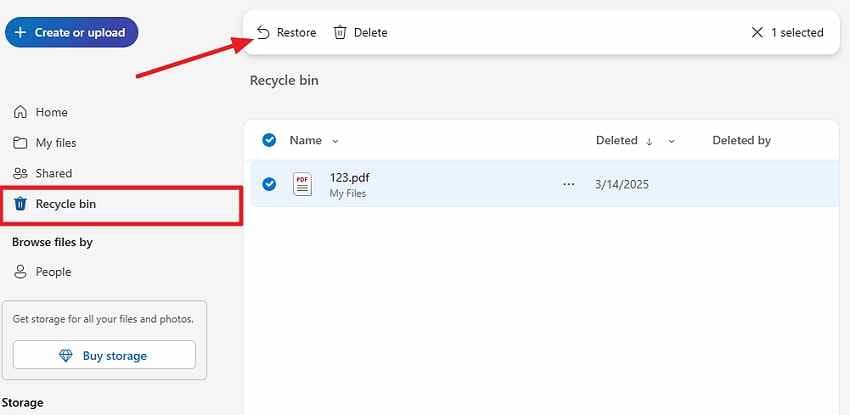
Instructions: Sign in to OneDrive.com with the account that owned the file. Select Recycle bin, choose the files or folders, and select Restore. OneDrive normally returns them to their original location. If that folder no longer exists, search My files after the restore.
Limit: This method cannot restore an item after it has expired or been permanently purged. For work or school accounts, continue to Method 5 if the item is missing from the main Recycle Bin.
Method 2. Restore Locally Synced Files From Recycle Bin or Trash
A local bin can provide a second route when the deleted OneDrive item was actually stored on the computer. The exact interface depends on the operating system.
On Windows
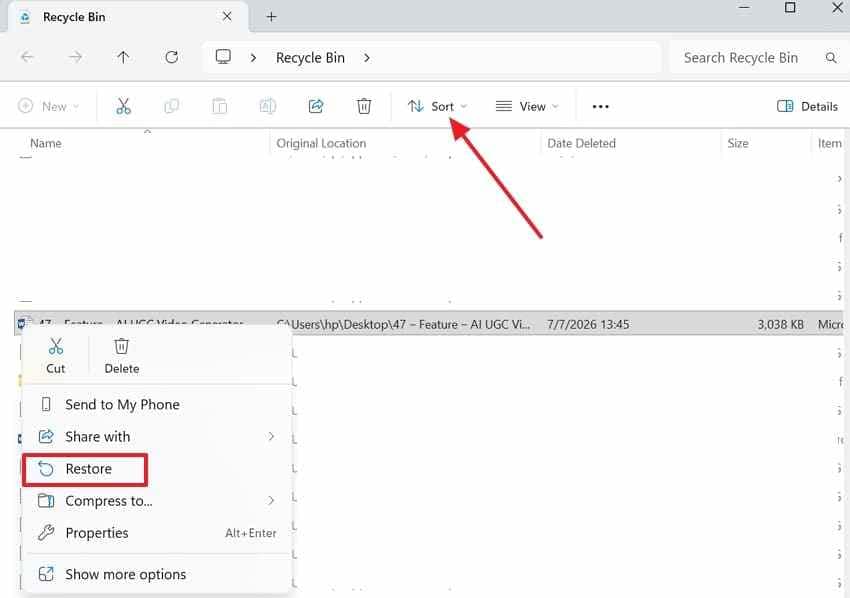
Open Recycle Bin, search for the file name or sort by Date deleted, right-click the item, and choose Restore. If you do not want the restored file to rejoin the active sync set immediately, restore it while OneDrive is paused and copy it to a separate non-OneDrive folder before resuming sync.
On Mac
Open Trash, locate the locally synced file, Control-click it, and choose Put Back. If the original OneDrive folder or account is no longer available, drag the file to a safe local folder instead and create a separate backup before changing sync settings.
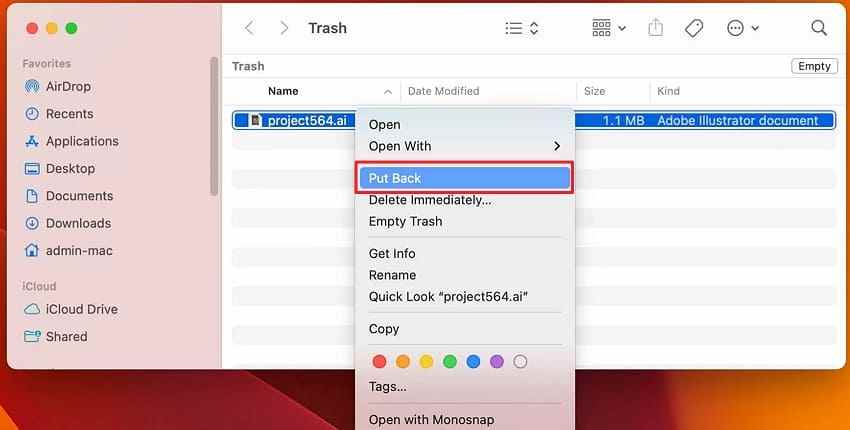
Limit: Online-only files are not placed in the local Recycle Bin or Trash. Use the OneDrive web Recycle Bin for those items.
Method 3. Recover Local OneDrive Copies With Wondershare Recoverit

If the cloud item and local bin are empty, recovery software may help only when a full OneDrive file was once stored on a readable local device. Wondershare Recoverit can scan the PC drive, Mac drive, external drive, USB device, or memory card that held the synced or downloaded copy.
Important boundary: Recoverit does not log in to Microsoft to undelete cloud-only content. It cannot recreate an online-only file that was never downloaded, and it cannot bypass OneDrive retention after a cloud file has been purged. It searches recoverable data on local storage. This is also the scope described in the current OneDrive data recovery guide.
Why Use Recoverit for a Local OneDrive Copy?
The practical value comes from scanning the storage layer that previously contained the complete file, not from replacing Microsoft's account-level recovery tools.
- Local and removable storage scanning: Scan a detectable internal drive, external HDD or SSD, USB drive, or memory card where a OneDrive copy existed.
- Broad file-type support: Search for documents, archives, photos, videos, audio files, email data, and other locally stored content.
- Targeted filtering: Narrow results by file type, size, date, status, or path instead of reviewing every discovered item.
- Preview before recovery: Preview supported files to validate content and integrity before saving them.
- Separate save destination: Recover to another disk so the source device is not overwritten during the process.
How to Recover a Deleted Local OneDrive File
Do not install Recoverit on the affected drive when another installation location is available. Prepare a separate destination drive before starting.
Step 1. Select the original local storage. Open Recoverit and choose the drive or partition where the local OneDrive folder, downloaded file, or exported copy was stored. Confirm the device by its capacity and location, then start the scan.

Step 2. Scan and filter the results. Let the scan run while you filter by the original file type, name, date, or path. Avoid downloading or syncing new OneDrive data to the source drive during the scan.

Step 3. Preview and recover to another location. Open the preview for the file you need. Select recoverable items, click Recover, and save them to another drive or a non-OneDrive folder until you have verified the result.

Limit: SSD TRIM, overwriting, encryption, or physical failure can make local recovery incomplete or impossible. A listed file name is not proof that the content remains intact; previewing the file is a stronger test.
Try Recoverit to Recover a Deleted Local OneDrive File
Security Verified. Over 7,302,189 people have downloaded it.
Method 4. Restore Your Entire OneDrive to an Earlier Time
Restore Your OneDrive is designed for widespread unwanted activity, such as mass deletion, ransomware encryption, file corruption, or a damaging synchronization. It is available to Microsoft 365 subscribers and can undo activity from the previous 30 days.
Step 1. Open OneDrive settings. Sign in at OneDrive.com, open Settings, choose Options, and select Restore your OneDrive. In some Microsoft 365 interfaces, the command appears directly in the settings menu.
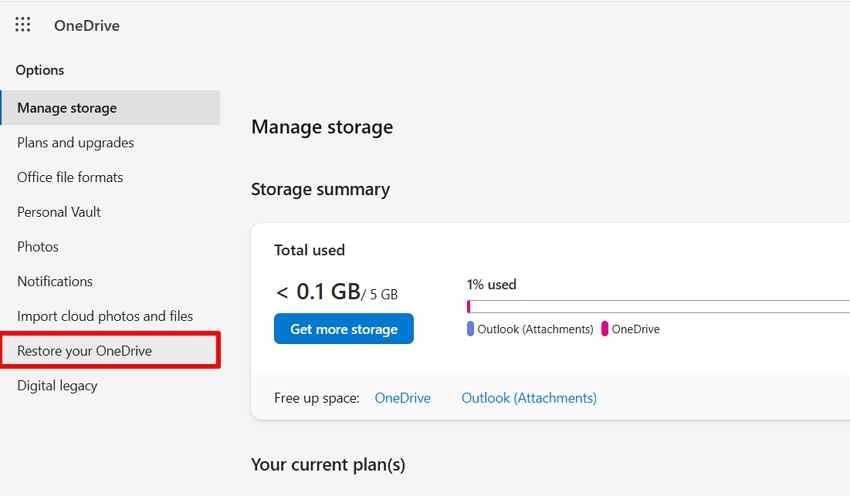
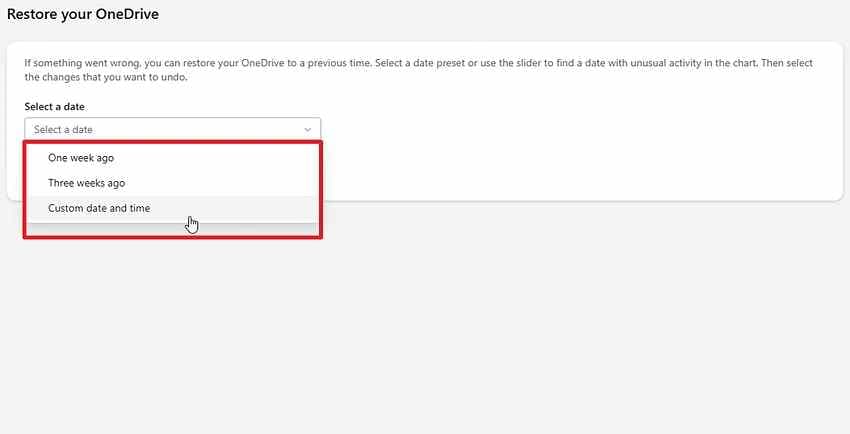
Step 2. Choose an earlier point. Select a preset period or a custom date and time before the unwanted event. Use the activity chart to identify the deletion, overwrite, or malware activity.
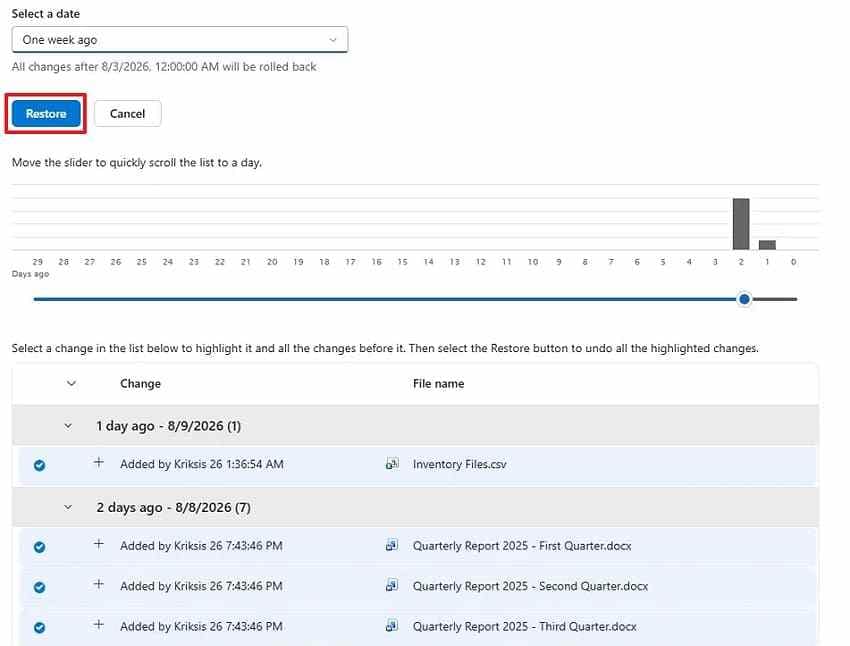
Step 3. Review and restore. Select the first activity you want to undo; later events are selected automatically. Review the scope carefully, then start the restore. Files created after the selected point can be moved to the Recycle Bin, so preserve any newer work first.
Limit: This feature is not a substitute for the Recycle Bin after permanent deletion, and it does not extend beyond the 30-day restore window. Use it for coordinated changes, not as the first response to one missing file.
Method 5. Recover Work or School Files From the Second-Stage Recycle Bin
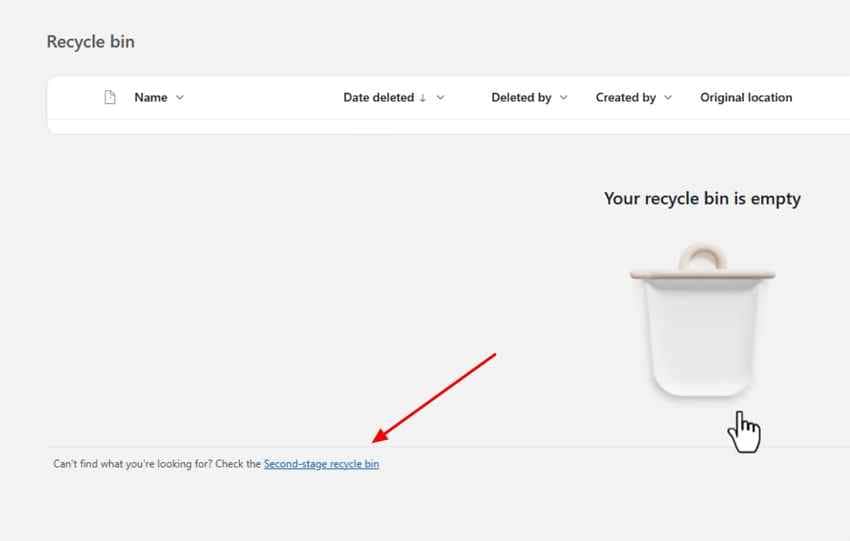
A work or school OneDrive library is built on SharePoint. When an item is removed from the user's main Recycle Bin, it may remain in a second-stage Recycle Bin until the combined retention period expires.
Step 1. Open the second-stage view. From the work or school OneDrive Recycle Bin, select the link for the second-stage recycle bin or site collection Recycle Bin. If the option is unavailable, contact the Microsoft 365 or SharePoint administrator.
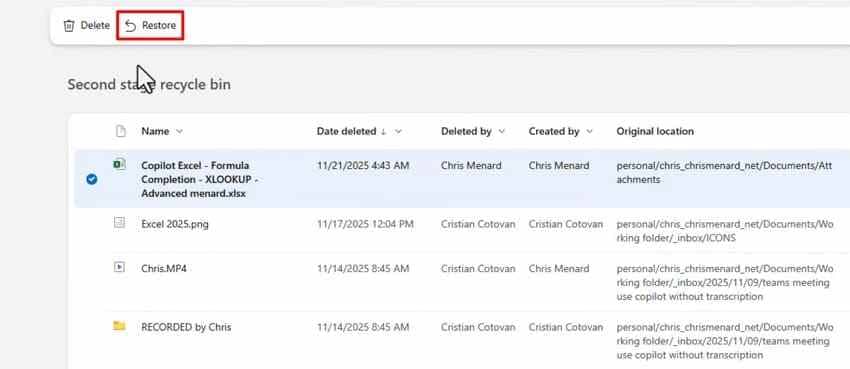
Step 2. Select and restore the items. Locate the file or parent folder, select it, and choose Restore. Microsoft documents this process in its guide to restoring items from the site collection Recycle Bin.
Limit: The usual 93-day retention period starts at the original deletion and spans both stages; it is not 93 days per stage. Tenant policy, retention labels, legal holds, and administrator permissions can alter the actual route.
Method 6. Restore OneDrive Files From a Computer Backup
A backup can recover a file after OneDrive's own options are exhausted, provided that the backup captured a complete local copy before deletion. Online-only placeholders are not useful backup content unless the backup product downloaded the file.
Restore From Windows File History
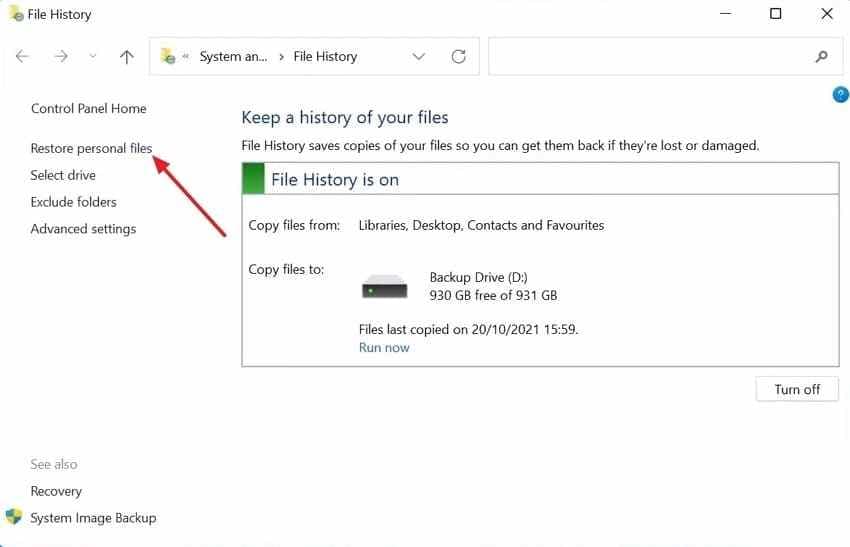
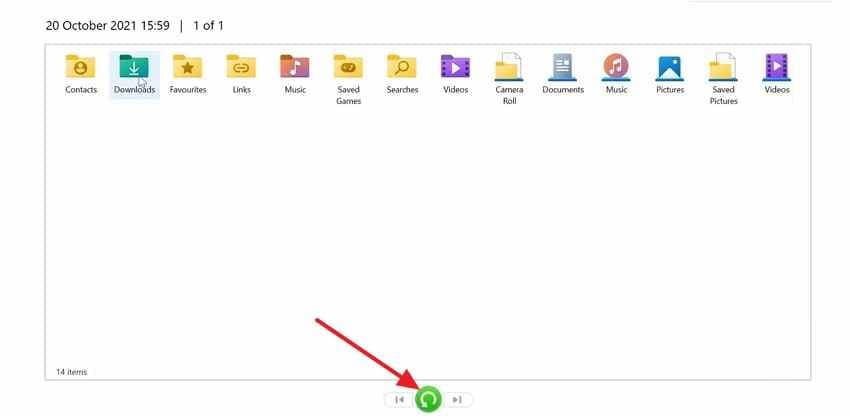
Open the Windows search box, type Restore your files with File History, and open the result. Browse to the local OneDrive folder, move through available backup dates, select the file, and choose the restore button. Use Restore to if you want to avoid replacing a current file.
Restore From Time Machine
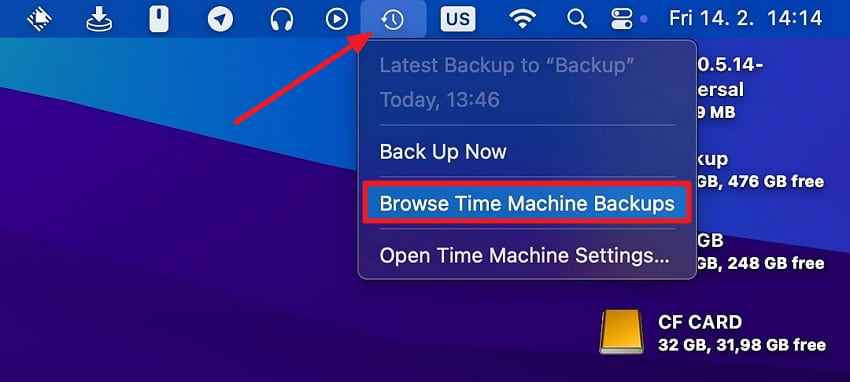
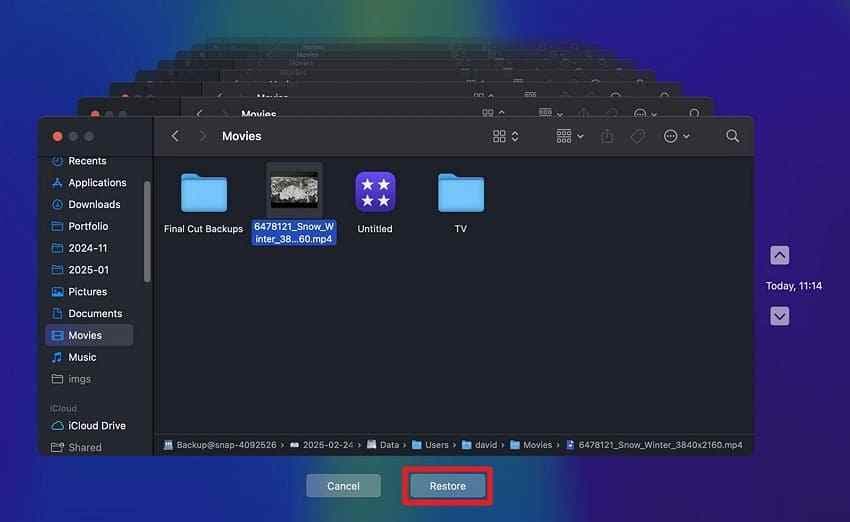
Connect the Time Machine disk, open the local folder that previously contained the OneDrive file, and enter Time Machine. Use the timeline to select a version from before the deletion, then choose Restore. Apple's Time Machine restore guide explains the current Mac workflow.
Check Other Backup Locations
Search external backup drives, NAS snapshots, system backups, disk images, exported project folders, email attachments, and another computer that previously synced the file. A C drive data recovery workflow is relevant only if the complete OneDrive file had been stored on that local drive.
Part 4. Which OneDrive Recovery Method Should You Use?
Choose the narrowest method that matches where the last complete copy existed. The following matrix separates cloud recovery, local undelete, library rollback, and backup restore.
| Situation | Best recovery method | Account or tool requirement | Main limitation |
| File still appears in OneDrive Recycle Bin | Restore from the web Recycle Bin | Correct Microsoft account | Item must remain within retention and not be purged. |
| Locally synced file was deleted from PC or Mac | Windows Recycle Bin or Mac Trash | A complete local copy must have existed | Online-only files do not appear locally. |
| Local copy is gone from the bin but the storage is readable | Scan the original local drive with Recoverit | Recoverit and a separate save drive | No direct recovery from OneDrive cloud; overwriting or SSD TRIM may prevent recovery. |
| OneDrive file is missing after a sync error | Search the web library, check bins, inspect another offline device, and review version history | Correct account and surviving copy or version | Sync changes can propagate quickly across devices. |
| Many files were deleted or changed together | Restore Your OneDrive | Microsoft 365 subscription | Only the previous 30 days; restoring affects many activities. |
| Work or school file is absent from the main Recycle Bin | Second-stage Recycle Bin | Work or school account; administrator help may be required | Normally shares the same 93-day period from original deletion. |
| OneDrive file was previously backed up locally | File History, Time Machine, NAS, external, or disk-image restore | Backup created before deletion | The backup must contain the full file, not an online-only placeholder. |
Part 5. Why OneDrive Recovery Can Fail
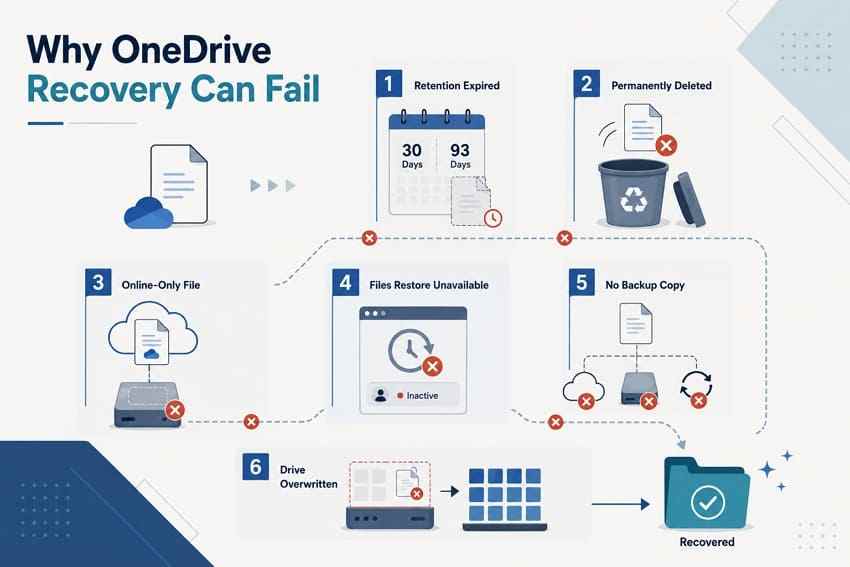
Recovery failure usually means that no surviving full copy remains in the location being searched. The failure point can be in the cloud, on the local device, or in the backup history.
- The retention period expired: The personal 30-day or usual work/school 93-day window passed before the item was restored.
- The file was permanently purged: The item was emptied from the relevant OneDrive Recycle Bin and no second-stage, retention-policy, or backup route remains.
- The file was online-only: The computer displayed a placeholder but never held a complete local file, leaving nothing meaningful for local undelete software to scan.
- The restore or version window is unavailable: Restore Your OneDrive requires Microsoft 365 and covers only the previous 30 days; work administrators may also control versioning.
- No backup captured the file: File History, Time Machine, or a disk image cannot restore content that was excluded, offline, or created after the last backup.
- Local data was overwritten or trimmed: Continued downloads, synchronization, installations, SSD TRIM, garbage collection, or secure erase may remove the recoverable file blocks.
- The device has a hardware problem: A drive that disconnects, reports the wrong capacity, clicks, or is not detected needs hardware-level assessment rather than repeated software scans.
Part 6. How to Prevent OneDrive File Loss
OneDrive sync protects access and collaboration, but synchronization is not an independent backup: a deletion or damaging edit can propagate. Build a second recovery layer around important files.
- Keep important files in more than one storage location: Maintain a second copy outside the live OneDrive sync folder, such as an external drive, managed NAS, or independent backup service.
- Use version history for working documents: OneDrive version history can restore earlier versions of supported files, including Microsoft 365 documents, PDFs, CAD files, photos, and videos. It addresses unwanted edits rather than a file that has already been purged everywhere.
- Maintain File History or Time Machine backups: Confirm that the local OneDrive folder is included and that critical files are downloaded rather than online-only at backup time.
- Check sync status before deleting local copies: Do not assume a file has a safe cloud copy because its name appears in File Explorer or Finder. Confirm it opens and is fully uploaded.
- Review the Recycle Bin before emptying it: Search by deletion date and original location, unlock Personal Vault when necessary, and restore anything uncertain before permanent removal.
- Use Restore Your OneDrive after a large accidental change: Microsoft 365 subscribers should review the activity timeline promptly after mass deletion, corruption, or malware.
- Test backups: Periodically restore a sample file to a separate location. A successful backup job is not enough if online-only files or important folders were excluded.
Conclusion
Successful OneDrive deleted files recovery starts with location, not software. Check the web Recycle Bin first, then local bins for downloaded files, Restore Your OneDrive for a widespread event, the second-stage Recycle Bin for eligible work accounts, and independent backups. Use Recoverit only when a complete local copy once existed on readable storage and cloud recovery no longer applies. That distinction prevents wasted scans and sets an honest recovery expectation.
Try Recoverit to Recover a Deleted Local OneDrive File
Security Verified. Over 7,302,189 people have downloaded it.
Frequently Asked Questions
-
Can OneDrive Recover a File Deleted From Another Synced Computer?
Yes, if the item is still in the OneDrive web Recycle Bin or another applicable recovery layer. Deletion normally syncs across devices, so check OneDrive.com first. A locally available file may also remain in the deleting computer's Recycle Bin or Trash. If another computer may have an unsynced offline copy, disconnect it from the network before inspecting and copying the file. -
What Happens to Deleted Files From OneDrive Personal Vault?
Deleted Personal Vault items can appear in the OneDrive web Recycle Bin, but you may need to unlock the Vault or choose the option to show Personal Vault items. Vault content does not appear in normal OneDrive search. A Vault file deleted on Windows may not appear in the PC's local Recycle Bin, so check the web Recycle Bin promptly. -
How Long Does OneDrive Keep Deleted Files?
OneDrive normally retains deleted items for 30 days in personal accounts. Work or school accounts normally use 93 days across the first-stage and second-stage Recycle Bins, unless the administrator changes the policy. If a Recycle Bin becomes full, older items may be removed early, so these periods should not be treated as a reason to wait. -
Can Recoverit Restore Files Already Purged From OneDrive Online?
Not directly from Microsoft's cloud. Recoverit can scan readable local storage where a complete synced, downloaded, exported, or backed-up OneDrive file previously existed. It cannot recreate an online-only file that was never stored locally or restore a cloud object solely by signing in to OneDrive. Local recovery also depends on whether the file's data has been overwritten, trimmed, encrypted, or physically damaged.


