

 TL;DR:
Photoshop automatically stores unsaved work in hidden system folders that you must access immediately after a crash before reopening and closing the program permanently deletes them.
● For Windows users, enable hidden items in File Explorer and navigate to C:\Users\[YourUsername]\AppData\Roaming\Adobe\Adobe Photoshop [Version]\AutoRecover to locate the backup files.
● For Mac users, hold the Option key while clicking Go in the Finder menu to reveal the hidden Library folder, then open ~/Library/Application Support/Adobe/Adobe Photoshop [Version]/AutoRecover.
● These temporary files are only created if the auto-recovery interval is enabled in File Handling preferences, and they are automatically erased the moment you save your project or close the application normally.
Ask AI for a summary
 ChatGPT
 Perplexity
 Gemini
 Claude
 Grok
Grok
Photoshop crashes happen to everyone. Your computer freezes. The power goes out. The program stops working. You lose hours of work in seconds. But there's good news. Photoshop saves your work automatically. You just need to know where to look.
The Photoshop recovery file location stores your unsaved work. These files can save your project when disaster strikes. They're hidden in specific folders on your computer. Many users don't know these locations exist. Learning where they are can save you time and stress.
This guide shows you exactly where to find unsaved Photoshop files. You'll learn the Photoshop backup file location for Windows and Mac. We'll cover how auto-recovery works. You'll also get tips to prevent losing work again. Let's find those recovery files.
Table of Contents
Part 1: Importance of Auto-Recovery in Photoshop
Auto-recovery is your safety net in Photoshop. It works quietly in the background while you create. The feature saves your work at regular intervals. This happens without you clicking save. When something goes wrong, these files rescue your project.
Here's why auto-recovery matters:
- Protects Against Crashes: Software crashes don't mean lost work anymore. Recovery files preserve your latest changes.
- Saves Time: You don't have to recreate hours of editing. Your work is waiting in the recovery folder.
- Reduces Stress: Knowing your work is backed up lets you focus on creativity. You worry less about technical problems.
- Power Outage Protection: Sudden power loss won't destroy your project. The Adobe Photoshop recovery files location keeps your data safe.
- Automatic Operation: You don't need to remember to save constantly. The system does it for you.
- Works for Complex Projects: Large files with many layers get protected too. Recovery files handle complex documents.
- Multiple Recovery Points: Photoshop stores several versions. You can recover from different stages of your work.
- Easy Access: Once you know the Photoshop recovery files location, finding files takes seconds. No complex procedures needed.
Part 2: Where is the Photoshop Recovery File Location?
Finding your recovery files depends on your operating system. Windows and Mac store files in different places. Both systems hide these folders by default. You need to enable viewing hidden files first. Then you can navigate to the correct folder.
The Photoshop recovery files location contains temporary backup files. These files use special names with dates and times. They're not the same as your saved PSD files. Understanding where they live helps you recover work quickly.
Default Photoshop Recovery File Locations
#1 Windows
The Photoshop recovery files location on Windows is in your user folder. Windows hides system files to protect them. You must change your folder settings first.
Finding the Photoshop backup file location on Windows takes two steps:
- Open File Explorer. Click the View tab at the top. Check the box that says "Hidden items." This reveals hidden folders on your computer.
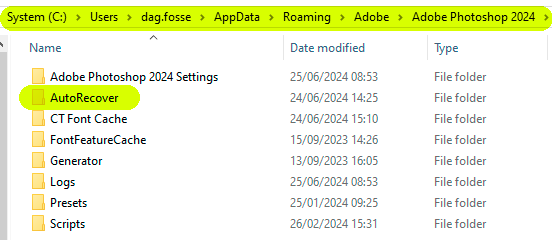
- Navigate to this path: C:\Users\[YourUsername]\AppData\Roaming\Adobe\Adobe Photoshop [Version]\AutoRecover. Replace [YourUsername] with your actual Windows username. Replace [Version] with your Photoshop version number like CC 2024. Your recovery files are in this folder.
#2 Mac
The Photoshop recovered files location on Mac is also in a hidden folder. Mac systems protect user library files by default. You need to access the Library folder first.
Finding recovery files on Mac requires these steps:
- Open Finder. Click "Go" in the menu bar. Hold down the Option key. The Library option appears in the dropdown menu. Click the Library to open it.
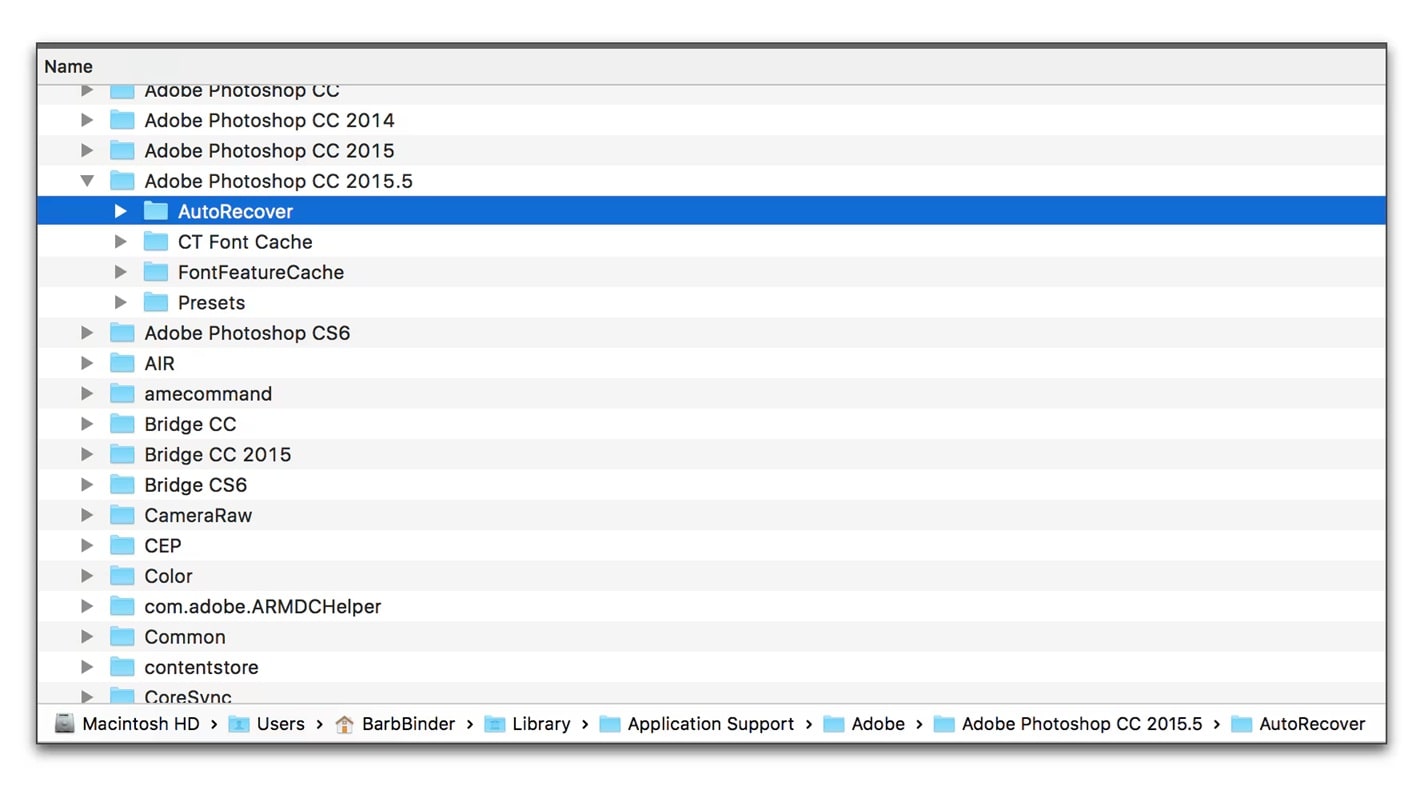
- Navigate to: ~/Library/Application Support/Adobe/Adobe Photoshop [Version]/AutoRecover. The tilde (~) means your home folder. Look for folders with your Photoshop version number. Your unsaved files are stored here.
Part 3: How Photoshop Auto-Recovery Works

Photoshop saves your work automatically at set intervals. The default setting is every 10 minutes. You can change this in preferences. Each time it saves, a new recovery file is created. These files get stored in the Photoshop recovery file location.
The program keeps track of your document state. It records all changes between saves. When Photoshop opens after a crash, it looks for recovery files. If it finds them, a recovery dialog appears. You can choose to open the recovered version. The system compares the recovered file with your last saved version. It offers whichever is more recent.
Recovery files don't stay forever. Photoshop deletes them after you save your work properly. When you close a file normally, the recovery file disappears. This keeps your system clean. It also means you must act quickly after a crash. Don't open and close Photoshop multiple times. This might overwrite your recovery file.
Part 4: Troubleshooting Missing Recovery Files
Sometimes you can't find recovery files where they should be. Several reasons cause this problem. Understanding these issues helps you find unsaved Photoshop files successfully.
Common problems and solutions include:
- Auto-Recovery Disabled: Check your Photoshop preferences. Go to File Handling settings. Make sure "Automatically Save Recovery Information" is checked. Set the interval to 10 minutes or less.
- Wrong Folder Path: Verify you're looking in the correct version folder. Photoshop 2024 and 2023 use different folders. Check your exact version number.
- Files Already Deleted: Opening Photoshop normally after a crash deletes recovery files. If you saved or closed files properly, recovery files won't exist.
- Insufficient Disk Space: Recovery files need space to save. If your hard drive is full, auto-recovery fails. Free up storage space.
- Custom Save Location: Some users change the default Adobe Photoshop recovery files location. Check Preferences > File Handling for custom paths.
- Corrupted Preferences: Reset Photoshop preferences. Hold Ctrl+Alt+Shift (Windows) or Cmd+Option+Shift (Mac) while starting Photoshop.
- Short Auto-Save Interval: Very short intervals might cause conflicts. Set the auto-recovery interval to 5-10 minutes for stability.
- Permission Issues: Your user account might lack folder access. Run Photoshop as an administrator on Windows. Check folder permissions on Mac.
Part 5: No Photoshop Recovery File? No Problem: Recoverit Can Help!
Recovery files aren't always available. Sometimes the Adobe Photoshop recovery files location is empty. Your files might be corrupted. The crash might have prevented saving. When built-in recovery fails, you need professional help.
Recoverit is data recovery software that finds lost files. It scans your entire hard drive for deleted or lost data. The program can recover PSD files that seem gone forever. It works even when Photoshop's own recovery system fails. Recoverit finds files in places you can't access normally.
Try Recoverit to Recover Permanently Deleted/Lost Data
 Security Verified. Over 7,302,189 people have downloaded it.
The software uses advanced algorithms to locate lost data. It can recover files from crashed systems. It works with formatted drives and corrupted partitions. Recoverit supports all Photoshop file formats. It recovers PSD, PSB, and temporary files. The program is designed for users of all skill levels.
How to Use Recoverit?
- Download and install Recoverit on your computer. Launch the program. Select the drive where your Photoshop files were stored. Click "Start".

- Wait for the scan to complete. The program displays found files as it scans. You can pause the scan if you see your file. Use filters to search for PSD files specifically.

- Preview the recovered Photoshop files. Select the files you want to restore. Click "Recover" and choose a save location. Don't save recovered files to the same drive from which they were lost.

Related Video >>: How to Recover Permanently Deleted Files?

Part 6: Tips to Prevent Future Data Loss in Photoshop
Prevention is better than recovery. Good habits protect your work before problems happen. Following simple practices keeps your files safe. You won't need to search the Photoshop backup file location as often.
Protect your work with these strategies:
- Save Frequently: Press Ctrl+S (Windows) or Cmd+S (Mac) regularly. Manual saves supplement auto-recovery. Save after completing important edits.
- Enable Auto-Recovery: Always keep auto-recovery turned on. Set it to save every 5-10 minutes. Check this setting in Preferences > File Handling.
- Use Version Control: Save multiple versions of important projects. Name files with dates or version numbers. This creates manual backup points.
- Cloud Backup: Store files in cloud services like Creative Cloud. This protects against computer failure. Cloud storage also enables working from multiple devices.
- External Backups: Copy important projects to external drives. Keep these drives disconnected when not backing up. Physical separation protects against malware.
- Uninterruptible Power Supply: Use a UPS for your computer. This prevents power loss crashes. Battery backup gives you time to save during outages.
- Keep Software Updated: Install Photoshop updates when available. Updates fix bugs that cause crashes. They also improve auto-recovery reliability.
- Monitor System Resources: Close unnecessary programs while using Photoshop. Watch memory and disk space usage. Resource shortages cause crashes and save failures.
Conclusion
Knowing the Photoshop recovery file location saves projects and sanity. Windows users find files in AppData\Roaming\Adobe. Mac users look in Library\Application Support\Adobe. These folders contain automatic backups from crashed sessions. Understanding where to find unsaved Photoshop files means you're prepared for emergencies.
Auto-recovery works well when configured correctly. Check your settings regularly. Enable hidden folders on your system. Know the exact path for your Photoshop version. When built-in recovery fails, tools like Recoverit provide another option. Combine good backup habits with auto-recovery for maximum protection. Your creative work is too valuable to lose. Take control of your file safety today.
FAQs
-
Q1: How long does Photoshop keep recovery files?
Photoshop keeps recovery files until you properly close the program. Opening Photoshop normally after a crash removes old recovery files. The system only maintains files from the most recent unexpected closure. If you save your work and close normally, recovery files are deleted immediately. Always check the Photoshop recovery files location right after a crash. Don't wait or open Photoshop multiple times before checking. -
Q2: Can I change where Photoshop saves recovery files?
Yes, you can customize the Adobe Photoshop recovery files location. Open Photoshop and go to Edit > Preferences > File Handling. Look for the "Automatically Save Recovery Information Every" option. Some versions let you specify a custom folder path. Choose a location with plenty of free space. Make sure you remember the custom path for future recovery needs. -
Q3: What if recovery files are corrupted?
Corrupted recovery files happen sometimes. Try opening them in Photoshop anyway. The program might recover partial data. If that fails, use data recovery software like Recoverit. These tools can repair corrupted PSD files. They extract usable data from damaged files. Prevention is key—maintain good system health and storage space. Regular saves reduce dependency on recovery files.


